
Why Copilot chat history goes missing in VS Code
The Chat view only lists the workspace you have open
VS Code has two places that list sessions, and they don't show the same thing. In the Chat view, Microsoft's documentation says "the sessions list is scoped to your current workspace and groups sessions by time period". It adds one exception: "If you don't have a workspace open, the list shows all sessions across your workspaces."
The Agents window is broader. Its sessions list "shows sessions from all your workspaces, so you can monitor work across projects from a single place."
So if you started a session in one project and opened VS Code on another, the Chat view won't list it. If you open the same code from a different folder, check the Agents window as well, since the Chat view follows the workspace you have open.
The list shows only active sessions by default
Both lists start filtered. The documentation says "By default, the list is filtered to only show active sessions. You can change the filter to show sessions of different states, such as completed or archived."
A session you finished, or one that moved out of the active state for any other reason, won't appear until you change that filter.
Archived and done sessions are hidden, not deleted
Archiving is how VS Code keeps the list tidy, and the action sits right on a session's hover menu. Microsoft is clear about what it means: "Archiving a session does not delete it. At any time, you can unarchive a session to restore it to the active sessions list."
To see them, use the Archived filter in the Chat view or the Done filter in the Agents window. Individual chats inside a session work the same way. "Marking a chat as done hides it from the active sessions list and closes its tab, but does not delete it." You can find it under the Done filter and restore it, and the documentation says it comes back "with its title and transcript intact".
Sessions from other apps are hidden until you change a filter
VS Code can show sessions you started in Copilot CLI, the GitHub Copilot app, Claude Code, and Codex. But "By default, sessions created in other applications are hidden." You choose what appears with the External filter, from None through Recent, Last 24 Hours, Last 7 Days, and All.
There's a time window for Copilot sessions too: "For Copilot sessions, discovery includes sessions that are associated with a repository and were updated within the last seven days." A CLI session from three weeks ago won't show up through discovery. If you work across the CLI and the editor, our guide to wiring Copilot CLI instructions covers keeping the two consistent.
Automatic cleanup can mark sessions done, then delete them
VS Code has an optional cleanup for sessions whose pull requests have merged. "Both settings are disabled by default", so this only applies if you or your organization turned it on. When it's on, one setting marks eligible sessions as done after a number of inactive days, and a second deletes them after a further grace period.
The documentation limits the deletion carefully: "Permanent deletion applies only to sessions that VS Code automatically marked as done. Sessions that you mark as done manually aren't deleted automatically." And there's a way out during the grace period: "Restoring an automatically completed session clears its deletion eligibility."
Worktree cleanup works in a similar spirit. When you run it, "Cleanup marks each selected session as done and schedules its worktree for removal." The session and its branch history are preserved, so those sessions sit under the Done filter.
The local session index may need rebuilding
VS Code keeps a local index of your Copilot sessions. Microsoft's session history documentation says "If sessions are missing or the database becomes corrupted, rebuild the index". It names the usual triggers: "Reindex after restoring session files from a backup, an unexpected crash, manually deleting session directories, or opting back into session sync."
Deleted sessions are gone
Deletion is different from every case above. "Deleting a session removes it permanently and can't be undone." For synced data, choosing to delete from both places "removes session data from your machine and from GitHub.com. This action cannot be undone."
If you only wanted the session out of sight, archiving was the right move. Microsoft's own guidance says as much.
On another device, sync decides what you see
VS Code syncs sessions by default. The documentation says it "syncs local agent sessions to your GitHub account so you can access them across devices". That's what lets you find a session on a second machine.
Several things turn that off. You can set chat.sessionSync.enabled to false, after which "session data stays on your machine and you can only query it locally." Repositories listed in chat.sessionSync.excludeRepositories are skipped: "Sessions from matching repositories are stored locally only." And on Copilot Business and Enterprise, an organization policy can disable sync, in which case the status shows it's disabled by policy and you can't override it.
Sync is private by default. "Synced sessions are private unless you explicitly share them." Microsoft also notes that "Enabling the policy does not give administrators access to your session data."
What people try instead
Searching the Chat view in a different project. It only lists the current workspace. The Agents window lists all of them.
Assuming an archived session was deleted. Archiving hides a session. Unarchiving brings it back.
Looking for a CLI session in the editor. External sessions are hidden until you change the filter, and discovery covers recent ones.
Expecting a session on a new laptop. That depends on sync being on for you and for that repository.
Reinstalling VS Code to fix a missing list. Reindexing is the documented step when sessions go missing from the index.
Waiting for a deleted session to come back. Deletion is permanent.
The Fix: Widen the list, check sync and the index, then keep a copy of what matters
Step 1: Widen the scope and the filters
Open the Agents window to see sessions from every workspace. In whichever list you use, change the state filter to include completed and archived sessions in the Chat view, or Done sessions in the Agents window.
If the session came from Copilot CLI, the GitHub Copilot app, Claude Code, or Codex, set the External filter to All. For an individual chat marked as done inside a session, use the Done filter or show the owning session's done chats, then restore it.
If you use automatic cleanup, check its two settings, chat.agentSessions.autoMarkAsDoneMergedSessionsAfterDays and chat.agentSessions.autoDeleteMarkedAsDoneMergedSessionsAfterDays. Restore anything you still need before its grace period ends.
Step 2: Check sync, then rebuild the index
Look at the session sync status in the Copilot status bar in the Chat view. It tells you whether sync is enabled, how many sessions have synced, or whether a policy has disabled it. If you're looking for a session from another machine, this is the first thing to check.
Then rebuild the local index. Run Reindex Sessions from the Command Palette, or use /chronicle:reindex in the chat input. Once it finishes, search with /chronicle:search, which Microsoft describes as a way to "Search sessions by keyword, file path, or pull request or issue reference."
If none of this turns the session up and you didn't delete it, it may not have synced from the device where it ran. Check that machine.
Step 3: Export the sessions that matter and write down the decisions
Once you've found what you can, keep a copy outside the sessions list. Run Chat: Export Chat from the Command Palette with the session open. Microsoft says "Exporting a chat session creates a JSON file that contains all prompts and responses from the session." For something easier to read, the Copy All option will "Copy the entire chat session in Markdown format, including all prompts, responses, thinking steps, and tool calls."
Then pull out what you'd actually need again. A long agent session is mostly steps. The useful part is a handful of decisions: why an approach was chosen, what was ruled out, and what's still open. Write those down in your own words, separate from the transcript. Our look at indexed session logs explains why a searchable log recalls what you said, not what's still true.
Setting this up in MemoryLake
Session history is a record of how the work went. The decisions at the end are what the next session needs, whether or not the old one is still in your list. MemoryLake is a memory layer for keeping those decisions in one list you maintain, available to Copilot and the other agents you use.
You write the entries yourself, in your own words. Nothing is read out of, written to, or deleted from your VS Code sessions, your GitHub account, or any vendor's store. If the code belongs to your employer or a client, check their policy before copying project details elsewhere.
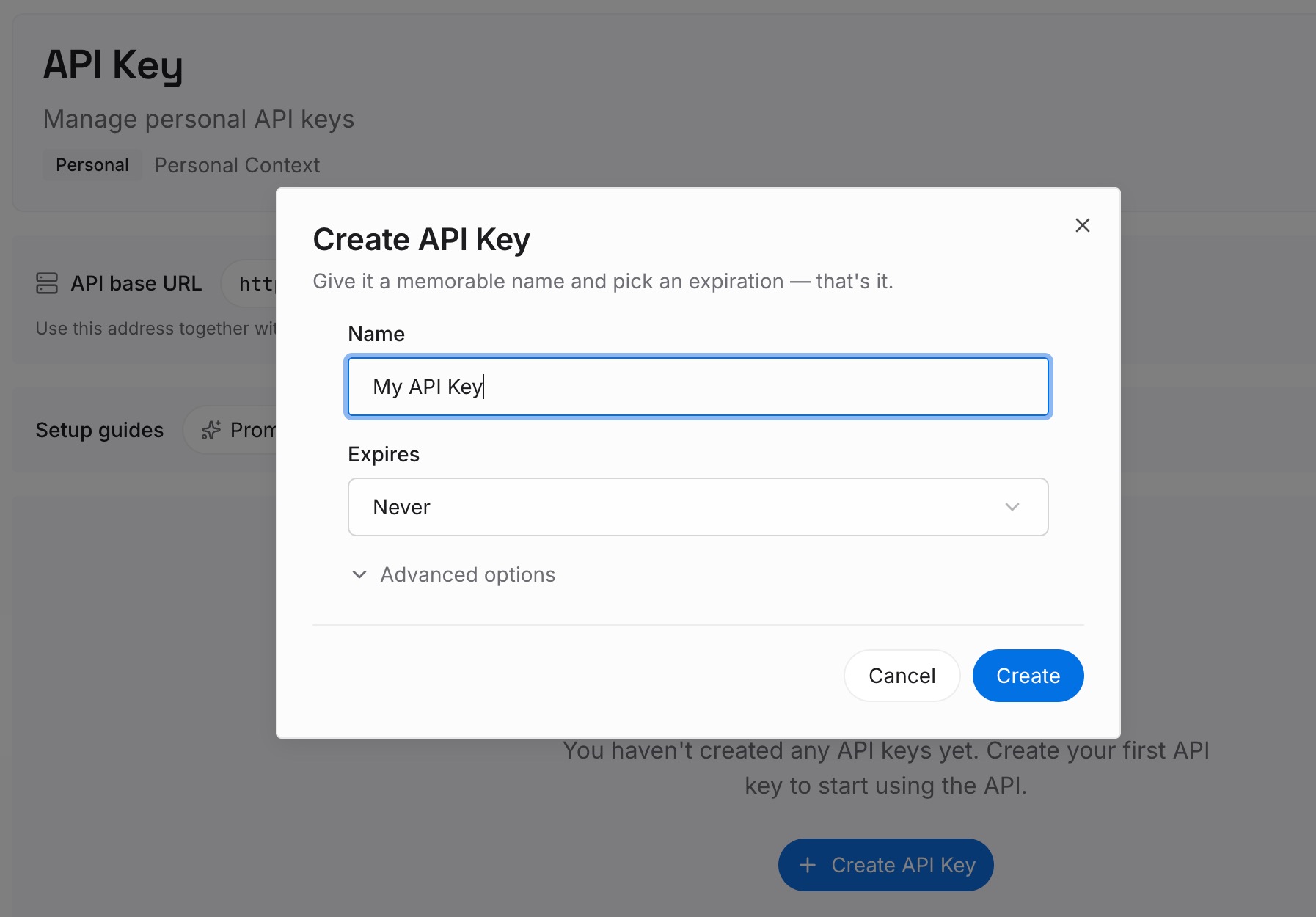
Step 1: Create an API key
Sign in and generate a key from the dashboard. The key belongs to your MemoryLake workspace and is separate from your GitHub account.
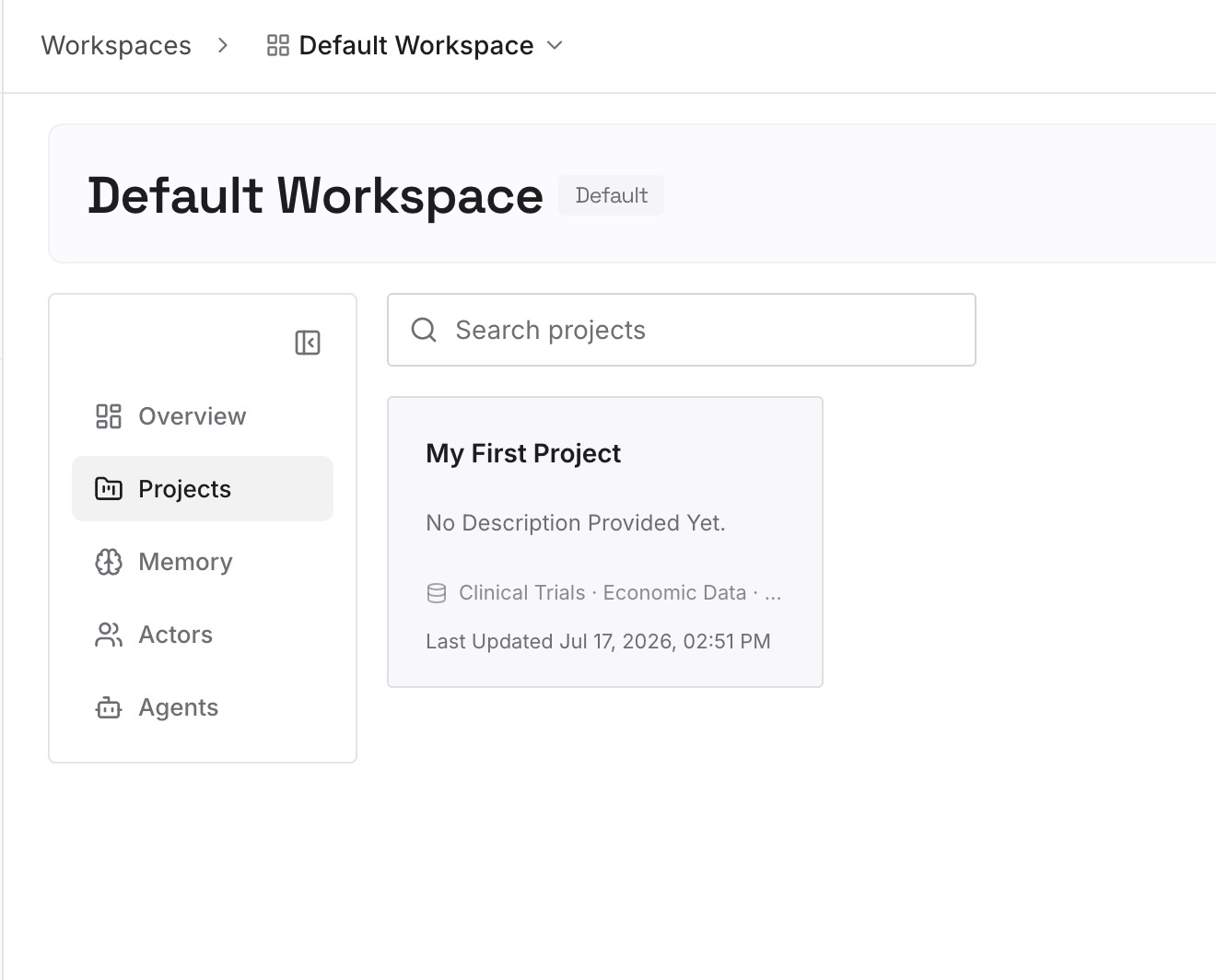
Step 2: Upload your first memories
Start with the decisions from the sessions you just recovered or exported. One decision per entry, with the date, the repository, and the reason.
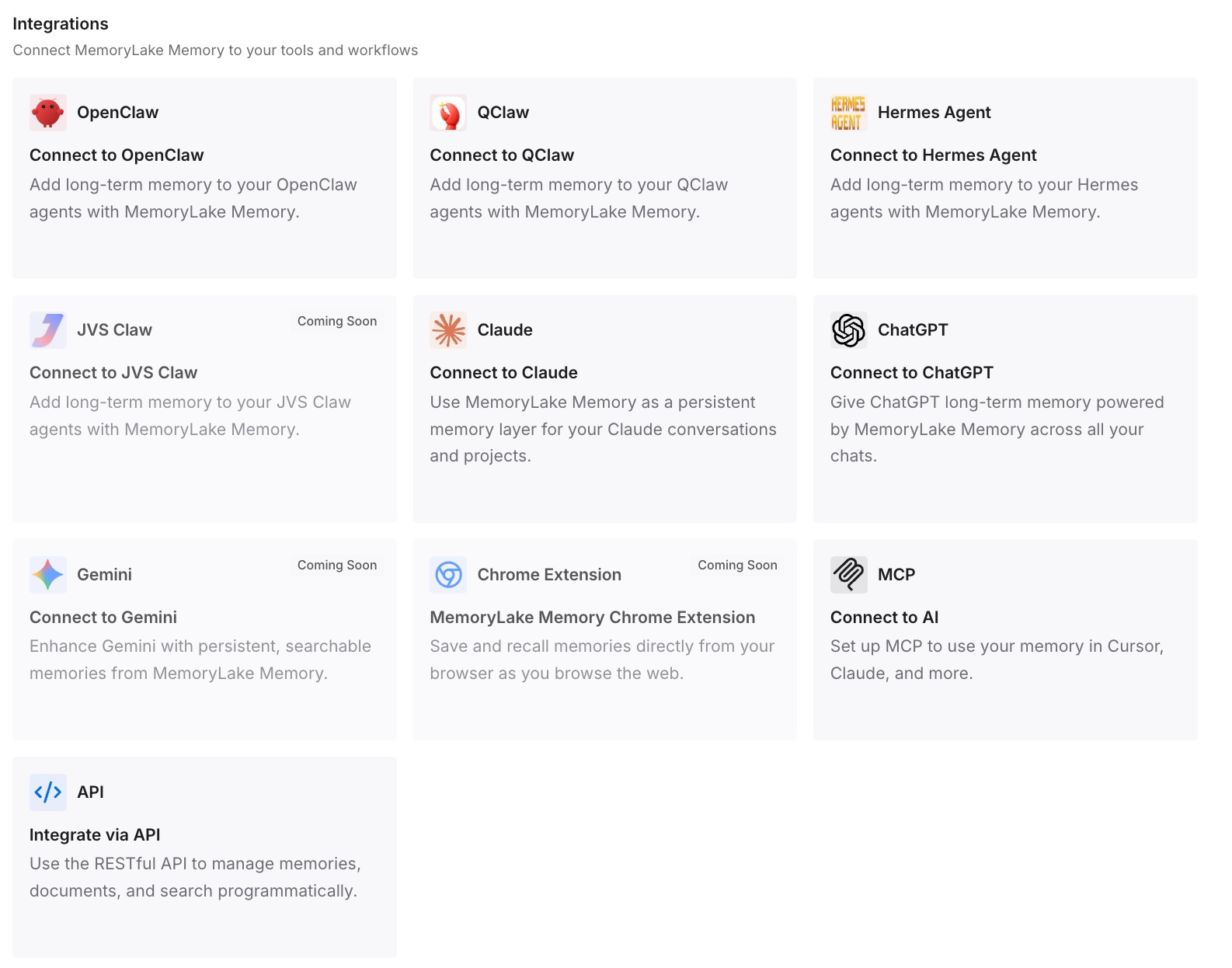
Step 3: Connect your AI & agents
Connect the coding agents you use. The same decisions are then available in a new session, even if the session where you made them was archived, deleted, or never synced.
What this changes in practice
The first difference is a faster search. Knowing the documented causes, you widen the scope, change two filters, check sync, and reindex in a few minutes.
The second is that archiving stops being risky. Once the decisions are written down, tidying the sessions list doesn't hide anything you need.
The third is that a new machine starts with context. Sessions may or may not sync. Decisions you keep separately are available either way.
The fourth is a clearer split between history and memory. Copilot Memory holds what Copilot learns, managed under your license, as our guide to Copilot Memory across licenses explains. Instruction files hold rules, covered in our guide to which Copilot instructions file wins. A Copilot Space can hold reference material, as in keeping a Copilot Space current. Your own decision log holds the reasons behind the code. For more on that last gap, see stopping Copilot from forgetting your codebase.
Best practices for keeping Copilot chat history findable
Use the Agents window to search. It lists sessions from every workspace.
Check the filters first. Active-only is the default.
Archive instead of delete. Archived sessions can be restored.
Turn on the External filter if you use the CLI. Sessions from other apps are hidden by default.
Know your sync status. It decides what you see on another device.
Reindex when sessions go missing. It's the documented step after crashes and restores.
Export what matters, then write down the decisions. A transcript is a backup, not a plan.
Conclusion
Missing Copilot chat history in VS Code usually has a documented explanation. The Chat view lists only the current workspace, both lists show active sessions by default, archived and done sessions are hidden rather than deleted, and sessions from other apps stay hidden until you change the External filter. Optional cleanup can mark merged sessions done and later delete them, sync settings decide what reaches another device, and a damaged index can be rebuilt.
Deleted sessions are the exception. They're gone, locally and, if you chose it, from GitHub.com.
Widen the scope, check the filters, sync, and index, then export the sessions you need and keep their decisions somewhere that doesn't depend on any list.