
The short answer
Attach an external memory layer to your custom MCP server rather than storing state inside the process. Create a MemoryLake Project, generate an MCP Server endpoint, and read or write context by calling the Endpoint URL with the Secret as a Bearer token inside your handlers — memory persists across every session, and any instance of your server reaches the same store.
Why in-process memory in a custom MCP server falls short
The quickest way to add memory to a server you write is a module-level dictionary or a simple SQLite file bundled alongside the code. It works in development, but the model breaks at the first edge case: restart the process and the dictionary empties; deploy two instances and they diverge; hand the project to a teammate and they start from a blank slate with no history to inspect.
The deeper issue is that in-process storage conflates two responsibilities. The server is a request handler — its job is to interpret tool calls and return results. When it also owns state durability, you end up managing schema migrations, backup schedules, and export pipelines inside code that should stay focused on tool logic.
Externalizing memory separates those concerns cleanly. Your handler stays thin: call the memory layer, incorporate the context it returns, execute the tool logic, optionally write back new facts. The memory layer handles persistence, versioning, retrieval, and access control. You get durable history across restarts and instances without adding infrastructure to your server's codebase.
Before you start
You'll need:
- A free MemoryLake account
- A custom MCP server codebase you author and can modify
- The context you want to persist — user preferences, project rules, or reference files (PDF, Word, Excel, PowerPoint, Markdown, or images)
How to add long-term memory to a custom MCP server (step by step)
Step 1: Build a memory Project
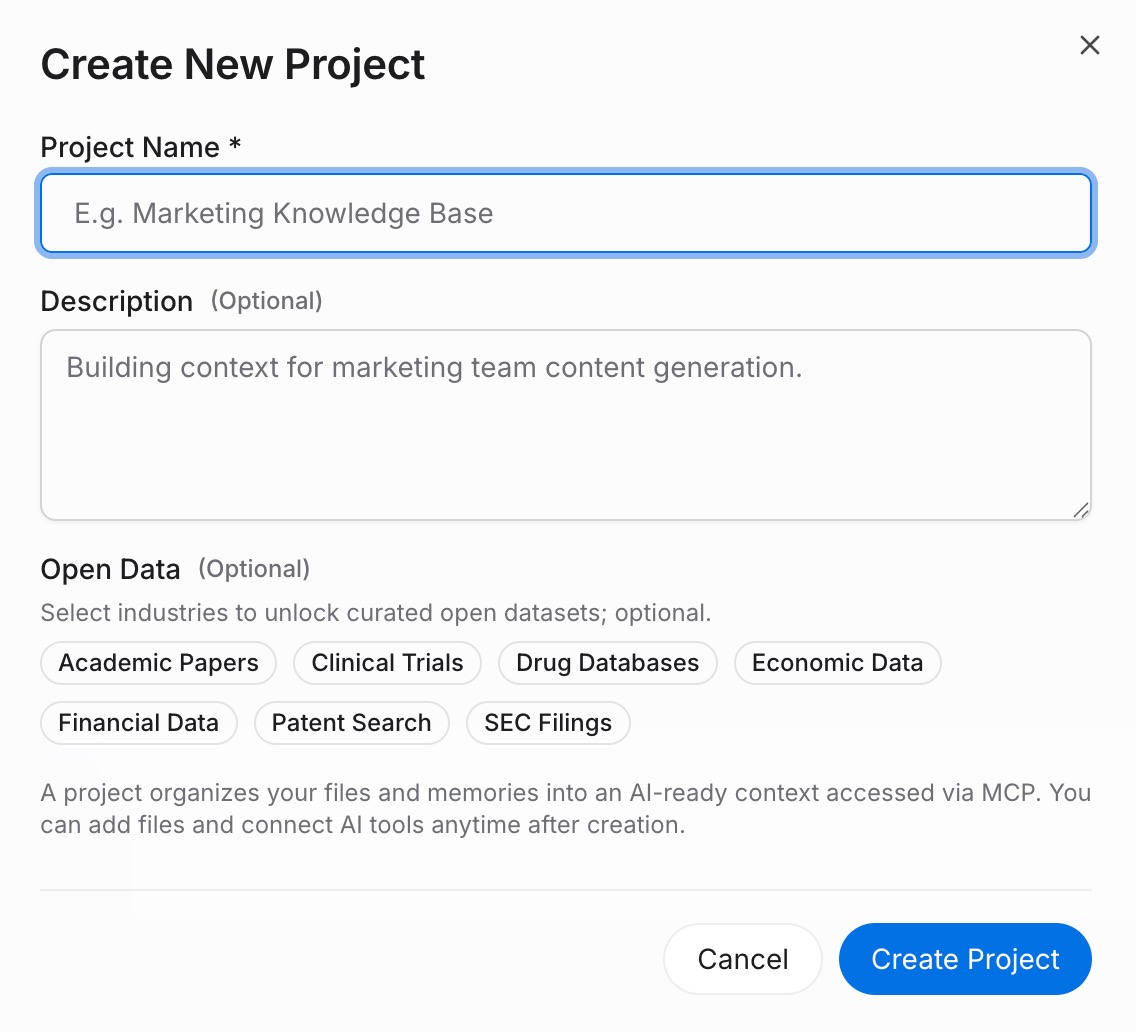
Sign in to MemoryLake and open Project Management. Click Create Project and give it a name that maps to your server's domain — for example, "Custom server memory" or a per-tenant label. Open the Document Drive and use Upload to push any reference files your server's handlers should be able to read. Then open the Documents Tab → Add Documents → Confirm to attach them to the Project. For rules, constraints, or user facts, open the Memories Tab → Add Memory, type the entry, and click Save.
Step 2: Generate an MCP Server endpoint
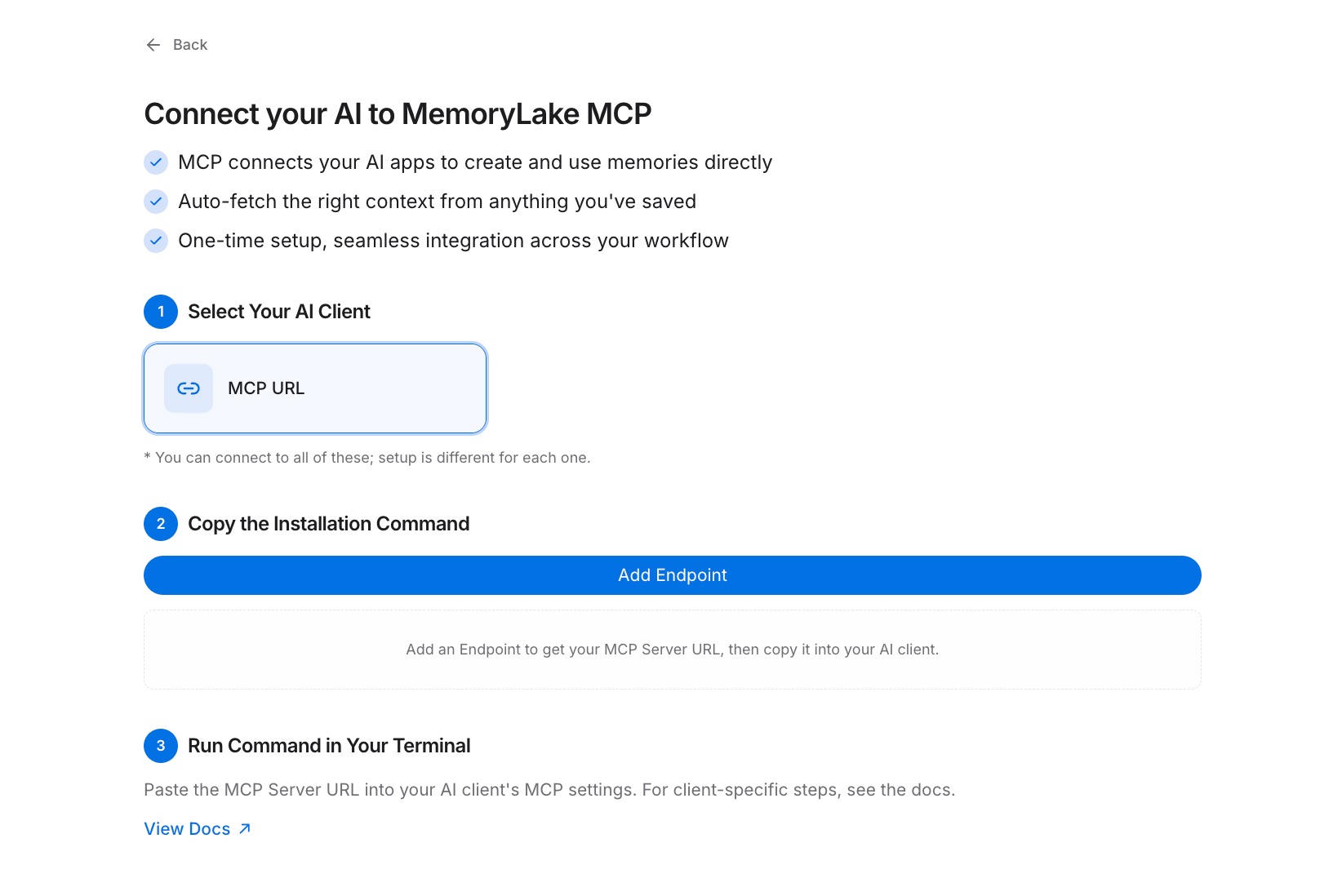
Navigate to the MCP Servers Tab → Add MCP Server. Give it a descriptive label — for example, "Custom MCP backend" — then click Generate. MemoryLake returns three values: a Key ID, a Secret, and an Endpoint URL. Copy the Secret immediately; it is shown only once and cannot be retrieved after you close the panel.
Step 3: Connect your server to MemoryLake over MCP
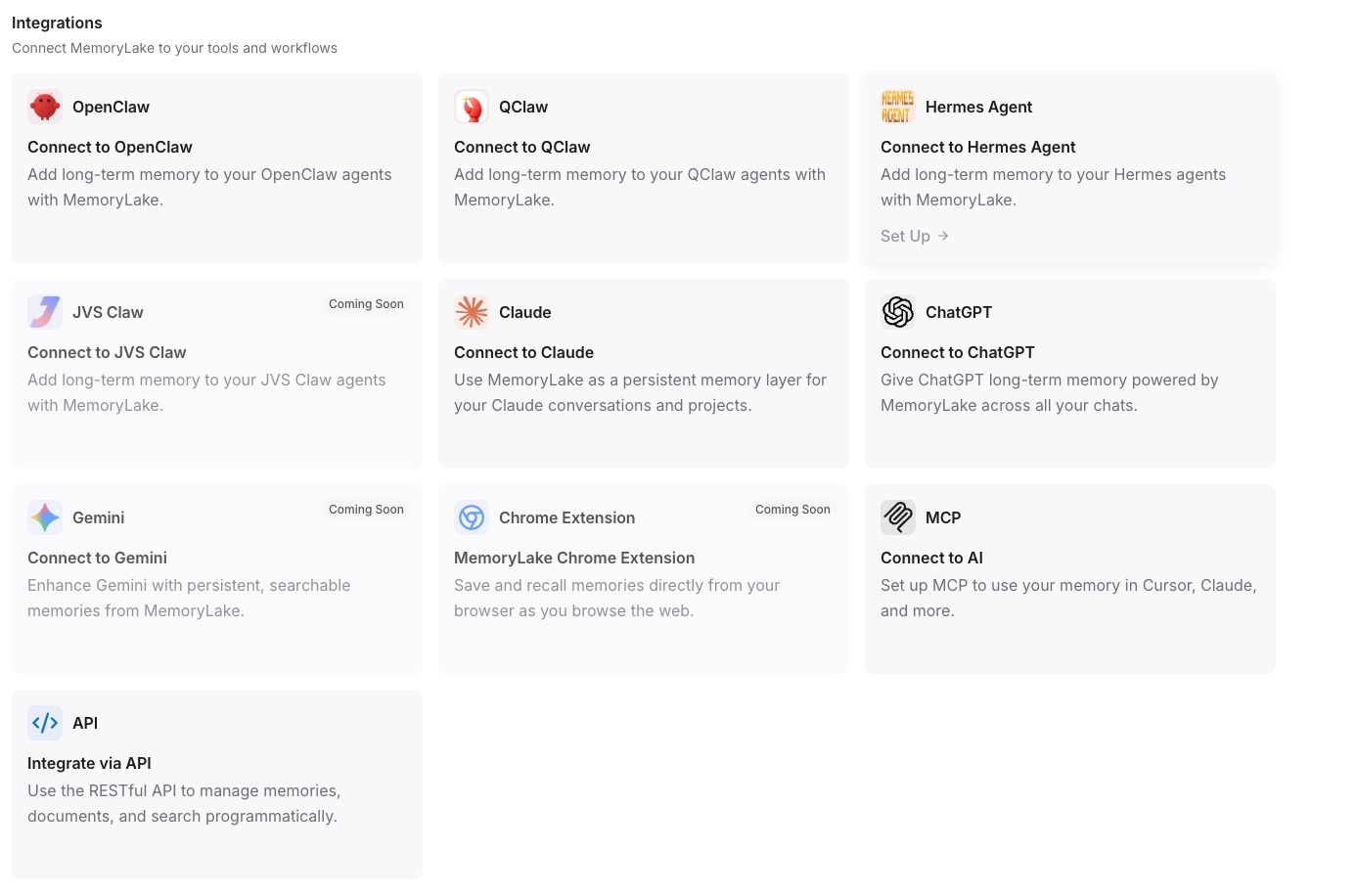
In your custom server's MCP configuration, paste the Endpoint URL and set the Secret as the Bearer token. Your handlers can now call the endpoint to read context at the start of a tool invocation or write new facts at the end. Because authentication is per-request, every instance of your server reaches the same Project, and memory accumulates consistently regardless of how many replicas you run. See the MCP setup guide for the full configuration reference. [Try MemoryLake free]
Custom server built-in storage vs MemoryLake
| Dimension | In-process / bundled storage | MemoryLake |
|---|---|---|
| Persists across sessions | No (clears on restart) | Yes |
| Works across other AIs | No | Yes — ChatGPT, Claude, Gemini, any MCP tool |
| Capacity | Limited by local disk / memory | Unlimited Projects and Documents |
| Version control | No | Yes (Git-style history) |
| Data ownership | Volatile, no export guarantee | You own it (AES-256, export/delete anytime) |
| Benchmark | — | LoCoMo #1 — 94.03% |
Tips & best practices
- Scope one Project per logical tenant or workspace so your server can route reads by passing a Project identifier in the request, keeping different users' memories isolated.
- Store structured rules and facts in Memory entries and larger reference documents in the Document Drive — short entries retrieve faster inside a tool handler's round trip.
- Read context at the start of a handler and write updated facts at the end; this keeps each invocation self-contained and lets any instance serve any request without local state.
- Rotate the Bearer token regularly by revoking the old key and generating a new one in the MCP Servers Tab — update it in your deployment config and redeploy, no draining of sessions required.
Troubleshooting
- Handler returns stale or missing context: verify the Endpoint URL in your server config points to the correct Project and has not been overridden by a local environment variable from a previous build.
- Authentication rejected with 401: the Bearer token must be the Secret value exactly as copied, not the Key ID. Double-check which value is set in your MCP configuration.
- "Secret not found" error on startup: the Secret is shown only once. Open the MCP Servers Tab, revoke the existing key, and click Generate to produce a fresh Key ID, Secret, and Endpoint URL.
Give your custom server a memory it keeps
Your server handles the tool logic; MemoryLake handles everything that needs to last longer than a single request.