
Why the audit is harder than it looks
The summary is a view, not the store
ChatGPT's documentation is explicit that the two aren't the same thing. Asked directly whether the summary includes all memories, the answer is "Not necessarily. ChatGPT's memory is based on a continually updated synthesis of context from your past chats, which may be broader than what can be shown as individual items in a summary." And: "Some details may not appear in the summary, including when ChatGPT determines they are less relevant or not appropriate to show in this view."
So the practical audit move is the one the docs suggest: read the summary, then ask. "What do you know about my job?" is a better probe than scrolling a list.
Deleting the entry is not deleting the fact
This is the finding most people are surprised by, and OpenAI states it in one sentence: "To fully delete something ChatGPT may know about you, you'll need to delete every source where it appears, including past chats, archived chats, files, the memory summary, and disconnect any connected apps that may contain that information."
There's a second-order version. Turning memory off with "Delete and turn off memory" from the three-dot menu "does not delete your past chats," and "If you turn memory back on later, ChatGPT may create new memories from chats that remain in your chat history, including older chats." It regenerates from what's still there.
Claude behaves the same way from the other direction: "When a conversation expires or is deleted, related memory entries generated from it won't be removed, but you can delete individual memories at any time." Delete the chat, keep the memory.
There are two memory systems in both ChatGPT and Claude
If you follow a guide and the menu doesn't match, this is usually why.
ChatGPT has the current synthesis-based memory plus a legacy "saved memories" system you can still switch back to: "Go to Settings > Memory > Saved memories to revert to the legacy saved memories system." The docs are candid about why it changed: "The previous saved memories system often became stale and relied on users to manually manage updates. Memories could also contradict one another, such as 'I'm training for a marathon' and 'I sprained my ankle,' which made personalization less accurate." That contradiction problem is the general case in how AI memory conflicts get detected.
Claude has the same split, with a documented way to tell which you're on: if you see Memory in Settings > Memory you're on the new experience; "If you see Memory in Settings > Capabilities, you're using the legacy memory experience." The new one "reads, writes and updates these entries in real time as you chat rather than on a fixed daily schedule"; the legacy one is a summary "updated every 24 hours."
Some of it isn't in a settings panel at all
Coding agents put their memory on your disk. Claude Code's auto memory is on by default and lives at ~/.claude/projects/<project>/memory/ as "a MEMORY.md index and one topic file per memory." It is plain markdown you can open in an editor, and it's "machine-local," so what you audit on your laptop is not what's on your desktop.
There's also a loading detail that matters for an audit: only "the first 200 lines of MEMORY.md, or the first 25KB, whichever comes first," are loaded at the start of a conversation, and topic files aren't loaded at startup at all — Claude "reads them on demand using its standard file tools." So content can exist in the folder and rarely reach the model.
What people try
Scrolling the memory list once and assuming that's everything. The most common approach, and both vendors document that the panel is a partial view.
Deleting the whole memory to start clean. It comes back from your remaining chat history if you re-enable it.
Assuming a deleted conversation took its memories with it. Both vendors document the opposite.
Searching settings for a "memory" screen in Cursor. There isn't one, by design rather than omission — Cursor's position is that "Large language models don't retain memory between completions. Rules provide persistent, reusable context at the prompt level." What you audit there is rules.
Auditing one assistant and calling it done. The facts about you are in four or five places now, and they disagree.
Fixing a wrong entry by arguing with it in chat. Editing the entry directly is faster and verifiable.
The Fix: A Twenty-Minute Audit, Then One Place You Actually Control
Go tool by tool. Each of these is a real, documented surface.
ChatGPT — Settings > Personalization > Memory. Read the memory summary; the top of it shows when it was last updated. Two ways to correct it: "Type what you want changed into the text box at the bottom of the memory summary and it will update accordingly," or "You can highlight any text in the memory summary to make a specific correction." If it's empty on a newer account, you can force it: Settings > Personalization > Memory Summary → Manage → three-dot menu → "Refresh."
Then use the per-answer view, which is the better tool and almost nobody knows about it. Tap the book icon below a response to see "what sources were used to personalize a response such as custom instructions, past chats, files, and memories," and "Tapping on a memory in sources will open an explanation on why that memory was used." Corrections are available from the ••• menu there. Note the caveat: sources "may not show every factor or source that shaped a response," and they aren't included in chats you share.
For a session that neither reads nor writes memory, use Temporary Chats — they "do not use existing memories or create new memories."
Claude — Settings > Memory. The Memory panel "lists everything Claude remembers about you, grouped by category. Select any entry to see its summary and details. To change an entry, use the 'Tell Claude what to change or remove' box. To remove an entry entirely, select 'Delete.'" You can also just tell Claude in a chat what to remember or change.
Two scope facts to hold while you read it. Each project has "its own separate memory space and dedicated project summary," kept separate from other projects and from non-project chats — so the panel you're looking at isn't the whole picture if you work in projects. And incognito chats contribute nothing: "Claude won't remember your chats, so they won't be saved to Claude's memory or your chat history."
Reset memory exists and is final: it "Permanently deletes all memories including project memories," and "this cannot be undone."
Claude Code — /memory, then /context. /memory lists your CLAUDE.md, CLAUDE.local.md, and other memory locations, and gives you an option to open the auto memory folder. Open it. Claude files its own notes under four types recorded in each file's frontmatter: user (your role and working preferences), feedback (corrections you gave and approaches you confirmed), project (ongoing work and decisions it can't derive from code or git history), and reference (where to find things outside the project). It deliberately skips what it can read off the codebase and "anything your CLAUDE.md files already say" — which means this folder holds the material that is written down nowhere else.
Then run /context and read the list under Memory files to see which instruction files actually loaded this session. The docs use it as the first debugging step for exactly that reason.
Cursor — Customize → Rules. No memory store to audit; instead you're checking what context is being injected. From Customize you "can see all rules and their status." Worth pairing with the diagnostic from Cursor's FAQ if something isn't applying: "Check the rule type. For Apply Intelligently, ensure a description is defined. For Apply to Specific Files, ensure the file pattern matches referenced files."
Perplexity — the Brain tab, plus Personalization. Inside a Project, "You can view the current memory generated in the Brain tab." Separately, Personalization holds profile fields and a custom instructions field. And there's a switch in the project's Settings tab that controls "whether queries in the project are allowed to draw from individual memory" — so a project can be reading much less about you than you assume.
That's the audit. What it leaves you with is five partial views, each in a different vendor's account, none of which you can export as a set or diff next quarter.
That's what MemoryLake is for: the facts you actually want reused, as entries you can read, correct, and delete in one place, rather than five synthesised summaries you can only review. Setup is three steps.
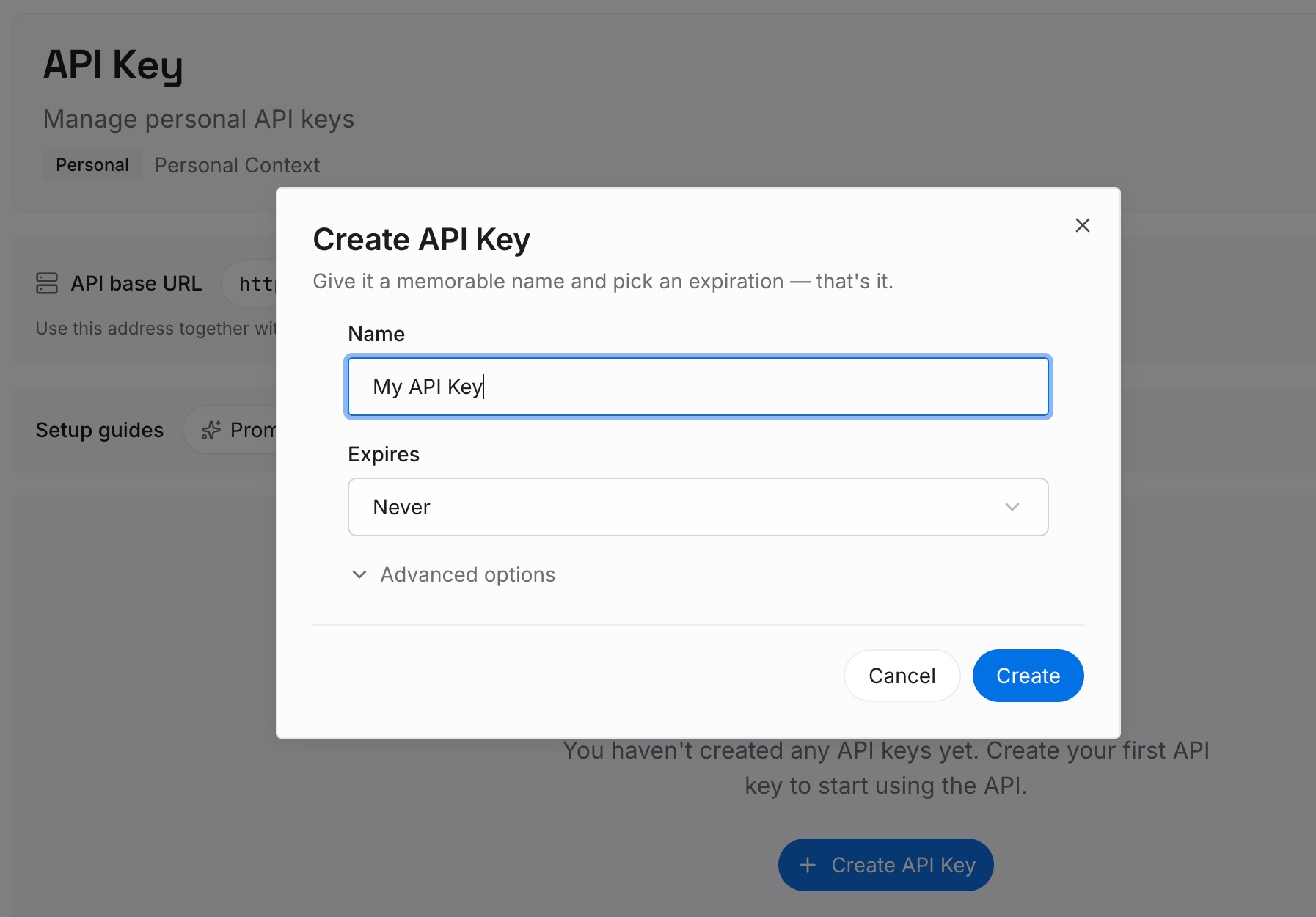
Step 1: Create an API key
Sign in to MemoryLake and create an API key. One credential across the tools you connect.
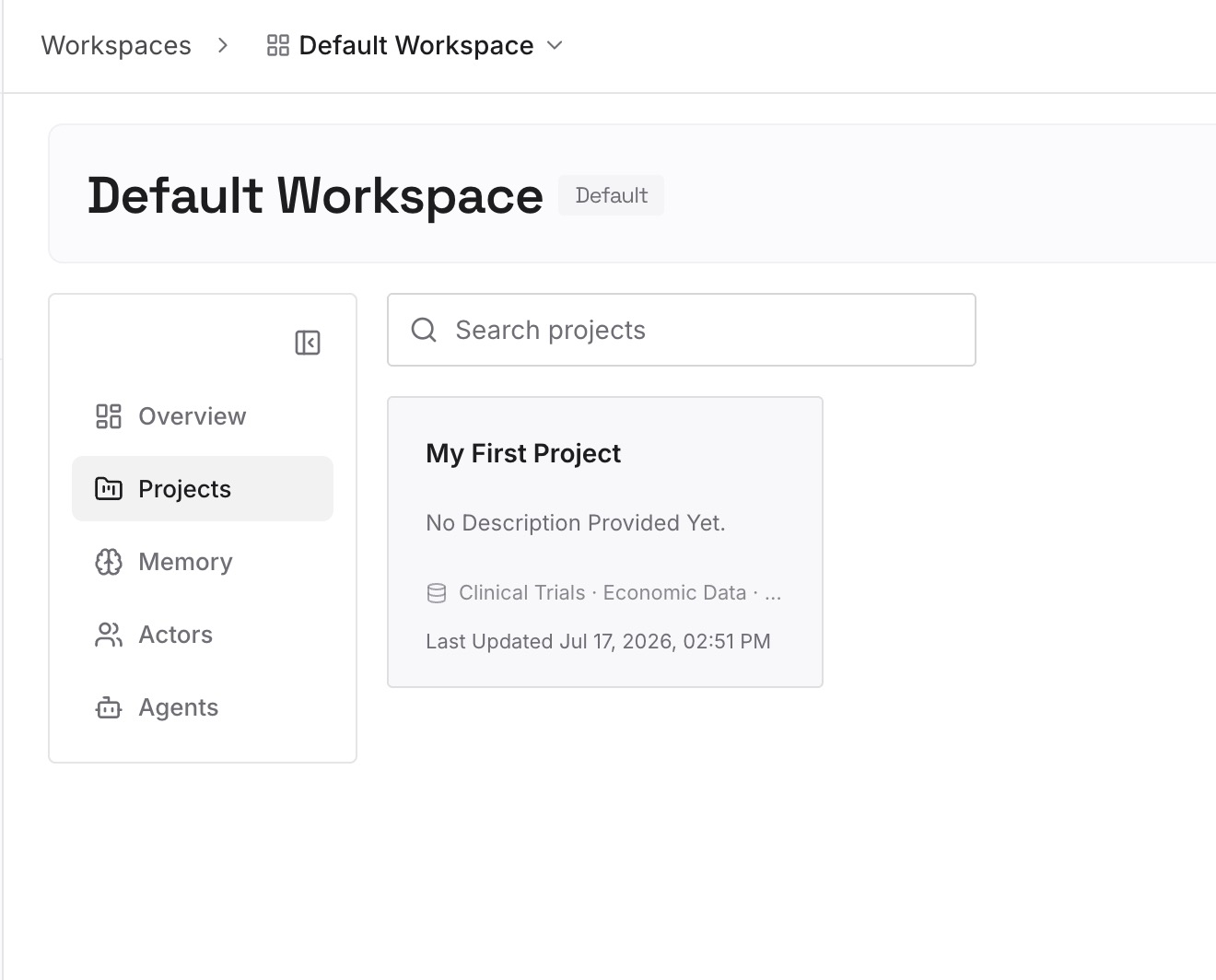
Step 2: Upload your first memories
Short entries, one claim each. The audit you just ran tells you what belongs here — anything you found yourself wishing were stated once, correctly:
The facts you keep having to correct. If you fixed the same entry in two assistants, write it once as a statement instead of correcting two syntheses.
Constraints with the reason attached. "Reports go out Thursday because the finance close lands Wednesday night." A profile field holds the preference; only this survives someone questioning it.
Definitions and vocabulary that are yours. What you call a client, a project, a release. Assistants infer these and infer them differently.
Approaches already ruled out, and why. The category that appears in no memory summary because no chat stated it plainly, and gets re-proposed constantly.
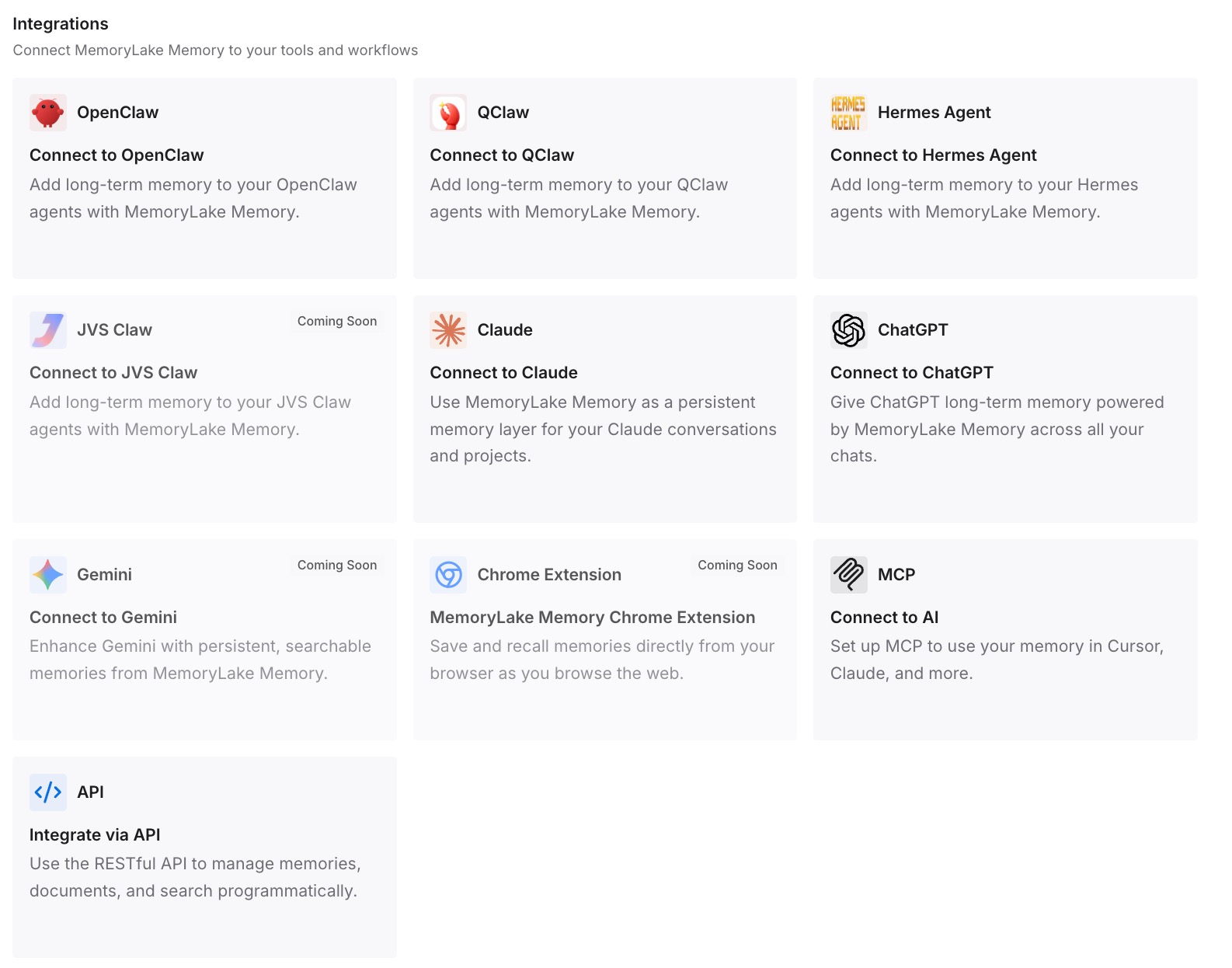
Step 3: Connect your AI & agents
Connect the tools you use. MemoryLake is reachable over MCP and over an API, so MCP-native agents — Claude Code, Codex, and OpenClaw among them — connect by pointing at the MCP server, while other assistants read the same memory through the API. The audit value is the point: every entry is one you wrote, so reviewing it is reading, not interpreting.
Three honest limits. MemoryLake cannot read or delete what ChatGPT, Claude, or Perplexity remember — those are their stores, the panels above are the only way to see and correct them, and the deletion caveats are theirs. It holds only what you or your agents put into it, so Step 2 is manual. And it isn't a privacy tool: if your goal is removing a fact from a vendor's systems, follow their documented deletion path, which for ChatGPT means every source the fact appears in.
What this changes in practice
"What does it know about me?" gets an answer you can act on. Five surfaces, twenty minutes, and most people find at least one entry that's wrong.
Deletion becomes a real plan instead of one click. Entry, chat, archived chat, file, connected app — that's the actual list.
Stale entries stop quietly steering answers. A memory from a project you abandoned in March is still context today.
You stop auditing the same fact five times. Anything you want stated correctly everywhere gets written once.
The reasoning survives the audit. Panels hold conclusions about you; the why is what makes an assistant handle a case you didn't anticipate — the shape covered in what persistent memory actually means.
Best practices for auditing AI memory
Read the panel, then ask in chat. The panel is a documented partial view; a direct question probes the synthesis.
Check which memory experience you're on first. Settings > Memory versus Settings > Capabilities in Claude; the "saved memories" link in ChatGPT.
Use the per-answer sources view in ChatGPT. The book icon below a response tells you which memory shaped that specific answer.
Assume deletion is multi-step. For ChatGPT, every source the fact appears in, plus disconnecting connected apps. When an entry is nearly right, correct the wrong clause instead.
Open the auto memory folder if you use Claude Code. It's on by default, it's machine-local, and it holds what your CLAUDE.md deliberately doesn't.
Remember project boundaries. Claude project memory and Perplexity Brain are per project; the panel you're reading isn't everything.
Use incognito or temporary chats for anything you don't want retained. Both vendors document that those sessions neither read nor write memory.
Keep the facts you care about somewhere you author. A store you wrote is auditable by reading it — the difference behind why RAG isn't memory.
Conclusion
Auditing AI memory is now genuinely possible and genuinely partial. ChatGPT gives you a memory summary with a last-updated stamp, inline correction by highlighting text, and a per-answer sources view — and states that the summary "will not include everything that ChatGPT remembers." Claude lists every entry grouped by category with edit and delete on each one, and documents that deleting a conversation doesn't remove the memories it produced. Claude Code writes plain markdown to ~/.claude/projects/<project>/memory/ that you can open in an editor, machine-local by design. Cursor has rules rather than memories, and shows you their status in Customize. Perplexity shows generated project memory in the Brain tab, with a separate switch for whether a project may draw on your individual memory at all.
Two things are worth internalising. The panel is a view of a synthesis, so asking in chat is a better probe than scrolling. And deleting an entry is not deleting a fact — OpenAI's own instruction is to delete every source it appears in, including archived chats and files, and disconnect connected apps.
Do the audit anyway; a wrong entry costs you every answer until you fix it. Then take the facts you actually want reused and write them once, somewhere reviewing them means reading what you wrote rather than interpreting what a model inferred.