
Two features, two directions
It helps to separate them before getting into details.
Texting your dot lets you reach your dot through iMessage on an iPhone or RCS on Android. It's a one-to-one thread between you and your dot. OpenAI's release note says it directly: "Your dot can only text you, and you're the only one who can text your dot. This doesn't give your dot or OpenAI access to your other text conversations."
The Apple Messages plugin gives ChatGPT access to your Messages app on a Mac, inside Codex and ChatGPT Work. OpenAI's documentation describes what it does: "In Codex and ChatGPT Work, it can read and search iMessage, SMS, and RCS chats on your Mac and send messages on your behalf through the Messages app."
So the first answer is yes, but only through the plugin, only on a Mac, and only after you install it and grant permission. Texting your dot doesn't open your other conversations.
Texting your dot
A dot is an always-on agent in ChatGPT with its own cloud computer, working across the apps you connect. If you haven't set one up, our guide to what a dot keeps in its own memory covers the basics. Texting adds one more way to reach it.
Who can use it
Texting is in beta. The release note says "Texting your dot is starting to roll out in beta to Pro users in the U.S." OpenAI's help center adds a caution worth keeping in mind: "Where available, texting uses a third-party provider and is offered as a limited beta. Exercise caution when sharing sensitive information through text messages."
That provider is named in the release note: "We use Linq, a third-party messaging provider, to send and receive texts for your dot."
How to set it up
OpenAI's documentation lists three steps. Open your dot's profile in the ChatGPT mobile app, desktop app, or a desktop browser and select Texting. Enter your phone number and verify it. Save your dot's contact card when you receive it, then send your dot a message.
Two details matter if a first text doesn't go through. The documentation says "For iMessage, make sure you're sending from the phone number you verified. On Android, enable RCS in your messaging app."
What you can send, and what it can't do
You can send text, photos, and voice messages. If your dot needs your approval for something, it sends a link so you can review the request in ChatGPT.
The channel has limits. The documentation says "Group chats, phone calls, and FaceTime aren't currently supported through texting. You can call your dot in ChatGPT." Texting is one-to-one, and you're the only person who can start work with it.
To stop texts, the help center says to "Reply STOP to stop outgoing text messages from your dot."
Your dot can text you first
This is the part that changes how a dot feels. The release note says "Your dot will also text you proactively with updates that may be relevant for you." You can steer where those updates go. The documentation explains that your dot uses context from your conversations to choose where to reach you, and that you can ask it to use a particular channel, such as texting you when something needs your attention and keeping routine updates in ChatGPT.
What texting shares with your dot
The release note answers the memory question in one sentence: "Texting your dot shares the same memory and plugins as your dot in the ChatGPT app, so context carries over."
In other words, a text thread isn't a separate assistant. OpenAI's channel documentation says "Changing channels doesn't reset its memory." The tasks and memory documentation adds that "Information you share through one contact method can inform its work and replies through another."
The visible conversations stay apart, though. OpenAI's overview of dots says "Messages stay in their respective channels, while your dot can use relevant context across them." Your dot can use what you said in a text, but that doesn't make the text thread a copy of your ChatGPT conversation.
Three more points from OpenAI's documentation are worth knowing before you text a dot anything personal:
- Your dot keeps its own notes. It "starts with relevant context from ChatGPT memory" and keeps notes about preferences, decisions, and ongoing work. OpenAI says these notes are separate from ChatGPT's saved memory.
- It can pass things back to ChatGPT. The dots privacy FAQ says "conversations with your dot can contribute to memory in ChatGPT."
- Its notes can't be edited one by one yet. The same FAQ says "You currently cannot view, delete, or directly modify individual dot memories, including specific details that enter the dot's context from plugins." To remove what your dot has learned, the FAQ says "You can delete your dot's context by deleting your dot."
That last point is the practical one. A detail you text your dot can become part of its context, and the documented way to clear that context is deleting the dot. Our guide to the four personal agents' memory compares how this works across dots and the other agents.
The Apple Messages plugin
The plugin answers the other half of the question: whether ChatGPT can work with conversations you have with other people.
Where it works
OpenAI's documentation is specific. "The Apple Messages plugin is available on all plans in the ChatGPT desktop app for macOS." It works in Codex and ChatGPT Work, and "it doesn't work in regular ChatGPT chats." For this release, OpenAI says the plugin is included only in the Apple Silicon build of the desktop app.
It also stays on the computer. The documentation says "Apple Messages runs on your Mac. It isn't directly available in ChatGPT on the web or mobile, Codex CLI, or the IDE extension." And it doesn't turn Messages into a way to reach ChatGPT. OpenAI's plugin page says "It doesn't let you interact with ChatGPT remotely through Messages".
If you're not sure what Work is or how it differs from Codex, our guide to ChatGPT Work mode explains which memory and history the two share.
How access is granted
The setup is deliberate. You open Plugins, find the Apple Messages plugin, and install it. Then you start a new Codex or ChatGPT Work chat and ask it to find, summarize, draft, or send a message. OpenAI's steps include "Grant the requested macOS permissions before ChatGPT reads Messages."
In a workspace, administrators can turn the plugin off through the existing Computer Use control.
Sending as you
The plugin can send messages, and the default is cautious. "By default, ChatGPT sends messages only after you approve the message and its recipients." You can choose Allow once for a single send, or Always allow sending to this chat.
OpenAI is direct about the second option: "Persistent approval removes your final chance to review a message before ChatGPT sends it as you. Use it only when you accept that risk." It also recommends keeping per-send approval for chats that may contain untrusted or misleading instructions.
To go back to per-send approval, open Settings > Computer use, select Manage next to Messages, and remove the chat from the list under Always allowed to send.
Where message content can end up
This is where the two features need the most care, because neither one stays in a single box.
Texts to your dot join your dot's context. That context can draw on ChatGPT memory, add to its own notes, and contribute back to ChatGPT memory, as described above.
Messages read through the plugin show up in the Codex or Work chat you used, as summaries, drafts, or answers. OpenAI's plugin page doesn't say whether content read from Messages can reach memory. Its connected apps article describes the general rule for apps: "If you have Memory enabled in your settings, ChatGPT may remember relevant information accessed from the app, unless that app or connected source restricts Memory from saving that information." Codex on your computer uses a separate local memory store, and its settings include Allow memories from tool-assisted chats and a per-chat /memories control.
The safe reading is that a chat where you summarized someone's messages is a chat with that content in it. Treat it the way you'd treat any chat with private details: decide before you start whether it should feed memory, and check afterward. Our guide to what ChatGPT may remember from iCloud Mail and Calendar walks through the same question for your inbox.
What people try first
Assuming texting your dot lets ChatGPT see their messages. It doesn't. OpenAI says texting doesn't give your dot or OpenAI access to your other text conversations.
Looking for the Messages plugin on an iPhone. It runs only in the ChatGPT desktop app for macOS, on Apple Silicon.
Trying the plugin in a regular chat. It works in Codex and ChatGPT Work, not regular ChatGPT chats.
Turning on Always allow sending to save time. That removes the review step before ChatGPT sends a message as you.
Expecting to delete one thing a dot learned from a text. OpenAI says individual dot memories can't be viewed, deleted, or modified yet. Deleting the dot deletes its context.
The Fix: Choose the right feature, keep each one in its lane, and check what stayed
Step 1: Decide what you actually want
If you want to reach your dot while you're away from ChatGPT, texting is the feature, and it doesn't touch your other conversations. If you want help with conversations you're having with other people, the Messages plugin is the feature, and it needs a Mac, a Codex or Work chat, and macOS permissions. Don't install the plugin just because you set up texting, or the other way around.
Step 2: Set the boundaries before you start
For texting, decide what you'll never send a dot by text, given that OpenAI recommends caution with sensitive information and that a dot's context is cleared by deleting the dot. Tell your dot which updates should come by text and which should stay in ChatGPT.
For the plugin, keep per-send approval on. Before you ask it to read a sensitive thread, decide whether that chat should feed memory, and use the controls your surface offers, such as /memories in Codex. When you're done, delete the chat if you don't want to keep what it read.
Step 3: Check what stayed
After a sensitive exchange, look at what ChatGPT kept. Review your saved memories and the Sources shown under personalized answers. If a detail shows up where you don't want it, our guide to making ChatGPT forget something covers each place it can live and how to remove it. For the difference between memory settings and data controls, our guide to what turning off memory stops is the reference.
Setting this up in MemoryLake
Texting and the Messages plugin both blur a line: personal context and working context start to move through the same assistant. The working part, such as decisions, plans, and constraints for a project, is what you want available everywhere. The personal part is what you want to control.
MemoryLake is a memory layer for keeping that working context in one list you maintain, available to ChatGPT and the other assistants you connect, such as Claude Code and Codex.
You write the entries yourself, in your own words. Nothing is read out of, written to, or deleted from your texts, your Messages app, your dot, your ChatGPT memory, or any vendor's store. Texting and the plugin keep working the way OpenAI describes them.
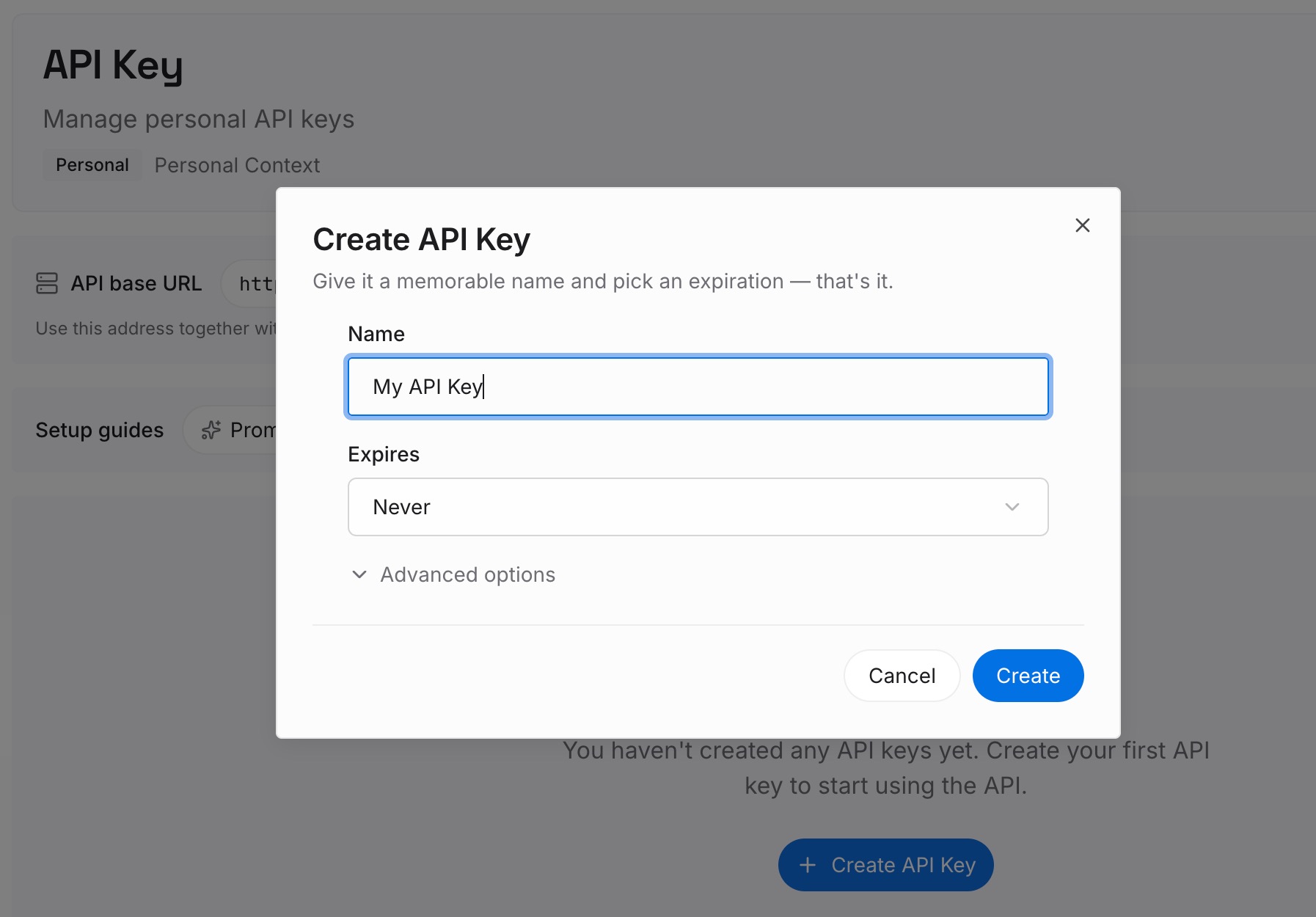
Step 1: Create an API key
Sign in and generate a key from the dashboard. The key belongs to your MemoryLake workspace and is separate from your ChatGPT account and your phone number.
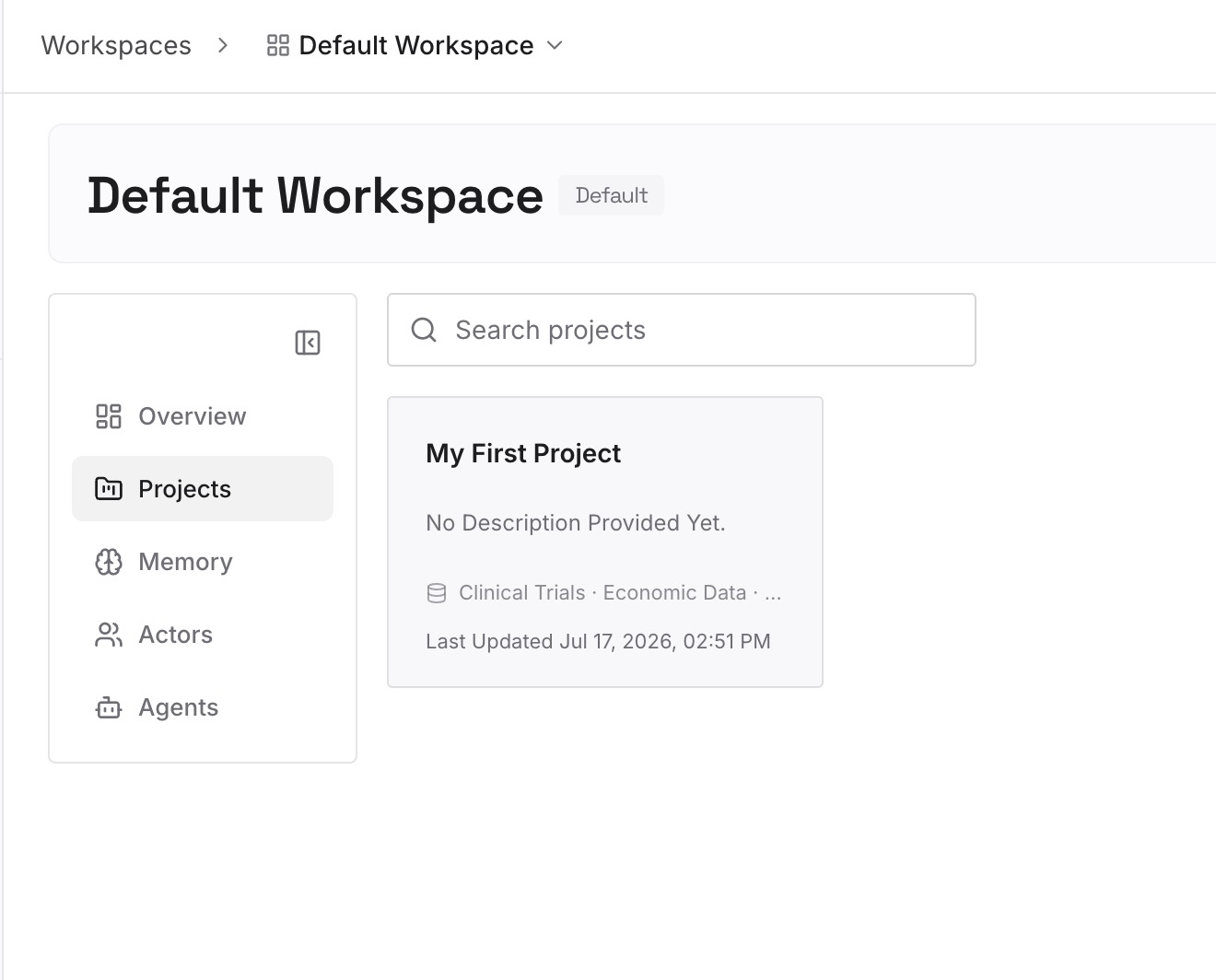
Step 2: Upload your first memories
Start with the working context you'd otherwise text to an assistant to bring it up to speed: the project, the decision, the deadline. One point per entry, dated. Leave other people's messages out.
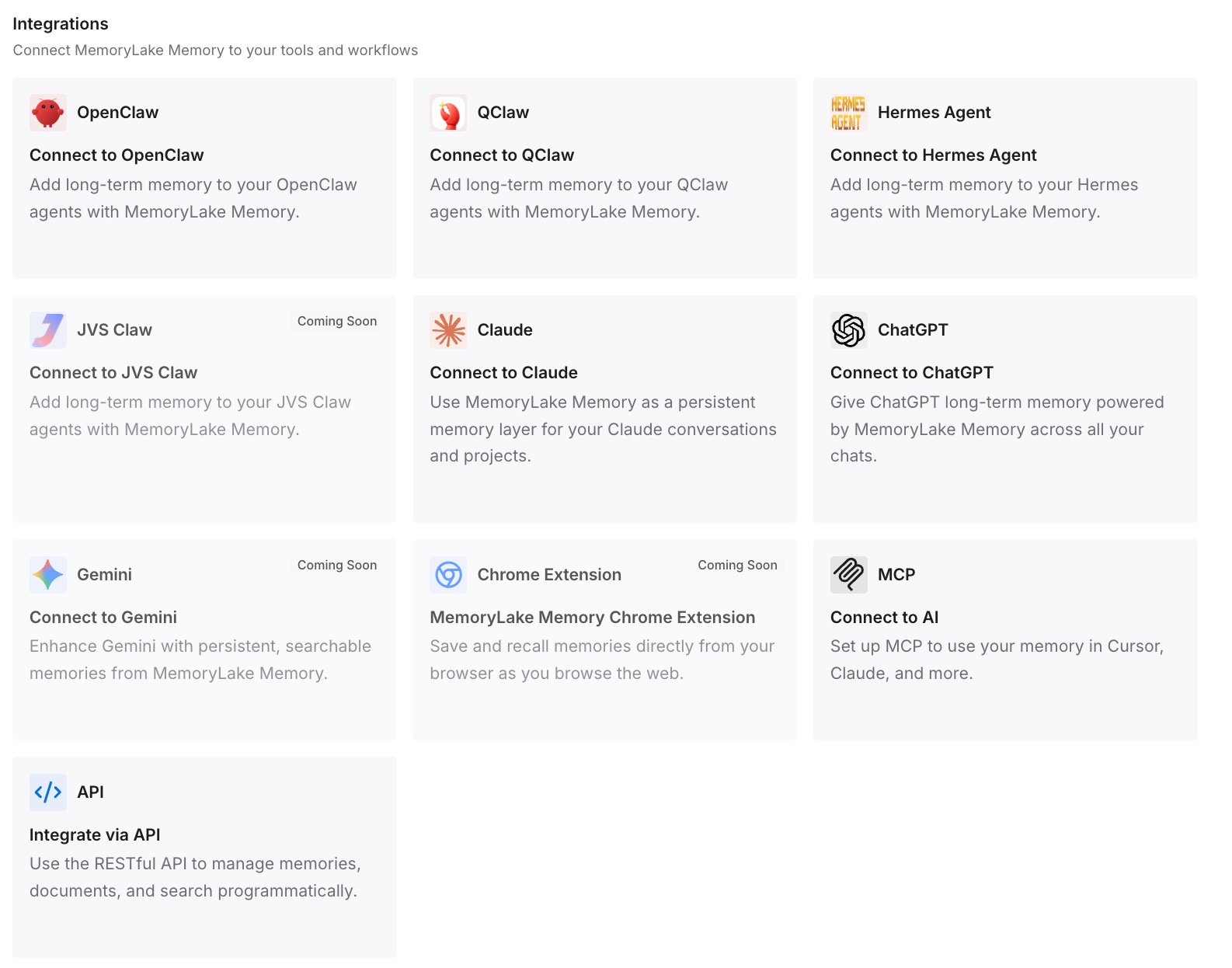
Step 3: Connect your AI & agents
Connect ChatGPT and the other assistants you use. The context you chose to write down reaches them on purpose, without routing it through a text thread.
What this changes in practice
The first difference is that the question has an answer. Texting your dot doesn't read your messages. The Messages plugin can, on a Mac, after you grant access.
The second is that sending stays in your hands. Per-send approval means ChatGPT doesn't send a message as you without your review.
The third is that you know where things land. Texts join your dot's context, plugin reads join the chat, and both can reach memory unless you check.
Best practices for ChatGPT and your messages
Treat texting as a channel to your dot. It's one-to-one and doesn't open your other conversations.
Be careful with sensitive texts. OpenAI recommends caution, and a dot's context is cleared by deleting the dot.
Choose which updates come by text. Ask your dot to text only what needs your attention.
Install the Messages plugin only if you need it. It needs a Mac and runs in Codex and Work.
Keep per-send approval on. Persistent approval removes the last review.
Decide on memory before a sensitive chat. Then check saved memories and Sources afterward.
Delete chats you don't want to keep. A chat that summarized messages contains them.
Conclusion
ChatGPT now touches your messages in two ways. Texting your dot, in beta for Pro users in the U.S., gives you an iMessage or RCS thread with your dot that shares its memory and plugins, and OpenAI says it doesn't give your dot or OpenAI access to your other conversations. The Apple Messages plugin, in Codex and ChatGPT Work on Apple Silicon Macs, can read, search, and send messages in the Messages app after you grant permission, with per-send approval on by default.
Use texting to reach your dot, use the plugin only when you want help with real conversations, keep approvals on, and check what ended up in memory afterward.