
What the two notices mean
The two names describe the same situation. The Free tier FAQ says both notices refer to how much information ChatGPT can use in the current conversation. A chat has a limit on how much it can hold, and when the conversation reaches it, you can't add more to that chat.
Three details from OpenAI's articles shape everything else:
- It's per conversation. The FAQ says: "The limit applies to this conversation."
- It's described for the Free plan. Both articles frame the notices around the Free plan, and the upgrade option is one of the ways forward.
- It can appear late. The dedicated article says: "Sometimes the notice appears as soon as you reopen a chat, even if you didn't see a warning earlier."
That last point explains a lot of confused searches. You didn't do anything new. The chat was already near its limit, and reopening it is when you find out.
Why memory in the name is misleading
ChatGPT has a feature called Memory, and saved memories are details ChatGPT keeps across conversations. That store has its own full notice and its own fix. Our guide to what to do when ChatGPT memory is full covers that one.
Chat memory full is not that. OpenAI's dedicated article is direct about it: "Deleting saved memories won't make more room in the chat." The Free tier FAQ goes further: "You don't need to turn off Memory, delete saved memories, or clear other chats."
OpenAI's Memory article explains why the two don't interact. It says: "Saved memories are stored separately from chat history." Saved memories belong to your account. The space that fills up here belongs to one conversation.
So if you've already deleted memories trying to fix this notice, those deletions didn't help with the chat. If they were memories you wanted, you'll need to add them back.
Why a chat fills up sooner than you'd expect
There's no message counter you can watch. The Free tier FAQ explains why: "Your messages and ChatGPT's replies both take up space." It adds: "A few long exchanges can take up more room than many short ones, so there's no fixed number of messages per chat."
A few patterns make a chat fill faster:
- Long pastes. Pasting a full document, a long transcript, or a large block of data takes up room every time you do it.
- Long replies. Asking for full rewrites of a long draft can add a full copy with each reply.
- Repeated revisions in one thread. Ten rounds of edits on the same essay can hold ten versions of it.
None of this is a mistake on your part. It's how a long working session uses space, which is why the chats that fill up tend to be the long, productive ones.
Your three ways forward
When the notice appears, OpenAI describes three options. Two of them are conditional in OpenAI's wording, so check which ones your notice actually shows.
Start a new chat. The dedicated article says: "You can start a new chat right away for free." Only that one conversation is full.
Start a new chat with a summary. If the notice offers it, you can start a new chat that begins with a summary of the old one. OpenAI says you "can use it to pick up where you left off", and adds a caution right away: "A summary may leave out details."
Upgrade to continue in the same chat. The FAQ says: "If the notice offers an upgrade, you can choose it to continue in the same chat."
One option isn't on the list: waiting. The FAQ says: "The full-chat notice doesn't give a reset time for the original conversation." This isn't a usage limit that refills. If you want to keep going without upgrading, you'll keep going in a new chat.
What a summary carries, and what it can drop
The summary option is the closest thing to continuing the same conversation, so it's worth knowing its limits. The Free tier FAQ says a summary "can bring over some context", and then names what it can miss: "It may leave out an earlier instruction or the exact wording of something you wrote."
Those two misses matter in the long chats that fill up:
- Early instructions. The tone you asked for, a format rule, a constraint you set in the first few messages.
- Exact wording. The paragraph you're editing, the phrasing you approved, the numbers you settled on.
OpenAI's suggestion for drafts is practical: "If you're working on a draft, paste the passage you want to revise and tell ChatGPT where you'd like to pick up." In other words, don't rely on the summary for the text itself. Bring the text.
Your original chat is still there
A full chat isn't a deleted chat. The FAQ says: "You can still read earlier messages even when you can't send another one in that chat."
That makes the old chat a reference you can copy from. The dedicated article suggests reopening it from your history and copying over "anything you still need, such as the paragraph you're editing". If you don't see it in the sidebar, the FAQ suggests searching your chat history for a phrase you remember.
If the chat opens blank or won't load, OpenAI's steps are to refresh the page or restart the app and reopen it from your history. If that fails, open a private browser window, sign in to the same account, and try opening the chat there. Work through those steps before you start rebuilding anything from memory.
When a new chat says it's full too
Sometimes the notice follows you. OpenAI covers two versions of this.
After continuing with a summary. If you continued with a summary and hit the limit again, the advice is to start a separate chat from the sidebar and send only what you need. The FAQ's example is editing a document: paste the paragraph you want to revise and add earlier instructions as you need them.
After one short message in a fresh chat. OpenAI's steps for this case are different. It suggests checking OpenAI Status for an incident affecting conversations. If there isn't one, sign in through a private browser window and try the same short message in a new chat.
If it keeps happening, the dedicated article says to contact Support, "even if it only happens in the app". Include your app or browser version, the time and time zone, about how many messages you sent, and what happened when you tried the browser. If you have a link to a test chat you're comfortable sharing, OpenAI says to include it, and notes that you can keep your original conversation private.
What Memory can and can't bring into the new chat
Memory doesn't help with the full chat, but it can matter for the next one. OpenAI's Memory article says that when Memory is enabled, ChatGPT "can remember relevant preferences and details from your chats and other available sources." Depending on your plan and region, those sources can include past chats, saved memories, and custom instructions.
If your settings include Reference chat history, the article says turning it on "lets ChatGPT use relevant information from past conversations to personalize future responses." So a new chat isn't necessarily starting from nothing. Some of what you discussed in the full chat may surface later.
Two limits keep this from being a substitute for carrying your work over:
- It's selective. The article says: "Memory does not retain every detail from every conversation." ChatGPT decides what's relevant to each response.
- It's personalization, not a transcript. The FAQ answer to whether ChatGPT searches your history for every response is no: "ChatGPT looks for relevant context when it is likely to improve a response."
So Memory may bring back a preference or a fact about you. It's not built to bring back the paragraph you were editing, the fifth revision of your outline, or a rule you set in the first message. Those are exactly the things the summary can drop too, which is why copying them from the original chat is the reliable step.
Memory features and controls vary by plan, region, and platform. To see what you have, open Settings, select Personalization, then Memory.
Keep lasting instructions out of the chat
A chat that fills up loses its working space, not its history. The real cost is that the context you built in it, the instructions, decisions, and drafts, has to be carried into the next chat by hand.
Projects reduce that cost. OpenAI's projects article says: "Projects keep related chats, files, and instructions together." Project instructions apply within that project, and if you move an existing chat into a project, "the chat inherits the project's instructions and file context."
So for work you expect to run long, put the lasting parts where a new chat can reach them:
- Instructions that should apply every time go into the project's instructions.
- Reference material goes into the project as files.
- The current draft lives in a file or document, and you paste the section you're working on.
Our guide to what ChatGPT project sources are explains how sources reach project chats. For why long chats get less reliable even before they fill up, see our guide to why ChatGPT forgets earlier in the conversation.
What people try first
Deleting saved memories. OpenAI says this won't make more room in the chat.
Turning off Memory. Not needed. The limit applies to the conversation.
Clearing other chats. Also not needed, for the same reason.
Sending the same message again in the full chat. You can read earlier messages there, but you can't send another one.
Waiting for the chat to reset. The notice doesn't give a reset time for the original conversation.
Continuing with a summary and trusting it fully. It may leave out an earlier instruction or the exact wording you wrote.
The Fix: Carry the work into a new chat
Step 1: Copy what the summary can't carry
Open the full chat from your history. Copy the passage you're working on, any instructions from early in the conversation, and the decisions you'd hate to lose. You can still read every earlier message.
Step 2: Start the new chat with a short restart note
Start a new chat, with or without the summary. Paste a short note: what you're working on, the instructions that apply, and where you want to pick up. Then paste the passage itself rather than describing it.
Step 3: Move lasting context into a project
If this work will keep going, create a project. Put the instructions in the project's instructions and the reference material in its files, so chats in that project can use them.
Setting this up in MemoryLake
A full chat shows where your context was living: inside one conversation. The instructions, decisions, and preferences you built up were only as reachable as that chat. When it filled, you carried them by hand. Our guide to branching a ChatGPT chat covers a related case, where a new chat reads less than the original.
MemoryLake is a memory layer for keeping those instructions and decisions in one place you maintain, available to the assistants you connect, such as ChatGPT, Claude Code, and Codex.
You write the entries yourself, in your own words. Nothing is read out of, written to, or deleted from your ChatGPT chats, your saved memories, your projects, your chat history, or any vendor's store. The full-chat notice, summaries, and upgrades work the way OpenAI describes them.
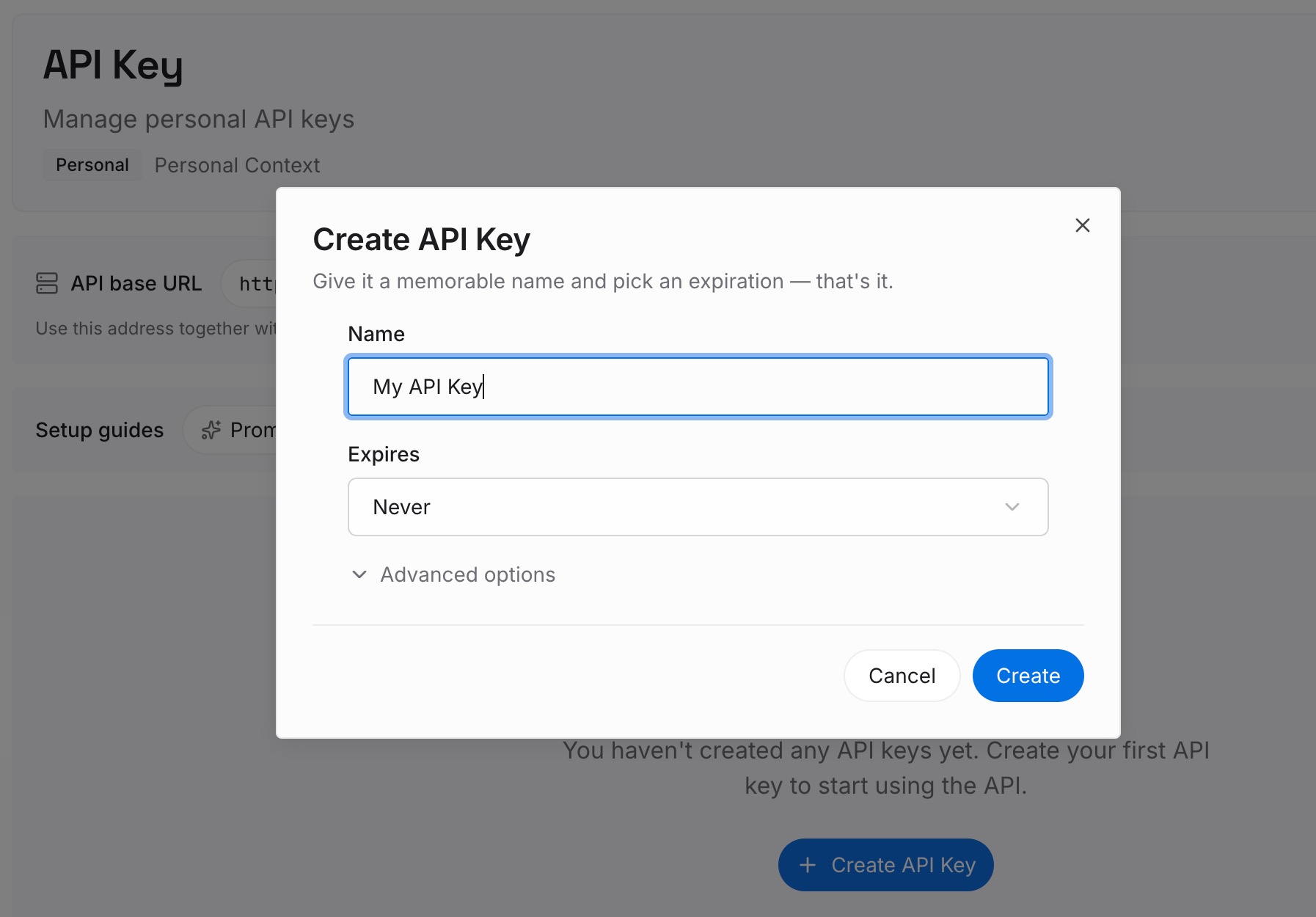
Step 1: Create an API key
Sign in and generate a key from the dashboard. The key belongs to your MemoryLake workspace and is separate from your OpenAI account.
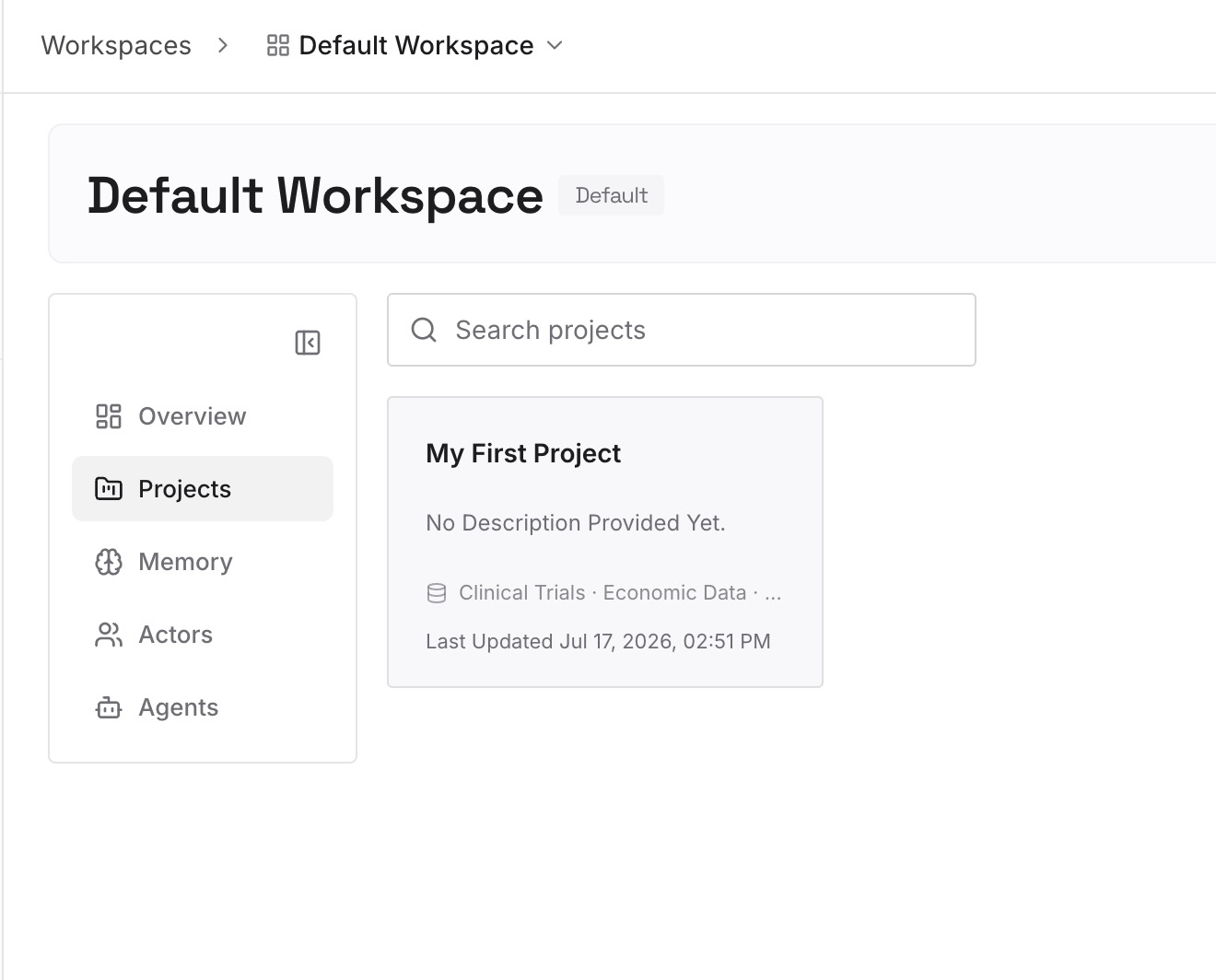
Step 2: Upload your first memories
Start with what you copied in Step 1 of the fix: the instructions, the decisions, and the constraints. One item per entry, so you can update one without rewriting the rest.
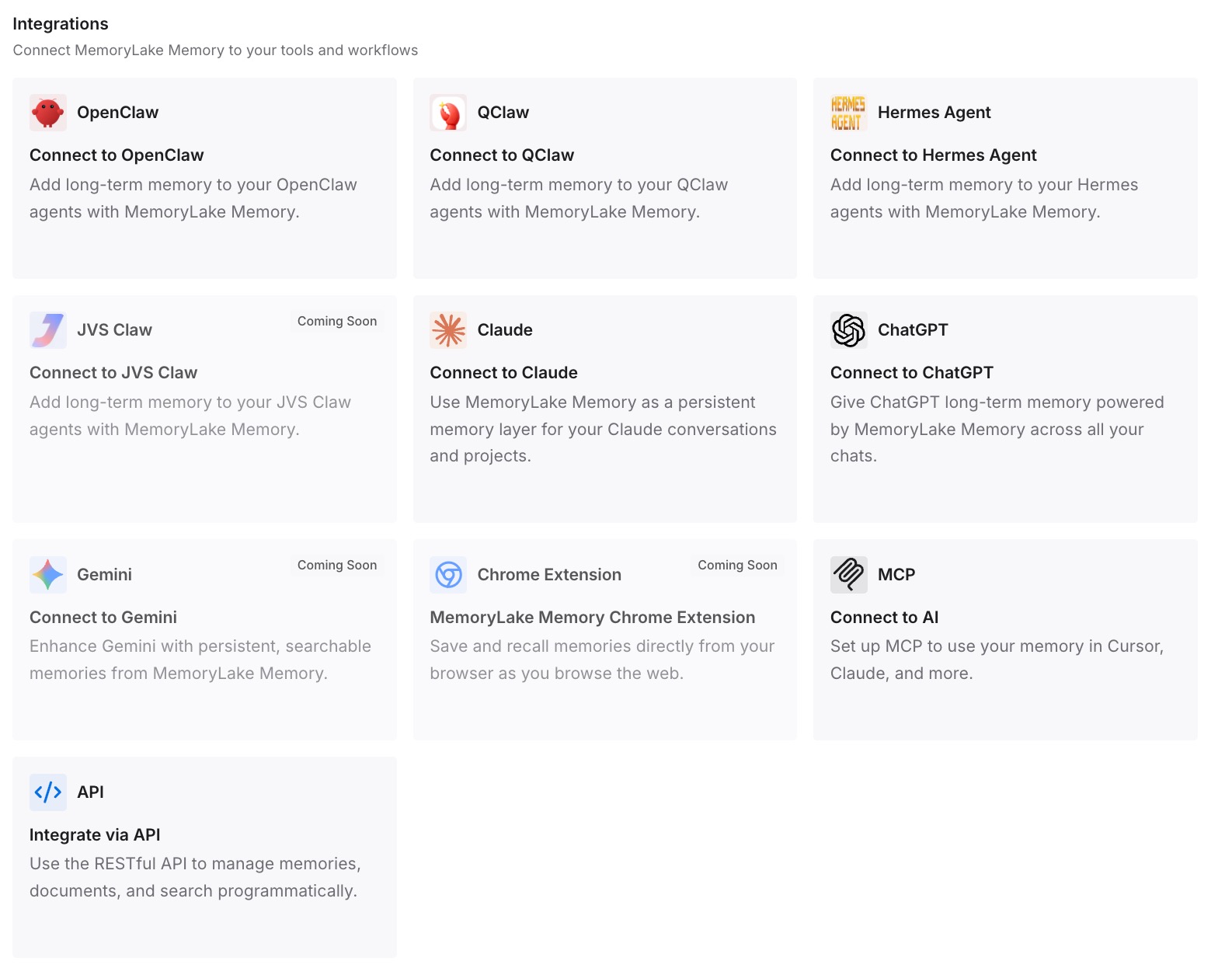
Step 3: Connect your AI & agents
Connect the assistants you use. The same entries are available in your next chat, whichever chat that turns out to be.
What this changes in practice
The first difference is a shorter restart. When a chat fills, the instructions and decisions are already written down, so the new chat starts from them instead of from a summary that may drop them.
The second is fewer losses. Exact wording and early instructions are the two things OpenAI says a summary can miss. Writing them down yourself means they don't depend on the summary.
The third is less repetition. Rules you'd otherwise restate in every new chat are written once.
Best practices for long ChatGPT chats on the Free plan
Read the notice as a chat limit, not an account limit. Your memory settings aren't the cause.
Don't delete saved memories to fix it. It won't free room in the chat.
Keep the full chat as a reference. You can still read and copy from it.
Paste the text, not a description of it. Summaries can lose exact wording.
Restate early instructions in the new chat. Summaries can lose those too.
Use a project for long work. Its instructions and files are available to chats in that project.
Keep your restart note outside the chat. You'll reuse it if the next chat fills too.
Check OpenAI Status if a fresh chat fills right away. That's OpenAI's first step for this case.
Conclusion
Chat memory full and Context window full mean the same thing: on the Free plan, the current conversation has filled up. Your messages and ChatGPT's replies both take up space, and there's no fixed number of messages per chat. The limit applies to that conversation only, so deleting saved memories, turning off Memory, or clearing other chats won't help.
You can start a new chat right away, start one with a summary, or upgrade to continue in the same chat if the notice offers it. A summary may leave out earlier instructions and exact wording, so copy those from the original chat, which you can still read. For long work, a project keeps instructions and files available to every new chat.