
What changed this week
Before this update, you could shape a dot's behavior through conversation and, where available, through custom rules for specific actions. Now there's a dedicated place for standing preferences.
OpenAI's controls documentation describes the feature: "Custom instructions are specific to your dot. Use them to set how your dot works, such as your preferred writing style, how often it checks in, or when it asks before taking an action."
That last example is worth noticing. Dot instructions aren't only about tone. Because a dot keeps working between conversations, the instructions also cover how it reports progress and when it pauses to ask you.
Dots themselves are available on a limited set of plans. OpenAI's getting-started article lists Pro, Business Premium, and Enterprise, including Edu and Healthcare, with conditions for each. On Pro: "Available to users aged 18 and older outside the European Economic Area, Switzerland, and the United Kingdom." For Enterprise, dots are scheduled to turn on by default on November 18. We covered what that means for workspaces in our guide to dots turning on by default for Enterprise.
Why your dot doesn't use ChatGPT's custom instructions
ChatGPT's custom instructions are a setting for ChatGPT conversations. OpenAI's help article describes them this way: "Custom instructions allow you to share anything you'd like ChatGPT to consider in its response."
A dot is a different kind of thing. OpenAI's getting-started article calls it "an always-on agent in ChatGPT" and describes how it starts: "It starts with context from ChatGPT memory and learns how you like to work."
Notice what that sentence includes and what it leaves out. The dot starts with context from ChatGPT memory. The documentation doesn't list ChatGPT's custom instructions among the things it starts with, and the controls page states that the two sets of instructions are separate.
So don't count on a preference in ChatGPT's custom instructions reaching your dot. If you want the dot to follow it, give it to the dot as its own instruction.
Because the two are separate, don't expect the reverse either: an instruction you give your dot about how it reports progress isn't documented as changing how ChatGPT answers in a regular chat.
How a dot saves an ongoing instruction
The simplest way is to ask. "Tell your dot in chat what you'd like it to remember as an ongoing instruction."
OpenAI's example is about reporting: "When you finish a task, link to the result and tell me what needs my attention."
Two details from the documentation make this practical:
- You can change it the same way. "You can also ask your dot to update an instruction later."
- Scope matters. The page on how action review works advises: "Give ongoing instructions a clear scope: who can take part, what should happen, and when."
An instruction to keep you posted doesn't tell the dot which updates matter. An instruction like OpenAI's example names the trigger, what to include, and what you want flagged.
The same page draws a line between what an instruction covers and what it doesn't: "A specific instruction can cover future actions within that scope; an action outside it needs another decision." It gives an example that matters if you use a dot for email or messages: "Asking your dot to draft replies doesn't give it permission to send them."
Where to review and edit your dot's instructions
On mobile, when the Behavior screen is available, the steps are:
- Open the sidebar and select Customize, then Behavior.
- If you see tabs for ChatGPT and your dot, select your dot's name.
- Enter your preferences under the heading for how your dot handles tasks.
- Select the checkmark to save.
Step 2 is the clearest sign that these are two separate sets of preferences. The same screen can show a ChatGPT tab and a dot tab, each with its own preferences.
To change your instructions later, return to the same screen, edit them, and save. If you don't see Behavior, OpenAI's documentation says to update the app or use your dot's chat on desktop or web.
The update notes also say you can ask your dot to update its instructions in conversation. Either way, it's worth checking what was saved after you ask. Asking the dot to show its current instructions confirms whether your wording landed the way you meant it.
What belongs in a dot's instructions
OpenAI's own examples point to three kinds of preferences: writing style, how often the dot checks in, and when it asks before acting. A useful set of dot instructions can cover:
- Format. How long updates should be, whether you want lists or prose, and any spelling or terminology conventions.
- Reporting. What counts as worth an update, what should wait for a summary, and where results should be linked.
- Check-ins. How often you want to hear from the dot on ongoing work, and what it should do if it can't reach you.
- Decisions. Which choices it should bring to you instead of making on its own.
Keep each one specific enough that the dot can tell when it applies. And keep account-level facts, such as which apps it may use, out of instructions. Those belong to app permissions and, for specific actions, custom rules.
Custom instructions vs. custom rules
Dots have a second kind of control that's easy to confuse with instructions. OpenAI separates them by purpose: "Use your conversation or custom instructions for preferences such as writing style or how you like updates; custom rules control when your dot can take an action."
Custom rules are narrower. "Custom rules are optional controls for specific ongoing boundaries." Each rule covers one kind of action, and you choose how the dot should handle it. The controls documentation lists four choices: take action without asking, take action when you say so, ask before taking action, or hand off to you. OpenAI's getting-started article names the second choice slightly differently, as taking action if pre-approved, and explains that this means you explicitly requested the action in your prompt.
You don't need many. "Start with clear instructions in your conversation; you don't need to create a rule for every approval."
Rules have limits. OpenAI says: "They are instructions your dot tries to follow, and it can make mistakes." They also can't expand what the dot is allowed to do. "They don't grant access to an app or computer, override built-in safety requirements, or remove required confirmations such as approval to use a saved login."
Where to find them. On desktop and web, custom rules are under Settings, then Personalization, then Custom rules under Permissions. On iOS and Android, they're under Customize, then Custom rules, which appears when Behavior is unavailable.
Their reach. "Saved custom rules apply to your dot in the same account."
A simple way to decide which one to use: if it's about how the dot writes, reports, or checks in, it's an instruction. If it's about whether the dot may send, buy, share, or delete something, it's a rule.
How instructions relate to your dot's memory
A dot remembers things in more than one way, and instructions sit alongside that memory rather than inside ChatGPT's.
OpenAI's tasks and memory documentation describes it: "Your dot starts with relevant context from ChatGPT memory. It also keeps its own notes about preferences, decisions, and ongoing work so it can use them in later conversations."
Those notes are their own store. "These notes are separate from ChatGPT's saved memory and are not a complete transcript of everything you've said."
Three consequences follow from the documentation:
- Changing ChatGPT's memory settings may not change the dot. "Changing a ChatGPT saved-memory setting doesn't necessarily change the notes your dot has already made."
- Deleting the dot is how its own memories go. The getting-started article says: "To delete your dot's own saved memories, you need to delete your dot."
- Switching channels doesn't reset anything. "ChatGPT, Slack, and Teams are ways to reach the same dot." And: "Switching between them doesn't create a separate dot or reset its saved notes."
OpenAI's documentation doesn't say whether a dot's custom instructions are removed when its notes are, or whether they're included in a data export. If you rely on a detailed set of instructions, keep your own copy.
What instructions reach the dot's tasks
A dot can split work into tasks, and each task works in its own conversation. OpenAI's documentation explains what a task gets: "A new task receives instructions and context from your dot for that work."
And what it doesn't get: "It has its own conversation; it doesn't automatically receive every conversation you've had with your dot."
In practice, a preference you mentioned once in a long chat with your dot isn't guaranteed to reach a task it starts later. That's one more reason to save standing preferences as instructions instead of mentioning them once in conversation.
For recurring work, the advice is the same. OpenAI's troubleshooting section suggests opening Scheduled and checking "the saved instructions and timing" when a scheduled task misses something.
What workspace admins control
In ChatGPT Enterprise, Edu, and Healthcare workspaces, admins decide which dot capabilities members can use. OpenAI's admin article lists a setting called Use custom rules for dots, which "Allows members to add or edit rules that guide their dot's actions and confirmations". It's off by default for Enterprise.
When custom rules are turned off for the workspace, the controls documentation says: "If your workspace disables custom rules, you can't edit saved rules, and they don't apply."
That doesn't leave the dot without limits. The admin article adds: "Default action rules still apply when custom rules are unavailable. Custom rules cannot override built-in safeguards, and disabling custom rules does not make every action require approval."
The admin article describes its controls in terms of custom rules and capabilities. If your workspace has restrictions and you're not sure whether they affect your dot's instructions, ask your admin before relying on them.
What people try first
Updating ChatGPT's custom instructions to fix the dot. The two are separate. Give the dot its own instructions.
Turning off ChatGPT memory to reset the dot. The dot's own notes are separate, and changing ChatGPT's memory settings doesn't necessarily change them.
Creating a custom rule for writing style. Rules control actions. Style and reporting go in instructions.
Telling the dot once, in passing. A task the dot starts later doesn't automatically receive every conversation. Save it as an ongoing instruction.
Assuming a draft request covers sending. OpenAI says asking for drafts doesn't give permission to send them.
The Fix: Give your dot instructions it can keep
Step 1: Copy your ChatGPT preferences
Open ChatGPT's custom instructions and copy the parts that should also apply to your dot, such as format, length, and spelling.
Step 2: Add what only a dot needs
Write how you want progress reports, how often it should check in, and when it should ask before acting. Give each instruction a clear scope.
Step 3: Save them and check what was saved
Ask your dot to save them as ongoing instructions, then review them under Customize and Behavior, or ask the dot to show them.
Step 4: Use rules only for actions
Add custom rules for specific actions like sending messages or deleting files, and leave everything else to instructions.
Setting this up in MemoryLake
Every assistant you use now has its own place for standing preferences: ChatGPT's custom instructions, your dot's instructions, and the instruction files your coding tools read. Keeping them in sync by hand means copying the same rules between screens every time one changes.
MemoryLake is a memory layer for that kind of working context, such as preferences, project decisions, and conventions, kept in one place you maintain and available to the assistants you connect, such as ChatGPT, Claude Code, and Codex.
You write the entries yourself, in your own words. Nothing is read out of, written to, or deleted from your dot, its instructions, its saved notes, its custom rules, your ChatGPT custom instructions, your ChatGPT memory, or any vendor's store. Dots, their instructions, and their rules work the way OpenAI describes them.
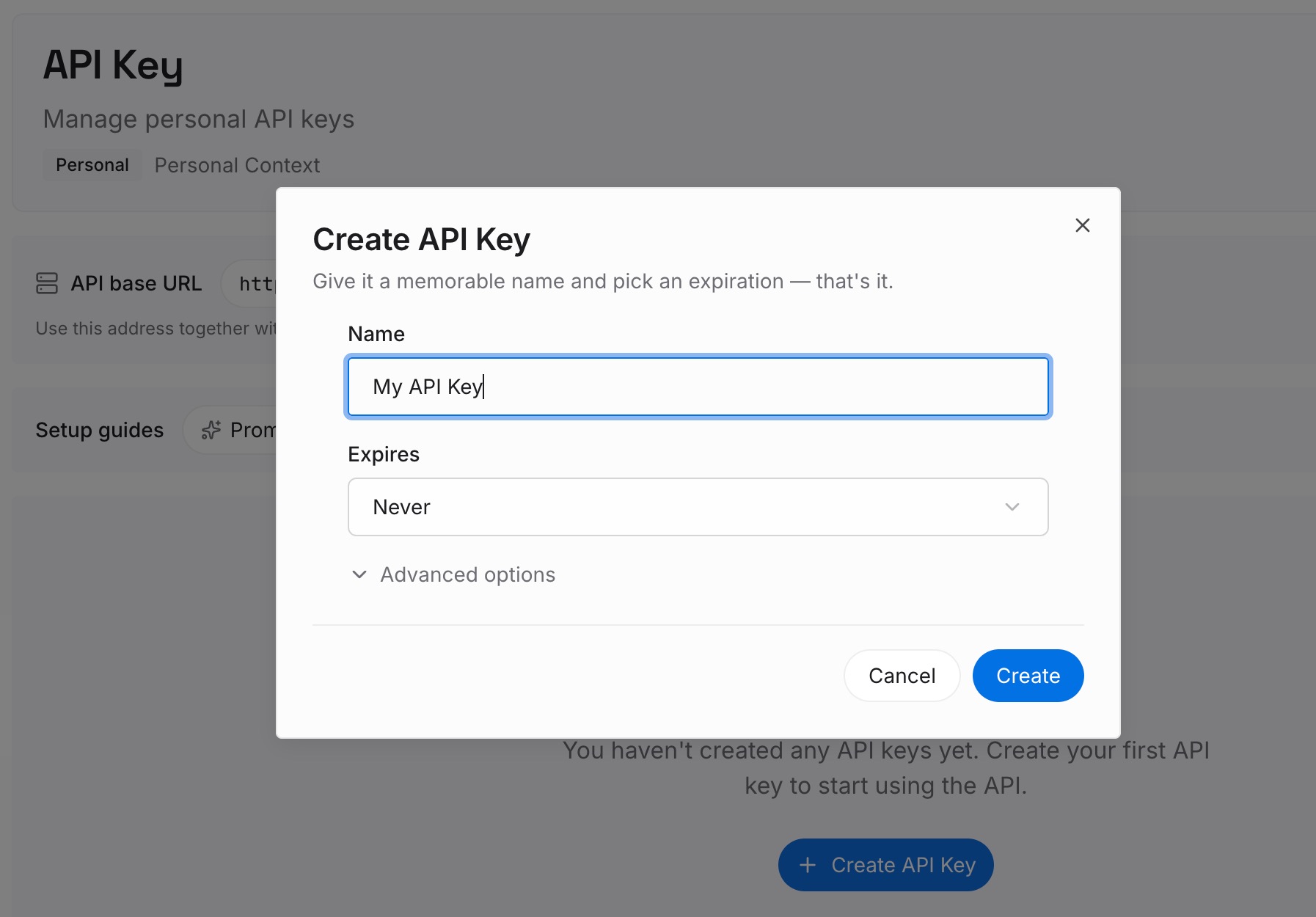
Step 1: Create an API key
Sign in and generate a key from the dashboard. The key belongs to your MemoryLake workspace and is separate from your ChatGPT account.
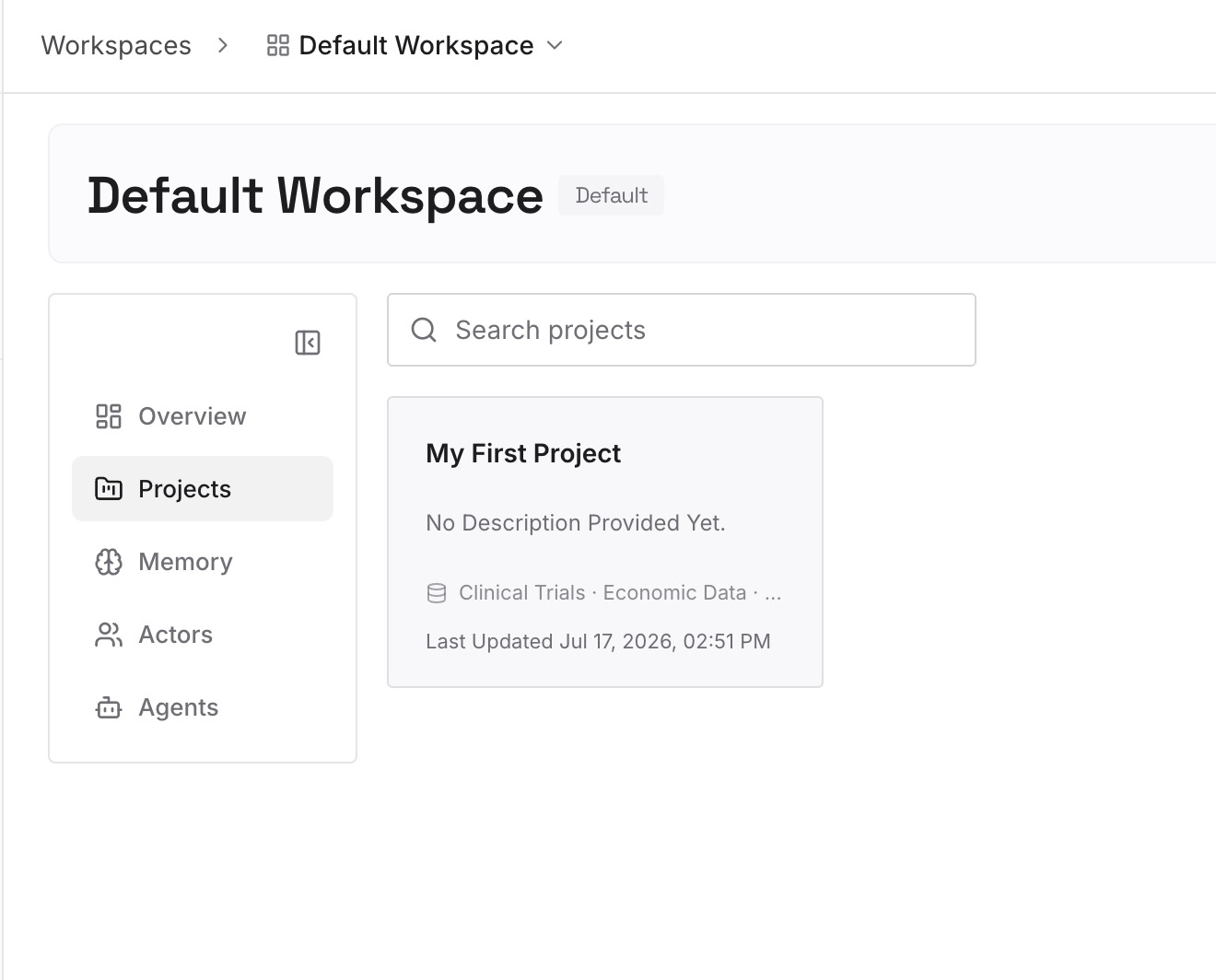
Step 2: Upload your first memories
Start with the preferences from Steps 1 and 2 of the fix: how you like answers formatted, how you want updates, and which decisions on your projects are settled. One preference or decision per entry.
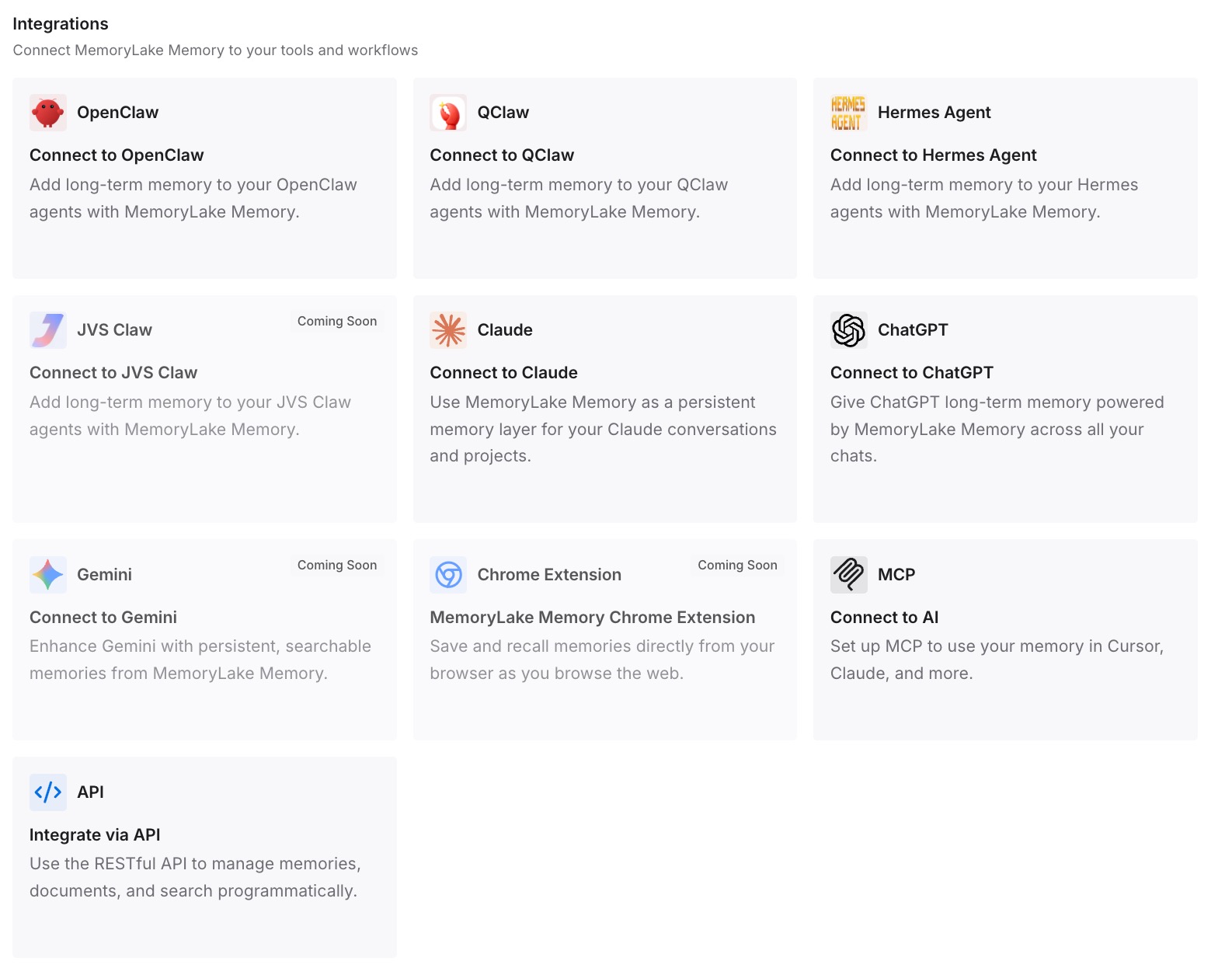
Step 3: Connect your AI & agents
Connect ChatGPT, Codex, Claude Code, or the other assistants you use. Your dot still keeps its own instructions, and your other tools can draw on the same written preferences.
What this changes in practice
The first difference is one source for your preferences. When you change how you want reports written, you update one entry and then the screens that need it, instead of remembering where each copy lives.
The second is preferences that survive a reset. If you delete a dot to clear its notes, your written preferences are still there for the next one.
The third is consistency across tools. The coding agent that picks up a task from your dot can follow the same conventions.
Best practices for dot custom instructions
Treat dot instructions as separate. They don't come from ChatGPT's custom instructions.
Scope every instruction. Say who, what, and when.
Write reporting instructions. A dot works between conversations, so tell it what deserves an update.
Check what was saved. Review the Behavior screen or ask the dot.
Use rules for actions, not style. Rules control when the dot may act.
Don't count on drafts becoming sends. Approving a draft request isn't approval to send.
Keep your own copy. OpenAI's documentation doesn't describe exporting dot instructions.
Conclusion
Since this week, a dot has its own custom instructions, set in conversation or under Customize and Behavior. OpenAI's documentation says they're separate from your ChatGPT custom instructions. A dot starts with context from ChatGPT memory, keeps its own notes, and now keeps its own standing instructions about how it writes, reports, and checks in.
Use instructions for preferences and custom rules for specific actions. Give each instruction a clear scope, check what was saved, and keep a copy of your preferences somewhere you maintain, so a new dot, a new task, or another assistant can start with them.