
What a dot is
OpenAI describes it this way: "Your dot is an always-on agent in ChatGPT that can help you take a project from an idea to work you can use. Give it a goal, share the context, and it can keep making progress between conversations."
It's different from a regular chat in three ways that matter here. It has its own cloud computer. It works across the apps you choose to connect. And it keeps its own notes so it can pick up ongoing work later.
Each member gets one. "Each member can create one personal dot." Members create it themselves through onboarding in the ChatGPT mobile app, the desktop app, or desktop web.
What changes on November 18
During the preview, dots were off unless an admin turned them on. OpenAI's admin article puts the timeline in one place: "During admin preview, dots are off by default. The preview runs until November 18, 2026, when dots become available by default unless your workspace admin opts out."
Three related points from the same articles:
- Billing starts the same day. "Dots are free to preview from November 4 through November 18, 2026. Starting November 18, billing begins for all enabled dots." Work a dot hands off to ChatGPT Work or Codex threads is billed separately at the standard rates.
- Access isn't the same as a dot. "Enabling access does not automatically create dots for members. Members create their own dot through onboarding."
- Some workspaces are excluded. "Dots are not available for workspaces with UAE data or inference residency."
For Enterprise, OpenAI describes two pricing approaches: flat rates mapped to the type of work you want your dot to do, or scaled consumption.
What your dot starts with
Your dot doesn't start from zero. OpenAI's tasks and memory documentation says: "Your dot starts with relevant context from ChatGPT memory. It also keeps its own notes about preferences, decisions, and ongoing work so it can use them in later conversations."
Those notes are a separate store. The same documentation says they "are separate from ChatGPT's saved memory and are not a complete transcript of everything you've said."
The sharing runs both ways. OpenAI's privacy FAQ answers the question directly: "Your dot can receive memories and recent conversation context from ChatGPT, and conversations with your dot can contribute to memory in ChatGPT."
Your dot can also look back through your history. "Your dot can search your past ChatGPT conversations for relevant context." OpenAI adds a qualification: retrieved conversation content "isn't the same as persistent memory or a complete history included in every task."
Turning off ChatGPT memory
If you'd rather your dot not draw on ChatGPT memory, the privacy FAQ says: "Turning off Memory in ChatGPT stops that sharing. It does not delete information that your dot has already received."
The tasks documentation adds a related caution: "Changing a ChatGPT saved-memory setting doesn't necessarily change the notes your dot has already made."
So there are two places your context lives: ChatGPT memory, which you manage in ChatGPT's settings, and your dot's own notes, which follow the dot. If you want to clean up the ChatGPT side before your dot starts drawing on it, our guide to making ChatGPT forget something walks through the memory controls.
What your dot learns on its own
Connected apps are a second source. OpenAI says: "Your dot can also review that information proactively and form memories from it, even when you haven't asked a specific question about it."
This is called proactive research. The privacy FAQ says it can read from permitted connected sources and save private notes, but its research tools can't directly send messages to other people, change content through plugins, or control a browser or computer. Any follow-up action goes through the usual approval rules.
For Enterprise admins, one detail stands out: "There is no separate admin setting to turn off proactive research."
Plugin connections are shared. "Plugin permissions are shared across dots, ChatGPT, ChatGPT Work, and Codex." The admin article adds that enabling dots "does not grant access to every app or website." Plugin controls, app permissions, and each service's own authorization still limit what a dot can reach.
Disconnecting an app stops new access but doesn't clear what's already there. "Disconnecting an app does not delete information your dot has already obtained from it."
Slack, Teams, and the tasks your dot creates
Members can reach the same dot from more than one place. OpenAI's tasks and memory documentation says: "ChatGPT, Slack, and Teams are ways to reach the same dot. Switching between them doesn't create a separate dot or reset its saved notes."
What you share in one place can shape its work in another, but the conversations themselves stay apart. "A message in ChatGPT isn't automatically copied into your Slack conversation." And knowing something isn't the same as being allowed to repeat it. The documentation says the dot's ability to use information "doesn't grant permission to disclose it to another audience." Its example is a deadline you shared privately: the dot can use it to help you prepare an update, but sharing private details in a team channel still requires permission.
When a dot creates a task in ChatGPT Work or Codex, the task gets a brief rather than everything. "A new task receives instructions and context from your dot for that work. It has its own conversation; it doesn't automatically receive every conversation you've had with your dot."
Connecting a computer doesn't widen that either: "Connecting a computer doesn't grant access to every existing ChatGPT or Codex conversation."
How long a dot keeps what it knows
The privacy FAQ answers retention in one line: "Your dot can retain context from your conversations and plugins for as long as you keep your dot."
Some things aren't kept in that context. "Your dot's context does not retain credentials, images, or screenshots." Files a dot creates or uses elsewhere, such as in ChatGPT Library or a connected storage service, follow that location's retention policies.
On training, OpenAI says: "For ChatGPT Business, Enterprise, and Edu workspaces, we don't use your data to train our models by default."
What workspace admins control
Admins manage dots in Workspace settings > Permissions & roles, under Workspace capabilities. The main permission is Use dots, and the admin article lists others that only take effect once a member has access:
- Add dots to Slack and Microsoft Teams: lets a dot join supported workspaces and post with its own identity. Members still complete setup.
- Allow local computer access: lets a dot use a member's local files and run commands. "Off by default for Enterprise."
- Use custom rules for dots: lets members add or edit rules for their dot's actions. "Off by default for Enterprise."
Cloud computer settings, such as browser use and network access, apply to both dots and Work Cloud tasks. Dots also require compatible Agent Security policies, which a security administrator reviews in Admin Console.
Phone messaging isn't part of the Enterprise setup. "Phone messaging through iMessage, RCS, or WhatsApp is unavailable for Enterprise."
What admins can see
"Workspace owners and admins can review all personal dots created in their workspace." According to the admin article, each dot's details include:
- Its creator
- Whether it's active or paused
- Its saved cost tier
- Its service account identity or dot ID
- Its Slack or Microsoft Teams connection status
Workspace analytics show active dot users and enabled-dot counts, and audit logs capture admin actions such as pause, resume, and delete.
Pausing a dot
Admins can pause or resume a personal dot. "When an admin pauses a dot, its owner cannot resume it until the admin removes that pause." Where billing applies, an admin pause stops billing for that dot.
Pausing doesn't clear anything. "Pausing a dot does not delete its stored information or undo completed actions." Separate Work or Codex tasks and independently scheduled tasks may keep running, so those need to be reviewed separately.
Removing access and deleting a dot
These are the two actions people tend to confuse, and they have very different effects on a dot's context.
Removing access hides the dot. Taking away every applicable permission "hides the dot from the member, pauses it, and marks it disabled." Restoring permission returns it to its previous pause state. And "Removing access does not delete the dot's information."
Deprovisioning a member doesn't delete their dot either. "Removing or deprovisioning a member revokes their access but does not automatically delete their dot."
Deleting starts deletion of the dot's own context. OpenAI's help article for members describes what happens: "Deleting your dot ends access to that dot and starts deletion of its own saved memories." Separate Work or Codex chats it created are kept, and "Your main conversation is archived, and you can't continue it with that dot."
The privacy FAQ adds what stays: files, Codex threads, and ChatGPT conversations your dot created are stored separately and aren't deleted, and memories from your other ChatGPT conversations remain in place.
Why a new dot doesn't get the old one's context
Deletion doesn't create a replacement, and a replacement doesn't inherit the old dot's context. The admin article states it plainly: "A replacement does not restore the deleted dot's context."
That matters more than it first appears, because of how a dot's notes are managed. OpenAI's privacy FAQ says: "You currently cannot view, delete, or directly modify individual dot memories, including specific details that enter the dot's context from plugins."
Put those together. The preferences, decisions, and ongoing work your dot wrote into its own notes can't be viewed, deleted, or edited note by note, and they don't carry over to a new dot. If a dot is deleted, whether by you or by a workspace owner, the next one starts with ChatGPT memory and whatever you tell it again.
What people try first
Assuming access creates a dot. Members still create their own through onboarding.
Turning off ChatGPT memory to clear the dot. It stops sharing but doesn't delete what the dot already received.
Disconnecting an app to remove what the dot learned. Disconnecting stops new access only.
Pausing to reset. Pausing doesn't delete stored information or undo completed actions.
Deleting and recreating to start clean while keeping the useful parts. A replacement doesn't restore the deleted dot's context.
The Fix: Prepare for dots before November 18
Step 1: Decide the workspace default
Admins: decide whether to opt out or let dots become available, and review roles, custom roles, and the capability settings.
Step 2: Check what ChatGPT memory holds
Members: review your ChatGPT memory, since your dot starts with relevant context from it.
Step 3: Write down what you teach your dot
Keep a short record of the preferences, decisions, and project details you give your dot. Its notes can't be viewed or edited one by one, and they don't carry over to a replacement.
Step 4: Plan offboarding
Admins: deprovisioning doesn't delete a dot, so add a review of dots, connections, and scheduled tasks to your offboarding steps.
Setting this up in MemoryLake
A dot's notes are useful and tied to that dot. If it's deleted, a new one starts without them. The working context that matters to you, such as how you like updates written or which decisions a project already made, is worth keeping somewhere you can read and change yourself.
MemoryLake is a memory layer for that working context, such as preferences, project details, and decisions, kept in one place you maintain and available to the assistants you connect, such as ChatGPT, Claude Code, and Codex.
You write the entries yourself, in your own words. Nothing is read out of, written to, or deleted from your dot, its notes, your ChatGPT memory, your conversations, your workspace settings, or any vendor's store. Dots, workspace controls, and deletion work the way OpenAI describes them.
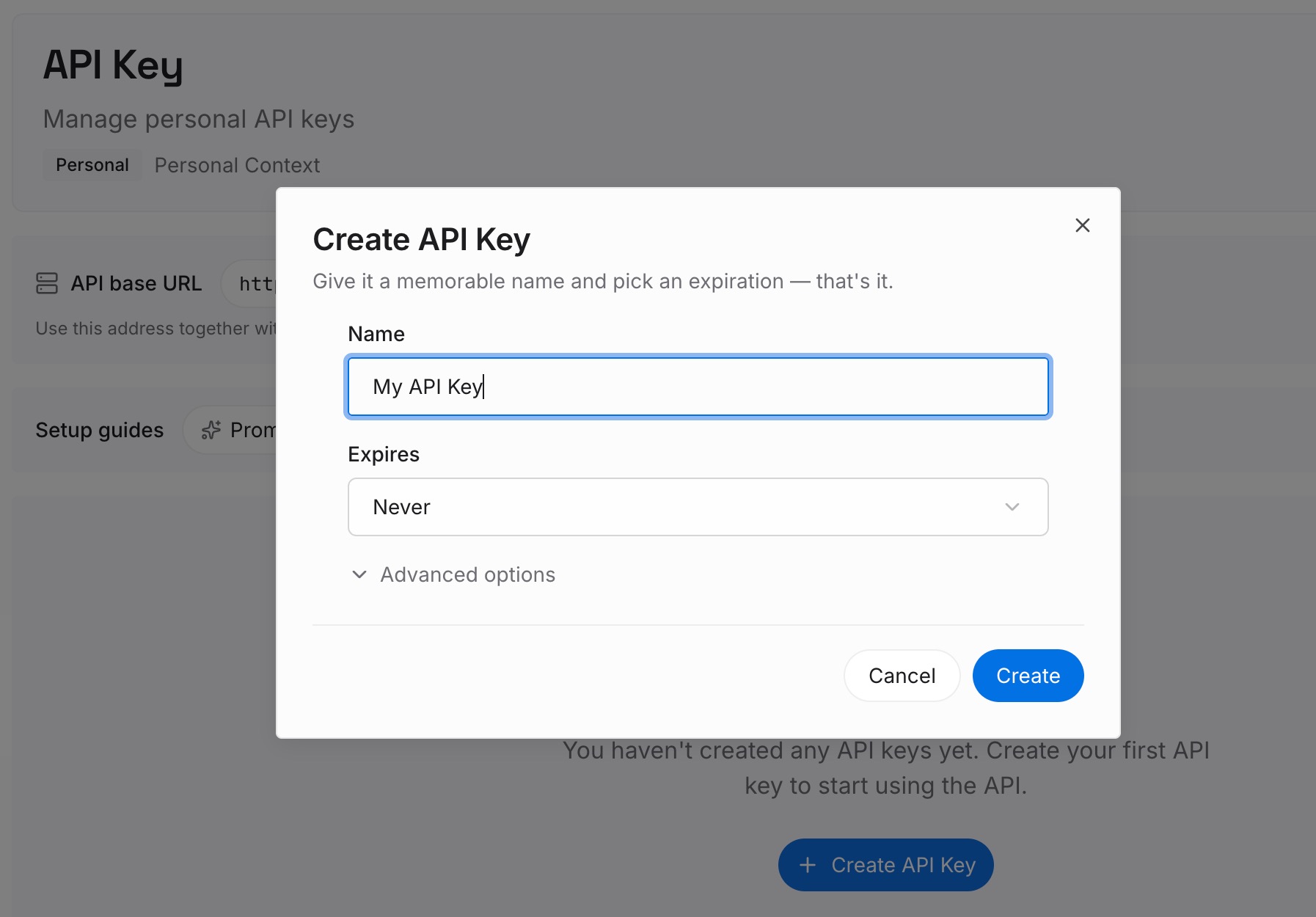
Step 1: Create an API key
Sign in and generate a key from the dashboard. The key belongs to your MemoryLake workspace and is separate from your ChatGPT account and your dot.
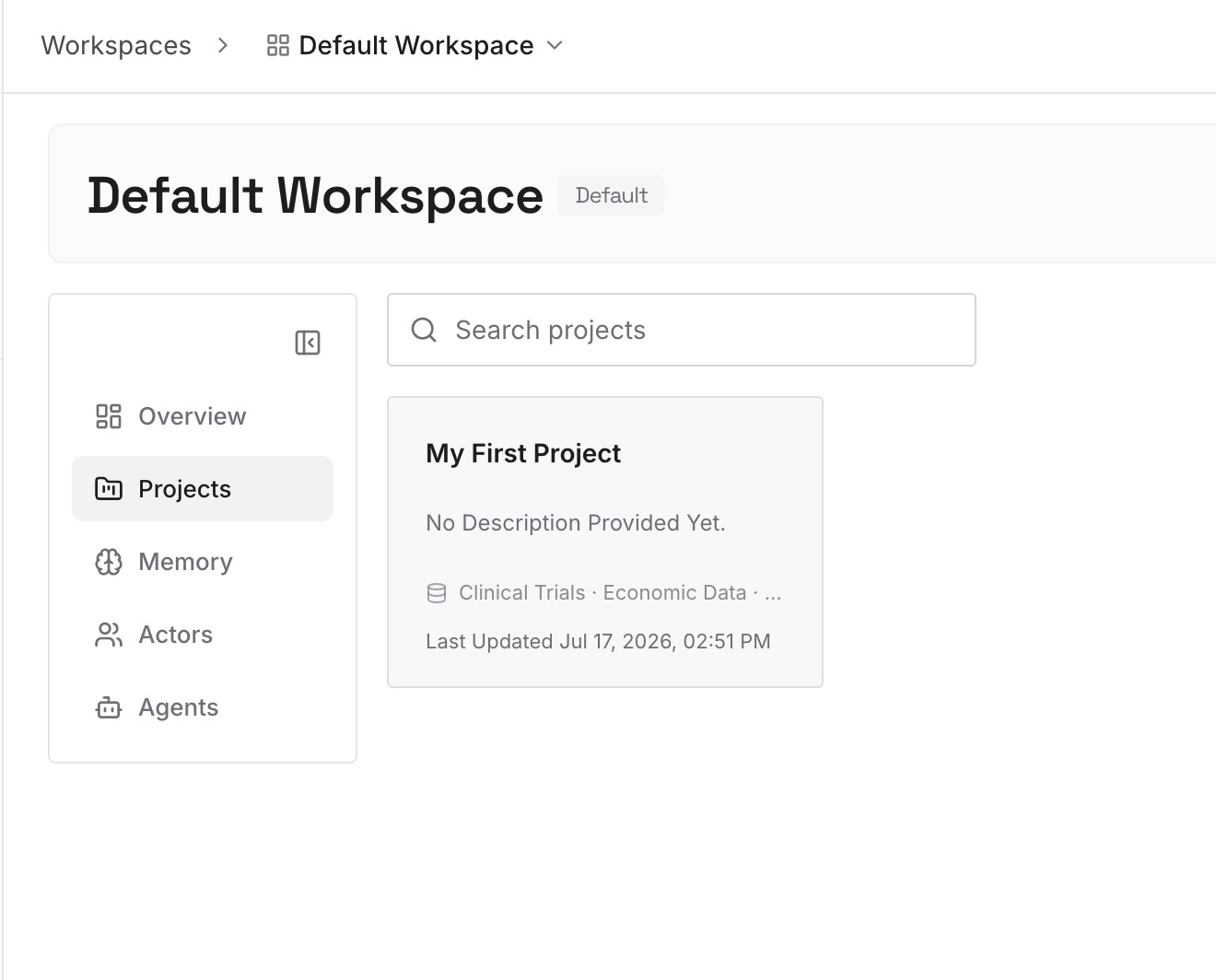
Step 2: Upload your first memories
Start with the record from Step 3 of the fix: your preferences, the decisions behind ongoing projects, and the instructions you'd otherwise repeat. One item per entry.
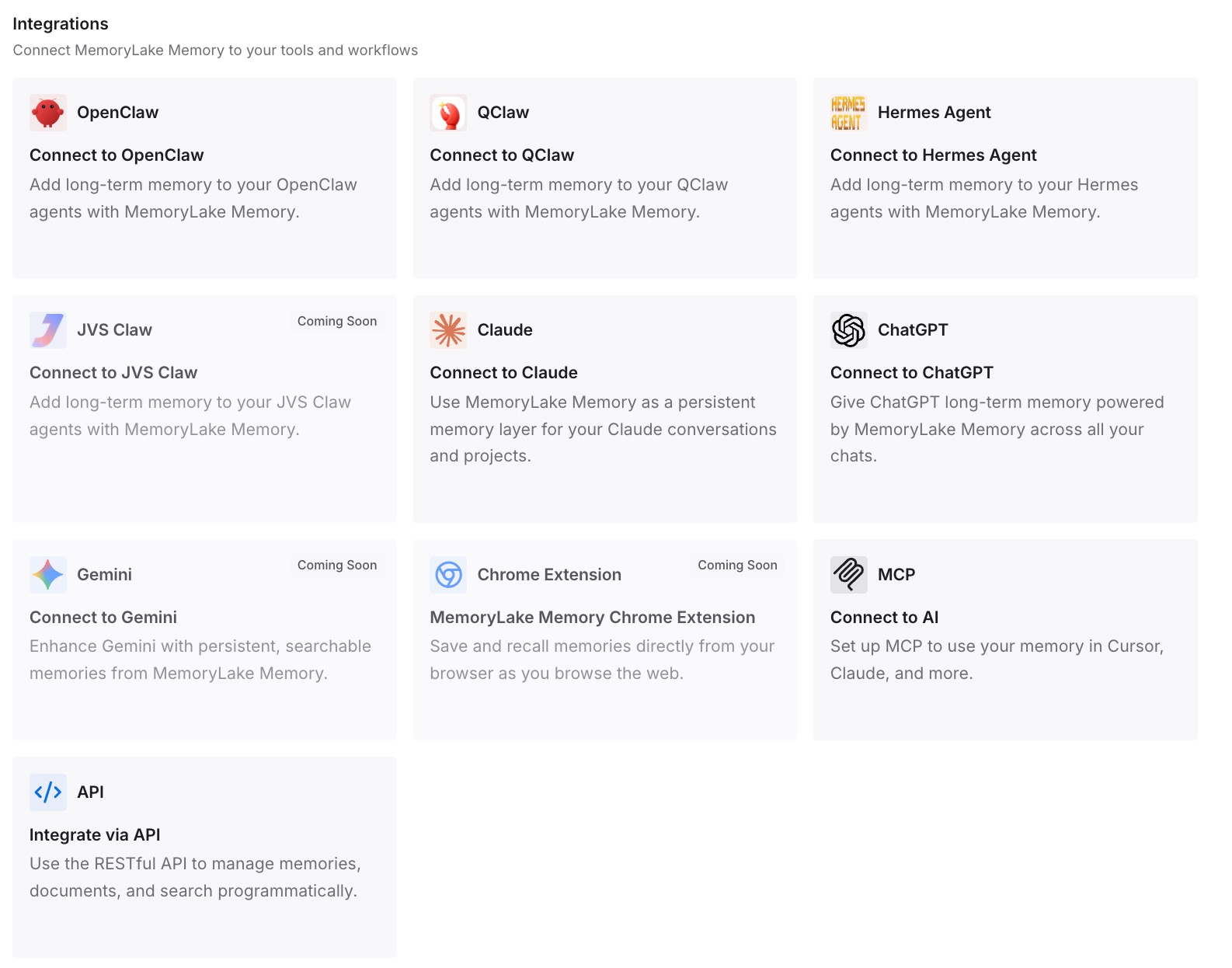
Step 3: Connect your AI & agents
Connect ChatGPT, Codex, and any other assistants you use. If your dot is ever replaced, you can give the new one the same context from your entries.
What this changes in practice
The first difference is context you can read. Your entries are visible and editable, one by one.
The second is an easier restart. A replacement dot can be briefed from what you wrote.
The third is the same context in other tools. Codex and other assistants can draw on the entries too.
Best practices for dots in Enterprise workspaces
Decide before November 18. Dots become available by default unless an admin opts out.
Review ChatGPT memory first. Your dot starts with relevant context from it.
Know which actions clear nothing. Pausing, removing access, and disconnecting apps don't delete a dot's information.
Treat deletion as final. It can't be undone, and a replacement doesn't restore the old context.
Add dots to offboarding. Deprovisioning a member doesn't delete their dot.
Review separate tasks. Work, Codex, and scheduled tasks can continue after a pause.
Keep your own record. Write down what you teach your dot, since its individual notes can't be viewed, edited, or carried to a replacement.
Conclusion
On November 18, the admin preview for dots ends in eligible ChatGPT Enterprise, Edu, and Healthcare workspaces. Dots become available by default unless an admin opts out, and billing begins for enabled dots. Each member can create one personal dot. It starts with relevant context from ChatGPT memory and keeps its own notes, which are separate from ChatGPT's saved memory.
Admins can review every personal dot, pause it, and delete it. Pausing, removing access, and disconnecting apps don't delete a dot's information. Deleting does, and a replacement doesn't restore the old context. Since individual dot memories can't be viewed or edited, keep your own record of what you teach your dot.