
What changed for Plus on November 20
Space first launched on other plans. Plus is the newest addition, and OpenAI's Space article now opens with a banner: "Space is rolling out to eligible ChatGPT Plus accounts."
The rollout is gradual. The same banner says: "If you don't see Space in the ChatGPT desktop app, update to the latest version. If you still don't see Space, it may not be available for your account yet."
There's also an age requirement: "You must be 18 or older to start using Space."
According to the release notes, Space works across devices: "Use Space on the web, desktop app, and iOS and Android to create and edit pages."
The release notes describe what you can build there: interactive pages and presentations made with ChatGPT, which other people with Space access can work on with you. They add a feature that matters later in this guide: "You can also set pages and slides to automatically update based on your connected apps and tools."
If your account still shows Library, Space hasn't reached it yet. OpenAI's Library article says: "If your interface still shows Library, follow the Library instructions below."
Where your uploads and images are now
OpenAI's Library article puts the switch in one sentence: "If your account has access to Space, Space takes the place of Library. Your Projects continue to be available separately."
Inside Space, the Space article lists the views you use to find things. These are the ones that matter for files you used to find in Library:
- Your files and folders. "All > Your items shows content in your personal space, including pages, files, and folders."
- Your images. "Images separates Your creations from Uploads." Images ChatGPT generated go under Your creations. Images you uploaded go under Uploads.
- Things others shared. All > Shared with you lists items shared with you directly or with a team you belong to. The article notes that items you can reach only through a shared space may not appear there, so open that space to find them.
- Recent work. Suggested and Recents help you get back to what you used lately.
Sidebar search covers Space too. OpenAI's search article says results "can include projects, images, documents, and other eligible saved files available through Library or Space."
Search finds files, but it isn't where you manage them. The same article says: "Sidebar search helps you find files, but you manage, reuse, download, and delete them from Library or Space, depending on what appears in your account."
One part of Library isn't covered in the Space article. Library had Favorites, where you saved products and places with a bookmark icon. The Library article still describes Favorites, but the Getting started with Space article doesn't say where they appear in Space. If you relied on Favorites, check the Space views above and the sidebar search before assuming anything about them.
Why files from a locked chat stay hidden
If one particular file won't show up in Space or in search, check whether the chat you uploaded it in is locked.
OpenAI's Space article has a section on this: "Files uploaded or created in a chat are hidden from Space while that chat is locked. You can open them only in the originating locked chat, not in other chats, including other locked chats."
To open the file, you open the chat. The article explains how: go to Projects > Locked chats and enter your account PIN or use supported device authentication.
The file comes back to Space only if you permanently unlock the chat: "Permanently unlocking the chat makes its protected files visible in Space again if they were saved there."
The search article says the same thing for search results. While a chat is locked, its files "are not available in other chats, including other locked chats, or in Library or Space."
Files you added from somewhere else keep their usual access. The Space article says: "Files added from elsewhere in Space or from connected services keep their existing access rules."
Deleting a chat doesn't delete its saved files
This was true with Library, and it's still true with Space.
OpenAI's retention article says: "Deleting a chat does not delete a separately saved file. Delete the file from Library or Space if you also want to remove that saved copy."
So if you cleaned up old chats to remove a document, the document may still be in Space under All > Your items. To remove it, delete it there.
Deleting a page in Space works differently from deleting a file. The Space article says: "Deleting a page moves it and its subpages to Trash, including subpages owned by other people." Check a page's subpages before you delete it, especially on a page other people have added to.
We covered what deleting a chat removes, and what can survive it, in our guide to recovering a deleted ChatGPT chat.
Space is not a replacement for projects
Space and projects both hold files, so it's easy to mix them up. OpenAI separates them clearly: "Space replaces Library for accounts with access to Space. Projects remain separate, so you can continue using them for your project chats, files, and instructions."
The Space article repeats the point: "Creating or using a space does not replace your existing Projects."
The practical difference:
- A project groups chats, files, and project instructions around a piece of work. The chats live there.
- A space groups pages, folders, and files. You have a personal space and can create others for a topic or a team.
A project's files and the files in your personal space are managed in different places.
What a Plus account can do in Space
OpenAI's documentation has a few details that are specific to Plus or worth knowing.
Creating pages from a conversation. The Space article says: "You can start a page from a conversation in Work and Codex, begin writing directly in Space, or use a template from Space home." To make a page from a chat, you open the conversation and ask ChatGPT to create a page with what you want on it.
The message limit. Editing a page with ChatGPT uses your messages. The article adds: "If you reach your Plus message limit, you can still edit the page by hand."
Self-updating pages. The release notes give examples such as "a to-do list that updates itself" and "a project plan that stays current with decisions from Slack". These pages draw on your connected apps, which matters for what ends up on the page. More on that below.
Mobile. The Space article says you can edit pages on iOS and Android. On mobile, you can also find, read, and share pages and move between pages and subpages.
Slides. The Space article says Slides is rolling out to eligible accounts with Space access, and that sheets are coming soon.
Why people on Free can't open your pages
Space is built around sharing. You can share a single page or a whole space, and people with edit access can work on it with you in real time.
Who can open what you share depends on their plan. The release notes say: "People on Free can't open shared pages or presentations. Public links aren't available."
The Space article gives the full requirement: "To open a shared page, you need permission to view it and must be signed in to a Plus, Pro, Business, or Enterprise account with Space access."
So if you share a page with a friend on Free, they won't be able to open it. And there's no public link you could send instead.
Access can also come from more than one place. The Space article explains that access can come from a direct invitation, a parent page, or the space that contains a page, and subpages inherit access from their parent. Removing a direct invitation doesn't remove access someone inherited from a parent page or space. Moving a page under a new parent can change who can see it.
What a page can carry from your memory
This is the part that deserves the most attention before you share anything.
Sharing a page doesn't share your account. The Space article says: "Each collaborator works with their own ChatGPT. Sharing a page does not give other people access to your private chats or your ChatGPT Memory."
What's written on the page is a different matter. The same article says: "If Memory is enabled, ChatGPT may use personal context when helping you write or update a page. Once that information is written onto the page, people who can view the page can read it."
OpenAI's sharing article gives an example: if ChatGPT uses something from a previous conversation to help write a project brief, that information becomes visible to the people who can read the brief. Your previous conversation itself isn't shared.
The page also doesn't stay inside your settings. The Space article says: "If a collaborator has Memory enabled, their ChatGPT may remember information from the shared page even when your Memory is off."
Files and connected apps work the same way. Uploading a file into a page gives everyone who can see the page access to it. Linking to a file stored elsewhere doesn't automatically give access to the original. But the Space article warns: "If you or ChatGPT copy or summarize information from a source onto a shared page, people who can view the page can read that information, even if they cannot open the original source."
That applies to self-updating pages too. A plan that stays current with decisions from Slack puts information from Slack onto a page, and everyone who can view the page can read it.
Your files also feed memory. OpenAI's memory article lists "saved files available through Library or Space" among the sources Memory can draw on, depending on your plan and region.
What people try first
Assuming the files were deleted. They weren't. Space took Library's place, and your files are under All > Your items.
Looking for images in the file list. Images have their own view, split into Your creations and Uploads.
Deleting the chat to remove a file. The saved file stays. Delete it in Space.
Searching for a file from a locked chat. It's hidden until you open the locked chat or permanently unlock it.
Sharing a page with someone on Free. They can't open it, and there's no public link.
The Fix: Find your files and check what you share
Step 1: Open Space and check your items
Open Space in the sidebar, then All > Your items. If Space isn't there, update the app or keep using Library until Space reaches your account.
Step 2: Check Images and locked chats
Look under Images for Your creations and Uploads. If a file is still missing, check Projects > Locked chats for the chat you uploaded it in.
Step 3: Read pages before you share them
Read a page through before sharing it, especially if ChatGPT helped write it. Check subpages too, because they inherit access from their parent.
Step 4: Write down what each important file is for
Space shows you where a file is. Why you uploaded it, what you concluded from it, and which version is current are yours to note down for the files that matter.
Setting this up in MemoryLake
Space changes where your files live and who can see the pages built from them. The reasons behind those files, such as which lease version you signed, what a screenshot proved, and what you decided after reading a report, sit in your head or scattered across chats.
MemoryLake is a memory layer for that kind of context: notes you write about your work, kept in one place you maintain and available to the assistants you connect, such as ChatGPT, Claude Code, and Codex.
You write the entries yourself, in your own words. Nothing is read out of, written to, or deleted from your Space, your Library, your projects, your ChatGPT memory, your chats, or any vendor's store. Space works the way OpenAI describes it.
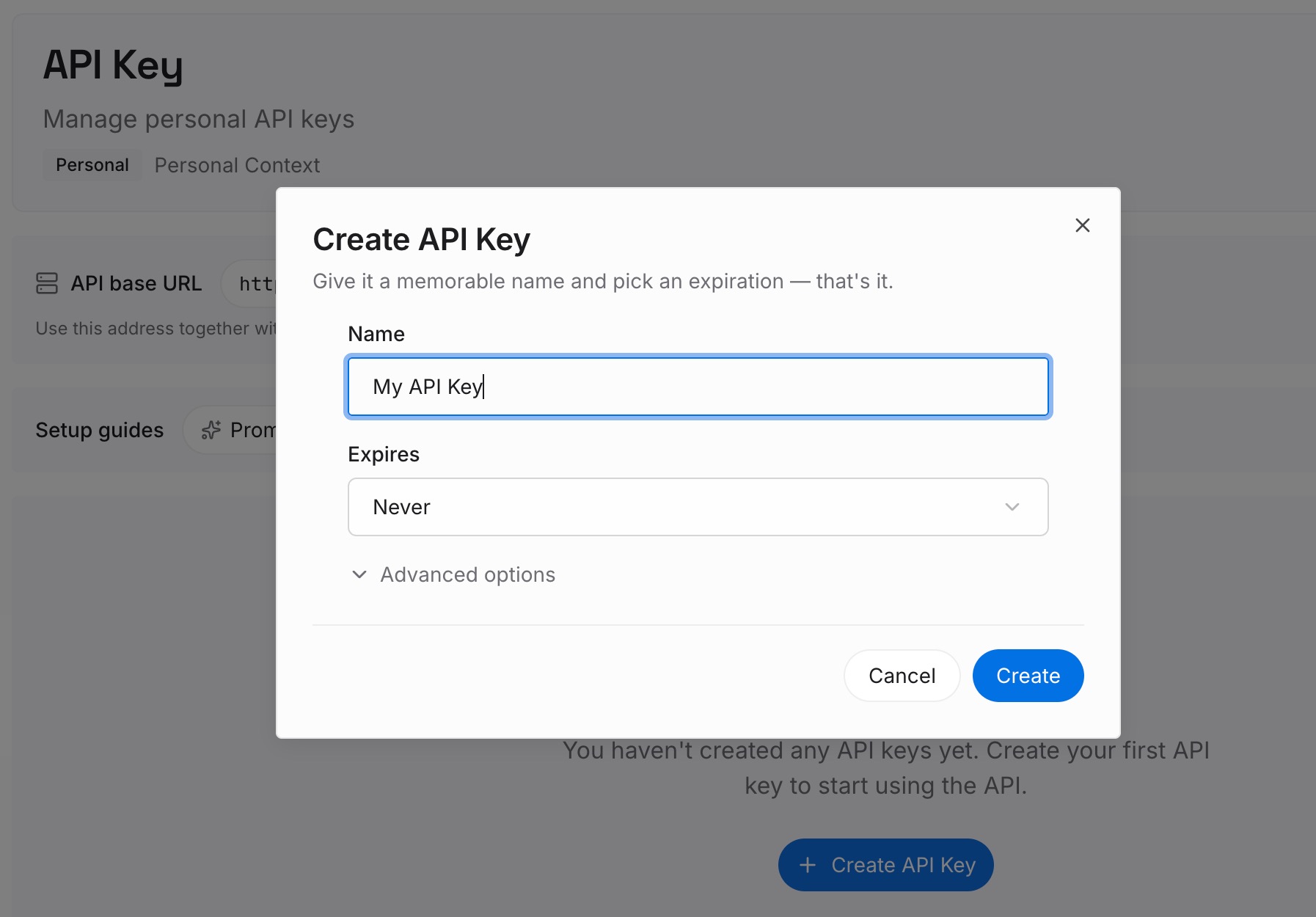
Step 1: Create an API key
Sign in and generate a key from the dashboard. Keep it somewhere private, like any other credential.
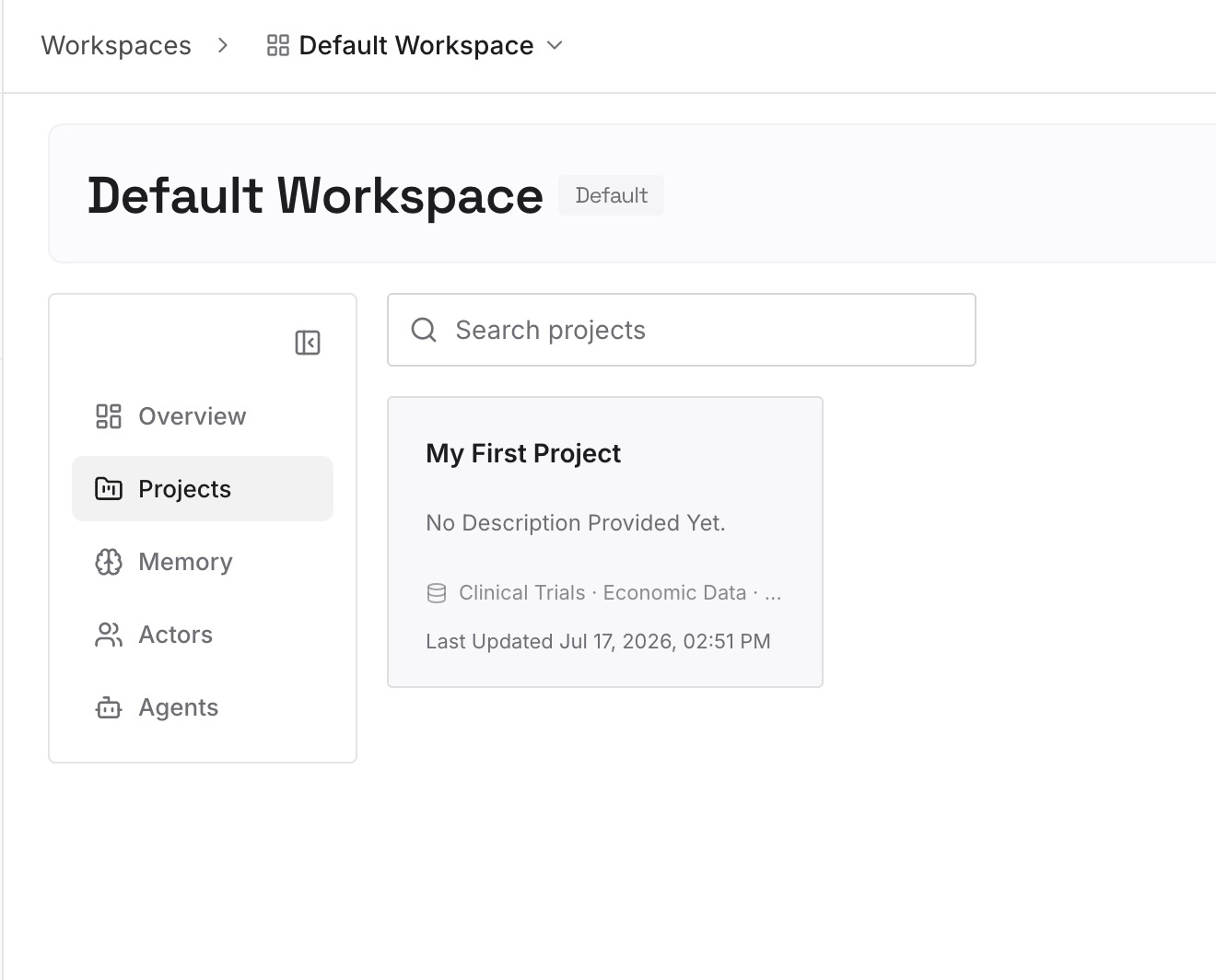
Step 2: Upload your first memories
Start with what you wrote in Step 4 of the fix: what each important file is, which version is current, and what you decided from it. One topic per entry.
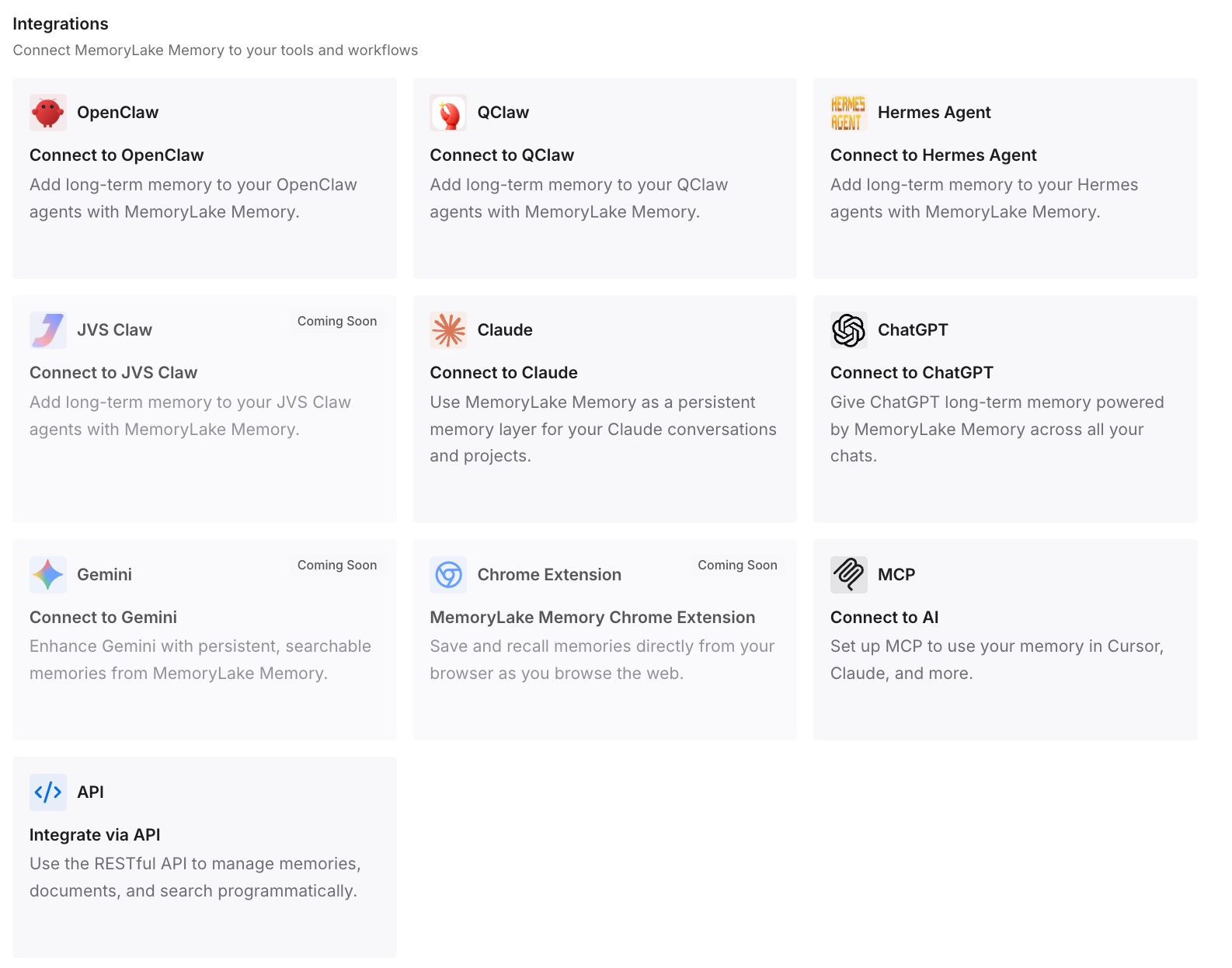
Step 3: Connect your AI & agents
Connect ChatGPT, Claude Code, Codex, and the other assistants you use, so each can draw on the same notes.
What this changes in practice
The first difference is less searching. When a file moves or a view changes, you still know what it was for.
The second is more careful sharing. Context you keep in your own notes doesn't end up on a page by accident.
The third is continuity across tools. The same notes are available whether you're in ChatGPT or another assistant.
Best practices for ChatGPT Space on Plus
Look in All > Your items first. That's where files from Library are.
Use Images for pictures. Generated and uploaded images are separated.
Remember locked chats. Their files stay hidden from Space until you unlock them permanently.
Delete files in Space, not by deleting chats. Deleting a chat leaves the saved file.
Keep projects for chat-based work. Space doesn't replace them.
Review pages before sharing. Memory and connected apps can put details on a page.
Check who has Space before sharing. People on Free can't open shared pages.
Conclusion
On November 20, Space began rolling out to Plus users aged 18 and older, and for accounts that have it, Space takes the place of Library. Your files are under All > Your items, images are split into Your creations and Uploads, and files from locked chats stay hidden until you open or permanently unlock those chats. Projects stay separate.
Space adds sharing, and that's where the care is needed. People on Free can't open shared pages and there are no public links. Whatever ChatGPT writes onto a page, including details from your memory or connected apps, is visible to everyone who can view it, and their ChatGPT may remember it if their Memory is on.