
What Live Dictation changed
The release notes describe three changes, all in the same entry:
- Text appears as you speak. "With Live Dictation, your speech turns into text as you talk, so you spend less time waiting for your message to finish transcribing."
- You can show or hide it. "Tap or click on the waveform to show or hide text as you go."
- The time limit is gone. "We’ve also removed the 10-minute recording limit."
The entry opens with the reason: "Dictation in ChatGPT is getting faster and more reliable." On availability, it says: "Live Dictation is rolling out globally to all ChatGPT plans on iOS, Android, web, and the desktop app."
Rolling out means it may reach your account later than someone else's. If you still see the older behavior, with the transcript appearing only after you stop, your app or account may not have the update yet. The release notes don't list a separate setting for it, so updating the app is the step within your control.
If your microphone doesn't work at all, the Voice article's setup steps show the permission prompt to look for on each platform. On iOS and Android, "If prompted, allow the ChatGPT app to access your microphone." On the web, "If prompted, allow your browser to access your microphone." A denied permission from an earlier session is worth checking in your device or browser settings before assuming the feature is missing.
Dictation versus ChatGPT Voice
These two features both start with your voice, and they're easy to mix up. OpenAI's Voice help article draws the line in its overview: "If you want to turn a single recording into editable text instead, use ChatGPT Dictation."
Its FAQ gives the longer answer:
- "Use Voice for a live, back-and-forth conversation or to talk through ideas."
- "Use ChatGPT Dictation when you want to record a prompt, review and edit its transcription, and then send it as text."
So dictation is an input method. You speak, you get text, you can fix it, and you send it like any typed message. Voice is a conversation mode. ChatGPT speaks back, and the exchange becomes a transcript afterward.
That difference matters for accuracy. With dictation, you see and can correct the text before it's sent. With Voice, the help article warns: "Voice transcripts are not verbatim records and may not exactly match what was said."
If you're dictating something you'll rely on later, such as a project brief or a set of requirements, dictation gives you the chance to read it before ChatGPT works from it.
Which Voice option you're on matters too
The Voice article lists three options under Settings > Voice: Live, Advanced, and Standard. It describes Live as the one that "can use web search and memory," and it notes a date: "Both Advanced and Standard voice are retiring on December 11, 2026."
That's a separate change from Live Dictation, but the names overlap. Live in Voice is a conversation model. Live Dictation is the faster way of turning a recording into text for a message. One doesn't require the other.
Voice still has limits of its own
If you searched for a time limit because a spoken session stopped, it may have been Voice rather than dictation. The Voice article lists several reasons a conversation can end: "A Voice conversation may end when you reach a usage limit, the maximum session length, or when a long conversation reaches its context limit."
It adds: "ChatGPT will show a notice when possible. You can continue in text or start Voice again." There's also a concurrency rule: "You can have one Voice conversation at a time."
Voice usage limits depend on your plan, and the article lists them per plan. In Chat, it says, "Live usage is measured over a rolling 24-hour period. ChatGPT will notify you when you reach a limit." Voice in Work follows your plan's Voice limits too, and the desktop app adds its own use of Voice: starting tasks, checking progress, and coordinating agents through one conversation. None of that changed with Live Dictation. The removed 10-minute limit applies to dictation recordings, the microphone button that turns speech into a message.
So if a long spoken session ends partway, check which feature you were using. A dictation can now run longer. A Voice conversation still has a session length and a usage allowance.
What a dictated message becomes after you send it
The dictation FAQ describes the flow in two sentences: "When you press the microphone icon to record an audio message, the recorded audio is sent to our models to be transcribed. The transcription is returned as text, which you can edit before sending as a user message."
Once sent, it's a user message in your chat. It sits in your chat history the same way a typed message does. You can search for the chat, archive it, or delete it with the same controls.
So a dictated prompt is saved the same way a typed one is. The one addition is the audio clip associated with it, which is covered below.
How memory can use what you dictated
Because a dictated prompt is part of the chat, it can feed personalization in the same ways a typed prompt can.
OpenAI's Memory FAQ lists the sources memory can draw on, depending on plan and region. The list starts with past chats and saved memories. It describes the chat-history setting this way: "If your settings include Reference chat history, turning it on lets ChatGPT use relevant information from past conversations to personalize future responses."
So if you dictate a long description of your job, your current project, or your preferences, and Reference chat history is on, that conversation is one of the past conversations ChatGPT can draw on later. The FAQ also notes that this kind of memory changes over time: "Unlike an explicit saved memory, information derived from chat history can change as ChatGPT updates what is most useful to remember."
The same FAQ is clear that memory is selective: "Memory does not retain every detail from every conversation." A ten-minute dictation that used to be cut off can now run longer, but a longer prompt isn't a promise that every detail will be remembered later.
Two more points from the FAQ apply to dictated chats. First, turning memory off doesn't remove them: "Turning off Memory does not delete your past chats. If you turn Memory on later, ChatGPT may create new remembered information from chats that remain in your history." Second, you can sometimes see when a past chat shaped an answer: "When ChatGPT uses relevant personal context, Sources may appear below the response." If a reply reflects something you dictated weeks ago, Sources is the place to look.
We covered how the chat-history setting works, including why it can be missing and what turning it off removes, in our guide to Reference chat history in ChatGPT.
How long the audio is kept
This is where dictation differs from typing. A typed message has no recording behind it. A dictated one does.
The dictation FAQ answers directly: "Audio from dictation will be retained for as long as the chat is part of your chat history." The audio's lifetime is tied to the chat, not to a fixed window.
Deleting the chat starts the clock. The FAQ continues: "When you delete the chat, we’ll also delete the associated audio clip within 30 days unless we need to keep it for security or legal reasons or if you previously shared your audio with us to train our models and the audio clip was previously disassociated from your account."
Archiving doesn't count as deleting. The Voice article makes this point for voice conversations: "Archiving only removes the chat from your sidebar; it does not delete the chat or its associated audio or video clips." The dictation FAQ ties dictation audio to the chat being in your history, and an archived chat is still in your account.
Voice conversations follow a different rule. The Voice article says Live and Advanced clips "are stored with the transcript that appears in your chat history" and that "Clips are retained for 30 days." With Standard voice, "We delete the audio after transcription is complete, unless you have chosen to share audio to help train our models."
So three paths, three rules. Dictation audio follows the chat. Live and Advanced voice clips are kept for 30 days. Standard voice audio is deleted after transcription.
One caution about dates. The dictation FAQ page shows it was last updated before Live Dictation launched. Its retention answer describes dictation in general, and it's the current wording. If OpenAI updates it for Live Dictation, the update will be on that page.
How training settings apply
The dictation FAQ answers this separately for consumer and business accounts.
For consumers: "If you are a consumer user and have chosen to share audio to improve our models, we may train on audio from dictation."
For business: "By default, we do not train on any inputs or outputs from our products for business users."
To stop sharing, the FAQ says: "You can stop sharing through the data controls page in your ChatGPT settings." You can turn off the audio recordings toggle there, or the broader model improvement setting. One note applies to both features: "Note that this will stop sharing all audio across dictation and voice chat."
The transcript is a separate question from the audio. Once a dictated message is sent, it's text in your chat like any other message, and your general data controls apply to it.
When a long dictation is the right tool
With the time limit gone, dictation is more practical for long, unstructured input:
- Talking through a project before asking for a plan.
- Describing a problem in full before asking for options.
- Capturing notes right after a meeting.
- Giving background for a draft, such as audience, tone, and what to avoid.
The edit step is the safeguard. Before you send, read the transcript for names, numbers, and technical terms, which are the details most worth getting right in a message ChatGPT will work from.
What people try first
Splitting a long thought into several recordings. The 10-minute limit has been removed.
Using Voice when they want a prompt. Dictation gives editable text. Voice gives a conversation and a transcript that may not match word for word.
Archiving a chat to remove the audio. Archiving keeps the chat. Deleting it starts the 30-day deletion window.
Assuming dictated words stay out of memory. A sent dictation is a user message, and Reference chat history can draw on past conversations.
Treating a long dictation as permanent memory. Memory doesn't retain every detail from every conversation.
The Fix: Dictate freely, keep what matters on purpose
Step 1: Check that Live Dictation has reached you
If text doesn't appear as you speak, update the app. The rollout is gradual.
Step 2: Edit before you send
Fix names, numbers, and terms in the transcript. That's the text that's sent as your message.
Step 3: Delete chats whose audio you don't want kept
Delete, not archive, to start the 30-day deletion of the audio clip.
Step 4: Write down the context you dictated
Turn the parts you'll need again, such as project facts, decisions, and preferences, into short notes of your own.
Setting this up in MemoryLake
Dictation makes it easy to say a lot. What you'll want later may be a small part of it: the project facts, the decisions, the constraints, the preferences. Kept in a long chat, that context depends on one conversation staying in your history and on memory choosing to keep it.
MemoryLake is a memory layer for that kind of context, such as project facts, decisions, and preferences, kept in one place you maintain and available to the assistants you connect, such as ChatGPT, Claude Code, and Codex.
You write the entries yourself, in your own words. Nothing is read out of, written to, or deleted from your ChatGPT chats, your dictation audio, your ChatGPT memories, your data controls, or any vendor's store. ChatGPT dictation works the way OpenAI describes it.
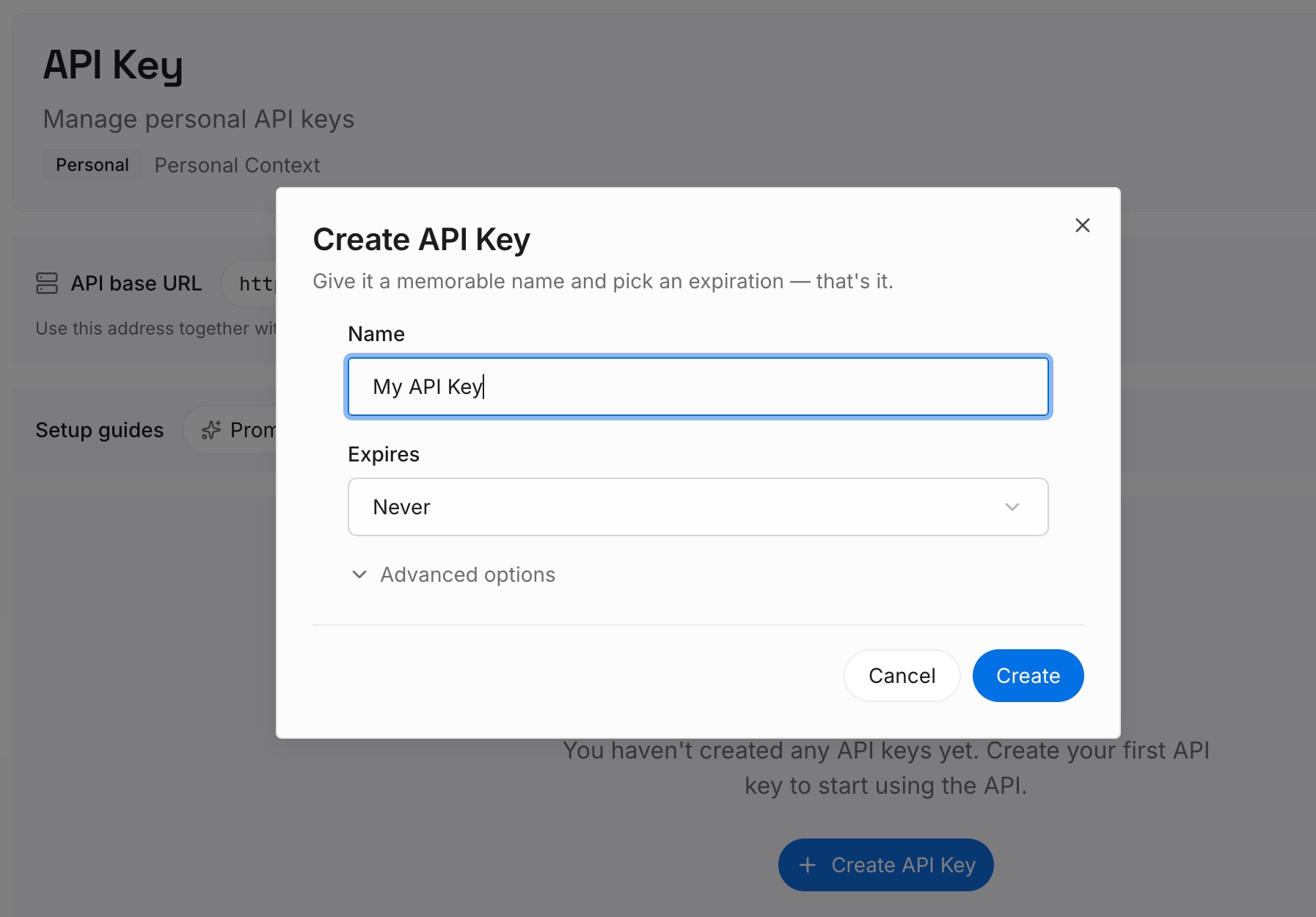
Step 1: Create an API key
Sign in and generate a key from the dashboard. Store it somewhere private, like any other credential.
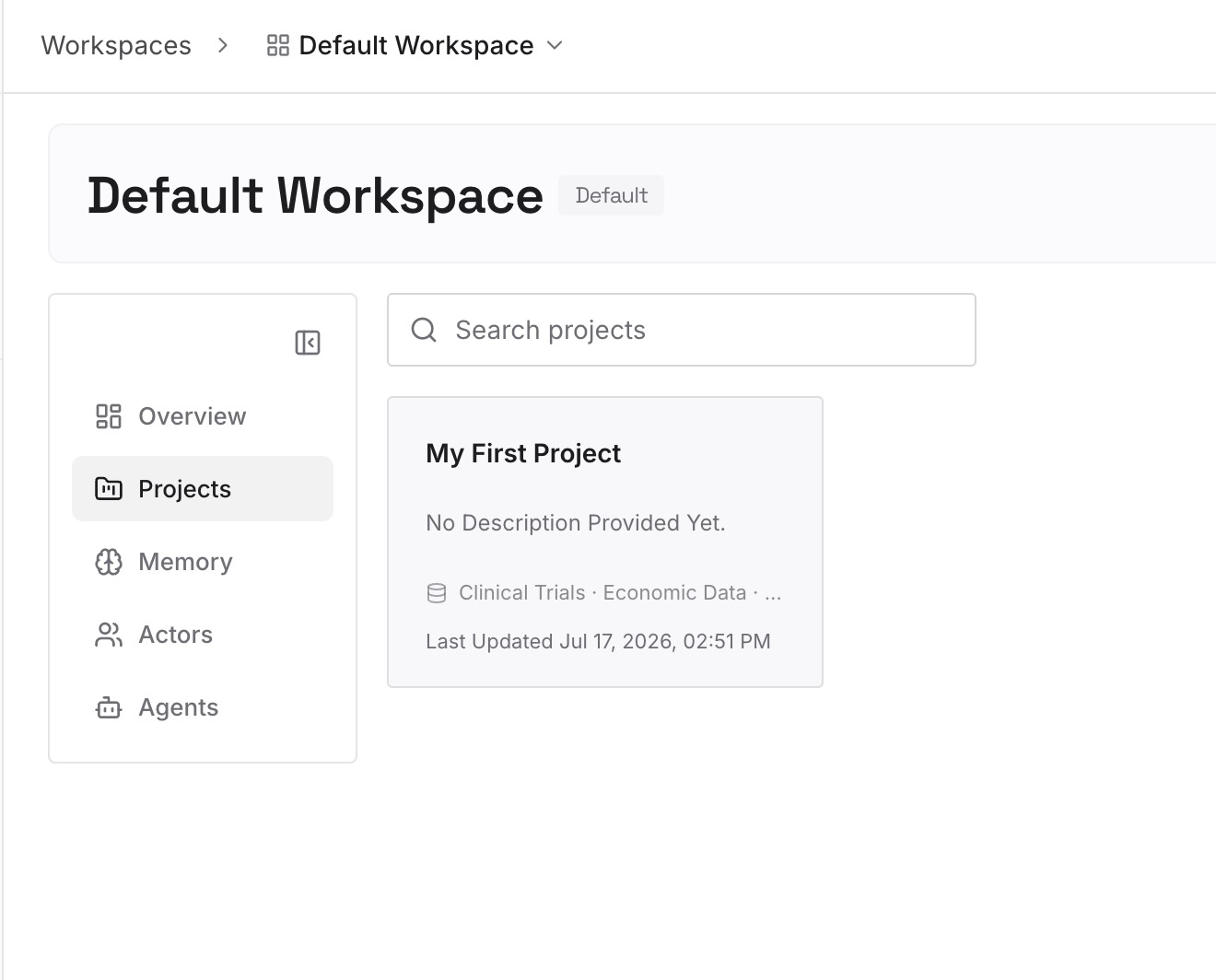
Step 2: Upload your first memories
Start with what you wrote in Step 4 of the fix: the facts and decisions from your dictated notes. One topic per entry.
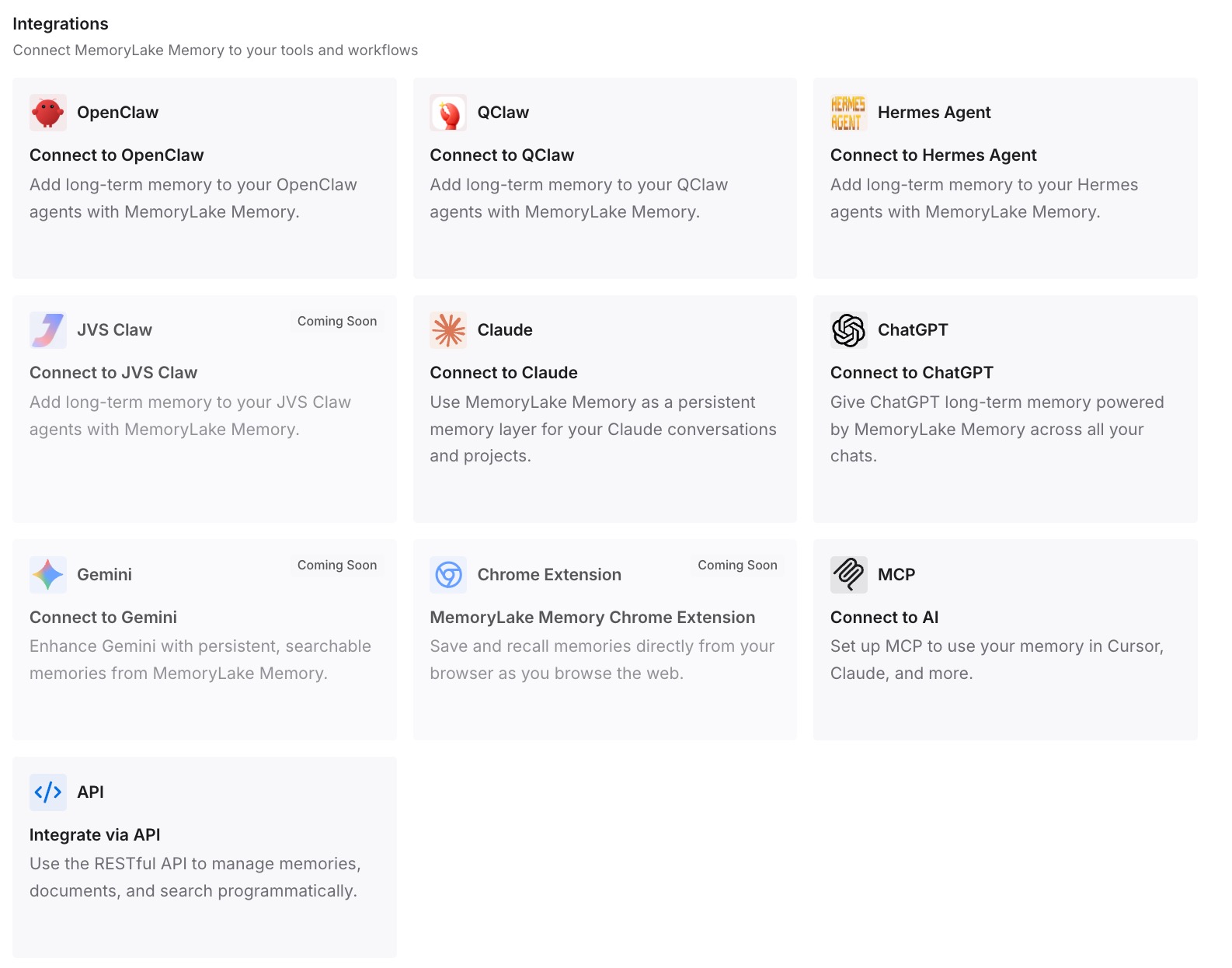
Step 3: Connect your AI & agents
Connect ChatGPT, Claude Code, Codex, and the other assistants you use. Each can draw on the same notes.
What this changes in practice
The first difference is that you can delete a long dictated chat without losing what mattered in it. The important parts are in your own notes.
The second is clarity. A short, edited entry is easier to trust than a long transcript.
The third is consistency across tools. The same context is available outside ChatGPT.
Best practices for ChatGPT dictation
Use dictation for prompts, Voice for conversations. Dictation gives editable text.
Read before sending. The edited transcript is the message you send.
Delete rather than archive to remove audio. Archiving keeps the chat and its clip.
Check your data controls. The audio sharing setting covers both dictation and Voice.
Don't rely on one long chat as a record. Memory is selective.
Use Sources to trace a reply. If an answer reflects an old dictation, Sources may show which past chat contributed.
Watch for Voice changes on December 11. Advanced and Standard voice retire that day.
Conclusion
ChatGPT dictation no longer has a 10-minute limit. Live Dictation, announced on November 18 and rolling out to all plans on iOS, Android, web, and desktop, shows your words as you speak and lets you show or hide the text as you go. Dictation is an input method: you review and edit the transcription, then send it as a normal user message, which is different from a Voice conversation and its transcript.
Once sent, a dictated prompt sits in your chat history like a typed one, and Reference chat history can draw on past conversations. The audio is retained as long as the chat is in your history and deleted within 30 days after you delete the chat, with the exceptions OpenAI lists. Archiving doesn't delete it. The audio sharing setting in data controls covers both dictation and Voice.