
How ChatGPT decides what to save
Start with what memory is designed to do. OpenAI's memory article says: "Memory does not retain every detail from every conversation."
It also says ChatGPT makes the call: "ChatGPT decides which available information is relevant to a response, and Memory can change as your context changes."
Saved memories come from two places. OpenAI defines them as "details that you explicitly ask ChatGPT to remember or that ChatGPT saves as useful context when that behavior is available."
That second half matters. Saving useful context on its own depends on that behavior being available to you. The first half carries no such condition in OpenAI's wording: it's a detail you asked ChatGPT to remember.
So a detail you mentioned in passing may not be kept, by design. A detail you asked ChatGPT to remember is the one you can expect to find.
Check your memory settings first
The simplest cause is a setting. OpenAI's article says: "Memory features and controls can vary by plan, region, platform, and workspace settings."
To see your controls, open Settings, select Personalization, then select Memory. OpenAI says the controls you see may include Memory, Reference saved memories, Reference chat history, Memory summary, Manage, or Saved memories.
Two of these are linked. OpenAI says: "If your settings include Reference saved memories, turning it off also turns off Reference chat history." Turning off Reference chat history, on the other hand, doesn't delete your saved memories.
If you can't find a setting at all, OpenAI explains: "If a setting described here is not visible, it may not be available for your account yet."
If you turned memory off for a while, OpenAI says that doesn't delete your past chats, and: "If you turn Memory on later, ChatGPT may create new remembered information from chats that remain in your history."
Why you may not see a list of memories
Some accounts don't have a list to check. OpenAI describes two experiences: "Improved Memory continually updates a broader summary of relevant context. Legacy saved memories use a more explicit list of individual memory items."
With improved memory, there may not be a separate line for your new job. The information could be part of the broader summary instead.
Where the option is available, you can switch between the two under Settings > Personalization > Memory: select Saved memories for the legacy experience, or Try improved memory to return. OpenAI notes that changing the memory experience doesn't delete your chat history.
The memory summary itself isn't complete. OpenAI's FAQ says the summary "may omit details that are less relevant, unsuitable for the summary, or derived from sources that are not displayed individually."
So not seeing something in the summary doesn't prove ChatGPT didn't keep it. Asking is a better check.
Temporary chats don't save memories
If the detail came up in a temporary chat, it wasn't saved. OpenAI's article says: "Temporary chats do not create or update memories, even with personalization on."
That's true whichever option you pick. The temporary chat article says that neither Personalized nor Unpersonalized "creates or updates memories while the chat remains temporary."
There's a way back. Saving a temporary chat converts it into a regular chat, and OpenAI says: "If Memory is on, the saved conversation may be used to personalize future responses."
Locked chats work in one direction
Locked chats can use what ChatGPT already remembers, but what you say in them doesn't flow out. OpenAI's article says: "New messages sent while a chat is locked do not personalize regular chats."
If you shared your job change in a locked chat, that explains why your regular chats don't know it. OpenAI adds that after a permanent unlock, the full conversation may be used for regular memory if your settings and workspace policies allow it.
Projects can wall memory off
Projects change what memory can reach. With project-only memory, OpenAI's projects article lists what happens, including:
- "Your previously saved memories are not referenced in project chats."
- "Chats cannot reference conversations outside the project, such as general ChatGPT conversations or conversations in another project."
- "Chats outside the project cannot reference conversations from the project."
So if you told ChatGPT about your new job inside a project with project-only memory, your other chats won't know. And if you told it outside, that project won't.
Shared projects always work this way. OpenAI says they "automatically use project-only memory and cannot access an individual member's memories or context from outside the project."
Project memory also has settings requirements. OpenAI says: "If your settings show Enable memory, turn it on." For plans other than Enterprise, it lists Reference saved memories and Reference chat history as the settings to enable. And when you change a project's memory setting, OpenAI notes: "Changes may take a few hours to take effect."
Workspace and account limits
Some controls aren't yours to change. OpenAI's FAQ says: "Workspace owners and admins can manage supported memory settings and role permissions." If a memory setting is unavailable in your workspace, it suggests contacting your admin.
In regulated workspaces, there's a specific default. OpenAI says that in ChatGPT for Healthcare and ChatGPT Enterprise with Regulated Workspace, "improved memory is disabled by default."
For a linked teen account, OpenAI says a parent or guardian can manage supported memory controls through Parental controls.
And project memory on Enterprise plans has its own condition: OpenAI says memory must be enabled in the workspace settings.
Correcting what ChatGPT kept
Sometimes the problem isn't that a detail wasn't saved, but that an older one was. In the opening example, ChatGPT still had your retail job.
OpenAI's article says: "You can tell ChatGPT that remembered information is incorrect or outdated." It adds that you can also edit the memory summary or a saved memory when those controls are available.
Telling ChatGPT about the change and correcting the old entry work together. The new detail goes in, and the outdated one stops competing with it.
When custom instructions are the better place
Some things you want ChatGPT to keep aren't really memories. They're rules about how to answer, and those have a separate home.
OpenAI's FAQ draws the line: "Custom instructions are direct guidance that you provide about what ChatGPT should know and how it should respond. Memory can use relevant information that develops across conversations and other available sources."
The difference is who decides. Memory decides what's relevant. Custom instructions are text you write, and OpenAI says they're "applied immediately to all chats." You edit them under Settings > Personalization, in the Custom Instructions field.
There's a size limit. OpenAI says Free and Go users can save up to 1,500 characters, and Plus, Pro, Enterprise, Business, and Education users up to 5,000.
So a standing preference like answer in plain language, or I work in healthcare compliance, can live in custom instructions, where it doesn't depend on memory saving it. Projects have their own version: project instructions, which OpenAI says "apply only within that project and override your global custom instructions."
How to check what ChatGPT kept
OpenAI gives you a few ways to look.
Ask. OpenAI says you can ask ChatGPT what it remembers about you. This is the most direct test.
Check Sources. When ChatGPT uses personal context, Sources may appear below the response, pointing to a past chat, saved memory, custom instruction, file, or connected email.
Review saved memories or the summary. Depending on your experience, Saved memories or the memory summary under Settings > Personalization > Memory shows what ChatGPT may use.
Each has limits. OpenAI notes: "Sources may not show every factor that shaped a response." Use them together.
What people try first
Mentioning something once and expecting it saved. Memory doesn't keep every detail. Ask ChatGPT to remember it.
Looking only at the summary. It can leave details out. Ask what ChatGPT remembers.
Sharing in a temporary chat. Temporary chats don't create memories unless you save them.
Expecting project chats to share with the rest. Project-only memory keeps them apart in both directions.
Assuming a setting is broken. Some controls depend on plan, region, and workspace.
The Fix: Get the details that matter saved
Step 1: Check your memory settings
Open Settings > Personalization > Memory and note which controls are on.
Step 2: Ask ChatGPT to remember it
State the detail plainly and ask ChatGPT to remember it, then ask what it remembers.
Step 3: Put rules in custom instructions
Move how-you-want-answers guidance into custom instructions, where you control the text.
Step 4: Keep your own copy of key facts
Write down the details you never want to repeat, in your own words.
Setting this up in MemoryLake
ChatGPT's memory decides what's relevant and depends on settings, chat types, and projects. The details you never want to repeat, like a job change or a standing preference, are easier to manage when you keep them yourself.
MemoryLake is a memory layer for that kind of context, kept in one place you maintain and available to the assistants you connect, such as ChatGPT, Claude Code, and Codex.
You write the entries yourself, in your own words. Nothing is read out of, written to, or deleted from your ChatGPT chats, your saved memories, your memory summary, your custom instructions, your projects, or any vendor's store. ChatGPT memory works the way OpenAI describes it.
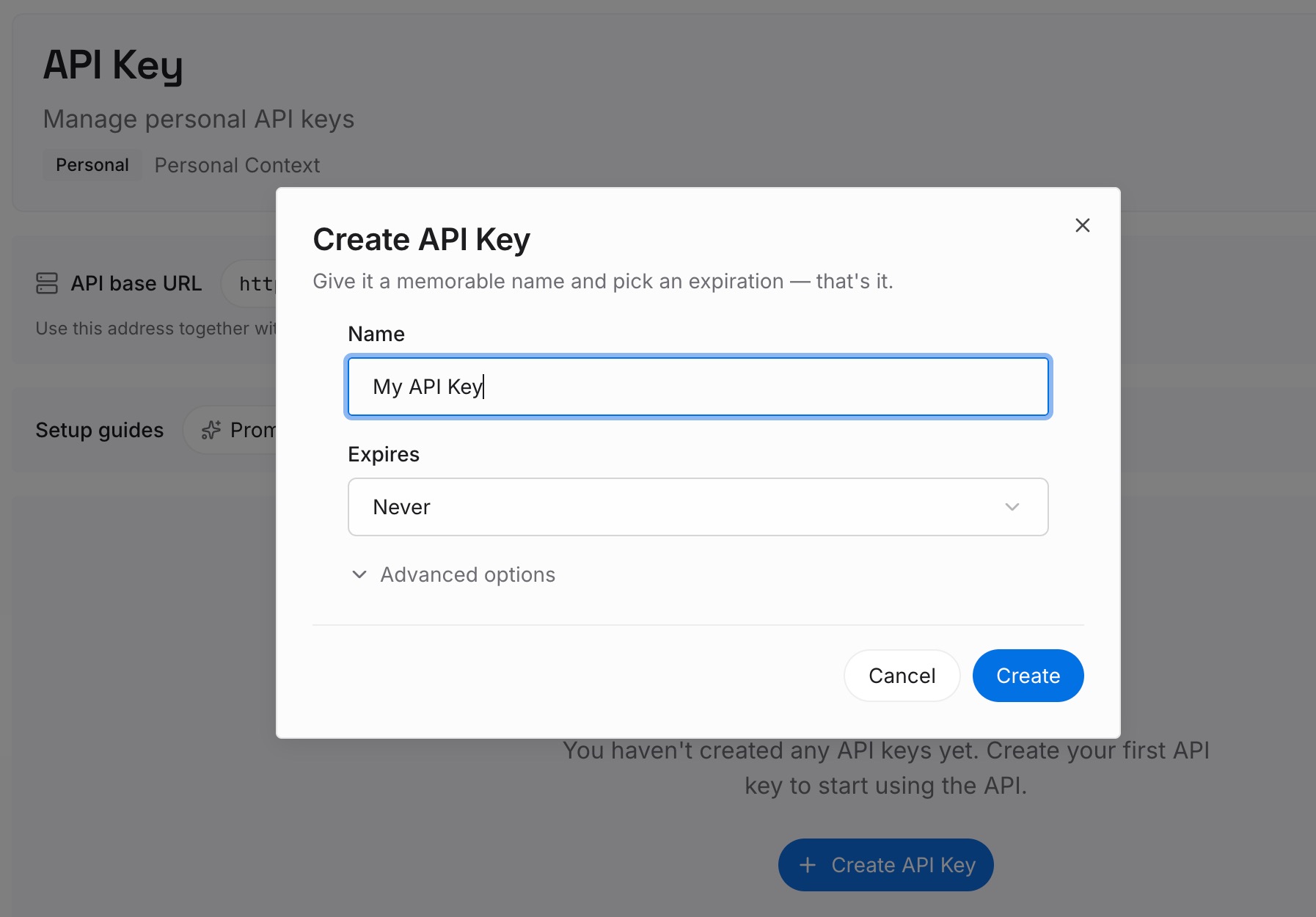
Step 1: Create an API key
Sign in and generate a key from the dashboard. Keep it somewhere private.
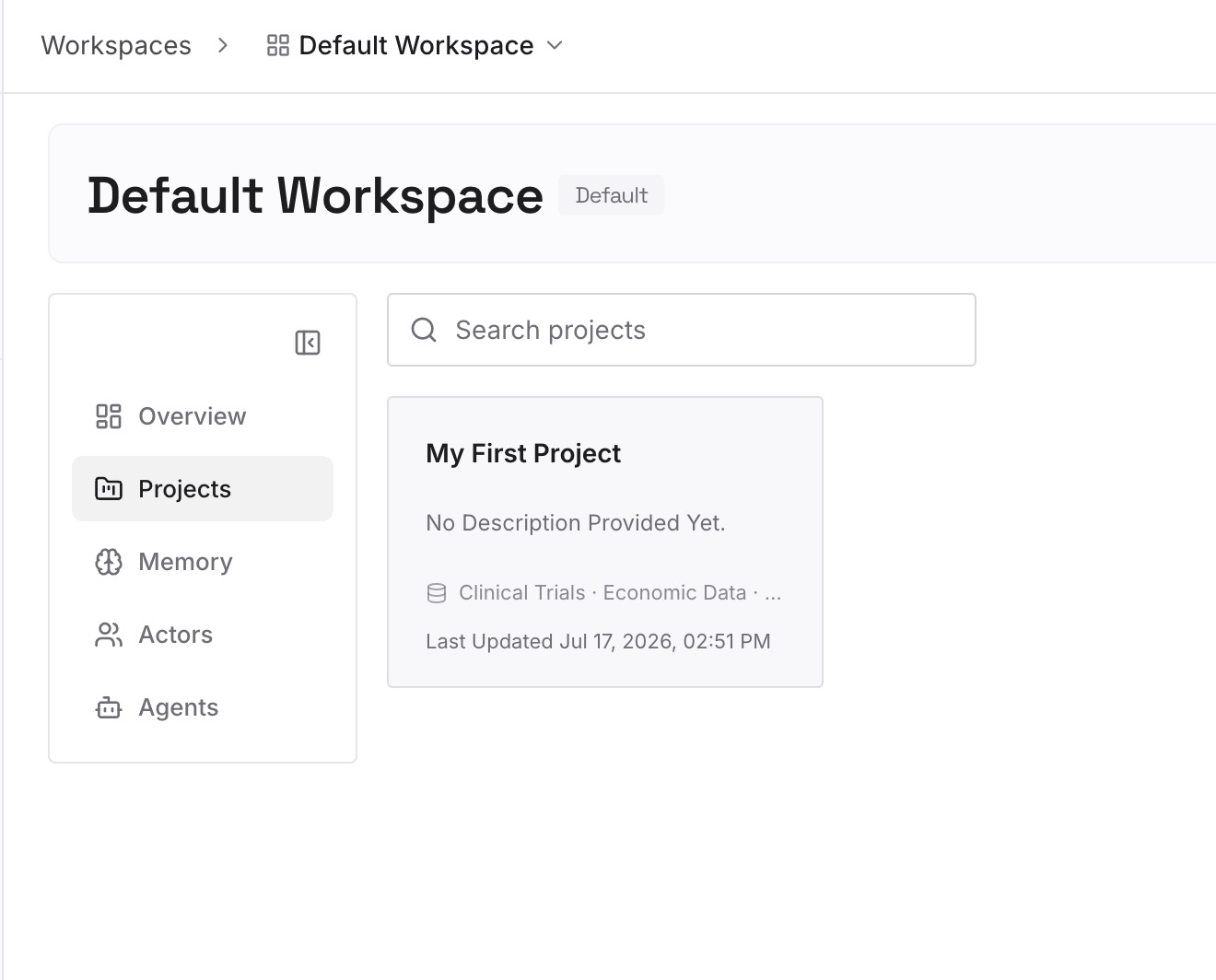
Step 2: Upload your first memories
Start with what you wrote in Step 4 of the fix: the facts you never want to repeat. One fact per entry.
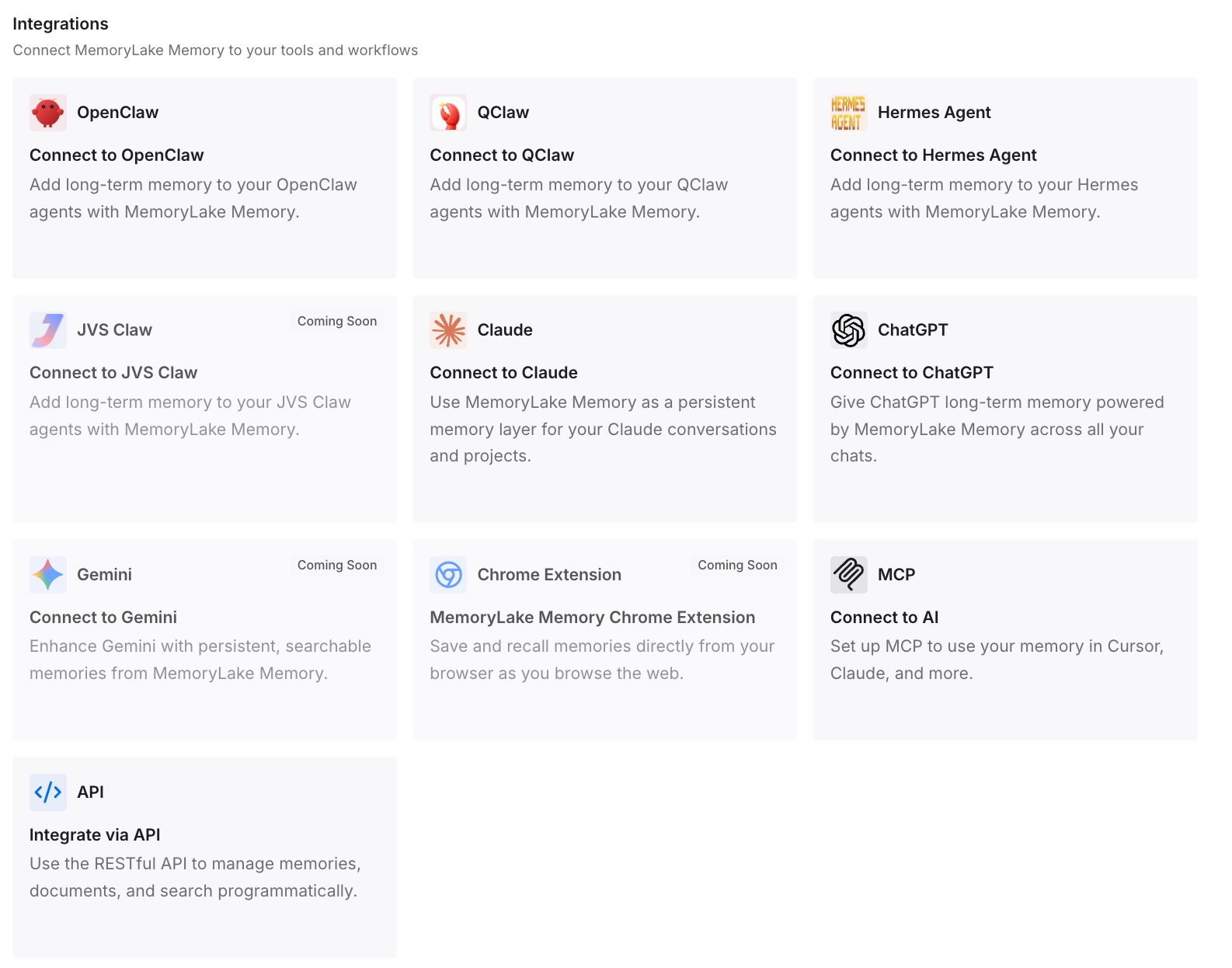
Step 3: Connect your AI & agents
Connect ChatGPT, Codex, Claude Code, and the other assistants you use, so each starts from the same facts.
What this changes in practice
The first difference is certainty. You know a fact is written down because you wrote it.
The second is fewer repeats. A change like a new job is recorded once.
The third is portability. The same facts are available in other assistants too.
For changing a memory that ChatGPT already saved, see our guide to updating ChatGPT memory.
Best practices for getting ChatGPT to save memory
Ask explicitly. Saved memories include details you ask ChatGPT to remember.
Check by asking. The summary and Sources can leave things out.
Mind the chat type. Temporary and locked chats don't feed regular memory.
Know your project setting. Project-only memory keeps context inside the project.
Use custom instructions for rules. You control that text directly.
Talk to your admin. Workspace settings can limit memory.
Conclusion
ChatGPT's memory doesn't keep every detail. It decides what's relevant, and saving useful context on its own depends on that behavior being available, while details you ask it to remember are saved memories by definition. Settings matter too: Reference saved memories, Reference chat history, and the improved or legacy experience all change what you see and what ChatGPT uses.
Temporary chats don't create memories, locked chats don't personalize regular ones, and project-only memory walls context off in both directions. Workspace admins and regulated defaults can limit memory further. Asking ChatGPT what it remembers, stating important details explicitly, and keeping your own copy of the facts that matter make memory more predictable.