
How pinning works in ChatGPT now
Pinned chats arrived on December 18, 2025. The release note said "You can now pin chats to the top of your list for quick access to important conversations. Pinned chats are available on iOS, Android, Web, and Atlas." On the web you open a chat's menu in the sidebar and pin it. On mobile you long-press the chat.
The sidebar changed on June 18, 2026. The release note for that day says "You can pin chats and projects directly from the sidebar, and your Pinned section now includes both chats and projects. You can also organize Recents as one combined list, or group chats by project so related work stays together."
The new ChatGPT desktop app has its own version. OpenAI's article on moving to it says "Chat and Work chats appear together in Recents, where you can sort, filter, and pin chats." In the desktop app, the shortcut to pin or unpin a chat is Cmd+Option+P on macOS and Ctrl+Alt+P on Windows.
Codex chats have pins too, and they sync differently. The August 20, 2026 release note says "Pinned chats now stay in sync between the ChatGPT desktop app and iOS when you use the same Codex account. Android is not included in this release."
Why a pinned chat leaves the Pinned section
You're in a different account or workspace
Each account keeps its own chats. OpenAI's account switching article lists what the switcher does, including "Keep chats, memory, history, billing and workspaces fully separate", and adds "Each account remains independent. Switching does not merge or combine them."
If you pinned a chat while signed in to your personal account and you're now in your work account, or in a different workspace, the Pinned section shows that account's pins. OpenAI's first troubleshooting step for a missing conversation is the same check: "Confirm that you are signed in to the correct OpenAI account and workspace, including the correct email address or single sign-on (SSO) method."
The chat was locked
Locked chats, added on October 20, 2026, are built to leave the pinned list. The release note describes them as letting you "keep selected conversations in your account while hiding them from regular chat history, pinned chats, and search." While a chat is locked, you can't pin it: "You cannot archive, pin, move, or share a locked chat. Permanently unlock it before using any of these actions."
Locked chats are under Projects > Locked chats, behind your account PIN. Unlocking brings the chat back to your history: "After permanent unlock: The chat returns to regular history. It can take time to reappear in regular conversation search." OpenAI's article doesn't say the pin comes back with it, so check the Pinned section after unlocking and pin the chat again if it's missing. Our guide to ChatGPT locked chats covers what else locking changes.
The chat was archived
Archiving takes a chat out of the sidebar without deleting it. OpenAI's article on deleting and archiving says "Archiving removes the chat from the regular sidebar but does not delete it. Archived chats remain searchable."
This can happen in bulk. Settings > Data controls has Archive all chats, and OpenAI warns that "These actions can affect chats in your current account or workspace, including chats in projects." If several pinned chats went missing at once, check whether someone archived everything.
To get one back, open Settings > Data controls > Archived chats and select Unarchive to return it to regular history. Then pin it again if it isn't pinned. Our guide to ChatGPT archived chats covers what archiving does to memory.
You're looking in a different view or a different app
The new desktop app has two sides. OpenAI's article says "Codex remains a separate view; its workflows are unchanged, and its history remains separate from ChatGPT history." A pinned Codex chat lives in the Codex view, and a pinned ChatGPT chat lives in the ChatGPT view. Switch between them from the top-left menu.
There's also a second desktop app. "The new app may install separately from the previous desktop app." The previous one is ChatGPT Classic, and if you used both, check which one you're in. Our guide to moving from ChatGPT Classic to the new desktop app covers the switch.
For Codex chats, device matters. Pins sync between the desktop app and iOS on the same Codex account, and the release note says Android isn't part of that sync. Codex also isn't selectable on web or mobile, though OpenAI says "supported desktop Codex chats can be accessed from the Remote tab in the ChatGPT mobile app."
The Pinned section is organized differently than you expect
Since June, the Pinned section holds pinned projects as well as chats. If you've pinned several projects, a chat can be lower in the list than you remember. Recents can also be grouped by project, which changes where unpinned chats appear.
The chat was deleted
This is the one you can't undo. "You cannot restore a deleted chat in ChatGPT or through OpenAI Support." The finding article is just as direct about search: "Deleting a chat removes it from your account view and sidebar search", and "Deleted chats cannot be recovered through search."
Bulk deletion is in the same place as bulk archiving, and "The Delete all chats action cannot be undone."
Search hasn't caught up, or there's an incident
Two simpler causes are on OpenAI's troubleshooting list: "Allow time for recently created or deleted items to update in search" and "Check OpenAI Status for an active incident." If every pinned chat vanished at once and you didn't archive or delete anything, check the status page before anything else.
What people try first
Scrolling the sidebar. OpenAI's tip is to search instead. "An older chat that is no longer visible in the sidebar has not necessarily been deleted. Search for a word or phrase from the conversation to find and reopen it."
Assuming the chat was deleted. Deletion is one documented exit. Accounts, locking, archiving, and app views come first.
Asking support to restore a deleted pinned chat. OpenAI says deleted chats can't be restored in ChatGPT or through support.
Re-pinning a different chat with the same name. Check Archived chats and Locked chats first. The original is more useful than a new chat with the same title.
Expecting a pin to keep a chat's context in front of ChatGPT. OpenAI says pinning only changes where the chat appears in the sidebar.
The Fix: Search for the chat, check where it went, then keep what matters outside the pin
Step 1: Search before you scroll
Open Search from the sidebar, or press Ctrl+K or Cmd+K on the web. Type a word or phrase you remember from the chat. If the results are thin, OpenAI's tip is to "select All to search across available content types."
Search covers archived chats too. OpenAI says "Regular and archived chats can appear in search results, but deleted chats do not."
Step 2: Check the places a pinned chat goes
Work through them in order:
- Account and workspace. Open the account menu and confirm which one is active.
- Locked chats. Open Projects > Locked chats and enter your PIN.
- Archived chats. Open Settings > Data controls > Archived chats and unarchive what you need.
- App and view. In the new desktop app, check both the ChatGPT and Codex views. If you also have ChatGPT Classic installed, check it too.
- Device. For Codex chats, pins sync between desktop and iOS only.
Once you find the chat, pin it again.
Step 3: Keep what the chat holds somewhere other than the sidebar
A pin is a shortcut to a conversation. The useful part of a conversation can come down to a few things: a brief, a style guide, a set of decisions. Copy those out into a document or a project's files. If the chat is ever archived, locked, or deleted, you still have what it was for.
Setting this up in MemoryLake
A pinned chat is where many people keep the context they reuse most. OpenAI's own description says that's not what a pin does: it changes the chat's place in the sidebar, not what ChatGPT can use. And the pinned list depends on the account you're in, the view you're looking at, and whether the chat has been locked, archived, or deleted.
MemoryLake is a memory layer for keeping that reusable context in one list you maintain, available to ChatGPT and the other assistants you connect, such as Claude Code and Codex.
You write the entries yourself, in your own words. Nothing is read out of, written to, or deleted from your ChatGPT chats, your pinned or archived chats, your locked chats, your ChatGPT memory, or any vendor's store. For work accounts, follow your organization's policy on what you keep outside the workspace.
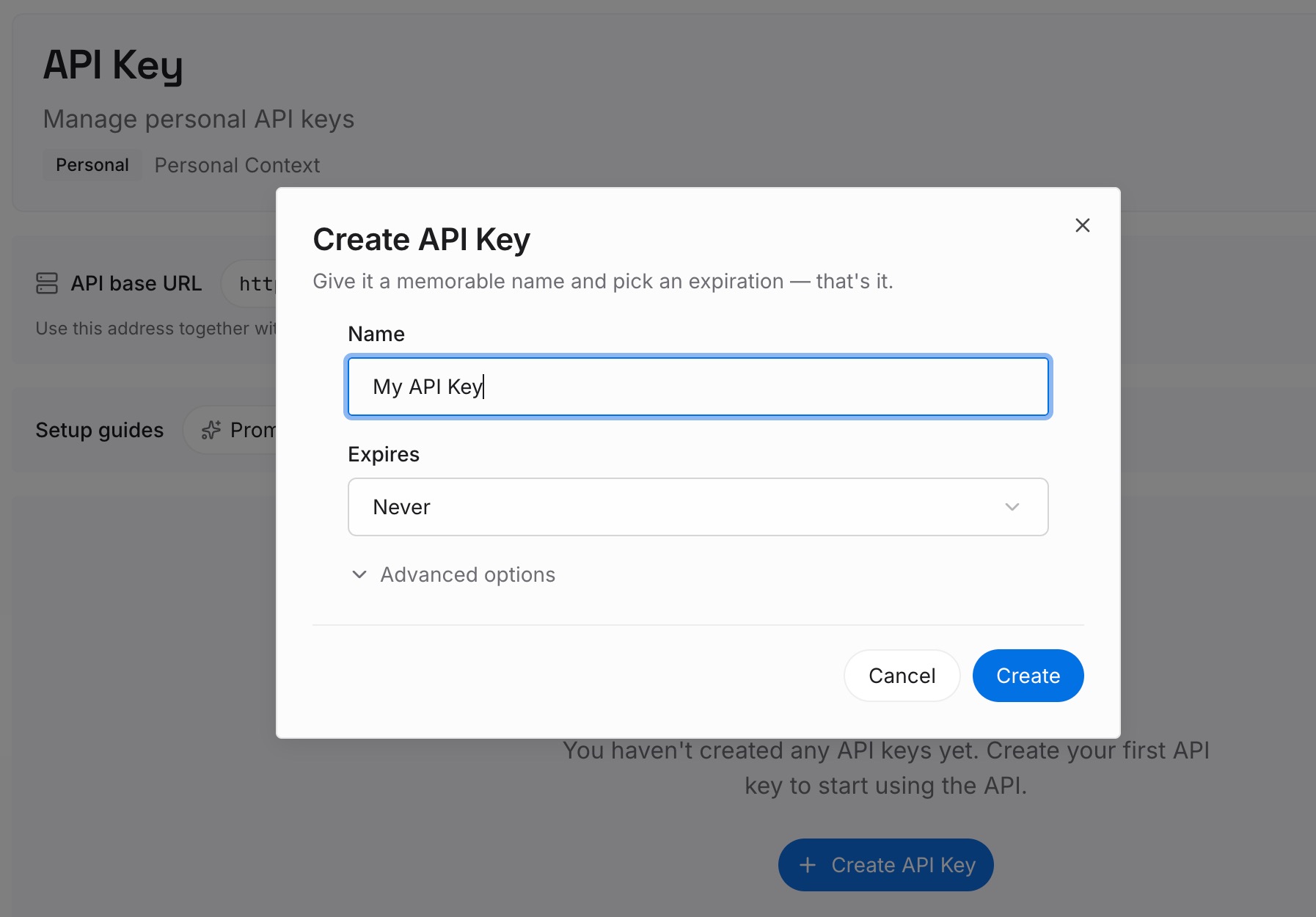
Step 1: Create an API key
Sign in and generate a key from the dashboard. The key belongs to your MemoryLake workspace and is separate from your ChatGPT account.
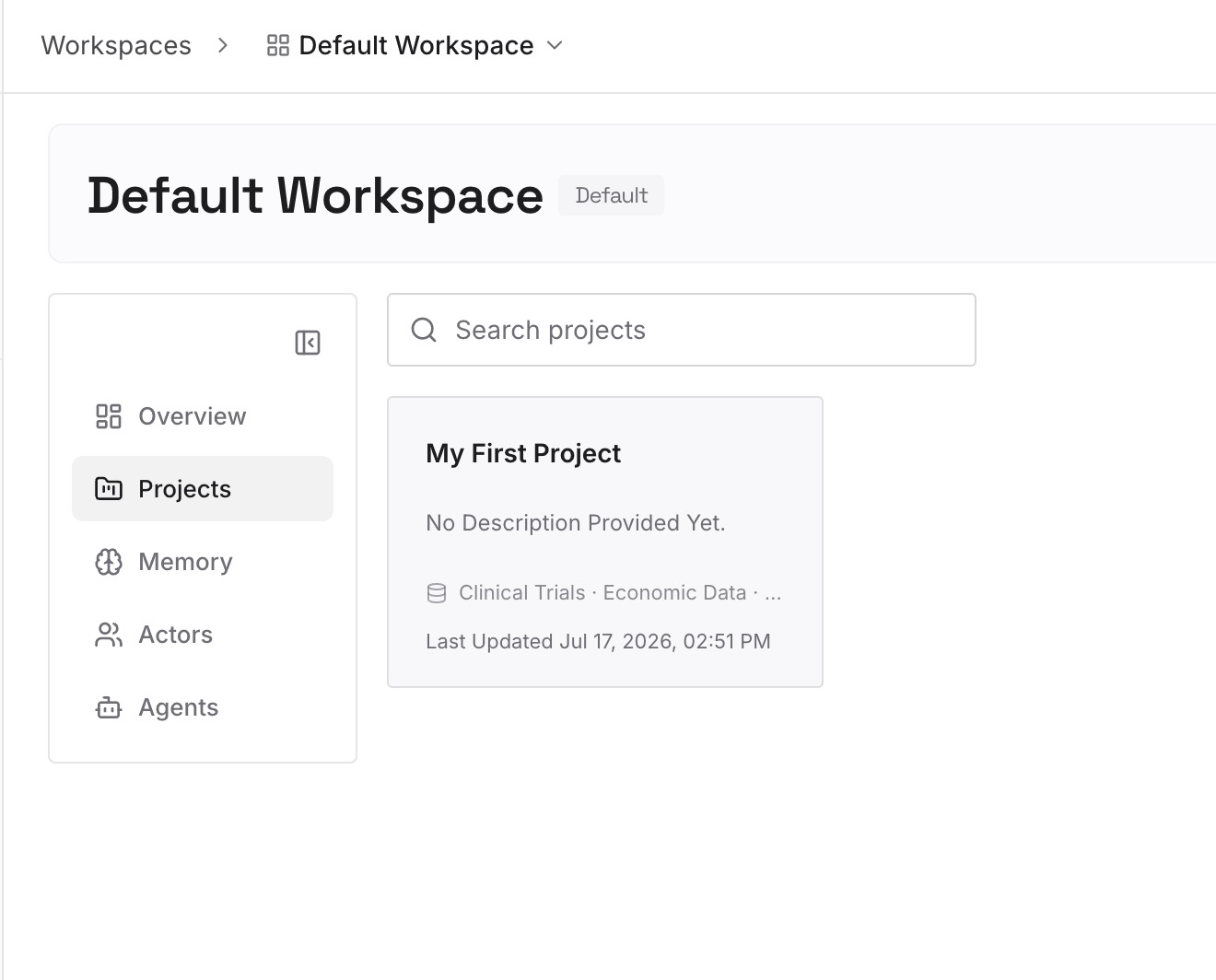
Step 2: Upload your first memories
Start with what you copied out in Step 3 of the fix: the brief, the style rules, and the decisions your pinned chats held. One point per entry, dated, and labeled with what it's for.
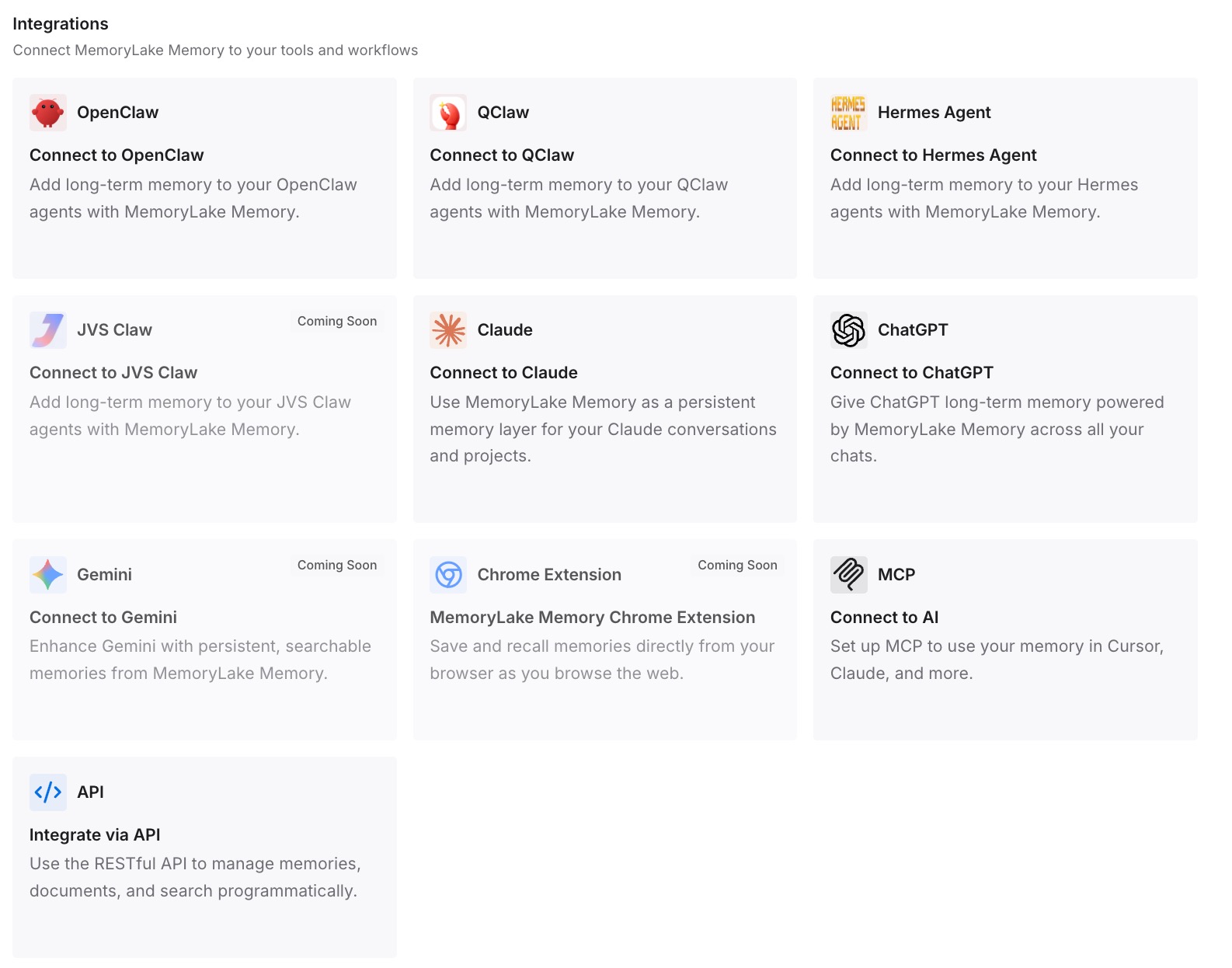
Step 3: Connect your AI & agents
Connect ChatGPT and the other assistants you use. The context you relied on is available in a new chat without opening the old one.
What this changes in practice
The first difference is that a missing pin has an explanation. You can tell a different account from a locked chat, an archived chat, or the wrong view of the desktop app.
The second is that you can tell recoverable from final. Accounts and views are fixed by switching, locked and archived chats by unlocking or unarchiving. A deleted chat can't be restored.
The third is that losing a pin stops costing you the context. The brief and the decisions are already written down. Our guide to ChatGPT projects that disappeared covers the same checks for missing projects.
Best practices for keeping ChatGPT pinned chats
Search first. Then check Archived chats and Locked chats.
Check the active account and workspace. Each keeps its own pins.
Re-pin after unlocking or unarchiving. Check the Pinned section afterward.
Check both views in the desktop app. ChatGPT and Codex keep separate histories.
Be careful with Archive all chats. It affects every chat in the current account or workspace.
Treat a pin as a shortcut. OpenAI says it doesn't add context.
Copy out what a pinned chat is for. Keep the brief and decisions in a document or your own list.
Conclusion
A ChatGPT pinned chat that's gone from the Pinned section may be in another account or workspace, behind a lock, in Archived chats, in the other view of the desktop app, or further down a list that now holds projects too. Search for it, check those places, and pin it again when you find it. Deletion is the documented exit that can't be reversed.
A pin only changes where a chat sits in the sidebar. Keep what the chat is for somewhere you control, so the context doesn't depend on the pin.