
Why a ChatGPT workspace gets deactivated
The billing article lists the causes. "A Business workspace can be deactivated after its subscription is canceled or a payment fails." It adds that "Cancellation normally takes effect at the end of the current billing period."
Not every deactivation follows a cancellation. The same article says "A workspace may be deactivated earlier for fraud, abuse, or a terms violation." It also notes: "A disputed payment can also cause an unexpected deactivation." The members article adds that misuse of seat assignments in violation of the Services Agreement "may lead to workspace deactivation or account suspension."
If the deactivation is a surprise, those are the places to look. The owner can check the subscription, the payment method, and any disputed charges.
Are your chats and memory gone?
No, not because of deactivation. Here's what OpenAI's memory FAQ says happens while a Business workspace is deactivated:
- "Members cannot access its conversations or memories."
- "Reactivating the workspace restores access for its members."
The data is still there. You just can't open it until someone reactivates the workspace, or until you join it again after it's back.
Deletion is a different event. The same FAQ says that if a Business workspace is permanently deleted, "All user data within the workspace, including conversations and memories, will also be permanently deleted." And: "Deleted data cannot be recovered."
The help articles don't give a time limit for how long a deactivated workspace's data stays available before anything else happens to it. If the content matters, don't wait to find out. Our guide to recovering deleted ChatGPT chats covers what deletion removes in a personal account, which is a separate set of rules.
Who can reactivate a deactivated workspace
Only the owner. The billing article says: "Only a workspace owner can reactivate a Business workspace". The steps it lists:
- Sign in with the owner email associated with the workspace subscription.
- If prompted, follow the option to access a personal workspace.
- Open your profile menu and find the grayed-out Business workspace.
- Open its more options menu, then select Reactivate Workspace.
- Review the subscription details and seat requirements, then purchase a subscription or pay any outstanding invoice.
Reactivation restores members' access to the same workspace, including its chats and memories. It's the route the help center describes for getting back to the old data.
Why creating a new workspace doesn't help
When a workspace is deactivated, starting fresh can seem easier. OpenAI's billing article warns against it if you need the old content: "A new Business workspace starts without the old workspace's data and does not merge with it." The Business FAQ adds that "Business-to-Business workspace merges are not supported."
So a new workspace is a clean start, with its own subscription and settings. If you need what was in the old one, the owner has to reactivate it.
If the deactivation was a mistake
The billing article says that if you plan to keep using Business, "Support can review a verified seat-count error, mistaken annual renewal, or accidental workspace deactivation for a possible remedy." It asks for the workspace name or ID, invoice details, the charge date and amount, and the reason for your request.
Deactivated is different from being removed
A deactivated workspace and a removed member can look similar from the outside, since in both cases you can't see your Business chats. OpenAI treats them as different events.
When a member is removed from a Business workspace, the retention article says: "Chats, files, and canvas documents are retained indefinitely." It adds: "If the member is re-added, their content is restored." The member's projects and GPTs are reassigned to a workspace owner, but "Conversations and files created by the removed member are not transferred, and are not visible to the workspace owner."
So if the workspace is active and other people still use it, you've been removed rather than the workspace being deactivated. The fix is an invitation back, not a reactivation.
If you're a member, not the owner
As a member, you can't reactivate the workspace. You have three options.
Ask the owner. If your team still needs the workspace, the owner can reactivate it and your access comes back with it.
Use your personal workspace. The billing article says: "You can continue using a separate personal workspace if you have access to one." If you kept your personal workspace separate when you joined Business, it's still in the workspace switcher with its own chats and memory. Our guide to ChatGPT account switching covers how separate accounts keep their own content.
Leave the deactivated workspace. The members article describes the steps: open your profile menu, find the locked or grayed-out Business workspace, open its more options menu, and select Leave workspace. Before you do, know what leaving means: "After you leave, you cannot access the workspace's data unless you are invited back."
There's no member-side export. The Business FAQ says "Self-service data export is not available in ChatGPT Business workspaces." And while the workspace is deactivated, you can't open the chats to copy anything.
If you merged your personal workspace into Business
This case can look worse than it is. When you merged, supported personal content was copied into Business and your personal workspace was deactivated and hidden. If the Business workspace is now deactivated too, it can look as though both are gone.
OpenAI describes a recovery path. The migration guide says to follow the personal-workspace option shown when the Business workspace is deactivated. In that flow, "your original personal workspace and its data are reactivated."
It also says what that doesn't do: "Reactivating your personal workspace does not restore Business access or copy your Business activity back." You get back the personal workspace as it was when you merged. Anything you did in Business after that stays in the deactivated Business workspace. Our guide to migrating a personal workspace to Business covers what the merge copied in the first place.
When you keep landing on the deactivated workspace
Some searches for this message describe being stuck: the app opens to the deactivated workspace and nothing seems to work. The help center points to three things to look for.
- The personal-workspace option. Both the billing article and the migration guide refer to an option shown when a workspace is deactivated. Use it to get to a personal workspace, or to recover yours if you merged.
- The workspace switcher. On the web, workspaces are in the profile menu. On mobile, they're in the sidebar. Switch to a personal workspace if you have one.
- The Leave workspace option. If you don't need the old workspace, you can leave it, even while it's deactivated.
If none of these appear, contact OpenAI Support with your account email and the workspace name.
What people try first
Assuming the chats were deleted. Deactivation doesn't delete conversations or memories.
Creating a new Business workspace. It starts without the old workspace's data.
Asking a member to reactivate. Only the owner can.
Leaving right away to clear the message. After you leave, you can't access the data unless you're invited back. Check with the owner first.
The Fix: Decide between reactivating and moving on
Step 1: Find out who the owner is and why it happened
Ask the owner, or check the subscription yourself if you're the owner. Look for a canceled plan, a failed or disputed payment, or a notice about terms. If it was a mistake, contact OpenAI Support with the details the billing article lists.
Step 2: Reactivate if you need the old content
If the chats and memory in the workspace matter, the owner reactivates the same workspace from the profile menu. Don't create a new one expecting the data to follow.
Step 3: Otherwise, move to a personal workspace on purpose
Switch to your separate personal workspace, or follow the personal-workspace option to recover the one you merged. Then decide whether to leave the deactivated workspace. Personal workspaces have self-service export, and our guide to fixing a ChatGPT data export covers how to get a copy of what's there. Write down the context you'll miss, such as your preferences and recurring tasks, and add it to custom instructions or projects in the personal workspace. Our guide to making ChatGPT forget something covers the other direction, if you want to clean up what a personal workspace remembers.
Setting this up in MemoryLake
A deactivated workspace shows how much of your context lived somewhere you didn't control. The chats and memory are still there, but access depends on someone else's billing decision. Even after you get to a personal workspace, Business memories stay in Business.
MemoryLake is a memory layer for keeping your own preferences and working decisions in one place you maintain, available to the assistants you connect, such as ChatGPT, Claude Code, and Codex.
You write the entries yourself, in your own words. Nothing is read out of, written to, or deleted from your Business workspace, your personal workspace, your ChatGPT memories, your chats, or any vendor's store. Deactivation, reactivation, and leaving all work the way OpenAI describes them.
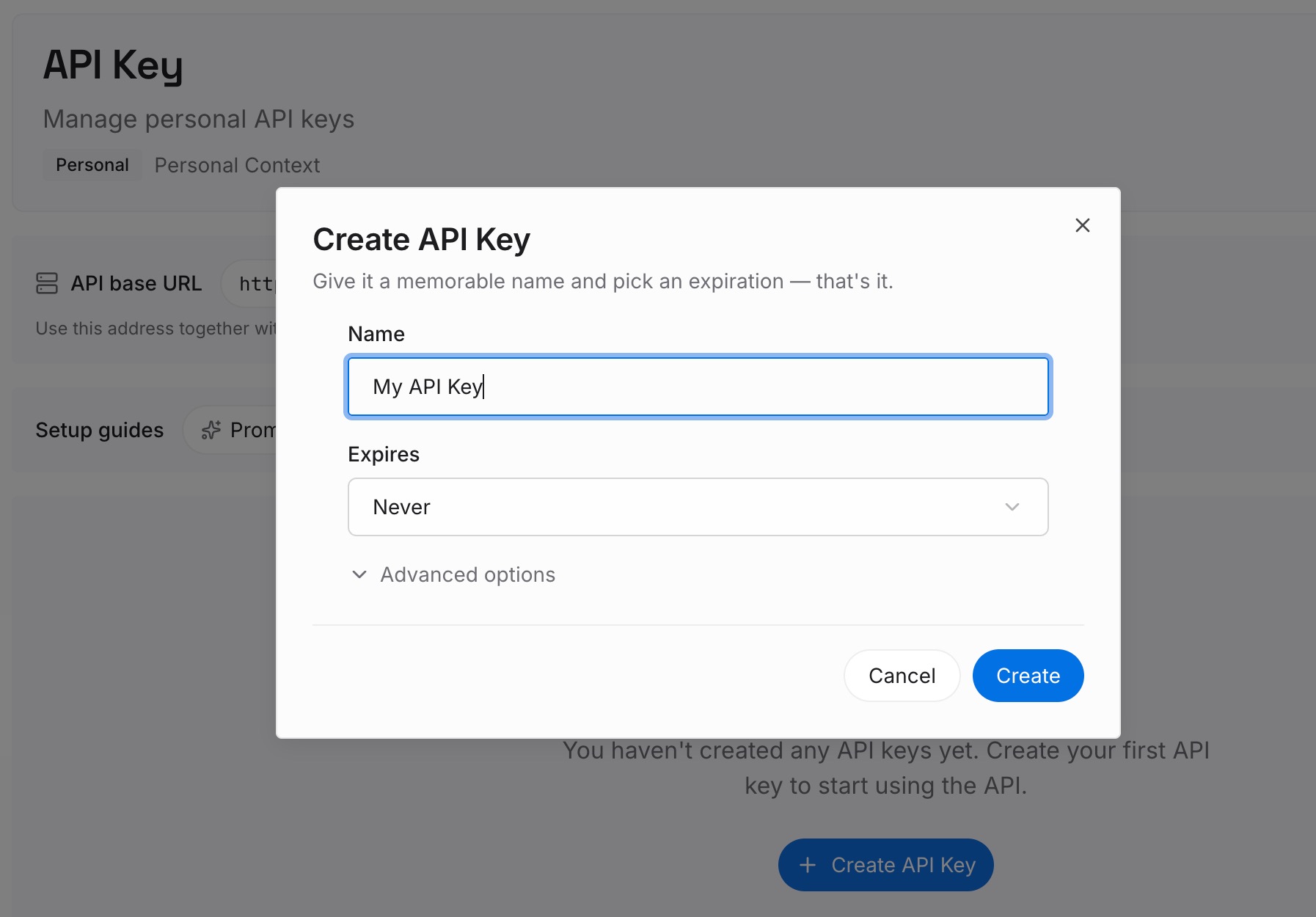
Step 1: Create an API key
Sign in and generate a key from the dashboard. The key belongs to your MemoryLake workspace and is separate from your OpenAI account and from any Business workspace.
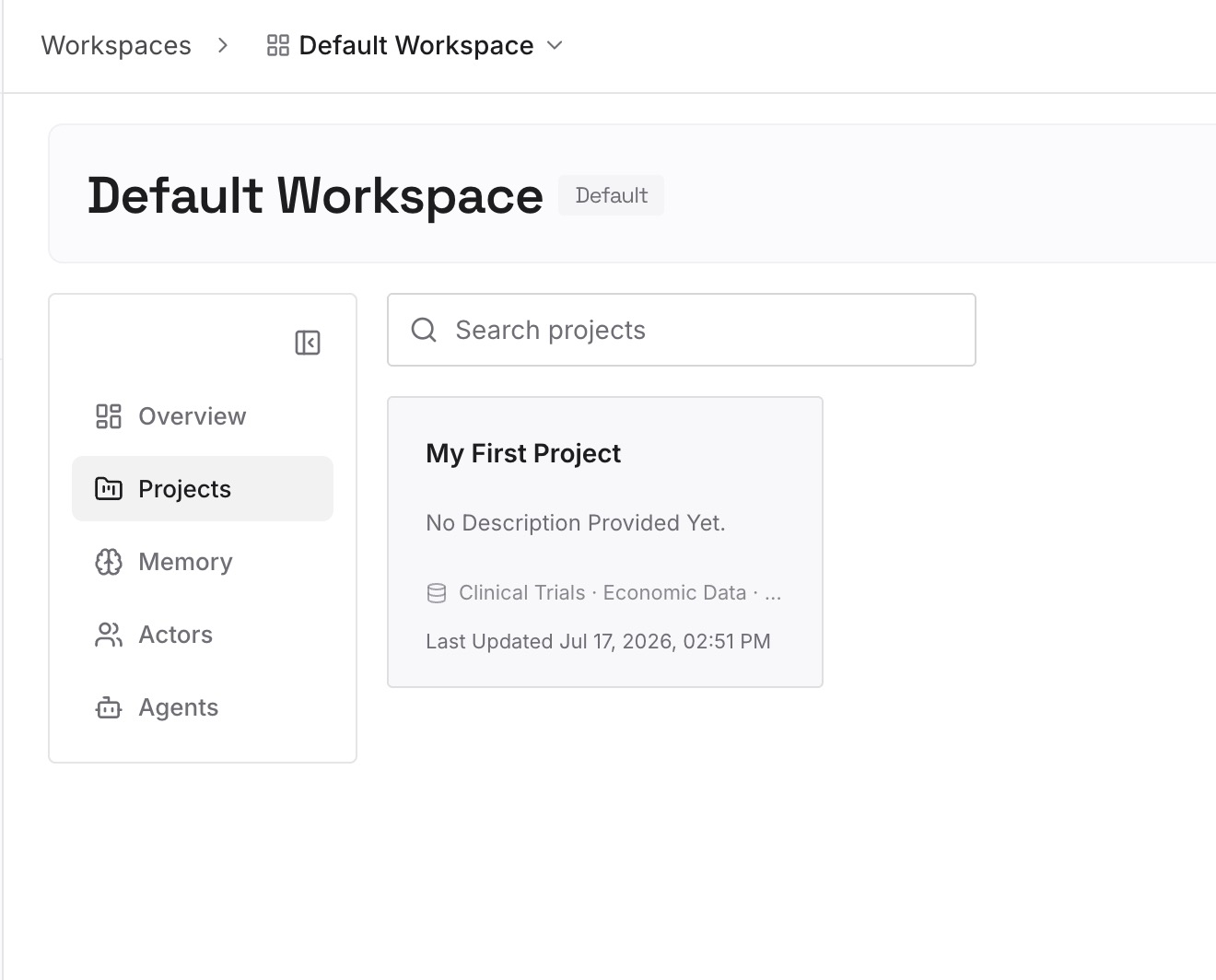
Step 2: Upload your first memories
Start with the context you wrote down in Step 3 of the fix, leaving out anything your organization doesn't allow you to keep. One preference or decision per entry.
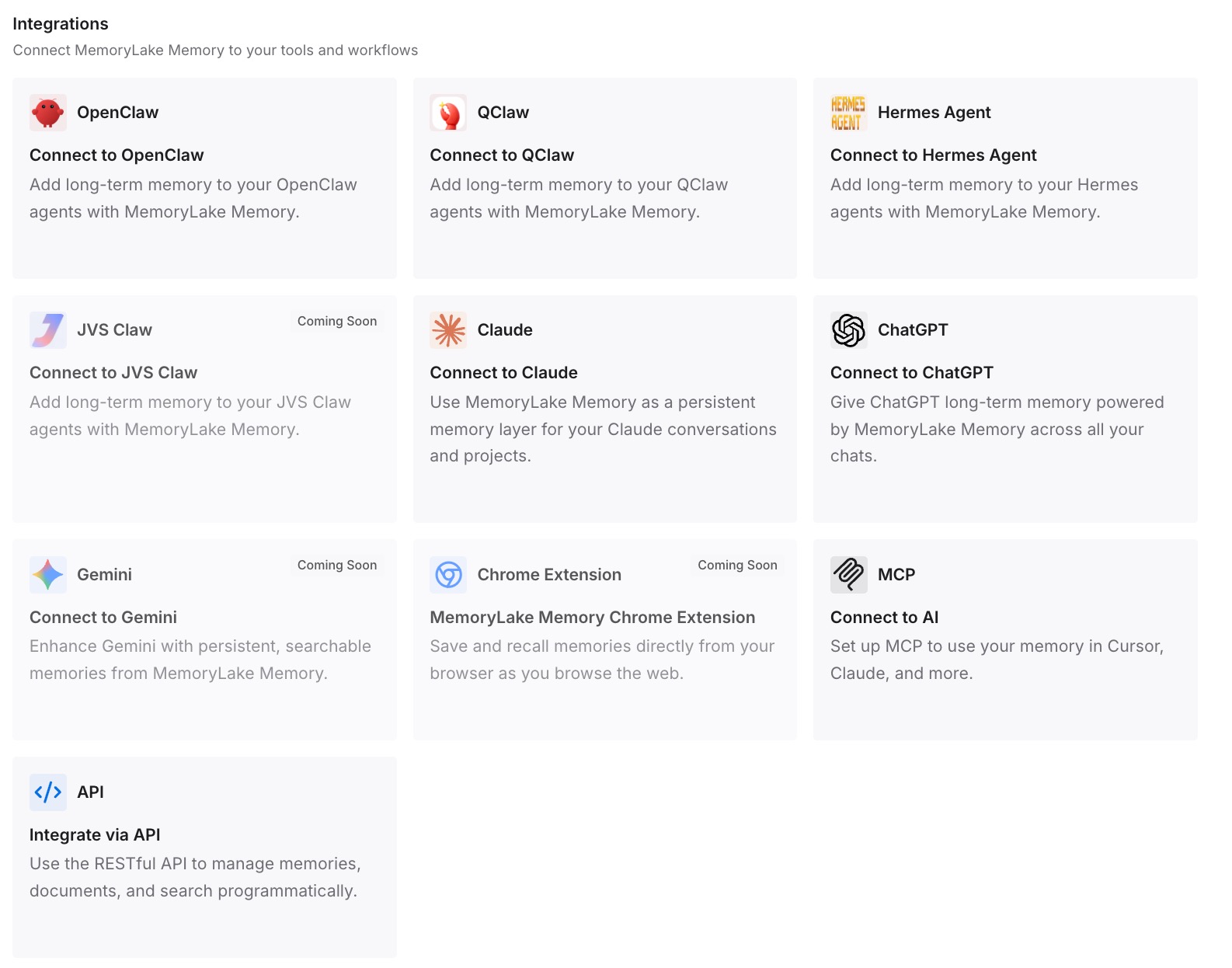
Step 3: Connect your AI & agents
Connect ChatGPT and any other assistants you use. Your entries are available whether you're back in a reactivated workspace, in a personal one, or in another tool.
What this changes in practice
The first difference is that a billing problem doesn't lock your working preferences. They live in entries you control.
The second is a faster restart. A personal workspace, or a new tool, can start with your context the same day.
The third is less dependence on one owner. Your own way of working doesn't wait for someone else to pay an invoice.
Best practices for a deactivated ChatGPT workspace
Don't assume deletion. Deactivation keeps conversations and memories.
Reactivate the same workspace if you need the data. A new workspace starts empty.
Leave only when you're sure. Leaving ends your access unless you're invited back.
Use the personal-workspace option if you merged. It reactivates your original personal workspace, without your Business activity.
Act before deletion. A permanently deleted workspace takes its conversations and memories with it.
Write down your own context. Business memories stay with Business.
Conclusion
A ChatGPT workspace is deactivated after a canceled subscription or a failed payment, or earlier for fraud, abuse, a terms violation, or a disputed payment. Deactivation doesn't delete conversations or memories. Members can't access them until the owner reactivates the workspace, and only the owner can.
If you're not going back, use a separate personal workspace, or the personal-workspace option to recover the one you merged. A new Business workspace won't bring the old data, and a permanently deleted workspace takes its conversations and memories with it.