
What /context does
/context prints a breakdown of everything in the current session's context window. Anthropic's overview of commands puts its purpose plainly: "When the conversation gets long, /context shows what's filling the window and /compact summarizes it to free space."
The output has three parts:
- A colored grid that shows how full the window is, by category.
- A breakdown that lists each category and what's in it.
- Suggestions and warnings. The command reference says it "Shows optimization suggestions for context-heavy tools, memory bloat, and capacity warnings."
It works wherever you run Claude Code. In the terminal it's a slash command. In the Claude Desktop app, Anthropic says you can "type /context in the prompt box to print a per-category breakdown of this session's context window in the chat."
/context all
In fullscreen mode, /context collapses the per-item breakdown so the grid stays visible. Passing all expands it. Anthropic's feature overview also points to it for MCP servers: "Run /context all to see how many tokens each loaded MCP tool uses."
How to read the breakdown
Anthropic's configuration troubleshooting guide lists the categories: "system prompt, system tools, MCP tools, custom subagents with the source each loaded from, memory files, skills, and conversation messages." Each one tells you something different.
System prompt and system tools
These are Claude Code's own instructions and built-in tools. They're present in every session. They set the floor: the space a session uses before you've typed anything.
MCP tools
This row shows the tools from connected MCP servers. MCP tool definitions are deferred by default. Anthropic's description: "only tool names and server instructions consume context until Claude uses a specific tool." You may see tools labeled (deferred) or (loaded on-demand), which means their full definitions load when a task needs them.
If this category is large, /context all shows which server's tools take the space. Anthropic's advice for a crowded window includes disabling servers you aren't using, which removes their tool definitions from context.
Custom subagents
Subagents you've defined appear here, along with where each was loaded from. That source matters when two definitions share a name or a project and a user-level agent overlap.
Memory files
This is the category to check when a rule isn't being followed. It lists the CLAUDE.md files and auto memory that loaded for this session. Anthropic's context window guide says /context gives a "live breakdown by category with optimization suggestions, including which CLAUDE.md and auto memory files loaded."
Use it to answer one question: did the file you expect actually load? If your project-root CLAUDE.md, your user-level CLAUDE.md, or a CLAUDE.local.md isn't in the list, Claude isn't reading it in this session at this point, whatever the file says.
Skills
The skills section shows the skill descriptions in context. It's broader than the skills command: Anthropic notes that this section "also includes bundled skills, which /skills doesn't list." Skill bodies load when a skill is invoked; descriptions are what sit in context from the start.
Messages
This is your conversation: your prompts, Claude's replies, file contents Claude has read, and command output. In a long session, it's the category that keeps growing as you work. Path-scoped rules and subdirectory CLAUDE.md files that load during the session arrive here too, as part of the message history.
Using /context to check your memory files
When a rule isn't being followed, Anthropic's troubleshooting guide lays out the order: confirm the file loaded, then look at how it's written.
If the file isn't listed
Check where the file lives. Not every CLAUDE.md loads at the start of a session. Anthropic's memory documentation says "CLAUDE.md and CLAUDE.local.md files in the directory hierarchy above the working directory are loaded at launch. Files in subdirectories load on demand."
That's why a subdirectory file can be missing from the list without anything being wrong. The troubleshooting guide says so directly: "Subdirectory CLAUDE.md files load on demand rather than at session start, so they don't appear in that breakdown." Claude Code loads one once Claude reads, writes, or edits another file in that subdirectory. Our guide to subdirectory CLAUDE.md limits covers how those files are capped when they do load.
Rules work the same way. Rules without paths frontmatter load at launch. A path-scoped rule loads when Claude works with a matching file, so it won't be listed until then. Our guide to Claude Code rules explains how paths decides when a rule loads.
If you rely on AGENTS.md, check for it here too. Claude Code reads it only in some configurations; our guide to Claude Code's AGENTS.md support covers which files switch it off.
If the file is listed but ignored
Then loading isn't the problem. Anthropic's guide says: "If /context confirms the file loaded but Claude still isn't following a particular instruction, the issue is likely how the instruction is written rather than whether it loaded."
It names the usual causes: an instruction "vague enough to interpret multiple ways", two files giving conflicting direction, or a file "long enough that individual rules get less attention." The sizing advice in the memory documentation is to "target under 200 lines per CLAUDE.md file." If two layers disagree, our guide to reconciling conflicting CLAUDE.md layers walks through finding and fixing the conflict.
Auto memory
Auto memory appears under memory files too, with a limit of its own. Anthropic says "The first 200 lines of MEMORY.md, or the first 25KB, whichever comes first, are loaded at the start of every conversation." Anything beyond that point isn't loaded at session start. Our guide to Claude Code auto memory covers where those files live and how to manage them.
The follow-up commands
/context tells you what's in the window. The detail for each category lives in other commands. Anthropic's troubleshooting guide pairs them:
/memoryshows memory file locations across user and project scopes, lets you open each one, and gives access to the auto memory folder and toggle./skillslists available skills from project, user, and plugin sources./mcpshows connected MCP servers and their status./doctorruns a setup checkup. Anthropic notes it "flags oversized memory files and unused extensions"./statusshows active settings sources, including managed settings.
When the window is close to full
/context shows how full the window is, and it warns you when you've gone past it.
The over-the-limit warning
Anthropic's error reference says /context shows a warning "at the top of its output when the conversation has grown past the model's context window." The warning tells you how far over you are and which command frees space. Until you do, requests fail with a prompt-too-long error.
On models with a 1M window, the warning can refer to a compaction window rather than the full context window. Anthropic explains that "A compaction window can sit below the model's context window, so requests past it can still succeed."
Ways to free space
Anthropic's suggestions, in rough order of how much they change:
/compactsummarizes earlier turns and frees space while keeping the session./clearstarts a fresh conversation. Our guide to /clear covers what survives it.- Disable unused MCP servers with
/mcp disableto remove their tool definitions. - Trim large CLAUDE.md files, or move instructions into path-scoped rules that load only when relevant.
What comes back after compaction
Compaction changes the messages category, and some memory files come back on their own. Anthropic's context window guide lists what happens: the project-root CLAUDE.md, unscoped rules, and auto memory are "Re-injected from disk". Path-scoped rules and nested CLAUDE.md files are reloaded on demand. That's worth knowing when you check /context right after a compaction and see the messages category shrink while memory files stay.
/context compared with nearby commands
Several commands look at a session from different angles:
/contextshows what's in the window and how much space each category uses./memoryopens and edits the memory files themselves./compactreduces what's in the window by summarizing./doctorchecks the setup for problems, including oversized memory files./btwasks a side question without adding to the window.
What people try first
Assuming a CLAUDE.md loaded because the file exists. Existence isn't the same as loading. /context shows what's in this session.
Treating a missing subdirectory file as a bug. Those load on demand, once Claude works with a file in that folder.
Adding more rules when one is ignored. If /context shows the file loaded, the issue is likely the wording, a conflict, or length. More rules make length worse.
Clearing when compacting would do. /clear starts over. /compact keeps the session and frees space.
Ignoring the MCP row. A few servers with many tools can take a visible share of the window. /context all shows which.
The Fix: Make /context part of checking your setup
Step 1: Run /context at the start of a session that matters
Before a long task, run /context and read the memory files category. Confirm the CLAUDE.md files and rules you expect are listed. If one is missing, check where it lives before you edit it.
Step 2: Fix the cause, not the symptom
If a file loaded and Claude still misses a rule, rewrite the rule to be specific, resolve conflicts between layers, and keep each CLAUDE.md short. Move instructions that only matter for part of the codebase into path-scoped rules.
Step 3: Keep the window for the work
During long sessions, check /context when things slow down. Disable MCP servers you aren't using, compact at natural breakpoints, and clear between unrelated tasks.
Setting this up in MemoryLake
/context shows what one session loaded from one machine and one repository. Some of what you need isn't tied to any of those: decisions that apply across repositories, preferences you'd give any assistant, and facts you don't want to repeat in every CLAUDE.md.
MemoryLake is a memory layer for keeping those in one list you maintain, available to Claude Code and the other assistants you connect, such as ChatGPT and Codex.
You write the entries yourself, in your own words. Nothing is read out of, written to, or deleted from your CLAUDE.md files, your rules, your auto memory, your Claude Code sessions, or any vendor's store. /context keeps working the way Anthropic describes it.
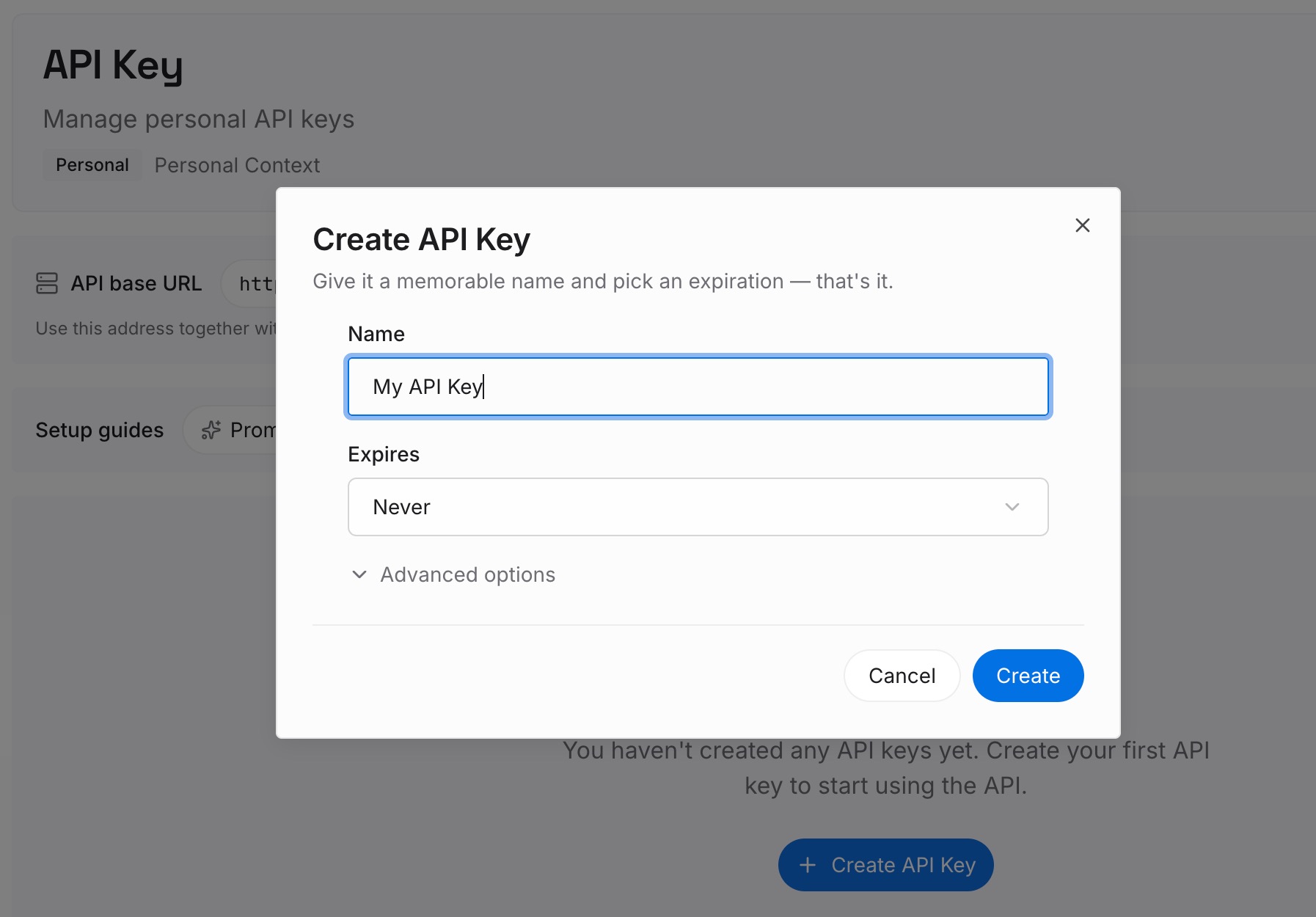
Step 1: Create an API key
Sign in and generate a key from the dashboard. The key belongs to your MemoryLake workspace and is separate from your Claude account.
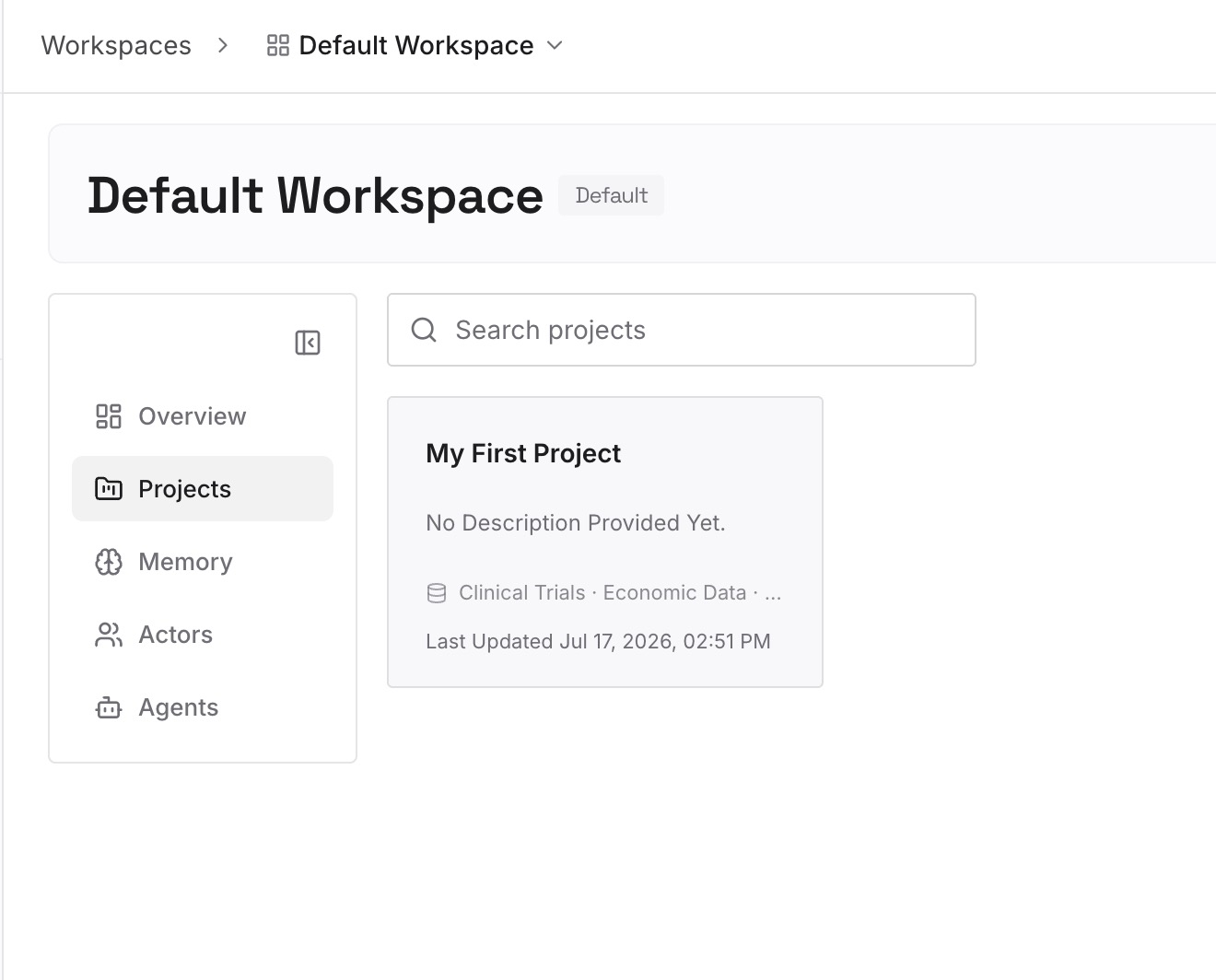
Step 2: Upload your first memories
Start with the facts you found yourself repeating across CLAUDE.md files in Step 2 of the fix: decisions, conventions, and constraints that apply beyond one repository. One point per entry, dated.
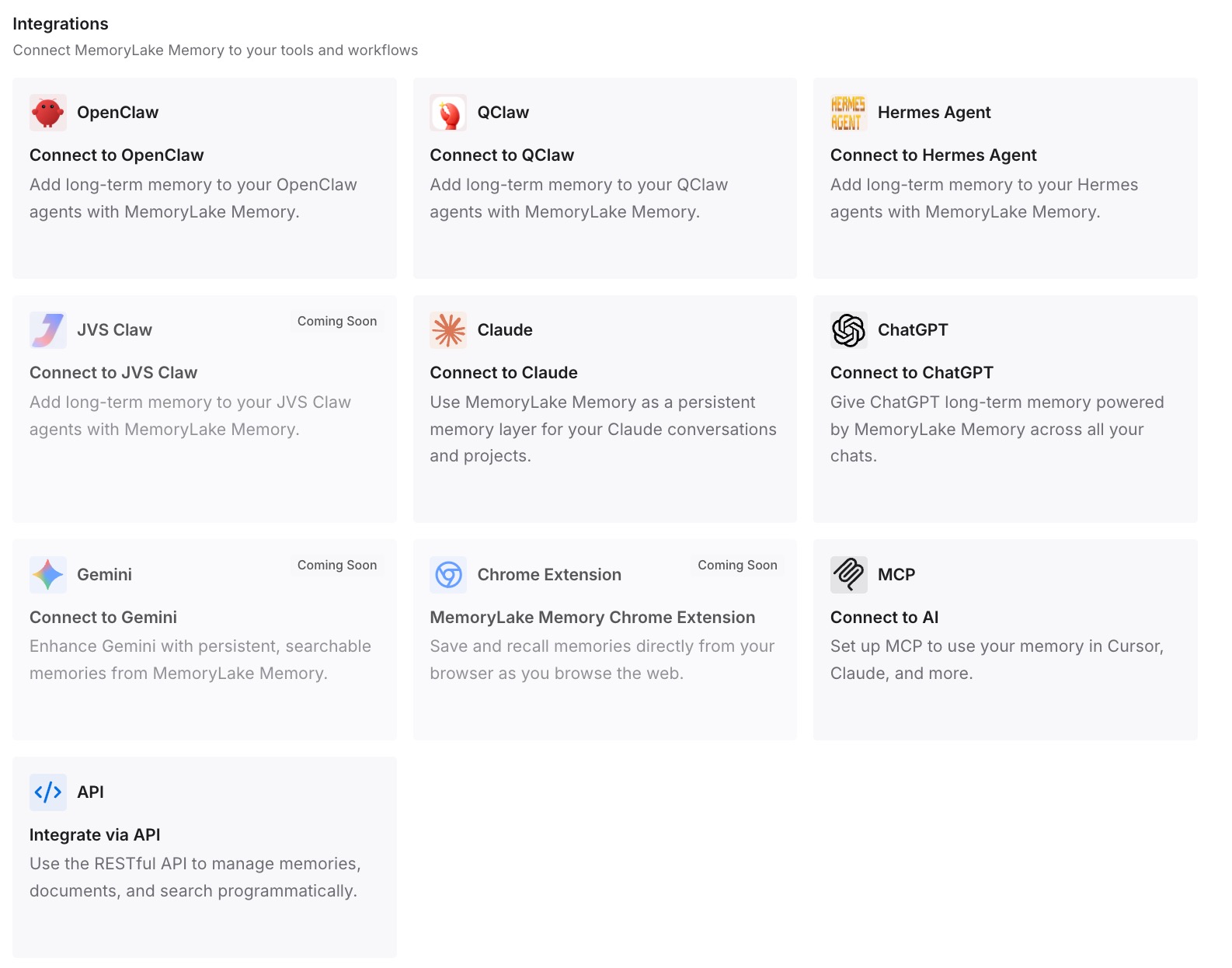
Step 3: Connect your AI & agents
Connect Claude Code and the other assistants you use. The facts are available in the next session, in another repository, and in other tools.
What this changes in practice
The first difference is that you stop guessing. A rule that isn't followed is either missing from the breakdown or present and worded badly, and /context tells you which.
The second is that you know where space goes. MCP tools, memory files, and messages each have a number, so you can trim what's heavy instead of clearing everything.
The third is shorter instruction files. When cross-project facts live somewhere else, each CLAUDE.md can stay focused on its own repository.
Best practices for /context in Claude Code
Run it before long tasks. Confirm the memory files you expect are listed.
Check memory files first when a rule is ignored. Then check wording and conflicts.
Remember on-demand loading. Subdirectory CLAUDE.md files and path-scoped rules appear after Claude works with matching files.
Use /context all for MCP detail. It shows tokens per tool.
Read the warning line. It names the command that frees space.
Pair it with /memory and /doctor. One shows what loaded; the others open files and flag oversized ones.
Keep CLAUDE.md short. Anthropic's target is under 200 lines per file.
Conclusion
/context shows everything in your Claude Code session's context window, broken down by category: system prompt, system tools, MCP tools, custom subagents, memory files, skills, and messages. It's the first command to run when a rule isn't followed, because it tells you whether the file loaded at all.
If the file is missing, check where it lives, since subdirectory files and path-scoped rules load on demand. If it's present and ignored, look at the wording. And when the window is close to full, /context shows where the space went and which command frees it.