
How the automatic wait works
The feature arrived in Claude Code v2.1.234. Anthropic's documentation says automatic continue "is on by default in interactive sessions signed in with a claude.ai subscription".
When you hit a limit, two lines appear at the bottom of the session. The first shows that the usage limit was reached and when it resets. The second shows when Claude will continue, and that Esc cancels. When the wait starts on its own, the conversation also records a line saying the limit was reached and Claude Code is continuing automatically at that time.
The one requirement Anthropic states plainly is: "Keep the session open."
While it waits, Claude Code is holding the open session until the limit resets.
What happens at the reset
Anthropic's documentation describes three ways the wait can end with the task continuing.
At the reset. The second line changes to say Claude is continuing shortly. A note that the limit has reset appears in the conversation, and Claude Code prompts Claude to pick the task up where it stopped. One detail matters: "It doesn't resend your last message." Claude continues the task. It doesn't replay your last prompt.
After your computer slept. If your computer slept for more than about 30 minutes and the limit reset during that time, Claude Code asks you to press Enter to continue. After a shorter sleep, or one that ended before the reset, it continues on its own.
Early. If you add usage credits with /usage-credits, sign back in after /upgrade, or switch models with /model during the wait, Claude Code checks whether usage is available and continues right away if it is. Anthropic notes it "doesn't check after an upgrade or purchase you make in a browser on your own".
Two cautions apply once the task resumes. First, "Claude Code still asks for permissions as usual, so the task can stop on a prompt while you're away". If you come back after the reset and the task hasn't moved, check for a permission prompt. Second, if the task hits the limit again, the wait starts again.
The three-continuation limit
Automatic continue doesn't run forever. The documentation says that after three automatic continuations, automatic continue stops and a notification tells you it stopped after repeated usage-limit hits.
At that point, run /rate-limit-options to choose what to do next. The count starts over when you send another prompt or pick a wait from that menu.
The same cap applies to a /goal or a session-scoped scheduled task that runs through several reset windows. A long unattended run that keeps hitting limits will stop after three continuations and wait for you.
What ends the wait without continuing
This is the list that decides whether you have to restart the task yourself. Anthropic's documentation names five cases.
You send a prompt. Claude Code sends your prompt instead of waiting. If that prompt also hits the limit, it stays in the conversation and the wait starts again.
You exit Claude Code. The documentation says: "the wait doesn't restart when you resume the session". Closing the terminal ends the automatic path.
The conversation changes hands. That includes switching accounts with /login, clearing or rewinding the conversation, using /resume for another session, pulling one with /teleport, relaunching with /tui or /restart, or moving the session to Claude Desktop, a background session, or the cloud.
The setting turns off, or the reset moves past 24 hours. This ends only a wait Claude Code started on its own. A wait you started yourself from /rate-limit-options keeps counting down.
The continuation is blocked. A UserPromptSubmit hook that blocks the continuation prompt, or a failure before it reaches the model, ends the wait. Claude Code tells you the continuation didn't run, and you send a prompt to continue.
In all of these, the task is still in the conversation. It just won't resume without you.
When Claude Code doesn't wait on its own
Some limits never start an automatic wait. The documentation lists three cases where you can still start one yourself:
- Remote Control and agent team teammate sessions. A person at that terminal can start the wait.
- A reset more than 24 hours away. The documentation notes that "a weekly limit can reset days out".
- An Opus or Sonnet limit while you're on a model outside that family. Your next turn may not hit that limit.
In those cases, and whenever automatic continue is off, Claude Code opens the usage-limit options menu once per reset window when you hit a limit at your own terminal. Pick the option to wait here and continue automatically. In a Remote Control or agent team teammate session, run /rate-limit-options yourself.
And there are cases where the wait isn't offered at all:
- Background sessions and
-pruns. The option isn't available. - API keys, cloud providers, and usage-based billing. Anthropic explains: "usage there is metered per request, so there is no reset to wait for".
- An LLM gateway without a saved claude.ai login. The wait is offered only while a saved claude.ai login is the active credential.
Which limit you hit matters
Claude Code's error reference describes four limit messages: session, weekly, Opus, and Sonnet. It also explains how they differ.
"The session and weekly limits are shared across all models, so switching models doesn't restore access." For those, waiting is the path, or adding usage credits.
"The Opus and Sonnet limits each apply only to requests to that model family, so switching to a model outside the family with /model keeps you working." For those, a model switch can keep the task going before the reset.
That second option has a cost the documentation spells out. Each model has its own prompt cache, so the next request "re-reads the whole conversation with no cache hits". Our guide to switching models mid-session in Claude Code covers what a switch carries over.
Cancel or start a wait yourself
To cancel, press Esc at an empty prompt, or Ctrl+C, while the wait lines show. You can also run /rate-limit-options and choose not to continue automatically. After a cancel, Claude Code doesn't start another wait on its own for that reset window. The next window starts fresh.
To start a wait yourself, run /rate-limit-options and pick the option to wait and continue automatically. A wait you start this way keeps counting down even if the reset is more than 24 hours away.
Turn automatic continue off
If you'd rather a task never resume while you're away, turn off Continue automatically at usage limit in /config, or set autoContinueAtUsageLimit to false in your user settings.
A few details from the settings reference:
- It's read from user settings,
--settings, and managed settings only. If none of those sets it, a project or local settings file that sets it turns the feature off rather than being ignored. - The short form only turns it off.
/config autoContinueAtUsageLimit=falseworks, but the documentation says the key-value form "can't turn it back on, because the setting grants unattended execution". - The Desktop app has its own control. In the Code tab of Claude Desktop, the session-limit card has an Auto-continue when limits reset checkbox. The error reference says it and the CLI setting "are separate, so turn each off on its own".
What a long pause does to your task's context
The wait keeps the session open, so the conversation is still there when the task resumes. What it doesn't do is help you, or a future session, understand what was happening if the wait ends early.
That's the case to plan for. If you exit, resume another session, or let a weekly limit run for days, the automatic path ends. When you come back, you're restarting the task yourself, from whatever the conversation shows. Our guide to resuming an old Claude Code session covers what to weigh when you pick a session back up after a long gap.
A long task is easier to restart from a short written checkpoint: the goal, what's done, the decisions made, and the next step. That's useful whether the task resumes automatically or not.
What people try first
Typing continue right away. That sends a prompt, which ends the wait. If you're still at the limit, the wait starts again.
Closing the terminal and expecting a resume later. The wait doesn't restart when you resume the session.
Waiting out a weekly limit. A reset more than 24 hours away doesn't start an automatic wait.
Switching models for a session limit. The session and weekly limits are shared across all models.
Leaving a task unattended and finding it stuck. It may be waiting on a permission prompt.
The Fix: Make sure a paused task picks up, or restarts cleanly
Step 1: Check what kind of limit you hit
Read the limit message. For a session limit with a reset today, leave the session open. For an Opus or Sonnet limit, consider switching model families. For a weekly limit days away, plan to restart the task yourself.
Step 2: Write a checkpoint before you step away
Ask Claude for, or write yourself, a short summary of the task: the goal, what's done, the decisions made, and the next step. If the task resumes on its own, you've lost nothing. If it doesn't, it's your restart point.
Step 3: Come back and check for prompts
After the reset, check whether the task is waiting on a permission prompt or stopped after three continuations. If the wait ended, start the task again from your checkpoint.
Setting this up in MemoryLake
Automatic continue keeps one session alive across a limit. It doesn't change where the task's context lives: in that session's conversation. When the wait ends early, the session is closed, or the reset is days away, the decisions behind the task are only as reachable as that conversation. Our guide to finding Claude Code session history covers where those conversations are kept.
MemoryLake is a memory layer for keeping those decisions in one place you maintain, available to the assistants you connect, such as ChatGPT, Claude Code, and Codex.
You write the entries yourself, in your own words. Nothing is read out of, written to, or deleted from your Claude Code sessions, your transcripts, your CLAUDE.md files, your settings, or any vendor's store. Automatic continue and usage limits work the way Anthropic describes them.
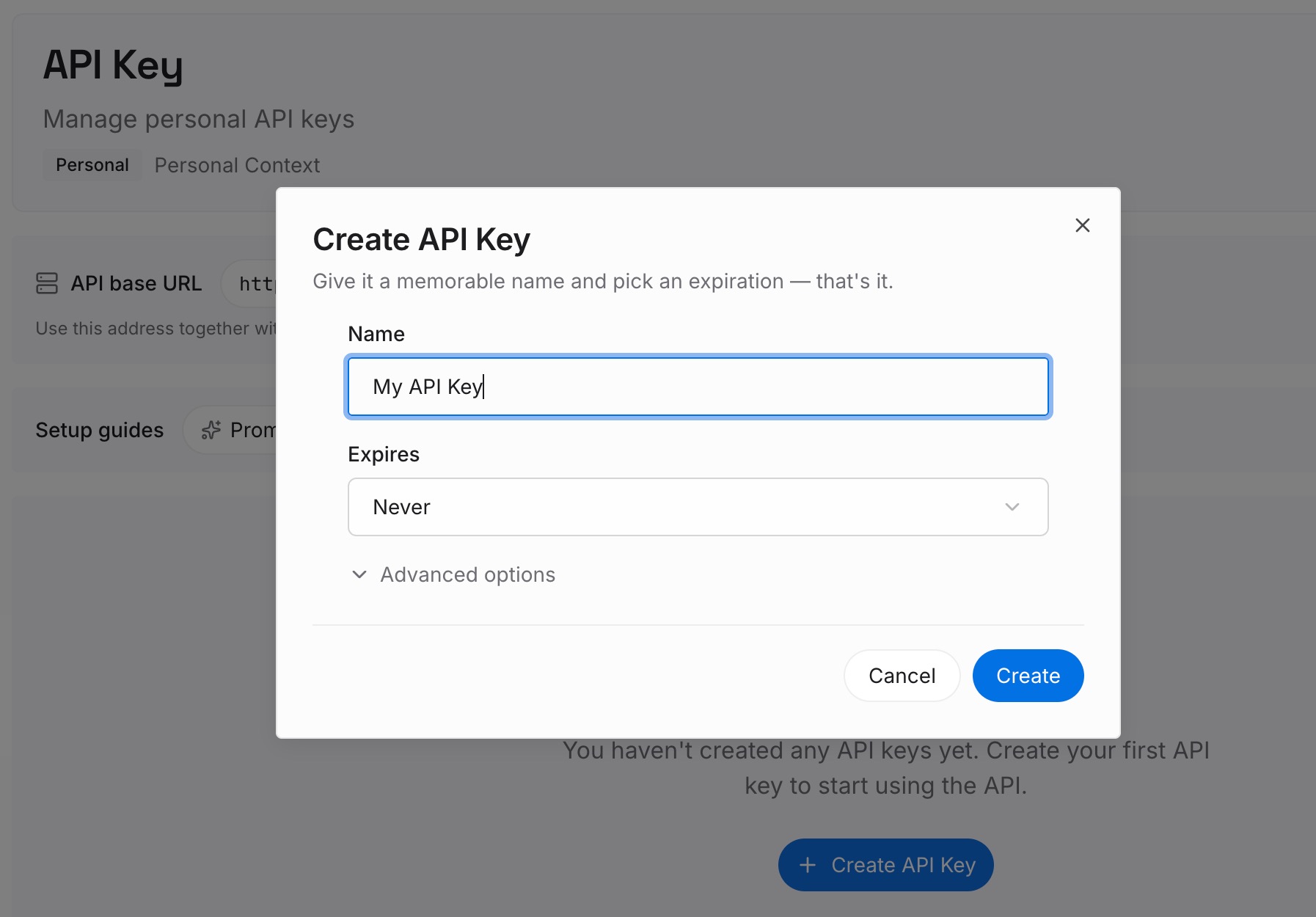
Step 1: Create an API key
Sign in and generate a key from the dashboard. The key belongs to your MemoryLake workspace and is separate from your Anthropic account.
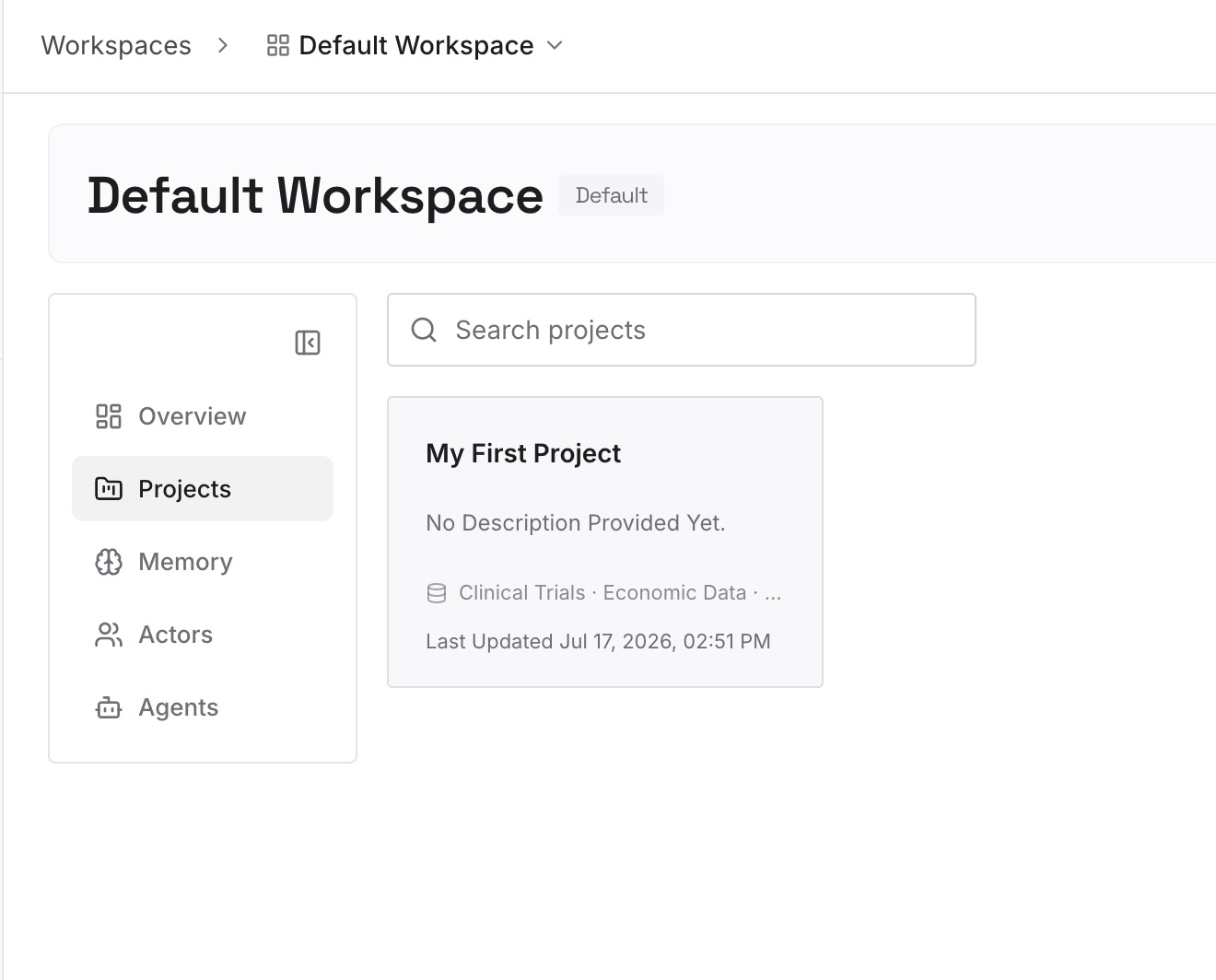
Step 2: Upload your first memories
Start with the checkpoint from Step 2 of the fix: the goal, the decisions, and the constraints. One decision per entry, so you can update one without rewriting the rest.
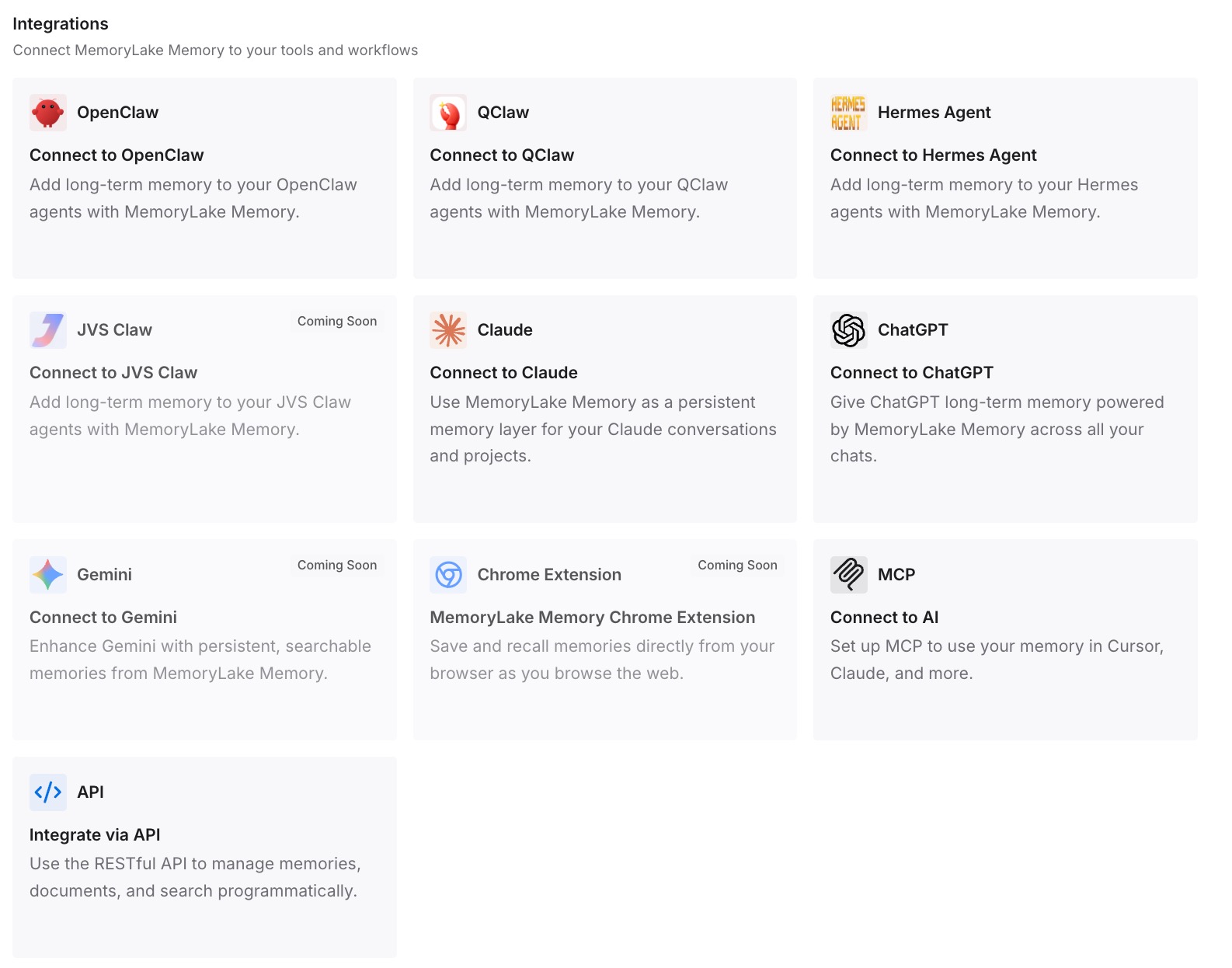
Step 3: Connect your AI & agents
Connect Claude Code and any other assistants you use. The same entries are available in a new session if the old one doesn't resume.
What this changes in practice
The first difference is a cleaner restart. If the wait ends early, the next session starts from written decisions.
The second is less worry about leaving a task overnight. Whether it resumes or not, the context isn't only in one open terminal.
The third is less repetition. Constraints you'd otherwise restate after every restart are written once.
Best practices for usage limits in Claude Code
Keep the session open. The wait depends on it.
Don't send a prompt just to nudge it. That ends the wait.
Know your limit type. Session and weekly limits are shared across models. Opus and Sonnet limits aren't.
Check for permission prompts after the reset. The task can stop on one.
Watch for the three-continuation stop. Run /rate-limit-options when it appears.
Write a checkpoint before stepping away. It's your restart point if the wait ends.
Conclusion
Claude Code can continue a task on its own after a claude.ai usage limit resets. The Continue automatically at usage limit setting is on by default in interactive sessions with a claude.ai subscription, from v2.1.234. Keep the session open, and at the reset, Claude Code prompts Claude to pick the task up where it stopped.
The wait ends without continuing if you send a prompt, exit, switch or clear the conversation, or if the continuation is blocked. It doesn't start on its own for resets more than 24 hours away, in Remote Control and teammate sessions, or for an Opus or Sonnet limit while you're on another family. It stops after three continuations. In those cases, you restart the task yourself, and a short checkpoint makes that easy.