
What an output style is
Anthropic's documentation defines it: "An output style is a set of instructions that sets Claude's role, tone, and response format for every response in a session."
The point is to stop repeating yourself. Instead of asking for shorter answers in every prompt, you set a style once and it applies to the whole session. A custom style can also give Claude a different role, such as a writing assistant or a data analyst.
Anthropic is careful about what a style is not: "An output style gives Claude instructions to follow. It doesn't guarantee that something always happens or never happens."
If you've seen older posts suggesting output styles were going away, the current documentation describes them as a supported feature with four built-in styles and support for custom ones.
The built-in styles
"Claude Code includes four built-in styles besides its default, and you can write your own." Default isn't a style in itself: "Default means no output style is selected." Claude works from Claude Code's standard system prompt, which is written for software engineering.
The four built-in styles each keep those standard instructions and add their own:
- Proactive. Claude starts work right away and makes reasonable assumptions about routine decisions instead of asking. It doesn't switch to plan mode unless you ask for a plan. Anthropic notes that "Switching to the Proactive style doesn't change your permission mode."
- Concise. Responses lead with the result and leave out preamble, narration, and recaps. "It does the engineering work as thoroughly as in the Default style." Claude still writes in full when you ask for detail, and for error reports, failing tests, security warnings, and confirmations for destructive actions.
- Explanatory. Claude adds short Insight blocks that explain its choices. "The explanations aren't written into your files as comments."
- Learning. Claude adds the same explanations and leaves small pieces of code for you to write, marked with a
TODO(human)comment, then waits for you.
Because these keep the standard instructions, choosing a built-in style changes how Claude talks and works with you, not the engineering guidance underneath.
How to switch styles
Run /output-style <style>, for example /output-style concise. With no argument, the command lists the styles and marks the current one. You can also run /config and choose Output style, or use the Output styles menu in the VS Code extension.
Where the choice is saved matters if you work across projects. "The command and both menus save your choice to .claude/settings.local.json at the local project level." To make a style your default everywhere, set outputStyle in ~/.claude/settings.json, though a project's own settings take precedence.
Two details catch people. "The value is case-sensitive", so the setting needs the exact name, such as Explanatory. "A value that doesn't match a style name exactly, such as explanatory, gives you the Default style." The /output-style command, by contrast, ignores case.
And timing: "When you switch styles mid-session, Claude uses the new style starting with your next message."
How to write a custom style
A custom style is a Markdown file with frontmatter and instructions. You save it in one of three places:
- User:
~/.claude/output-styles - Project:
.claude/output-styles - Managed policy:
.claude/output-stylesinside the managed settings directory
"The file name becomes the style name unless you set name in the frontmatter." Project styles load from every .claude/output-styles/ folder between the working directory and the repository root, and the closest one wins when names collide.
Two things to watch. "A misspelled field is ignored without an error." And in the terminal, Claude Code reads style files when it starts, so if you create or edit one during a session, restart Claude Code to pick up the change.
Plugins can ship styles too. A plugin style can set force-for-plugin, which applies it automatically when the plugin is enabled. The reference notes that this "Overrides the user's outputStyle setting."
What a custom style removes from the system prompt
This is the setting to check after the opening example.
Anthropic's explanation: "On the full system prompt, custom output styles leave out Claude Code's section of built-in software engineering instructions, such as how to scope changes, write comments, and verify work, unless keep-coding-instructions is set to true."
So a custom style that only changes tone also, by default, removes the guidance on scoping changes and verifying work. Built-in styles don't do this, because they keep the standard instructions. Custom styles do, unless you opt out.
The opt-out is one line of frontmatter. Anthropic's advice: "Set keep-coding-instructions: true if you're changing how Claude communicates but still want it coding the same way." Leave it out only if Claude won't be doing software engineering.
There's one more wrinkle. "The shorter system prompt doesn't include that section, so the field has no effect there." On a shorter system prompt, the coding section isn't there to keep. Anthropic says that to rely on the field, you can set CLAUDE_CODE_SIMPLE_SYSTEM_PROMPT to 0, which selects the full prompt on any model.
Why CLAUDE.md still loads
A style changes how Claude responds. It doesn't change what Claude knows about your project. Anthropic's comparison table describes CLAUDE.md this way: "It holds what Claude should know about the codebase, and it stays loaded whichever style you pick".
That's the right division of work:
- CLAUDE.md holds conventions, commands, and project structure.
- The output style holds voice, length, format, and role.
Switching styles doesn't unload your project instructions, and writing project rules into a style doesn't make sense either, because the style applies to every project you use it in. For rules that should apply only to parts of a codebase, Claude Code also has rule files, which we covered in our guide to what Claude Code rules are.
Which subagents follow the style
A style applies to the main conversation, but not everywhere work happens.
"Output styles apply to the main conversation and to a fork, which inherits the parent's whole conversation and system prompt."
For every other subagent: "Other subagents run their own system prompt, so styles don't change how they respond."
That explains the reviewer in the opening example. If you want a subagent to answer in a certain format, put that in the subagent's own definition. A fork is the exception, because it inherits the parent's system prompt along with the conversation.
When a style is the wrong tool
Anthropic's own guidance: "An output style applies to every response in a session. It's an instruction Claude follows, so nothing enforces it." Its comparison table points to other features for narrower or stricter needs:
- Something that must always happen, such as formatting after each edit or blocking a command: use a hook, which Claude Code runs itself.
- Instructions for one kind of task, such as a release checklist: use a skill, which loads only when relevant.
- A helper with its own instructions and tools: use a subagent.
- An addition to the instructions without removing anything: use
--append-system-promptwhen you start Claude Code.
And for what Claude should know about your project, use CLAUDE.md.
Token use is a minor factor. A style's instructions add input tokens, though prompt caching reduces that after the first request in a session. Explanatory and Learning produce longer responses by design, while Concise produces shorter ones.
What people try first
Writing a custom style and dropping coding guidance by accident. Add keep-coding-instructions: true.
Putting project rules in a style. Those belong in CLAUDE.md, which loads whichever style you pick.
Expecting subagents to follow the style. Only the main conversation and forks do.
Typing the style name in lowercase in settings. The settings value is case-sensitive.
Editing a style mid-session. Restart Claude Code in the terminal to pick it up.
Relying on a style for something that must always happen. Use a hook.
The Fix: Put each instruction where it belongs
Step 1: Keep coding instructions in custom styles
Add keep-coding-instructions: true to any custom style used for software work.
Step 2: Move project knowledge to CLAUDE.md
Conventions, commands, and structure go in CLAUDE.md, not in a style.
Step 3: Give subagents their own format rules
If a subagent's output format matters, set it in that subagent's definition.
Step 4: Write down the preferences behind your style
Record why you chose a format and which project rules you rely on, so they're available outside one tool's settings.
Setting this up in MemoryLake
An output style is a per-tool setting, and CLAUDE.md is per project. The preferences and project decisions behind them, such as how you like changes explained or which conventions matter most, are useful in every assistant you work with.
MemoryLake is a memory layer for that kind of working context, such as preferences, conventions, and project decisions, kept in one place you maintain and available to the assistants you connect, such as ChatGPT, Claude Code, and Codex.
You write the entries yourself, in your own words. Nothing is read out of, written to, or deleted from your output style files, your settings files, your CLAUDE.md, your subagent definitions, your sessions, or any vendor's store. Output styles and CLAUDE.md work the way Anthropic describes them.
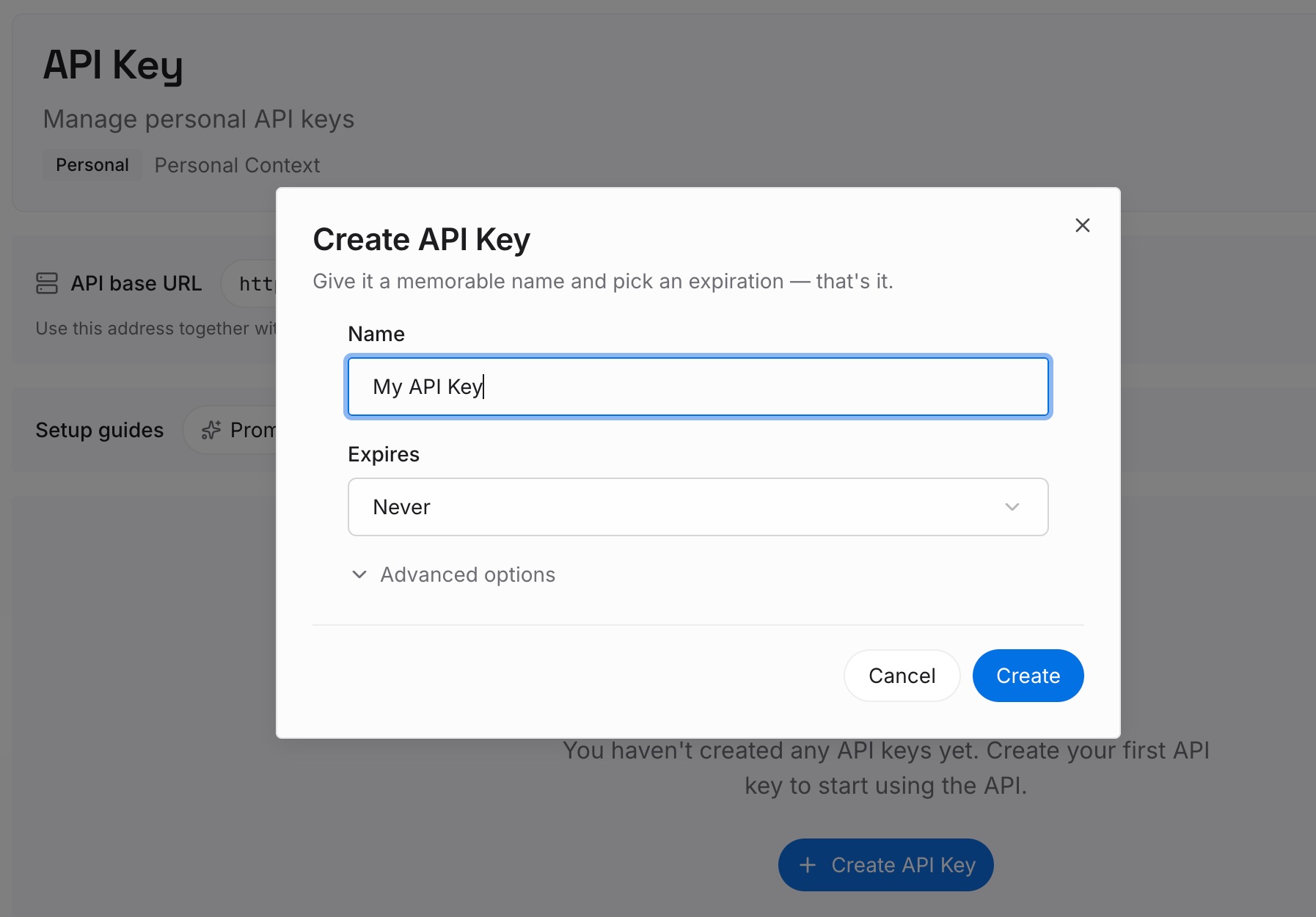
Step 1: Create an API key
Sign in and generate a key from the dashboard. Store it outside your repositories, like any other credential.
Step 2: Upload your first memories
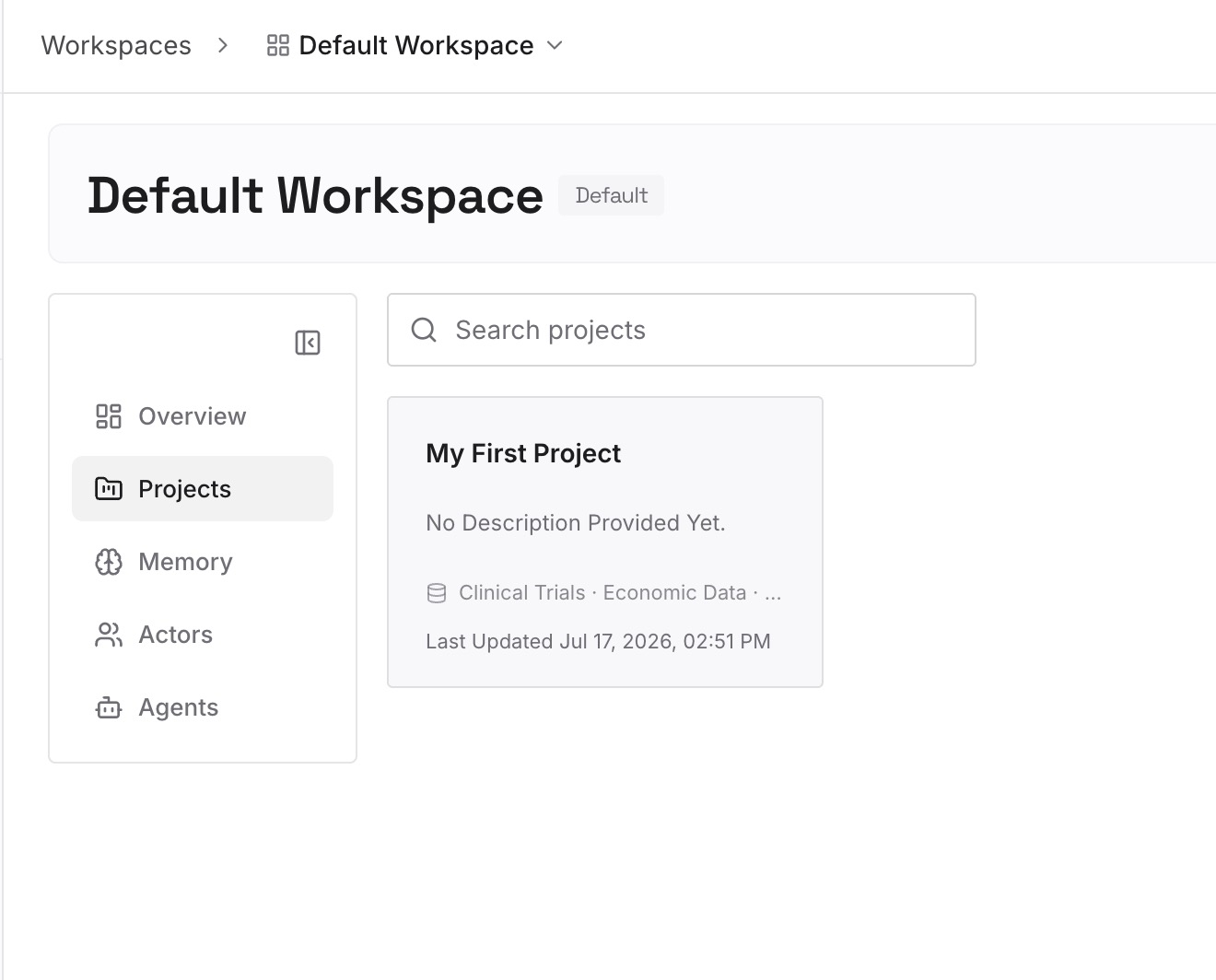
Start with what you wrote in Step 4 of the fix: your formatting preferences, the reasons behind them, and the project conventions you rely on. One preference or convention per entry.
Step 3: Connect your AI & agents
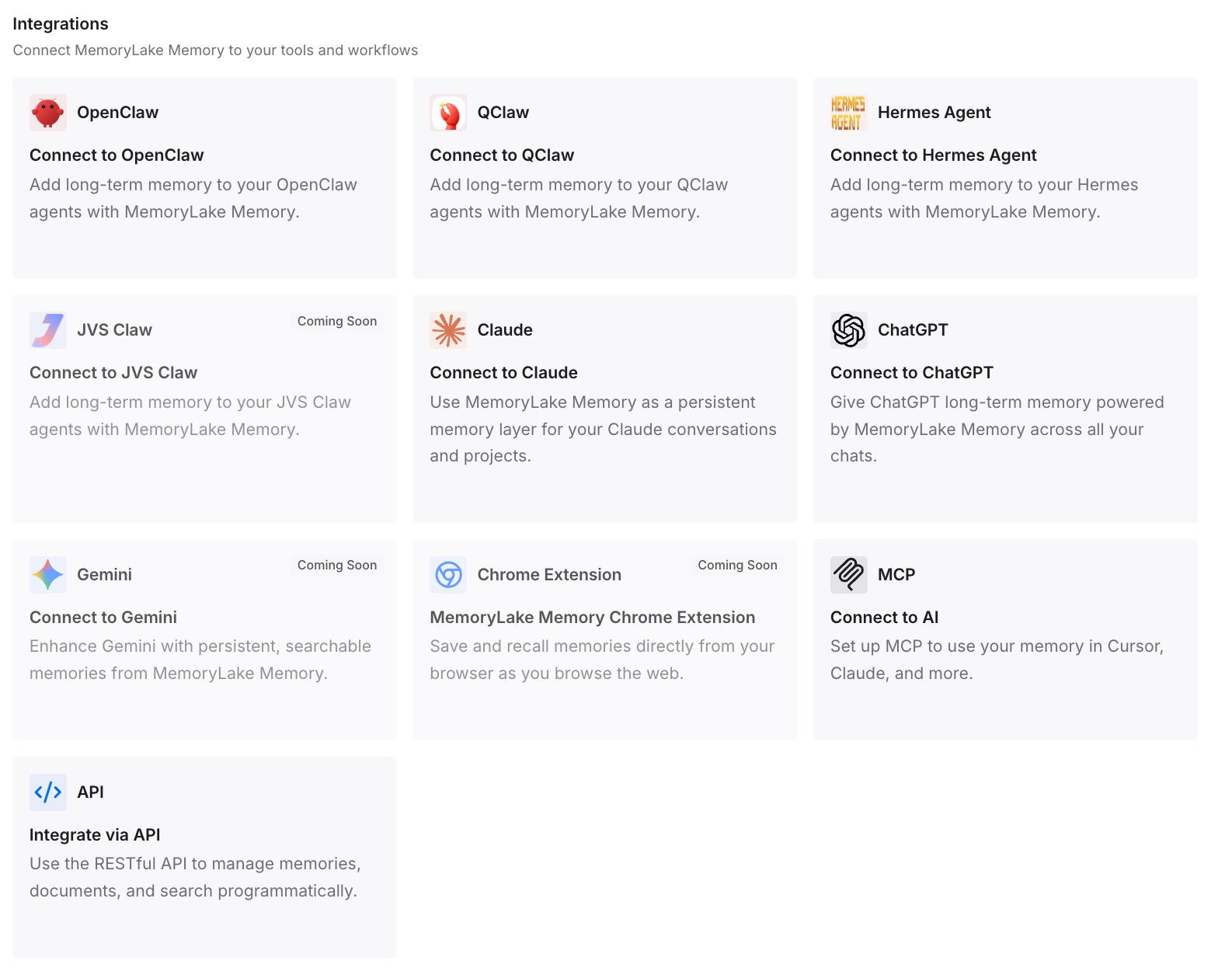
Connect Claude Code, Codex, ChatGPT, or the other assistants you use. Each can draw on the same preferences, while each tool keeps its own style settings.
What this changes in practice
The first difference is consistency across tools. The way you like work explained is written down once, not configured differently in each assistant.
The second is cleaner styles. A style can stay about voice and format, with conventions kept elsewhere.
The third is easier onboarding. A teammate can read the reasons behind your setup instead of reverse-engineering a style file.
Best practices for Claude Code output styles
Start with a built-in style. They keep Claude Code's standard instructions.
Add keep-coding-instructions to custom styles. Otherwise the coding section is left out on the full system prompt.
Use exact names in settings. The settings value is case-sensitive.
Restart after editing a style file. The terminal reads style files at startup.
Keep project knowledge in CLAUDE.md. It stays loaded whichever style you pick.
Set subagent formats in their definitions. Styles reach only the main conversation and forks.
Use hooks for guarantees. A style is an instruction, and nothing enforces it.
Conclusion
An output style is a set of instructions for Claude's role, tone, and format across a session. Claude Code has four built-in styles, Proactive, Concise, Explanatory, and Learning, which all keep its standard engineering instructions. Custom styles are Markdown files, and on the full system prompt they leave out Claude Code's software engineering section unless you set keep-coding-instructions: true.
A style doesn't replace CLAUDE.md, which stays loaded whichever style you pick, and it reaches only the main conversation and forks, not other subagents. Use it for how Claude responds, and keep what Claude should know, and anything that must happen every time, in the features built for that.