
What Ctrl+O shows
On the main screen, Claude Code collapses detail. The settings reference describes the default: "By default, the transcript collapses each tool call to a short summary, such as the command Claude ran and a line count of its output, and you press Ctrl+O to switch the whole transcript to the expanded view when you want the details."
Transcript view expands that. According to the interactive mode reference, it shows:
- Tool usage and execution in detail, instead of one-line summaries.
- A timestamp and the model used on each assistant message.
- Lines that collapse by default, such as MCP calls shown as a single line.
- Messages from your other sessions, which the main view shows as a one-line preview.
The model label matters more than it looks. If a session switched models partway through, transcript view tells you which model produced which message.
The timestamps follow your time format setting. The settings reference says the format applies to "the timestamps in the transcript viewer", and that in the viewer "the pattern is the whole timestamp, so add date directives when you want the date there."
Shortcuts inside transcript view
Anthropic's reference lists the keys available while the viewer is open:
?toggles the keyboard shortcut help panel. This needs fullscreen rendering.{and}jump to the previous or next user prompt, "like vim paragraph motion." This also needs fullscreen rendering.Ctrl+Etoggles show all content. It's "Available in the classic renderer only, not in fullscreen rendering".[writes the full conversation to your terminal's native scrollback.vwrites the conversation to a temporary file and opens it in your editor.q,Ctrl+C, orEscexit transcript view.
To check which renderer you're using, the reference says to run /tui with no argument.
In fullscreen rendering, transcript mode also gains search. The fullscreen documentation says it "gains less-style navigation and search": / opens search, n and N jump between matches, and g and G jump to the top or bottom.
Why your terminal search can't find the conversation
If you use fullscreen rendering and press Cmd+F in your terminal, you may find nothing. The fullscreen documentation explains why: "Your terminal's Cmd+f and tmux search don't see the conversation because it lives in the alternate screen buffer, not the native scrollback."
Transcript view is the way around that. Press Ctrl+O, then:
["writes the full conversation into your terminal's native scrollback buffer, with all tool output expanded." After that, your terminal's own search, copy mode, and other tools work on it. Anthropic notes that long sessions may pause for a moment while this happens.v"writes the conversation to a temporary file and opens it in$VISUALor$EDITOR."
The scrollback copy is temporary. The documentation says it lasts until you exit transcript mode, and "The next Ctrl+o starts fresh."
Default, verbose, and focus views
Transcript view is one of three ways Claude Code can show a session. The viewMode setting picks which one a session starts in. The settings reference describes the options:
- default: "the normal transcript with truncated tool output"
- verbose: "the transcript with full tool output"
- focus: "only your last prompt, a one-line summary of tool calls with edit diffstats, and the final response." Focus view needs the fullscreen renderer.
Each has a separate way to turn it on:
- Verbose. The
verbosesetting shows "every tool call's full input and output inline as it happens, which is useful when you're debugging a hook, an MCP server, or a long shell command." It appears in/configas Verbose output. The--verboseflag does the same for one session. - Focus. Run
/focus. The fullscreen documentation says "The setting persists across sessions. Run/focusagain to turn it off."
When more than one is set, the order is documented. viewMode "overrides both the sticky /focus selection and the verbose setting." And --verbose "takes precedence over this key for one session".
The practical choice is about what you're doing. Default keeps the screen readable. Verbose is for debugging as it happens. Focus is for long tasks where you only care about the result. Transcript view is the one you open on demand when you need to look back.
How thinking appears
Thinking has its own setting. By default, Claude Code shows a collapsed stub. The settings reference explains: "When unset or false, the Anthropic API redacts thinking blocks and Claude Code shows a collapsed stub."
If you want more, showThinkingSummaries changes that: "Set it if you want the full summaries when you expand thinking with Ctrl+O." With it on, "you see full thinking summaries when you expand thinking with Ctrl+O".
So pressing Ctrl+O without that setting expands tool calls but shows thinking only as a stub. Claude Desktop handles this with a separate view mode, covered next.
Transcript view in Claude Desktop
Claude Desktop's Code tab has its own version. Anthropic's Desktop documentation says: "View modes control how much detail appears in the chat transcript." You can switch from the session menu beside the session title, or "press Ctrl+O on macOS or Windows to cycle through them."
The Desktop modes are:
- Normal: "Tool calls collapsed into summaries, with full text responses"
- Thinking: "Tool calls collapsed into summaries, plus Claude's thinking"
- Verbose: "Every tool call, file read, and intermediate step Claude takes, plus Claude's thinking"
Anthropic's suggestion: "Use Thinking to follow Claude's reasoning with tool calls still collapsed. Use Verbose when debugging why Claude took a particular action." It also notes that the Thinking mode appears in the menu only after Claude has produced thinking in the session you're viewing.
What transcript view doesn't show after compaction
Here's the limit that catches people. Transcript view shows the conversation Claude Code has loaded. After a long session compacts, the earlier part of that conversation is a summary, not the original messages.
The context window documentation says: "When a long session compacts, Claude Code summarizes the conversation history to fit the context window." Some things come back from disk afterward, such as the project-root CLAUDE.md, auto memory, and the plan Claude wrote in plan mode. The conversation itself is replaced by its summary.
The fullscreen documentation describes what that looks like when you return to a session: "If you close a compacted session and resume it, scrolling up stops at the Conversation compacted row, and your earlier messages stay on disk in the transcript file."
That's the key distinction. The earlier messages aren't gone. They're in the file, and they're no longer on screen or in Claude's context. Anthropic's advice: "To get a detail from those messages, ask Claude to look it up in that file."
The sessions documentation explains what resuming restores. Conversation history covers "the messages, tool calls, and results", and for a compacted session it adds: "The messages that the last compaction summarized aren't loaded again."
The same thing applies when you bring a cloud session down to your terminal. Our guide to teleporting a compacted Claude Code session covers the warning Claude Code shows in that case.
Where the full transcript is saved
The file behind all of this is plain JSONL. The sessions documentation says: "By default, Claude Code stores transcripts as JSONL at ~/.claude/projects/<project>/<session-id>.jsonl, where <project> is your working directory path with non-alphanumeric characters replaced by -."
It isn't meant to be parsed directly. Anthropic says "The entry format is internal to Claude Code and changes between versions, so scripts that parse these files directly can break on any release." For a readable copy, it points to /export.
The files don't last forever. The sessions documentation lists cleanupPeriodDays as the setting to "Change the 30-day retention". Our guide to finding Claude Code session history covers where sessions live and how to resume them.
What people try first
Searching with the terminal's own search. In fullscreen rendering, the conversation is in the alternate screen buffer. Press Ctrl+O, then [.
Expecting Ctrl+O to show full thinking. Without showThinkingSummaries, thinking stays a collapsed stub.
Setting verbose and wondering why focus view is ignored. viewMode overrides both, and --verbose overrides viewMode for one session.
Scrolling up past a compaction. The view stops at the compaction row. The earlier messages are in the transcript file.
Parsing the JSONL directly. The format changes between versions. Use /export.
The Fix: Use transcript view to see what really happened
Step 1: Open it when something looks wrong
Press Ctrl+O to see full tool usage, timestamps, and which model answered each message. Use / to search in fullscreen rendering.
Step 2: Pick a default view that fits your work
Set viewMode to default, verbose, or focus. Use --verbose when you need full output for one session.
Step 3: Turn on thinking summaries if you need them
Set showThinkingSummaries to true if you want to read Claude's thinking when you expand it.
Step 4: Write down decisions before they get compacted
If a long session will compact, ask Claude to record the decisions that matter where a later session will read them, such as CLAUDE.md or a project file. The transcript keeps the history, but a summary is what Claude carries forward.
Setting this up in MemoryLake
Transcript view is a record of one session. It shows what Claude read and ran, but after compaction the earlier part lives only in a file on disk, and resuming doesn't load it back. The decisions you'd want a later session to know don't belong only in a transcript.
MemoryLake is a memory layer for keeping project decisions, conventions, and the reasons behind them in one place you maintain, available to assistants you connect, such as ChatGPT, Claude Code, and Codex.
You write the entries yourself, in your own words. Nothing is read out of, written to, or deleted from your Claude Code transcripts, your session files, your CLAUDE.md, your auto memory, or any vendor's store. Transcript view, compaction, and session storage work the way Anthropic describes them.
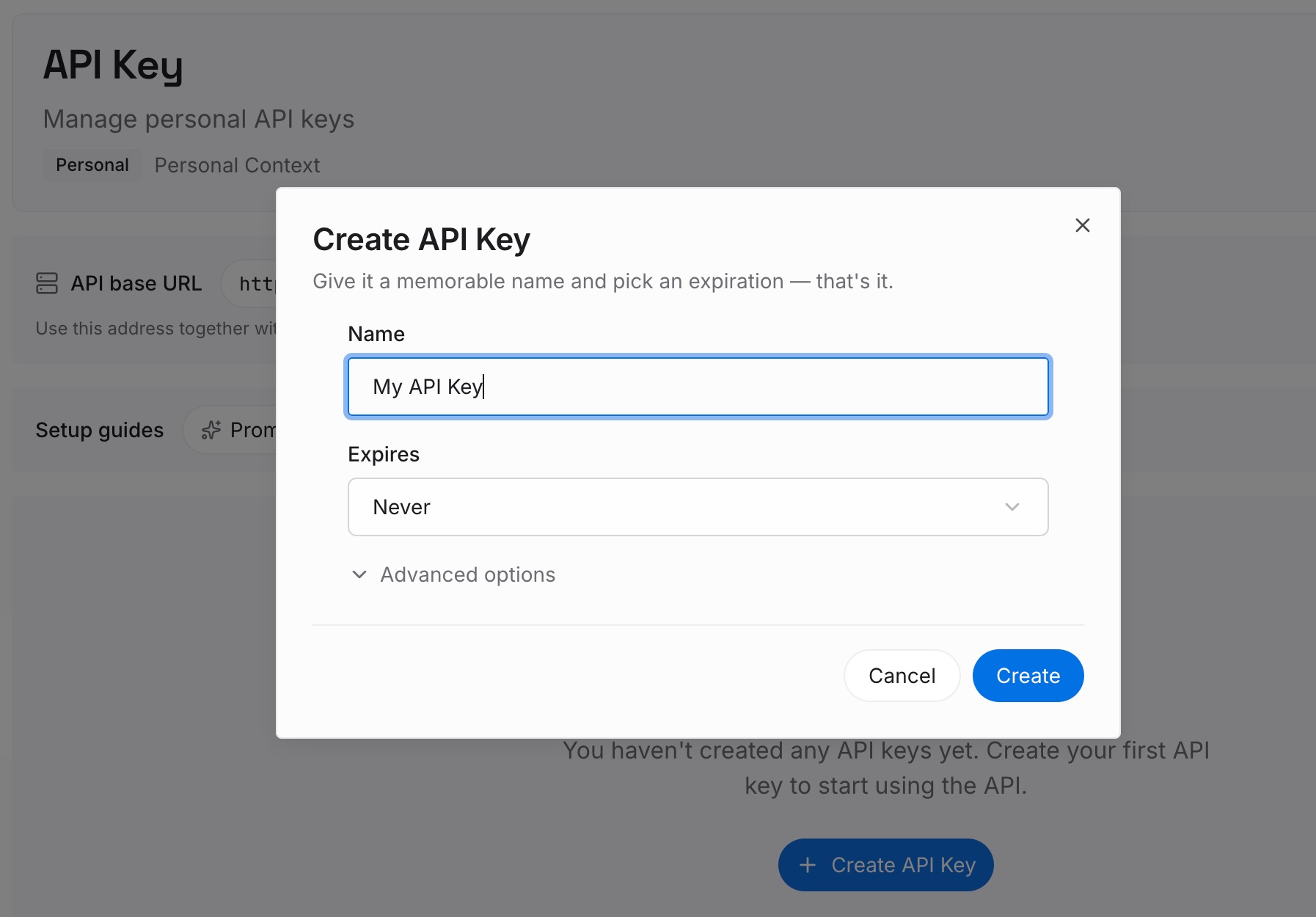
Step 1: Create an API key
Sign in and generate a key from the dashboard. The key belongs to your MemoryLake workspace and is separate from your Claude account.
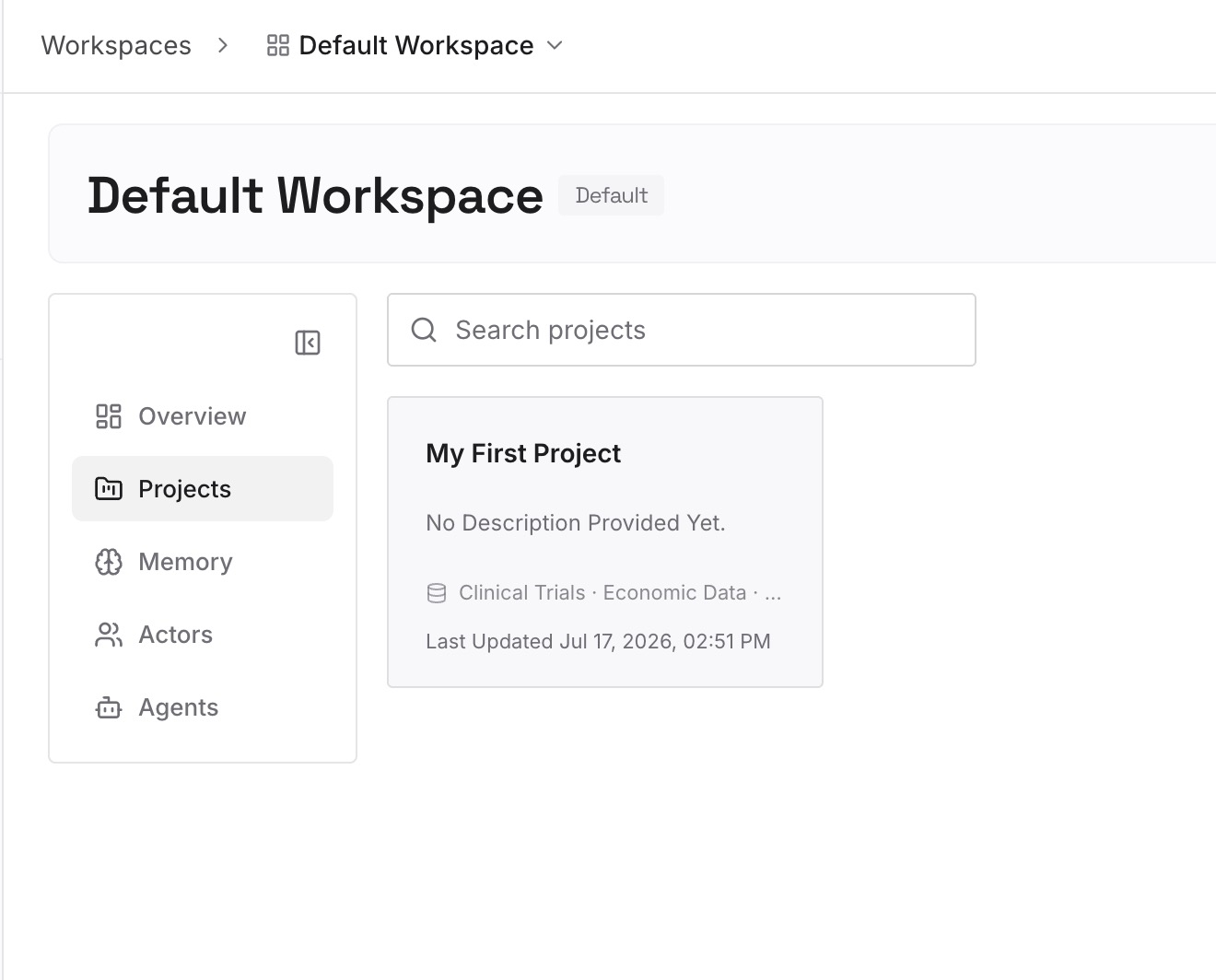
Step 2: Upload your first memories
Start with what you'd otherwise dig out of a transcript: why a library was chosen, which approach was ruled out, and what the next session should know. One decision per entry.
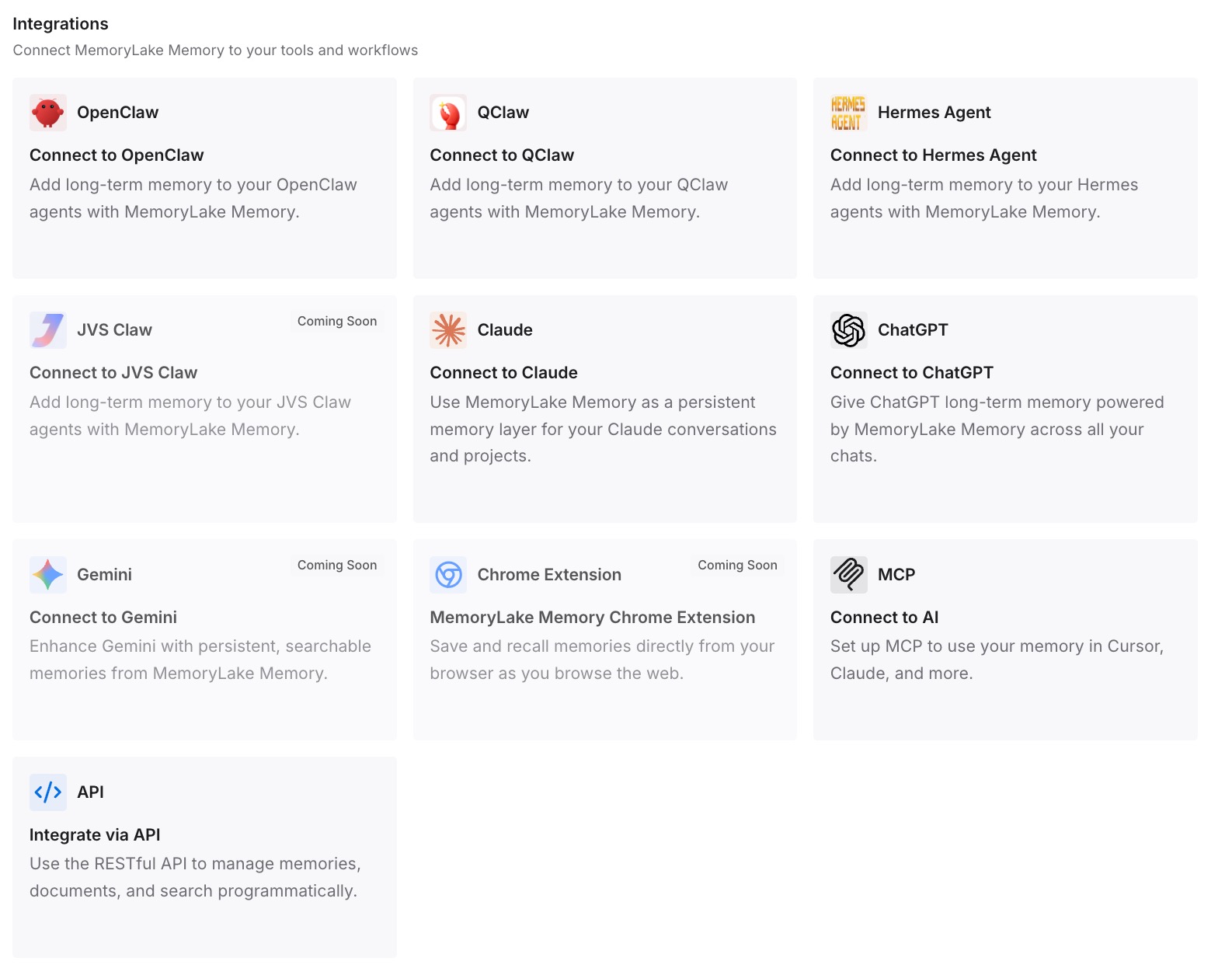
Step 3: Connect your AI & agents
Connect Claude Code and any other assistants you use. A new session can draw on those entries without searching an old transcript.
What this changes in practice
The first difference is less digging. Decisions are written down instead of buried in a long session.
The second is a better start after compaction. What matters doesn't depend on whether the summary kept it.
The third is shared context across tools. The same entries are available to the other assistants you use.
Best practices for Claude Code transcript view
Use Ctrl+O when you need detail. It shows tool usage, timestamps, and the model for each message.
Use [ for terminal search. It writes the conversation to native scrollback in fullscreen rendering.
Use v for a long read. It opens the conversation in your editor.
Pick one way to set the view. viewMode overrides /focus and verbose.
Turn on thinking summaries if you need them. Otherwise thinking stays a stub.
Look in the transcript file after compaction. Earlier messages stay on disk.
Use /export for a readable copy. The JSONL format changes between versions.
Conclusion
Transcript view in Claude Code is what Ctrl+O opens: the detailed version of the session, with full tool usage, a timestamp and model on each assistant message, and lines that the main view collapses. In fullscreen rendering, it adds search, and [ or v hand the conversation to your terminal or editor. The viewMode setting chooses between default, verbose, and focus views, and showThinkingSummaries decides whether thinking expands or stays a stub.
After a session compacts and you resume it, transcript view stops at the compaction row. The earlier messages are still in the transcript file under ~/.claude/projects, for 30 days by default, and Claude can look them up there if you ask. Write down the decisions that matter, so the next session doesn't depend on that file.