
Which files Claude accepts
Anthropic's upload article lists the supported types.
Documents: PDF, DOCX, CSV, TXT, HTML, ODT, RTF, EPUB, JSON, and XLSX.
Images: JPEG, PNG, GIF, and WebP.
XLSX has a condition. The article says: "You must enable code execution and file creation in your account to upload XLSX files."
You can attach files with the plus button in the chat box, drag them into the chat window, or paste images from your clipboard.
The limits for files in a chat
The article lists four limits for chat uploads:
- File size: 500MB per file
- Number of files: up to 20 files per chat
- Image dimensions: up to 8000x8000 pixels
- Number of pages: PDFs are limited to 1000 pages
The count is per chat, not per message. Once a chat has 20 files, you'll need a new chat for more.
The upload article doesn't list a daily cap on files. What does reset over time is your usage limit, which is covered below.
The limits for project files
Files can go in a chat or in a project. The upload article explains the difference: "Files can be uploaded to individual chats or uploaded to a project's Files section for persistent reference across conversations."
Project files have a different set of limits:
- File size: 30MB per file
- Number of files: "Unlimited, but total content must fit within Claude's context window"
- Content type: "Text extraction only (except for multimodal PDFs)"
The article adds a note: "Additional token limits may apply based on the length of extracted content."
So the per-file limit for projects is much lower than for chats. A 300-page scanned contract that fits in a chat may be too large for a project. If a file won't go into a project, it may fit as a chat attachment, or you can split it into smaller files.
When a project holds more than fits at once
On paid plans, projects handle large amounts of material differently. Anthropic's projects article says: "When using a paid plan, your projects automatically scale to handle large amounts of content through Retrieval Augmented Generation (RAG)."
Anthropic's RAG article describes the change. When project knowledge approaches the context window limit, Claude switches to a mode where it uses a project knowledge search tool and retrieves "only the most relevant information needed to answer your questions." You'll see a visual indicator on a project that has switched.
The RAG article lists this for paid plans: Pro, Max, Ultra, Team, and Enterprise. In that mode, Claude reads what the search returns rather than every file at once, which is worth knowing when an answer seems to miss a document you added.
Chat or project: where to put a file
The two places suit different jobs.
A chat attachment is for a file you need in one conversation. Chats accept much larger files, up to 500MB each, and you can attach up to 20 in a single chat.
A project is for files you'll come back to. Anthropic's projects article describes uploading documents, text, code, or other files to a project's knowledge base, "which Claude will use to better understand the context and background for your individual chats within that project." Each project file has to be 30MB or less, so very large files may need splitting first.
If you find yourself attaching the same file to chat after chat, that's a sign it belongs in a project.
What happens to PDFs over 100 pages
This is the limit that explains the page 240 chart.
The upload article says: "Claude analyzes both text and visual elements (like images, charts, and graphics) in PDFs of 100 pages or fewer. For PDFs from 101 to 1000 pages, Claude processes text only and doesn't analyze visual elements."
So for a PDF of 100 pages or fewer, Claude can read the charts, diagrams, and images. For a longer PDF, Claude works from the text. Figures that appear only inside a chart image may not be available to it.
Above 1000 pages, the PDF won't upload at all. The article says you can't upload PDFs over 1000 pages and that trying shows an error saying the file is too large.
If you need Claude to read the visuals in a long PDF, split out the pages that matter into a file of 100 pages or fewer.
The article also has a tip for page references: "When referring to specific pages, use the PDF page numbers as shown in your PDF viewer, not the page numbers printed on the document itself."
Why images inside Word files aren't read
PDFs are the only document type where Claude analyzes visuals. For the rest, the upload article says: "Claude extracts text only from these files. If they contain embedded images, Claude won't be able to read or interpret them."
So a DOCX with a pasted chart, or an EPUB with diagrams, comes through as text. To get Claude to look at an embedded chart, save it as an image and upload it separately, or export the document as a PDF of 100 pages or fewer.
For images you upload directly, the article recommends using ones that are "1000x1000 pixels or larger" and avoiding small or low-resolution images where possible.
How context limits affect large uploads
Upload limits decide whether a file goes in. The context window decides how much of it Claude can work with at once.
Anthropic's usage and length limits article explains: "Length limits relate to Claude's context window—the amount of information Claude can work with in a single chat."
The size depends on the model. The article says: "On paid plans, the newest models support up to a 1M token context window, while others support 500K or 200K tokens."
When a long conversation gets close to that limit, Claude can summarize earlier parts to keep going, if code execution is on. The article says: "When your conversation approaches the context window limit, Claude summarizes earlier messages to continue the conversation seamlessly." It adds: "Your full chat history is preserved so Claude can reference it even after summarization."
For large documents, the upload article's advice is simple: "If you're working with larger files, consider dividing them into smaller sections to stay within limits."
How uploads affect your usage limits
Files also count toward how much you can use Claude. The length limits article says your usage is affected by several factors, "including the length and complexity of your conversations, the features you use, which Claude model you're chatting with, and the effort level you've selected."
Paid plans have a session limit that resets every five hours and weekly limits. Long conversations with large files use more. The article notes that conversations that trigger automatic context management "consume more of your usage limit."
To save room, the article suggests removing project files you're no longer using and keeping project instructions short.
What happens to your files when you share or export
Files stay tied to the chat or project you uploaded them to. Two common actions don't take them along.
Sharing a chat. Anthropic's sharing article says that when you share a chat with an attached file, "the file itself is not included in the shared snapshot and remains private." The exception is sharing within your organization.
Exporting your data. Anthropic's export article says data exports "don't include the original files you uploaded."
So if you hand someone a shared chat about the contract, they see the conversation but not the contract. And your export holds the discussion, not the files.
What people try first
Adding a large file to a project. Project files are limited to 30MB each. Use a chat or split the file.
Asking about charts in a long PDF. Over 100 pages, Claude reads text only.
Uploading a Word file with diagrams. Embedded images aren't read.
Putting everything in one chat. A chat holds up to 20 files.
Re-uploading files in every new chat. Project files are there for reference across conversations.
The Fix: Upload files where they fit
Step 1: Check the file against the right limit
For a chat, the limit is 500MB per file and 20 files. For a project, it's 30MB per file.
Step 2: Split long PDFs when visuals matter
Keep the pages with charts and images in a PDF of 100 pages or fewer.
Step 3: Put reused files in a project
Files you need in many chats belong in a project's Files section.
Step 4: Write down what you concluded from each file
Note the figures, clauses, and decisions you took from a file, so you don't have to upload it again to recover them.
Setting this up in MemoryLake
Upload limits can mean splitting files, choosing between a chat and a project, and uploading the same document again. The conclusions you reached from those files, such as the clause that mattered or the price you agreed, are what you need next time, and they live in old chats.
MemoryLake is a memory layer for that kind of context: notes you write about your documents and decisions, kept in one place you maintain and available to the assistants you connect, such as ChatGPT, Claude Code, and Codex.
You write the entries yourself, in your own words. Nothing is read out of, written to, or deleted from your Claude chats, your project files, your Claude memory, your exports, or any vendor's store. File uploads work the way Anthropic describes them.
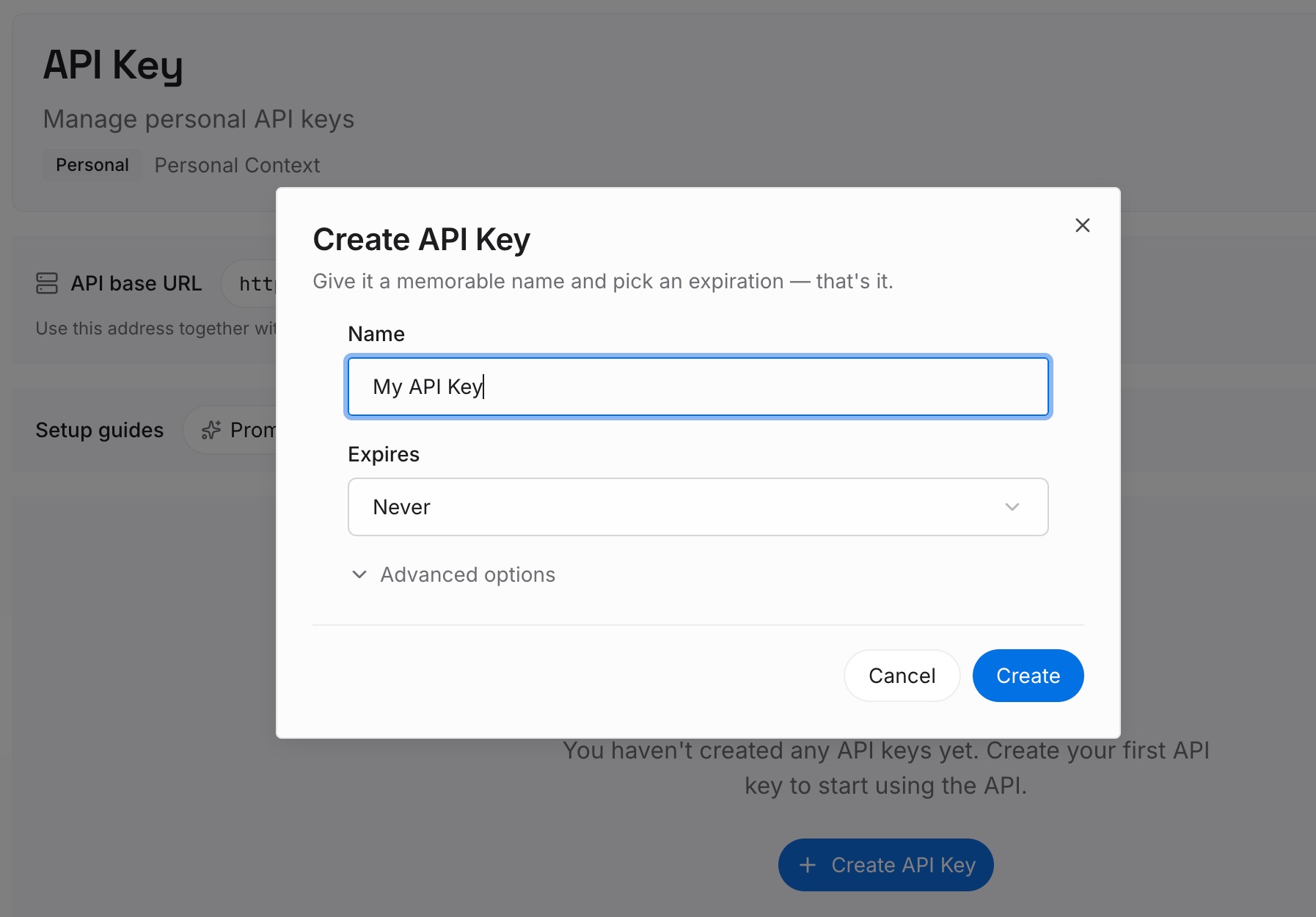
Step 1: Create an API key
Sign in and generate a key from the dashboard. Keep it somewhere private.
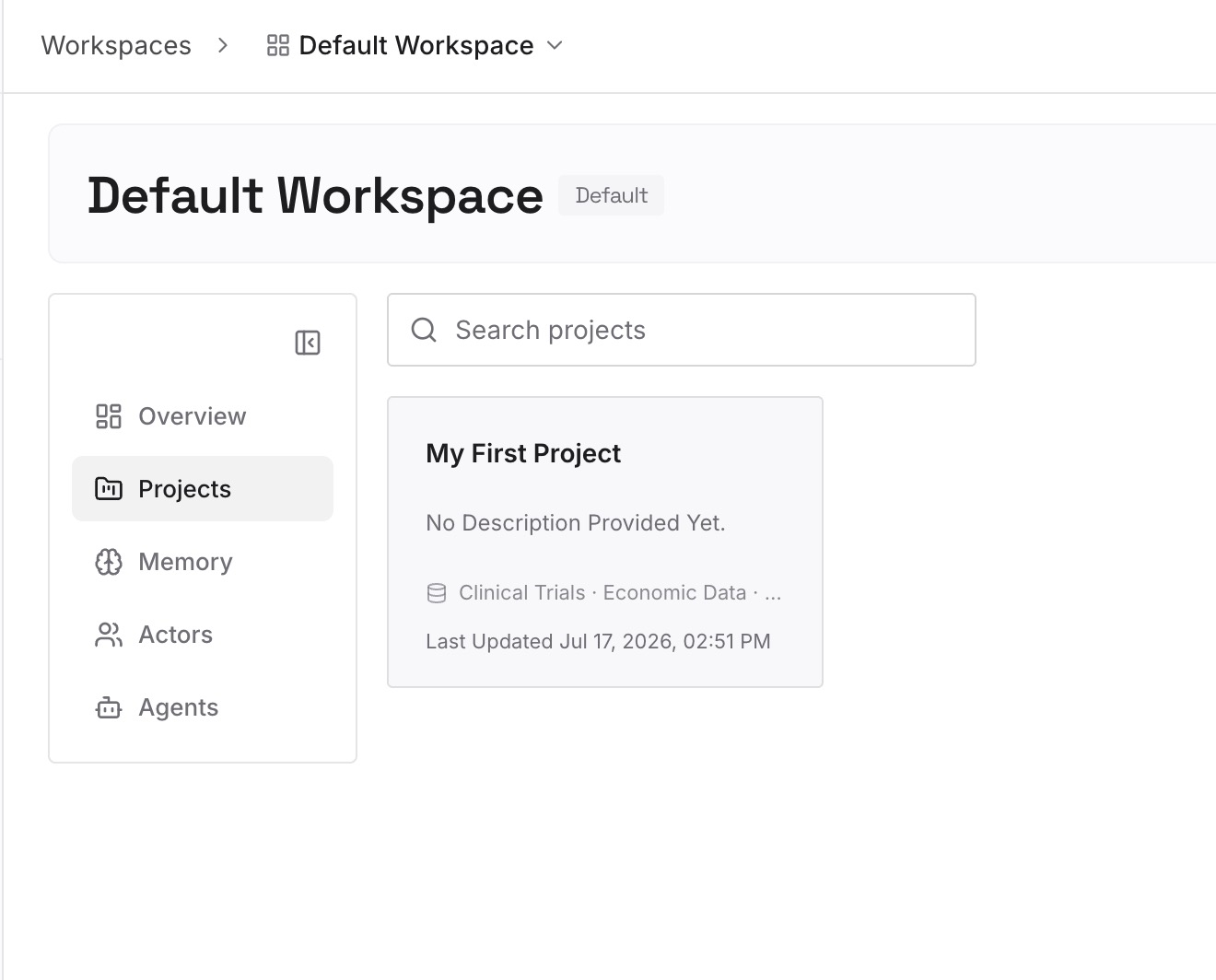
Step 2: Upload your first memories
Start with what you wrote in Step 4 of the fix: the facts and decisions you took from each important file. One topic per entry.
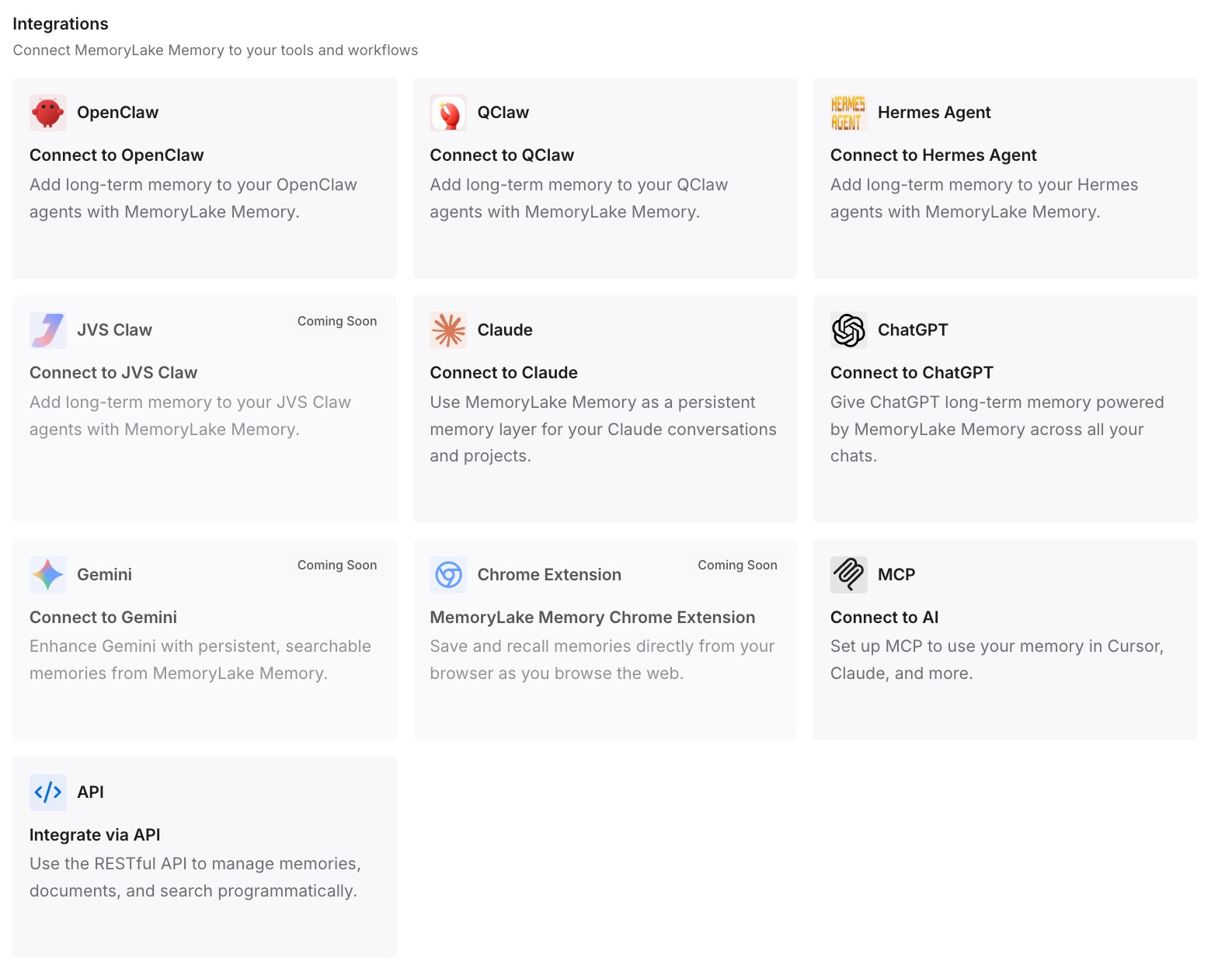
Step 3: Connect your AI & agents
Connect ChatGPT, Claude Code, Codex, and the other assistants you use, so each can draw on the same notes.
What this changes in practice
The first difference is fewer re-uploads. The conclusions are available without the file.
The second is less splitting. You only need the full document when you're checking something new.
The third is consistency. The same notes are available in whichever assistant you're using.
Best practices for uploading files to Claude
Know which limit applies. Chats and projects have different file size limits.
Keep visual PDFs short. Claude analyzes visuals only in PDFs of 100 pages or fewer.
Upload charts as images. Embedded images in Word files aren't read.
Use high-resolution images. The article recommends 1000x1000 pixels or larger.
Clean up project files. Unused files use context and usage.
Don't rely on shares or exports for files. Neither includes them.
Conclusion
In a Claude chat, you can upload files up to 500MB each, up to 20 per chat, images up to 8000x8000 pixels, and PDFs up to 1000 pages. Project files are limited to 30MB each and must fit within the context window, with RAG on paid plans when a project holds more. Claude analyzes charts and images only in PDFs of 100 pages or fewer, and it reads text only from other document types.
Context and usage limits decide how much Claude can work with and how much you can use it. Shared chats and data exports don't include your uploaded files. Splitting long PDFs, keeping reused files in a project, and writing down what you concluded from each file keep you from hitting the same limits again.