
Where the settings are
Anthropic's help article gives two locations, depending on which version of Settings you have:
- The updated layout: Settings > Your Claude.
- The older layout: Settings > Memory.
Everything in this guide is found in one of those places, except the per-chat switch, which is in the message box.
Memory starts on for most individual accounts. The article says: "Memory is on by default for Free, Pro, Max, and Ultra plans on the web, Claude Desktop, and Claude Mobile". On Team and Enterprise plans, the defaults depend on your organization, covered below.
How Claude's memory works now
Claude's memory is a set of topics that it saves as you talk. The article says: "Claude saves memory as a set of individual topics as you chat, rather than summarizing conversations after they end."
The effect is quick. The article's example: "Mention that a deadline moved, and your next conversation already knows." Claude saves on its own, and you can also tell it directly to remember something.
The article lists the kind of context Claude keeps:
- Your role, projects, and professional context.
- The people and places in your work and life.
- Communication preferences and working style.
- Technical preferences and coding style.
- Project details and ongoing work.
Projects keep their own memory. "Each project has its own memory." In a project, Claude uses that project's memory alongside your memory from chats outside projects, but not memory from other projects. To keep a project's memory fully separate, the article says to turn off the option to use account memory on the project's page.
Memory is shared with Cowork in the cloud. What Claude remembers from chats is available in Cowork tasks that run in the cloud, and what comes up there carries back. The article adds: "Cowork sessions that run locally on your computer don't use memory."
What each toggle controls
The Your Claude page holds several separate switches. They're easy to confuse, so here's what each one does according to the article.
Generate memory from chats. This is the main memory switch. Turn it on to let Claude build memory from your conversations.
Search and reference chats. This lets Claude search your previous conversations when you ask it to. It's separate from memory. The article notes that this setting also controls whether Claude Duet, a research preview, can search your past chats.
Include sensitive topics in memory. This is off by default. It decides whether Claude can save topics such as health or religious beliefs.
Pause or reset. When you turn memory off, Claude offers two choices that do very different things. They're covered in their own section below.
How to see and edit what Claude remembers
The article describes where to look: in Settings > Your Claude, select Manage next to Your memory, or open Settings > Memory in the older layout. Everything Claude remembers is listed under Topics.
From there, you can open a topic to read it, use the edit icon to change it, or delete it. The article explains why editing is worth the effort: "Fix something in one topic and the change applies to every conversation from then on."
You can also change memory from a chat: "Tell Claude what you'd like it to remember, change, or forget, and the update applies to your next conversation."
This is the reliable way to correct something like an old job title. Deleting the chat where you first mentioned it doesn't do it, as the next sections explain. We covered the steps for removing things Claude remembers in our guide to making Claude forget.
How to keep one chat out of memory
This is one of the newer controls, and it's easy to miss because it isn't on the settings page.
The article says: "You can leave memory on for your account and still turn it off for one chat." In that chat, "Claude won't use what it remembers about you in that chat, and nothing from the chat is saved to memory."
On the web and in Claude Desktop, the steps are:
- Start a new chat.
- Click the plus button in the message box.
- Click Memory to turn it off for this chat.
- Send your first message.
The timing matters. The article says: "You need to turn memory off before you send the first message. Once the chat starts, the setting can't be changed." After you send the first message, a crossed-out memory icon appears next to the chat title. On Claude Mobile, the switch stays visible in the menu but locked.
The same switch works in projects. The article says: "A chat started with memory off in a project doesn't use your memory or the project's memory."
You can also run a single Cowork task without memory from the same menu. The article notes that the memory setting is fixed when the task starts.
Memory off for one chat versus an incognito chat
These two options look similar, and the article explains the difference.
An incognito chat isn't saved to your chat history at all, and Claude won't pull information from it when searching previous conversations.
A chat with memory turned off is different: "Unlike an incognito chat, the chat stays in your chat history and Claude can still find it when searching past chats from your other conversations."
So use incognito when you don't want a record of the chat. Use the per-chat memory switch when you want to keep the chat but don't want it shaping what Claude remembers about you.
Why deleting a chat doesn't delete what Claude learned
This is the cause of the opening example. Memory topics are saved as you talk, separately from the conversation. The article is direct about what happens when the conversation goes away: memory entries generated from a deleted conversation "aren't removed, but you can delete individual memories while memory is on."
That's true even for automatic deletion under a retention period. The chat can be gone while the topic it produced stays.
So if you want Claude to stop using something, delete or edit the topic itself. Deleting the chat only removes the chat.
The article also notes: "All memory data is included in data exports."
Pause memory versus reset memory
When you turn the main switch off, Claude asks how. The two choices do opposite things to your existing memory.
Pause memory. The article says: "Claude keeps its existing memory, including sensitive topics if you have it turned on, but won't use memory or make new memories." It adds a detail about the gap: "Conversations while memory is paused won't be added to memory if you turn it back on."
Reset memory. The article says it "Permanently deletes all memories including project memories." It can't be undone, and if you turn memory back on, Claude starts from scratch.
So pausing is for a break, and resetting is for a fresh start. If you only want to remove a few things, edit or delete those topics instead.
How sensitive topics work
By default, the article says, "Claude does not store topics related to personal or sensitive subject matter, like your health, race, ethnicity, religious beliefs, politics, gender identity, and other similar areas."
If you'd rather not keep re-explaining those topics, you can turn on the sensitive topics setting. A few rules apply:
- It isn't retroactive. "Anything from before you turned it on isn't saved retroactively."
- You see each save. A notice appears above the message box each time Claude saves something on one of these topics.
- Turning it off removes them. "If you decline the notice, or turn the setting off later, Claude removes any sensitive items already saved to memory."
Some information is never saved, whatever your settings. The article lists government ID numbers, criminal history, financial account numbers, and immigration status.
What changes on Team and Enterprise plans
On Team and Enterprise plans, owners decide whether memory is available, and the default for each member depends on when the organization was created.
The article says: "In organizations created on or after October 31, 2026 (Pacific Time), memory starts on for each member unless they've turned it off before with the same account, and they can turn it off at any time. In older organizations, it's off for each member until they turn it on."
A detail for upgraded accounts: "If your organization was upgraded from another plan, what counts is when it was first created, not the date of the upgrade." Memory doesn't start on in HIPAA-enabled organizations, organizations on Claude's government platforms, or Claude for Teachers organizations.
Owners can turn memory off for the whole organization. When they do, Claude stops using and saving memory for all members, except in products that have their own memory, such as Claude Tag, and in some projects that keep using their own project memory. The article adds two points that affect members:
- "Turning off memory at the organization level doesn't delete existing memory entries."
- "While memory is off, users can't view or delete their entries in Settings."
On privacy, the article says: "Owners can't view or edit a user's individual memories."
If your organization has a custom data retention period that covers chats, it can also apply to memory. The article says: "A memory entry that hasn't been updated for longer than that period is deleted, and parts of an entry can be removed while the rest stays."
What people try first
Looking for a Memory page in the new Settings layout. It's under Settings > Your Claude.
Deleting a chat to remove a memory. Entries generated from it aren't removed. Edit or delete the topic.
Trying to turn memory off after starting a chat. The switch has to be set before the first message.
Choosing Reset memory to fix one detail. Reset deletes everything, including project memories.
Assuming memory is off on a new Team account. In organizations created on or after October 31, 2026, it starts on for each member.
The Fix: Use the right control for each job
Step 1: Review your topics
Open Settings > Your Claude, select Manage next to Your memory, and read what's there.
Step 2: Edit or delete topics directly
Fix outdated details in the topic itself, not by deleting chats.
Step 3: Use per-chat memory off for side tasks
Turn memory off before the first message when a chat shouldn't shape your memory.
Step 4: Keep the context you need beyond Claude
Write down the work context you want available in every tool, not only in Claude.
Setting this up in MemoryLake
Claude's memory is built for Claude. It follows you between chats and cloud Cowork tasks, and the article notes that local Cowork sessions don't use it. The context you rely on for work, such as your current projects, the decisions behind them, and the conventions you follow, can be needed in other tools too.
MemoryLake is a memory layer for that kind of working context, such as projects, decisions, and preferences, kept in one place you maintain and available to the assistants you connect, such as ChatGPT, Claude Code, and Codex.
You write the entries yourself, in your own words. Nothing is read out of, written to, or deleted from your Claude memory topics, your chats, your projects, your Claude settings, or any vendor's store. Claude's memory works the way Anthropic describes it.
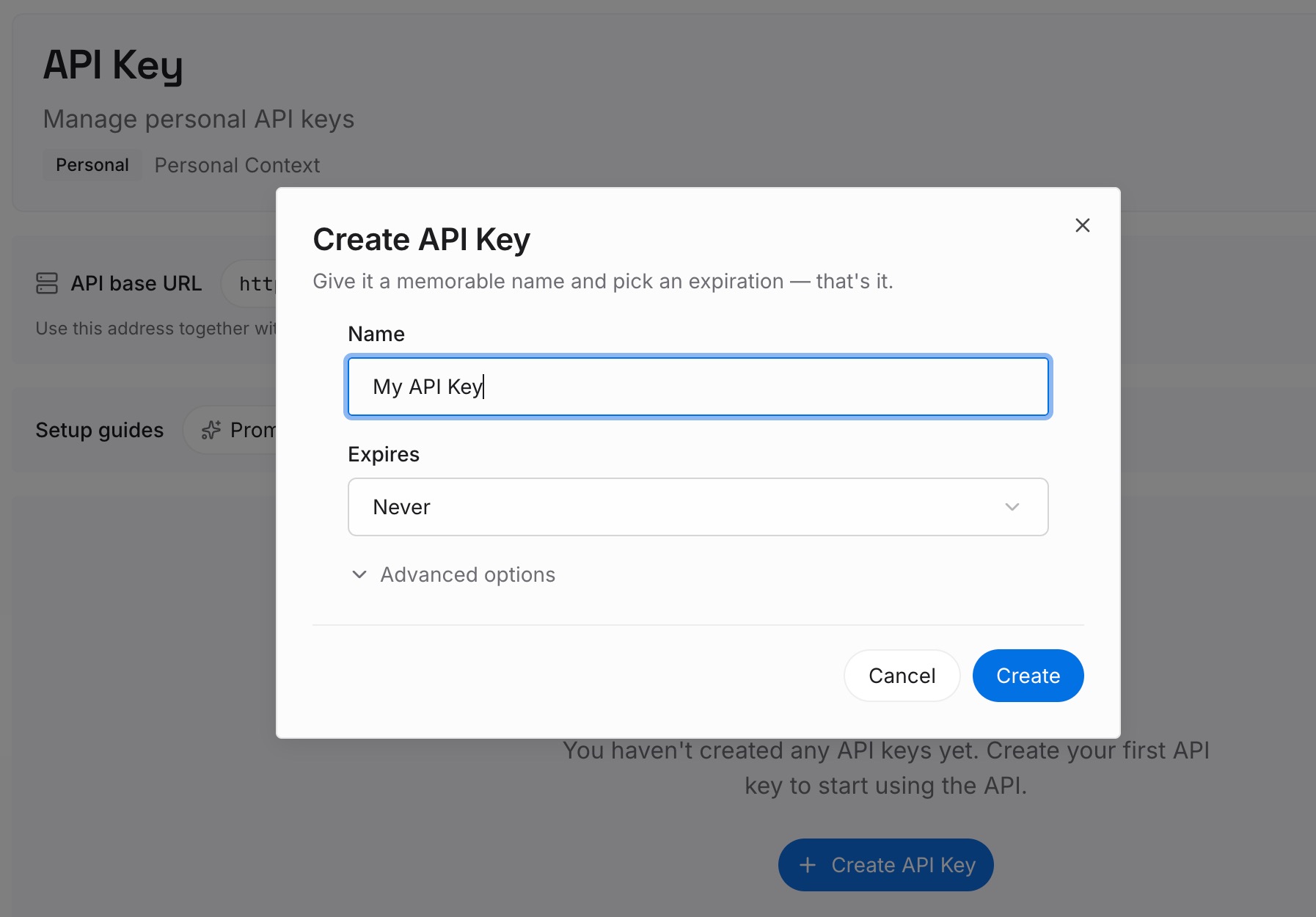
Step 1: Create an API key
Sign in and generate a key from the dashboard. Store it somewhere private, like any other credential.
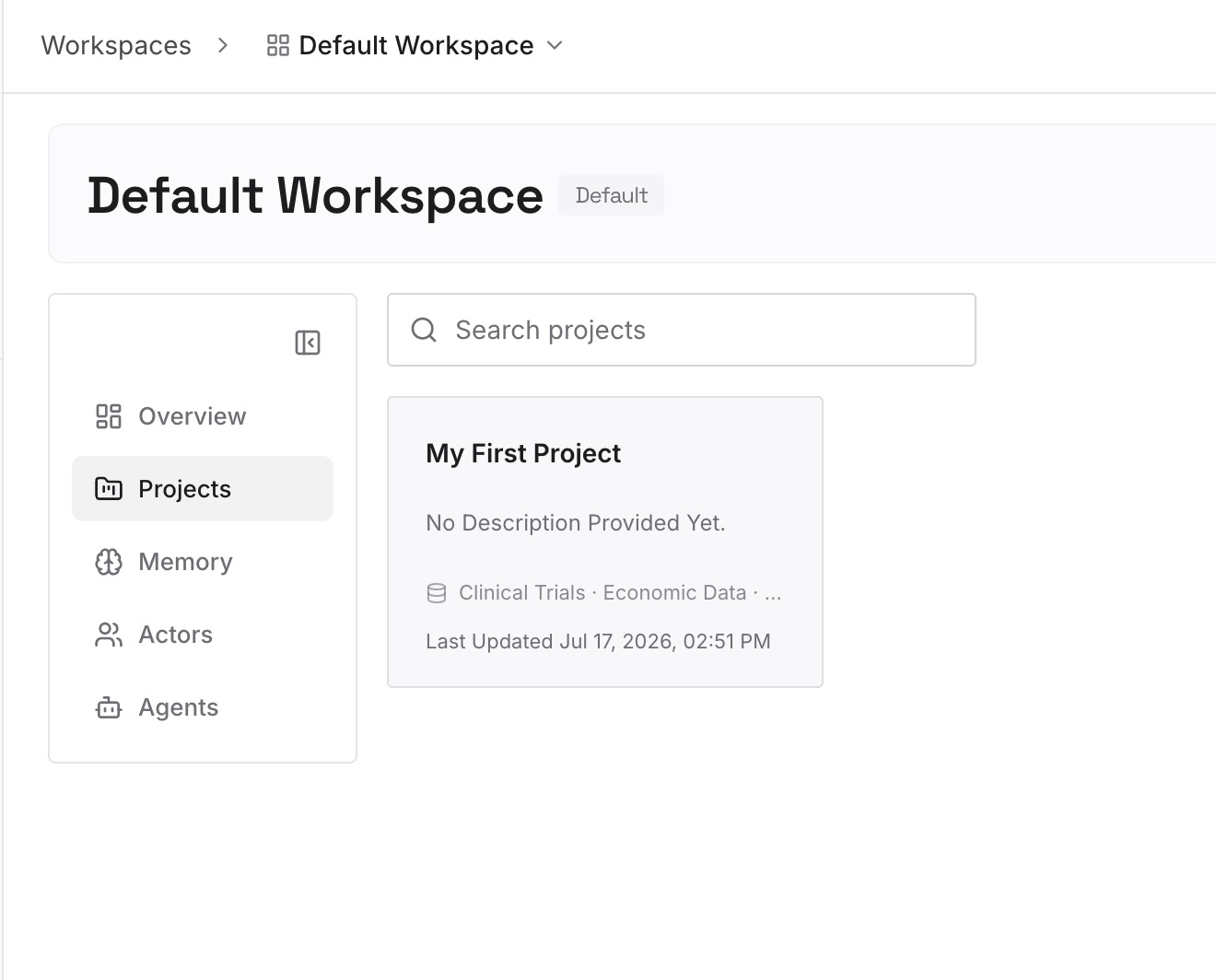
Step 2: Upload your first memories
Start with what you wrote in Step 4 of the fix: the work context you want in every tool. One topic per entry.
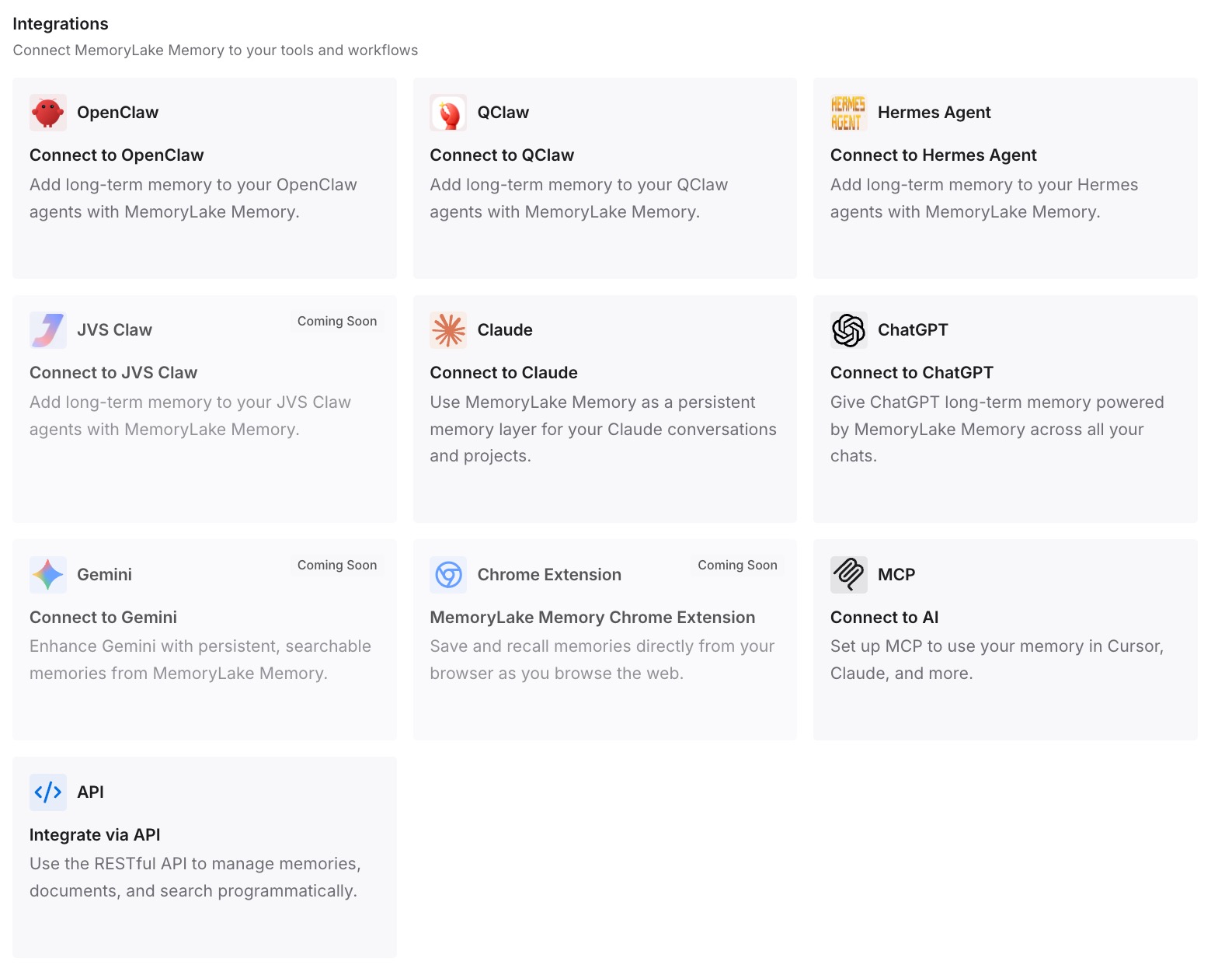
Step 3: Connect your AI & agents
Connect ChatGPT, Claude Code, Codex, and the other assistants you use. Each can draw on the same context.
What this changes in practice
The first difference is fewer surprises. You know which control does what, and where your work context lives.
The second is easier corrections. When something changes, you update one entry for your other tools and one topic in Claude.
The third is consistency across tools. The same context is available outside Claude.
Best practices for Claude's memory settings
Find the right page. Settings > Your Claude, or Settings > Memory in the older layout.
Edit topics, not chats. Deleting a chat doesn't remove what it produced.
Set per-chat memory before the first message. It can't be changed afterward.
Pause for a break, reset for a fresh start. Reset can't be undone.
Keep sensitive topics off unless you need them. Turning them off removes saved items.
Check your organization's default. It depends on when the organization was created.
Keep project memory separate when needed. Turn off account memory on the project's page.
Conclusion
Claude's memory settings are under Settings > Your Claude, or Settings > Memory in the older layout. Claude saves memory as individual topics as you talk, and you can read, edit, or delete each one. A switch in the message box turns memory off for a single chat, as long as you set it before the first message. Pausing keeps existing memory, and resetting deletes all of it, including project memories.
Deleting a chat doesn't remove the memory entries generated from it, so the way to correct Claude is to edit the topic. On Team and Enterprise plans, memory starts on for members in organizations created on or after October 31, 2026, and stays off by default in older ones.