
What project instructions are
Anthropic's article on creating projects describes the step: click Set project instructions, then "Add instructions for how you'd like Claude to behave and respond and click 'Save instructions.'" It continues: "Claude will use these instructions for all the chats within the project."
The article on what projects are gives an example of the kind of thing they're for: "instructing Claude to use a more formal tone or answer questions from the perspective of a specific role or industry."
Anthropic's personalization article lists four reasons to use project instructions:
- Provide project-specific context
- Set guidelines for a particular workflow
- Establish requirements for a specific set of tasks
- Define roles or perspectives Claude should adopt within the project
It also says these instructions "only apply to chats within that project."
Instructions, knowledge, and account Instructions
A Claude project has two places to put context, and your account has a third. Knowing which goes where is a big part of the work.
Project instructions tell Claude how to behave in this project: the role it plays, the format you want, the steps it should follow, and the rules it shouldn't break.
Project knowledge is the material Claude works from. Anthropic says: "Anything you upload to this space will be used across all of your chats within that project." You add documents, text files, or code there. On paid plans, when knowledge approaches the context window limit, Claude automatically switches to a retrieval mode, so it uses a search tool to pull the most relevant parts instead of reading everything at once.
Account Instructions apply everywhere. Anthropic describes them as "account-wide settings", and says: "Any instructions you add here will be applied to all of your conversations with Claude."
A simple rule follows. Put how you like to work in account Instructions. Put how this project works in project instructions. Put the facts and documents in project knowledge.
On Team and Enterprise plans, there's one more layer above yours. Owners can set organization instructions, and Anthropic says that when both are set, "organization instructions take precedence."
What Claude can and can't see in a project
Two details in Anthropic's project article explain a lot of generic answers.
The project name and description aren't context. When you create a project, the article says to give it a name and description, "note that Claude will not have access to these details". A project called Q1 job search with a careful description tells Claude nothing on its own. Anything Claude needs to know has to be in the instructions or knowledge.
Chats don't share context by default. The article says: "Context is not shared across chats within a project unless the information is added into the project knowledge base." If you settled something in one chat, such as which roles you're targeting, the next chat in the same project won't automatically know it. Project memory can carry some of it, but a decision you want every chat to follow belongs in knowledge or instructions.
Example 1: Job search
These instructions are written for the opening example. Adapt the details to your own search.
- You're helping me find a product design role at a mid-size software company.
- My resume and three target job descriptions are in project knowledge. Use them before asking me for background.
- When I paste a job posting, compare it with my resume and list the two strongest matches and the biggest gap.
- Write in first person, plain and direct. Don't use phrases like passionate or results-driven.
- I've ruled out agencies and companies under 50 people. Don't suggest them.
- When you're unsure which role I mean, assume the most recent one I mentioned and say so.
Notice what each line does. The first sets the goal, the second points to knowledge, the third defines a repeatable task, the fourth sets the voice, the fifth records a decision, and the last tells Claude how to handle ambiguity instead of stopping to ask.
Example 2: Client proposals
- You help me write proposals for a small branding studio.
- Every proposal follows the structure in proposal-template.docx in project knowledge: summary, scope, timeline, team, and next steps.
- Use the client's own words from the brief when you describe their problem.
- Keep the summary under 150 words.
- Never commit to a delivery date. Write a placeholder for me to fill in.
- When a brief is vague, list the questions I should ask the client before drafting.
This set leans on knowledge for the template and uses instructions for the rules around it.
Example 3: Research and reading notes
- You're my research assistant for a literature review on remote work and team trust.
- Papers I've uploaded are in project knowledge. When you cite one, give the title and the section.
- Separate what a paper found from your interpretation of it.
- If a claim isn't in the uploaded papers, say that it's from general knowledge.
- Summaries should be one paragraph, then three bullet points on method, sample, and limits.
The fourth line matters most here. It tells Claude how to label sources, which keeps your notes honest.
Example 4: A writing project
- You're editing my nonfiction book about learning to cook as an adult.
- The style guide in project knowledge is the authority on spelling, tone, and formatting.
- Suggest edits; don't rewrite whole paragraphs unless I ask.
- Flag any recipe step that's out of order or missing a quantity.
- Chapter summaries in project knowledge are up to date. Use them to check for contradictions between chapters.
Because chats don't share context, the chapter summaries do the job a long conversation would otherwise do.
Example 5: A support playbook for a team
- You help our support team draft replies to customer emails.
- The refund policy and product FAQ in project knowledge are the source of truth. Don't promise anything they don't cover.
- Match the customer's language and keep replies under 200 words.
- Escalate billing disputes and security questions. Draft a short note to the account owner instead of a reply.
On Team and Enterprise plans, a shared project like this gives everyone the same instructions and knowledge. Anthropic notes that members with Can view access can see project contents, knowledge, and instructions, and members with Can edit access can modify them.
What to leave out of project instructions
A few things work better somewhere else.
Long reference material. Policies, templates, and documents belong in knowledge, where Claude can search them.
Preferences that apply to everything. Your writing voice or your preferred format for every answer belongs in account Instructions.
Repeatable specialized behaviors. Anthropic's personalization article describes skills as a way to "add specific behaviors or capabilities to your conversations", such as adjusting tone and format.
Sensitive details. Instructions are visible to anyone who can view a shared project, so keep secrets out of them.
How project memory fits in
Projects also have memory. Anthropic says: "Each project has its own memory." While you work in a project, Claude uses that project's memory alongside your memory from chats outside projects, but not memory from other projects.
If you want a project kept completely separate, the same article says to turn off Use account memory under Memory on the project's page.
Memory is helpful, but it's something Claude builds as you chat. Instructions and knowledge are what you control directly. For a rule every chat must follow, write it down rather than relying on memory to pick it up. We covered the memory controls in our guide to Claude's memory settings.
What people try first
One-line instructions. A goal alone leaves Claude guessing about format, voice, and limits.
Explaining the project in its description. Claude can't see the name or description.
Settling something in one chat. The next chat won't know unless it's in knowledge or instructions.
Pasting documents into instructions. Upload them as knowledge instead.
Repeating account preferences in every project. Put them in account Instructions once.
The Fix: Write instructions that cover the basics
Step 1: State the goal and Claude's role
Say what the project is for and who Claude should act as.
Step 2: Point to the knowledge
Name the files Claude should use and which one wins when they disagree.
Step 3: Define format, voice, and limits
Spell out length, structure, tone, and what Claude shouldn't do.
Step 4: Record the decisions you've made
List choices you've already settled, so new chats don't reopen them.
Setting this up in MemoryLake
Project instructions and knowledge keep a project consistent inside Claude. The decisions behind them, such as why you ruled out certain companies or why proposals never promise dates, are useful beyond one project and one app.
MemoryLake is a memory layer for that kind of context, kept in one place you maintain and available to the assistants you connect, such as ChatGPT, Claude Code, and Codex.
You write the entries yourself, in your own words. Nothing is read out of, written to, or deleted from your Claude projects, your project instructions, your project knowledge, your Claude memory, or any vendor's store. Projects work the way Anthropic describes them.
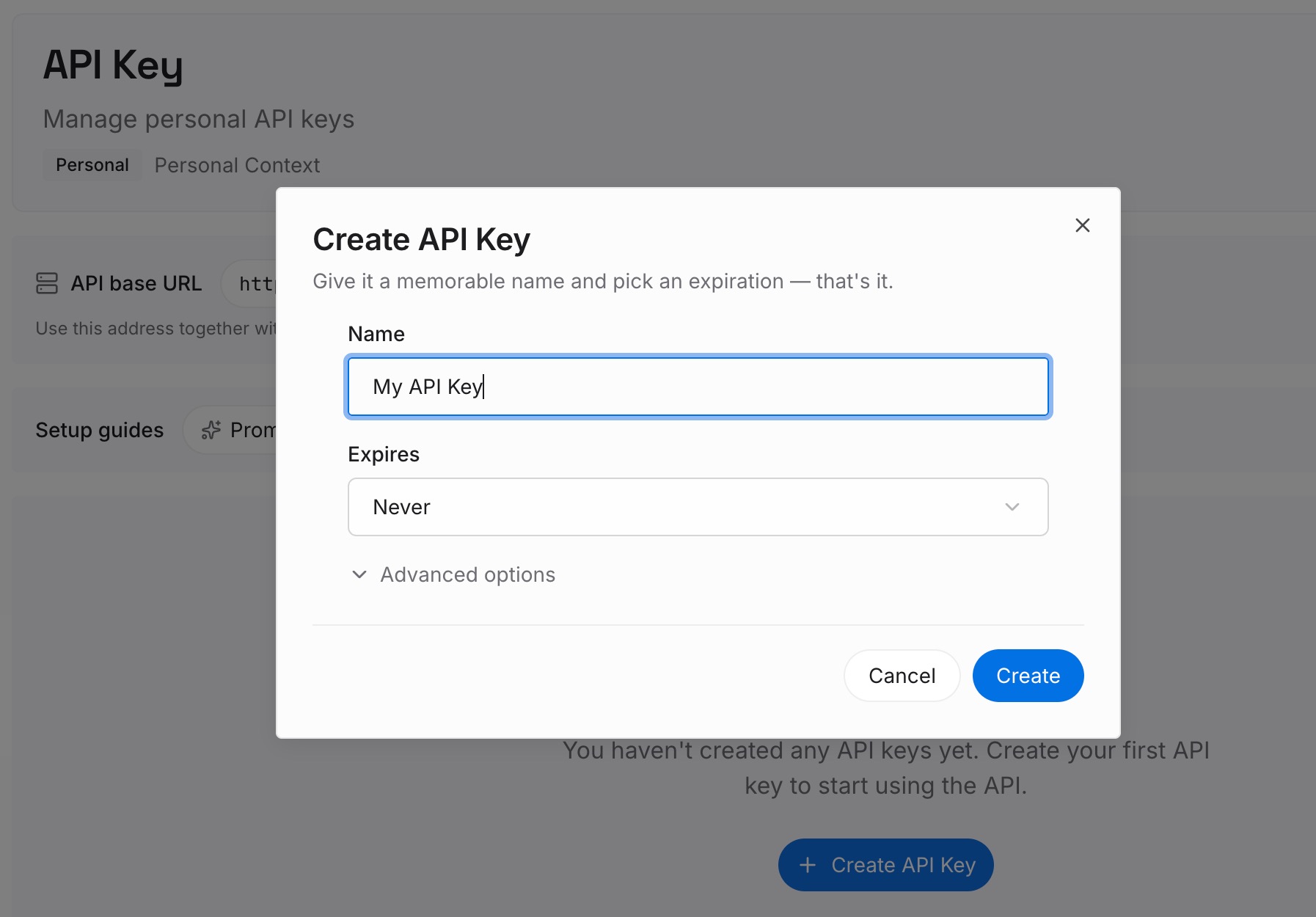
Step 1: Create an API key
Sign in and generate a key from the dashboard. Keep it somewhere private.
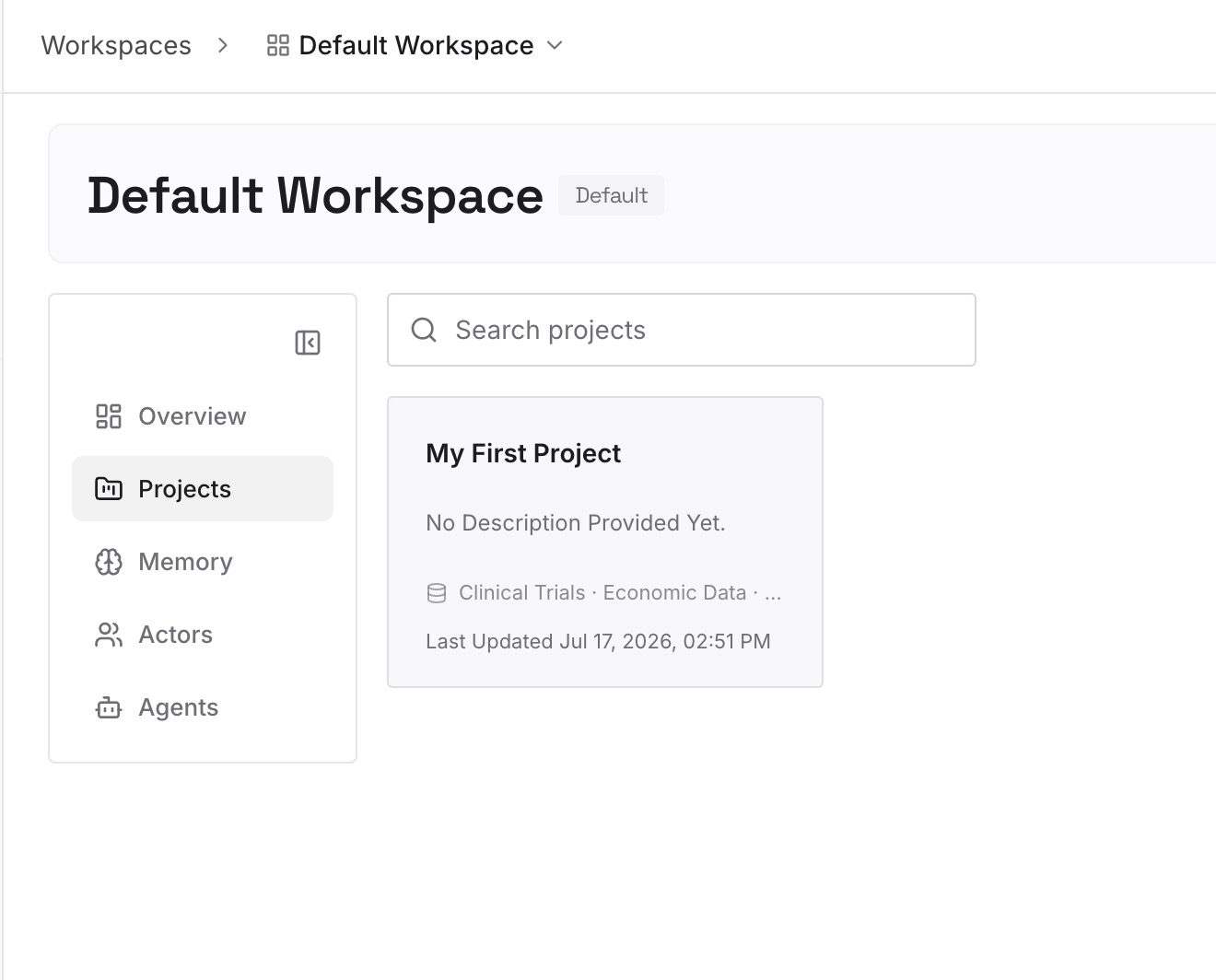
Step 2: Upload your first memories
Start with what you wrote in Step 4 of the fix: the decisions behind your project. One decision per entry.
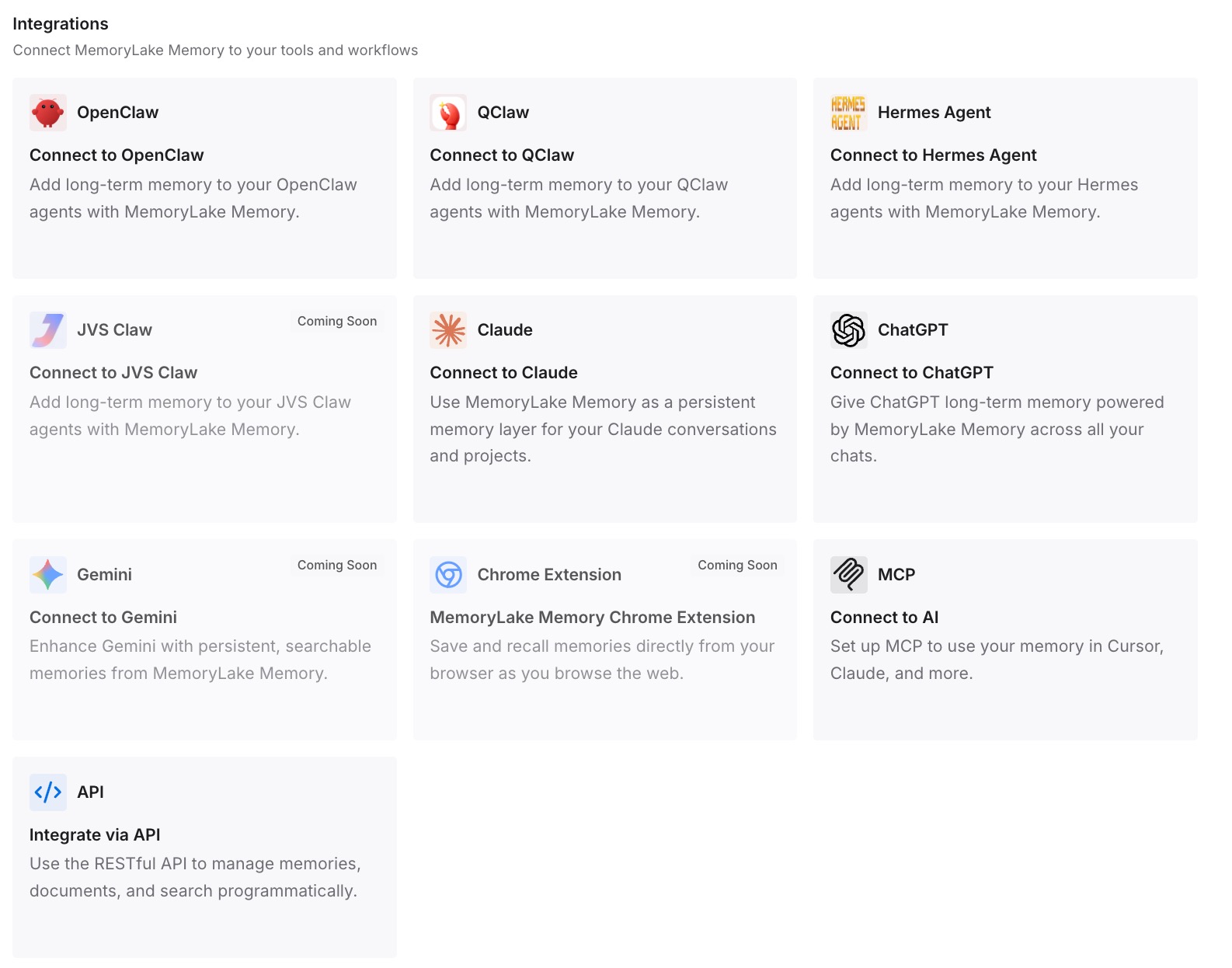
Step 3: Connect your AI & agents
Connect ChatGPT, Claude Code, Codex, and the other assistants you use, so the same decisions are available outside the project.
What this changes in practice
The first difference is fewer repeated explanations. A decision written once is available wherever you work.
The second is easier project setup. New projects can start from notes you already have.
The third is portability. The same context works in assistants other than Claude.
Best practices for Claude project instructions
Be specific. Concrete rules leave Claude less to guess.
Separate how from what. Instructions say how to behave. Knowledge holds the material.
Name your files. Tell Claude which document to use for what.
Write down decisions. Chats don't share context unless it's in knowledge or instructions.
Keep account-wide preferences in Instructions. Don't repeat them per project.
Review instructions as the project changes. Outdated rules can produce outdated answers.
Conclusion
Claude's project instructions tell Claude how to behave in every chat in a project, while project knowledge holds the documents it works from and account Instructions cover how you like to work everywhere. Claude can't see a project's name or description, and chats in a project don't share context unless it's in knowledge. That's why short instructions can lead to generic answers.
Good instructions state the goal and role, point to the right files, define format and limits, and record decisions you've already made. The examples here are starting points to adapt. Keeping the reasons behind those decisions in one place you control makes them reusable in your next project and your next tool.