
Why old Library files keep shaping new answers
Library keeps files independently of chats
ChatGPT saves files automatically. OpenAI says it "automatically saves uploaded and created files, including files uploaded in chats (for example: documents, spreadsheets, presentations, and images) in a dedicated, secure location so they can be easily accessed later."
Those files have their own lifetime. "Files are saved to your account until you delete them manually. Deleting a chat containing files does not delete those files saved to Library." OpenAI's retention article repeats the point: "Deleting a chat does not delete a file that remains saved in Library."
Projects work the same way. "Deleting a project permanently removes its chats and instructions, along with files stored only in the project. Files saved separately in Library are not deleted."
So if you have been tidying up by deleting old chats and projects, your Library may still hold every file those chats used.
Memory can use Library files
OpenAI's Memory FAQ lists the sources memory can draw on, depending on plan and region: past chats, saved memories, custom instructions, "files in Library," and content from connected apps. It addresses files directly: "Depending on plan and region, ChatGPT may use relevant Library files and connected-app content when those features are available and enabled." The Library article says the same from the other direction: "if you have turned on Memory, files and chats may be used to help ChatGPT remember useful details about you between chats."
In work accounts there is an additional setting. "Workspace owners can control whether ChatGPT automatically references Library files when responding to a prompt." OpenAI adds that turning this off "does not remove Library or prevent members from browsing, searching, opening, or attaching Library files themselves."
The practical upshot is that your Library is part of the context ChatGPT works from. Keeping it current is part of keeping memory accurate. For the full map of which memory controls affect which sources, see what turning off ChatGPT memory stops and what data controls still cover.
Where Library lives now
Library is broadly available. OpenAI lists it for "ChatGPT Free, Go, Plus, Pro, and Business users and to Enterprise, Edu, and Healthcare workspaces." For some accounts, though, it has a new home. "Space replaces Library for accounts with access to Space." Space is for creating and editing pages, available on "ChatGPT Pro, Business, or Enterprise." In Space, your files appear under All, and "Images separates Your creations from Uploads."
If you are on one of those plans and the Library entry you remember seems to be gone, look in Space. Projects are unaffected: "Projects remain separate, so you can continue using them for your project chats, files, and instructions."
What people try instead
Deleting the chat that used the file. The chat goes; the file stays in Library. OpenAI states this in both its Library and retention documentation.
Deleting the whole project. Files stored only in the project are removed, but "Files saved separately in Library are not deleted."
Asking ChatGPT not to mention something. Helpful for behavior, but OpenAI notes it "changes personalization behavior but does not delete the underlying chat, file, email, or other source."
Turning off memory. It changes what ChatGPT draws on, not what your account stores. OpenAI notes that "Turning off Memory does not delete your past chats," and Library files stay saved until you delete them. If you turn memory on later, the same sources are there.
Bulk-deleting everything. Fast, and it removes files you may need, including originals you no longer have anywhere else. Download first, then delete deliberately.
Assuming deleted means gone immediately. Deletion has stages. A file leaves your main view at once, may sit in Recently deleted, and is then scheduled for permanent deletion.
The Fix: Find what Library holds, keep what is current, and remove facts from every source
Step 1: Find everything your Library is holding
Open Library from the sidebar, or Space if your account has it. Browse by type first. Library results "can be filtered by" uploaded or generated files and by file type, including images, documents, spreadsheets, presentations and PDFs. Generated images also appear separately, since "Generated images will continue to appear in the Images tab."
Use sidebar search to find files by topic. OpenAI says search results "can include projects, images, documents, and other eligible files from Library," with filters for chats, images, documents and projects. Search is for finding; the actions happen in Library: "Sidebar search helps you find files, but you manage, reuse, download, and delete them from Library."
Check how much is there. "Use the Storage button in Library to check your total usage, remaining storage, and whether you are over your limit." A full Library is a sign that cleanup is overdue.
As you browse, sort files into three groups: current and useful, outdated but worth keeping as a record, and no longer needed. Outdated pricing, old drafts, cancelled plans and files containing other people's personal information belong in the second or third group.
Step 2: Download what you want to keep, then delete it from Library
For the second group, download before deleting. "You can download files by selecting one or more files in Library and clicking the Download button." Store those copies where you keep other records. For a broader backup of what ChatGPT holds about you, backing up your ChatGPT memory covers the export as well.
Then delete the second and third groups. "When you delete a file, it is removed from your main Library view immediately." If your Library includes Recently deleted, "you can restore the file from there until it is permanently deleted, or permanently delete it sooner by choosing Delete forever or Delete all in Recently deleted." OpenAI says "Deleted files are scheduled for permanent deletion from OpenAI systems within 30 days," with exceptions for de-identified data and legal or security obligations.
A few files need different handling. "Connected Google Drive files and folders in Library can't be deleted from ChatGPT." Manage those in Drive. In Enterprise, Edu and Healthcare workspaces, "Library files follow the workspace retention policy," so check with your administrator before assuming a deletion schedule.
If your account uses Space, clean it the same way, with two extra checks. Pages can carry personal context: "If Memory is enabled, ChatGPT may use personal context when helping you write or update a page." OpenAI adds that "Sharing a page does not give other people access to your private chats or your ChatGPT Memory," but anything written onto a shared page is visible to everyone who can view it, so review shared pages for details that came from old files. And deleting a parent page has a wider reach than you might expect: "Deleting a page moves it and its subpages to Trash, including subpages owned by other people." Check the subpages first.
Going forward, use Temporary Chat for one-off questions involving files you do not want kept. OpenAI notes that "files uploaded while using Temporary Chat are not saved to your account or Library."
Step 3: Remove outdated facts from every source, not just the file
Deleting a file removes one source. If ChatGPT has already learned something from it, the information may exist elsewhere too. OpenAI's instructions for removing remembered information list the places to check: the memory summary, saved memories, regular and archived chats, files in Library, and connected apps. Its guidance is direct: "To remove information saved as a memory, delete the saved memory and the chat where you first shared it." It also warns that "Deleting a chat alone does not necessarily delete a separate saved memory created from that chat."
So after cleaning Library, open Settings, then Personalization, then Memory, and review what is saved. Delete memories that came from the files you removed. Archived chats count too, as explained in what archiving a ChatGPT chat hides and what it still feeds.
Allow some time for changes to settle. "It can take time for deletion and Memory updates to propagate." Then test: ask ChatGPT about the topic of a file you deleted and see whether the old detail still appears.
For current work, put the files that matter into the relevant project. That keeps them attached to the right context instead of floating in a general Library.
Setting this up in MemoryLake
Cleaning Library keeps ChatGPT's file context current. The underlying problem is that the facts you care about are scattered across files, chats and memory, and each assistant holds its own copy. MemoryLake is a place to keep the current version of those facts, in one list you maintain.
You write the entries yourself, in your own words. Nothing is read out of, written to, or deleted from your ChatGPT Library, your Space, or any vendor's store.
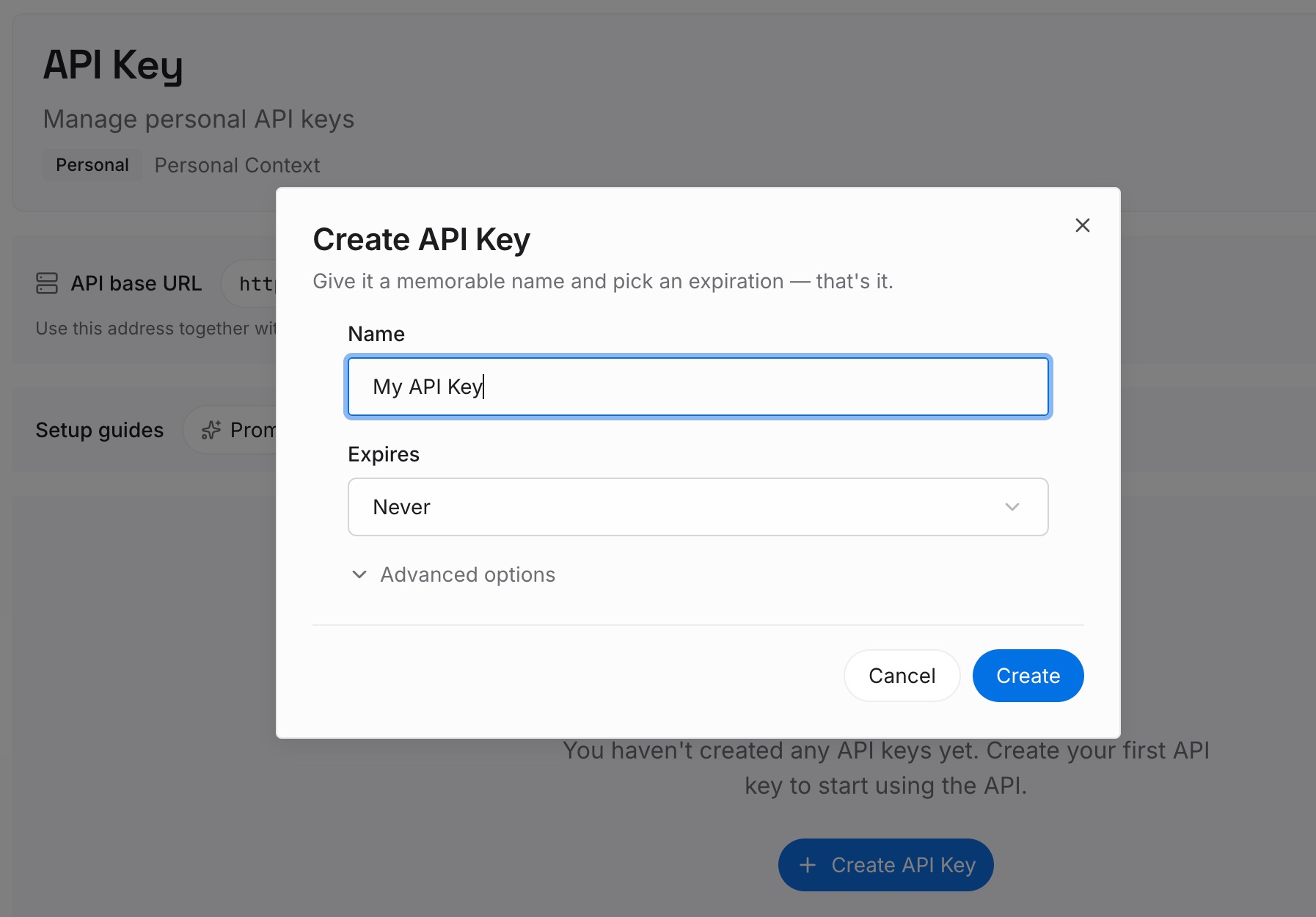
Step 1: Create an API key
Sign in and generate a key from the dashboard. The key belongs to your MemoryLake workspace, separate from your OpenAI account.
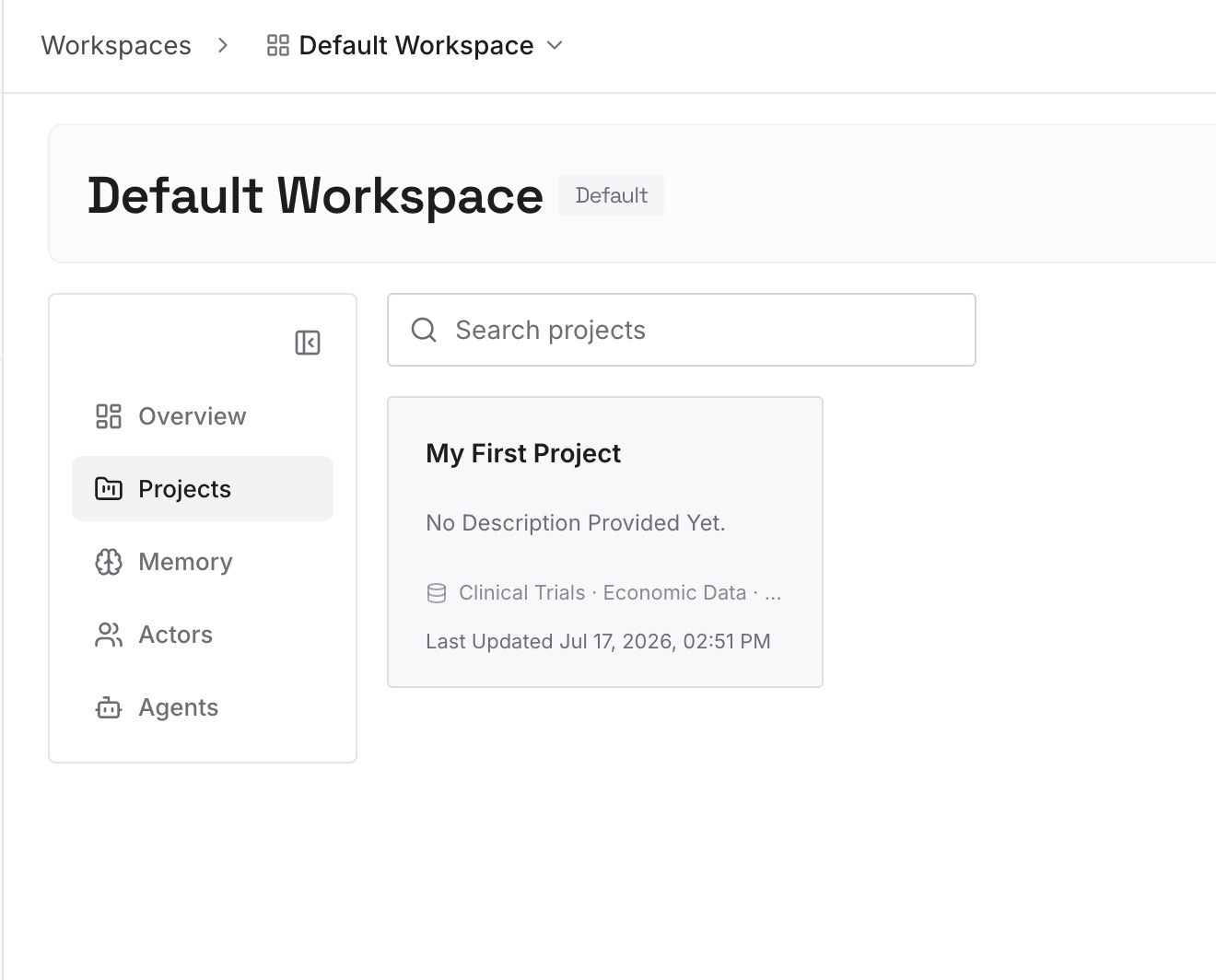
Step 2: Upload your first memories
Start with the current facts from the files you kept in Step 1: present pricing, active projects, the decisions that replaced old drafts. One fact per entry, dated, so newer facts visibly replace older ones.
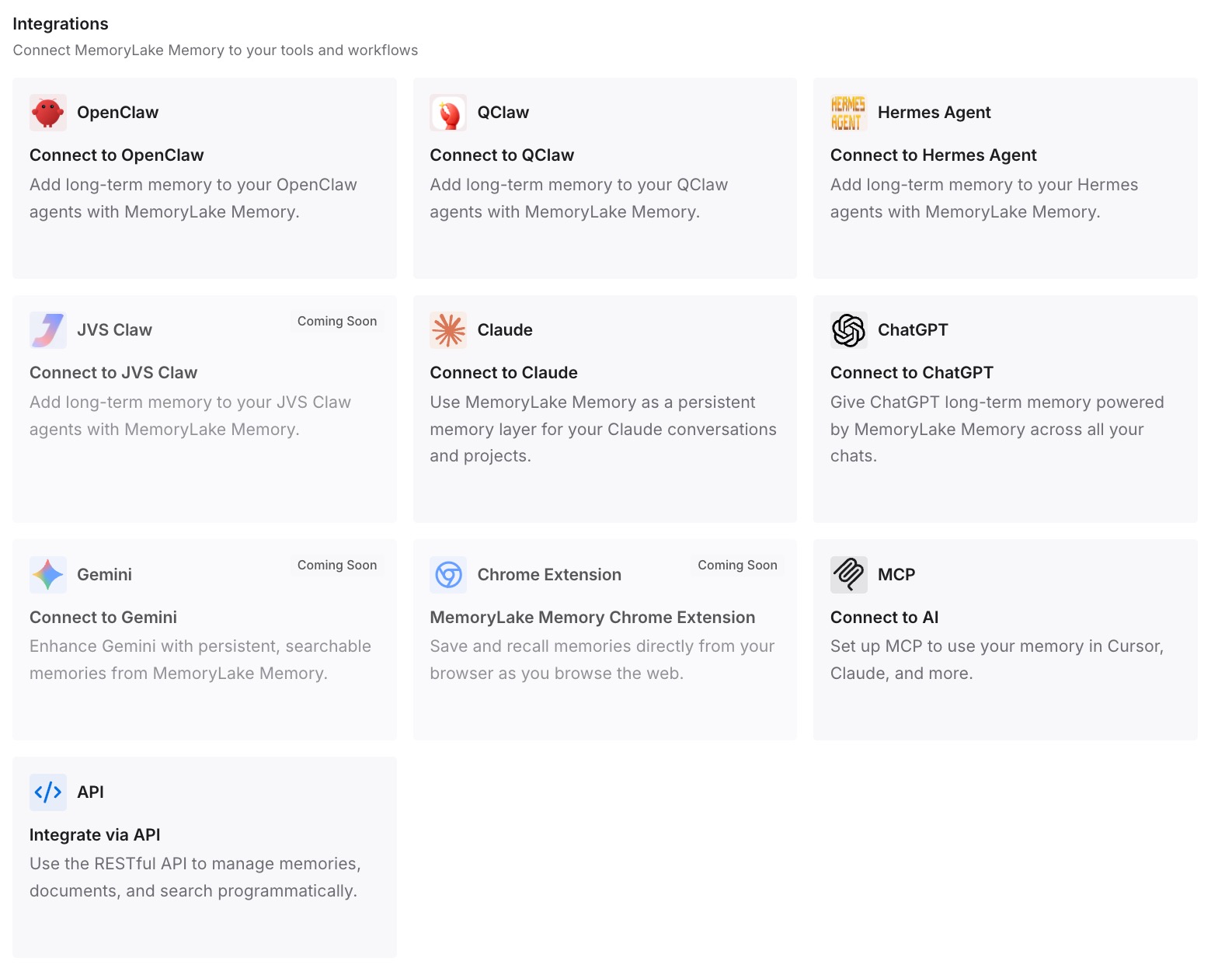
Step 3: Connect your AI & agents
Connect ChatGPT and the other assistants you use. The same current facts are then available in each, without relying on whichever old file happens to be retrieved.
What this changes in practice
The first difference is fewer surprises. Answers stop drawing on files that describe how things used to be.
The second is a Library that works as intended. With outdated files gone, search and "Add from library" return what you actually use.
The third is clarity about where information lives. You know that a fact can sit in a file, a chat and a saved memory at once, and you know how to remove it from all three. The same question comes up with other tools; which part of a Perplexity Library actually disappeared shows a parallel case.
The fourth is a lighter memory. Fewer stale sources means less for memory to reconcile, which matters if you have run into a full ChatGPT memory.
Best practices for keeping your ChatGPT Library current
Clean Library when you clean chats. Deleting a chat leaves its files behind.
Download before you delete. Keep records outside ChatGPT.
Use Recently deleted deliberately. Restore mistakes; permanently delete what must go.
Check memory after deleting files. Remove saved memories that came from them.
Use Temporary Chat for one-off files. They are not saved to Library.
Keep active files in projects. They stay with the right context.
Look in Space if Library seems missing. On Pro, Business and Enterprise accounts with Space, it replaces Library. For a structured review of everything your assistants hold, see how to audit what your AI assistants actually remember, and to compare the memory summary against your saved memories, check what ChatGPT's memory summary leaves out.
Conclusion
ChatGPT saves the files you upload and create to Library, and they stay there until you delete them, even after the chats and projects that used them are gone. Because memory can draw on Library files, old documents can keep shaping new answers.
The cleanup is straightforward once you know where things live. Find what Library holds, download what you want to keep, delete the rest, and then remove outdated facts from saved memories and chats as well. On accounts with Space, do the same there.
A current Library is a small habit with an outsized effect: ChatGPT works from what is true now.