
What the command center shows
OpenAI's slash command reference describes what you see when you open it: "Codex shows an overview of chats on the connected server. You can inspect their status and switch between them."
It has grown over several releases. When the dashboard arrived in Codex CLI 0.149.0 in August, the changelog said it added "an interactive codex agents dashboard for searching, starting, opening, renaming, and stopping tasks, with configurable shortcuts." Later changes added recent sessions and live task details to the same view.
In practice, it's the place to answer three questions quickly: which chats are running, which have finished, and which one you want to open next.
How to open it
There are two ways in:
- From inside a session: type
/agentsand press Enter, then select a chat to open it. The slash command table lists/agentsas the command to "Open the agent command center." - From your terminal: run
codex agents. OpenAI's reference says: "To open the command center directly from your terminal, runcodex agents."
codex agents also takes options for remote work. "Use --remote <URL> to connect to a remote server and --cd <DIR> to set the directory for new remote tasks."
The command center is different from the subagent switcher. /subagents switches the active thread inside your current session so you can "inspect or continue that agent's work." The command center lists chats on the server, across sessions.
Why it needs a background server
The command center isn't a view of your terminal history. It's a view of a server's chats. OpenAI says: "The command center requires a shared local or remote server."
That server is a Codex app server, running as a background daemon on your machine or on another host. Several Codex commands depend on it:
codex agentsopens the command center on that server, and the reference notes that "codex agentsdoesn't support--no-daemon."codex queue --resumecan resume a session only with a server. "Resuming requires a running local daemon or a server selected with--remote."codex remote-controlstarts remote control "through the managed background server when eligible, with a foreground fallback."
One release note reads differently. The Codex CLI 0.167.0 changelog says "Open the agent command center with codex agents --no-daemon." The current command reference says codex agents doesn't support that flag. When the two disagree, the reference describes the current behavior, so check /daemon or codex agents on your own build.
Managing the server with /daemon
Inside a session, /daemon opens the background server controls. OpenAI's reference says it lets you "Review the server connection and available actions."
Two actions are worth knowing before you use them:
- Updating the server. Codex offers to install the latest public stable release or use your current CLI build. "Confirming an update exits Codex and may interrupt active work."
- Restarting the server. "Codex reconnects automatically. The restart may interrupt active or queued work in other chats."
For a remote connection, OpenAI says to manage the server on its host.
What changed in Codex CLI 0.167
The November 6 release added two things to the command center and the session picker:
- Unread markers. "The command center and session picker now mark unread results".
- Switching backends. You can "Switch between connected backends from the terminal session picker and keep your drafts when switching".
The same release fixed a provider problem that affected saved chats: "Saved chats stay visible after you switch model providers. If a chat can't resume, you can read its transcript and prepare an editable prompt to continue in a new chat".
It also changed Ctrl+L: "Ctrl+L clears the terminal display while keeping earlier messages available through Ctrl+T".
Archive and delete: what each does to a chat
Both remove a chat from your active lists. Only one keeps it.
Archive
The codex archive command is for tidying up without deleting the transcript. OpenAI says: "Use these commands when you want to clean up the session picker without deleting the transcript."
From inside a chat, /archive asks you to confirm, then: "Codex archives the session and returns to the command center when connected to a local background server or remote server. Without a shared server, Codex exits. Codex keeps the transcript; restore it later with codex unarchive <SESSION>."
Two details:
- If a turn is running, "confirming
/archivestops that turn before archiving." - Archive covers the chats a session spawned. "When you archive or restore a session, Codex also tries to archive or restore the subagent sessions it spawned, including their descendants."
Delete
Deleting is permanent. The codex delete command removes "a saved interactive session by session ID or session name. Use this only when you want to remove the transcript instead of hiding it from active session lists."
From inside a chat, /delete does the same after confirmation: "Codex permanently deletes the transcript and spawned descendant sessions." Like archive, it returns you to the command center when a shared server is connected, and exits otherwise.
Limits on delete:
- "
/deleteis unavailable while a chat is running or in a side chat." - The
--forceflag skips confirmation only with a session UUID. "Named sessions still require confirmation so Codex doesn't delete a repeated or ambiguous name without a prompt."
Which to use
Archive when a chat is finished but you might want its transcript later. Delete when you want the transcript, and everything the chat spawned, gone for good. If you're unsure, archive. It can be undone with codex unarchive, and delete can't.
Messaging a chat you aren't looking at
With several chats running, you don't always want to switch into one just to add an instruction. codex queue sends a message to an existing session from your terminal. OpenAI's example is codex queue --thread <SESSION_ID> --message "Run the remaining checks".
The rules:
- "
--threadaccepts a UUID or exact session name. Use a UUID when sessions share the same name." - "Queued messages use the session's model. The command accepts text only."
- Adding
--resumequeues the message and resumes the session if it isn't already loaded, which needs the background server. - "If Codex can't resume the session, it prints a warning and still exits successfully."
That last point matters if you script it. A successful exit doesn't confirm the session picked the message up.
Resuming from the command line
The command center is one way back into a chat. codex resume is another: "Continue an interactive session by ID or resume the most recent chat." It "scopes --last to the current working directory unless you pass --all."
If the directory you're in differs from the session's saved one, Codex asks which to use, and the tui.resume_cwd setting can remember that choice. For the difference between continuing a chat and starting over, our guide to Codex's clear and new commands explains what each keeps.
What the command center doesn't hold
Each chat in the command center has its own transcript and its own context. The command center lists them side by side, but OpenAI's description is an overview of chats and their status. It doesn't describe the command center as carrying a decision from one chat into another.
So when one chat settles something, such as which API version to target or why a test is skipped, the documentation doesn't describe that decision reaching the other chats. Each one works from its own conversation, its project files, and its AGENTS.md. If you need to see how full a chat's context is getting, our guide to Codex's context left indicator covers that.
What people try first
Running codex agents without a background server. The command center requires a shared local or remote server.
Deleting to tidy up. Delete removes the transcript and spawned sessions permanently. Archive hides a chat and keeps it.
Restarting the server mid-task. A restart may interrupt active or queued work in other chats.
Trusting a queued message landed. If Codex can't resume the session, it warns and still exits successfully.
Expecting one chat's decision to reach the others. Each chat works from its own context.
The Fix: Run several Codex chats without losing track
Step 1: Start from a shared server
Use the local background server or connect with --remote, then open the command center with codex agents or /agents.
Step 2: Archive, don't delete, finished chats
Archive keeps the transcript and can be undone with codex unarchive.
Step 3: Check before restarting or updating
Use /daemon only when no other chat is mid-turn, since a restart or update may interrupt them.
Step 4: Write down decisions that span chats
When one chat settles something the others need, record it where every chat, and every tool, can read it.
Setting this up in MemoryLake
The command center keeps many Codex chats in view. The decisions that connect them, such as the API version you settled on or the reason a test is skipped, can come up in one chat and matter in the others.
MemoryLake is a memory layer for that kind of project context, such as decisions, conventions, and constraints, kept in one place you maintain and available to the assistants you connect, such as ChatGPT, Claude Code, and Codex.
You write the entries yourself, in your own words. Nothing is read out of, written to, or deleted from your Codex chats, their transcripts, your ~/.codex folder, your AGENTS.md files, your background server, or any vendor's store. The command center, archive, and delete work the way OpenAI describes them.
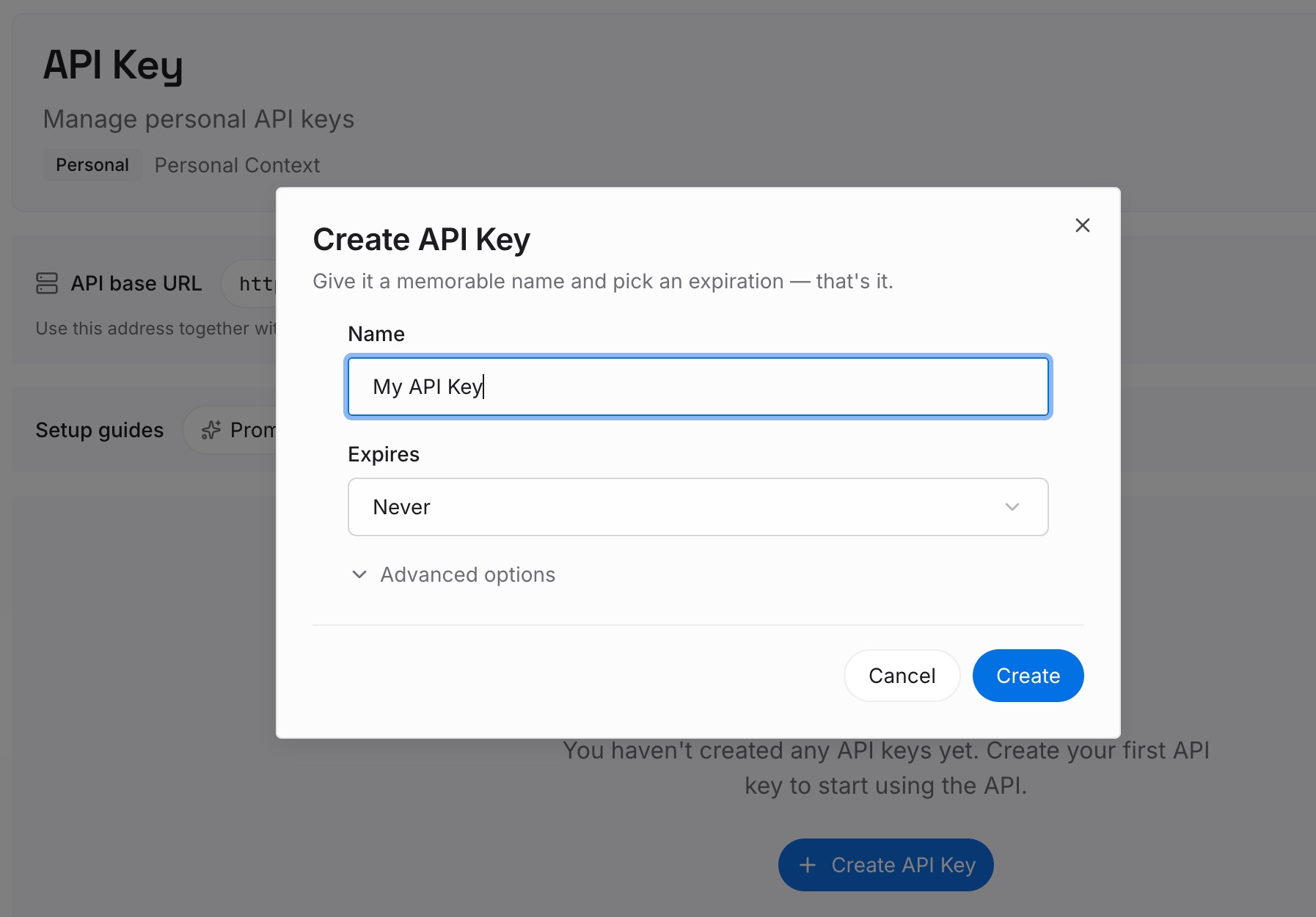
Step 1: Create an API key
Sign in and generate a key from the dashboard. Store it outside your repositories, like any other credential.
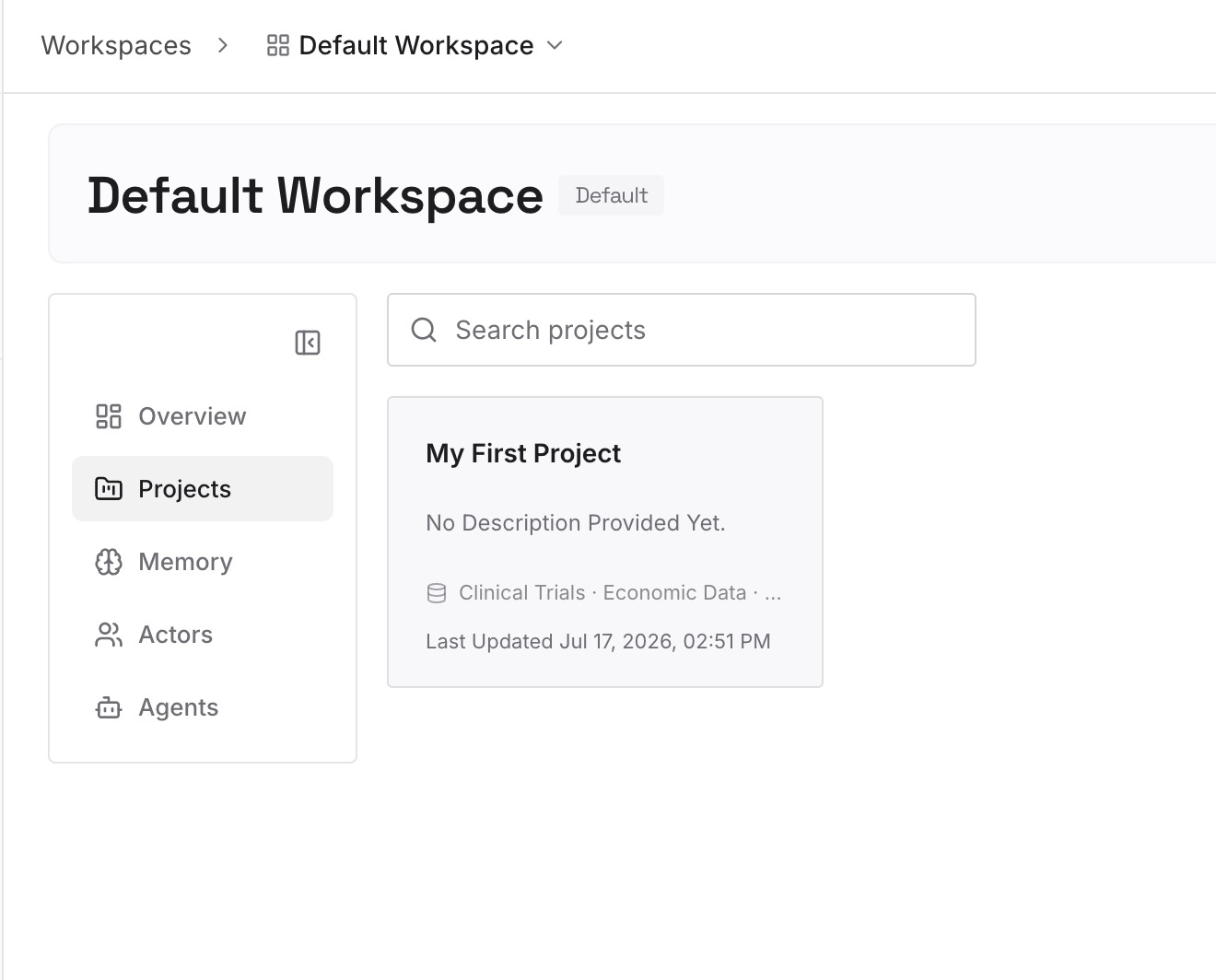
Step 2: Upload your first memories
Start with what you wrote in Step 4 of the fix: the decisions that span chats, the conventions every chat should follow, and the constraints behind them. One item per entry.
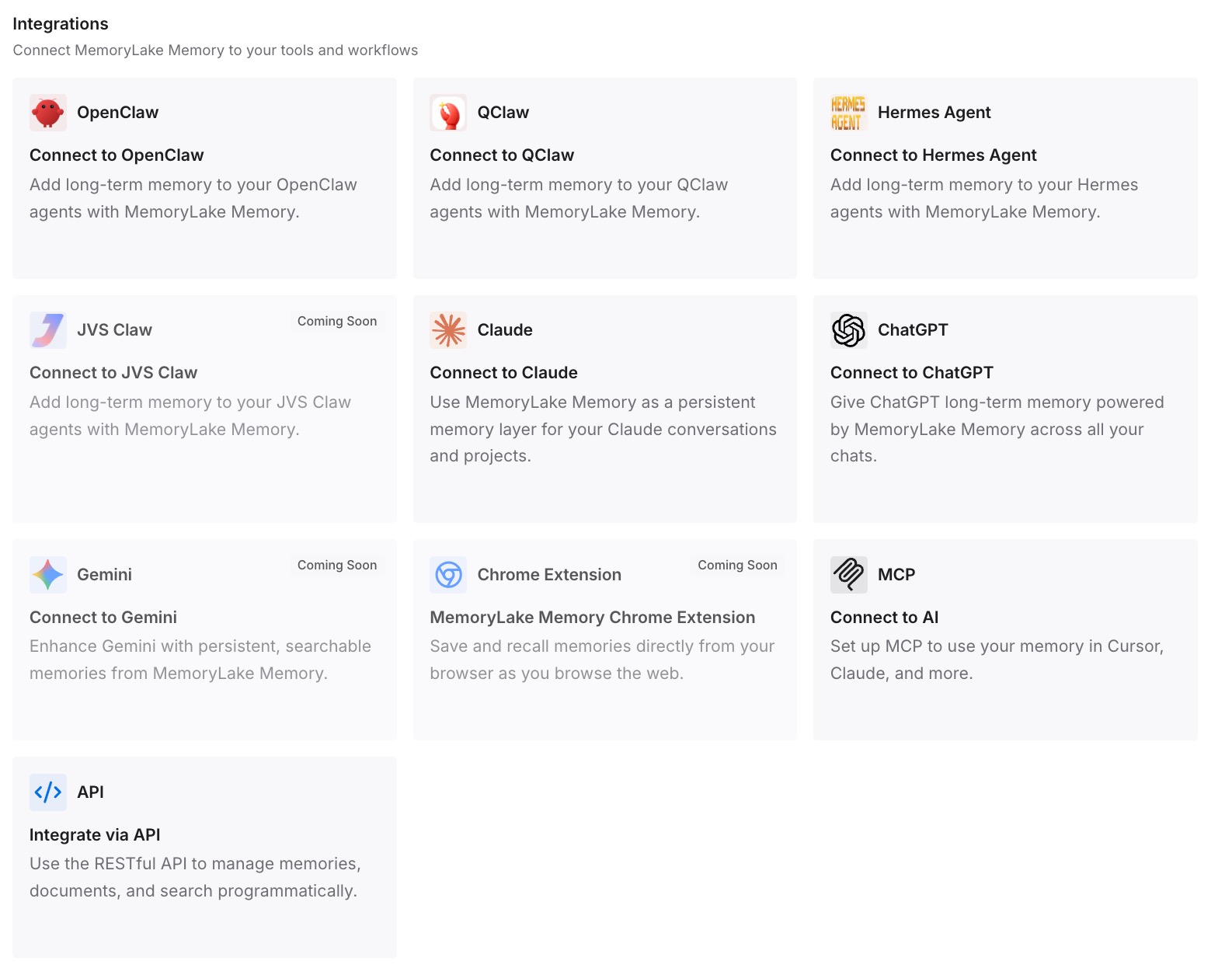
Step 3: Connect your AI & agents
Connect Codex and any other assistants you use. Each chat, and each tool, can draw on the same entries.
What this changes in practice
The first difference is fewer repeated explanations. A decision written once is available to the next chat you start.
The second is less riding on any one transcript. Archiving or deleting a chat doesn't take the decision with it.
The third is the same context outside Codex. Claude Code or ChatGPT working on the same project can use the same entries.
Best practices for the Codex command center
Keep a shared server running. The command center and codex queue --resume depend on it.
Use /agents for chats and /subagents for threads. One lists chats on the server, the other switches threads in your session.
Archive by default. It keeps the transcript and is reversible.
Delete only on purpose. It removes the transcript and every session the chat spawned.
Watch for unread markers. Since 0.167, the command center flags results you haven't seen.
Restart the server carefully. It may interrupt work in other chats.
Write cross-chat decisions down. Each chat works from its own context.
Conclusion
The Codex agent command center lists the chats on a shared local or remote server, shows their status, and lets you switch between them. Open it with codex agents from your terminal or /agents inside a session. Since Codex CLI 0.167, it also marks unread results, and the session picker can switch between connected backends while keeping your drafts.
Archive hides a chat and keeps its transcript, and codex unarchive brings it back. Delete removes the transcript and its spawned sessions permanently. Because each chat works from its own context, write down the decisions that matter across chats so every chat, and every tool you use, can start from them.