
Two ways to use a browser
OpenAI's documentation describes two options in the ChatGPT desktop app, where Codex and ChatGPT Work both run.
The built-in browser. It's included with the desktop app and installs automatically. The documentation says it "gives you and ChatGPT a shared view of websites and local web apps inside a chat." You can preview a page, leave comments on it, or let ChatGPT interact with a site.
The browser extension. You install it in Chrome, Edge, Brave, Opera, or Vivaldi. ChatGPT then works in your regular browser, with your existing tabs and sign-ins.
The extension documentation sums up when ChatGPT uses which: it "can also switch between tools as a task requires, using plugins when a dedicated integration is available, your browser when it needs signed-in browser context, and the built-in browser for localhost."
One availability note: the built-in browser documentation says "Browser isn't available in Codex CLI or the Codex IDE extension. Open the ChatGPT desktop app to use the built-in browser."
What the built-in browser can see
The built-in browser starts clean. The documentation says it uses a separate profile and "doesn't automatically share your existing tabs or browser session."
That's why the dashboard in the opening example showed a login screen. Your Chrome session wasn't there. The documentation says what to do: "You can sign in directly when a task requires an account." Settings > Browser is where you manage browser data and any profile-import features available on your device.
The separation applies to history too. "The built-in browser keeps its own profile and browsing history. Results don't automatically include pages from your regular Chrome profile or other browsers." When you type in its address bar, suggestions come from the built-in browser's own history.
That separation has advantages. Sites you visit for one task don't mix with your personal browsing, and ChatGPT can't act on accounts you haven't signed into there.
What the extension can see
The extension works the other way. It runs in your regular browser profile, so ChatGPT works where you're already signed in.
That brings context the built-in browser doesn't have:
- Your signed-in sessions. Internal tools, email, and services you use every day.
- Your open tabs. You can mention an open tab in the desktop app to give ChatGPT that page as context.
- Selected text. In browsers with side chat, you can highlight a passage and bring it into a chat.
Side chat is available in Chrome, Edge, Brave, and Vivaldi, but not in Opera. The documentation explains how it connects to your other chats: "The panel stays with the tab where you opened it. Chats you start in side chat are available in the ChatGPT app, and you can open recent ChatGPT chats in the side chat, so you can continue work in either place."
To start a browser task, you begin a ChatGPT Work or Codex chat and pick the browser with an @-mention. The documentation adds a detail that matters if you use several profiles: "Make sure you are using the browser profile where the extension is installed."
How website permissions work
Both options ask before ChatGPT acts on a site, but the controls live in different places.
In the extension, the documentation says: "By default, ChatGPT asks before it interacts with each new website." You can choose to allow once, allow for this site, allow for all sites, or decline. Allowed and blocked domains are managed under Settings > Computer Use, by selecting Manage next to your browser, and the supported browsers share these website permissions.
The documentation flags one choice as higher risk. If you allow all sites, ChatGPT no longer asks before using websites, so it says to choose that only if you trust ChatGPT to use any website open in the browser.
In the built-in browser, default permissions for browsing, downloads, and uploads are under Settings > Browser > Agent permissions, with exceptions for specific sites. ChatGPT also asks for confirmation before sensitive actions such as submitting information, making a purchase, changing permissions, or deleting data. The documentation adds: "ChatGPT can't automate file uploads in the built-in browser."
In both cases, permission isn't trust. The built-in browser documentation warns: "A website permission lets ChatGPT interact with that site; it doesn't make the site's content trustworthy or approve every action."
Why browser history needs your OK every time
Browsing history is treated more carefully than websites.
In the built-in browser, the documentation says: "When available, ChatGPT can ask to search your browsing history to find a page that matters to the current task." It asks you to review the request, because "Browsing history can include internal URLs, search terms, and other sensitive information, so allow it only when the task requires that context."
In the extension, the rule is stricter. The documentation explains what history access means: "If you allow ChatGPT to access browser history, relevant history entries can become part of the context ChatGPT uses for the task."
And it explains why the request repeats: "ChatGPT scopes history access to the request, and history doesn't have an always-allow option."
So the second request in the opening example wasn't a glitch. Each task that wants your history asks again, and approving one task doesn't approve the next. Websites can be allowed permanently. History can't.
What OpenAI stores from browsing
The extension documentation addresses this directly: "OpenAI doesn't store a separate complete record of your browser actions from the extension. OpenAI stores browser activity only when it becomes part of the ChatGPT context, such as text ChatGPT reads from a page, screenshots, tool calls, summaries, messages, or other content included in the chat."
It adds that your ChatGPT data controls apply to content processed in context, and it advises against sending secrets or highly sensitive data through browser tasks unless they're required and you're present to review each prompt.
So for the extension, what's kept from a browser task is what entered the chat. A page ChatGPT read becomes part of that conversation, and there's no separate complete record of your browser actions.
For the built-in browser, its own history stays in that browser. You can search it, reopen pages, or remove entries in Settings > Browser when your organization permits it, and Clear browsing data lets you choose a time range and the types of data to remove.
How memory applies to browser tasks
The extension documentation has a short section on memory: "Computer Use follows your Memories setting. If Memories is on, ChatGPT can use relevant saved memories while working in your browser. If Memories is off, browser control doesn't use memories."
So your memory setting carries into browser work. If ChatGPT knows from memory which project you're on or how you like reports formatted, it can use that while it works in your browser.
Browser tasks start from a ChatGPT Work or Codex chat. We covered what Work shares with Chat and Codex, including memory, projects, and history, in our guide to ChatGPT Work mode.
Which to use for which task
The documentation's guidance points to a simple split:
- Local development pages: the built-in browser. It's the documented choice for localhost, and it supports comments on page elements and developer mode.
- Public pages you don't need to sign into: the built-in browser keeps the task separate from your personal browsing.
- Signed-in tools: the extension, which uses your existing sessions.
- A page you're already reading: the extension's side chat or a tab mention.
- Codex Cloud tasks: a browser inside the cloud task, when that task has browser access, to inspect your web app, reproduce a bug, or verify a fix.
If the extension won't connect
The documentation's troubleshooting steps start with the blocklist, then cover common causes:
- Update the ChatGPT desktop app, and update or remove extra copies.
- Restart your browser and check that side chat loads.
- Confirm the browser shows Manage under Settings > Computer Use.
- Use the browser profile where the extension is installed.
- Start a new ChatGPT Work or Codex chat. The documentation says this "can clear chat-specific connection state."
- Restart the desktop app, and reinstall the extension if needed.
What people try first
Expecting the built-in browser to be signed in. It uses a separate profile. Sign in there, or use the extension.
Using the extension in a different browser profile. It works only in the profile where it's installed.
Looking for the built-in browser in the Codex CLI. It's in the ChatGPT desktop app.
Expecting history access to be remembered. History doesn't have an always-allow option.
Allowing all sites to stop the prompts. The documentation marks that as a higher-risk choice.
The Fix: Pick the browser by what the task needs to see
Step 1: Decide whether the task needs your sign-ins
Use the extension for signed-in tools and the built-in browser for everything else.
Step 2: Set website permissions deliberately
Allow sites one at a time, and keep a blocklist for domains ChatGPT shouldn't use.
Step 3: Approve history only when needed
Review each history request, since history entries can become part of the task's context.
Step 4: Write down what the task should know
Record the details you'd otherwise send ChatGPT looking for in your history, such as which dashboard matters and which account to use.
Setting this up in MemoryLake
Browser history is a rough record of what you looked at. The context a task actually needs, such as which internal dashboard is the source of truth, which account a report belongs to, or which page replaced an old one, is better kept as a short note you wrote than as something to search for in history each time.
MemoryLake is a memory layer for that kind of working context, such as where things live, which sources you trust, and the decisions behind them, kept in one place you maintain and available to the assistants you connect, such as ChatGPT, Claude Code, and Codex.
You write the entries yourself, in your own words. Nothing is read out of, written to, or deleted from your browser profiles, your browsing history, your sign-ins, your ChatGPT memories, your Codex chats, or any vendor's store. The built-in browser and the extension work the way OpenAI describes them.
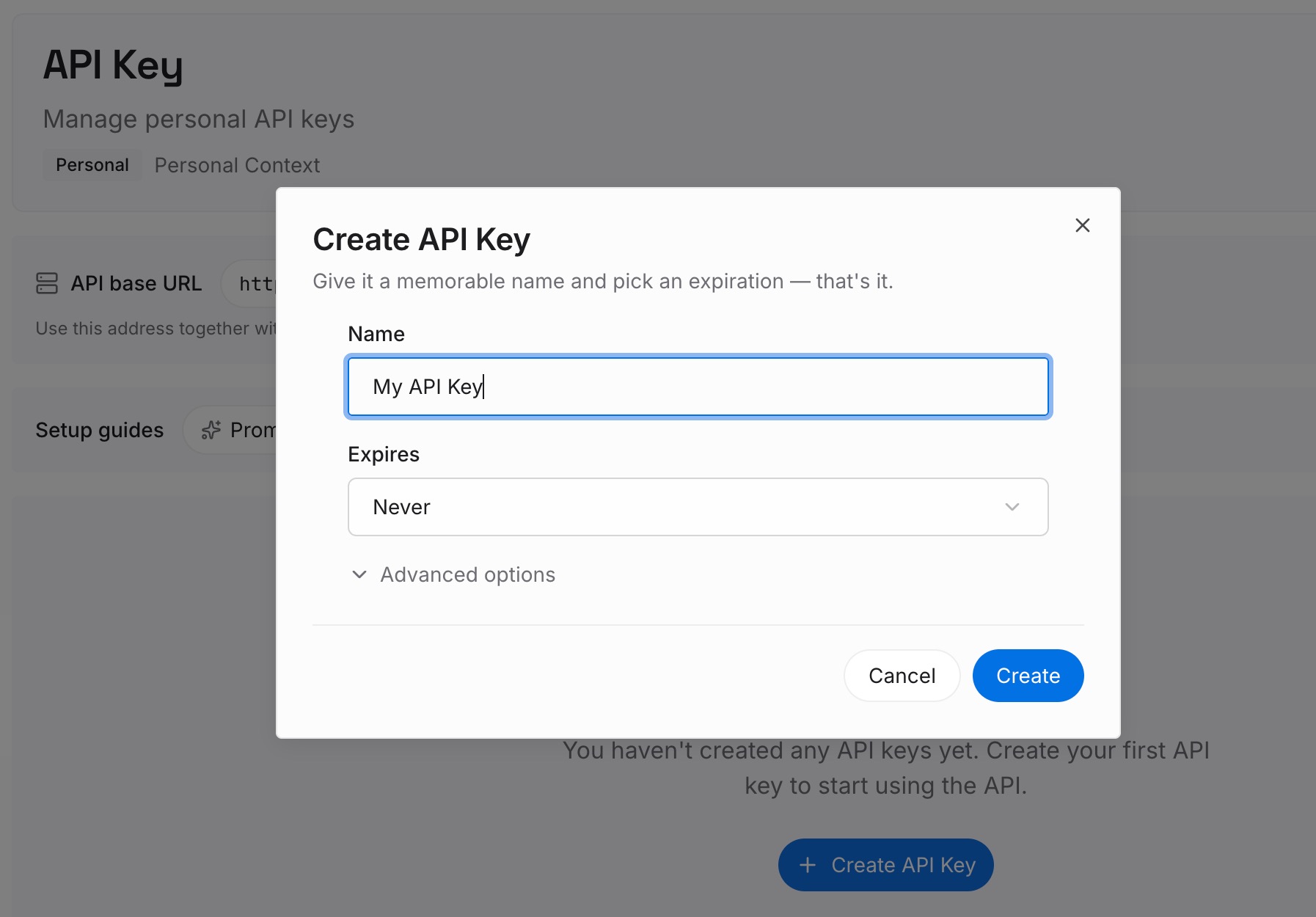
Step 1: Create an API key
Sign in and generate a key from the dashboard. Store it somewhere private, like any other credential.
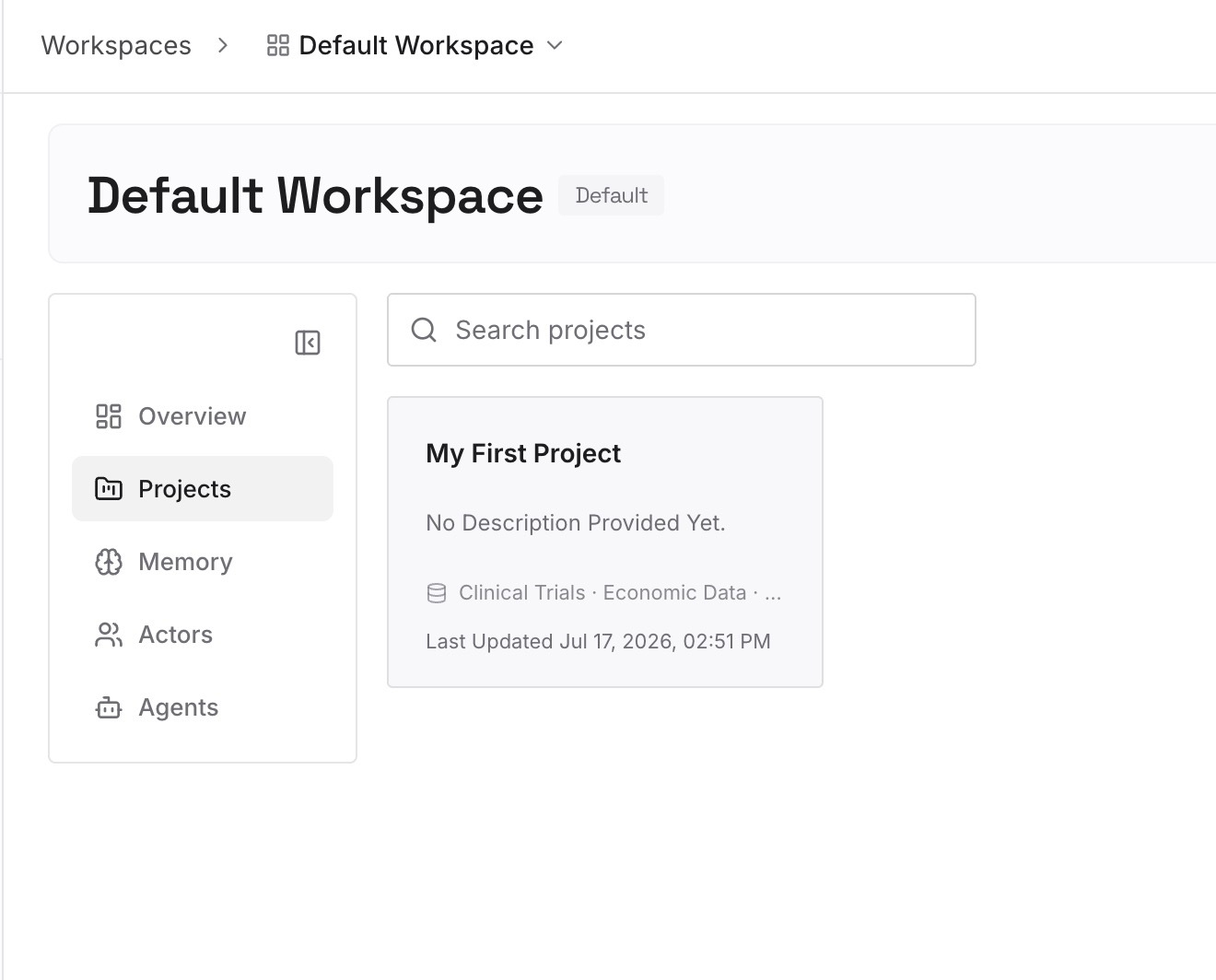
Step 2: Upload your first memories
Start with what you wrote in Step 4 of the fix: which pages and accounts matter for your work. One source per entry.
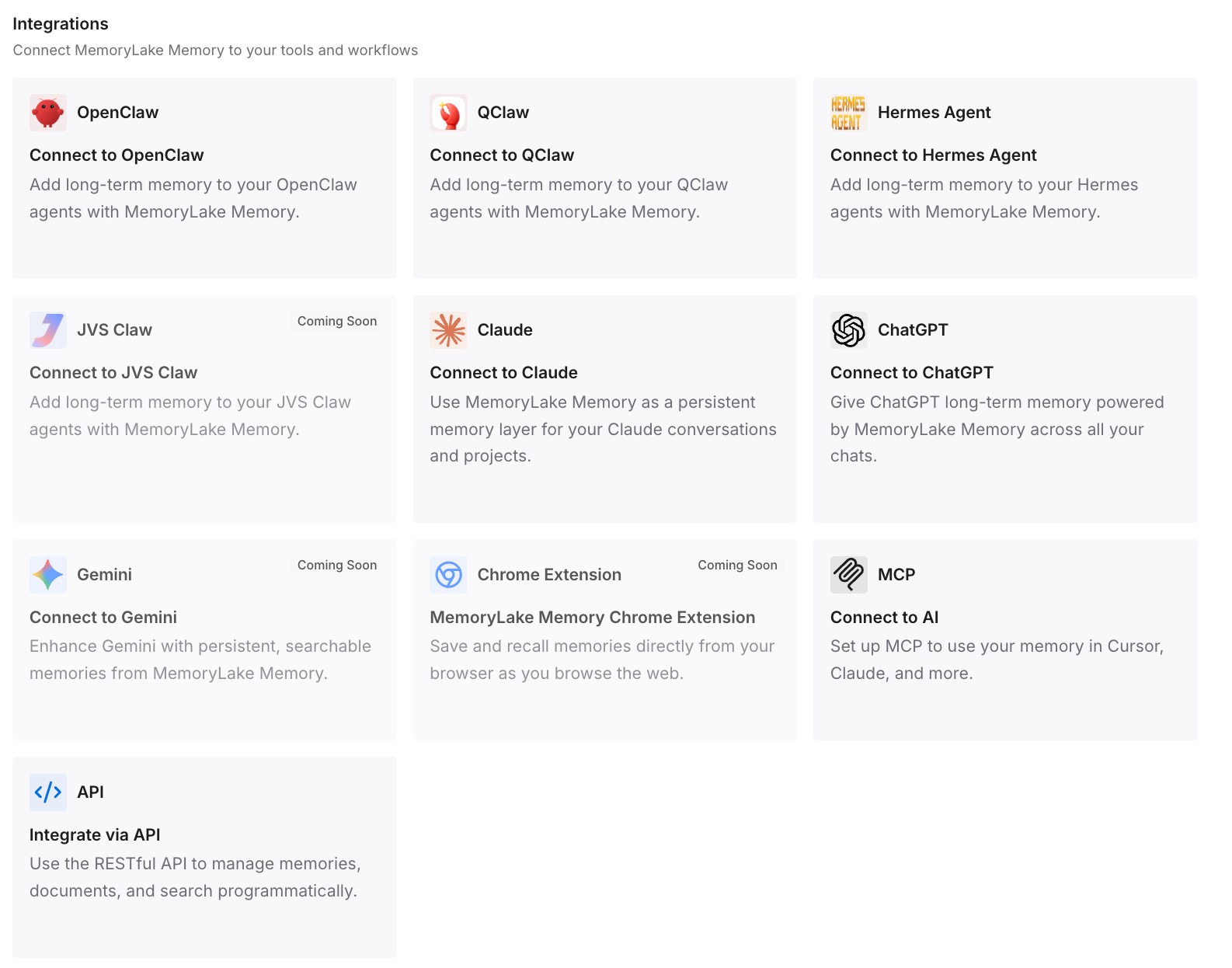
Step 3: Connect your AI & agents
Connect Codex, ChatGPT, and the other assistants you use. Each can draw on the same notes about where things live.
What this changes in practice
The first difference is fewer history requests. The task already knows which page matters.
The second is more consistent results. The same sources are named every time.
The third is consistency across tools. The same notes are available outside ChatGPT and Codex.
Best practices for browser tasks in Codex and ChatGPT Work
Use the built-in browser for localhost. It's the documented choice for local pages.
Use the extension for signed-in tools. It works in your regular profile.
Keep website permissions narrow. Allow per site rather than for all sites.
Treat history as sensitive. Approve it only when the task needs it.
Keep secrets out of browser tasks. OpenAI advises against sending them unless required and supervised.
Check the profile. The extension works only where it's installed.
Clear built-in browser data when you're done. Use Clear browsing data in Settings > Browser.
Conclusion
Codex and ChatGPT Work can use a browser in two ways. The built-in browser in the ChatGPT desktop app uses its own profile and history, doesn't share your tabs or sessions, and is the documented choice for local pages. The browser extension works in your regular Chrome, Edge, Brave, Opera, or Vivaldi profile, where you're already signed in.
Website permissions can be granted once, per site, or for all sites, but browser history access is scoped to each request and has no always-allow option. OpenAI stores browser activity only when it becomes part of the chat's context, and Computer Use follows your Memories setting. Choose the browser by what the task needs to see, and keep the details you'd otherwise search for in a note of your own.