
What a permission profile is
Codex's documentation defines it in two sentences: "Permission profiles let you apply least-privilege boundaries to local commands Codex runs on your behalf. A profile is a named policy that combines filesystem rules, which define what commands can read or write, with network rules, which define which destinations commands can reach."
The key word is commands. A profile governs the shell commands Codex runs on your machine, such as tests, builds, scripts, and package installs. The documentation gives two examples of how that helps: "a read-only profile can let Codex inspect a project without editing it, while a write-capable profile can limit edits to selected workspace roots."
Profiles work on macOS, Linux, WSL, and native Windows. Each platform enforces them differently, and the documentation notes one behavior worth knowing on macOS: "If the selected policy cannot be enforced by the platform sandbox, Codex refuses to run the command instead of silently running it unsandboxed."
The three built-in profiles
Codex ships with three profiles you can use without defining anything:
:read-onlykeeps local command execution read-only.:workspaceallows writes inside the active workspace roots and system temp directories.:danger-full-accessremoves local sandbox restrictions. The documentation says it "should be used only when that broad access is intentional."
To use one, set default_permissions to its name. To build your own, create a named table under permissions and point default_permissions at it. The documentation recommends starting from a built-in: "Prefer extending a built-in profile over starting from scratch so baseline protections carry forward."
A custom profile can extend :read-only, :workspace, or another named profile. It can't extend the full-access one. The configuration reference says Codex rejects :danger-full-access as a parent, along with unknown parents and inheritance cycles.
In the CLI, you can review and change the current mode with /permissions. In the ChatGPT desktop app and the IDE extension, the same choice sits in the permissions control below the composer.
What Codex picks when you start
You don't have to configure anything for Codex to apply a boundary. The security documentation describes the defaults on launch: "On launch, Codex detects whether the folder is version-controlled and recommends" an automatic preset for version-controlled folders and read-only for the rest. The automatic preset is "workspace write + on-request approvals".
It adds a second condition: "Depending on your setup, Codex may also start in read-only until you explicitly trust the working directory (for example, via an onboarding prompt or /permissions)." So a new clone can feel more restricted than a project you've used before, until you trust it.
To see what counts as the workspace in the current session, the documentation points to a command: "Use the /status command to see which directories are in the workspace." That's the quickest check when a write is refused and you aren't sure whether the path is inside the boundary. If the path isn't listed, it's outside the workspace boundary.
Profiles also follow the normal configuration layers. The documentation says: "Higher-precedence layers can add or replace entries under the same profile name without restating the whole profile." Its example has an organization-level file and a user-level file each adding a workspace root to the same named profile. When that profile is active, both roots count. That's convenient, and it's also a reason to check every layer when a rule seems to come from nowhere.
How filesystem rules work
Every filesystem entry gets one of three values: read, write, or deny. The documentation's table describes them:
- read: "Allows commands to read files and list directories under the path. Commands cannot create, modify, rename, or delete files there."
- write: "Allows commands to read and modify files under the path, including creating, renaming, and deleting files when the OS allows it."
- deny: "Denies both reads and writes under the path."
When rules overlap, the more specific path wins. When two rules target the same path, the documentation says "deny takes precedence over write, and write takes precedence over read." That lets you open a whole repository for writing and still keep matching environment files unreadable.
Paths can be absolute, under your home directory, or one of several special names. A key one is :workspace_roots, which means "The current session's workspace roots plus any enabled profile-defined workspace roots". So a profile can add a second repository, such as a shared library, and apply the same rules there.
One timing detail matters for long-running processes. On Linux, WSL, and native Windows, deny rules that use glob patterns are resolved when each sandboxed process starts. The documentation is direct about the consequence: "a long-running shell, script, watcher, or development server can read a matching .env file created after it started." Its advice: "Don't rely on a glob to block newly created files in that running process."
How network rules work
In a custom profile, command network access defaults to off: the configuration reference lists false as the default for network.enabled. Turning it on and enforcing domain rules are two separate steps, and that's the cause of the first surprise in the opening example.
The documentation says: "A profile's network.enabled = true permits command network access, but it does not start the network proxy." The domain list is enforced by that proxy. The documentation continues: "Without an active proxy, profile domain rules do not restrict direct network access."
To make the domain list apply, the documentation says to set the network proxy feature in config.toml, or to use enabled, administrator-managed network requirements. With the proxy active, local addresses get extra protection: "An active network proxy blocks local and private network targets by default." Allowing localhost, private IPs, or Unix sockets opens those back up explicitly.
The documentation also warns against reading too much into an allow rule. Domain rules "do not determine whether an allowed destination is trustworthy, and wildcard allow rules stay broad."
Why an older sandbox setting turns profiles off
Before profiles, Codex used sandbox_mode with values such as read-only, workspace-write, and danger-full-access, plus a separate table for workspace-write options. Profiles replace that combination, but the two systems don't mix.
The documentation puts it at the top of the page: "Permission profiles do not compose with the older sandbox settings." You configure one system or the other. And the older one takes over whenever it appears anywhere in the loaded configuration, on the command line, or in a selected config profile.
That's easy to trigger by accident. Codex reads configuration from several layers, so an old sandbox_mode line in your user config, a project's config, or a config profile you select for one kind of work can switch your permission profile off. The --sandbox flag in a script or an alias does the same.
There's one exception, for managed environments. The documentation says a managed allowed_permission_profiles requirement "makes Codex use permission profiles", and advises administrators to remove the older settings before deploying it. Once that allowlist exists, "omitted profiles are denied, including omitted built-ins and profiles added in future Codex versions."
Why .codex and .agents stay read-only
This is the second surprise in the opening example, and the one that matters most for the files that shape how Codex works in a project.
Codex's security documentation lists the protected paths inside a writable workspace:
- "
<writable_root>/.gitis protected as read-only whether it appears as a directory or file." - "
<writable_root>/.agentsis protected as read-only when it exists as a directory." - "
<writable_root>/.codexis protected as read-only when it exists as a directory." - "
<writable_root>/.awsis protected as read-only when it exists as a directory."
It adds: "Protection is recursive, so everything under those paths is read-only."
In practice, .agents is where repository skills live, and .codex holds project configuration. So a command Codex runs in a workspace-write session can't rewrite the skills you wrote or the project settings that decide how Codex behaves there. The same goes for your Git history.
The permissions page says these protections carry forward when a custom profile extends :workspace, unless you override them. If you build a profile from scratch, it doesn't inherit them, which is one reason the documentation recommends extending.
The page also explains why writes deserve care even inside the boundary: "A write-capable profile can create persistent changes. Treat writes to scripts, build steps, package manager hooks, shell startup files, and shared directories as sensitive because later tools or users can execute those files outside the original sandbox context."
What profiles don't control
A profile covers local sandboxed commands. The documentation lists what uses its own controls instead:
- Web search. "The hosted search tool uses its own access settings."
- Apps and connectors. They use their own service-side connections and settings.
- MCP servers. "Control them with
mcp_serversconfiguration and managed server allowlists." - Browser and Computer Use. They have their own feature and approval controls.
- Codex Cloud. Cloud tasks use their environment's network settings.
The documentation's summary: "A command network allowlist is not a global network policy for every action Codex can perform."
We covered how web search fits in, including why it can stay available when command network access is off, in our guide to whether Codex web search is live.
Who approves requests to go further
A profile sets the boundary. Approvals decide what happens when Codex wants to cross it. The permissions documentation says the two work together, and that "Changing who reviews a request doesn't expand the sandbox."
With approvals set to on-request, Codex pauses and asks. With Approve for me selected, eligible requests go to an automatic reviewer instead of to you. Either way, the boundary itself stays where the profile put it.
You can also turn prompts off. The documentation says --ask-for-approval never "works with all --sandbox modes, so you still control Codex's level of autonomy." Turning off prompts doesn't widen the boundary you chose. Instead, the documentation says, "Codex makes a best effort within the constraints you set." If a task needs access the profile doesn't grant, the fix is to change the profile on purpose, not to hope a prompt appears.
Between those two, a granular approval policy "lets you keep specific approval prompt categories interactive while automatically rejecting others." The categories it covers include sandbox approvals, MCP prompts, and skill-script approvals. That's useful when you want Codex to ask about network access but never about scripts that a skill wants to run.
What people try first
Adding domain rules without the proxy. Domain rules apply only while the network proxy is active.
Keeping an old sandbox_mode line next to a new profile. Codex uses the older settings whenever that line is loaded.
Asking Codex to edit a skill in .agents. That folder is read-only under the workspace profile. Edit it yourself or change the rule deliberately.
Writing a profile from scratch. Extending :workspace keeps the protected paths.
Relying on a glob to hide new .env files from a running dev server. Glob matches are fixed when the process starts.
The Fix: Make the profile the only source of truth
Step 1: Remove older sandbox settings
Search your user, project, and config-profile files, plus any scripts, for sandbox_mode and --sandbox.
Step 2: Extend a built-in profile
Start from :workspace or :read-only so the protected paths carry forward.
Step 3: Turn on the proxy if you list domains
Domain rules only filter traffic while the proxy is running.
Step 4: Record why each rule exists
Write down which roots, denied files, and domains you chose, and the reason for each.
Setting this up in MemoryLake
A permission profile records what Codex may touch. It doesn't record why. The reasons behind each rule, such as why one domain is allowed, which repository shares a library, or why a folder is denied, are project context that the next person editing the profile, or the next tool, has to rediscover.
MemoryLake is a memory layer for that kind of project context, such as access decisions, conventions, and the reasons behind them, kept in one place you maintain and available to the assistants you connect, such as ChatGPT, Claude Code, and Codex.
You write the entries yourself, in your own words. Nothing is read out of, written to, or deleted from your config.toml, your permission profiles, your .codex or .agents folders, your repositories, or any vendor's store. Codex permissions work the way OpenAI describes them.
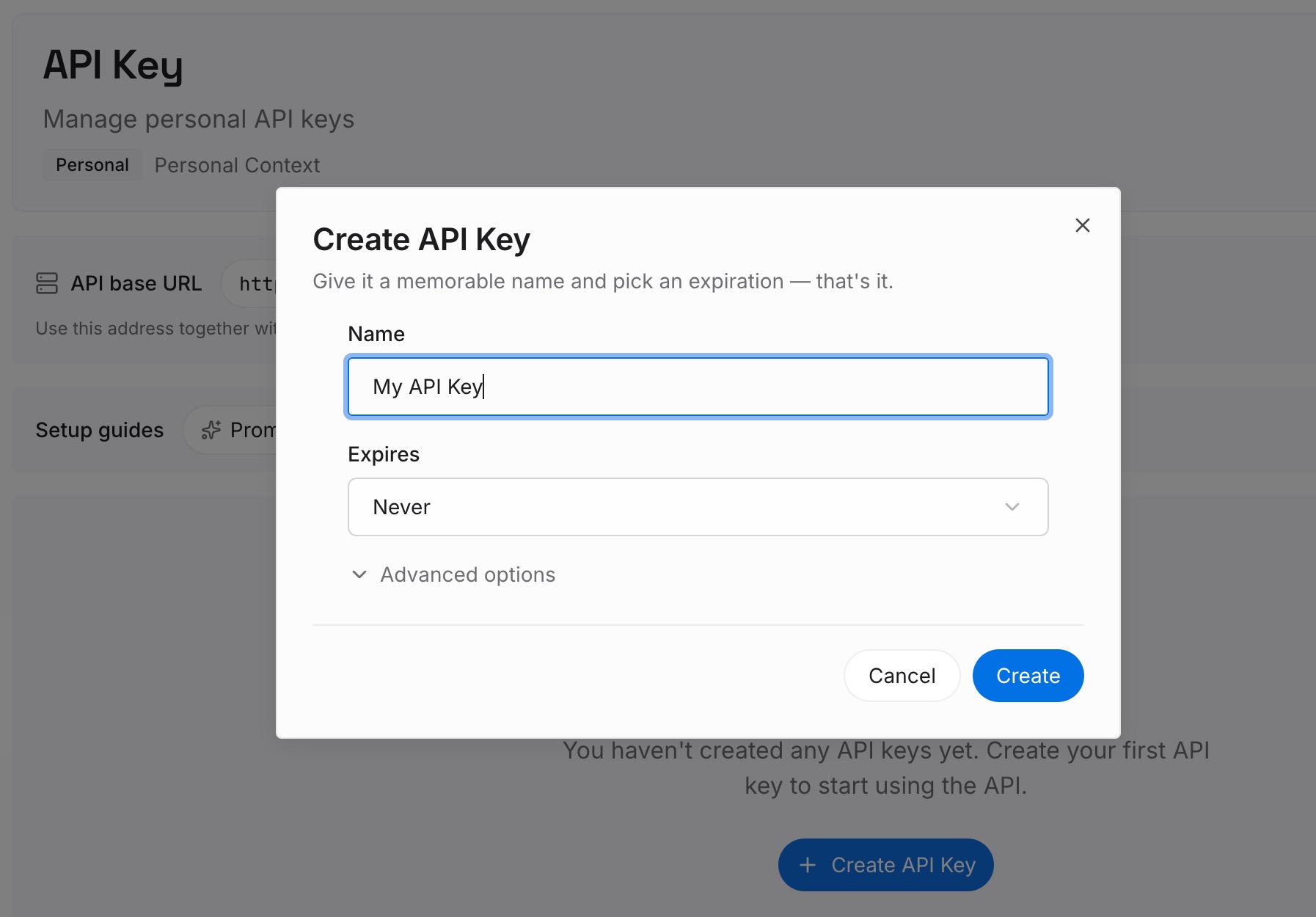
Step 1: Create an API key
Sign in and generate a key from the dashboard. Store it outside your repositories, like any other credential.
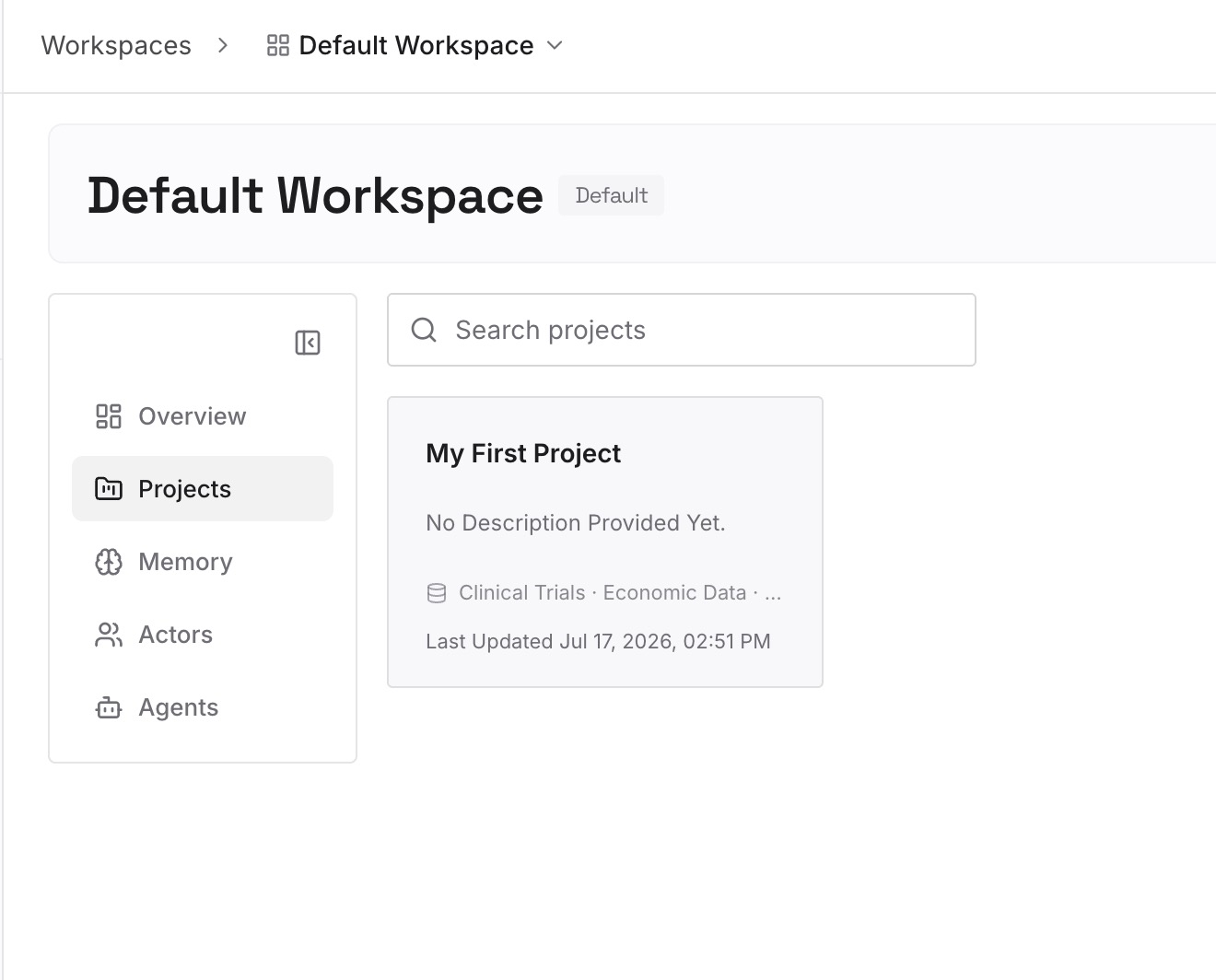
Step 2: Upload your first memories
Start with what you wrote in Step 4 of the fix: each rule and the reason for it. One decision per entry.
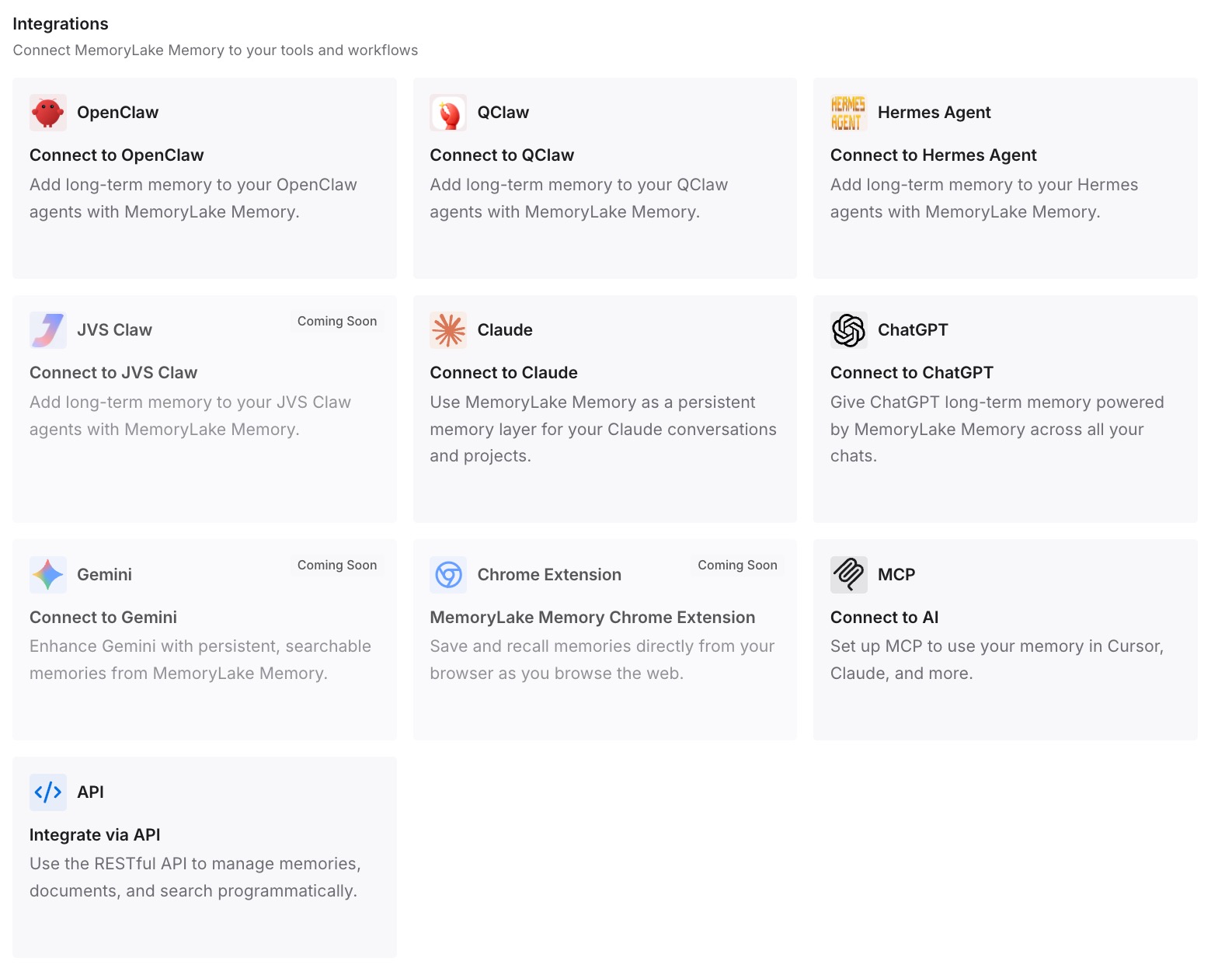
Step 3: Connect your AI & agents
Connect Codex, Claude Code, and the other assistants you use. Each can draw on the same access decisions.
What this changes in practice
The first difference is fewer surprises when someone edits the profile. The reason for a rule is next to the rule's description.
The second is easier reviews. When a domain or a root is added, the decision and its owner are on record.
The third is consistency across tools. The same access decisions are available in Codex and in other assistants.
Best practices for Codex permission profiles
Pick one system. Use profiles or the older sandbox settings, not both.
Extend, don't rebuild. :workspace keeps .git, .agents, .codex, and .aws read-only.
Pair domain rules with the proxy. Otherwise they don't restrict direct connections.
Deny secrets explicitly. A deny rule beats a broader write rule.
Restart long-running processes after adding secrets. Glob denies are fixed at process start.
Configure other surfaces separately. Web search, MCP, connectors, and the browser have their own controls.
Check the beta label. The feature may change between releases.
Conclusion
A Codex permission profile is a named policy for the commands Codex runs locally, combining filesystem rules (read, write, or deny) with network rules. Three built-ins cover read-only, workspace, and full access, and custom profiles should extend a built-in so protections carry forward.
Two behaviors are easy to miss. An older sandbox_mode setting anywhere in the loaded configuration, or a --sandbox flag, makes Codex use the older system instead. And domain rules apply only while the network proxy is active. Under the workspace profile, .git, .agents, .codex, and .aws stay read-only, which keeps commands from rewriting your skills, project configuration, and history. Profiles cover local commands only, so web search, MCP servers, connectors, and the browser need their own settings.