
What Record & Replay is
OpenAI's description: "Record & Replay lets you demonstrate a workflow on your Mac and turn it into a reusable skill. Use it when the workflow is repetitive, depends on your preferences, or is easier to show than to describe in a prompt."
The documentation's examples are everyday tasks: filing an expense, booking a parking space, creating a correctly configured issue, publishing a video, or downloading a recurring report.
The output isn't a recording you play back. It's a skill, a set of instructions that ChatGPT or Codex follows the next time, using whatever tools are available then. The skills documentation describes it as one of the ways to create a skill: "The recorder captures the workflow, inspects the steps, and drafts a reusable skill from the demonstration."
Where it's available
Record & Replay has two requirements, stated at the top of the documentation: "Record & Replay is available on macOS. Computer Use must also be available and enabled."
It works in the ChatGPT desktop app, from either ChatGPT with Work turned on or Codex. OpenAI's changelog recorded an expansion on July 31: "Record & Replay is now available in the European Union, the United Kingdom, and Switzerland."
For organizations, there's one more switch. If Codex is managed with requirements.toml, the documentation says the Computer Use requirement controls Record & Replay too, and setting it to false "makes both features unavailable."
How to record a workflow
The documentation lists the steps:
- In the ChatGPT desktop app, select ChatGPT and turn on Work, or select Codex. Then open Plugins.
- Open the plus menu and select Record a skill.
- Review the suggested prompt, add any helpful context, and submit it.
- Approve the request to record once you're ready.
- Perform the workflow on your Mac.
- Stop recording from the menu bar or overlay, or tell the chat you're done.
The documentation's advice before you start: "Pick a workflow that you already know how to complete. Record & Replay works best when the steps are stable and the success criteria are clear."
What a recording captures
The documentation describes the recording in one sentence: "During recording, ChatGPT or Codex observes the actions and window content needed to learn the workflow."
Two details follow:
- It keeps going until you stop it. "Recording continues until you stop it." The documentation suggests keeping the recording focused on the task you want the skill to teach.
- It sees what's on screen. Because Record & Replay depends on Computer Use, the Computer Use documentation is relevant. It says Computer Use can view screen content and take screenshots, and asks you to treat visible app content, browser pages, screenshots, and opened files "as context ChatGPT may process while the task runs."
On data handling, the Computer Use documentation says your ChatGPT data controls apply to content processed through ChatGPT, "including screenshots taken by Computer Use." The Record & Replay page itself doesn't describe how long a recording is kept, so the data controls are the place to check.
What ends up in the drafted skill
After you stop, the product turns the recording into instructions. "After you stop recording, ChatGPT or Codex inspects the captured workflow and drafts a skill. The skill explains when to use the workflow, what inputs it needs, what steps to follow, and how to verify the result."
That gives the skill four parts:
- When to use it, so the product can recognize a matching request.
- The inputs it needs, such as a file, a date range, or an issue title.
- The steps, written as instructions rather than recorded clicks.
- How to verify the result, so it can check its own work.
You can ask for refinements after the draft is written.
A skill in Codex is a folder with a SKILL.md file, and the skills documentation says that file must include a name and a description. The description matters most for automatic use. ChatGPT and Codex can choose a skill when a request matches it, so the documentation advises writing "concise descriptions with clear scope and boundaries."
How replay works
Replay doesn't repeat your clicks. The documentation says to "Start a new ChatGPT or Codex chat and ask it to use the generated skill." You give it the values that are different this time, such as the file to upload or the date range for the report.
"The product uses the skill as reusable context for the task." It then completes the workflow with the tools available in the current environment, including Computer Use, browser actions, and installed plugins.
You can also call a skill directly. The skills documentation says ChatGPT supports @ mentions for skills, and Codex supports $ mentions.
Where skills live in Codex
The Record & Replay page doesn't say where a drafted skill is saved. The skills documentation lists where Codex loads local skills from:
- The repository:
.agents/skillsin your working directory and each folder up to the repository root. - Your user folder:
$HOME/.agents/skills, for skills that apply in any repository. - An admin location:
/etc/codex/skills, shared on the machine. - System skills bundled with Codex.
If you write or edit a skill by hand, "Codex detects skill changes automatically. If an update doesn't appear, restart Codex." To turn a skill off without deleting it, the documentation describes a skills.config entry in ~/.codex/config.toml.
If you've been using older custom prompts in Codex, skills are where that kind of reusable instruction now belongs. We covered how to move them over in our guide to converting Codex custom prompts to skills.
Which preferences a recording can miss
This is the gap in the opening example. A recording shows what you did. It doesn't always show why, or which choices were deliberate.
The documentation names three things to add after recording: naming conventions, field defaults, and decision points. In practice that covers:
- Choices you made silently, like a file name format you typed without thinking.
- Defaults you accepted, where the right value happened to be pre-filled this time.
- Branches you didn't take, such as what to do when the report is empty or the folder is full.
The tips before recording help too: "State your goal and any specific inputs that might vary between skill uses before you start recording." And "Keep the demonstration short and complete."
The broader difference is between a procedure and context. A skill captures how to do a task. The documentation on skills and plugins describes them as a way to "reduce the need to paste the same prompt, template, requirements, or process into every chat." The reasons behind your choices, and how they change over time, are a different kind of knowledge.
Keeping secrets out of a recording
The documentation's tip is direct: "Use realistic inputs, but avoid secrets and sensitive data."
The Computer Use guidance adds a few habits that apply while recording:
- Keep sensitive apps closed unless they're required for the task.
- Avoid tasks that require secrets unless you're present and can approve each step.
- Stay present for account, security, privacy, payment, or credential-related settings.
It also lists limits: Computer Use can't automate terminal apps or ChatGPT itself, and it can't authenticate as an administrator or approve security and privacy permission prompts on your computer.
When to build a plugin instead
Record & Replay creates a skill for you. For sharing across a team, the documentation suggests a different package: "If you want to distribute a separate stable package across a team, bundle multiple skills, include connectors, add MCP servers, or manage install metadata, package that workflow as its own plugin."
What people try first
Expecting replay to repeat the exact clicks. It follows a skill, using the tools available at the time.
Recording on Windows. Record & Replay is available on macOS.
Recording a long session of mixed work. Keep the demonstration short and focused.
Using real passwords or private data. Use realistic inputs without secrets.
Assuming the skill knows your conventions. Add hidden preferences after recording.
The Fix: Record the steps, then write down the preferences
Step 1: State your goal before recording
Say what the workflow is for and which inputs change between runs.
Step 2: Record a short, complete demonstration
Use realistic inputs without secrets, and stop when the task is done.
Step 3: Refine the drafted skill
Add naming conventions, field defaults, and decision points, and tighten the description.
Step 4: Write down the reasons behind your preferences
Record why a convention exists or which choice replaced an older one, so it can be applied beyond this one skill.
Setting this up in MemoryLake
A skill captures how to do one task. The preferences and decisions behind your work, such as naming conventions, where files belong, and which approach replaced an older one, apply across many tasks and many tools.
MemoryLake is a memory layer for that kind of working context, such as conventions, preferences, and the decisions behind them, kept in one place you maintain and available to the assistants you connect, such as ChatGPT, Claude Code, and Codex.
You write the entries yourself, in your own words. Nothing is read out of, written to, or deleted from your recordings, your skills, your Codex memories, your Computer Use approvals, or any vendor's store. Record & Replay and skills work the way OpenAI describes them.
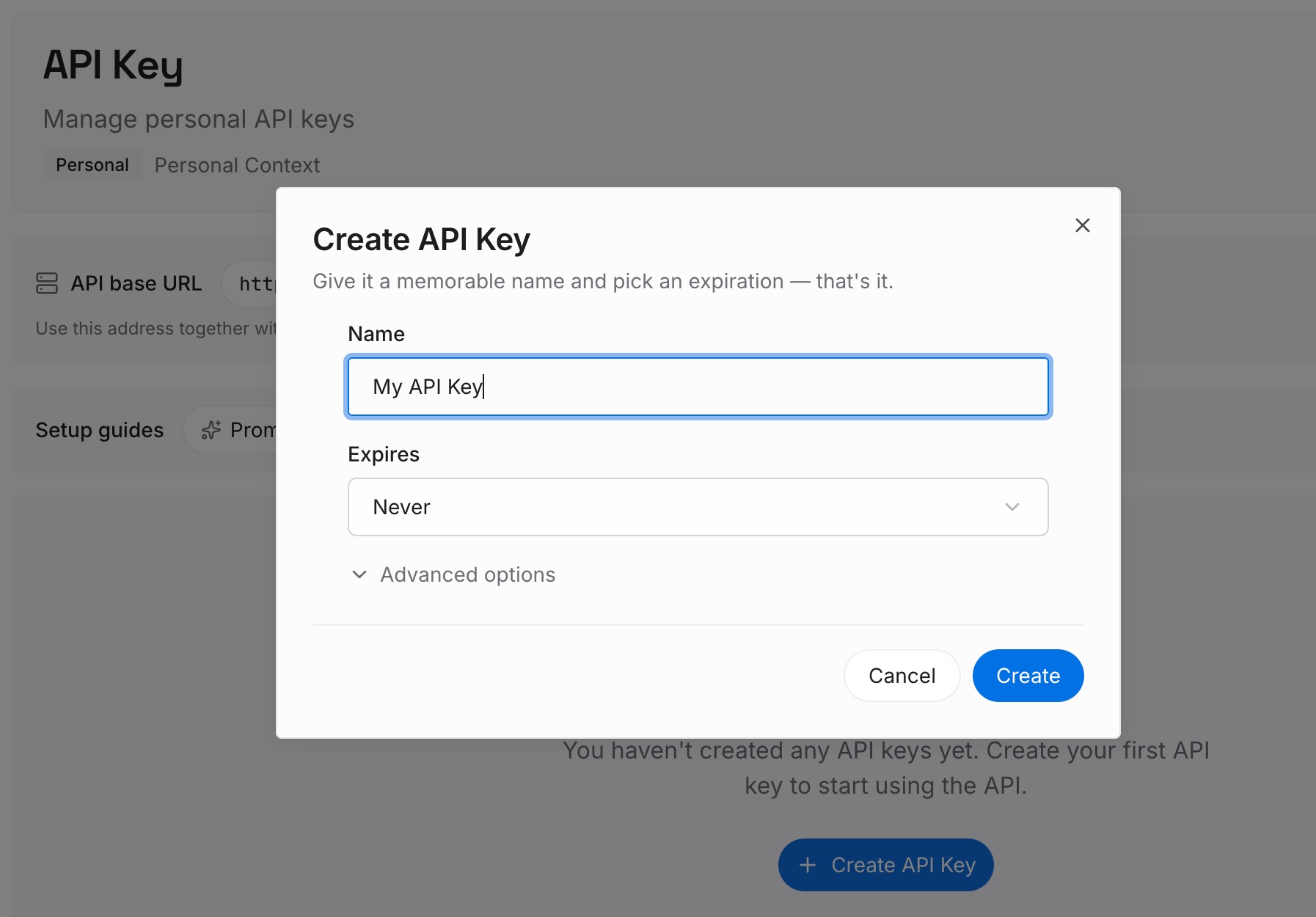
Step 1: Create an API key
Sign in and generate a key from the dashboard. Store it somewhere private, like any other credential.
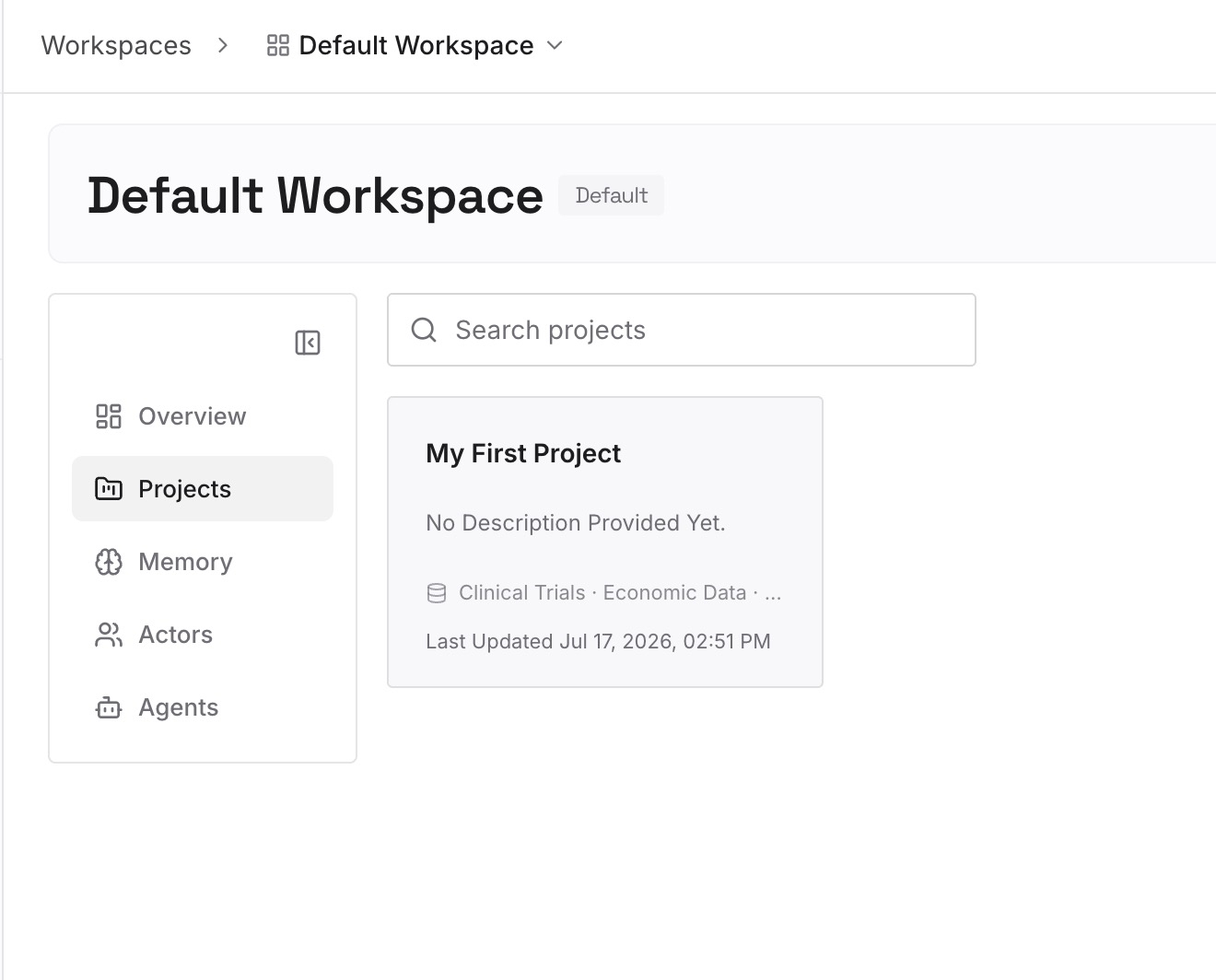
Step 2: Upload your first memories
Start with what you wrote in Step 4 of the fix: your conventions and the reasons behind them. One convention per entry.
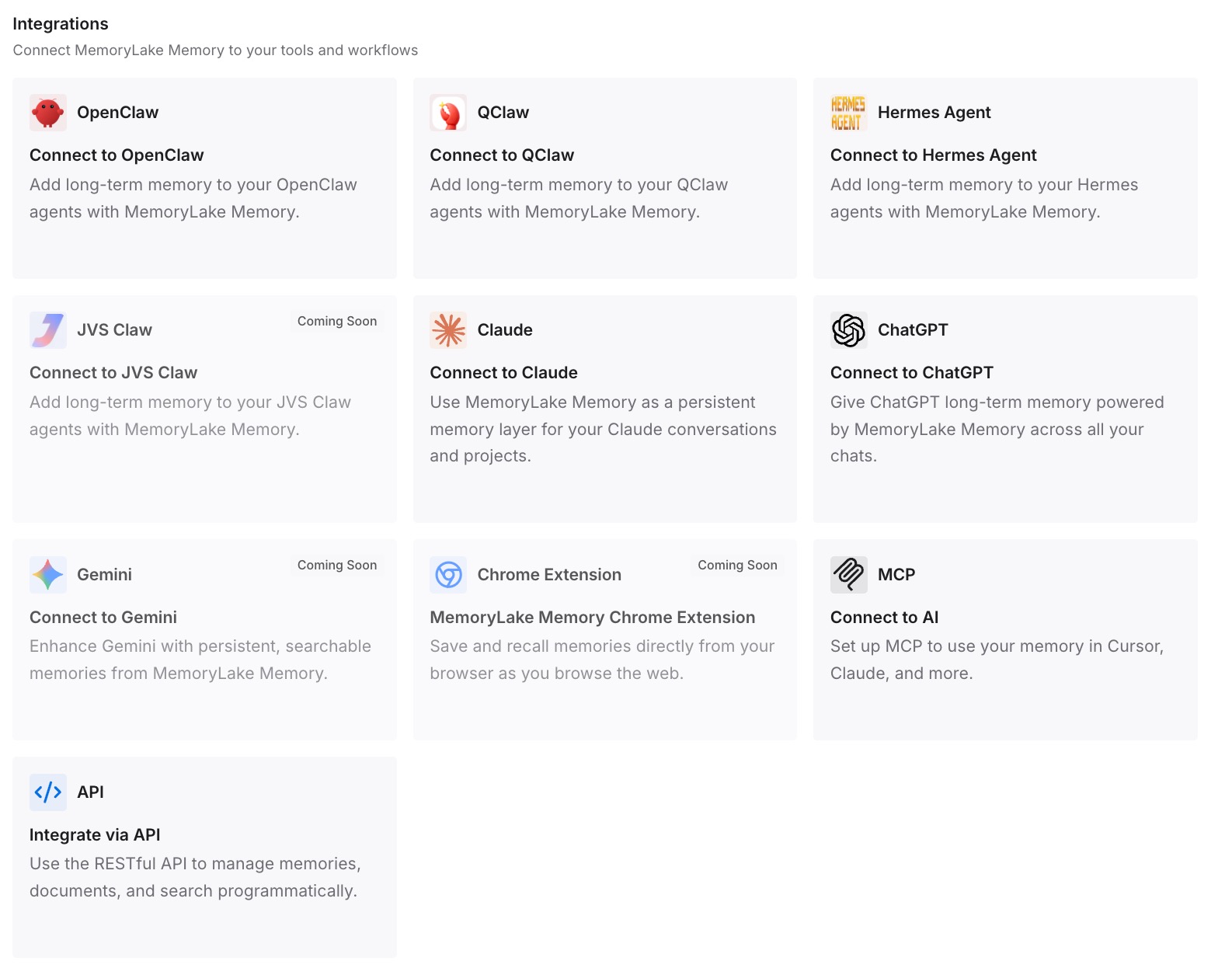
Step 3: Connect your AI & agents
Connect Codex, ChatGPT, and the other assistants you use. Each can draw on the same conventions, whichever skill or tool runs the task.
What this changes in practice
The first difference is better replays. Conventions are written down, not left for the recording to infer.
The second is reuse beyond one skill. A naming convention applies to every workflow, not only the one you recorded.
The third is easier updates. When a convention changes, you change one entry and the skill's instructions.
Best practices for Record & Replay
Pick stable workflows. It works best when steps and success criteria are clear.
Say your goal first. Name the inputs that vary.
Keep it short. Stop recording when the task is complete.
Avoid secrets. Use realistic but safe inputs.
Refine the skill. Add hidden preferences and decision points.
Write clear descriptions. They decide when the skill is used.
Use a plugin for team distribution. It can bundle skills and connectors.
Conclusion
Record & Replay lets you show ChatGPT or Codex a workflow once on your Mac and turn it into a skill. During recording, it observes the actions and window content needed to learn the workflow, and the drafted skill describes when to use it, what inputs it needs, the steps, and how to verify the result. Replay follows the skill with the tools available at the time, rather than repeating clicks.
What a recording can miss is the reasoning: naming conventions, defaults, and decision points. OpenAI's own advice is to add those after recording. Keep the broader conventions behind them somewhere you maintain.