
Two kinds of Codex chats, two kinds of access
Cloud tasks follow your account
Codex Cloud runs tasks in cloud environments you set up. OpenAI's overview says to "Give Codex coding tasks to work through in the cloud, from investigating bugs to building features. Review changes and continue from the web, mobile, or desktop app."
Because the work isn't tied to your machine, it doesn't stop when your laptop does: "Each task has its own workspace and can keep working while your computer is asleep." On mobile, you open Codex and choose Cloud and an environment.
Local chats live on the host
Local chats run on a Mac or Windows PC with the ChatGPT desktop app. Codex keeps their transcripts on that computer, and OpenAI's troubleshooting page lists the location as "Session transcripts: $CODEX_HOME/sessions (default: ~/.codex/sessions)", with archived sessions in a separate folder.
Other devices reach those chats through remote connections. In OpenAI's words, "Remote connections let you access work running on another device or machine. In the ChatGPT mobile app for iOS, open Codex to work with ChatGPT or Codex chats on a connected Mac or Windows device."
So sync isn't quite the right word for local chats. The documentation describes your phone controlling the host, not a second copy of the chat on your phone.
What your phone does when it connects to a host
OpenAI separates the two roles clearly: "Your phone sends prompts, approvals, and follow-up messages to ChatGPT. The connected host provides the environment ChatGPT uses."
The host provides:
- "Repository files and local documents come from the connected host."
- "Shell commands run on that host or remote environment."
- "MCP servers, skills, browser access, and Computer Use come from that host's configuration."
- Signed-in websites and desktop apps, only when the host can access them.
The usual safety rules still apply. OpenAI says sandboxing settings, security controls, and action approvals apply to the connected session.
From your phone, you can start new chats in the host's projects or continue existing ones, send follow-ups, approve commands, review diffs and test results, and get notified when a task needs you. You can also switch between connected hosts and chats.
The connection itself goes through a relay. OpenAI says "A secure relay layer keeps trusted machines reachable across your authorized ChatGPT devices without exposing them directly to the public internet."
Setting up a phone or second computer
Mobile access starts on the computer, not the phone. "Mobile setup starts from the app; you can't set it up from the Codex CLI or IDE extension."
In the desktop app on the host, go to Settings, then Connections, then Control this Mac or PC, and select Set up or Add. Approve remote access, then scan the QR code with your phone and confirm the same ChatGPT account and workspace.
The pairing is per device and per host. "The QR code pairs that phone with that host. Pair every phone or supported desktop app device with every host you want it to control."
A second computer works the same way. OpenAI says you can continue from "another signed-in device running the ChatGPT desktop app and supporting remote control", using Settings, then Connections, then Control other devices. Its example: start a chat from your phone on an always-on host, then open the app on your laptop and continue that same chat there.
If you use a ChatGPT workspace, your admin may need to enable Remote Control access first.
Why a chat seems to vanish from another device
The host is asleep or offline
Remote access depends on the host being reachable. "If that computer sleeps, loses network access, or closes the app, remote access stops until it's available again." On a Mac laptop, OpenAI says remote access can stay available with the lid open and power connected, or with the lid closed and an external display attached. Choosing Sleep still stops it.
For longer work, OpenAI suggests a dedicated always-on Mac or Windows PC with the projects, credentials, MCP servers, skills, and tools Codex should use installed on it.
You're on a different account or workspace
Both devices need the same ChatGPT account and workspace. OpenAI's troubleshooting for a host that doesn't appear lists that check, along with confirming the desktop app is running on the host and that Allow other devices to connect is on. Our guide to switching accounts in Codex covers what belongs to each account.
You signed out
Signing out has a specific effect. "Signing out of ChatGPT turns off Remote Control, but it doesn't remove your existing device pairings." After you sign back in, turn Remote Control on again.
The pairing is old
OpenAI notes that connections used since June 8, 2026 remain paired. If you haven't used a connection since then, update both apps and pair the devices again.
The chat is archived or filtered
On the host itself, a chat can be hidden by the sidebar filter or archived. OpenAI's troubleshooting suggests switching the Chats filter to Chronological and checking Archived chats in Settings. Our guide to finding missing Codex chat history covers both.
What does sync across devices
Some things are designed to follow you.
Cloud tasks. They're reviewed and continued from the web, mobile, or desktop app.
Read status. The November 2 release notes for ChatGPT on iOS say "Task read status now syncs with supported hosts, helping clear stale unread indicators across devices."
ChatGPT Work conversations with Work Cloud. This is a separate feature from Codex host connections. Where a workspace enables Local computer access with Work Cloud, "Eligible members can continue a Work conversation across desktop, mobile, and web." OpenAI adds two limits. "Local computer access with Work Cloud applies only to tasks created after you enable sync." And "This feature does not change how Codex on mobile connects to a host." Our guide to keeping context between ChatGPT Work Cloud and local covers that setup.
What stays on each machine
Several things Codex relies on are tied to the computer they're on.
Memories are per machine
Codex memories are local. In the desktop app's Personalization settings, OpenAI says you use Enable Codex memories "to turn the feature on or off for the selected machine." Resetting them works on the selected machine's memory store too. A memory Codex built on your laptop isn't described as appearing on your desktop. Our guide to Codex memories v2 explains where the files live.
Personal instructions are per machine
The settings reference says: "Edit your personal instructions in AGENTS.md for the selected machine." Your global AGENTS.md lives in the Codex home on that computer. A repository's own AGENTS.md travels with the repository when you commit it, since it's a file in it. Our guide to Codex skipping AGENTS.md rules covers how the files combine.
Credentials and tools are per host
When your phone controls a host, it uses that host's credentials, plugins, MCP servers, and skills. Another host has its own. If you want the same setup on two machines, install it on both.
Moving a chat between hosts is a handoff
If you want a local chat to actually move, Codex has handoff. "Handoff moves an existing chat and its Git state between your local computer and a connected remote host." It needs a saved project for the same Git repository on both hosts, and OpenAI notes that "handoff to a Codex cloud environment isn't supported." Our guide to Codex handoff walks through it.
What people try first
Looking for local chats on the phone without pairing. Mobile access starts on the host, and each phone pairs with each host.
Letting the laptop sleep. Remote access stops until the host is available again.
Setting up mobile from the CLI. OpenAI says mobile setup starts from the desktop app.
Expecting memories to follow you. Codex memories are turned on and stored per machine.
Expecting existing Work tasks to sync after enabling Work Cloud. It applies only to tasks created after you enable sync.
The Fix: Pick where the work runs, then keep the context in files and one list
Step 1: Choose cloud or a host
If you want to start and review work from anywhere without keeping a computer on, use a cloud environment. If the work needs your local files, tools, or signed-in apps, pick one host, keep it awake and online, and pair your phone and other computers with it.
Step 2: Put shared rules in the repository
Rules that every device and every chat should follow belong in the repository's AGENTS.md, which travels with the code once it's committed. Keep your global AGENTS.md short, and copy it to each machine where you use Codex. If you want to keep a long chat's conclusions, our guide to exporting a Codex chat shows how.
Step 3: Keep the decisions outside any one machine
Memories and personal instructions are per machine, and chats live on the host. The decisions you'd want on any device, such as why you chose an approach or what's still open, need a place that isn't tied to one computer.
Setting this up in MemoryLake
Remote connections let you control one host from anywhere, and cloud tasks follow your account. What neither does is give each of your machines the same memory of past decisions, since Codex memories and global instructions are set per machine.
MemoryLake is a memory layer for keeping those decisions in one place you maintain, available to the assistants you connect, such as ChatGPT, Claude Code, and Codex.
You write the entries yourself, in your own words. Nothing is read out of, written to, or deleted from your Codex chats, your session transcripts, your Codex memories, your AGENTS.md files, your device pairings, or any vendor's store. Remote connections and cloud tasks keep working the way OpenAI describes them.
Step 1: Create an API key
Sign in and generate a key from the dashboard. The key belongs to your MemoryLake workspace and is separate from your OpenAI account.
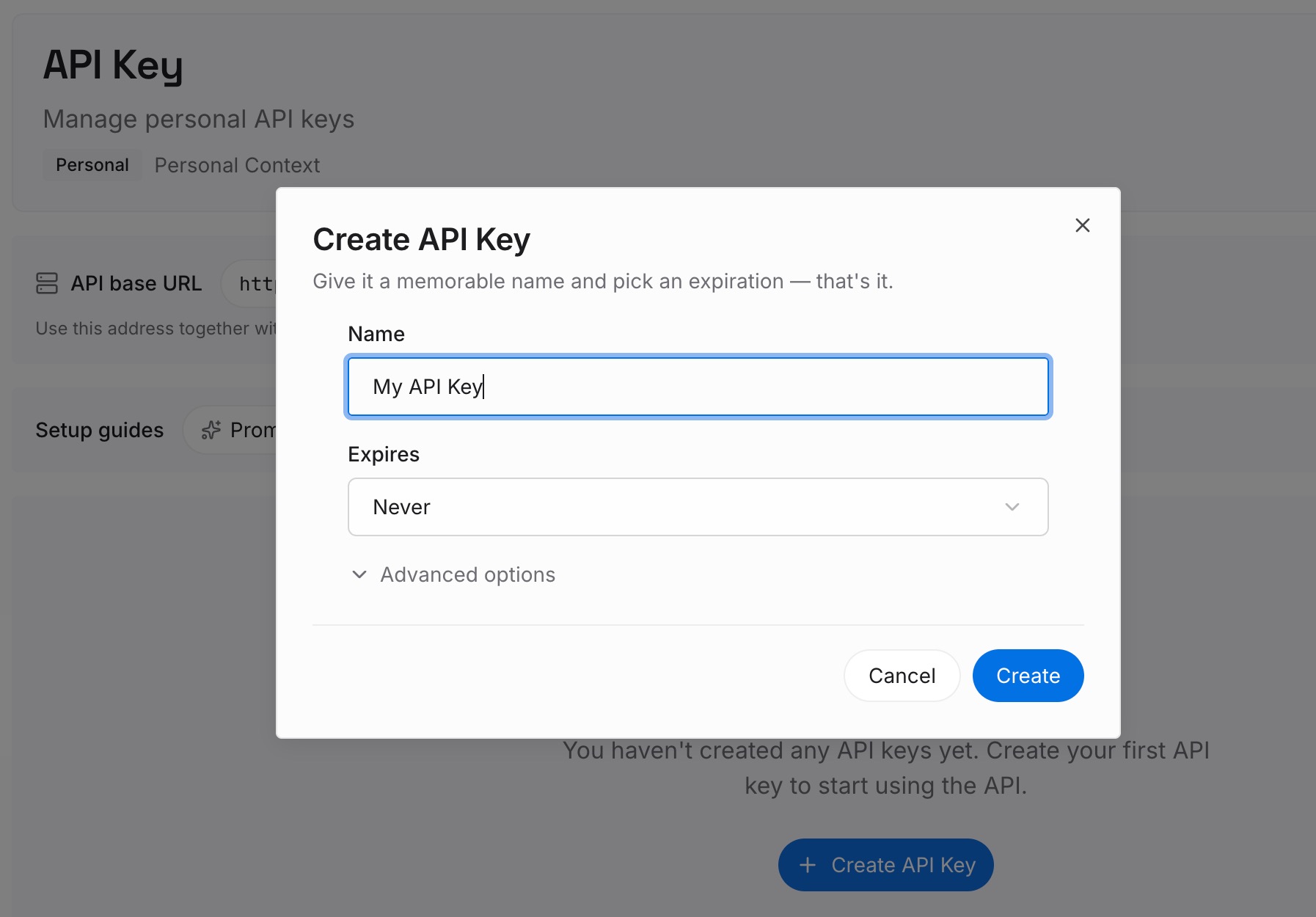
Step 2: Upload your first memories
Start with the decisions from your current projects: what you chose, why, and what's still open. One point per entry, dated.
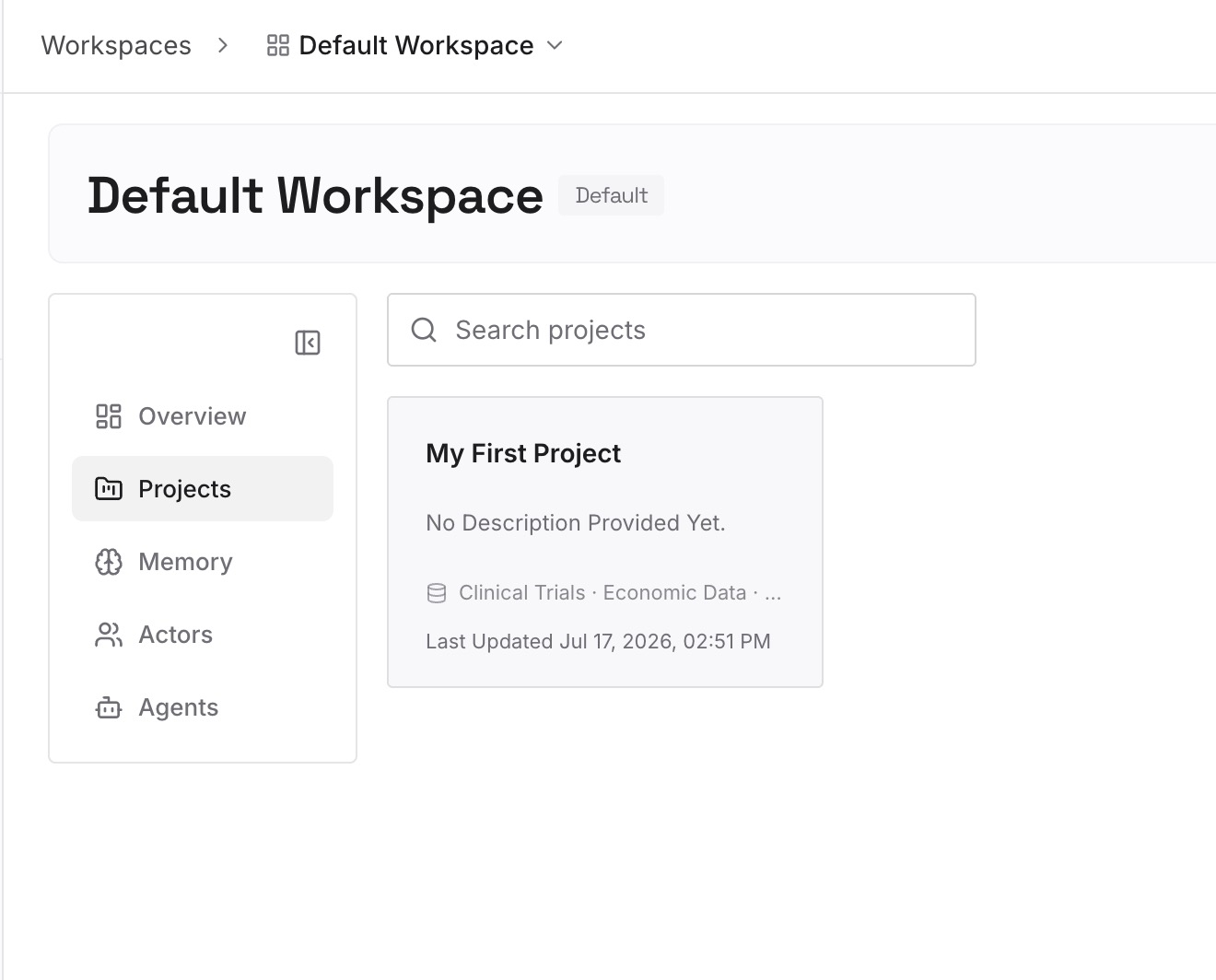
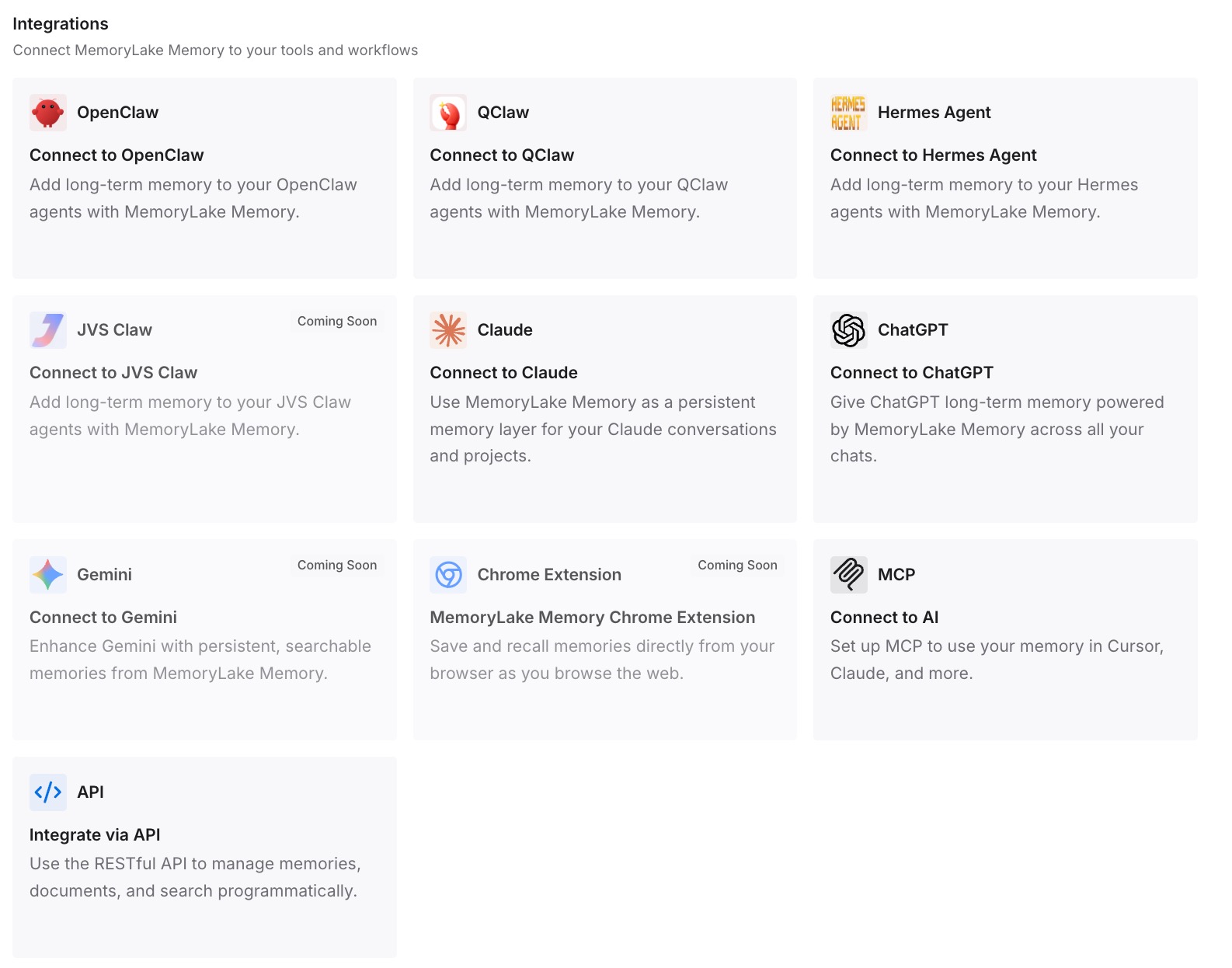
Step 3: Connect your AI & agents
Connect Codex on each machine you use, and any other assistants. The same entries are available on your laptop, your always-on desktop, or a cloud task.
What this changes in practice
The first difference is that a second machine doesn't start cold. Codex memories there may be empty, but your decisions aren't.
The second is less dependence on one host being awake. The chat may live on your laptop, but the reasoning behind it is in a list you can reach from anywhere.
The third is fewer copies to keep in sync by hand. Instead of updating notes in two global instruction files, you keep the decisions once.
Best practices for using Codex across devices
Use cloud tasks for work you want to reach from anywhere. They keep working while your computer is asleep.
Keep the host awake and online. Remote access stops otherwise.
Pair each device with each host. One pairing doesn't cover the others.
Use the same account and workspace on every device. It's the first troubleshooting check.
Turn Remote Control back on after signing in. Signing out turns it off.
Use handoff to move a chat. It moves the chat and its Git state between hosts.
Keep shared rules in the repository's AGENTS.md. It travels with the code.
Remember memories are per machine. Turn them on, and check them, where you use them.
Conclusion
Codex chats don't all behave the same across devices. Cloud tasks follow your account, and you can review and continue them from the web, mobile, or desktop app. Local chats stay on the host, and your phone or second computer reaches them through a paired remote connection that uses the host's projects, files, credentials, and tools.
That's why a local chat seems to disappear when the host sleeps, signs out, or uses a different account. And it's why some context doesn't follow you at all: Codex memories and personal instructions are set per machine. Keep shared rules in the repository, use handoff when a chat needs to move, and keep the decisions you'll want everywhere in one list.