
What the message means
Codex runs on your ChatGPT plan. OpenAI's help article says "Codex is included across ChatGPT plans, including Free and Go. Usage limits vary by plan."
When you see the limit message, you've used the allowance your plan includes for now. It isn't an error in your project, and it doesn't mean your chat is gone.
Two details are worth knowing before anything else:
- Codex and ChatGPT Work share one allowance. OpenAI's pricing page says "ChatGPT Work usage inside ChatGPT uses the same pricing, credits, and usage limits as Codex." Heavy use in Work counts against the same limit you use for coding.
- The wording depends on your account. On a business workspace, the message may point you to your workspace owner, because administrators manage usage and spend controls there. OpenAI's admin documentation notes that "exhausted limits can pause access to eligible features."
What happens to the turn that's running
This is the reassuring part. If the limit arrives while Codex is in the middle of a turn, that turn can finish. OpenAI's wording is "the agent will be able to continue working on that turn, subject to fair use limits."
OpenAI's FAQ covers the turn in progress. For work after that, it lists ways to keep going, such as credits and API keys, which are covered below.
So if you hit the limit mid-task, don't interrupt it. Let the turn complete, then review what it did before you plan the next step.
How limits are measured
Codex limits aren't a fixed count of messages. OpenAI's pricing FAQ explains: "The number of messages you can send depends on the model used, size and complexity of your tasks, and whether you run them locally or in the cloud."
It adds that similar-looking tasks can cost different amounts: "Model choice, context, reasoning, tool use, retrieval, and caching all affect usage, so prompt length alone isn't a reliable estimate."
The pricing page gives ranges of local messages per five-hour period for Plus and Standard Business, by model. It also says:
- "Pro plans currently have no five-hour limit."
- "Cloud tasks may use more of your allowance than local messages."
- "These estimates are not fixed message limits".
Speed settings matter too. The pricing page says Fast and Ultrafast modes use included limits and paid credits at different rates than Standard mode. If limits are tight, Standard mode is the one that uses them at the base rate.
Why long sessions use more
The most useful line in OpenAI's FAQ is about context. It says "larger projects, long-running tasks, or extended sessions that require the agent to hold more context will use significantly more per message."
Everything Codex reads counts. OpenAI's definition of tokens is broad: "Your prompt, files, chat history, tool results, and ChatGPT's response all use tokens."
That has a practical consequence. A chat that has run for hours carries its history into every new message. Instruction files and connected tools add to it on every turn. Our guide to what context left means in Codex explains how that window fills.
OpenAI's tips for making limits last longer point at the same thing:
- Control the size of your prompts. "Be precise with the instructions you give the agent, but remove unnecessary context."
- Limit source material. "Provide only relevant files and, when possible, narrow the sources or date range."
- Reduce the size of your AGENTS.md. OpenAI suggests nesting AGENTS.md files within your repository to control how much context you inject.
- Limit the number of MCP servers. "Every MCP server adds more context to your messages and uses more of your limit."
Where to see your usage and reset times
OpenAI gives two places to check:
- The usage dashboard. "You can find your current limits in the usage dashboard." The pricing page repeatedly tells you to check it "for current limits and reset times."
- Inside the CLI. "If you want to see your remaining limits during an active Codex CLI session, you can use
/status."
The CLI also has a /usage command. OpenAI's command reference describes it as a way to "View account token usage or use a rate-limit reset." Its steps say you can choose whether to show token activity "or redeem an available earned reset", and you can open daily, weekly, or cumulative views directly.
OpenAI also suggests a habit: "Check the dashboard every week or two to understand your pace and remaining capacity."
Your options when the limit hits
What you can do depends on your plan. OpenAI's pricing FAQ lists them:
- Plus and Pro. "ChatGPT Plus and Pro users who reach their usage limit can purchase additional credits to continue working without needing to upgrade their existing plan."
- Business, Edu, and Enterprise with flexible pricing. These plans "can purchase additional workspace credits to continue working."
- Any plan, with an API key. "All users may also run extra local chats using an API key, with usage charged at standard API rates".
- An earned reset. If one is available to you,
/usagelets you redeem it. - Waiting. Check the dashboard for when your limit resets.
Some personal accounts see one more option. OpenAI's Luna Reserve article says it "gives selected accounts additional usage with GPT-5.6 Luna after regular usage is exhausted." It's available to selected Plus and Pro accounts in supported Codex and ChatGPT Work experiences, and OpenAI says it "doesn't restore regular usage or unlock our most capable models." Our guide to Luna Reserve in Codex and ChatGPT Work explains how that fallback works.
One thing doesn't cost you anything. OpenAI says that when you're signed in with ChatGPT, "auto-review safety checks are free and don't count toward your plan's usage limits."
Picking the work back up
A usage limit pauses new work. It doesn't delete your chat. When usage is available again, you can return to the same session.
In the CLI, codex resume does that. OpenAI's reference says it can "Continue an interactive session by ID or resume the most recent chat", and that it "scopes --last to the current working directory unless you pass --all." Inside the TUI, /resume lets you "Resume a saved chat from your session list."
Resuming brings the conversation back, but it also brings its size back. If the session was long, every new message still carries that history. That's when a fresh chat with a short summary can be the better choice. Our guide to clearing a Codex chat versus starting a new one covers the difference between the commands.
Before you hit the limit, or right after the running turn finishes, it helps to have Codex write down where things stand: what's done, what's next, and which decisions you've made. A short note like that lets a new chat start with the essentials instead of the whole history.
What people try first
Interrupting the running turn. OpenAI says a turn already in progress can continue. Let it finish.
Assuming the chat is lost. The chat is saved. codex resume or /resume returns to it when usage is back.
Waiting without checking. The usage dashboard and /status show your remaining limits and reset times.
Continuing a very long session after the reset. It will use your new allowance faster, because extended sessions that hold more context use more per message.
Forgetting ChatGPT Work. Work and Codex share the same limits.
The Fix: Recover from the limit without starting over
Step 1: Let the current turn finish
If Codex was mid-task, let it complete the turn. Review the changes it made before deciding what's next.
Step 2: Check your usage and reset time
Open the usage dashboard, or run /status in the CLI. If /usage offers an earned reset, decide whether to use it now.
Step 3: Choose how to continue
Wait for the reset, add credits, use an API key for local chats, or ask your workspace owner on a business plan.
Step 4: Decide whether to resume or start fresh
For a short session, resume it. For a long one, ask for a summary of the state of the work and start a new chat with that summary.
Step 5: Trim what every turn carries
Keep AGENTS.md focused, nest instructions where they apply, and turn off MCP servers you aren't using.
Setting this up in MemoryLake
A usage limit is the moment you find out how much your work depends on one long session. If the decisions, conventions, and current state of the task live only in that chat, the choice is between paying to resume a large context and re-explaining everything in a new one.
MemoryLake is a memory layer for keeping that project context, such as architecture decisions, conventions, and where a task stands, in one place you maintain, available to assistants you connect, such as ChatGPT, Claude Code, and Codex.
You write the entries yourself, in your own words. Nothing is read out of, written to, or deleted from your Codex sessions, your session files, your AGENTS.md, your Codex memories, your usage allowance, or any vendor's store. Usage limits, credits, and resets work the way OpenAI describes them.
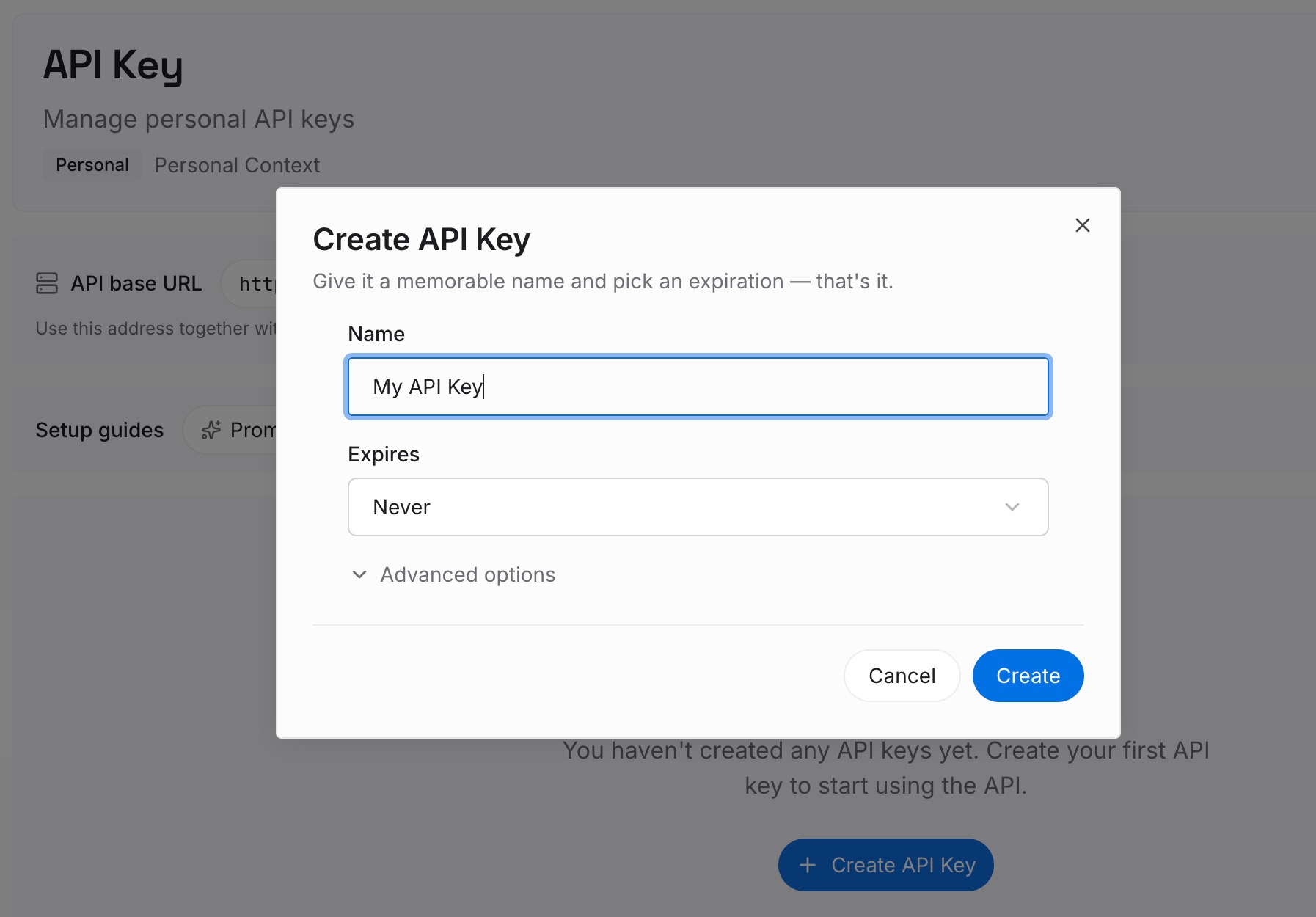
Step 1: Create an API key
Sign in and generate a key from the dashboard. The key belongs to your MemoryLake workspace and is separate from your OpenAI account.
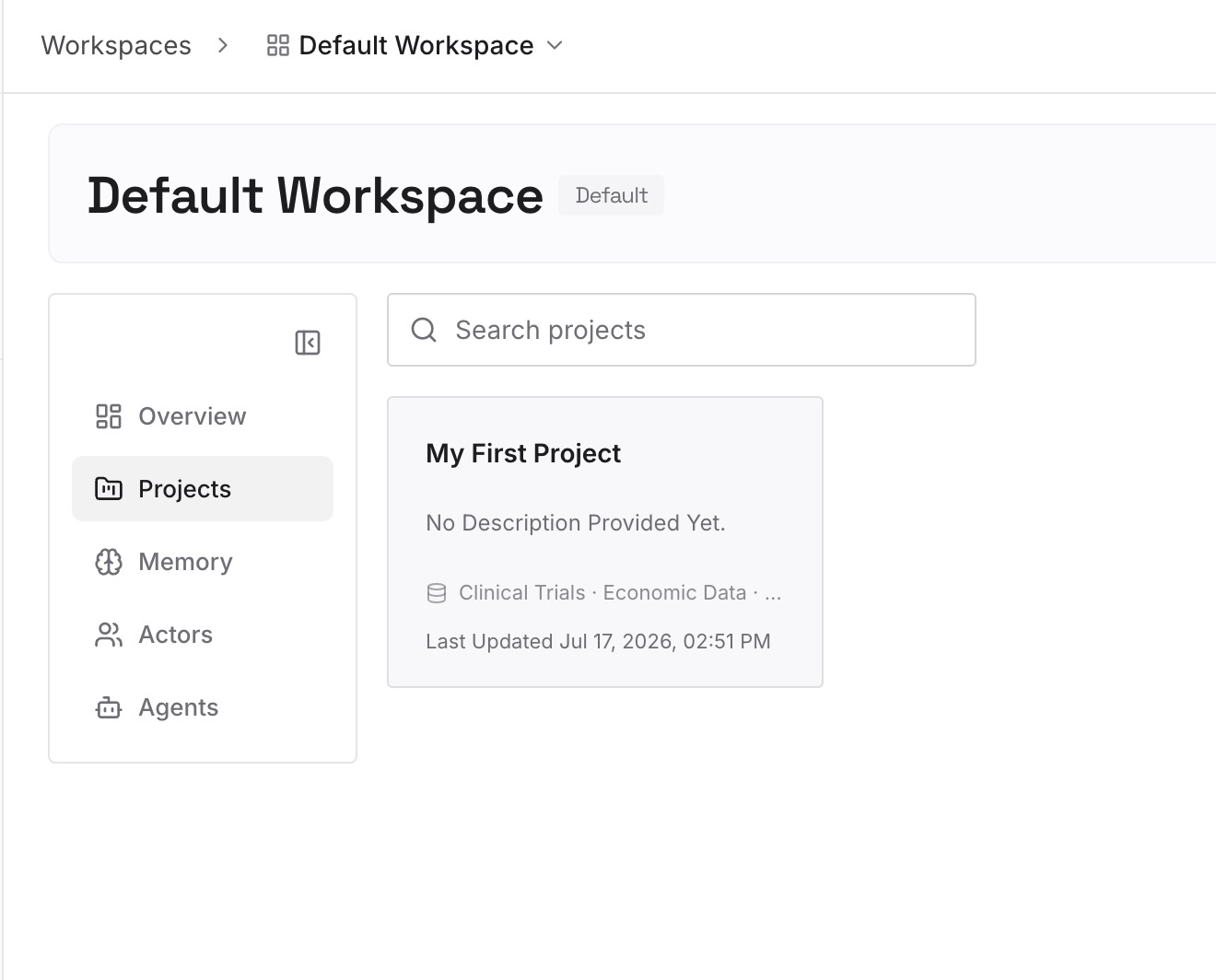
Step 2: Upload your first memories
Start with the summary you'd want a new chat to begin with: the decisions behind the current task, the conventions Codex should follow, and what's left to do. One item per entry, so you can update one without rewriting the rest.
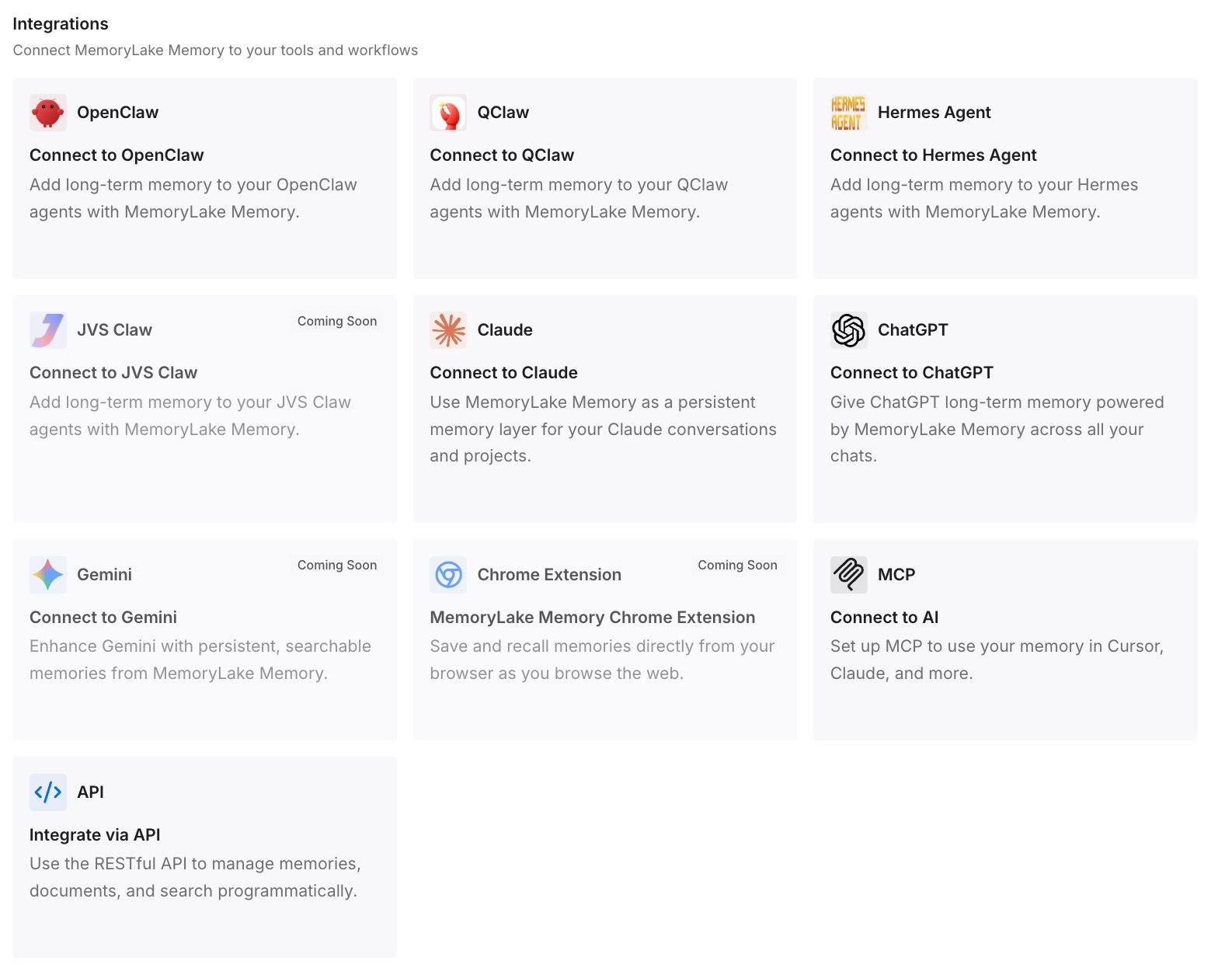
Step 3: Connect your AI & agents
Connect Codex and any other assistants you use. A fresh chat can start from the same written context.
What this changes in practice
The first difference is a lighter restart. When the limit resets, a new chat can begin from a few entries instead of a long history.
The second is less to put in AGENTS.md. Context that changes often can live in entries you update, keeping the instruction file focused.
The third is continuity across tools. If you switch to another assistant while you wait, the same context is there.
Best practices for Codex usage limits
Let a running turn finish. OpenAI says it can continue after you hit the limit.
Check /status during long sessions. It shows your remaining limits.
Watch the dashboard every week or two. OpenAI recommends it to understand your pace.
Keep AGENTS.md focused. Nested files limit how much context each task carries.
Disable MCP servers you don't need. Each one adds context to every message.
Use Standard speed when limits are tight. Faster modes use limits at a higher rate.
Start fresh after long sessions. A summary carries the state of the work without the full history.
Conclusion
When Codex says you've hit your usage limit, you've used your plan's included allowance for now, and Codex and ChatGPT Work share that allowance. A turn that's already running can finish. After that, you can check /status or the usage dashboard for reset times, redeem an earned reset if /usage offers one, buy credits on eligible plans, use an API key for local chats, or ask your workspace owner.
Your chat is still there when usage returns, and codex resume brings it back. Because long sessions use more per message, a short summary in a new chat can be the better way to continue. Keep AGENTS.md and your MCP servers lean, and write down the state of the work so a restart doesn't mean starting over.