
Two routes from OneNote to ChatGPT
Here's the short version:
- The OneNote plugin: ChatGPT works with your live notebooks through your Microsoft account. Notes stay in OneNote, and ChatGPT can search, summarize, and, where permitted, edit them.
- Export and upload: you save notes from OneNote as files and add them to ChatGPT. ChatGPT works from that copy, which doesn't change when your notebook does.
The plugin suits notebooks you keep updating. The upload route suits a fixed set of reference notes, or a notebook the plugin can't reach.
Connect the OneNote plugin
OpenAI's help article says: "The OneNote plugin can help you find and summarize notes, collect decisions and action items, and create or update notes through supported actions."
It adds a caveat at the top: "The plugin may not be available for all workspaces." And: "Available capabilities depend on your account, workspace, product surface, and Microsoft permissions."
To connect it, the article says to find the OpenAI-developed plugin in Plugins and follow the prompts, signing in "to the Microsoft account that owns or has the supported access to the notes you want to use." In a managed workspace or Microsoft organization, an administrator may need to approve it.
Connecting doesn't change what you can reach in Microsoft. The article says: "Connecting OneNote does not expand your Microsoft permissions."
You'll find Plugins in the sidebar of ChatGPT on the web, desktop, and mobile. OpenAI's plugins article says the directory "shows plugins available to your plan and workspace", and that installing a plugin may start an app connection or setup flow you still need to complete.
Which notebooks the plugin can reach
This is where most surprises come from. OpenAI's article has a section on notebook access.
Personal notebooks. The article says: "Personal notebook operations are limited to notebooks owned by the connected Microsoft account." And: "A personal notebook shared with you by someone else may not appear in that workflow."
Group and SharePoint notebooks. These use "separate supported shared-notebook workflows." The article asks you to identify the group or site and the notebook when you request those notes.
It also warns: "Access to a notebook in Microsoft's product does not mean every OneNote plugin operation supports that notebook type."
Searches can be partial. The article says: "Some searches cover a bounded set of pages." Its advice: "If the result is incomplete, narrow the request or ask to continue the search before assuming that the information is absent."
So name the notebook, section, and date range when you ask. OpenAI's example prompt does exactly that: "Find the decisions and open questions in my Project Apollo notes. Include links to the source pages."
Write to OneNote from ChatGPT
The plugin can also create or update notes. OpenAI's article says to specify the destination notebook, section, and page and the change you want. Its example: "Append these meeting decisions to the Project Apollo launch page. Keep the existing notes unchanged."
Review before you approve. The article says: "Review the target and proposed change before authorizing an action. A connection that can read notes may not have permission to create or edit them."
For copying pages, it adds a caution: "An accepted request is not the same as a completed copy." If the result is unclear, check the destination before trying again.
The same article lists the plugin for both ChatGPT and Codex, and OpenAI's plugins article notes that a plugin's features "can vary depending on where you use it."
Export notes in a format ChatGPT accepts
If the plugin isn't available to you, or you want a fixed copy, export the notes.
Start with the format. OpenAI's file uploads article lists document formats ChatGPT accepts, including DOCX, PDF, TXT, and Markdown. Microsoft's notebook export produces a OneNote notebook, so for ChatGPT, PDF is the practical choice.
OneNote desktop app on Windows. Microsoft's article on exporting notes as a PDF says to choose File > Export on the page you want, then under Export Current choose what you want to export.
OneNote for the web. Microsoft's article is direct: "You can't export an entire notebook or section to PDF. You can print only one page at a time."
Whole notebooks. Microsoft's notebook export lets you download a copy, but it says exporting through OneNote for the web is "only available for notebooks stored on personal OneDrive accounts." It adds: "It will not work for notebooks stored on OneDrive (work or school) or SharePoint." The download is a ZIP of OneNote files, not a format ChatGPT lists.
A PDF is a snapshot. Microsoft says: "When you save notes as a PDF file, you're saving a static snapshot of those notes." Later edits in OneNote won't appear in it.
Put the notes in a ChatGPT project
A project keeps the files, chats, and instructions for one body of work together. OpenAI's projects article says you can add reference material "by uploading PDFs, spreadsheets, docs, images, or by pasting text."
Project file limits depend on your plan. OpenAI's file uploads article lists up to 5 files per project on Free, up to 25 on Go and Plus, and up to 40 on Edu, Pro, Business, and Enterprise. Documents can be up to 512 MB per file.
That limit shapes how you export. One PDF per section usually fits better than one PDF per page.
Add instructions too. Select the more options menu, then Project settings. OpenAI notes: "Project instructions apply only within that project and override your global custom instructions."
If you already have chats about this work, you can move them in. OpenAI says: "After moving, the chat inherits the project's instructions and file context."
When the plugin doesn't work
OpenAI's OneNote article has a troubleshooting section for the common cases.
OneNote is missing or disabled. Check that you're using the intended account and workspace. In a managed workspace, the article says to "ask the administrator to review the plugin and its required app settings."
Microsoft asks for administrator approval. Ask your Microsoft administrator to review the permissions. The article adds: "do not share passwords, tokens, or client secrets with support."
A notebook or page is missing. Confirm the connected account and whether the notebook is personally owned, shared with you, or stored in a group or SharePoint site, then narrow the search to that notebook.
A write or copy fails. The article says to "Check that the same Microsoft account can perform the intended change directly and that your workspace allows the action."
Which route to choose
Use the plugin when the notebook is yours, it changes often, and you want ChatGPT to find things or add notes back.
Use export and upload when the plugin isn't available, the notebook is one the plugin can't reach, or you want ChatGPT to work from a fixed set of notes.
Use both when it helps. A project can hold your key reference PDFs, while the plugin looks up recent meeting notes.
Either way, ChatGPT works from what you give it access to. The plugin can only see what your Microsoft account can, and a project can only use the files you upload.
What people try first
Uploading the exported ZIP. ChatGPT's listed formats don't include OneNote files, so export to PDF.
Exporting a whole notebook from the web. OneNote for the web exports one page at a time.
Asking about a shared notebook. A personal notebook shared with you may not appear in the plugin.
Assuming a partial search is complete. Narrow the request or ask the plugin to continue.
Uploading every page separately. Project file limits run out fast, so export by section.
The manual migration
Step 1: Pick the notebooks that matter
List the notebooks and sections ChatGPT actually needs.
Step 2: Check where they're stored
Note whether each is personal, shared with you, or in a group or SharePoint site.
Step 3: Connect the OneNote plugin
Install it from Plugins and sign in with the Microsoft account that owns the notes.
Step 4: Export what the plugin can't reach
Save those sections as PDFs from the OneNote desktop app.
Step 5: Create a project
Upload the PDFs and add project instructions.
Step 6: Test with a specific request
Ask for decisions from one named section and check the result against the page.
Step 7: Write down the key decisions
Summarize the decisions and reasons from your notes in a few lines each.
The Better Way: Keep the decisions in one place
OneNote holds your notes. The plugin and a project each give ChatGPT a view of them. What you need across tools is the short version: the decisions, the reasons, and what's still open, written so any assistant can use it.
MemoryLake is a memory layer for that kind of context, kept in one place you maintain and available to the assistants you connect, such as ChatGPT, Claude Code, and Codex.
You write the entries yourself, in your own words. Nothing is read out of, written to, or deleted from your OneNote notebooks, your Microsoft account, your ChatGPT projects, your ChatGPT memory, or any vendor's store. The OneNote plugin and file uploads work the way OpenAI and Microsoft describe them.
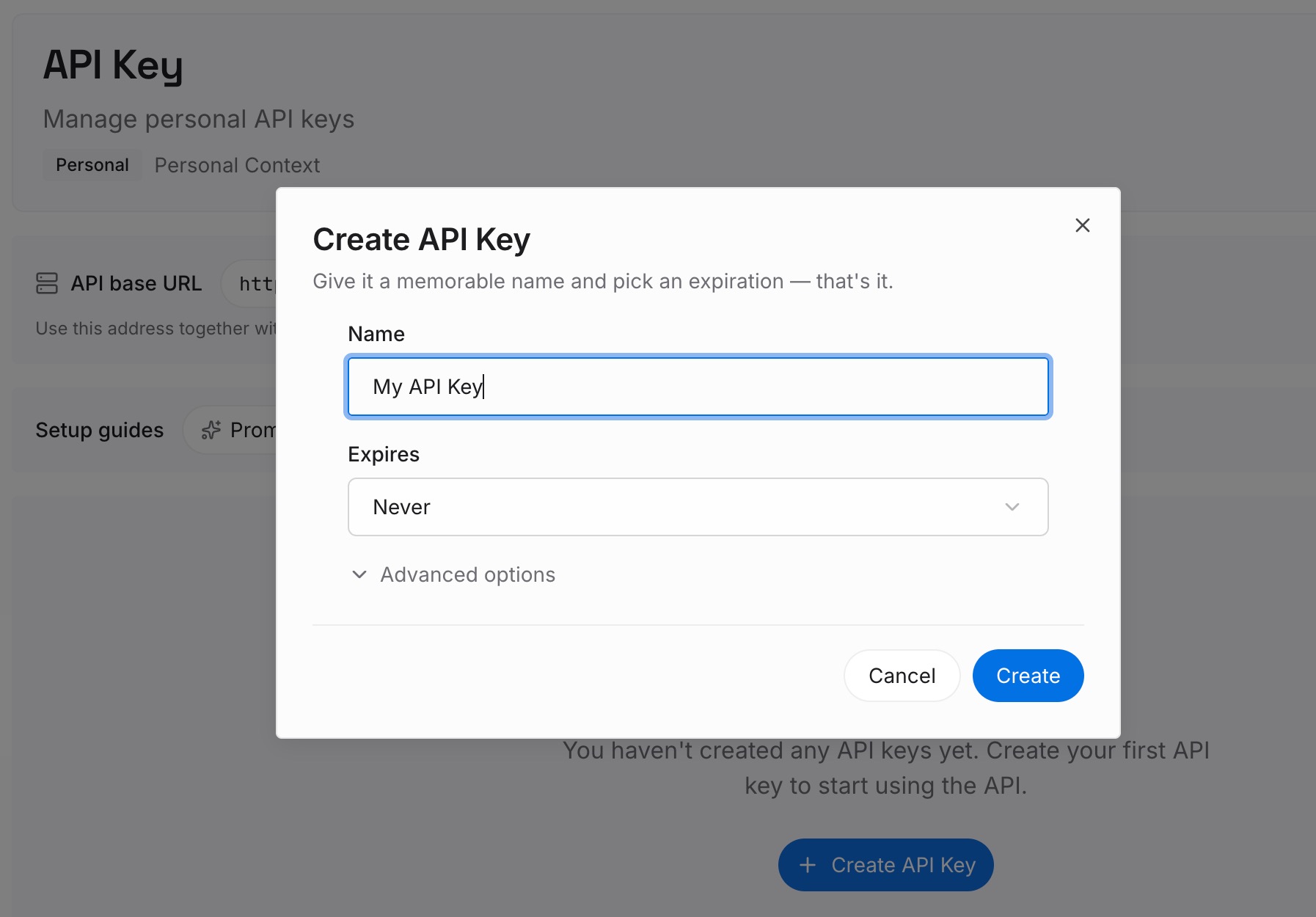
Step 1: Create an API key
Sign in and generate a key from the dashboard. Keep it somewhere private.
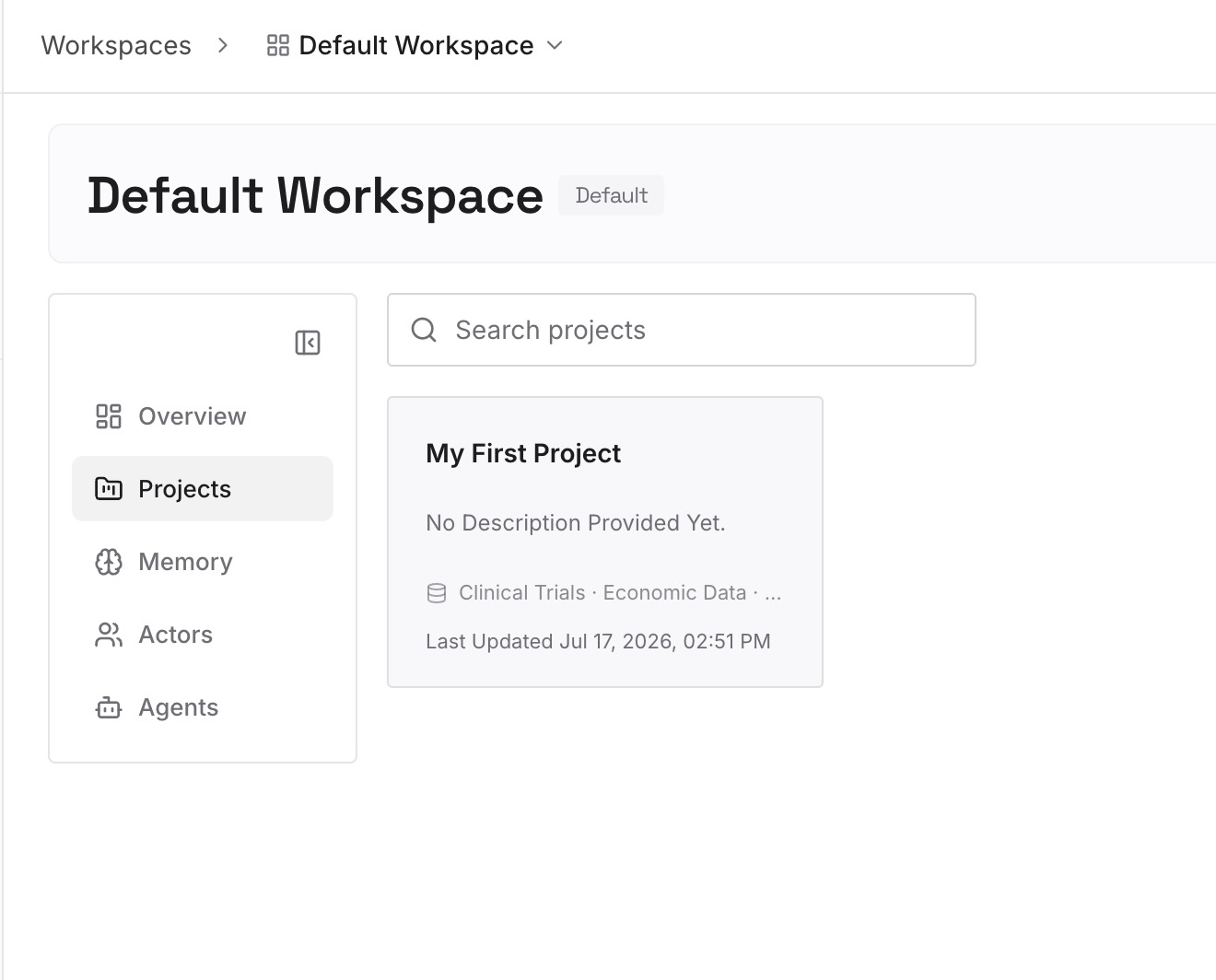
Step 2: Upload your first memories
Start with what you wrote in Step 7 of the migration: decisions, reasons, and open questions. One decision per entry.
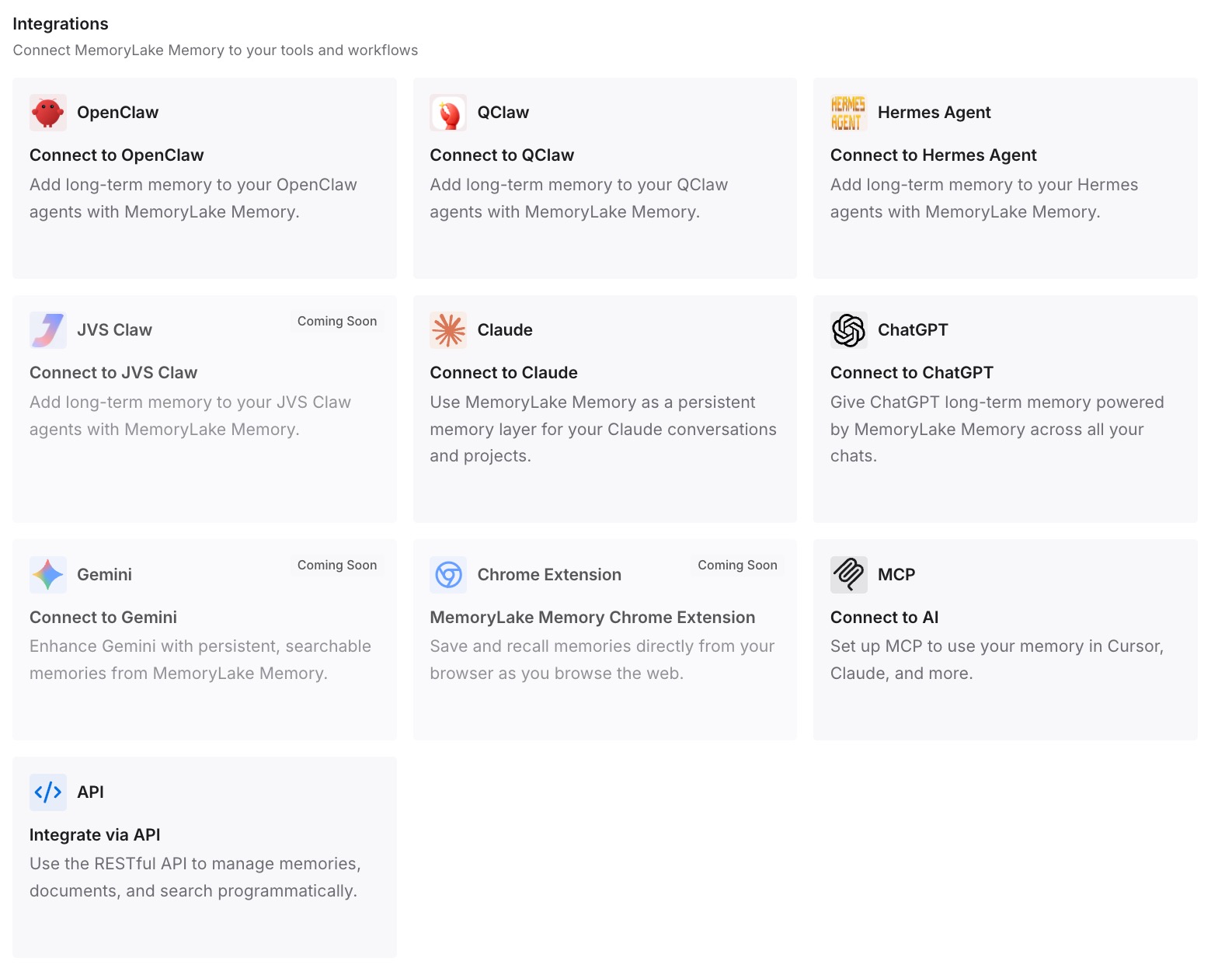
Step 3: Connect your AI & agents
Connect ChatGPT, Claude Code, Codex, and the other assistants you use, so the same decisions are there in each.
What this changes in practice
The first difference is less copying. The decisions are already written down when you start a chat.
The second is a clearer record. Your notebooks keep the detail, and your memory entries keep what every tool should know.
The third is reach. The same context works in assistants that don't connect to OneNote.
We covered how ChatGPT's own memory decides what to keep in our guide to how ChatGPT memory works.
Best practices for OneNote and ChatGPT
Name the notebook and section. Specific requests get more complete results.
Check where notebooks live. Personal, shared, and SharePoint notebooks behave differently.
Review writes before approving. Confirm the target page and the change.
Export to PDF. It's a format ChatGPT accepts.
Export by section. Project file limits are per project.
Remember PDFs don't update. Export again after big changes.
Conclusion
You can connect OneNote to ChatGPT in two ways. The OneNote plugin works with your live notebooks through your Microsoft account. It can find, summarize, create, and update notes within your permissions, but personal notebook operations are limited to notebooks your account owns, and some searches cover a bounded set of pages. The upload route works from a copy: export notes as PDFs from the OneNote desktop app, since OneNote for the web exports one page at a time and the notebook export produces OneNote files, then add them to a project.
Choose the plugin for notebooks you keep updating, uploads for fixed reference material or notebooks the plugin can't reach, and both when it helps. Writing the key decisions down in your own words keeps them useful in every assistant you use.