
Why a login persists past the task
It starts empty, which makes the accumulation invisible
The built-in browser is genuinely separate from yours: "The built-in browser is separate from your own browser. Claude doesn't see your saved logins unless you choose to import them." The product description repeats it — "Nothing to install, and it doesn't touch your tabs or logins."
So on day one it has nothing. That is a good default, and it is also why the growth goes unnoticed. There is no moment where you granted broad access; there is a series of moments where you signed into one more site to finish one more task.
Import is opt-in, per site, with sensible defaults
The one-time import is well designed and worth understanding before you click it. On first open you see the option "Stay signed in to your sites by importing cookies from your browser," and then: "Import works site by site, so you choose which logins to bring over. Banking, email, and single sign-on sites stay unchecked by default."
Three categories unchecked by default is a deliberate choice, and those three are exactly the ones the later advisory warns about. Availability is limited: "Importing saved logins is available from Chrome, Edge, and Firefox on macOS, and from Firefox on Windows and Linux (beta). Import isn't available from Safari."
The other browser mode has a different exposure shape entirely
Cowork can use the web two ways, and the difference matters for this question.
The built-in browser starts empty and accumulates what you sign into, persisting across sessions. Claude in Chrome does the opposite: "Claude works in your own Chrome browser through the Claude in Chrome extension, on the page you're already on, with the accounts you're already signed in to."
So the extension has no separate credential store to grow — it inherits everything you are already signed into, immediately. The built-in browser has a small store that grows over time. Neither is simply safer; they fail differently, and the advisory covers both by name.
Which one you get is decided for you unless you change it: "If you already use Claude in Chrome, it stays your default for web tasks in Cowork. If you don't have the extension, or you're new to browser use in Cowork, Claude uses the built-in browser once it's available to you."
The docs describe how logins get in, not how to take one out
This page documents the import flow, the per-site choice, the defaults, and the persistence. It does not document a per-site sign-out or a way to clear the built-in browser's stored logins.
That is a scope statement about the documentation rather than a claim about the product — there may be a mechanism that this page does not cover. But if you are deciding what to sign into, decide on the assumption that removal is not a documented step. That asymmetry is the whole reason the "be deliberate" note exists.
Persistence is per machine, and the desktop app is required
Two operational facts that shape the risk. The note says "in future Cowork sessions on that computer" — so this store is machine-local, not account-wide. And the browser needs the app: "The built-in browser lives in the desktop app, so Claude Desktop needs to be open and online for Claude to use it, even though your Cowork session runs in the cloud."
A shared or loaner machine is therefore a different risk profile from your own laptop, and the same account on two machines has two separate stores.
What people try
Importing everything at once to save time. The import screen makes this a single click, and it is the one click that turns a small store into a large one. The defaults are there for a reason.
Signing in as needed and not tracking it. The most common pattern, and the one the documentation is warning about. Each individual sign-in is reasonable; the set of them after two months is a decision nobody made.
Assuming a task-scoped sign-in is task-scoped. It is not. "Claude remembers your logins across Cowork sessions" is the documented behavior, not an edge case.
Switching to Claude in Chrome to avoid the persistence. Understandable and it trades one shape for another: the extension works "with the accounts you're already signed in to," which is typically far more accounts than you would have signed the built-in browser into.
Relying on the safeguards to cover judgment. The safeguards are real — "Claude asks for your permission before acting on a site for the first time," "High-risk sites are blocked," and "Every action runs through safety checks that compare what Claude is doing with what you asked for." Anthropic is also explicit about their limits: "Any AI agent that acts in a browser can be targeted by prompt injection, where instructions hidden in a webpage try to redirect Claude. These safeguards reduce that risk but can't remove it."
Signing an agent into a wiki so it can look things up. This one is worth separating from the others, because it is not a security decision at all — it is a context decision solving itself the expensive way. We come back to it in Step 3.
The Fix: Decide the List Once, Then Shrink It
Step 1: Choose your browser mode deliberately, and audit the import
Open the Claude Desktop app, go to Settings > Cowork, and look at Preferred browser. Choose "Built-in browser" or "Chrome (Claude in Chrome)" on purpose rather than inheriting the default.
The reasoning is different per team. If you want a small, separate, deliberately built credential set, the built-in browser is the right mode — its store starts empty and you control what enters it. If most of your agent work happens on a page already in front of you, the extension fits the workflow better, at the cost of inheriting your existing sessions.
Know the fallback behavior either way: "If your preferred browser isn't available, Claude tells you and continues with the other one. If you ask for a specific browser by name and it isn't available, Claude tells you and asks before using the other one."
If you have not yet done the cookie import, do it with intent. Leave banking, email, and single sign-on unchecked — they are unchecked by default and that default is correct. Import only the sites where the agent genuinely needs an authenticated session to do work you have already decided to hand it.
On Team and Enterprise plans, remember the availability is not yours alone: "Your organization's owner controls whether the built-in browser and Claude in Chrome are available."
Step 2: Write the list down, since nothing else will
Keep a short, plain list of which sites this machine's built-in browser is signed into, and add to it whenever you sign in during a task. Thirty seconds each time.
This sounds like busywork and it is the only inventory that exists. The store is machine-local and persistent, and the documentation does not describe a place to review it. A list you maintain is the difference between knowing what your agent can reach and guessing.
Sort the list against the advisory as you write it. Anything touching financial accounts, medical information, or other people's personal data is what Anthropic strongly advises against, and if something in that category is already on your list, that is the finding — the audit habit described in auditing what your AI remembers applied to credentials rather than to facts.
Do the same for the machine dimension. Shared and loaner machines should have their own list, kept much shorter, because the store follows the computer rather than the account.
Step 3: Remove the sign-ins that exist only to fetch knowledge
Now the part that shrinks the list rather than just documenting it.
Go through your list and mark each entry with why the agent needs it. Most will fall into two groups, and they are not the same kind of need.
Acting. Filing the ticket, submitting the form, posting the update. The agent has to be authenticated because it is doing something on your behalf. These sign-ins are the point.
Looking up. The internal wiki, the docs site, the runbook, the dashboard the agent visits to remind itself how your deployment works. Here the sign-in is not the goal — the knowledge is. The agent is authenticating into a system to read something you already know, on every task, forever.
That second group is usually the larger one, and every entry in it is a persistent credential held for the sake of a paragraph of text. Put the knowledge where the agent can read it directly and the sign-in stops being necessary — a smaller list, fewer things to be deliberate about, and no page for a prompt injection to hide in. MemoryLake sets up in three steps.
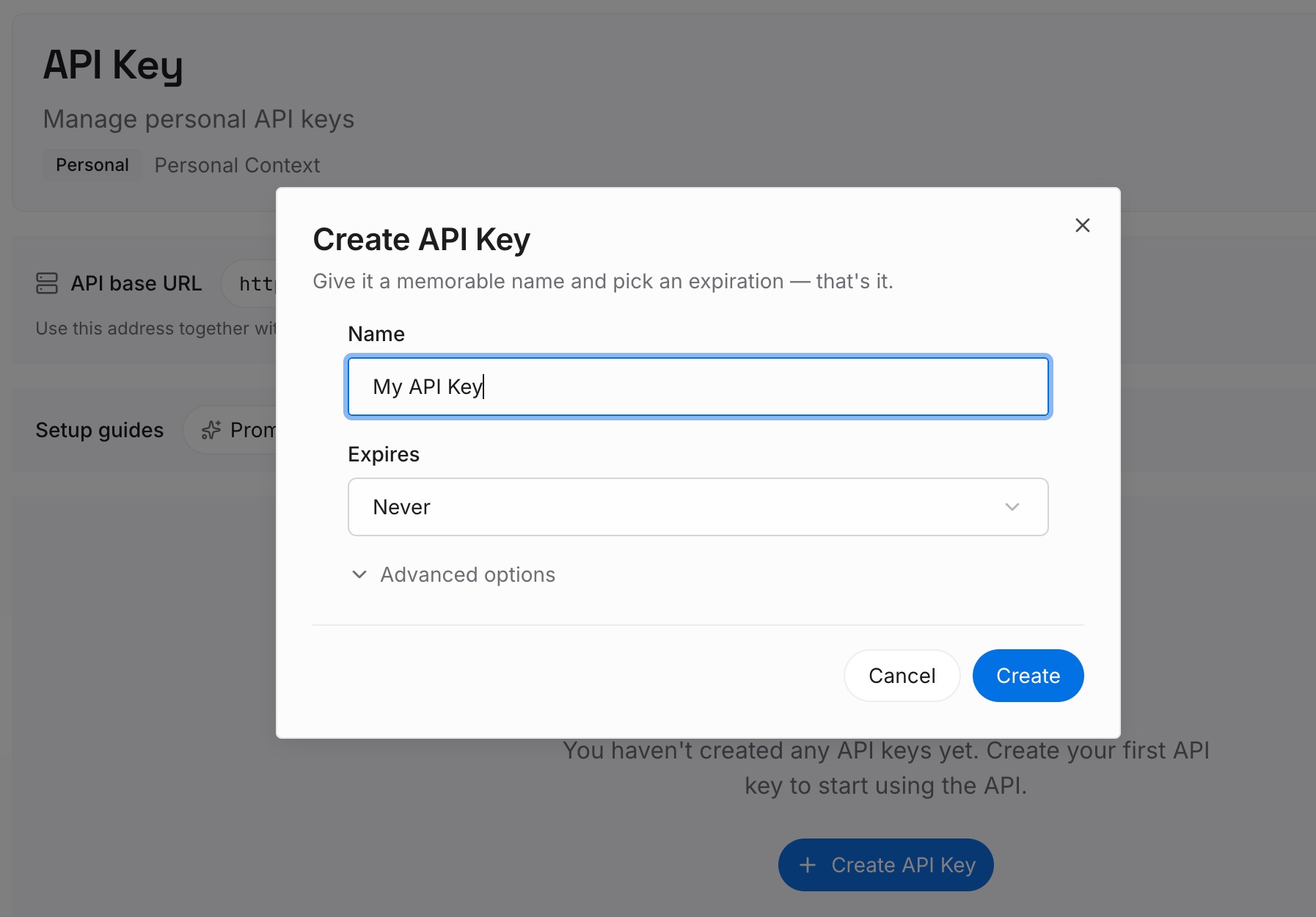
Step 1: Create an API key
Sign in and generate an API key from your dashboard. It is a key for reading knowledge, not a credential for a system that can act — which is exactly the distinction that makes the second group above removable.
Step 2: Upload your first memories
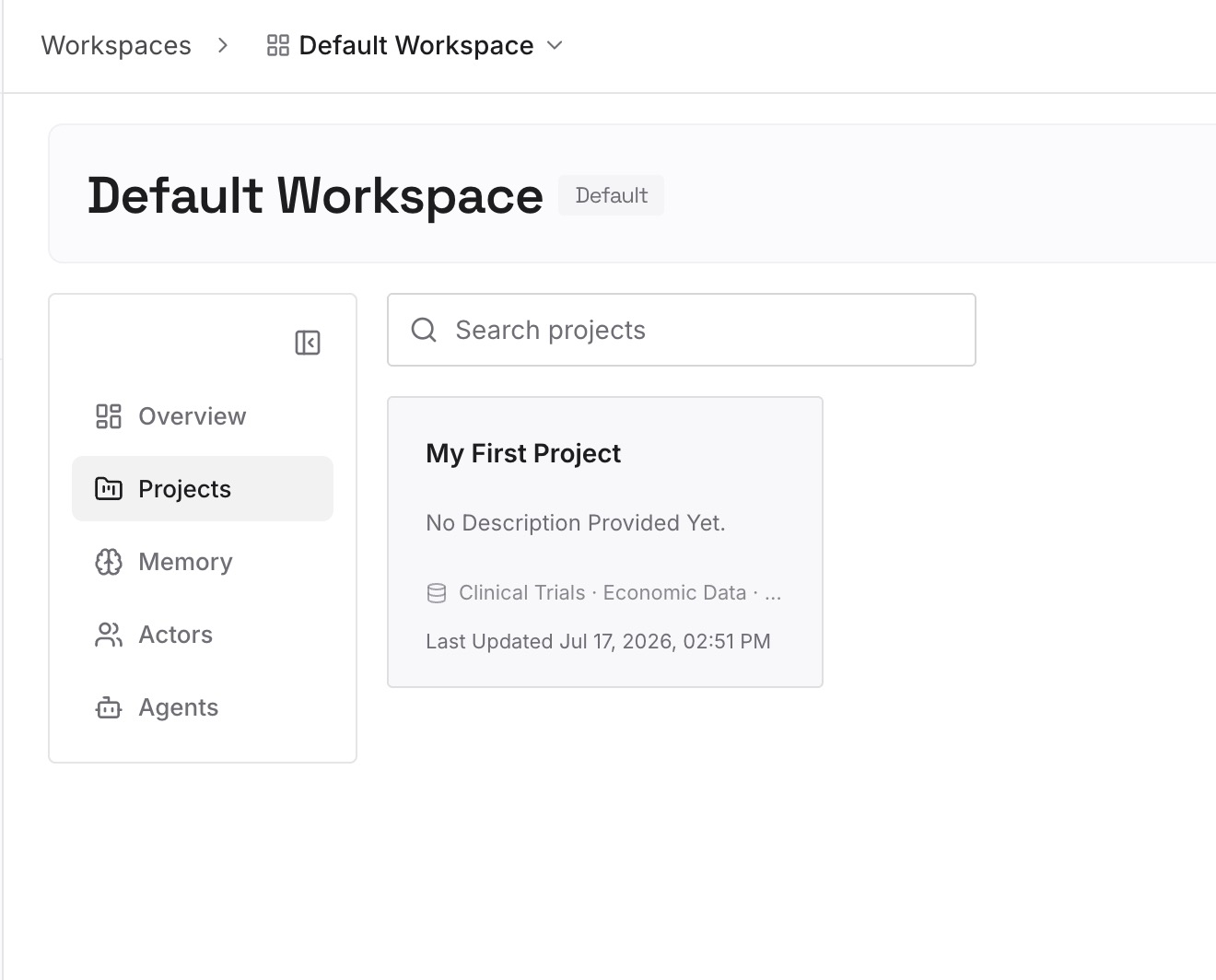
Put in what the look-up sites were being visited for: deployment conventions, architectural decisions and their reasons, domain vocabulary, service ownership, the runbook steps that never change, the standing constraints.
Leave the acting credentials alone. A site the agent must be signed into to submit something is not replaceable by a memory layer, and pretending otherwise would be the wrong advice.
Step 3: Connect your AI & agents
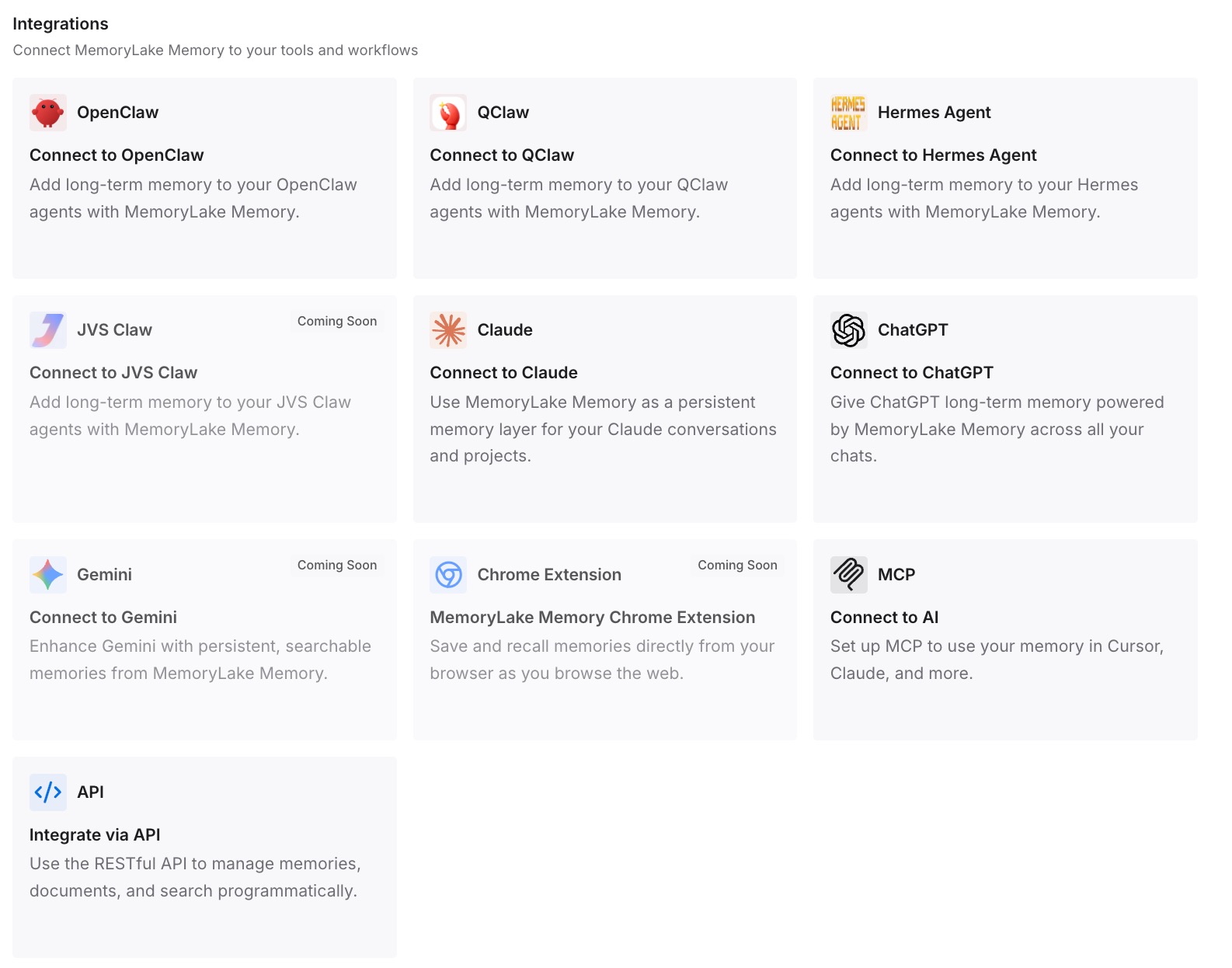
Point Cowork at the store. The agent answers from knowledge instead of browsing to it, which shortens your credential list and removes a class of task where a webpage gets to influence what the agent does — the reasoning behind turning project docs into AI memory rather than leaving them behind a login.
What this changes in practice
The first change is that the credential list becomes a decision instead of a residue. Right now it is whatever accumulated; after this it is a set you chose and can name.
The second is that "be deliberate" becomes actionable. It is good advice that is hard to follow when you do not know the current state. A written list makes each new sign-in a comparison rather than a reflex.
The third is that fewer tasks require the browser at all. A task that reads knowledge from a store rather than a page has no login to persist and no page to be injected from — which is the practical version of the concern in AI memory security.
Best practices for the Cowork built-in browser
- Follow the vendor's advisory. Anthropic "strongly advise[s] against" using either browser mode for financial accounts, medical information, or other people's personal data.
- Leave the default exclusions unchecked. Banking, email, and single sign-on start unchecked on import; keep it that way.
- Choose your preferred browser on purpose. Settings > Cowork > Preferred browser, rather than inheriting whichever default applies.
- Treat each sign-in as permanent. Logins persist across Cowork sessions and the docs do not describe a per-site removal step.
- Keep a written list per machine. The store is machine-local, so a shared computer needs its own, shorter list.
- Separate acting from looking up. Only the first genuinely needs a persistent credential.
- Respect the injection warning. Safeguards "reduce that risk but can't remove it" — start with trusted sites and stay close to consequential tasks.
- Re-check as it rolls out. The built-in browser is rolling out gradually across plans and platforms, and availability on Team and Enterprise is controlled by an owner.
Conclusion
Credential persistence is the quietest kind of agent memory. Nobody sets it up, it never announces itself, and it grows one convenient decision at a time until the answer to "what can this agent reach?" is genuinely unknown.
Anthropic documented the behavior and told you what to do about it: be deliberate, and stay away from money, health, and other people's data entirely. The rest is arithmetic — know your list, keep it per machine, and delete the entries that only ever existed to look something up.