
The short answer
Knowledge workers can set up cross-tool AI memory by creating a MemoryLake Project, loading their context into it (documents, rules, preferences), generating an MCP Server endpoint, and connecting each AI tool to that endpoint. Every tool reads the same Project — no re-explaining context when you switch tools.
Why each AI tool's built-in memory falls short
Most AI tools offer some form of session history or a lightweight memory feature, but each one is a silo. The context you've built inside ChatGPT doesn't travel to Claude. The rules you set in your coding agent don't appear in your research tool. You end up maintaining multiple, inconsistent copies of "who you are and what you need" — and they inevitably drift out of sync.
There's also no shared ownership. Each tool summarizes or interprets your context in its own way, which means the precise instruction you wrote gets paraphrased, trimmed, or discarded. When you switch tools mid-project, you feel the cost immediately: five minutes explaining your constraints, another two clarifying your terminology, and then the inevitable correction when the AI assumes something wrong.
For a knowledge worker juggling research, writing, data analysis, and communication across three or four AI tools in a single afternoon, that friction compounds fast. The real gap isn't any one tool's memory — it's that no single source of truth exists for your context as a whole.
Before you start
You'll need:
- A free MemoryLake account
- At least one AI tool that supports MCP (Claude Desktop, Cursor, or any other MCP-compatible client)
- The context you repeat most often — project briefs, style rules, preferences, or reference files (PDF, Word, Excel, PowerPoint, Markdown, or images)
How to set up cross-tool memory for knowledge workers (step by step)
Step 1: Build a memory Project
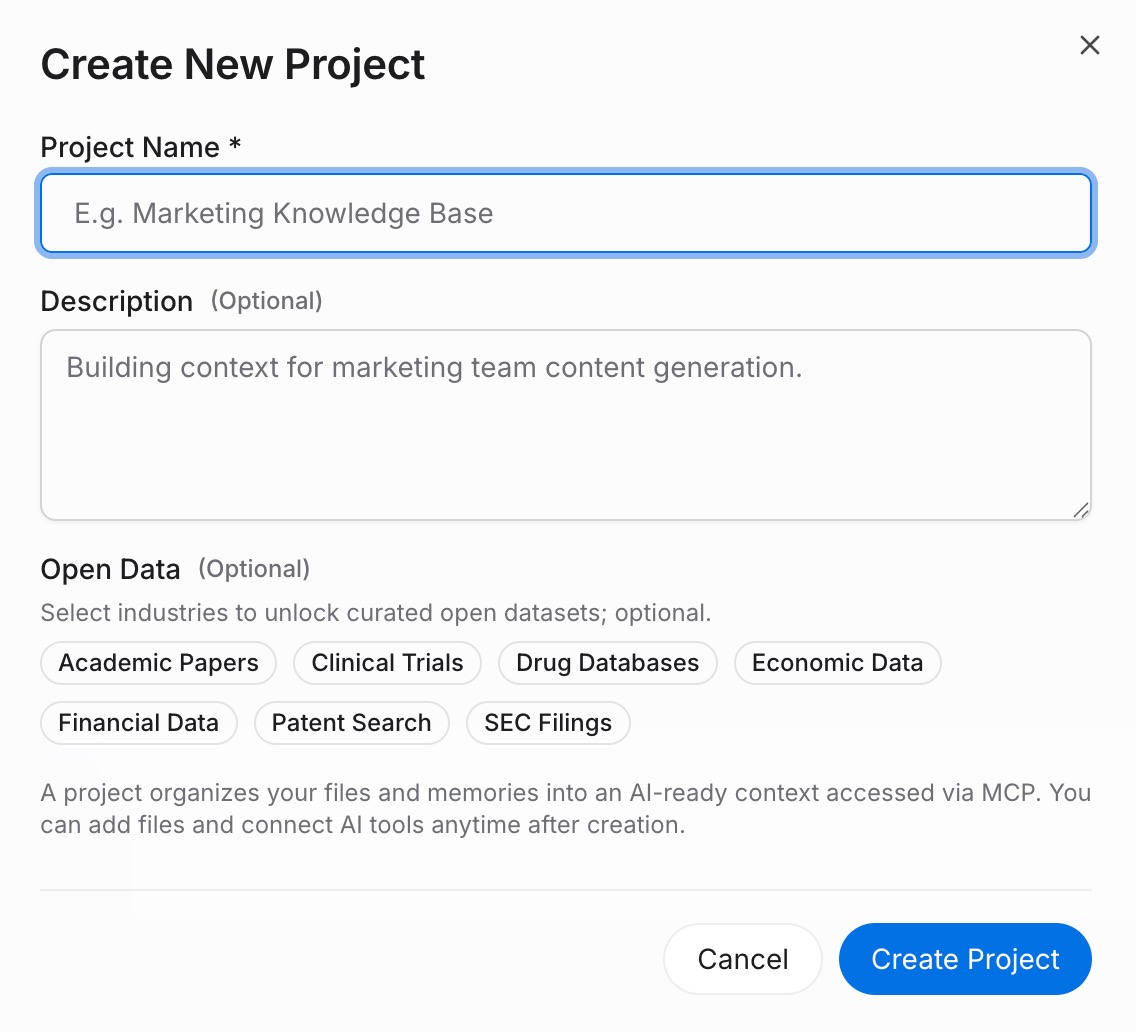
Sign in to MemoryLake and go to Project Management. Click Create Project and give it a clear name — for example, "Work Context 2026." Inside the project, open the Document Drive and click Upload to add reference files such as a project brief, style guide, or research notes. Then open the Documents Tab, click Add Documents, and click Confirm to attach the uploaded files to the project. Next, open the Memories Tab, click Add Memory, type in a standing rule or preference (for example, your preferred response format, a recurring constraint, or key terminology), and click Save. Repeat for each rule you usually repeat when onboarding an AI tool.
Step 2: Generate an MCP Server endpoint
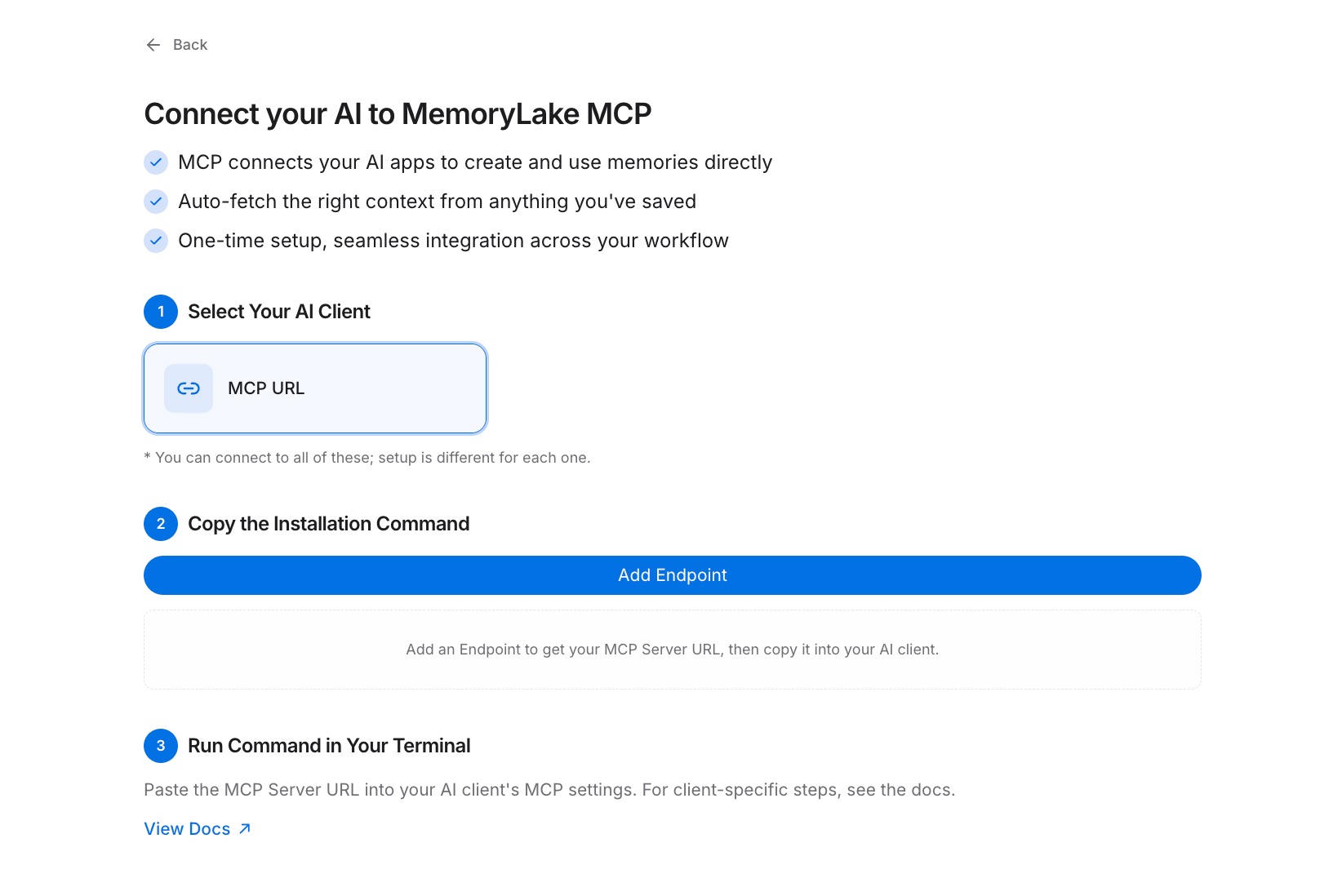
Inside the project, open the MCP Servers Tab and click Add MCP Server. Give the server a descriptive name — for example, "Knowledge Worker Context" — then click Generate. MemoryLake returns three values: a Key ID, a Secret, and an Endpoint URL. Copy the Secret immediately; it is shown only once and cannot be retrieved later.
Step 3: Connect your AI tool over MCP
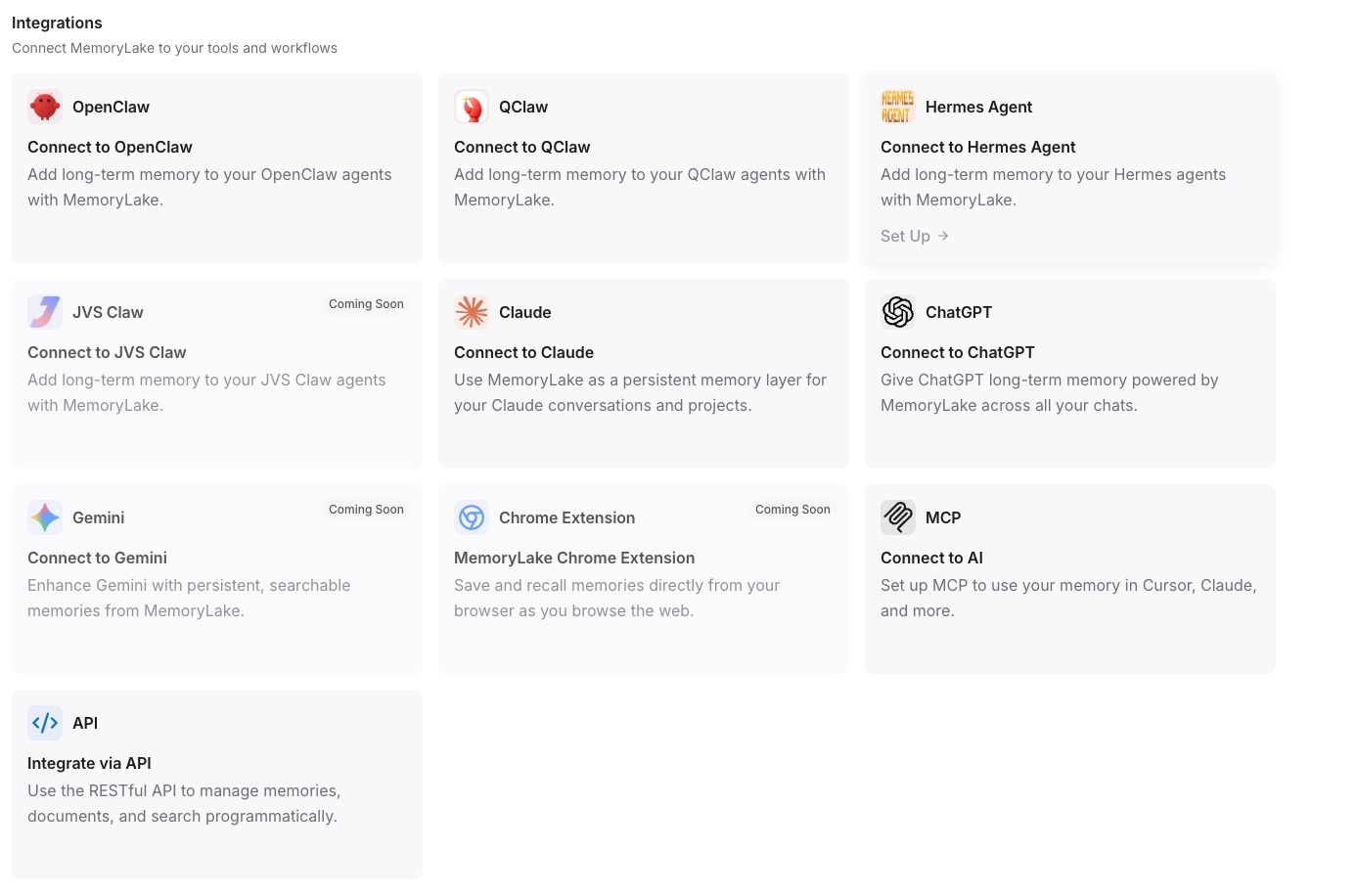
Open the MCP configuration in whichever AI tool you want to connect first. Register the Endpoint URL as a new MCP server and set the Secret as a Bearer token for authentication. Save the configuration and restart the tool. From this point on, the tool can read your Project on demand. Repeat this step for every other AI tool you use — each one connects to the same Endpoint URL, so they all read the same context from the same Project. See the MCP setup guide for the full configuration reference. [Try MemoryLake free]
Per-tool built-in memory vs MemoryLake
| Dimension | Per-tool built-in memory | MemoryLake |
|---|---|---|
| Persists across sessions | Varies (often summarized) | Yes — verbatim and intact |
| Works across other AI tools | No — siloed per tool | Yes — one Project, all tools |
| Capacity | Capped or summarized | Scales with your Project |
| Version control | No | Yes (Git-style history) |
| Data ownership | Platform-held | You own it (AES-256, export or delete) |
| Benchmark | — | LoCoMo #1 — 94.03% |
Tips & best practices
- Name each Memory entry descriptively (for example, "Writing style: short paragraphs, active voice") so individual AI tools can retrieve the right rule without reading everything in the Project.
- Separate Projects by work context — one for a client engagement, one for internal research — so the AI pulls only the relevant background for the task at hand.
- Store reference files like briefs and glossaries in the Document Drive rather than pasting them as memories; larger structured content retrieves better as documents.
- Rotate your MCP keys on a regular schedule or immediately if a key is shared accidentally — revoke the old one in the MCP Servers Tab and Generate a replacement.
Troubleshooting
- The AI tool shows no memory from MemoryLake: confirm the Endpoint URL is entered exactly as generated and that the tool's MCP configuration has been saved and the tool restarted.
- Authentication errors on every query: verify the Secret is pasted as a Bearer token, not as a plain API key or username/password field.
- "Secret not found" message: the Secret is shown only once at generation time. Revoke the current key in the MCP Servers Tab and Generate a new one, then update the Bearer token in your tool's configuration.
Build your cross-tool memory layer once, use it everywhere
Load your context into a single MemoryLake Project and every AI tool you work with reads the same source — no more re-explaining who you are each time you switch tools.