
Delete all chats at once on the web
Anthropic's article on deleting conversations gives the steps for deleting several at once on the web:
- Click Chats and tasks in the left sidebar.
- Hover over a conversation and click the ⋮ button on the right side.
- Click Select.
- Click the checkbox on the left of other conversations you want to delete, or click Select all at the top.
- Click Delete, then click Delete again in the confirmation prompt.
Select all is the quickest way to clear everything in that list. If you want to keep a few chats, select all and then uncheck the ones to keep before you delete.
Delete multiple chats on Android
On Claude for Android, Anthropic's article describes a similar flow:
- Open your chat list and tap the checklist icon in the top right corner.
- Check the box next to each conversation you want to delete.
- Tap the trash icon, then tap Delete in the confirmation prompt.
Delete chats on iPhone
For Claude for iOS, the article describes deleting individual conversations. Open your chat list, touch and hold a conversation, tap Delete, and confirm. You can also delete the conversation you have open from the ⋯ button in the top right corner.
The iOS section of the article doesn't describe a way to select several conversations at once. To clear many at once, use the web.
What deletion removes, and when
Anthropic's article explains the timing: "When you delete a conversation, it's removed from your conversation history immediately and deleted from our back-end systems within 30 days."
Anthropic's privacy center says the same for consumer accounts, adding that Anthropic also retains data "for the amount of time specified in our Privacy Policy unless required to enforce our Usage Policy, address Terms of Service or policy violations, or as required by law."
Anthropic's article doesn't describe a way to restore a deleted conversation, so treat deletion as final.
These steps cover Claude's consumer plans. The article opens: "This article is about our consumer products (e.g. Claude Free, Claude Pro)." For Team and Enterprise plans, Anthropic points to a separate article.
What stays: projects and account data
Deleting chats doesn't remove everything tied to your account. Anthropic's article says: "Other data associated with your account, like your projects and account information, is kept until you delete it or delete your account."
So your projects, with their instructions and files, stay. Delete them separately if you want them gone.
Project memory goes with the project. Anthropic's memory article says: "Project memory is deleted when the project is deleted."
What stays: Claude's memory
This is the part that catches people. Claude saves memory as topics while you chat, and those topics don't go away when the chats do.
Anthropic's memory article says: "When a conversation is deleted, including under a retention period, memory entries generated from it aren't removed, but you can delete individual memories while memory is on."
So after deleting every chat, Claude may still know your job, your projects, and your preferences. To clear that too, you have two options.
Delete specific topics. Go to Settings > Your Claude and select Manage next to Your memory. Everything Claude remembers is listed under Topics. Select a topic and delete it.
Reset memory. In the same settings, turn off Generate memory from chats and choose Reset memory. Anthropic says this "Permanently deletes all memories including project memories." It adds that it "cannot be undone."
If you only want a break, Pause memory keeps what's saved without using or adding to it.
What stays: your monthly recap
If you use Claude's monthly recap, deleting chats affects it too. Anthropic's article on the recap says: "Your recaps are stored until you delete them, a chat or session they used is deleted, or you delete your account."
So deleting chats can remove recaps built from them. To clear recaps directly, open your recap and use Delete stored reflections at the bottom of the page.
We covered what the recap reads and how to delete it in our guide to Claude Reflect and the monthly recap.
Save what you want before deleting
Deletion is final, so export first if there's anything you might want later.
Anthropic's export article says you can export from Settings > Privacy on the web or in Claude Desktop: "It's not possible to run an export from Claude for iOS or Android."
The link arrives by email, and it doesn't last: "The download link will expire 24 hours after it's created, and it may work only once, so download the file right away."
Two more details from the same article. Exports "don't include the original files you uploaded." And on Team and Enterprise plans, you can export your own chats once an owner turns on the setting that allows it.
Memory is in the export too. Anthropic's memory article says: "All memory data is included in data exports."
Keep in mind what an export is for. Anthropic's export article says: "Exported data can't be imported into another personal Claude account, and we don't support migrating data between personal accounts." It's a record for you, not a backup you can restore into Claude.
Delete chats Claude cites from search
On paid plans, Claude can search your past chats and cite them. That's another way to find chats worth deleting.
Anthropic's memory article says: "When Claude references previous conversations through search, you'll see citations linking back to the original chats, along with the option to delete specific conversations."
So if Claude brings up an old conversation you'd forgotten about, you can delete it from there instead of hunting through the sidebar.
Ask Claude to forget specific things
If only a few details need to go, you don't have to reset everything. Anthropic's memory article says you can update memory from a chat: "Tell Claude what you'd like it to remember, change, or forget, and the update applies to your next conversation."
Afterward, open Manage next to Your memory and read the topics to confirm the change. Editing a topic in one place is enough, according to the article: "Fix something in one topic and the change applies to every conversation from then on."
If you'd rather tidy than delete, the same article on conversations explains how to rename a chat from the same ⋮ menu.
Deleting chats vs deleting your account
Deleting every chat leaves your account, projects, and settings in place. Deleting your account removes everything.
Anthropic's article says: "To delete all data associated with your Claude account, delete your account. Account deletion is permanent, and you won't be able to recover your account or conversation data."
The account deletion article adds a step for paid plans: cancel your subscription and wait until the current period ends before deleting. On the web, account deletion is under Settings > Account.
If you want a fresh start but plan to keep using Claude, deleting chats, then clearing memory and projects, gets you most of the way without losing your account.
Keep future chats out of history
After a clean slate, you may want fewer chats to clean up next time.
Incognito chats. Anthropic's incognito article says these are "temporary conversations that aren't saved to your chat history". It notes they're still retained for 30 days by default.
Chats with memory off. If you want a chat in your history but not in memory, turn off Memory from the + menu before your first message. Anthropic says the chat stays in your history but nothing from it is saved to memory.
What people try first
Deleting chats to make Claude forget. Memory entries from deleted chats stay. Delete topics too.
Looking for Select all on iPhone. Use the web to delete many chats at once.
Forgetting projects. Projects and their memory stay until you delete them.
Exporting after deleting. Export first, while the chats are still there.
Deleting the account for a fresh start. Account deletion is permanent. Deleting chats may be enough.
The Fix: Clear your history in the right order
Step 1: Export what you might want
Request an export from Settings > Privacy and download it within 24 hours.
Step 2: Delete your chats
On the web, open Chats and tasks, choose Select, then Select all, and delete.
Step 3: Clear memory and projects
Delete memory topics or reset memory, and delete projects you no longer need.
Step 4: Write down what you want to keep
Note the decisions, preferences, and project details worth carrying forward, in your own words.
Setting this up in MemoryLake
A clean slate in Claude is easier when the parts worth keeping are already written down somewhere else. Your preferences, the projects you're still working on, and the decisions you made in those old chats can be kept without keeping the chats themselves.
MemoryLake is a memory layer for that kind of context, kept in one place you maintain and available to the assistants you connect, such as ChatGPT, Claude Code, and Codex.
You write the entries yourself, in your own words. Nothing is read out of, written to, or deleted from your Claude chats, your Claude memory, your projects, your monthly recaps, your export, or any vendor's store. Deletion works the way Anthropic describes it.
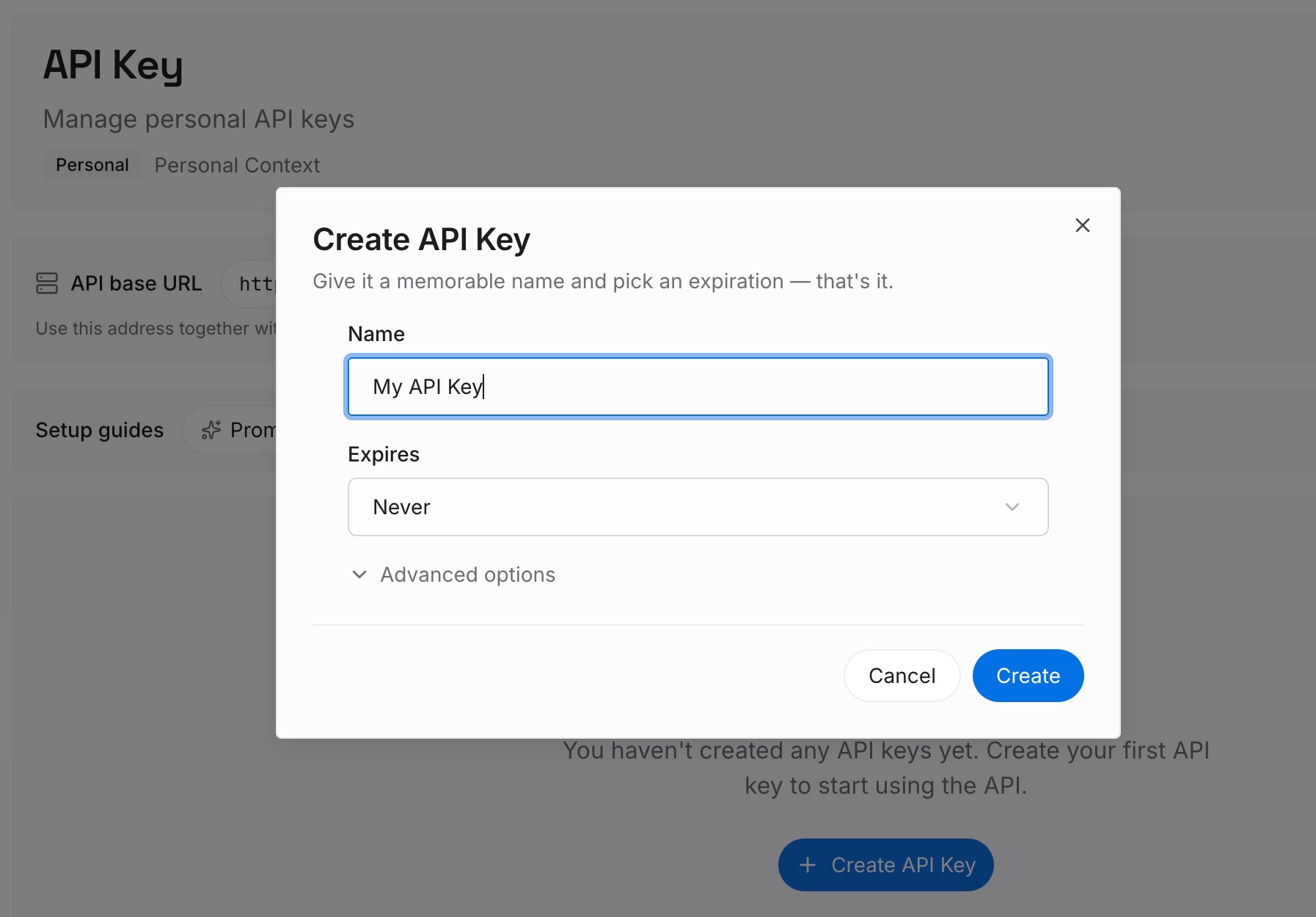
Step 1: Create an API key
Sign in and generate a key from the dashboard. Keep it somewhere private.
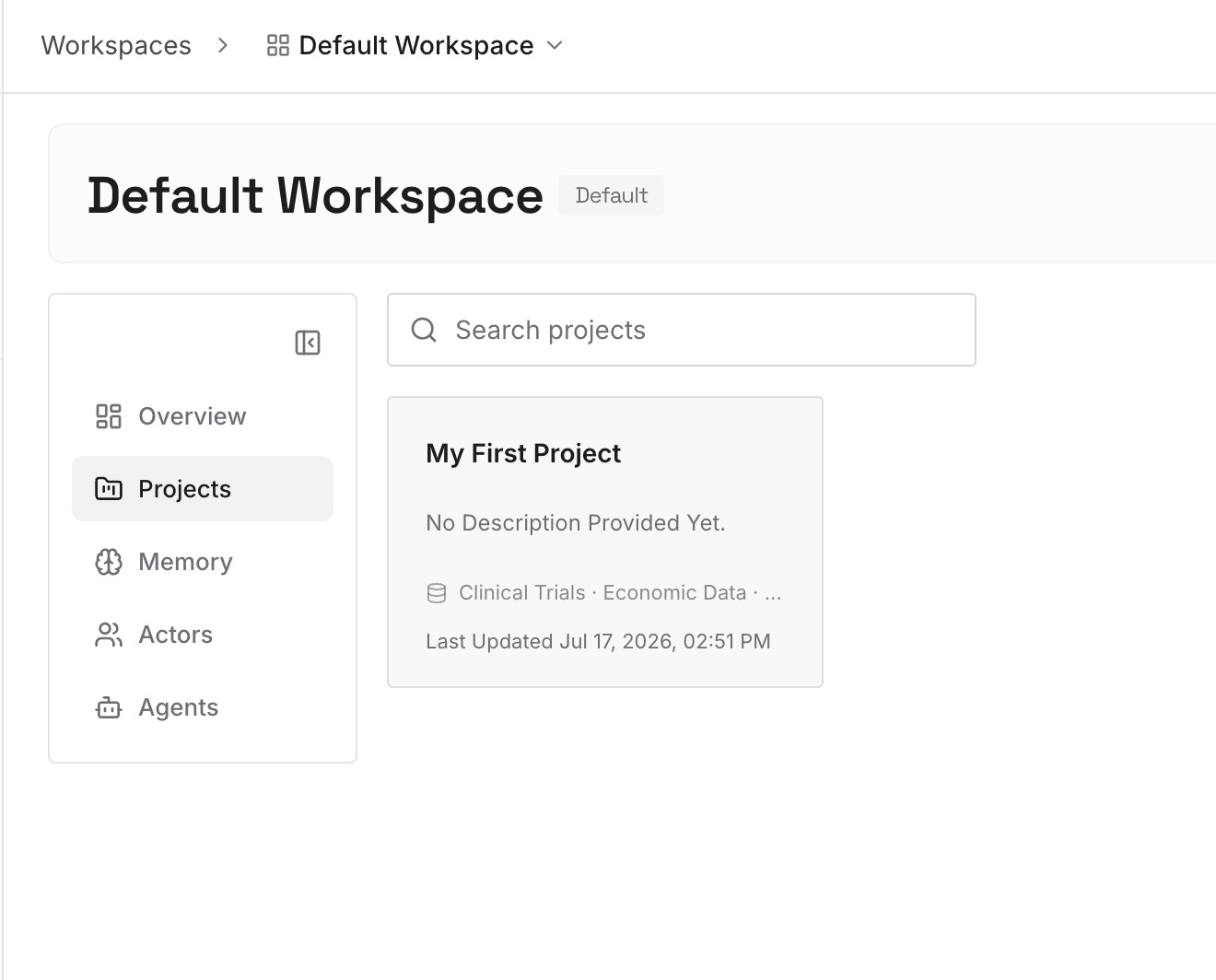
Step 2: Upload your first memories
Start with what you wrote in Step 4 of the fix: decisions, preferences, and ongoing projects. One topic per entry.
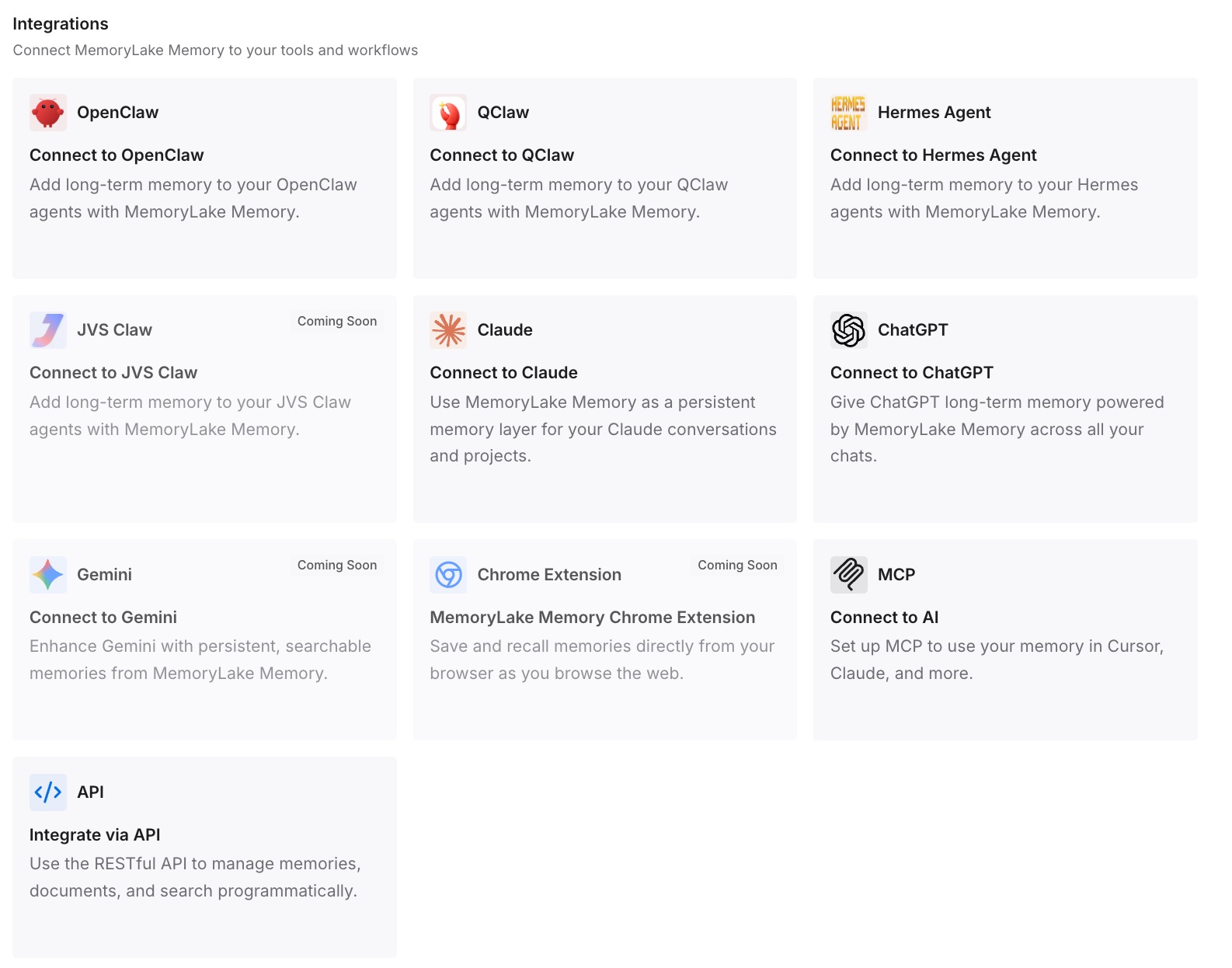
Step 3: Connect your AI & agents
Connect ChatGPT, Claude Code, Codex, and the other assistants you use, so the context you kept is there in each.
What this changes in practice
The first difference is a cleaner history. You can delete old chats without losing what mattered in them.
The second is a deliberate record. You choose what carries forward instead of what Claude extracted.
The third is portability. The same notes work in other assistants.
Best practices for deleting Claude chats
Export before you delete. Download within 24 hours.
Use the web for bulk deletion. Select all is there.
Check memory afterward. Deleted chats don't remove memory entries.
Decide on projects separately. They stay until you delete them.
Pause before you reset. Reset can't be undone.
Use incognito for throwaway chats. They don't go into your history.
Conclusion
You can delete all your Claude chats at once on the web: open Chats and tasks, choose Select, then Select all, and confirm. Android has a similar multi-select, and on iPhone the article describes deleting chats one at a time. Deleted chats leave your history immediately and are removed from Anthropic's back-end systems within 30 days.
Deleting chats doesn't delete what Claude learned from them, and it doesn't touch your projects. Clear memory topics or reset memory, delete projects you no longer need, and remember that recaps built from deleted chats are removed too. Export first, and write down what you want to keep, so a clean slate doesn't cost you the context that still matters.