
What deleting a chat removes
OpenAI's article on deleting chats lists what happens when you delete one:
- "ChatGPT removes it from your account view immediately."
- OpenAI "schedules it for permanent deletion from its systems within 30 days", unless it was already de-identified and disassociated from your account, or OpenAI must keep it longer for security or legal reasons.
You also can't get it back. The same article says: "You cannot restore a deleted chat in ChatGPT or through OpenAI Support."
So the chat itself is removed from your account right away. What the article doesn't cover are the separate copies of what you said in it. Those are covered in OpenAI's memory article.
Where a detail can outlive the chat
OpenAI's memory article lists the sources Memory can draw on. Depending on your plan and region, they include past chats, saved memories, custom instructions, "saved files available through Library or Space", and "content from connected apps, such as Gmail".
Each one can hold a copy of what you said. Here's how each one behaves when you delete the chat.
Saved memories
A saved memory is a separate item. The memory article says: "Saved memories are stored separately from chat history. Deleting the original chat does not automatically delete a separate saved memory."
If ChatGPT saved a note about your interview at a logistics company while you were talking, that line stays in your saved memories after the chat is deleted. This is the first place to check when a specific fact comes back.
What ChatGPT remembered from chat history
If Reference chat history is on, ChatGPT also draws on what it learned from past conversations in general, not just explicit saved memories. The memory article describes it this way: "Unlike an explicit saved memory, information derived from chat history can change as ChatGPT updates what is most useful to remember."
The article doesn't give a specific timeline for how quickly a single deleted chat stops shaping this layer. It does say, more generally: "It can take time for deletion and Memory updates to propagate."
Other chats where it came up
You may have mentioned the interview more than once. Maybe you asked for practice questions in another chat, or brought it up in a chat you archived instead of deleting.
Deleting one chat doesn't touch the others. And archived chats count. The memory article lists "regular and archived chats" among the places you'll need to remove information from. OpenAI's deletion article says archiving "removes the chat from the regular sidebar but does not delete it."
Files you uploaded
If you uploaded your résumé or the job description, the file may have been saved separately from the chat.
OpenAI's deletion article says: "Deleting a chat does not delete files saved separately in Library or Space. Delete those files separately if you also want to remove the saved copies."
Custom instructions
If you wrote something about your job search in your custom instructions, it stays there until you change it. The memory article treats custom instructions as a separate source: "Custom instructions are direct guidance that you provide about what ChatGPT should know and how it should respond."
Connected apps
If the detail came from an email or another connected app, deleting the chat doesn't touch the original. The deletion article says: "Deleting a chat does not delete the original data from the connected app."
Your dot's own memory
This one is newer. OpenAI's memory article, updated this week, has a section on dots: "Your dot has its own memory that helps it learn how you like to work. This memory stays on even if you turn off Memory in ChatGPT."
It continues: "When you turn off Memory in ChatGPT, your dot stops receiving new memories from your ChatGPT chats and files. It can still remember details from conversations you have with it directly."
So if you have a dot and you talked to it about the interview, that's another place the detail can live. The memory article doesn't say what deleting a regular ChatGPT chat does to a dot's own memory, so don't assume deleting the chat clears it. If you use a dot, check with it too.
How to find which copy is bringing it back
Since a detail can live in several places, the first job is to find out which one is surfacing it. OpenAI gives you three ways to look.
Sources under a response
When ChatGPT uses personal context, it may show where it came from. The memory article says: "Sources can help you review information such as a past chat, saved memory, custom instruction, file, or connected email that contributed to personalization."
From Sources, depending on the source, you can open it, correct or delete a saved memory, delete a referenced chat, mark a source as not relevant, or open a referenced file or email.
Sources aren't a complete list. The article warns: "Sources may not show every factor that shaped a response."
The memory summary
The memory summary is a high-level view of what ChatGPT may use. The memory article is careful about its limits: "It does not necessarily include every detail or source that Memory can reference."
So if the detail isn't in the summary, that doesn't prove ChatGPT has forgotten it.
Asking ChatGPT
The memory article says: "You can also ask ChatGPT what it remembers about you." This is a quick first check, though the answer depends on what ChatGPT finds relevant to your question.
How to remove it from every place
OpenAI's instruction is direct: "To remove information saved as a memory, delete the saved memory and the chat where you first shared it." Then the article lists the other places to clear:
- the memory summary
- saved memories
- regular and archived chats
- saved files available through Library or Space
- connected apps
For connected apps, the article's step is to disconnect an app that contains the information when you no longer want ChatGPT to access it. Disconnecting stops future access. It doesn't delete what was already used. The memory article says: "Disconnecting an app prevents future access to that app. It does not delete past conversations that already used app content."
We walked through correcting a remembered detail, rather than deleting it, in our guide to updating ChatGPT's memory when something changes.
Options that reduce mentions without deleting
ChatGPT has controls that sound like deletion but aren't.
Don't mention this again. In the memory summary, this option reduces future references. The memory article says: "It does not delete the original source."
Telling ChatGPT not to use something. Same effect. The article says this "changes personalization behavior but does not delete the underlying chat, file, email, or other source."
Delete and turn off memory. This one does delete something. The memory article says it "deletes the remembered information shown in the summary and turns Memory off. It does not delete past chats." If you turn Memory back on later, the article adds that ChatGPT "may create new remembered information from chats that remain in your history."
Turning off Reference chat history. The article says: "If you turn Reference chat history off, information remembered from past chats is scheduled for deletion from OpenAI systems within 30 days. The original chats remain in your history unless you delete them." It also notes that this doesn't delete your saved memories. We covered this setting in our guide to what Reference chat history does.
How long until it's gone
Deletion in ChatGPT happens in stages.
Right away. A deleted chat disappears from your account view immediately.
Within 30 days. OpenAI schedules a deleted chat for permanent deletion within 30 days, with the exceptions above. Information remembered from past chats is scheduled for deletion within 30 days when you turn Reference chat history off.
After you delete a saved memory. The memory article says: "It can take time for deletion and Memory updates to propagate. OpenAI may retain logs of deleted saved memories for up to 30 days for safety and debugging purposes."
So if a detail comes up the day after you deleted everything, it may be the propagation delay. Check the places above again after a while, rather than assuming deletion failed.
What deleting a saved memory doesn't remove
Deletion works in both directions, and each direction leaves something behind.
Deleting a chat leaves a saved memory created from it. And deleting a saved memory leaves the chat. The memory article says: "Deleting a saved memory prevents it from being used in future personalization, but it does not remove mentions of that information from past conversations."
That's why OpenAI's instruction names both. If you delete only the saved memory and keep the chat, the chat is still there for Reference chat history to draw on, if that setting is on.
Chats that don't create memories in the first place
If you know a conversation is one you'll want gone later, you can avoid creating memories at the start.
The memory article says: "Temporary chats do not create or update memories, even with personalization on." Before a temporary chat starts, you can also choose Unpersonalized so it doesn't use your existing memories, custom instructions, or plugins.
One caution: saving a temporary chat turns it into a regular chat. The article says it then follows your account's personalization settings, and "If Memory is on, ChatGPT may use the saved conversation to personalize future responses."
Locked chats are different. Locking doesn't erase what came before: "Locking a conversation does not remove information that ChatGPT remembered before it was locked."
What people try first
Deleting the chat and expecting the memory to go. The saved memory is separate. Delete it too.
Checking the memory summary and finding nothing. The summary isn't a full list. Check Sources and saved memories.
Choosing Don't mention this again. It reduces mentions but doesn't delete the source.
Deleting one chat when the detail is in several. Search your chats, including archived ones.
Forgetting uploaded files. Files saved in Library or Space stay after the chat is deleted.
The Fix: Trace the detail and remove each copy
Step 1: Find where it comes from
When the detail comes up, look for Sources under the response, and open your saved memories and the memory summary.
Step 2: Delete the saved memory and the chat
Delete both, as OpenAI's instruction says. Then search your chats, including archived ones, for other mentions.
Step 3: Clear files, instructions, and your dot
Delete related files in Library or Space, check your custom instructions, and if you use a dot, check what it remembers.
Step 4: Decide what you do want kept
Before you delete everything, note the context you still want an assistant to have, in a place you control.
Setting this up in MemoryLake
Memory in ChatGPT spreads one detail across saved memories, chat history, files, and more, which is why deleting it takes several steps. The context you want to keep is just as scattered.
MemoryLake is a memory layer for the context you choose to keep: notes you write about your work and preferences, kept in one place you maintain and available to the assistants you connect, such as ChatGPT, Claude Code, and Codex.
You write the entries yourself, in your own words. Nothing is read out of, written to, or deleted from your ChatGPT memory, your saved memories, your chats, your Library or Space files, your dot, or any vendor's store. ChatGPT's memory works the way OpenAI describes it.
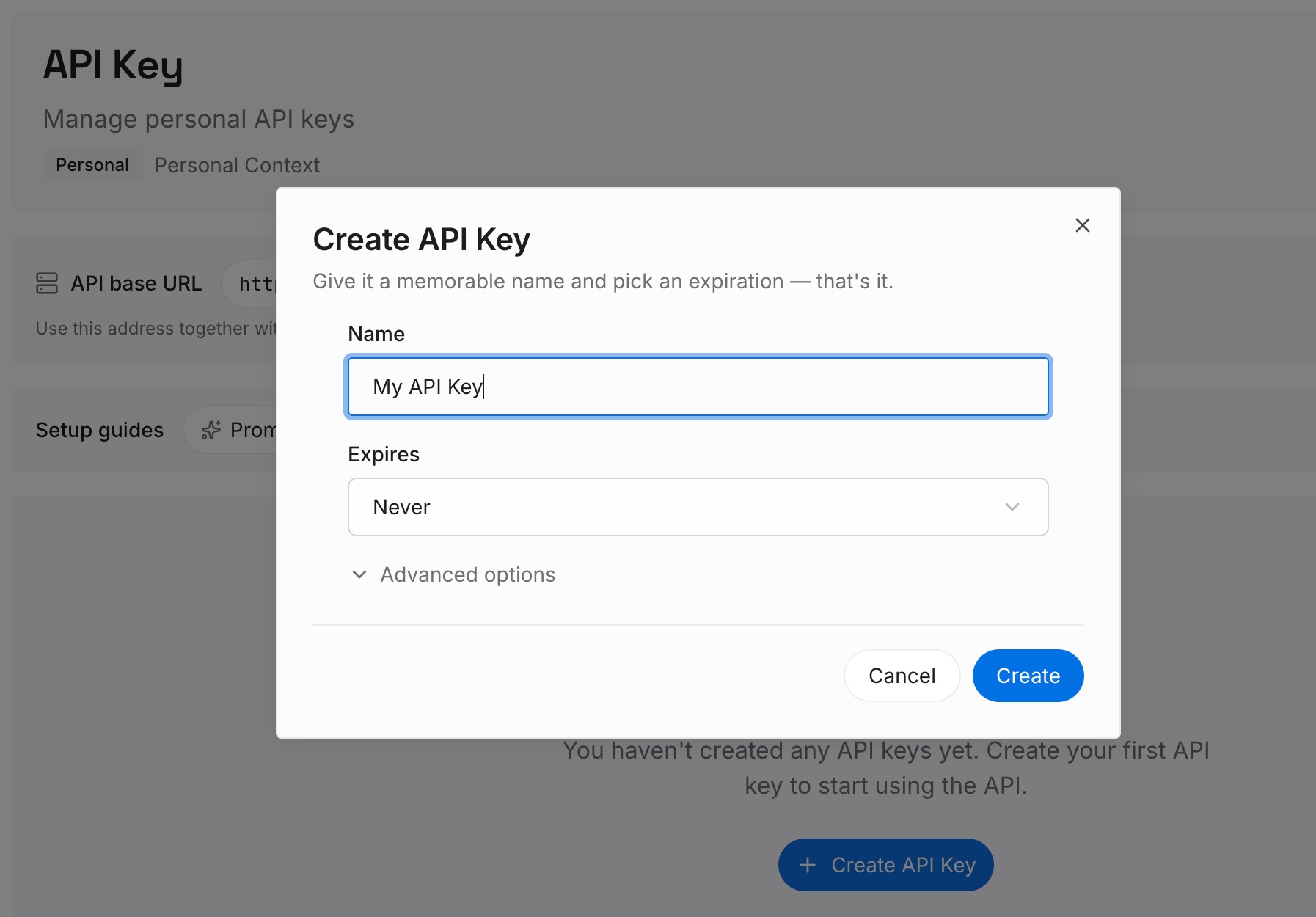
Step 1: Create an API key
Sign in and generate a key from the dashboard. Keep it somewhere private.
Step 2: Upload your first memories
Start with what you wrote in Step 4 of the fix: the context you want an assistant to have. Leave out what you deleted on purpose.

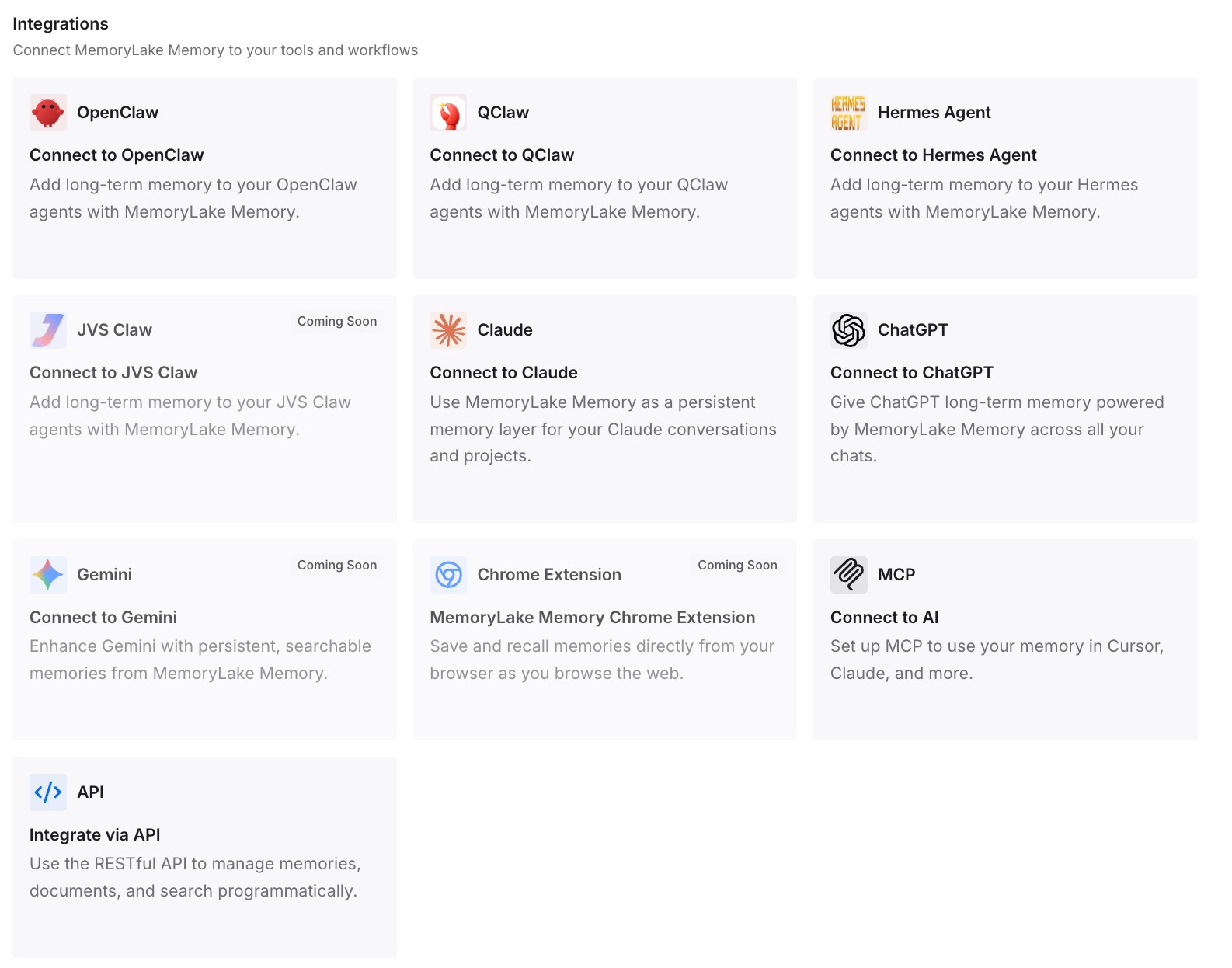
Step 3: Connect your AI & agents
Connect ChatGPT, Claude Code, Codex, and the other assistants you use, so each one draws on the same notes.
What this changes in practice
The first difference is clarity. You know exactly what you've chosen to keep, because you wrote it.
The second is easier deleting. Clearing ChatGPT's memory doesn't mean losing context you wanted.
The third is consistency. The same notes are available across the assistants you use.
Best practices for deleting things from ChatGPT
Delete the saved memory and the chat. Each one leaves the other behind.
Check archived chats. Archiving keeps a chat and its contents.
Delete uploaded files separately. They stay in Library or Space.
Use Sources to trace a detail. They show where some context came from.
Allow time for changes to propagate. Check again later before assuming deletion failed.
Use temporary chats for sensitive topics. They don't create memories unless you save them.
Check your dot. It has its own memory.
Conclusion
ChatGPT can still use a detail from a deleted chat because the chat isn't the only place that detail lives. Saved memories are stored separately, information from chat history updates over time, the same detail may be in other or archived chats, uploaded files stay in Library or Space, and a dot keeps its own memory.
To remove a detail, delete the saved memory and the chat where you shared it, then clear the other places OpenAI lists. Deleted chats leave your view immediately and are scheduled for permanent deletion within 30 days, and memory changes take time to propagate. Options like Don't mention this again reduce mentions without deleting the source.