
Why exporting a Codex chat is worth a minute
Local history depends on your settings
By default, Codex keeps a local record. OpenAI's configuration guide says "By default, Codex saves local session transcripts under CODEX_HOME (for example, ~/.codex/history.jsonl)." Whether it holds what you'll want later depends on your settings.
Two settings change it. Setting persistence to none under [history] turns local history persistence off. And history.max_bytes caps the file: "When the file exceeds the cap, Codex drops the oldest entries and compacts the file while keeping the newest records." For codex exec runs, the --ephemeral flag runs Codex "without persisting session rollout files to disk."
If you or your team set any of these, the transcript you'd want to search later may not be there.
Compaction rewrites the chat
Long sessions can be compacted, automatically at the threshold set by model_auto_compact_token_limit or by hand. The /compact command "replaces earlier turns with a concise summary, freeing context while keeping critical details." That's what you want for the context window, but the earlier turns in the active chat are replaced by a summary. An export taken before compacting keeps the full exchange.
Deleting is permanent
Archiving and deleting are different. /archive removes a session from active lists while keeping its transcript, and you can restore it with codex unarchive. /delete doesn't offer that: "Codex permanently deletes the transcript and spawned descendant sessions."
Memories don't hold the chat either
Codex has a memory feature, but it isn't a copy of your conversations. OpenAI says "ChatGPT web uses ChatGPT memory, while local Codex clients use a separate local memory store and controls." In the desktop app, Codex memories are turned on or off "for the selected machine." OpenAI also advises against relying on them for anything that must apply: "Treat memories as a helpful recall layer, not as the only source for rules that must always apply." Our guide to turning on Codex local memories covers how they work.
What Codex gives you for getting a chat out
/export: the full conversation as Markdown
In the Codex CLI, type /export and choose Copy to clipboard or Save to file. OpenAI's slash command reference says "Codex exports the complete conversation as Markdown." To skip the menu and write a file directly, run /export session.md. One condition: "Wait for the current turn to finish before exporting."
/copy: just the latest answer
When you only need the last result, /copy "copies the latest completed Codex output to your clipboard." You can also press Ctrl+O from the main TUI. If a turn is still running, it copies the latest completed output instead of the response in progress. The command isn't available before the first completed output or right after a rollback.
/recap: a summary without compacting
/recap generates a summary of the current conversation when Codex is idle. The reference describes its purpose as "Catch up on the chat without compacting its context." It works even if you've turned off automatic recaps. A recap is a good starting point for the notes you keep, but it's a summary, not the transcript.
Scripted runs: write the output to a file
For runs started with codex exec, two flags capture output without a slash command. --json prints "newline-delimited JSON events instead of formatted text." And --output-last-message writes "the assistant’s final message to a file", which OpenAI calls "Useful for downstream scripting."
Resume and fork: keep working in the chat itself
Sometimes you don't need a file at all, just the session back. codex resume will "Continue a previous interactive session by ID or resume the most recent chat." For scripted runs, codex exec resume takes a session ID, or --last to "continue the most recent session from the current working directory", and --all to consider sessions from any directory. codex fork creates a new chat from an earlier one, "preserving the original transcript."
These keep the conversation going, but they depend on the session still being on disk. An export is the copy that doesn't.
The desktop app
The /export command is documented in the CLI reference. In the ChatGPT desktop app, the keyboard shortcut list includes Copy conversation path, marked as Codex only, which copies the conversation's path. The desktop app's documentation doesn't describe an export command, so for a full Markdown export, the CLI is the documented route.
What an export captures, and what it doesn't
An export is the conversation as text. The code changes themselves live in your working tree and your git history, so commits and /diff remain the record of what changed. /diff shows "changes you've staged, changes you haven't staged yet, and files Git hasn't started tracking".
The export also doesn't sort anything for you. A Markdown transcript of a three-hour session contains every dead end and every tool call. That's useful as an archive and hard to use as a reference. The useful part is what the chat figured out, and pulling that out is a separate step.
What people try first
Relying on local history. It's on by default, but a [history] setting, a size cap, or --ephemeral on codex exec runs can mean the transcript isn't there when you look.
Compacting first, exporting later. After /compact, the earlier turns in the active chat are a summary.
Deleting a finished session to tidy up. /delete is permanent. /archive keeps the transcript and can be undone.
Treating Codex memories as the record. They're a per-machine recall layer, and OpenAI recommends keeping required guidance in AGENTS.md or checked-in documentation.
Pasting the whole export into the next session. It works, but a long transcript fills the context window with dead ends. A summary carries the same conclusions in a fraction of the space.
Saving the export and never opening it. A raw transcript is an archive. It doesn't help the next session unless you pull out what matters.
The Fix: Export the full chat, pull out what it figured out, then put it where the next session will find it
Step 1: Export before you compact, archive, or delete
When a session reaches a result worth keeping, export it while it's whole. Wait for the current turn to finish, then run /export with a file name that says what the session was for, such as /export auth-retry-fix.md. Save it outside the repository unless your team keeps session notes in version control.
If you're about to run /compact to free context, export first. The same goes for /delete.
Step 2: Pull out the conclusions
Open the export and write a short summary. Running /recap first can give you a starting point. Keep four kinds of information:
- Decisions: what you chose and why.
- Dead ends: what you tried that didn't work, so the next session doesn't repeat it.
- Working commands and settings: the exact flags, environment variables, or steps that made it work.
- Open questions: what's left and what you'd check next.
Leave out anything sensitive the session handled, such as credentials, tokens, or customer data. A useful summary for a debugging session might read: the retry bug came from a timeout set in two places; changing only the client value didn't work; setting both and restarting the worker fixed it; the integration test still needs a fixture for the slow path.
Step 3: Put the conclusions where the next session will see them
Repository rules and conventions belong in AGENTS.md or checked-in documentation, where OpenAI recommends keeping required team guidance. Notes that are useful but not rules, like why you chose one library over another, can go in your own notes or a memory layer.
When you start the next session, point Codex at the summary instead of the full transcript. A short, accurate summary takes up less context than the original conversation. Our guide to why Codex forgets project context covers what Codex loads on its own.
Setting this up in MemoryLake
The export solves half the problem: the chat is saved. What's left is making its conclusions available without someone digging through a Markdown transcript, in Codex and in the other tools you use for the same project.
MemoryLake is a memory layer for keeping those conclusions in one list you maintain, available to Codex and the other assistants you connect, such as Claude Code and ChatGPT.
You write the entries yourself, in your own words. Nothing is read out of, written to, or deleted from your Codex sessions, your history.jsonl, your exported files, your Codex memories, or any vendor's store. Leave out credentials and anything your team's policy keeps in the repository.
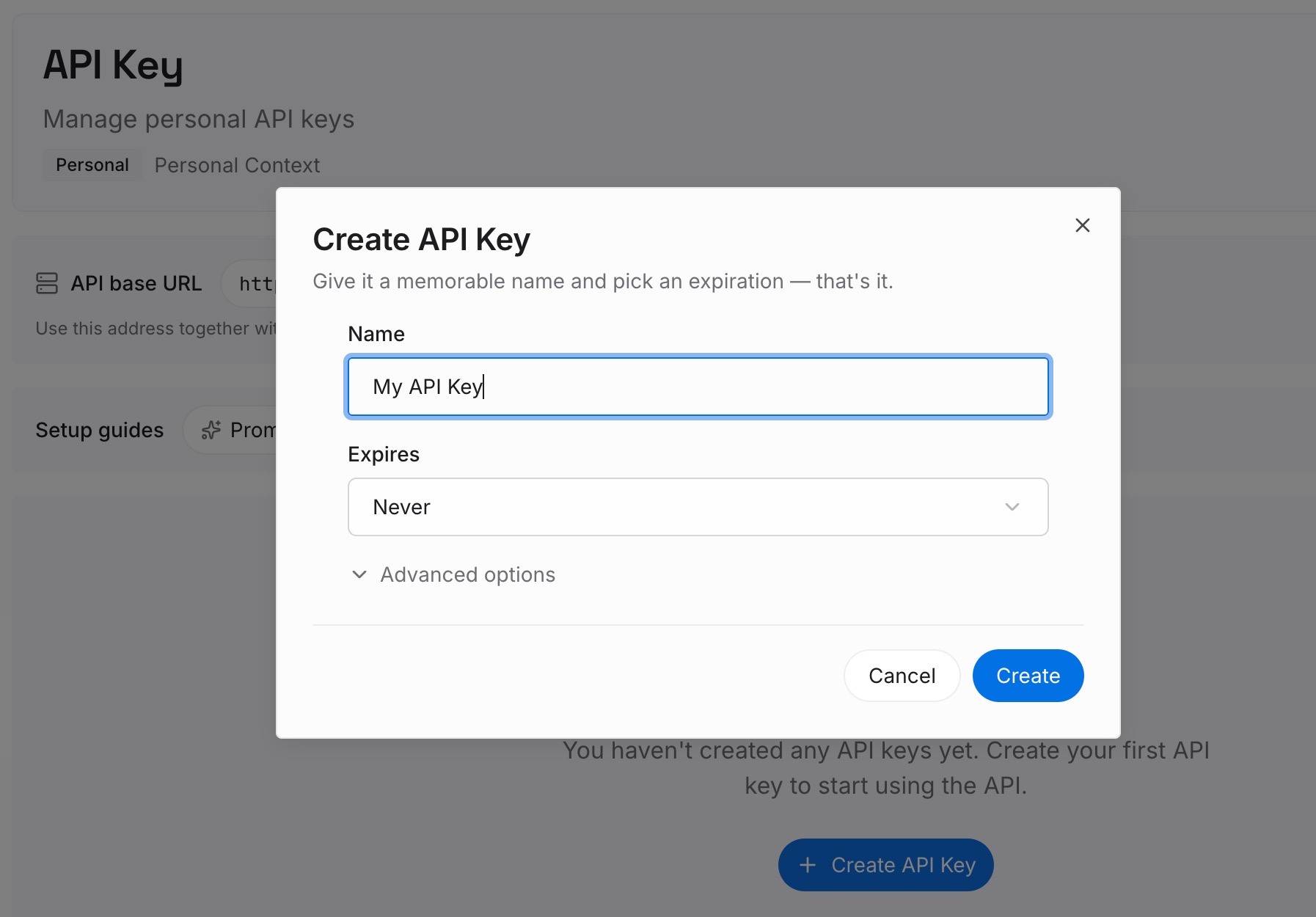
Step 1: Create an API key
Sign in and generate a key from the dashboard. The key belongs to your MemoryLake workspace and is separate from your ChatGPT and Codex sign-in.
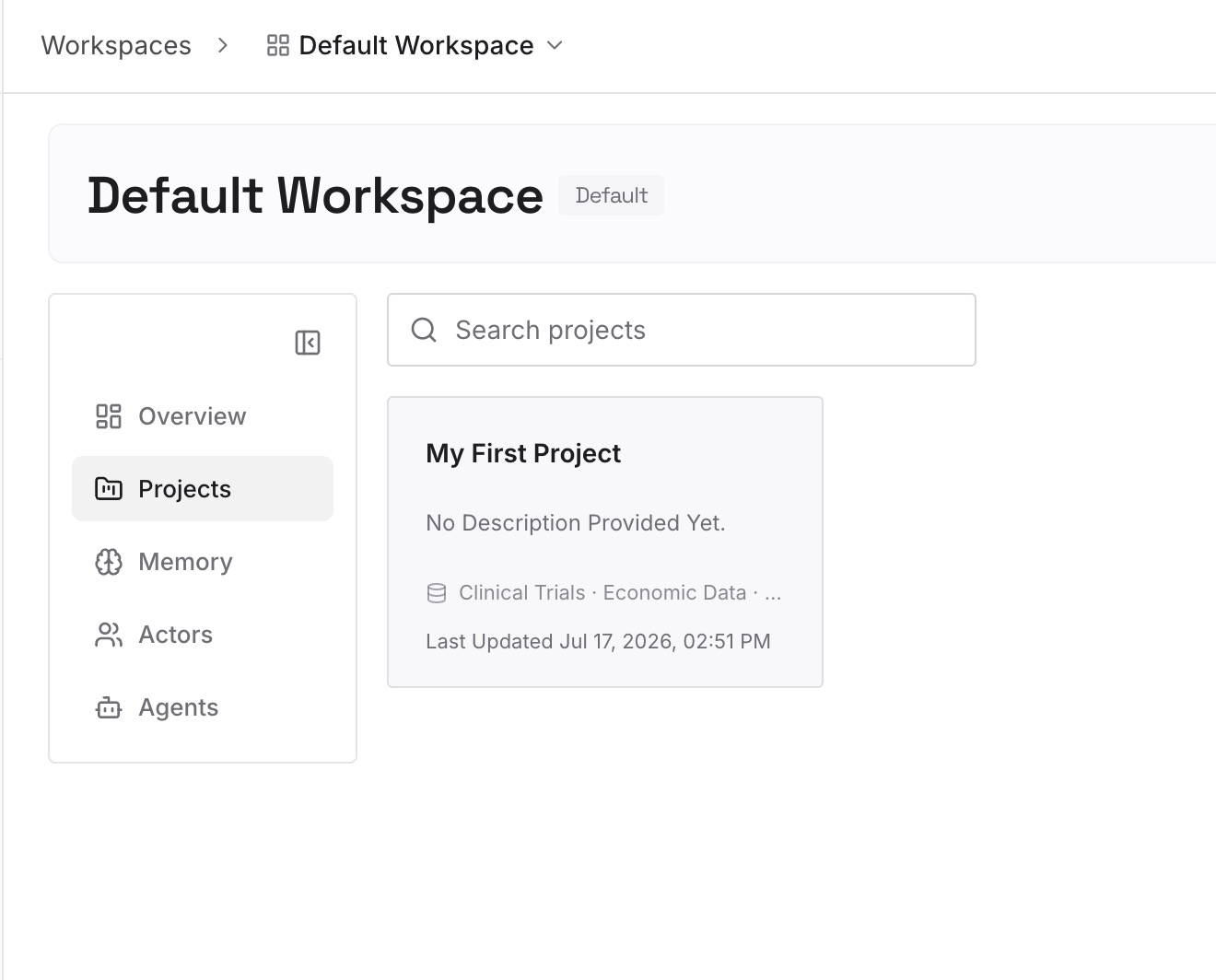
Step 2: Upload your first memories
Start with the summary from Step 2 of the fix: the decisions, dead ends, and working commands from the sessions you exported. One point per entry, dated, and labeled with the repository or task.
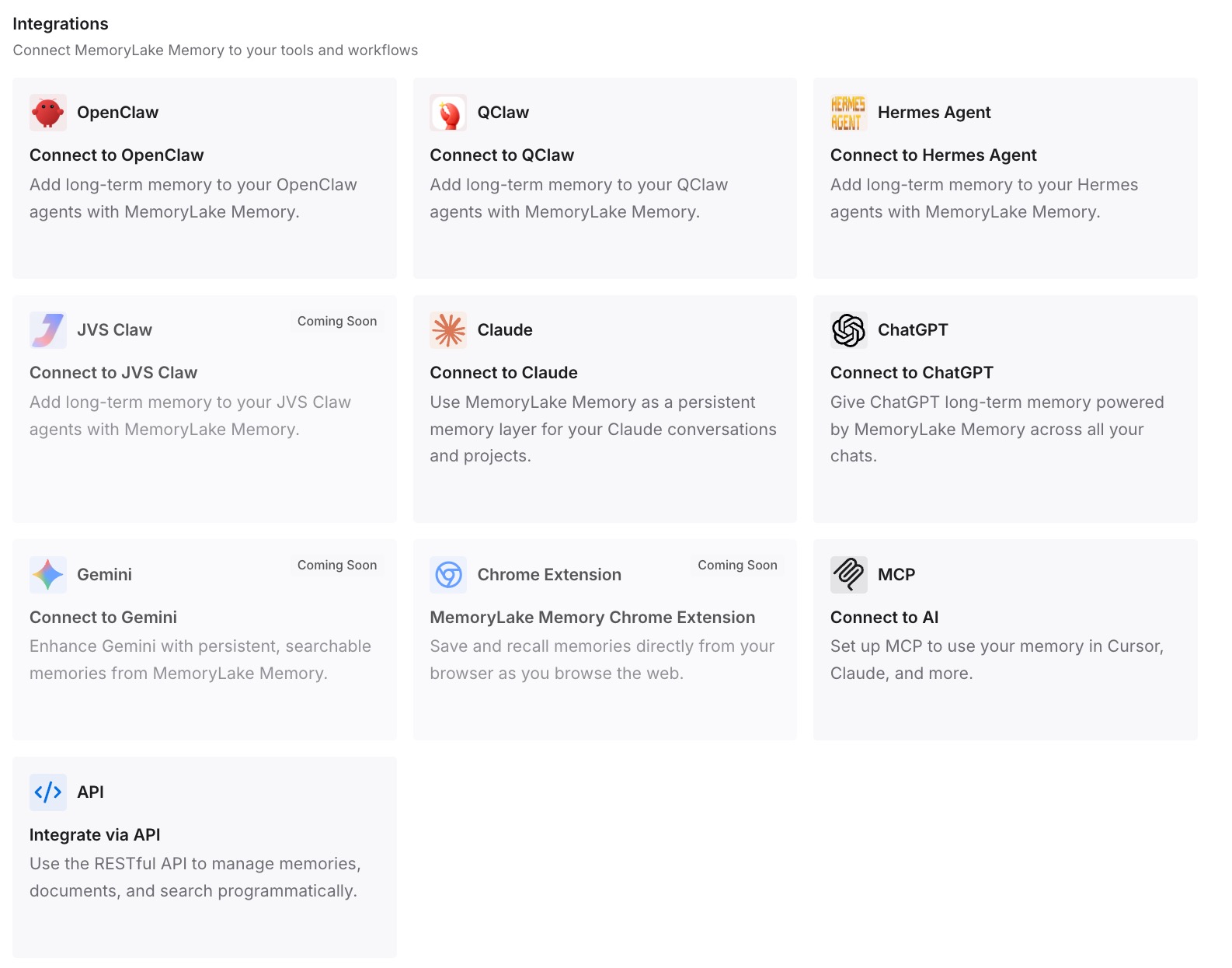
Step 3: Connect your AI & agents
Connect Codex and the other assistants you use. The next session on the same problem starts with what the last one figured out.
What this changes in practice
The first difference is that a finished session leaves something behind. The full transcript is saved, and the conclusions are written down in a form you'll actually reread.
The second is that the next session starts further along. It knows the dead ends and the working commands, so it doesn't spend the first hour rediscovering them.
The third is that the work travels between tools. If you switch part of a project to another agent, the conclusions go with you. Our guide to moving from Codex to Claude Code covers that move, and our guide to exporting a Claude Code session covers the other direction.
Best practices for exporting Codex chats
Export while the chat is whole. Before /compact, /archive, or /delete.
Wait for the turn to finish. OpenAI says to before exporting.
Name the file after the outcome. You'll find it faster later.
Use /copy for a single answer. Ctrl+O does the same from the main TUI.
Capture scripted runs with flags. Use --output-last-message or --json with codex exec.
Archive instead of deleting. /archive keeps the transcript, and codex unarchive brings the session back.
Check your history settings. Know whether [history], history.max_bytes, or --ephemeral is in play.
Summarize, then keep the summary. A raw transcript is an archive, not a reference.
Conclusion
Codex gives you several ways to get a conversation out. /export writes the complete chat as Markdown, /copy grabs the last answer, /recap summarizes without compacting, and codex exec flags capture scripted output. Local history exists by default, but settings can turn it off or trim it, /compact replaces earlier turns with a summary, and /delete is permanent.
Export a chat while it's whole, pull out its decisions, dead ends, and working commands, and put rules in AGENTS.md and everything else where your next session will find it.