
The short answer
Claude's Chat Memory summarizes conversations rather than storing them verbatim, stays locked to one account, and doesn't reach other AI tools. To get memory that persists and travels, connect Claude Desktop to an external memory layer over MCP — your context lives in one Project that Claude and every other MCP tool can read.
Why Claude's built-in memory still falls short
Chat Memory is a real step forward, but it has three structural limits. First, it summarizes — Claude decides what's worth keeping, so the precise instruction or fact you needed is often compressed away. Second, it's per-account and per-product: the memory in your Claude chats doesn't show up when you switch to ChatGPT, Cursor, or a coding agent. Third, it's not yours to version or audit — there's no history of what changed or why.
For light personal use, that's fine. For anyone running real work across several AI tools, it means you're still the memory: re-explaining context, re-pasting rules, and starting over whenever you move tools. The fix isn't a better summary — it's an external store that keeps your context intact and lets every tool read the same source.
Before you start
You'll need:
- A free MemoryLake account
- Claude Desktop (which supports MCP)
- The context you keep repeating — rules, preferences, or files (PDF, Word, Excel, PowerPoint, Markdown, or images)
How to give Claude memory that persists (step by step)
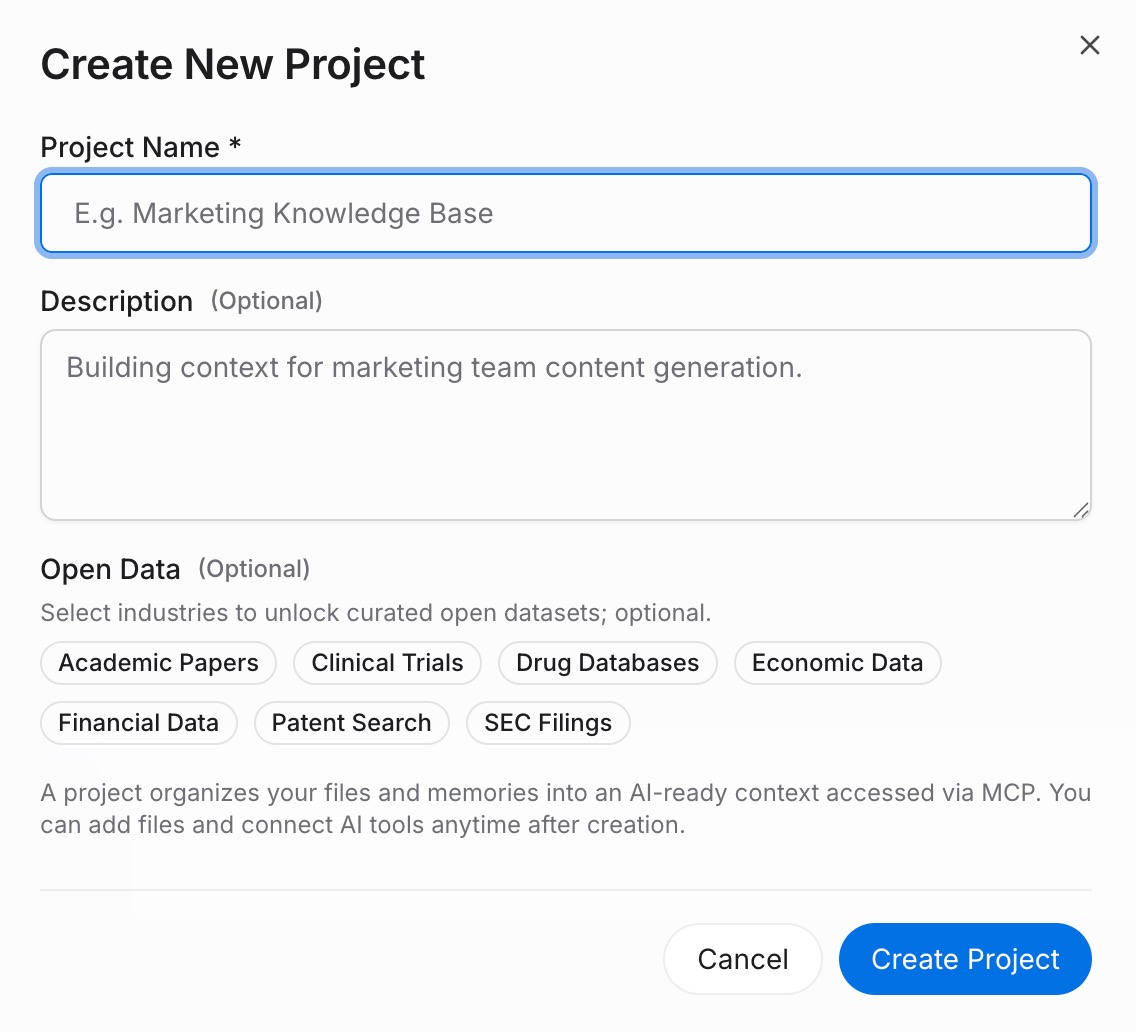
Step 1: Build a memory Project
Sign in to MemoryLake and open Project Management. Click Create Project and name it (for example, "Claude long-term memory"). Open the Document Drive, use Upload to add your files, then Documents Tab → Add Documents → Confirm to attach them. Add standing rules through the Memories Tab → Add Memory → Save.
Step 2: Generate an MCP Server endpoint
Open the MCP Servers Tab → Add MCP Server → describe it (for example, "Claude memory access") → Generate. MemoryLake returns a Key ID, a Secret, and an Endpoint URL. Copy the Secret immediately — it's shown only once.
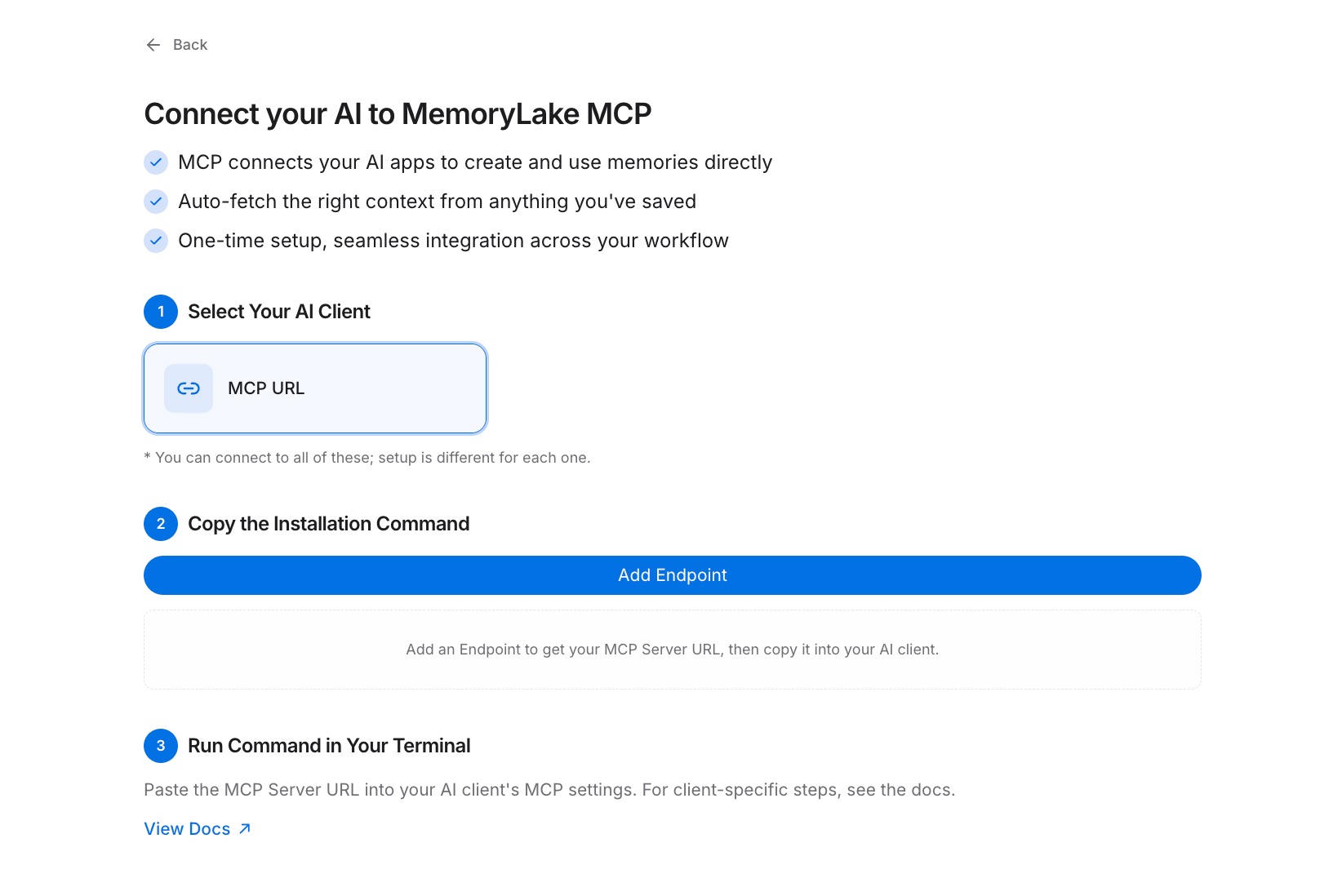
Step 3: Connect Claude Desktop over MCP
Add MemoryLake to Claude Desktop's MCP configuration: register the Endpoint URL as an MCP server and authenticate with the Secret as a Bearer token, then restart Claude Desktop. See the MCP setup guide for the configuration reference. Claude now reads your stored context on demand — and so does any other MCP tool you point at the same Project. [Try MemoryLake free]
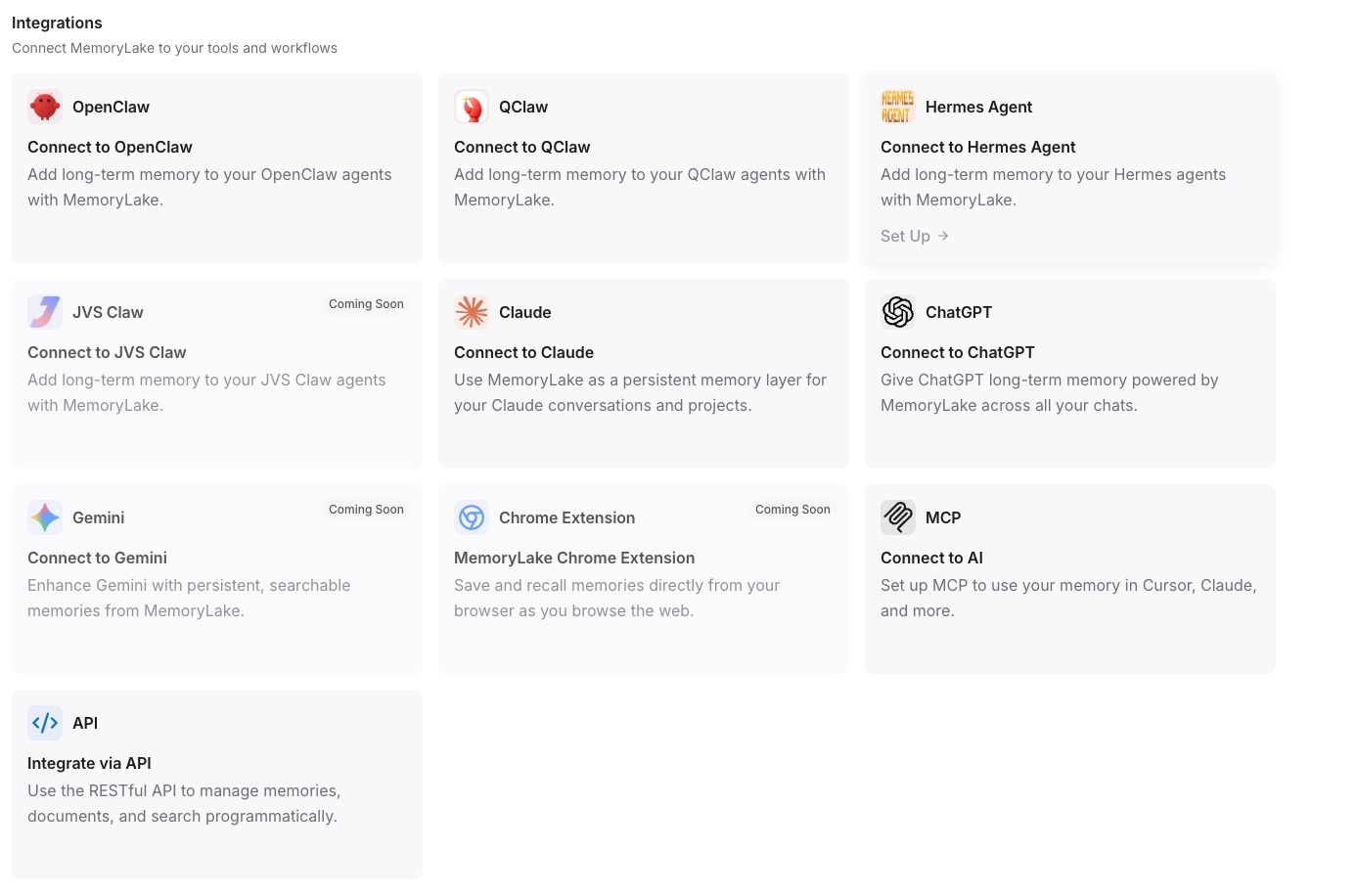
Claude Chat Memory vs MemoryLake
| Dimension | Claude Chat Memory | MemoryLake |
|---|---|---|
| Stores context | Summarized | Verbatim |
| Works across other AIs | No | Yes (ChatGPT, Cursor, any MCP tool) |
| Tied to one account | Yes | No — one Project, many tools |
| Version control | No | Yes (Git-style history) |
| Data ownership | Platform-held | You own it (AES-256, export or delete) |
| Benchmark | — | LoCoMo #1 — 94.03% |
Tips & best practices
- Put durable rules in named Memory entries so Claude retrieves them precisely instead of from a summary.
- Keep separate Projects for separate contexts (work, a side project) so Claude pulls only what's relevant.
- Point Cursor or GitHub Copilot at the same Project to carry the exact same memory into your editor.
- Re-generate the MCP key if it leaks; the old Bearer token stops working at once.
Troubleshooting
- Claude Desktop doesn't see the server: confirm the MCP entry is saved and restart the app.
- Authentication fails: check the Secret is set as a Bearer token and the Endpoint URL is exact.
- "Secret not found": it's shown only once. Revoke and Generate a new key in the MCP Servers Tab.
Give Claude a memory that travels
Set up one Project and Claude stops forgetting — and the same memory follows you into every other AI tool.