
The short answer
Personal AI assistants forget because they store context inside a single session rather than in a persistent external store. To fix this, create a MemoryLake Project, add your facts and files there, generate an MCP Server endpoint, and point your AI assistant at that endpoint — your context now survives every session reset and travels across every tool you use.
Why your AI assistant's built-in memory falls short
Most personal AI assistants in 2026 handle memory in one of two ways: they either start fresh every session, or they maintain a lightweight in-app note that summarizes what you've shared. Both approaches share the same structural weakness — context lives on the platform's servers in a format the platform controls.
That creates three concrete problems. First, summaries compress details. The specific rule you set — "always respond in bullet points under 80 words" — gets flattened into "user likes concise answers," and the nuance disappears. Second, memory is siloed. The context in one assistant doesn't travel to another. If you use ChatGPT for writing and a different agent for research, you start from zero every time you switch. Third, you have no visibility into what's stored or how it changes. There's no audit trail, no way to roll back a bad update, and no guarantee you can get your data out.
The result is a daily tax: you spend the first few minutes of every session re-orienting the tool before it becomes useful. An external memory layer eliminates that tax by keeping context in one place every tool can reach.
Before you start
You'll need:
- A free MemoryLake account
- Any AI assistant or agent that supports MCP (or an HTTP client if you prefer the REST approach)
- The context you keep repeating — preferences, standing instructions, reference documents in PDF, Word, Excel, PowerPoint, Markdown, or image formats
How to give your personal AI assistant lasting memory (step by step)
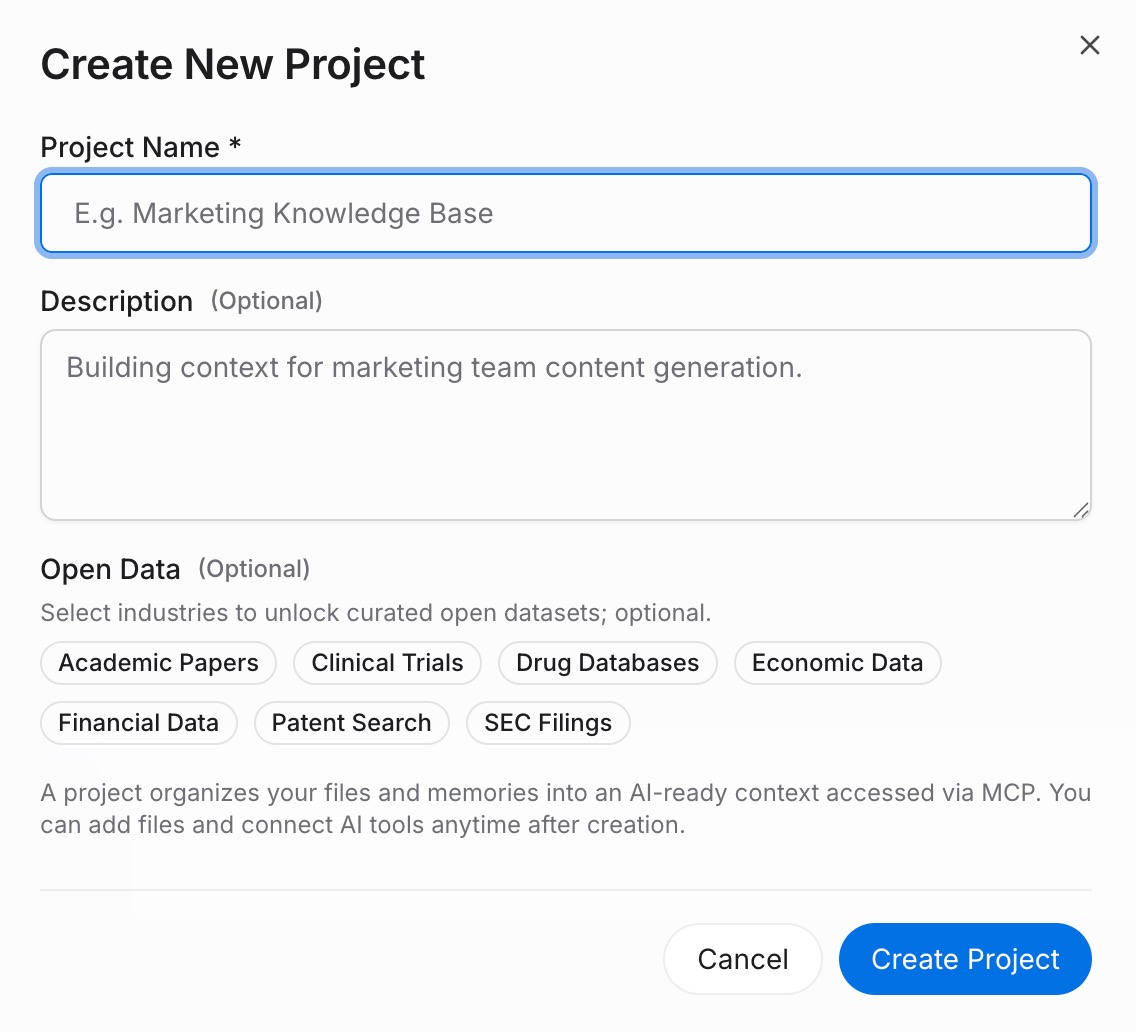
Step 1: Build a memory Project
Sign in to MemoryLake and go to Project Management. Click Create Project and give it a clear name — "Personal AI Memory" works well as a default. Inside the project, open the Document Drive and click Upload to add any reference files. Then go to Documents Tab → Add Documents → Confirm to attach them to the project. For standing rules and preferences that don't live in a file, go to Memories Tab → Add Memory, type each rule as a discrete entry, and click Save. Discrete entries retrieve better than long blocks of prose, so keep each memory focused on one fact or instruction.
Step 2: Generate an MCP Server endpoint
Open the MCP Servers Tab and click Add MCP Server. Give the server a descriptive label — "Personal assistant memory" is enough — then click Generate. MemoryLake returns three values: a Key ID, a Secret, and an Endpoint URL. Copy the Secret to a password manager immediately. It is shown only once; if you close the panel without saving it, you must revoke the key and generate a new one.
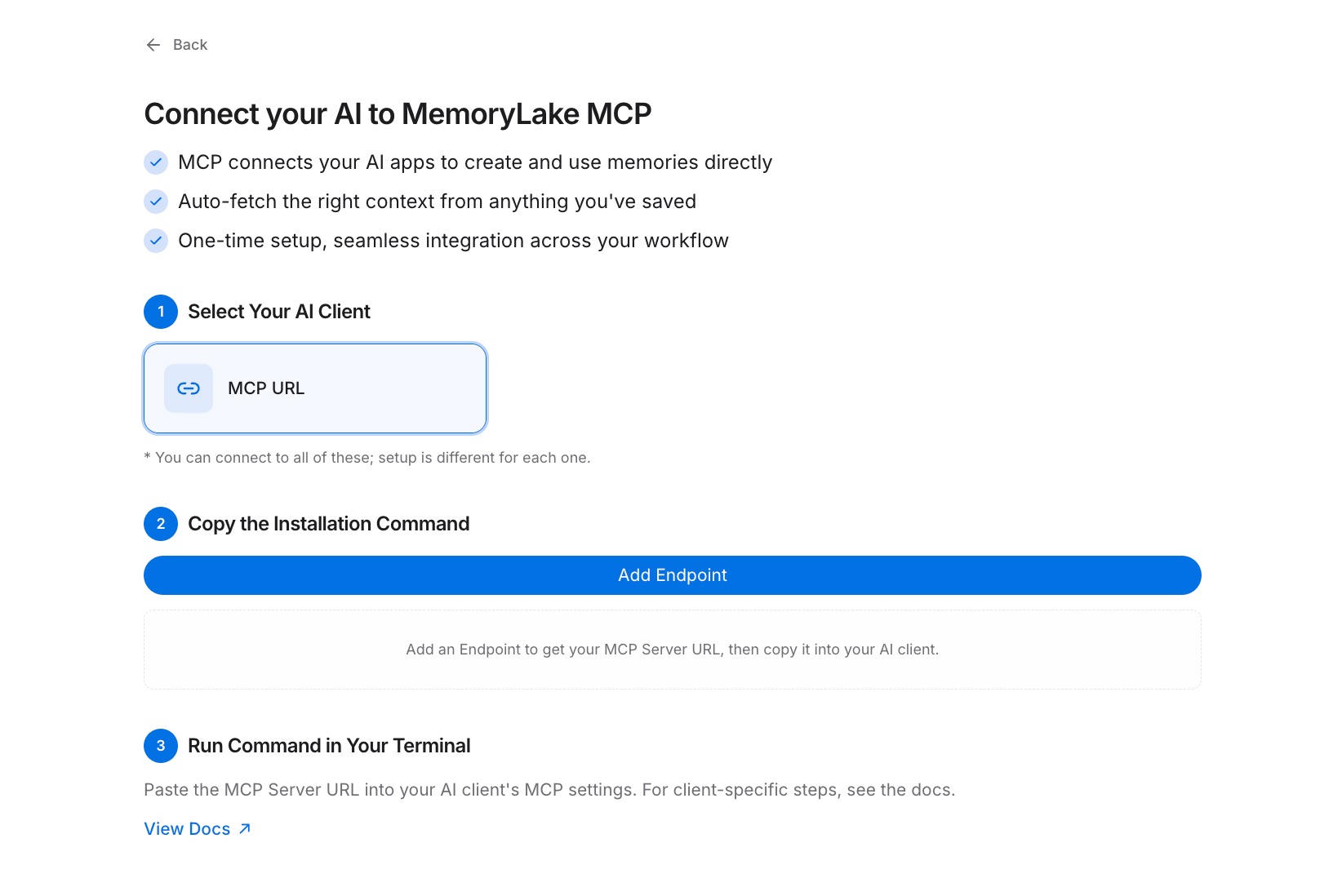
Step 3: Connect your AI assistant over MCP
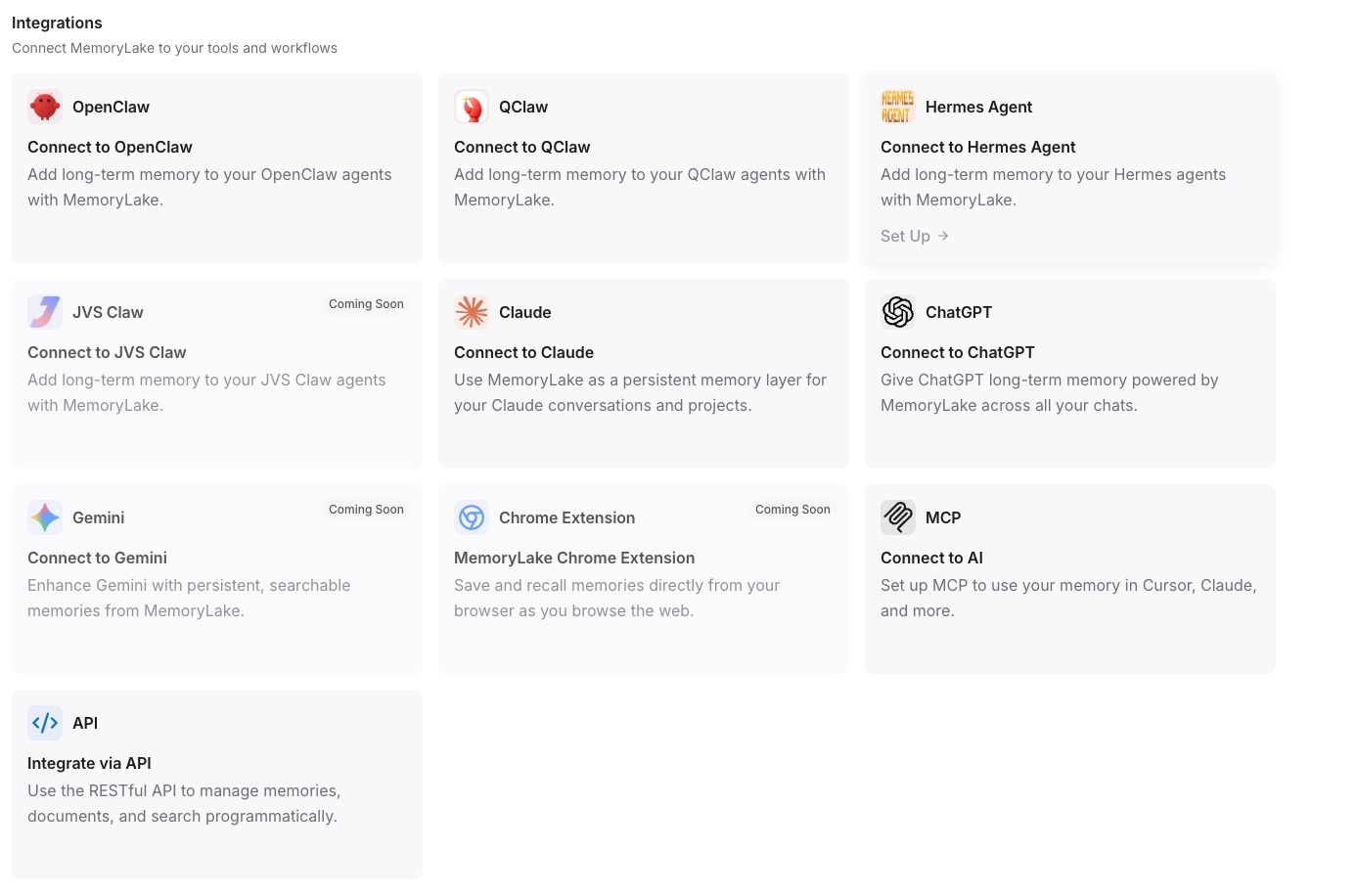
Open your AI assistant's MCP or integration settings. Register the Endpoint URL as a new MCP server entry and set the Secret as the Bearer token for authentication. Save the configuration and restart the assistant if it requires a restart. From that point on, the assistant reads your MemoryLake Project on demand — and so does any other MCP tool you connect to the same endpoint. See the MCP setup guide for configuration syntax across common clients. [Try MemoryLake free]
Built-in assistant memory vs MemoryLake
| Dimension | Built-in assistant memory | MemoryLake |
|---|---|---|
| Persists across sessions | Varies — often summarized or reset | Yes — verbatim, always available |
| Works across other AIs | No — siloed per platform | Yes (ChatGPT, Claude, Gemini, any MCP tool) |
| Capacity | Platform-limited | Project-based, scales with your content |
| Version control | No | Yes (Git-style history) |
| Data ownership | Platform-held | You own it (AES-256, export or delete anytime) |
| Benchmark | — | LoCoMo #1 — 94.03% |
Tips & best practices
- Write memories as single-purpose statements. "Reply in British English" retrieves cleaner than "I have several preferences about writing style."
- Create one Project per life context — personal, work, creative projects — so your assistant only reads what's relevant to the current task.
- Store reference documents (style guides, project briefs, personal SOPs) in the Document Drive rather than pasting them into every chat.
- Rotate your MCP Secret every 90 days. Revoke the old key in the MCP Servers Tab and generate a fresh one; active connections update immediately.
Troubleshooting
- The assistant reports it can't find the MCP server: double-check that the Endpoint URL is pasted without trailing spaces and that the MCP entry was saved before you restarted the app.
- Authentication errors on every request: confirm the Secret is entered as a Bearer token, not as a query parameter or a plain API key field — the format matters.
- Memory entries don't appear in responses: verify the entries are in the correct Project and that the MCP Server is linked to that Project, not a different one.
One setup, zero re-introductions
Build the Project once and your AI assistant arrives informed on every conversation — no matter which tool you open or how long it's been since you last used it.