
Why your Claude conversation in Google Docs seems to disappear
The answer is in the sidebar description. "Conversations are saved per file in your browser and come back when you reopen Claude in that file. They do not sync across devices or browsers, and a copy of the file starts fresh."
The troubleshooting entry lists the cases: "Chat history is saved in your browser per file. It will not be there in a different browser, in a private window, after clearing site data, or in a copy of the file made with File, Make a copy." The privacy section repeats it: "Chat history is stored locally in your browser, per file and is not synced across devices."
That storage choice has a benefit too. Your collaborators do not see your conversation. Anthropic answers the question directly: "No. The conversation lives in your browser. Collaborators see Claude's edits in the file and in version history, attributed to you, but not your chat."
The same article describes what Claude reads while it works. "When you send a message, Claude reads the relevant parts of the open file, plus whatever you have selected." It also draws the boundary: "Apart from content from any connectors you turn on, it cannot see other files in your Drive, your email, or your calendar." And it tells you what to do about that: "If you need Claude to use content from somewhere else, paste it into the chat or attach a file."
This is a different product from Claude on claude.ai. There, Claude "can also remember context from your chats and carry it into new conversations and Cowork tasks," and projects let you "create self-contained workspaces with their own chat histories and knowledge bases." The Google Workspace support article describes the sidebar's sources as the open file, your selection, attachments and connectors, and its chat history as local to one browser. Anthropic also notes the reverse direction is a separate feature: the Google Workspace connectors "let Claude search and reference your Drive, Gmail, and Calendar while you chat at claude.ai."
Put together, the context you build in a sidebar conversation lives in one place: the browser where you had it.
Local does not mean invisible to your organization, though. On Enterprise plans, Anthropic says "sessions from the Google extension are available through the Compliance API, including prompts, responses, tool calls, and the edits Claude made." The copy in your browser is the one you can reopen; your organization's compliance tools are a separate matter. To clear the local copy, Anthropic's instruction is short: "Clear it from Settings in the sidebar."
What people try instead
Always using the same computer. It works until it doesn't: a new laptop, a cleared cache, a private window, or a colleague picking up the document.
Making a copy to try something risky. A copy is a sensible way to experiment, but Anthropic says "a copy of the file starts fresh." The conversation stays with the original in your browser.
Leaving instructions for Claude inside the document. The file is the right place for context, but how you write it matters. Anthropic states that "Claude treats document content as data rather than commands," which protects you from instructions planted in shared files. It also means a line in the document telling Claude to always do something is read as content, not as an order.
Repeating the whole briefing every time. This works, but it is slow, and each retelling drifts a little from the last.
Assuming your claude.ai memory fills the gap. The add-on's support article describes the open file, selection, attachments and connectors as its sources. Context you have built on claude.ai may help you write a good briefing, but plan as if the sidebar starts from the file. For how memory works on claude.ai itself, see why Claude forgets previous conversations.
The Fix: Put the context in the file, and keep the decisions somewhere durable
Step 1: Know where each conversation lives, and treat it as temporary
Start by changing your expectation. The sidebar conversation is a working session, not a record. It will be there on this browser for this file, and nowhere else.
That makes the end of each session the important moment. Before you close the sidebar, ask Claude to summarize what you worked out: the decisions made, the constraints you explained, the open questions, and anything you told it about the audience or the goal. Read the summary and correct it.
Then decide where each part of that summary belongs. Things that describe the document belong in the document. Things that describe you, the client or the project belong somewhere you can reuse outside this file.
Keep the sidebar open while Claude is working, too. Anthropic notes: "Keep the sidebar open while Claude is working. Closing it stops the current task."
Step 2: Write the context Claude needs into the file itself
Claude reads the open file, so make the file carry its own context.
In Google Docs, add a section or a tab for working notes: the purpose of the document, the audience, the decisions already made, terms with specific meanings, and what is still open. Claude can read every tab, as Anthropic's limitations list notes: "It can read and edit the content of every tab." You create the tab yourself, since Claude cannot create, rename or reorder tabs.
In Google Sheets, add a notes tab that explains the model: what each input represents, which assumptions are fixed, which figures come from outside the sheet, and which cells should not be touched.
In Google Slides, use speaker notes or a hidden appendix slide for the brief behind the deck. Anthropic's own example prompt draws on speaker notes: "Draft a five-slide project update from the bullet points in the speaker notes on slide 1."
Write these notes as facts and decisions, not commands. A line such as the audience is the finance committee, which has already approved the budget range is context Claude can use. Keep instructions about how Claude should act in the chat, where they belong.
Remember who else can read the file. Working notes are visible to everyone with access, and Claude's edits appear in version history under your name. Keep anything that should stay private out of the document.
Step 3: Bring outside context in deliberately at the start of each session
Some context does not belong in the file: your preferences, background on a client, decisions from other projects. For that, keep a short briefing you can paste or attach.
When you open the sidebar on a new device or a copy, start by pasting the briefing, then point Claude at the working-notes section. Ask it to confirm what it understood before it edits anything. If your organization has enabled connectors in Claude, those appear in the sidebar's add menu and can bring in specific external content.
Watch for context that lives in comments. Team discussion often sits in a document's comment threads, and Anthropic is direct about the gap: "Claude cannot read, reply to, or resolve comments. Paste a comment into the chat if you want Claude to act on it." If a decision was made in a comment, copy it into your working notes so it becomes part of the file Claude reads.
The briefing is also how you keep consistency across files. A proposal, its budget sheet and its pitch deck are three separate files with three separate conversations. The same briefing gives all three the same starting point.
Setting this up in MemoryLake
Step 3 describes context that belongs to you rather than to one file or one browser: preferences, client background, and decisions that span documents. MemoryLake is a place to keep that layer, so the briefing you paste into a sidebar comes from one maintained source instead of a note you rewrite each time.
You write the entries yourself, in your own words. Nothing is read out of, written to, or deleted from your browser's chat history, your Google files, or any vendor's store.
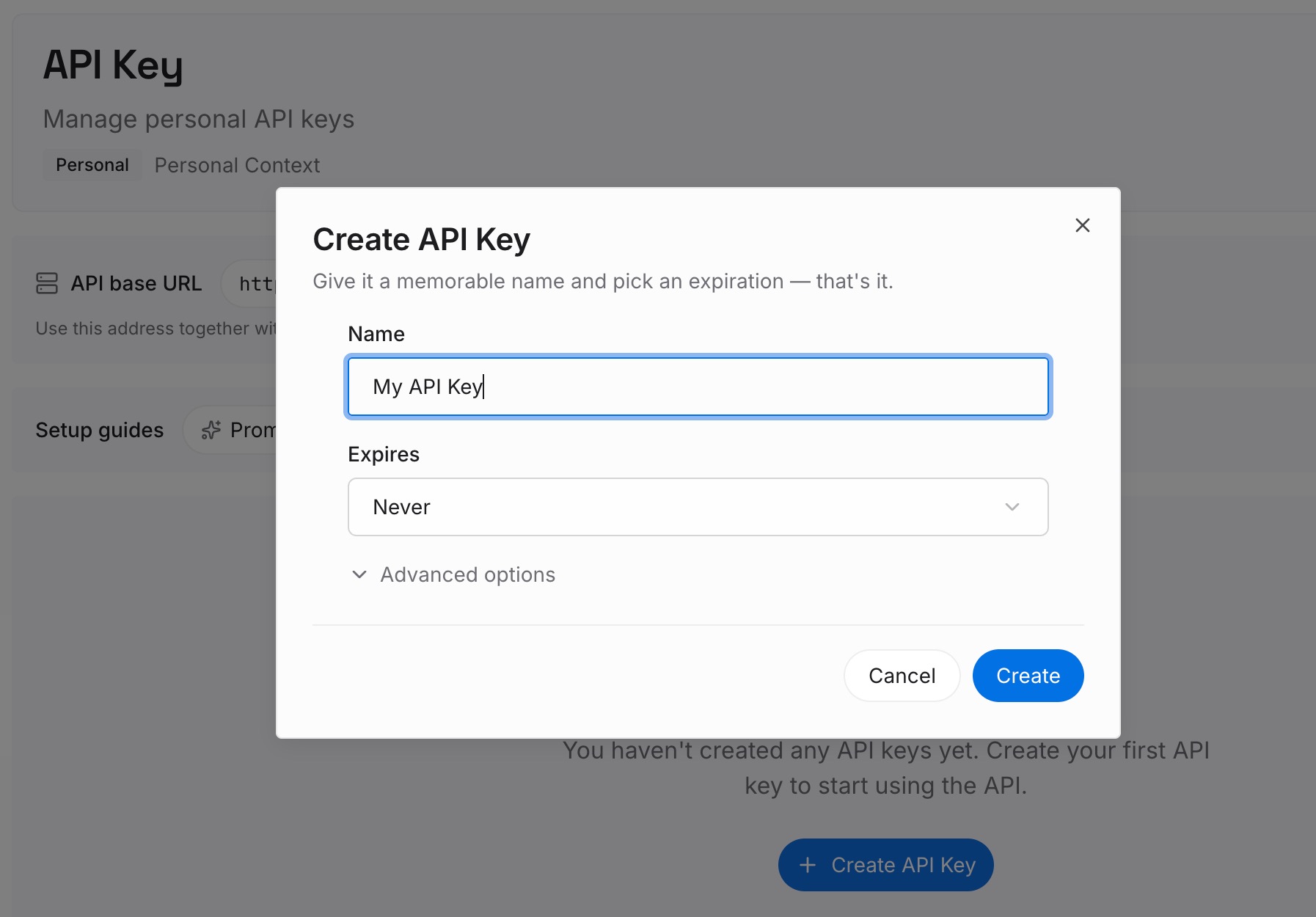
Step 1: Create an API key
Sign in and generate a key from the dashboard. The key belongs to your MemoryLake workspace, separate from your Google and Claude accounts.
Step 2: Upload your first memories
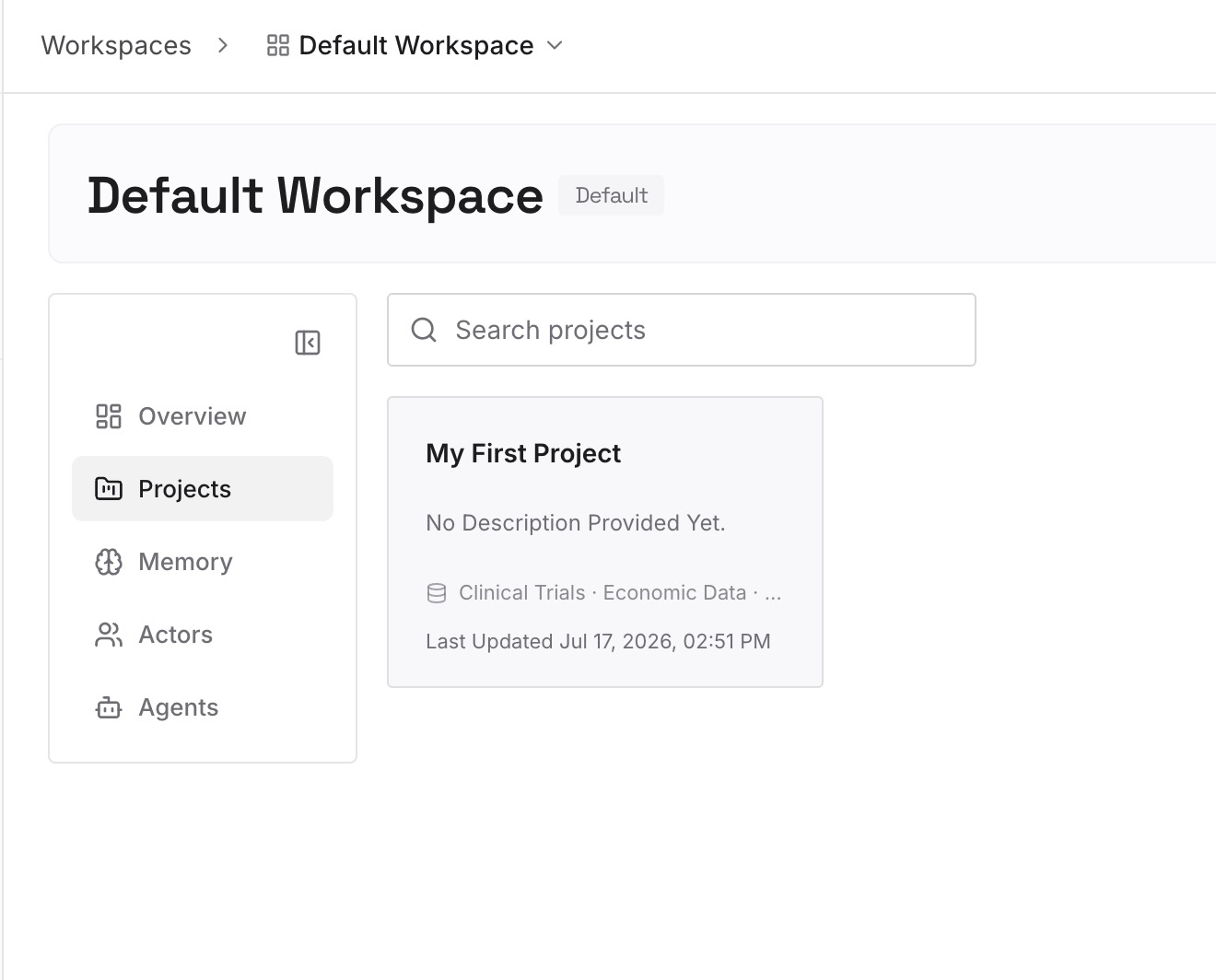
Start with the summaries from Step 1 that describe you, your clients or your projects rather than one file. One decision or preference per entry, dated.
Step 3: Connect your AI & agents
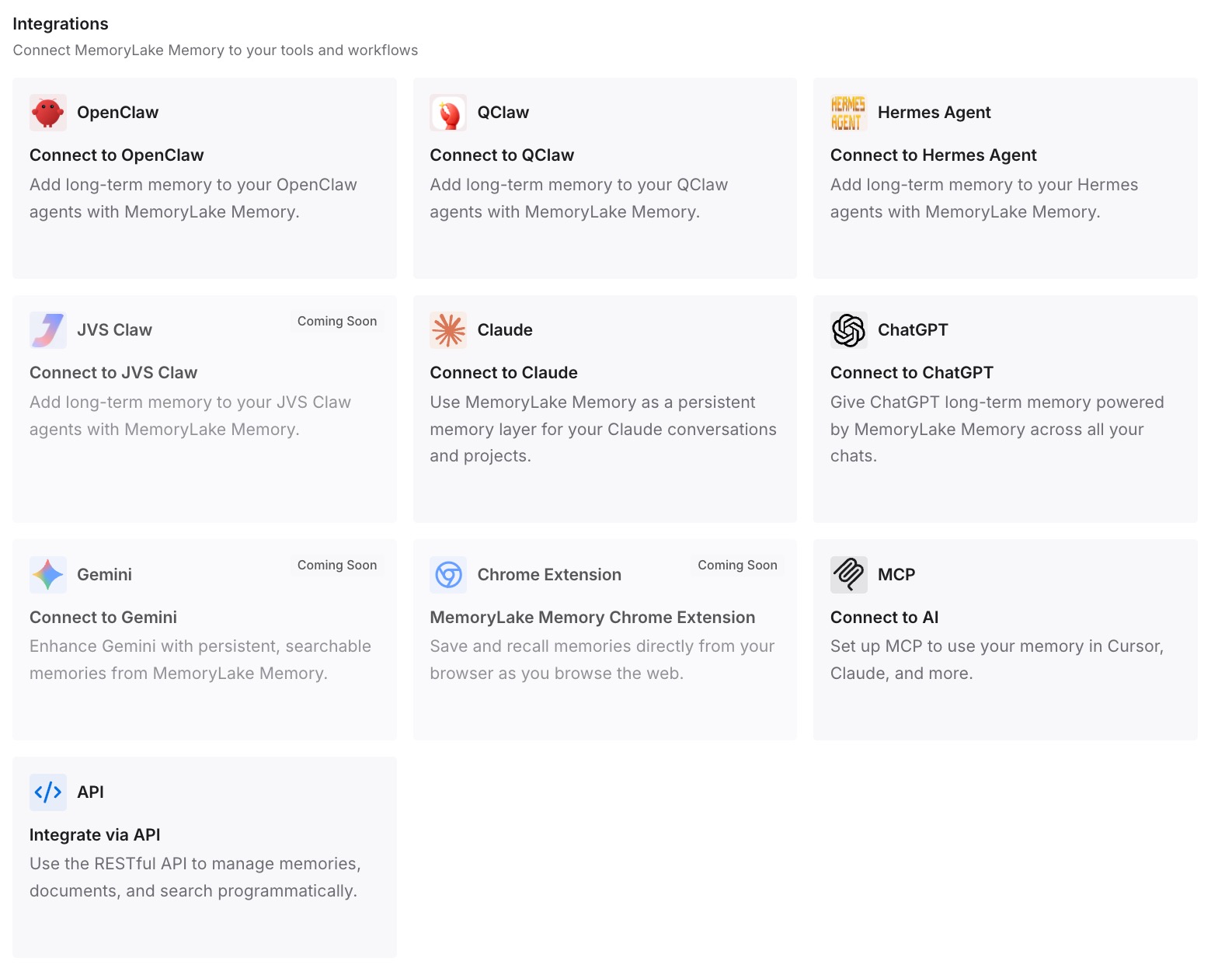
Connect Claude and the other assistants you use. Your briefing material is then in one place, ready to bring into a sidebar session on any device.
What this changes in practice
The first difference is that switching devices costs a paste, not an hour. The file carries its own context, and your briefing carries the rest.
The second is that copies stop losing their history. A copied file brings its working notes with it, even though the conversation starts fresh.
The third is that collaborators benefit. Your sidebar conversation stays private, but the working notes in the file help everyone, including a colleague who opens Claude on the same document. It is the same reason Claude forgets house conventions that live only in someone's head: context written into a shared place outlasts any one conversation.
The fourth is consistency across your tools. The same decisions inform a sidebar session, a chat on claude.ai, and a project, which matters because each has its own boundaries. See why Claude forgets project knowledge and how Claude projects handle thread memory.
Best practices for Claude in Google Docs, Sheets and Slides
Treat the sidebar chat as temporary. It is saved per file, per browser.
End each session with a summary. Then move the useful parts somewhere lasting.
Give each file a working-notes section. Claude reads the open file, including every tab.
Write context as facts, not commands. Claude treats document content as data.
Keep private details out of shared files. Working notes are visible to everyone with access.
Paste or attach outside context. The sidebar reads the open file, attachments and enabled connectors.
Keep a reusable briefing. It works across files, devices and copies. For keeping your style consistent across Claude surfaces, see rebuilding Claude styles and personal preferences, and for files that seem to fall out of context, why Claude forgets uploaded files.
Conclusion
Claude for Google Workspace brings Claude into Docs, Sheets and Slides, reading and editing the file you have open. Its chat history is saved per file in your browser, so it does not follow you to another device, another browser, a private window, or a copy of the file.
That is a reasonable design for privacy, and it means the conversation should not be where your context lives. End each session with a summary, write the file's own context into the file as facts, and bring outside context in with a briefing you keep elsewhere.
The sidebar conversation can then be short-lived without the work behind it being lost.