
Where ChatGPT remembers things from
When Memory is on, ChatGPT can draw on more than a list of saved facts. OpenAI's memory FAQ lists the sources, depending on your plan and region:
- past chats
- saved memories
- custom instructions
- files in Library
- content from connected apps, such as Gmail
It also says "Memory does not retain every detail from every conversation. ChatGPT decides which available information is relevant to a response, and Memory can change as your context changes."
That list is the reason a single request to forget often isn't enough. If the detail is in a saved memory and in the chat where you first mentioned it, removing one leaves the other.
What each kind of forgetting does
OpenAI gives you several controls, and they do different things.
Telling ChatGPT not to mention it
In the memory summary you can select Don't mention this again, or simply tell ChatGPT not to use something. OpenAI is precise about the effect: "Don't mention this again reduces future references to the information. It does not delete the original source." And: "This changes personalization behavior but does not delete the underlying chat, file, email, or other source."
Use it when you're fine with the information existing but don't want it brought up.
Deleting a saved memory
You can delete a saved memory in Memory settings, or ask ChatGPT to forget it. The FAQ says: "You can ask ChatGPT to forget a saved memory or delete it from Memory settings. Deleting a saved memory prevents it from being used in future personalization, but it does not remove mentions of that information from past conversations."
That last clause is the important one. The saved memory is gone; the chat where you said it is still there.
Deleting the chat
Deleting a chat removes it from your history. It doesn't automatically remove a memory created from it: "Saved memories are stored separately from chat history. Deleting the original chat does not automatically delete a separate saved memory." OpenAI repeats the point elsewhere: "Deleting a chat alone does not necessarily delete a separate saved memory created from that chat."
Turning off Reference chat history
If your settings include Reference chat history, it's what lets ChatGPT use past conversations. Turning it off changes what's kept: "If you turn Reference chat history off, information remembered from past chats is scheduled for deletion from OpenAI systems within 30 days. The original chats remain in your history unless you delete them."
It doesn't touch saved memories: "Turning off Reference chat history does not delete your saved memories." Our guide to what turning off ChatGPT memory stops tests these switches one at a time.
Delete and turn off memory
The memory summary's more options menu has a stronger control. The FAQ says Delete and turn off memory "deletes the remembered information shown in the summary and turns Memory off. It does not delete past chats."
And if you later turn Memory back on, OpenAI warns that "ChatGPT may create new remembered information from chats that remain in your history."
Files and connected apps
If the detail came from a file in Library or an email in a connected app, the memory controls don't remove it from there. The FAQ's steps include "Delete relevant files from Library" and disconnecting an app, and it notes that disconnecting "does not delete past conversations that already used app content." Our guide to cleaning up your ChatGPT Library covers the file side.
Where archived and locked chats fit
Two kinds of chat are easy to overlook.
Archived chats are still sources. OpenAI's list of places to remove information from includes "regular and archived chats". Archiving hides a chat from your sidebar; it isn't deletion. Our guide to what archiving a ChatGPT chat hides explains the difference.
Locked chats keep what was remembered before. The FAQ says "Locking a conversation does not remove information that ChatGPT remembered before it was locked."
Two settings that sit next to forgetting
Keeping a project's details inside the project
Sometimes you don't want a detail gone, only kept out of everything else. If it belongs to one project, ChatGPT projects can use project-only memory. OpenAI's projects article says "When you switch a project to project-only memory, information from that project is removed from memory used outside the project. The project's chats and files remain in the project and can continue to provide context there."
That's the right tool when a client name or an internal plan should stay available while you work on that project and stop surfacing in unrelated chats.
Model training is a separate control
Forgetting and model training are different settings. The memory FAQ says "For personal ChatGPT accounts, OpenAI may use chats and remembered information to improve models when Improve the model for everyone is on. You can turn that setting off in Data controls." For workspaces, it adds that by default OpenAI doesn't use content from ChatGPT Business, Enterprise, Edu, or ChatGPT for Healthcare workspaces to train its models.
It also notes that turning off Memory or personalization "does not disable limited safety and security uses of context in rare, high-risk situations." If your concern is training rather than personalization, the Data controls setting is the one to change.
What people try first
Asking ChatGPT to forget, once. It can remove a saved memory, but the chat where you said it remains, and chat history can bring it back.
Deleting the chat and stopping there. A saved memory created from it stays.
Archiving instead of deleting. Archived chats are still listed as sources to remove the information from.
Turning Memory off. It doesn't delete past chats, and turning it back on can create new memories from them.
Using Don't mention this again as a delete button. OpenAI says it doesn't delete the original source.
The Fix: Find every place it's stored, remove it from each, then check
Step 1: Find out where ChatGPT got it
Ask ChatGPT what it remembers about the topic, and look at the memory summary. When an answer uses personal context, check the Sources shown below it. OpenAI says Sources "can help you review information such as a past chat, saved memory, custom instruction, file, or connected email that contributed to personalization."
The FAQ adds a caution: "Sources may not show every factor that shaped a response." So also search your chats, including archived ones, for the detail, and check custom instructions and Library.
Step 2: Remove it from every source
Work through the list OpenAI gives: "To remove information saved as a memory, delete the saved memory and the chat where you first shared it. Also remove the information from any other sources where it appears". In order:
- The memory summary. Correct it, or delete the item.
- Saved memories. Delete the entry in Memory settings.
- Chats. Delete the chat where you first said it, and any others that repeat it, including archived ones.
- Custom instructions. Edit them if the detail is there.
- Library. Delete files that contain it.
- Connected apps. Disconnect an app if you no longer want ChatGPT to reach the information there.
If the detail is spread through many old chats, turning off Reference chat history schedules what was remembered from past chats for deletion, while leaving the chats themselves.
Step 3: Wait, then check
Deletion isn't instant. OpenAI says "It can take time for deletion and Memory updates to propagate", and that it "may retain logs of deleted saved memories for up to 30 days for safety and debugging purposes."
After a little while, start a new chat and ask a question where the old detail would have come up. If it does, go back to Step 1 and look at the Sources.
For conversations you don't want remembered in the first place, use a temporary chat. OpenAI says "Temporary chats do not create or update memories, even with personalization on." Saving a temporary chat converts it into a regular one, which then follows your normal settings.
Setting this up in MemoryLake
Making ChatGPT forget something is a cleanup job across several stores, because memory there builds up from chats, files, and saved entries. It's easier when the facts you want an assistant to rely on live in one place you control, and the rest stays in conversations you can delete.
MemoryLake is a memory layer for keeping that kind of context in one list you maintain, available to ChatGPT and the other assistants you connect, such as Claude Code and Codex.
You write the entries yourself, in your own words. Nothing is read out of, written to, or deleted from your ChatGPT memory, your saved memories, your chats, your Library, or any vendor's store. If you want something removed from ChatGPT, the steps above are still the way to do it.
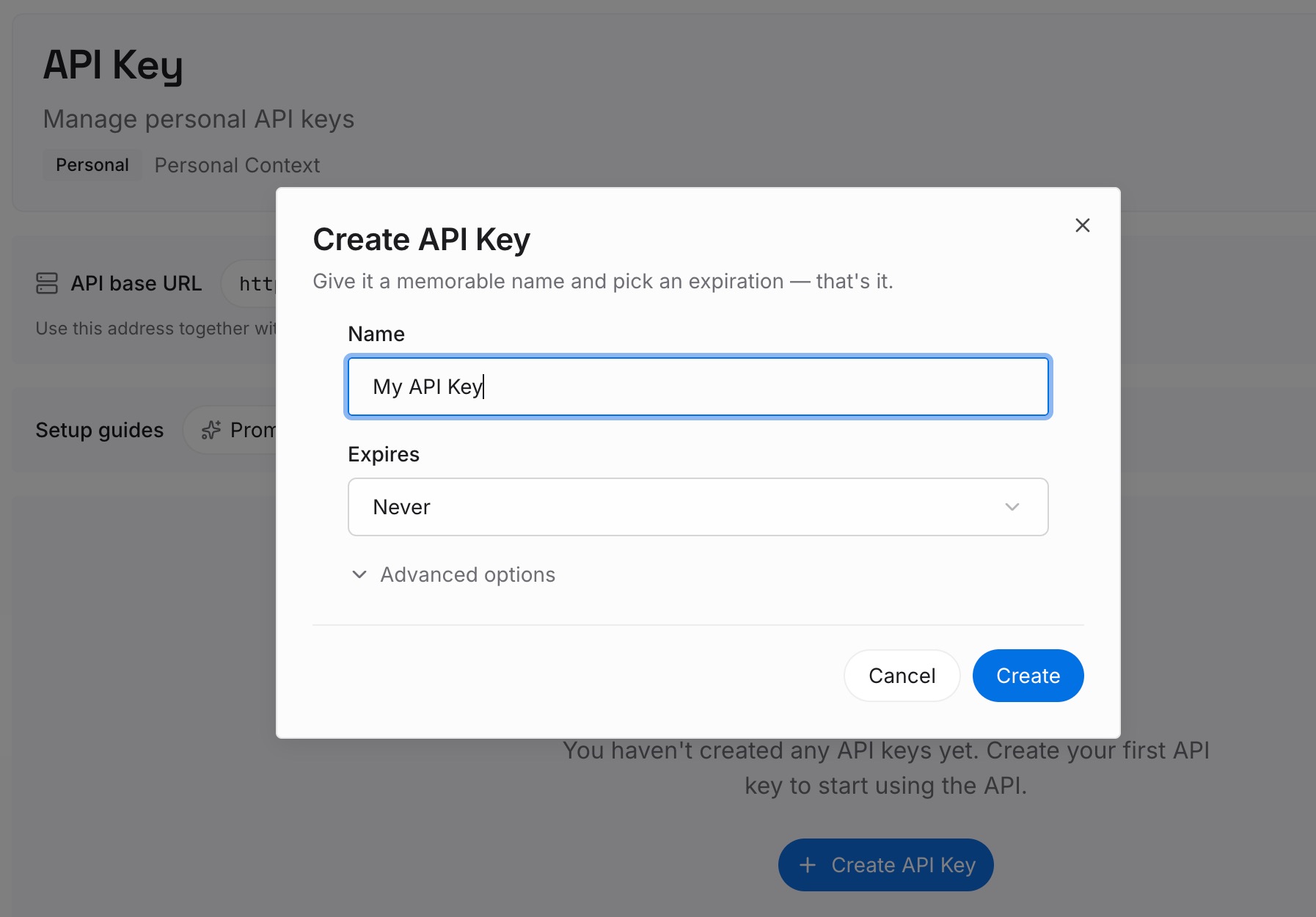
Step 1: Create an API key
Sign in and generate a key from the dashboard. The key belongs to your MemoryLake workspace and is separate from your ChatGPT account.
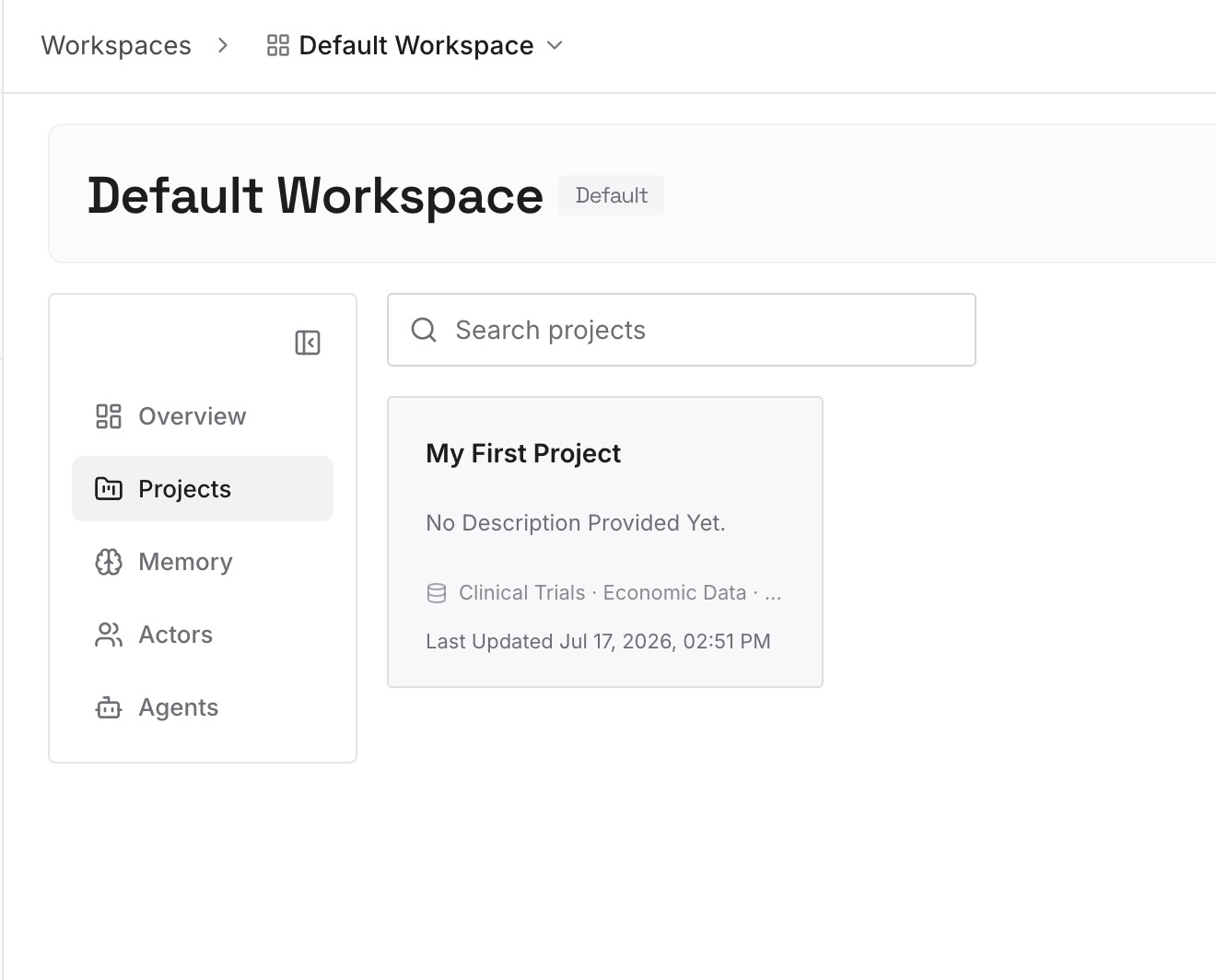
Step 2: Upload your first memories
Start with the current versions of the details you just cleaned up: the job title, the active projects, the preferences that are true now. One point per entry, dated, so you can see when each was last right.
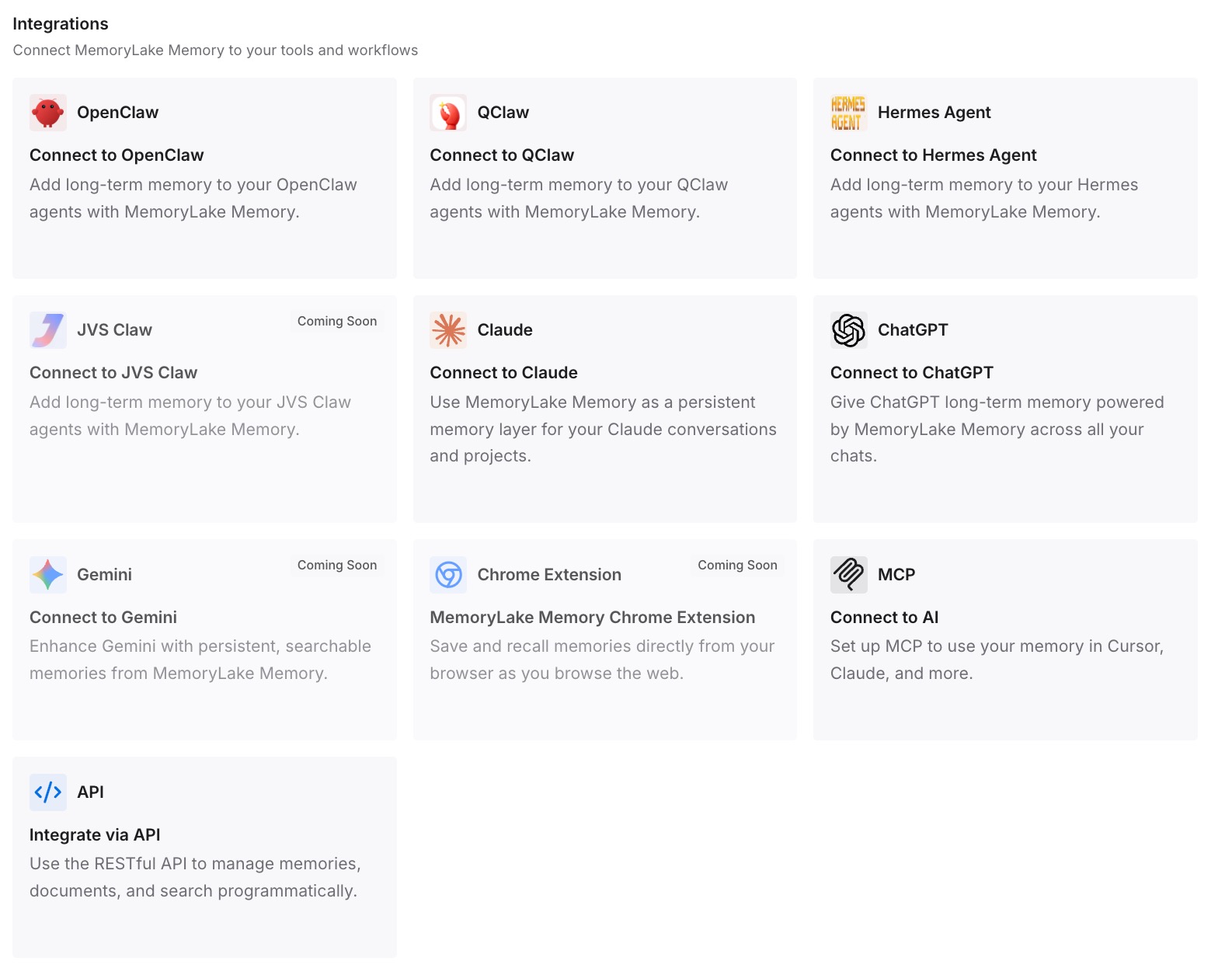
Step 3: Connect your AI & agents
Connect ChatGPT and the other assistants you use. When a fact changes, you update one entry and delete the old one yourself.
What this changes in practice
The first difference is that forgetting works. You know the detail can live in a saved memory, a chat, a file, and an app, and you remove it from each.
The second is that you can choose the right control. Don't mention this again when you only want it kept out of answers; deletion when you want it gone.
The third is that new chats start cleaner. With temporary chats for one-off topics, less ends up remembered in the first place. If your saved memory is full rather than wrong, our guide to a full ChatGPT memory covers that problem.
Best practices for making ChatGPT forget
Check Sources first. They show where a remembered detail came from, though not always every factor.
Delete the saved memory and the original chat. OpenAI's removal steps name both.
Include archived chats. They're still on OpenAI's list of sources.
Don't rely on Don't mention this again for removal. It doesn't delete the source.
Expect a delay. Deletion and memory updates take time to propagate.
Use temporary chats for things you don't want remembered. They don't create or update memories.
Review what's remembered every few months. Open the memory summary, read it, and correct what's out of date.
Conclusion
ChatGPT can remember a detail from saved memories, past chats, custom instructions, Library files, and connected apps. Each has its own control, and removing one source leaves the others. Don't mention this again keeps a detail out of answers without deleting it. Deleting a saved memory leaves the chat it came from, and deleting a chat leaves a saved memory created from it.
To make ChatGPT forget something, find where it's stored, delete the saved memory and the chat where you first said it, clear any other sources, and check again after the changes propagate.