
Why recordings end up in unrelated chats
Start with what record mode produces. OpenAI's help article says: "With record mode, ChatGPT can transcribe and summarize audio recordings like meetings, brainstorms, or voice notes." The output persists: "These summaries are saved as canvases in your chat history and can be turned into helpful outputs like project plans, emails, or even code."
The next sentence is the one that turns a transcript into memory: "ChatGPT can also reference canvases and transcripts from your past recordings, in order to provide more helpful responses across conversations."
The setting that governs this has its own name. "When 'Reference record history' is turned on, ChatGPT can reference your generated notes and transcripts from your past recordings, in order to recall useful information you've shared and provide more relevant responses across new conversations." OpenAI's example shows the intent: "This enables questions like 'What did we decide in Monday's roadmap sync?'"
Two details in that description shape everything below. It covers "generated notes and transcripts" — not only the summary you might have tidied, but the raw transcript too. And it applies "across new conversations" — not only the chat where the recording lives.
Record mode is currently narrow in reach. OpenAI notes it "is available for Plus, Enterprise, Edu, Business, and Pro workspaces, and only available for the macOS desktop app." In workspaces, owners have control: "workspace owners can toggle Record in Settings → Workspace Controls," and record mode is "disabled by default for all Enterprise and Edu workspaces."
The article also carries an obligation that belongs at the top of any guide about recording. "Please make sure you check local laws and always get the right consents before recording others. You're responsible for making sure that your use of record mode follows applicable laws, which may vary depending on where you and the people you're recording are located."
What people try instead
Assuming the memory toggle covers recordings. ChatGPT's memory has several controls. OpenAI's Memory FAQ lists options that "may include Memory, Reference saved memories, Reference chat history, Memory summary, Manage, or Saved memories." Reference record history is its own setting, documented in the record mode article. Checking one does not tell you the state of the other.
Editing the summary and assuming that fixes the record. You can "Review or edit the generated notes," and it is worth doing. But the reference setting covers "generated notes and transcripts." A line misheard in the transcript is still material ChatGPT can draw on, even after you correct the summary.
Deleting a recording and expecting it to vanish immediately. OpenAI is specific about the lag: "If you delete the conversation that contains a canvas from record mode, then ChatGPT will no longer use information from that canvas (and the associated transcript) in future conversations. It may take a few days for deleted canvases and transcripts to stop being referenced in your chats."
Treating the transcript as the minutes. OpenAI says so directly: "ChatGPT may make mistakes, including in its transcriptions, so please check important information." A transcript is evidence of what was said, with errors. Minutes are what was agreed. Only one of them should be referenced as fact.
Searching the chat list for a missing summary. Recordings do not always produce a canvas in a chat. OpenAI notes that "some recordings and imported meetings store generated notes with the meeting instead of as a canvas in a chat." If you cannot find the notes, open the recording from Record or Meetings.
The Fix: Decide the setting, correct the record, then prune what you do not want carried forward
The goal is simple to state: ChatGPT should be able to recall the meetings you want it to recall, accurately, and should not be drawing on the rest.
Step 1: Set Reference record history on purpose
Open Settings and go to the Personalization section. OpenAI says "You can turn 'Reference record history' on or off anytime in Settings under the Personalization section." Look at it alongside the other memory controls there, because they are separate switches doing separate jobs.
Decide based on what you record. If your recordings are mostly your own voice notes and working sessions you want to build on, leaving it on is the point of the feature. If you record calls that are sensitive, or recordings you made once for a transcript and do not want resurfacing in other work, turn it off and use the canvas directly when you need it.
If you are in a Business, Enterprise or Edu workspace, the owner may have made this decision already. OpenAI notes that "workspace owners can toggle 'Reference record history' in Settings → Workspace Controls." If the setting is missing or locked, that is the likely reason.
Step 2: Correct the notes before they become reference material
After a recording, OpenAI's flow opens the generated notes, and you can edit them. Do that while the meeting is fresh, focused on the three things most likely to be wrong and most likely to be recalled later: decisions, owners, and dates.
Fix speaker labels too. "When ChatGPT can't identify a speaker by name, it uses a generic speaker label such as Speaker 1; you can rename speakers after the recording is created." A decision attributed to Speaker 2 is hard to use later; one attributed to the right person is not.
Then deal with the transcript problem. Because the reference setting covers transcripts as well as notes, a misheard decision in the transcript can still be recalled. For anything that matters, state the corrected version clearly in a chat — or, if the recording is more misleading than useful, delete its conversation and keep the corrected notes elsewhere. The same gap between what an assistant captured and what was actually decided shows up in ChatGPT forgetting sales call notes: the capture is not the conclusion.
Step 3: Prune, wait, and test
Go through your chat history for recordings you do not want referenced: one-off calls, meetings where the decisions were later reversed, anything recorded for a transcript you no longer need. Delete the conversations that contain those canvases.
Then wait. OpenAI says it "may take a few days" for deleted canvases and transcripts to stop being referenced. Testing the same afternoon will give you a misleading answer.
After a few days, test directly. Ask about a meeting you deleted and one you kept. OpenAI's Memory FAQ describes a Sources display that "can help you review information such as a past chat, saved memory, custom instruction, file, or connected email that contributed to personalization," which is worth checking when an answer seems to draw on something you did not expect.
Know the retention side as well. Once a canvas exists, "that canvas and associated transcript follow the same retention settings as other conversations and canvases in your workspace." Deleting a conversation removes the canvas and transcript "from our systems within 30 days, unless we are legally required to retain them," and "Audio files delete automatically after transcription."
Setting this up in MemoryLake
The corrected decisions from Step 2 are the durable part of any meeting: who agreed to what, by when, and why. MemoryLake is a place to keep those decisions so they do not depend on a transcript with errors in it or on a reference setting you may later switch off.
You write the entries yourself, in your own words. Nothing is read out of, written to, or deleted from your recordings, canvases, transcripts, or any vendor's store.
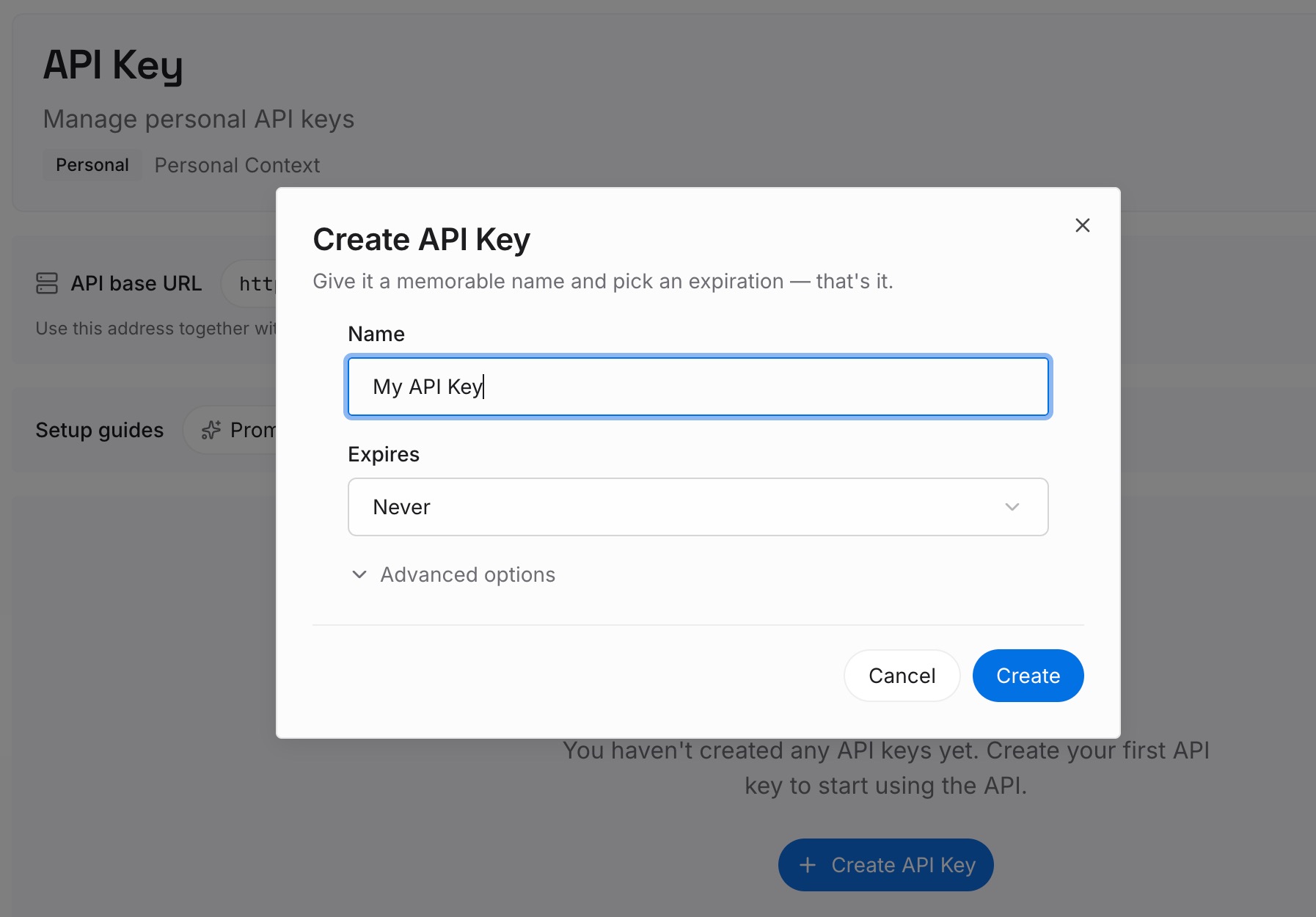
Step 1: Create an API key
Sign in and generate a key from the dashboard. The key is what lets an assistant read the decisions you have written, whichever tool you open next.
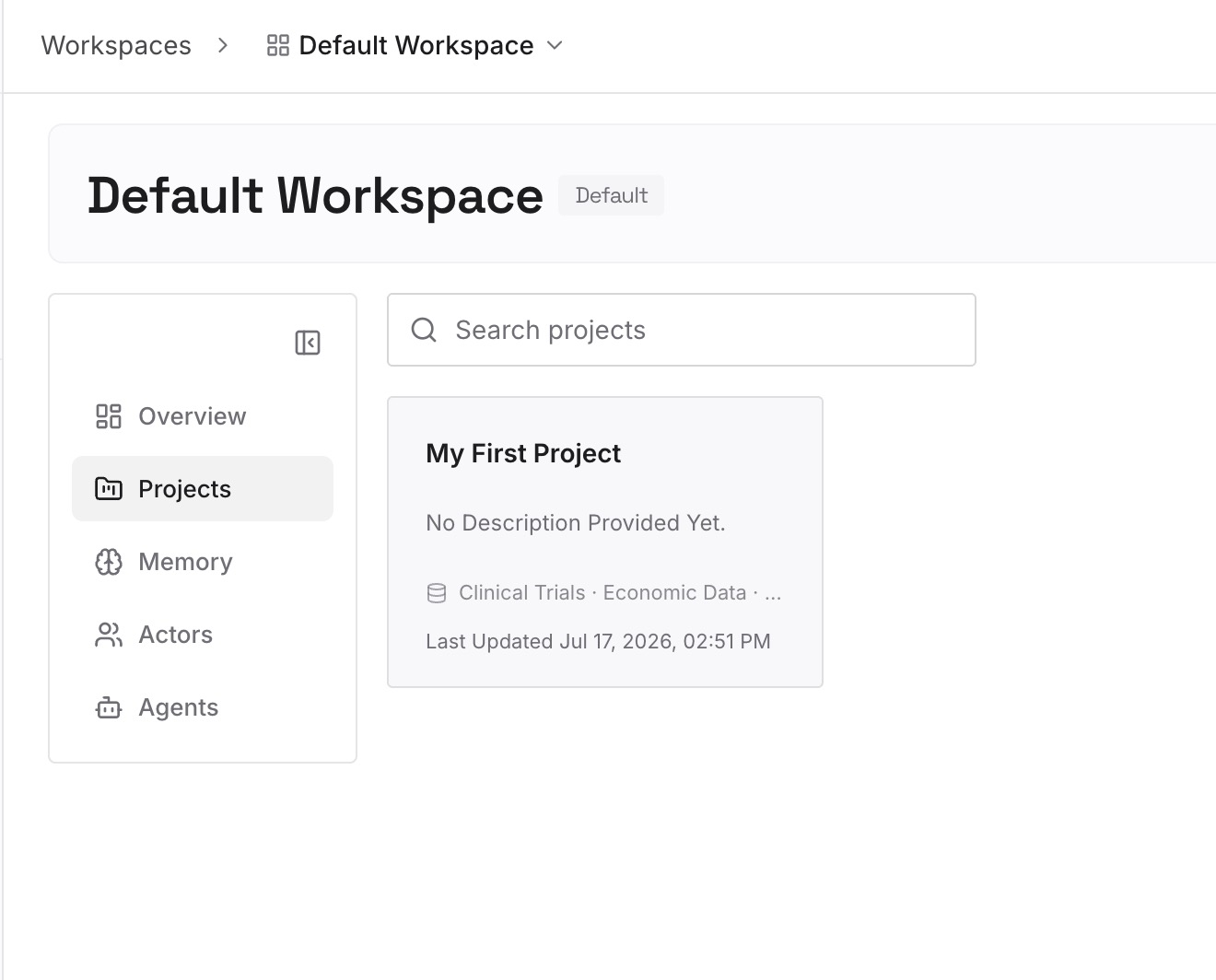
Step 2: Upload your first memories
Add the decisions from meetings that matter, one per entry: what was decided, who owns it, the date, and the reason. Leave the transcript where it is; the entry is the conclusion, stated once and correctly.
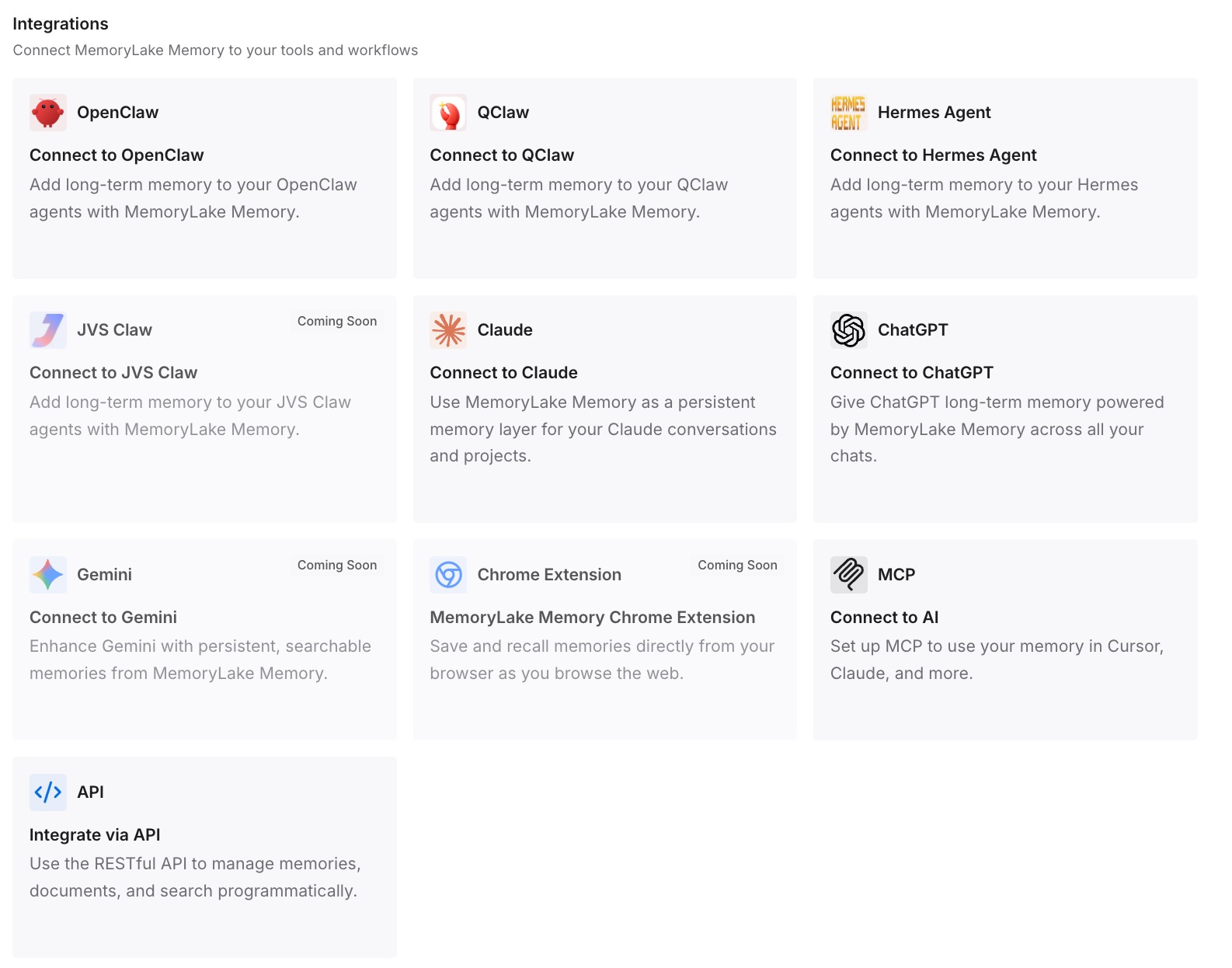
Step 3: Connect your AI & agents
Connect ChatGPT and the other assistants you use. The decisions are then available in each, including tools that were never part of the meeting.
What this changes in practice
The first difference is that recall becomes selective. With the reference setting chosen deliberately and old recordings pruned, what ChatGPT can draw on from meetings is what you meant to keep.
The second is that errors stop compounding. A misheard figure in a transcript is harmless until it is recalled as fact in a later conversation. Correcting the notes and keeping the decisions elsewhere breaks that chain.
The third is that meeting memory joins the rest of your memory audit. Recordings are one of several sources ChatGPT can draw on, alongside the desktop activity described in controlling what ChatGPT's Computer History turns into memories and the voice sessions covered in what happens to ChatGPT voice conversations. Each has its own controls. Knowing all of them is the only way to know what ChatGPT is working from.
The fourth is that switching tools stops costing you your meetings. Decisions kept outside any one assistant do not depend on whether the next tool has record mode, and tools that remember meetings vary widely in what they keep and for how long.
Best practices for recorded meetings and memory
Get consent first, every time. OpenAI's instruction is to "always get the right consents before recording others." That comes before any memory setting.
Check Reference record history separately. It is a distinct setting in Personalization, not implied by your other memory choices.
Edit notes the same day. Decisions, owners and dates are the parts most likely to be wrong and most likely to be recalled.
Remember the transcript is referenced too. Correcting the summary does not correct the transcript. State important corrections explicitly, or delete the recording's conversation.
Allow days, not minutes, after deleting. OpenAI documents a lag before deleted canvases stop being referenced.
Do not treat the summary as a complete record. Summaries, like ChatGPT's memory summary, leave things out, and ChatGPT's wider memory limitations apply to anything recalled from a recording. Connected sources carry their own gaps, as ChatGPT connectors show.
Conclusion
Record mode does what it says: it transcribes, summarizes, and saves the result as a canvas. With Reference record history on, it also turns every recording into material ChatGPT can recall in new conversations — notes and transcripts alike, errors included, for a few days even after you delete them.
That is a reasonable design for a feature whose purpose is to let you ask what was decided last Monday. It works best when the recordings it draws on are ones you chose to keep and corrected while they were fresh.
Get consent, set the reference setting deliberately, fix the decisions in the notes, prune what should not carry forward, and keep the conclusions that matter somewhere that does not depend on a transcript being right.