
Why a rule can be present and still never apply
Start with how many things count as a rule. Cline's documentation lists four types it recognizes "so you can use existing rule files from other tools": Cline Rules in ".clinerules/, .cline/rules/", described as "Supported workspace rule directories"; Cursor Rules in .cursorrules, marked "Automatically detected"; Windsurf Rules in .windsurfrules, also "Automatically detected"; and AGENTS.md at "AGENTS.md, ~/.agents/AGENTS.md", described as the "Standard format for cross-tool compatibility."
That is already more surface area than most people picture, and it means a leftover .cursorrules from a previous tool is not inert. All four land in the same place: "All detected rule types appear in the Rules panel, where you can toggle them individually."
The first gate is that panel. "Every rule has a toggle to enable or disable it. This gives you fine-grained control over which rules apply to your current task without deleting the rule file." The feature is useful — the docs give the example of "a strict testing rule that you want to disable when prototyping, or a client-specific rule you only need when working on that client's features" — and the cost is that a rule you switched off three weeks ago looks identical on disk to one that is live.
The second gate is conditional activation through YAML front matter. "When Cline processes a request, it gathers context from your current work (open files, visible tabs, mentioned paths, edited files), evaluates each rule's conditions, and activates matching rules." The supported conditional is documented as one: "Currently, paths is the supported conditional," taking an array of glob patterns.
Three behaviours around that conditional decide most real cases, and all three are stated in the docs. "No frontmatter: Rules without frontmatter are always active." "Empty paths array: paths: [] means the rule never activates. Use this to temporarily disable a rule." And "Invalid YAML: If frontmatter can't be parsed, Cline fails open. The rule activates with raw content visible to help debugging."
That last one is the tell. If a rule's raw front matter is showing up in Cline's output, it did not fail to load — it loaded in a debugging shape because the YAML would not parse.
What people try instead
Rewriting the rule more forcefully. Adding emphasis to an instruction that never reached the model changes nothing. It also makes the file worse for the day it does apply.
Copying the rule into both supported directories. Unnecessary, and the docs say so: "Both directories are searched when present, so you do not need to copy rules into both locations." They also note where new files land: "The VS Code Rules panel still creates new workspace rules in .clinerules/."
Deleting the front matter to "make it always apply." This does work, and it is the documented behaviour — but applied broadly it recreates the problem conditionals exist to solve. The docs are direct about the cost: "As your rule library grows, loading every rule for every request wastes context tokens and can dilute Cline's focus."
Describing the file in prose instead of naming it. The documentation contains a tip that reads like it was written after watching people do this: "Be explicit about file paths in your prompts. 'Update src/services/user.ts' reliably triggers path-based rules; 'update the user service' may not."
Assuming it is a memory problem. Sometimes it is — a rule that applies correctly and still leaves Cline re-deriving project facts is a different failure, closer to the territory of how to set up a Cline memory bank. But a rule that never fires is an activation problem, and the fix is in the panel and the front matter.
Assuming it is the same failure as in other editors. The symptom matches, the mechanism does not. When another tool drops project rules mid-session, the question is usually about scope and session state rather than a two-gate activation model, as in why Cursor forgets project rules.
The Fix: Enumerate every rule source, check both gates, then prove it with a test rule
Step 1: List every file Cline counts as a rule, including the ones you did not write
Open the Rules panel and read it as an inventory rather than as a settings screen. Every detected type appears there, so the panel is where you discover that an old .cursorrules or a .windsurfrules is still being offered to the model.
Then check both workspace locations on disk — .clinerules/ and .cline/rules/ — because "Both layouts are supported by VS Code, Desktop, and the CLI," and a colleague may have used the one you do not open. Add the global tier: global rules live in your system's Cline Rules directory, and the docs note that "Cline also reads cross-tool global AGENTS instructions from ~/.agents/AGENTS.md."
For each file in the list, record two things: whether its toggle is on, and whether it has front matter. That pair is the map. A file with the toggle on and no front matter is always active. A file with the toggle off is inert regardless of what the front matter says, because "Toggle off a conditional rule to disable it entirely (it won't activate even if paths match)."
While you are here, apply the structural advice, because it makes the map maintainable: "One concern per file. Split rules by topic: coding.md for style, testing.md for test requirements, architecture.md for structural decisions. This makes it easy to toggle specific rules on or off." A single large rule file gives you one toggle for six unrelated concerns.
Step 2: Read the glob against the context Cline actually evaluates
The pattern is only half the question; the other half is what Cline is comparing it against. The documented context has five inputs: "Your message: File paths mentioned in your prompt," "Open tabs: Files currently open in your editor," "Visible files: Files visible in your active editor panes," "Edited files: Files Cline has created, modified, or deleted during the task," and "Pending operations: Files Cline is about to edit."
Two consequences follow. First, timing is not fixed: "Conditional rules can activate on your first message, when relevant files are open, or mid-task when Cline starts working with matching files." A rule that seemed absent at the start may well have arrived later. Second, a rule can fire for a reason you did not intend, because an unrelated file happened to be open in another pane.
Then read the glob itself with the documented syntax in hand. * "matches any characters except /", ** "matches any characters including / (recursive)", ? "matches a single character", [abc] "matches any character in the brackets", and {a,b} "matches either pattern". The examples are worth internalising: src/**/*.ts covers "All TypeScript files under src/", *.md covers "Markdown files in root only", **/*.test.ts covers "Test files anywhere in the project", and src/components/*.tsx covers "TSX files directly in components (not nested)".
The combination rule is generous: "A rule activates if any pattern matches any file in your context." That is why over-broad patterns misfire more often than narrow ones miss — which is exactly the trade-off the same documentation flags in its troubleshooting notes, where "Rule activating unexpectedly" points at "** is recursive and may match more than intended" and at open files matching the pattern.
Step 3: Prove it with a disposable test rule and watch for the notification
Cline emits one signal when this works, and knowing it turns guesswork into a check. When a conditional rule activates, the documentation says "you'll see a notification: 'Conditional rules applied: workspace:frontend-rules.md'."
The documented way to use that is a throwaway rule. Create a small file in .clinerules/ whose only front matter is the paths pattern you are unsure about, and whose body is a single obvious line — the docs suggest something like "TEST: This rule should activate for your/pattern/here files." Then "work with a file in that path and check if you see the activation notification."
If nothing appears, the troubleshooting list is short and ordered: "Check that file paths in your context match the glob pattern," "Verify the rule is toggled on in the rules panel," and "Ensure YAML frontmatter has proper --- delimiters." Run them in that order, because the first is the most common and the third is the one that produces the strangest symptom — remember that unparseable front matter fails open with raw content visible.
The docs also suggest a shape for building patterns rather than guessing them: "Start Broad, Then Narrow," beginning with something like src/** and refining to src/features/auth/** once you have seen what matches. If you would rather not hand-write the file at all, there is a /newrule slash command to "have Cline create a rule interactively."
Setting this up in MemoryLake
Rules are instructions: how to write code here, what to avoid, which conventions hold. They are a poor container for the other thing your rules imply — the decisions and reasons behind them, which you want retrievable when you are deciding whether a rule still applies rather than loaded into every task. A store you write MemoryLake entries into on purpose keeps that half separate, so tightening a glob never costs you the reasoning behind the rule. You write the entries yourself, in your own words. Nothing is read out of, written to, or deleted from your rule files or Cline's settings.
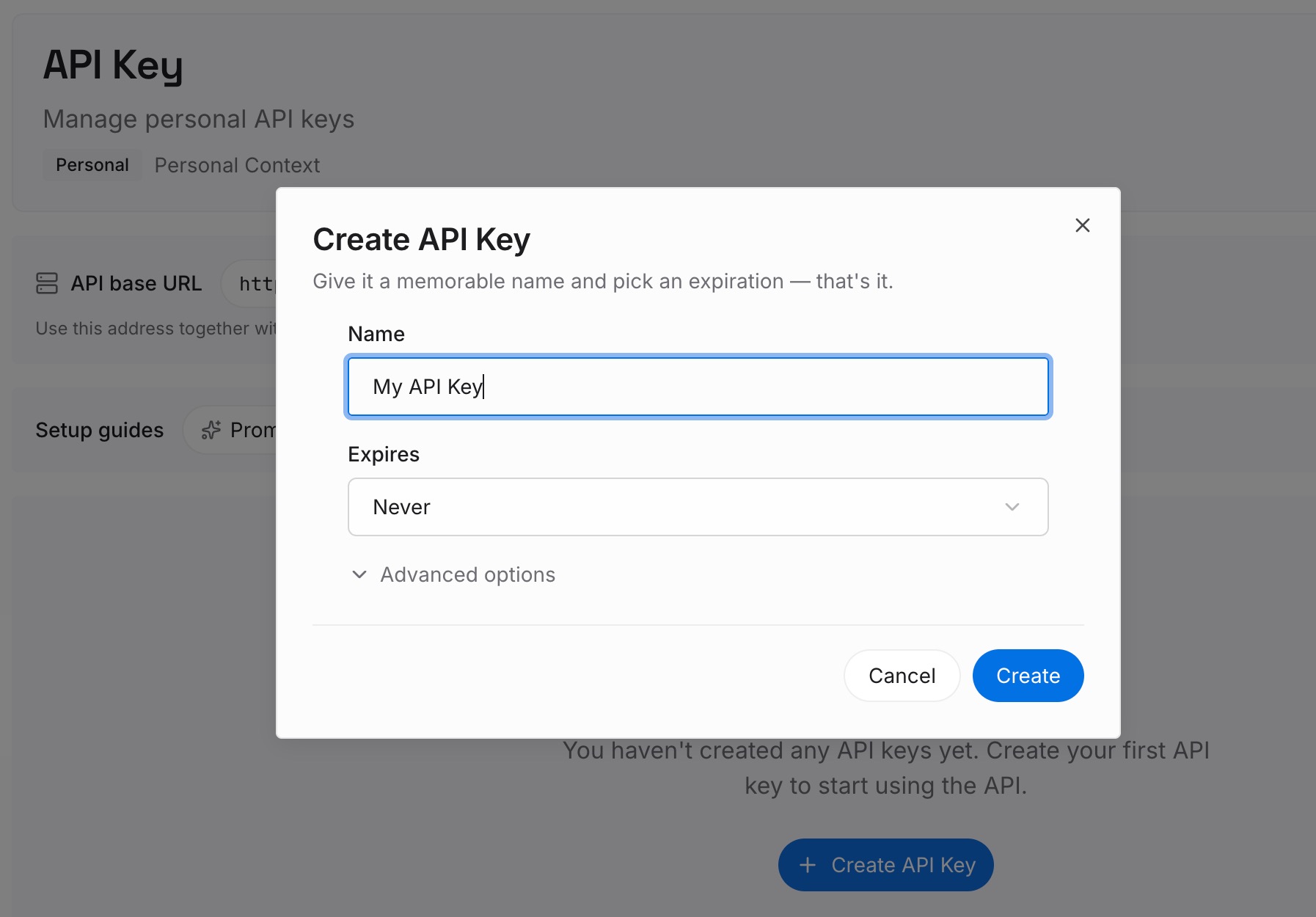
Step 1: Create an API key
Sign in and generate an API key from your workspace settings. This is the credential your agents and integrations use, so create it before you start moving anything in.
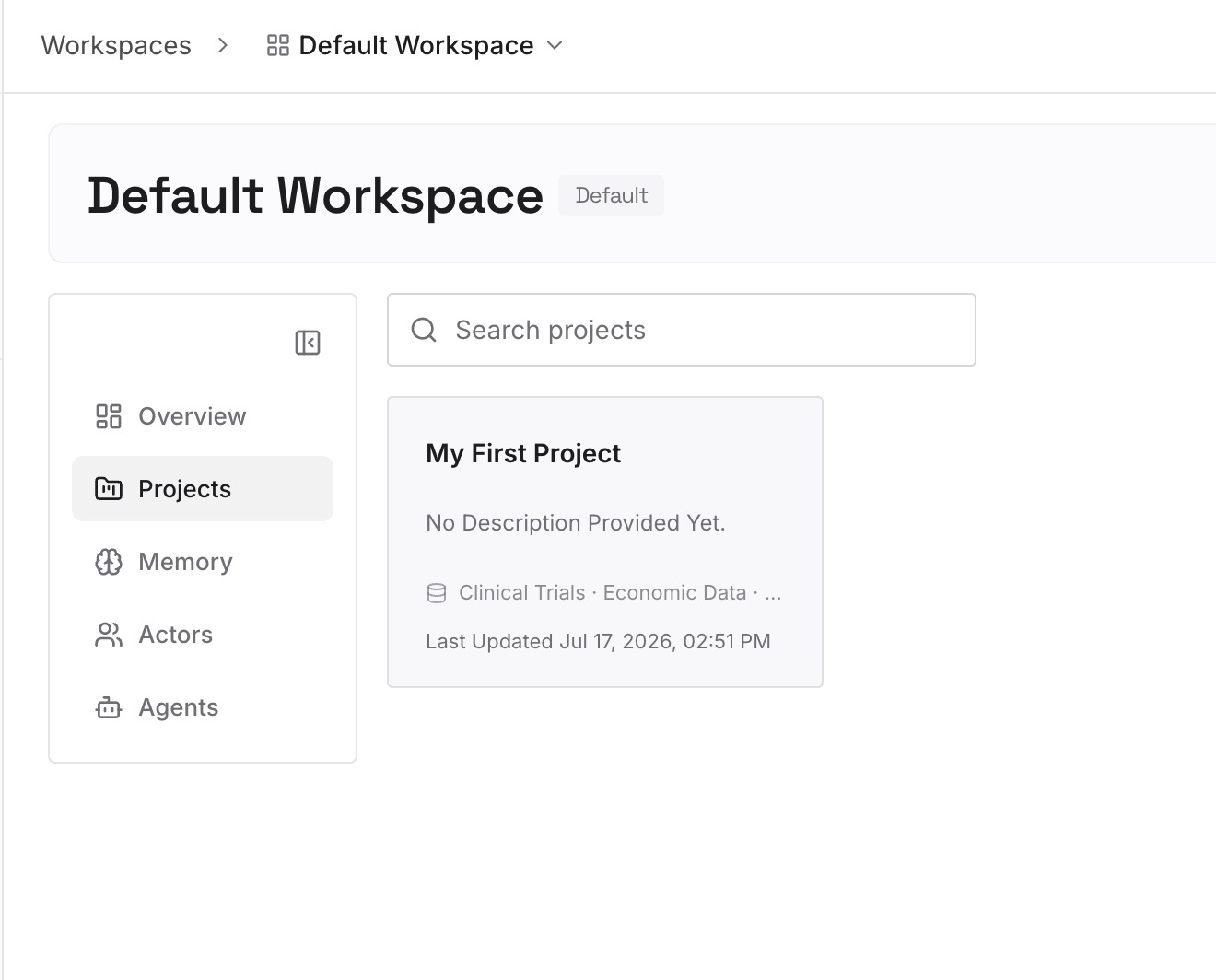
Step 2: Upload your first memories
Start with the "why" your rule files leave out: why the legacy directory is off-limits, which convention replaced which and when, what a constraint is protecting against. Write each as a short standalone note so it can be retrieved on its own.
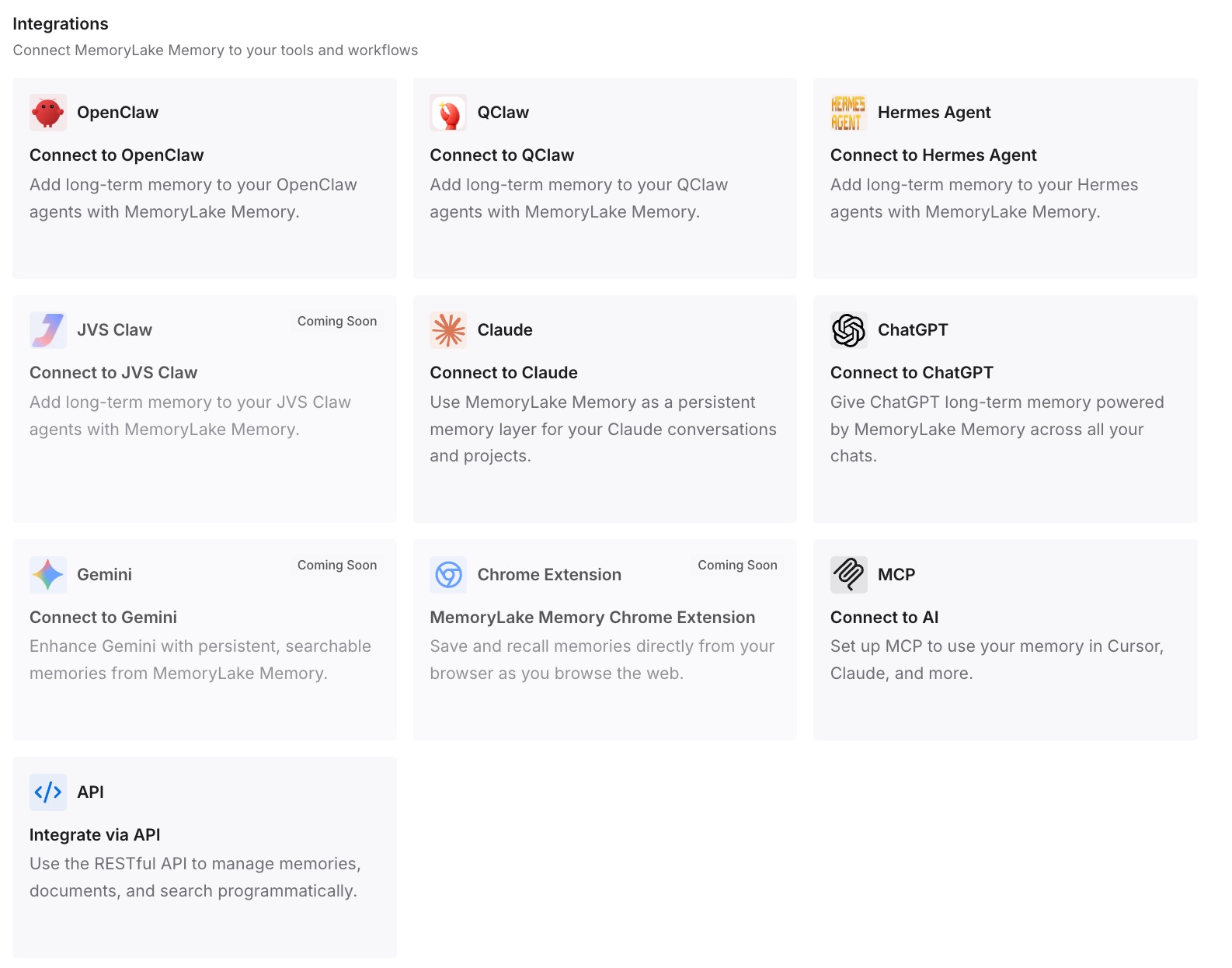
Step 3: Connect your AI & agents
Connect the assistants and agents you use. The reasoning then travels with you across tools, independent of which rule directory a given editor reads.
What this changes in practice
Debugging gets an order of operations. Instead of rewriting a rule, you check the toggle, then the front matter, then the glob against the five context inputs, then run a test rule and watch for the notification. Four checks, all with a documented answer.
Old tool files become a decision rather than an accident. A .cursorrules you left behind is detected and offered, so it either belongs in your rule set on purpose or it should go. That also makes the migration direction clearer when you move rules between tools, as in how to migrate Cursor rules to Claude Code.
Prompt phrasing becomes part of the setup. Since paths mentioned in your message count as context, naming the file you intend to change is not pedantry — it is the most reliable trigger available to you, per the documentation's own tip.
Rule libraries stop growing by default. Once you can see which rules are always-on, the always-on tier becomes a budget you manage rather than a pile you inherit. That is the same pressure that makes people consolidate scattered rule files in the first place, discussed in how to consolidate Kilo Code rule files.
And recurring complaints get re-diagnosed. "It forgot our style again" is sometimes an activation problem with a known cause, not a memory problem — a distinction worth making before changing anything, and one that shapes the fix in why Cline forgets your coding style.
Best practices for rules that have to prove they applied
Keep one always-on file and name it as such. The docs' own example layout ends with universal.md annotated "No frontmatter = always active." A file named for its behaviour tells the next person what they are looking at.
Put the intended trigger in the rule body. One line at the top — "expected to activate for src/components" — turns every future misfire into a two-second comparison instead of an investigation.
Prefer several narrow files to one broad one, so the toggle is a precise instrument. This is the practical payoff of "one concern per file."
Re-run the test rule after refactors. Moving a directory changes what your globs match, and nothing in the toolchain will tell you that a pattern stopped matching.
Treat cross-tool files as always-on. An AGENTS.md in the root or ~/.agents/AGENTS.md is detected as a rule source, and a shared file is shared precisely because it is not gated per tool. Whatever setup you land on, the broader question of what belongs in rules at all is worth revisiting periodically, which is the ground covered in the best memory setups for Cline.
Conclusion
A Cline rule reaches the model only if its toggle is on and its condition matched. Both gates are silent when they close, and four different file types feed the same panel, so the rule that is being ignored is not always the rule you were looking at.
Build the map once: every rule source including the inherited ones, the toggle state of each, the front matter of each, and the glob read against the five documented context inputs. Then keep a disposable test rule around, because the activation notification is the only positive signal in the system — and a check you can re-run beats a rule you rewrote and hoped about.