
What actually transfers
Start with what ChatGPT's memory is made of. OpenAI's Memory article lists the sources it can draw on, depending on plan and region: past chats, saved memories, custom instructions, files in Library, and content from connected apps such as Gmail. It also sets expectations: "Memory does not retain every detail from every conversation."
Two of those sources behave differently, and it helps to know which is which before you copy anything. "Saved memories are details that you explicitly ask ChatGPT to remember or that ChatGPT saves as useful context when that behavior is available." Chat history is looser: "Unlike an explicit saved memory, information derived from chat history can change as ChatGPT updates what is most useful to remember." Saved memories are the stable part you can list. Chat-history context is something you reconstruct by asking.
There are two ways to see what ChatGPT holds. The memory summary, where available, is "a high-level view of information that ChatGPT may use to personalize responses," though OpenAI adds that "It does not necessarily include every detail or source that Memory can reference." And "You can also ask ChatGPT what it remembers about you."
There is also a full data export. In Settings, under Data controls, you can request an export. "Exports can take up to 7 days to arrive," and "The download link expires 24 hours after you receive it." The ZIP contains your chat history and other account data. One limit matters for work accounts: export from settings is listed as unavailable for ChatGPT Business, Enterprise and Healthcare workspaces, where OpenAI says to contact your workspace owner.
Now Copilot's side. Microsoft's personalization page describes several ways Copilot tailors its answers, including "Saving memories to Copilot Memory," "Making inferences from your chat history," and "Using your Copilot custom instructions." Custom instructions are the direct way in: Microsoft suggests you "create custom instructions that tell Copilot important information to remember, like your communication preferences." You can also ask Copilot what it knows about you, to see its summary.
On a personal Microsoft account, memory is managed in Settings, then Personalization, where you can review saved memories, delete individual ones, or delete all of them. Microsoft notes that "Turning off Copilot Memory doesn't automatically delete already saved memories."
Copilot also keeps a conversation history of its own. "Microsoft Copilot keeps your prior conversations with Copilot so you can revisit them or continue them at any time." Over time, Copilot can draw inferences from those chats as well as from saved memories. When you want a conversation that stays out of all of this, Microsoft's personalization guide describes a temporary chat: "These conversations won't access or store any personalized information."
What about importing? Microsoft's privacy and personalization pages describe saving, reviewing and deleting memories, plus custom instructions. The only import they describe is browser data from Microsoft Edge. They do not describe bringing memories in from another assistant, so the move is manual: you read your ChatGPT context, then write it into Copilot.
One scope note before you start. Microsoft's consumer privacy page "applies only when you sign in with a Microsoft account, such as a personal email address." Work and school accounts follow a different setup, which Microsoft documents separately. For those accounts, Microsoft's admin documentation says memories "are stored in the user's Exchange mailbox in a hidden folder," and that "Retention policies and retention labels configured in Purview by organization admins don't apply to Copilot memory." If your ChatGPT memory is from a work account, or you plan to use Copilot through your employer, check your organization's policy before moving anything between them.
The manual migration
Step 1: Turn your ChatGPT memory into a document you can read and edit
Open ChatGPT and go to Settings, then Personalization, then Memory. Read the memory summary or your saved memories. Then ask ChatGPT directly for a structured list of what it remembers about you, grouped by topic: work and role, current projects, preferences for how answers are written, tools you use, and people or teams you work with.
Copy everything into a document. Then edit it. This is the step that makes the migration worth doing.
Remove what is outdated: finished projects, old jobs, preferences that changed. Remove what you would not want a new assistant to start with: health details, family matters, anything personal you mentioned once in passing. Correct anything ChatGPT got slightly wrong. What remains should be short, current and accurate.
If you are keeping ChatGPT as well, fix the same things at the source. You can correct a saved memory or the memory summary directly. Asking ChatGPT to stop mentioning something is gentler: OpenAI says it "changes personalization behavior but does not delete the underlying chat, file, email, or other source." Use deletion for anything you want gone, and the softer option for things that are true but unhelpful.
Then sort it into two piles. Standing preferences, such as tone, format, role and tools, which apply to almost every conversation. And facts, such as project names, decisions and recurring context, which matter some of the time.
If you want a complete record before you change anything, request the data export and keep it somewhere safe. The export is your history; the edited document is your context. See how to back up your ChatGPT memory for more on what an export holds.
Step 2: Rebuild it in Copilot, then test what arrived
Sign in to Microsoft Copilot with the account you plan to keep using.
Put the standing preferences into Copilot's custom instructions. Keep them concise and specific: your role, how you want answers structured, what to avoid. These apply broadly, which is what you want for preferences.
Add the facts as saved memories by telling Copilot what to remember, one topic at a time, in plain sentences. For example, that you lead a particular project, what it is for, and what was decided about it. Short, separate statements make it easier to check afterwards which ones were saved, and to delete one later without touching the rest.
Review Copilot's shared experiences setting while you are in Settings. Microsoft explains that when you use your Microsoft account with products like Bing, Edge and MSN, "your experiences with those products can be used to give you a more relevant and personalized experience in Microsoft Copilot," and that your Copilot chats can be used to personalize Bing, Edge and MSN. Turn off One shared experience if you prefer your Copilot context to stay in Copilot.
Then test. Open Settings, then Personalization, and check the saved memories. Ask Copilot what it knows about you and compare the answer with your document. Start a new conversation and ask something that depends on your context, such as a question about a current project. If the answer uses the right details, the move worked. If it does not, add the missing fact directly.
Finally, decide what happens to ChatGPT's memory. If you are keeping both assistants, keep both up to date. If you are leaving ChatGPT, delete what you no longer want stored there. OpenAI notes that "Deleting a chat alone does not necessarily delete a separate saved memory created from that chat," so clear the memory itself, not only your chats.
The Better Way: Keep your context in one place, and give each assistant what it needs
The manual migration works, and it has a cost you will pay again. Every time you add an assistant, switch tools, or come back to one you left, you repeat the same exercise: read one memory, edit it, retype it into another. Meanwhile each assistant keeps learning on its own, and the copies drift apart.
The edited document from Step 1 is the most valuable thing this process produces. It is short, accurate and yours. The better approach is to treat it as the source, and let assistants draw on it.
MemoryLake is built for that: a memory layer you maintain once and connect to the assistants you use.
You write the entries yourself, in your own words. Nothing is read out of, written to, or deleted from your ChatGPT memory, your Copilot memory, or any vendor's store.
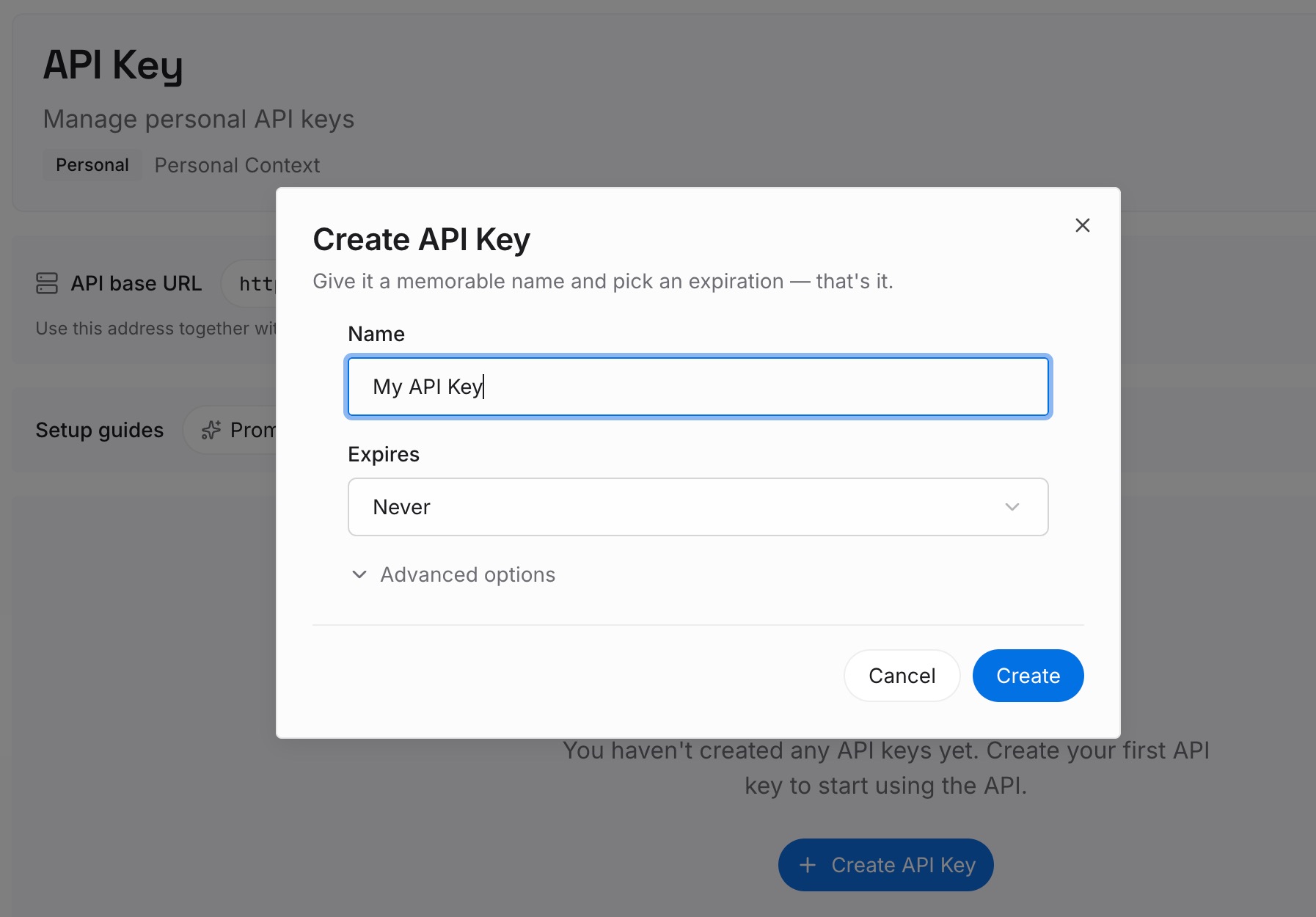
Step 1: Create an API key
Sign in and generate a key from the dashboard. The key belongs to your MemoryLake workspace, separate from your OpenAI and Microsoft accounts.
Step 2: Upload your first memories
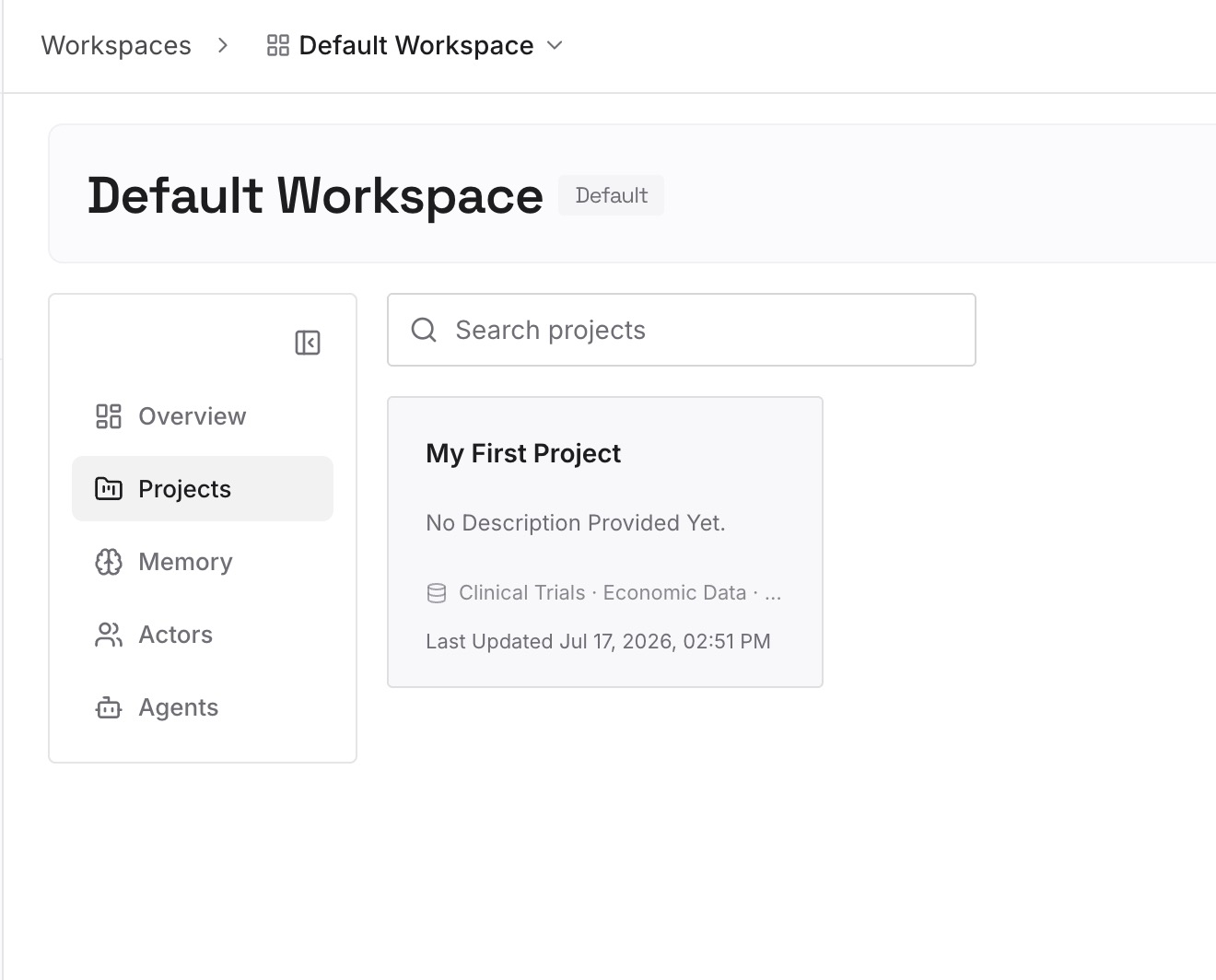
Start with the edited document from the manual migration: standing preferences first, then project facts. One fact per entry, dated, so newer decisions visibly replace older ones.
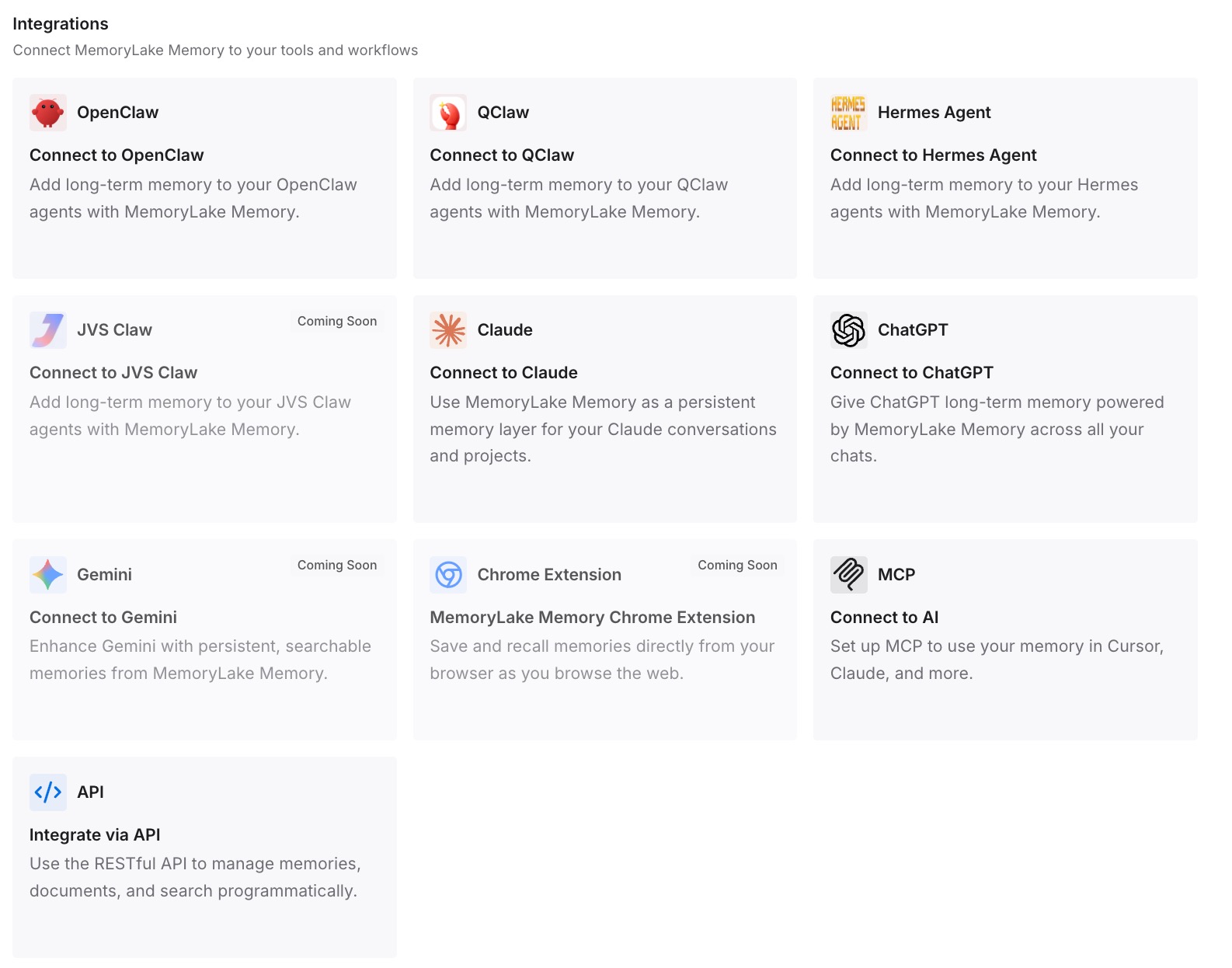
Step 3: Connect your AI & agents
Connect ChatGPT and the other assistants you use. The same context is then available in each, so moving between them stops meaning starting over.
What this changes in practice
The first difference is a cleaner start. Copilot begins with an edited, current picture of you rather than everything ChatGPT happened to pick up. For what ChatGPT's memory tends to hold and miss, see ChatGPT memory limitations.
The second is control over where context flows. Copilot's memory, its custom instructions, and the shared experience with Bing, Edge and MSN are separate settings, and you have chosen each one deliberately.
The third is that the next move is easier. The same edited document works for any destination. People moving from ChatGPT to Claude or Perplexity follow the same pattern.
The fourth is that using two assistants stops meaning two versions of you. With one source of context, keeping both up to date is a single edit, an approach explored in one memory across ChatGPT, Claude and Gemini.
Best practices for moving from ChatGPT to Microsoft Copilot
Edit before you move. The migration is a chance to drop outdated and sensitive details.
Use custom instructions for preferences. They apply broadly.
Add facts as short, separate memories. One topic per message.
Check the shared experience setting. It links Copilot with Bing, Edge and MSN.
Keep work and personal accounts apart. Follow your organization's policy for work data.
Test with a real question. Then compare Copilot's summary of you with your document.
Know how deletion works on both sides. In ChatGPT, delete saved memories, not only the chats. In Copilot, Microsoft says that fully removing something takes two steps: delete the saved memory, and clear what was inferred from chat history. If your instructions in ChatGPT have been unreliable, why ChatGPT forgets custom instructions covers the usual causes, and syncing AI memory across your tools covers keeping several assistants aligned.
Conclusion
Microsoft Copilot can remember preferences and details, take custom instructions, and personalize from your chat history, which makes it a reasonable home for the context you have built in ChatGPT. Microsoft's pages describe managing that memory, not importing it, so the move is manual.
Read your ChatGPT memory, turn it into an edited document, and rebuild it in Copilot: preferences as custom instructions, facts as saved memories. Check the shared experience setting, test with a real question, and clean up what you no longer want in ChatGPT.
Keep the edited document as your source, and every future move will take minutes instead of an afternoon.