
What a Claude Code plugin contains
Anthropic's plugin documentation describes it this way: "A Claude Code plugin is a directory of skills, agents, hooks, MCP servers, or other components that Claude Code installs and loads as one unit."
The plugin's manifest lives at .claude-plugin/plugin.json. Most plugins come from a marketplace, which is a catalog listing plugins and where to fetch each one.
When you install a plugin, Claude Code records it in your settings. Each plugin has an install ID in the form <entry-name>@<marketplace>, which Anthropic describes as the key Claude Code writes under enabledPlugins in your settings file. For a plugin installed at user scope, that entry goes in ~/.claude/settings.json. Marketplaces you or your organization registered can appear under extraKnownMarketplaces.
Two other locations matter for a migration:
- The plugin's installed files. Claude Code exposes them as
CLAUDE_PLUGIN_ROOT. The documentation warns that this path "changes when the plugin updates, so don't write state there". - The plugin's data directory. Claude Code exposes it as
CLAUDE_PLUGIN_DATA, located at~/.claude/plugins/data/<id>/. It's "created on first reference and kept across plugin updates", and Anthropic lists installed dependencies, generated code, and caches as typical contents.
Plugins can also ask you for configuration values. A value marked as sensitive is stored "in secure storage instead of settings.json", according to the manifest reference.
What the Codex import brings over
OpenAI's import flow is the starting point. It's available in two places:
- The ChatGPT desktop app, which can import from Claude Code, Claude Cowork, or Cursor, under Settings, then Import.
- The Codex CLI, which can import from Claude Code or Cursor with
/importin an idle session.
OpenAI's documentation lists what the import covers. Plugins are on the list, alongside instruction files, which become AGENTS.md, your settings.json, which maps to config.toml, skills, MCP server configuration, hooks, slash commands, which become skills, and subagents. Project memories from Claude Code go to Codex memories, and chats from the last 30 days become ChatGPT chats.
One reassurance up front: "Importing doesn't change or delete your existing agent setup." Your Claude Code plugins stay installed and working where they are.
If you plan to keep using both tools for a while, the desktop app can also keep imported work in sync. OpenAI says you can turn on automatic updates under Settings, then Import, "to keep imported work in sync with the original agent", and review your import history in the same place. That matters for plugins you keep updating in Claude Code, since a one-time import would otherwise fall behind.
How Codex finds your plugins
For plugins specifically, the documentation explains the detection step: "When detecting plugins from .claude/settings.json, Codex reads configured marketplace sources from extraKnownMarketplaces."
There's also a fallback for the official marketplace. If your enabledPlugins list includes plugins from claude-plugins-official but the marketplace source isn't listed, Codex infers anthropics/claude-plugins-official as the source.
The app-server reference adds that, for plugin items, Codex lists each marketplace name and the plugin names it "can try to migrate". That wording is worth noticing. Detection tells you what Codex will attempt, not that every plugin will work unchanged.
Detection is also incremental. OpenAI notes that it "returns only items that still have work to do". For example, Codex skips the instruction-file step when AGENTS.md already exists and isn't empty, and skill imports don't overwrite existing skill directories. If you've already set up part of Codex by hand, the import won't replace it.
The plugin formats Codex can read
Codex has its own plugin format, with a manifest at .codex-plugin/plugin.json. It can also read Claude-format plugins and marketplaces.
The clearest statement is in OpenAI's guide for workspace admins importing plugins from GitHub. A marketplace repository must contain one of these files:
.agents/plugins/marketplace.json, a Codex marketplace.claude-plugin/marketplace.json, described as "A Claude-compatible marketplace with apluginsarray".claude-plugin/plugin.json, "A standalone Claude plugin, when no marketplace manifest is present"
The same guide notes that marketplace entries "can reference native plugins with .codex-plugin/plugin.json, Claude-compatible plugins, Agent Plugins 1.0 packages, or supported skill packages".
That workspace import is an admin feature for ChatGPT workspaces, and it currently supports GitHub repositories only. If your team already maintains a Claude Code marketplace in GitHub, an admin can point the workspace at it rather than converting each plugin.
What needs follow-up after the import
The import is a first pass. OpenAI's documentation lists what to review before you rely on imported setup, and plugins are on it. The list includes:
- Tool restrictions or permissions in imported skills and agents
- MCP server settings with custom authentication, headers, environment variables, or transports, where "You may need to sign in again"
- "Hooks whose behavior may differ after import"
- "Plugins, marketplaces, or other setup that needs manual follow-up"
In the desktop app, the import "Checks whether imported plugins or connections still need setup" and shows a status card when you need to finish setup. Selecting Finish walks you through what's left.
For workspace imports, there's another step. Installation and authentication settings aren't taken from the repository, and "Importing a plugin doesn't give members app access or connect their accounts." Each person still connects their own accounts.
How plugin hooks behave in Codex
Hooks need the most attention in this migration, because Codex won't run them until you've reviewed them.
When a plugin is enabled, Codex can load its lifecycle hooks alongside user, project, and managed hooks. By default it looks for hooks/hooks.json inside the plugin root.
For compatibility, Codex gives plugin hook commands the same environment variables Claude Code uses. OpenAI's hooks documentation says "Codex also sets CLAUDE_PLUGIN_ROOT and CLAUDE_PLUGIN_DATA for compatibility with existing plugin hooks." Codex's own equivalents, PLUGIN_ROOT and PLUGIN_DATA, point to the installed plugin root and the plugin's writable data directory.
Notice what that means for stored data. Codex sets that variable itself, alongside its own PLUGIN_DATA. The import documentation's list of what transfers doesn't include plugin data directories. If a plugin built up something useful in ~/.claude/plugins/data/<id>/ on the Claude Code side, check whether the plugin needs it before assuming it's there in Codex.
The other difference is review. "Plugin hooks use the same event schema as other hooks. Review and trust them before they run." In the CLI, you review them with /hooks. In the desktop app, you select Review hooks in the composer or open Settings, then Hooks. And "If a plugin update changes a bundled script, Codex requires a new review even if the hook definition stays the same." We covered the review cycle in our guide to why Codex hooks need review.
What to check before you start
- List what you have. Look at
enabledPluginsandextraKnownMarketplacesin your Claude Code settings files, at user and project scope. - Note sensitive configuration. Values a plugin stored in secure storage aren't in
settings.json, so plan to enter them again. - Find plugins that keep data. Check
~/.claude/plugins/data/for directories with content a plugin depends on. - Identify hooks. Note which plugins run hooks, so you know what to review in Codex.
- Separate team and personal plugins. Team marketplaces may be better handled once by an admin.
What people try first
Expecting every plugin to work unchanged. Codex lists plugins it can try to migrate. Some need manual follow-up.
Assuming hooks run right away. Codex requires you to review and trust plugin hooks before they run.
Forgetting secrets. Sensitive values live in secure storage, not in the settings file Codex reads.
Reinstalling a team marketplace plugin by plugin. A workspace admin can import the whole marketplace from GitHub.
Expecting the import to touch Claude Code. It doesn't change or delete your existing setup.
The manual migration
Step 1: Inventory plugins and marketplaces
Record each enabled plugin, its marketplace, whether it has hooks, and whether it keeps data or sensitive settings.
Step 2: Run the import
Use Settings, then Import, in the ChatGPT desktop app, or /import in an idle Codex CLI session. Select your Claude Code setup and choose the plugins you want.
Step 3: Finish setup and sign in
Follow the status card in the desktop app, sign in to MCP servers that need it, and re-enter sensitive values.
Step 4: Review and trust hooks
Open /hooks in the CLI, or Review hooks in the desktop app, read each plugin hook, and trust the ones you want to run.
Step 5: Test each plugin with a familiar task
Run a task you know well with each migrated plugin, and compare the result with what Claude Code produces.
The Better Way: Keep the context your plugins rely on in one place
Plugins carry procedures: skills, hooks, and tools. What they act on is your project's context, such as conventions, decisions, and constraints, and that's what has to be the same in both tools.
MemoryLake is a memory layer for that kind of project context, such as decisions, conventions, and the reasons behind them, kept in one place you maintain and available to the assistants you connect, such as ChatGPT, Claude Code, and Codex.
You write the entries yourself, in your own words. Nothing is read out of, written to, or deleted from your Claude Code plugins, their data directories, your settings files, your Codex plugins or hooks, your AGENTS.md files, or any vendor's store. Plugin import and hook review work the way OpenAI and Anthropic describe them.
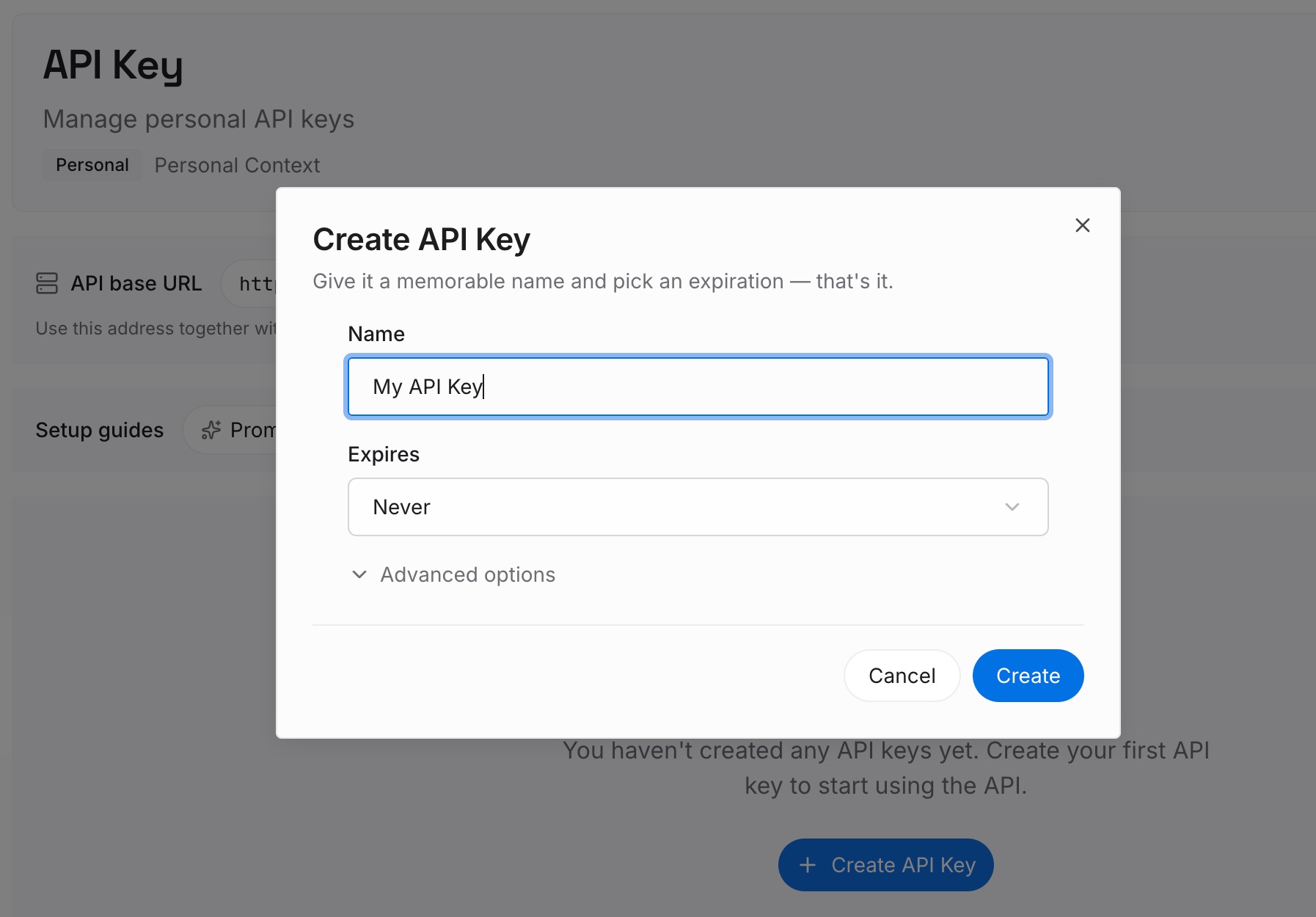
Step 1: Create an API key
Sign in and generate a key from the dashboard. Keep it out of plugin configuration files and repositories.
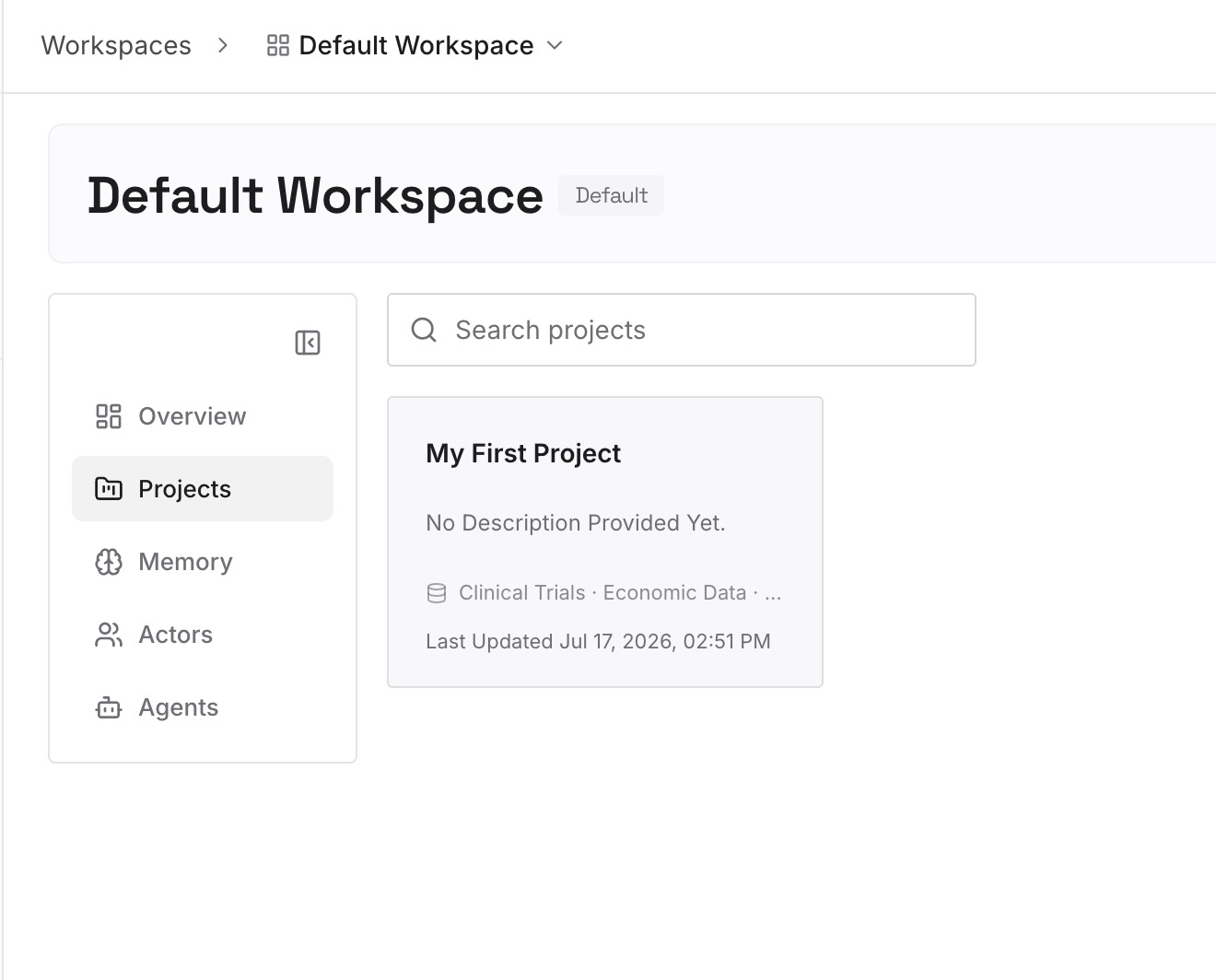
Step 2: Upload your first memories
Start with what your plugins assume: the conventions their skills enforce, the reasons behind your hooks, and the project decisions they depend on. One convention or decision per entry.
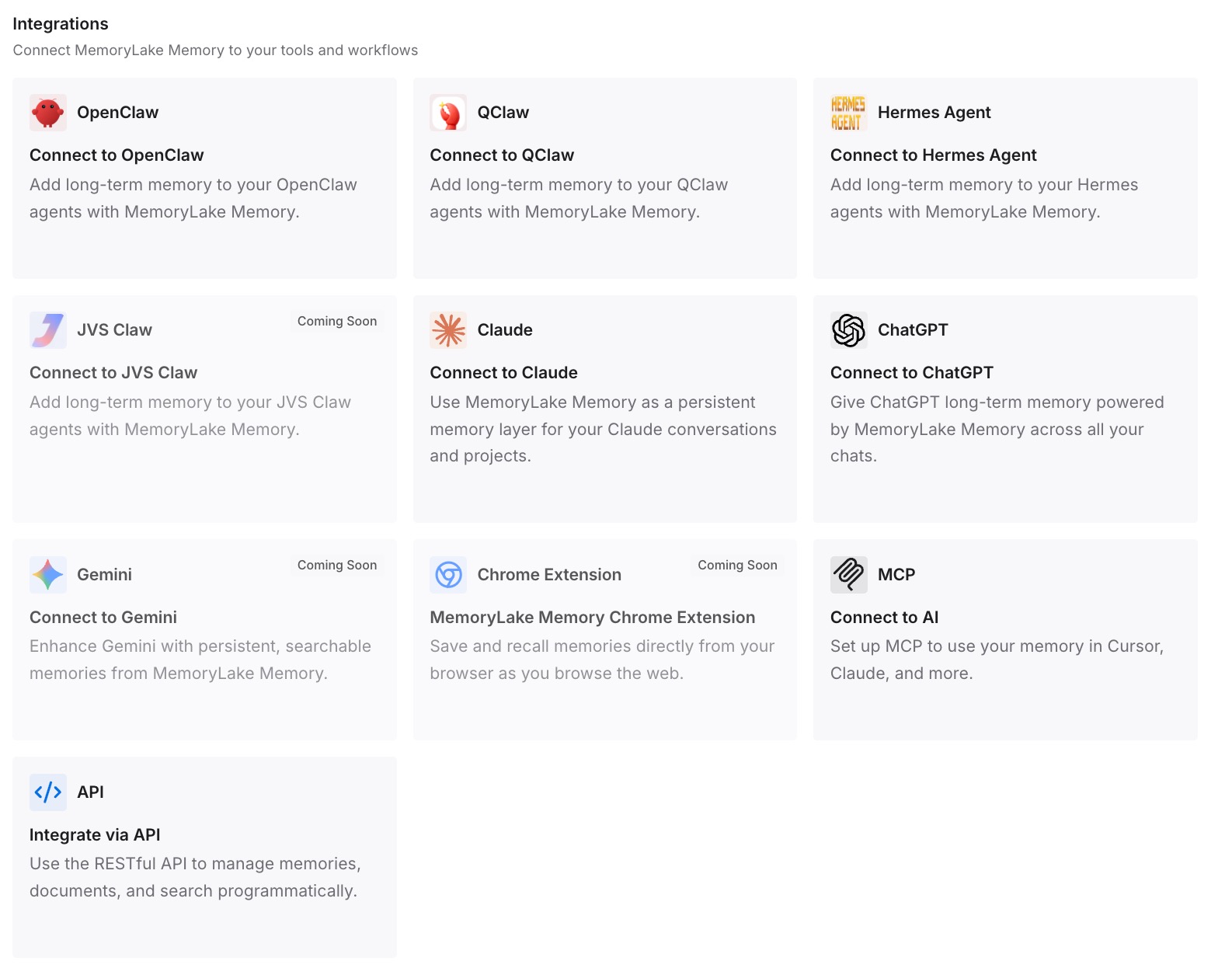
Step 3: Connect your AI & agents
Connect Claude Code and Codex, plus ChatGPT or other assistants you use. Both coding tools can draw on the same entries while you run them side by side.
What this changes in practice
The first difference is a migration that doesn't depend on every plugin moving cleanly. The context behind your setup is already written down.
The second is consistency while you use both tools. A convention you update applies in Claude Code and Codex at once, not in whichever tool you edited.
The third is a clearer review. When you read a plugin's hooks in Codex, you can check them against the reasons you recorded for having them.
Best practices for moving plugins from Claude Code to Codex
Inventory first. Know which plugins, marketplaces, hooks, and stored data you have.
Use the import. It detects plugins from your settings and won't change your Claude Code setup.
Treat detection as a list to verify. Codex lists plugins it can try to migrate.
Review hooks deliberately. Trust only the ones you understand, and expect a new review after plugin updates.
Re-enter secrets. Sensitive settings aren't in the file the import reads.
Let admins handle team marketplaces. A Claude-compatible marketplace on GitHub can be imported into a workspace.
Keep the shared context outside both tools. Plugins move; the reasons behind them should stay in one place.
Conclusion
Codex can bring your Claude Code plugins over. Its import reads enabledPlugins and extraKnownMarketplaces from your Claude Code settings, can infer the official marketplace, and lists the plugins it can try to migrate. Codex reads Claude-format plugins and marketplaces, and it sets CLAUDE_PLUGIN_ROOT and CLAUDE_PLUGIN_DATA so existing plugin hooks can run.
What still needs you: hooks have to be reviewed and trusted before they run, sensitive settings and sign-ins have to be redone, and plugin data directories aren't on the list of what the import covers. Check each of those, test each plugin on a familiar task, and keep the project context your plugins act on somewhere both tools can use.