
Who can migrate
Three conditions decide whether the move is available to you.
Same email address. The migration works when your personal account and your organization account share one email. Anthropic says: "Migration can't move chats from one email address to another, and you can't change the email address on an account."
Team or Enterprise. "There are two paths: you can start a migration yourself (Team and Enterprise) or your admin can claim accounts on your domain (Enterprise only)."
An organization that can receive data. "Enterprise organizations that have turned on HIPAA readiness or customer-managed encryption keys (CMEK) can't receive data from a personal account." If yours does, you can export a copy first, but the move itself isn't offered.
You also don't have to decide right away. Unless your admin has claimed your account, Anthropic says: "You can keep both accounts and nothing changes." Both can live on one email, and you switch between them from your initials or name in the lower left corner.
The move is one-way
Before anything else, know what you're agreeing to. Anthropic's warning: "A move can't be reversed, and not everything moves." Nothing changes until you confirm the move on the last screen.
When the move finishes, "your personal account closes (a few weeks later if you subscribed through the Apple App Store), and you can't open it or export from it." Whatever didn't move "will be deleted with the account per our data retention practices".
Your organization can see what arrives. The article answers that directly: "Your organization can access what moves, the same way it can access the rest of its data." Any retention policy your organization has set applies to it too.
What moves
Anthropic says both paths move the same content, and that "You can't pick which chats move." The list:
- Chats, and artifacts within chats.
- Artifacts in your Artifacts tab, if artifacts are available to you in your organization, as private copies under new links.
- Projects, project instructions, and files, including projects created through or used with Cowork.
- Uploaded files and attachments.
- Project sync configurations, meaning which Drive folders and repositories a project syncs.
- Claude's memory from chats and projects, "unless your organization has memory turned off."
- Claude Code memory and personal settings, such as tool settings and notification preferences, unless your organization account already has its own values set.
- Your instructions for Claude.
- Claude Design systems and projects migrated since August 14, 2026.
The memory line is the one to check. Anthropic adds: "Your organization's settings may stop some of it from moving." If memory is off in your organization, the memory Claude built in your personal account won't arrive.
What doesn't move
This list is longer, and several entries are recent additions:
- Custom skills. "There's no migration path for skills."
- Claude Docs and Claude Sheets. Export them first.
- Claude Data artifacts, other artifacts that store data, and a few other kinds of artifacts.
- Projects on the new version of projects (beta), and the chats in them. If a project was switched to the new version, only its earlier version moves, as an archived project with the chats from before the switch.
- Chats that are too large to move. The last screen says how many.
- Connections to apps and services. They're turned off, and you reconnect each one from your organization account.
- Personal Finance. It isn't available on Team and Enterprise plans.
- Custom connectors you added yourself.
- Published legacy artifacts and public share links to chats. "These stop working permanently."
- Cowork tasks in the cloud, including scheduled tasks. Anthropic notes that on Pro, Max, and Ultra plans, tasks started since October 6, 2026 run in the cloud, and "They sit beside your chats, so they're easy to mistake for chats."
- Cowork tasks that run only on your computer. They stay on your computer but don't move.
- Claude Code cloud sessions, including web, scheduled tasks, and mobile.
The Cowork entries catch people out. Our guide to Claude Desktop's Reset App Data and Cowork tasks explains which Cowork work lives in the cloud and which stays on your machine.
What to save first
Anthropic lists the steps to take in your personal account before you start:
- Export your data, and download the file before the move: "that export's link stops working once the account closes." The export doesn't include the original files you uploaded.
- Export Claude Docs and Sheets. Docs can be exported as Word, PDF, Markdown, or Google Docs.
- Download custom skills from Customize > Skills.
- Download files from cloud Cowork tasks.
- Download files Claude created if your organization has code execution and file creation turned off, because they move but can't be opened.
- Save copies of published artifacts, and share public-link content another way.
- Note the apps you've connected, so you can reconnect them.
- Turn off sharing on any artifact you don't want left shared, since "You can't change it once your personal account closes."
Anthropic's export article adds a detail about timing: "The download link will expire 24 hours after it's created, and it may work only once, so download the file right away."
How to start the move
Use Claude on the web or Claude Desktop. Anthropic notes that "you can't start a migration from the mobile apps."
Start from the right account. Anthropic says: "Start from your organization account, not your personal account." Switch to your organization from the account menu first.
- On a Team plan, you're prompted to choose when you accept an invite. If you don't choose right away, a reminder banner appears for about seven days.
- On an Enterprise plan, there's no prompt when you join.
- On either plan, go to Settings > Account > Close your personal account. Despite the name, that's where a move starts, and Anthropic says "Nothing will close until you confirm it."
When you choose to use your organization only, you get two options. One brings what can move into the organization's workspace. The other starts fresh: nothing moves, and your personal account closes and its data is deleted.
If a move fails, Anthropic says to try again, then contact Support, and not to start fresh in the meantime, because "what hasn't moved yet wouldn't move at all."
A migration usually takes a few minutes. When it's done, you're signed out on all your devices, and you sign back in with the same email.
What happens right after
Your chat list may look incomplete at first. Anthropic says "your chat list can take a little while to fill in. Searching by chat title works right away."
Claude's search of past chats needs time too. "The first time Claude searches your past chats in your new organization, it rebuilds its search index, so Claude might not find everything at first." If chats still seem to be missing, sign out, sign back in, and search again.
Subscriptions and credits
Where you bought your plan decides what happens to it:
- Bought directly. Your Pro, Max, or Ultra subscription is canceled automatically, and you get a prorated refund.
- Google Play. Anthropic asks Google Play to cancel and refund your unused time. Check Google Play and cancel there if your plan is still active.
- Apple App Store. Your subscription isn't canceled. "Apple doesn't allow third-party cancellation, so you'll need to cancel it yourself through your Apple ID settings."
If you've claimed monthly API credits on a Max or Ultra plan, new credits stop when you move. On a Team organization, the link to your Console organization ends. On Enterprise, credits you already have stay usable until they expire.
If your admin claims your account
On Enterprise, admins can claim personal accounts on a verified domain. If yours does, you'll get an email and in-product notification with a deadline, at least 30 days out, to choose between bringing what you can or starting fresh.
Bringing over what the migration leaves behind
The move carries a lot, but not everything that shapes how Claude works with you. Skills, connectors, cloud Cowork tasks, new-version projects, and anything in a chat too large to move all stay behind. And if your organization has memory turned off, the memory you built doesn't arrive either.
If you want that memory in the new account, Anthropic's memory import is an option once memory is available to you.
What people try first
Starting from the personal account. The option to move appears in the organization account, under Settings > Account.
Assuming everything moves. Skills, Docs, Sheets, cloud Cowork tasks, and connections don't.
Leaving the export for later. The export link stops working once the personal account closes.
Choosing to start fresh after a failed move. Anthropic says what hasn't moved yet wouldn't move at all.
Forgetting an App Store subscription. Apple keeps charging until you cancel it yourself.
The manual migration
Step 1: Check what your organization allows
Ask your admin whether memory, code execution, and file creation are on, and whether your organization uses HIPAA readiness or CMEK. Each one changes what arrives.
Step 2: Save everything that won't move
Export your data, Docs, and Sheets. Download skills, Cowork files, and created files. Write down your connected apps and custom connectors.
Step 3: Run the move from your organization account
Go to Settings > Account > Close your personal account in the organization account, review the last screen's list, and confirm.
Step 4: Rebuild what stayed behind
Reinstall skills, reconnect apps, and recreate anything from new-version projects. If memory didn't move, add your preferences back through Claude's memory settings or an import.
The Better Way: Keep your working context in one place you own
The migration moves most of your work once, in one direction. The parts that stay behind, such as skills, connections, and memory your organization doesn't allow, can be the parts that describe how you work. If you change organizations again, you'll sort through the same list.
MemoryLake is a memory layer for keeping your preferences, project context, and decisions in one place you maintain, available to the assistants you connect, such as ChatGPT, Claude Code, and Codex.
You write the entries yourself, in your own words. Nothing is read out of, written to, or deleted from your personal Claude account, your organization account, your Claude memory, your projects, your data exports, or any vendor's store. Account migration works the way Anthropic describes it.
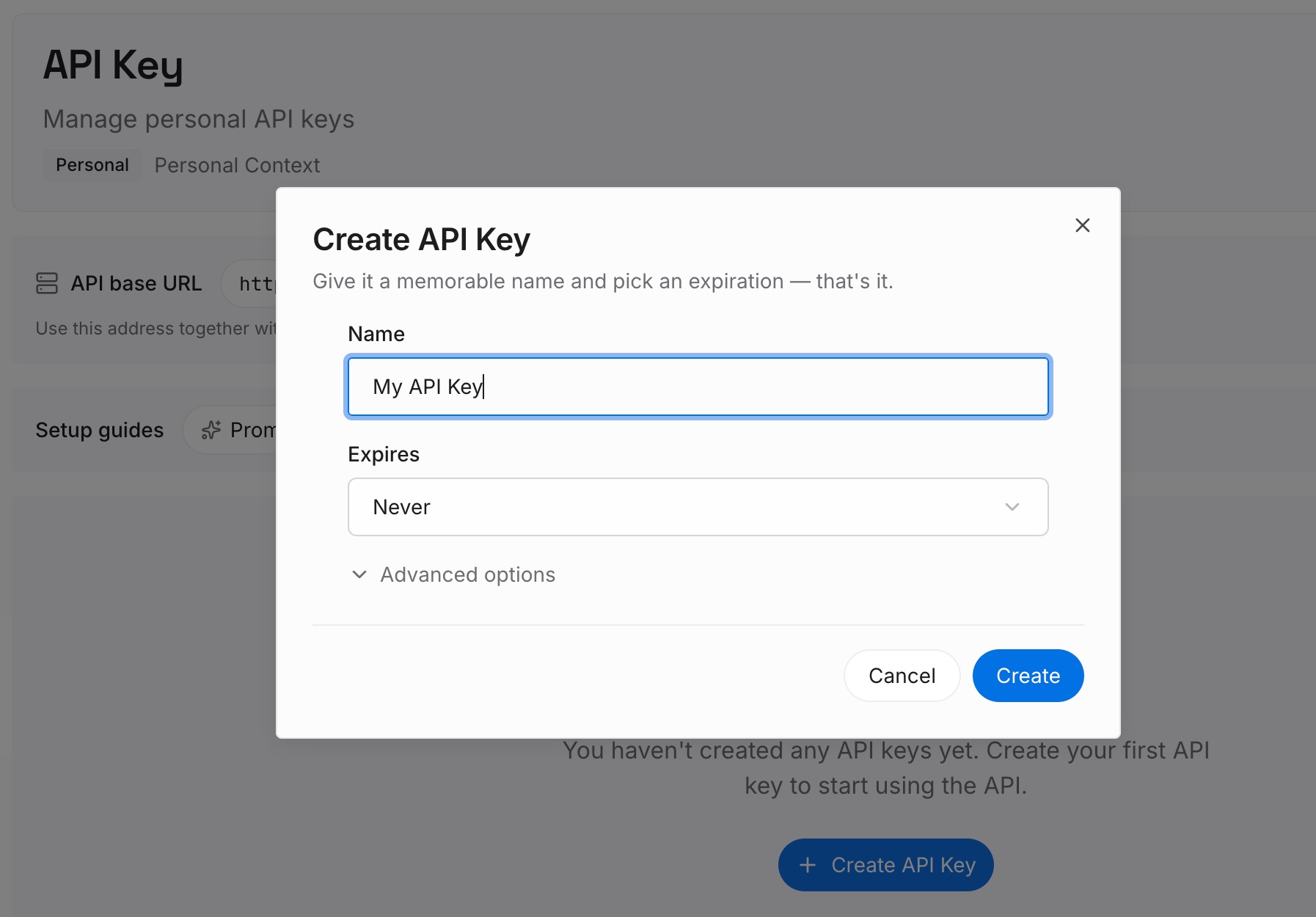
Step 1: Create an API key
Sign in and generate a key from the dashboard. The key belongs to your MemoryLake workspace and is separate from both Claude accounts.
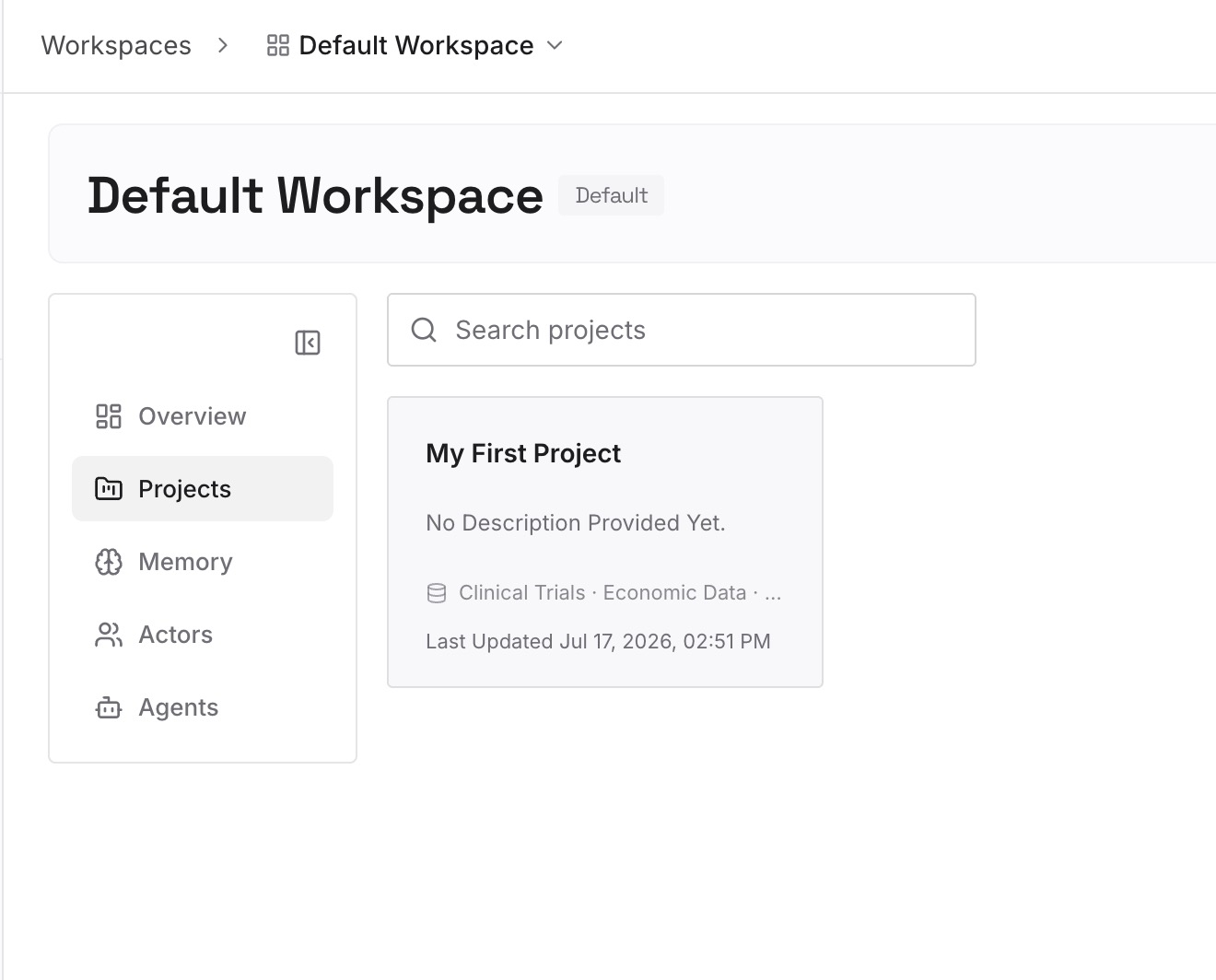
Step 2: Upload your first memories
Start with what you wrote down in Step 2 of the manual migration: the preferences Claude learned, the instructions you rely on, and the context behind your main projects. One item per entry.
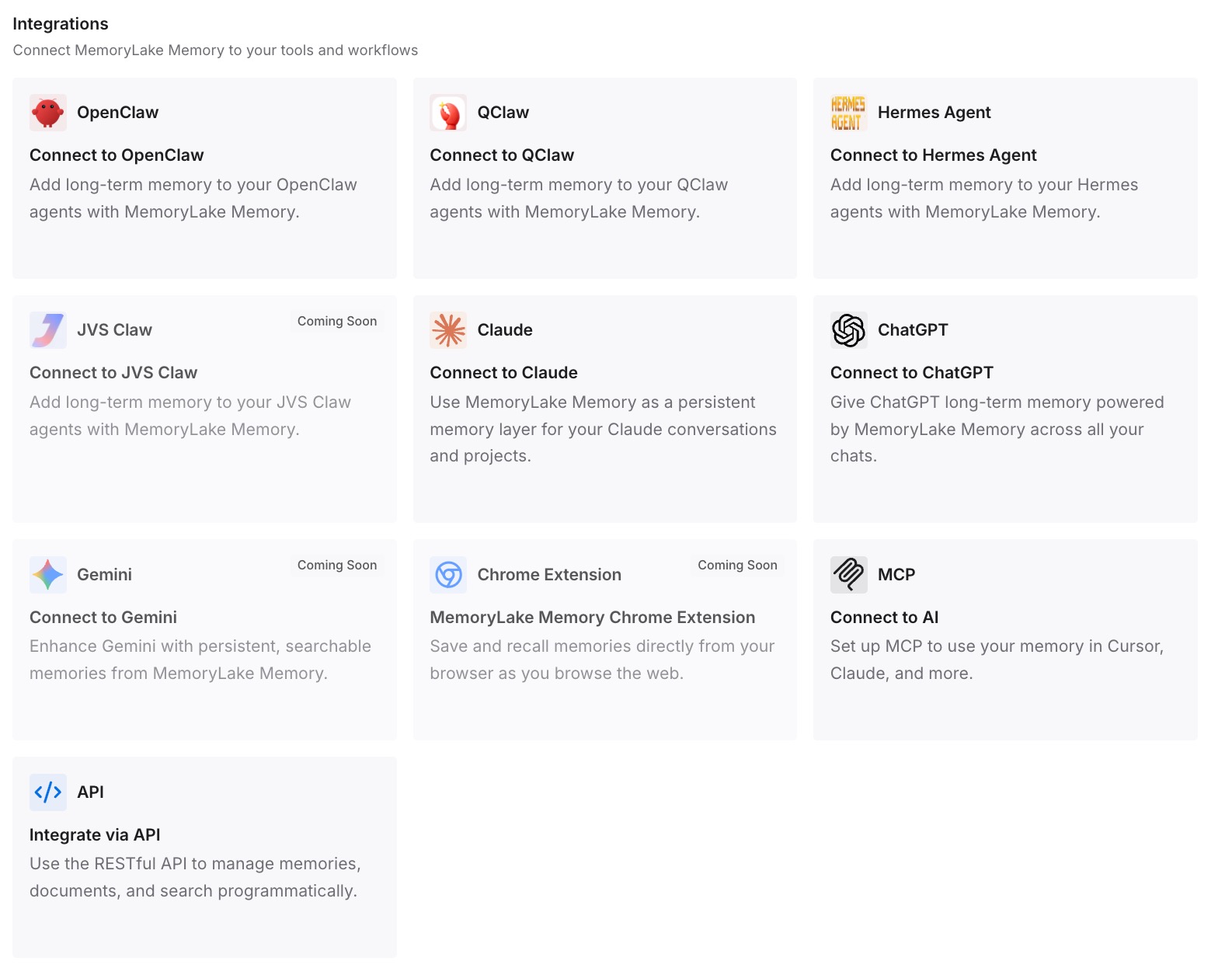
Step 3: Connect your AI & agents
Connect Claude Code and any other assistants you use. The same entries are available whichever account you're signed in to.
What this changes in practice
The first difference is a migration that doesn't depend on your organization's settings. If memory is off in the new workspace, your written context is still there.
The second is less to rebuild after the move. The context you wrote down is already in one place.
The third is a smoother next change. If you leave the organization later, the context you wrote isn't held in its workspace.
Best practices for moving a personal Claude account to Team
Start from the organization account. That's where the option appears.
Export before you move. The link stops working once the personal account closes.
Check the last screen. It lists what will and won't move from your account.
Save skills, Docs, and Sheets separately. None of them migrate.
Ask about memory settings. If memory is off in your organization, your memory won't move.
Cancel App Store plans yourself. Apple keeps charging otherwise.
Give search time. The chat list and past-chat search can take a while to fill in.
Conclusion
If your personal Claude account uses the same email as your organization, you can move much of your work into a Team or Enterprise workspace: chats, projects, files, instructions, and memory, unless your organization turns memory off. The move is one-way, it starts from your organization account under Settings > Account, and your personal account closes afterward.
Custom skills, Claude Docs and Sheets, new-version projects, cloud Cowork tasks, connections, and public links don't move. Export your data and save those items first, cancel any App Store subscription yourself, and plan to rebuild what stays behind.