
What actually transfers
Where your Claude skills live
Claude skills can sit in three separate places, and Anthropic is explicit that they don't share: "Custom Skills do not sync across surfaces."
- Claude Code. Skills are folders on disk, in
~/.claude/skills/for personal skills or.claude/skills/inside a project. Older custom commands count too: "A file at .claude/commands/deploy.md and a skill at .claude/skills/deploy/SKILL.md both create /deploy and work the same way." - claude.ai. Custom skills are uploaded as zip files through Settings, and "Custom Skills are individual to each user." If you still have the folder you zipped, that's your source copy.
- The Claude API. Skills uploaded there are shared across the API workspace and kept separately from claude.ai.
If your claude.ai skills exist only in your account, there's a documented way to get the files onto disk. When you sign in to Claude Code (v2.1.273 or later) in a terminal with your claude.ai account, Claude Code syncs the skills enabled for that account into ~/.claude/skills/synced/. The sync is one-way: "Claude Code downloads synced skills and never uploads them." That makes the synced folder a readable copy to migrate from, not a place to edit.
What the format guarantees, and what it doesn't
The open standard defines six frontmatter fields: name, description, license, compatibility, metadata, and allowed-tools. OpenAI's requirement is shorter still: "A skill is a directory with a SKILL.md file plus optional scripts and references. The SKILL.md file must include name and description."
Claude Code goes further. It accepts a long list of its own fields, including when_to_use, argument-hint, arguments, disable-model-invocation, user-invocable, disallowed-tools, model, effort, context, agent, hooks, and paths. Anthropic's own documentation draws the line: "Outside Claude Code, you can use only the fields in the Agent Skills spec". Even claude.ai rejects the extra fields at upload with a hard error.
The body of a skill has the same split. Anthropic notes that "Claude Code-only body features, such as dynamic context injection, don't function in claude.ai chat or through the API." If they don't run in Anthropic's own chat product, plan as if they won't run in ChatGPT either.
In practice, a skill that uses only name and description plus plain Markdown instructions is the most portable kind. A skill that depends on context: fork, paths, argument placeholders, or inline shell commands needs rewriting.
Where skills show up in ChatGPT
This is the part to check first. OpenAI's documentation says "Standalone skills are available in the ChatGPT desktop app, Codex CLI, and IDE extension. Skills bundled in plugins are also available in Chat and Work across ChatGPT on the web, desktop, and mobile."
So a skill folder you add on its own works on the desktop app. To use it in ChatGPT on the web or your phone, it has to be packaged in a plugin. OpenAI's framing: "Use skills to design the workflow itself, then package it as a plugin when you want other people to install it." If you're also moving custom GPT workflows, our guide to migrating custom GPTs to ChatGPT plugins covers the plugin side in detail.
OpenAI's desktop instructions: "In the ChatGPT desktop app, open Skills in the sidebar to view and explore skills created across your projects." For Codex, local skills load from folders. Codex "scans .agents/skills in every directory from your current working directory up to the repository root", with a personal location at $HOME/.agents/skills. Note the folder name: .agents/skills, not .claude/skills.
Invocation works much as it does in Claude. "In ChatGPT, type @ to select a skill." ChatGPT can also pick a skill on its own when your request matches its description.
What the import flow covers
If your skills live in Claude Code or Claude Cowork, OpenAI's import flow can bring them across. "The desktop app can import from Claude Code, Claude Cowork, or Cursor." Its import table maps Skills to Skills and Slash commands to Skills, and "Importing doesn't change or delete your existing agent setup."
OpenAI also lists what to review afterward, and two items apply directly to skills: "Tool restrictions or permissions in imported skills and agents." and "Prompt templates or command-style prompts that depend on arguments, shell interpolation, or file-path placeholders." Those are the same kinds of Claude Code extensions described above. The importer brings the file across. It doesn't rewrite what only Claude understood.
The import sources are Claude Code and Claude Cowork. Skills you uploaded to claude.ai for use in regular chats are best migrated from the files themselves.
What stays behind
A skill is a procedure, not a memory. It tells the assistant how to do something, and it doesn't carry what the assistant learned about you, your projects, or your clients while using it. Our explainer on why agent skills aren't memory covers that distinction.
Claude's memory, project knowledge, and chat history are separate migrations. Our guide to migrating Claude memory to ChatGPT and our guide to migrating Claude Projects to ChatGPT cover those.
Sharing has to be set up again. Within ChatGPT itself, OpenAI notes that "Moving a skill doesn't transfer ChatGPT workspace ownership, sharing, role assignments, plugin installation state, or connector authorization."
The manual migration
Step 1: Gather your skill folders and make them portable
Collect every skill you want to keep:
- From Claude Code: the folders in
~/.claude/skills/and each project's.claude/skills/, plus any.claude/commands/files you still use. - From claude.ai: your original folders, or the copies in
~/.claude/skills/synced/after signing in to Claude Code with that account. - From the API: the source folders you uploaded.
For each skill, open SKILL.md and work through the frontmatter:
- Keep
nameanddescription. Check thatnameuses lowercase letters, numbers, and hyphens and matches the folder name, as the standard requires. - Fold
when_to_useintodescription. Claude Code describeswhen_to_useas "Additional context for when Claude should invoke the skill, such as trigger phrases or example requests." ChatGPT's implicit matching runs on the description, and OpenAI's advice is direct: "Because implicit matching depends on description, write concise descriptions with clear scope and boundaries." - Translate
disable-model-invocation. In Claude Code it's "Set to true to prevent Claude from automatically loading this skill." The closest equivalent OpenAI documents lives in an optionalagents/openai.yamlfile in the skill folder, underpolicy, asallow_implicit_invocation. The documentation explains: "When false, Codex won't implicitly invoke the skill based on user prompt; explicit $skill invocation still works." - Remove or rewrite the rest. Fields like
context,paths,model,effort, andhooksare Claude Code features. If a skill depended on them, write the behavior into the instructions where you can, or accept that the skill will work more simply.
Then read the body. Replace argument placeholders and inline shell commands with plain instructions, and check any bundled scripts still make sense outside Claude.
If your skills come from Claude Code or Cowork, you can run OpenAI's import first and then do this review on the imported copies. Either way, the review is the same.
Step 2: Install the skills in ChatGPT and test each one
Choose where each skill needs to work.
- On the desktop app or in Codex: use Settings, then Import, for skills in Claude Code or Cowork. For Codex in the desktop app, CLI, or IDE extension, place folders you've cleaned up yourself in
$HOME/.agents/skillsfor personal use or.agents/skillsin a repository to share with a team. Codex also "supports symlinked skill folders and follows the symlink target when scanning these locations", which helps if you keep one copy of each skill. - On ChatGPT web or mobile: package the skills in a plugin.
- For a skill you'd rather rebuild: use the built-in creator,
@skill-creatorin ChatGPT Work, and paste your Claude instructions in as the starting point. OpenAI's template for the description is a good prompt for that: "Explain exactly when this skill should and should not trigger."
Then test every skill twice: once by selecting it with @, and once by asking for the task in plain words to see whether ChatGPT picks it on its own. Compare the result with what Claude produced. If the explicit call works and the implicit one doesn't, the description is the thing to fix.
If you're also tidying up which instructions should be skills and which should be always-on rules, our guide to Cursor skills versus rules walks through the same judgment for another tool.
The Better Way: Keep the context your skills depend on in one place you control
A skill tells the assistant how to write the weekly report. It doesn't tell it which clients you're focused on this quarter, what the team decided last month, or which format the new stakeholder prefers. That context can change from week to week while the procedure stays put, and putting it inside skills means editing skills every time it changes, in every tool where they live.
MemoryLake is a memory layer for keeping that kind of context in one list you maintain, available to ChatGPT, Claude Code, and the other assistants you connect, so your skills can stay focused on the procedure.
You write the entries yourself, in your own words. Nothing is read out of, written to, or deleted from your Claude skills, your claude.ai account, your ChatGPT skills or plugins, or any vendor's store. Check your organization's policy before storing work details outside your company's systems.
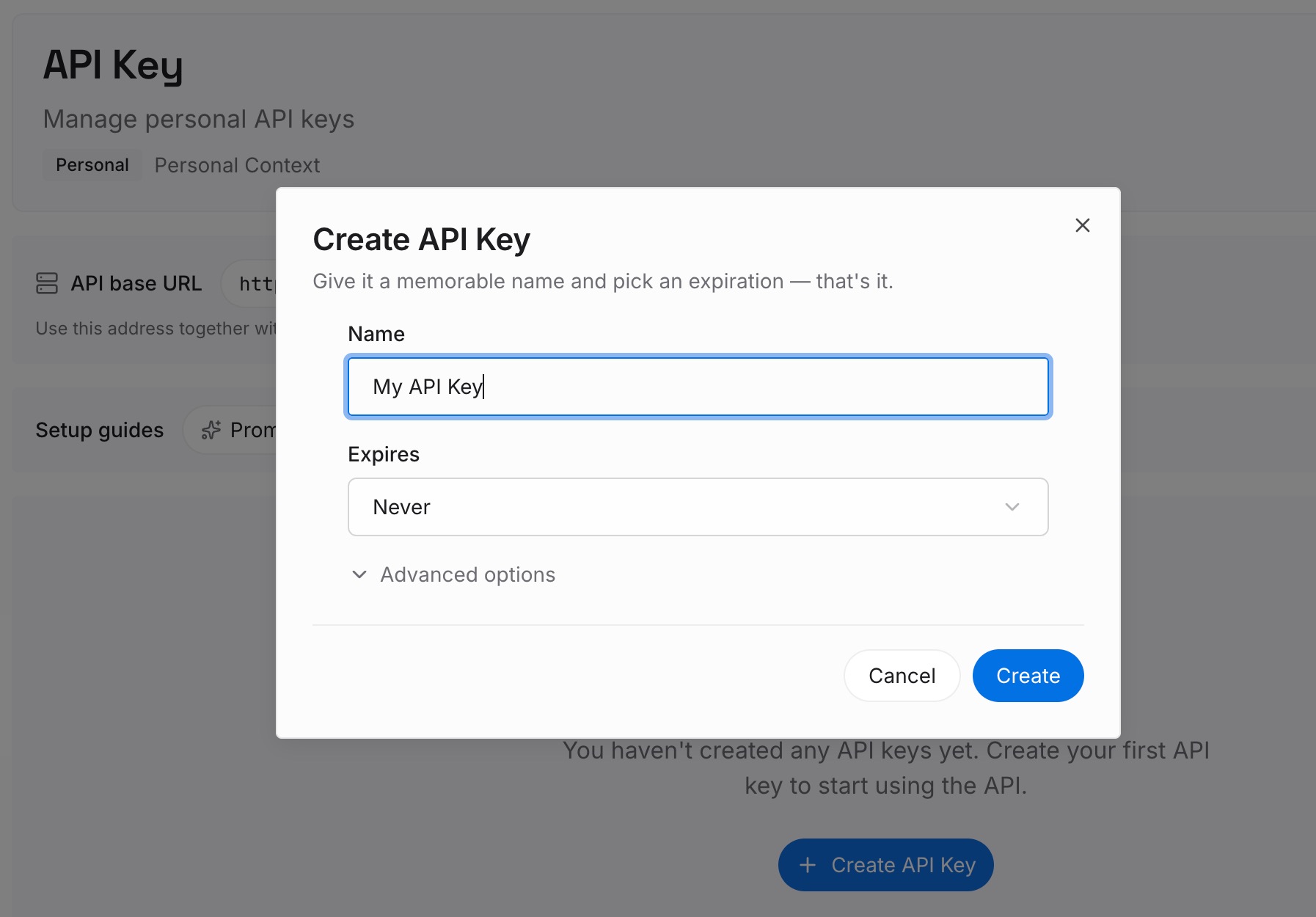
Step 1: Create an API key
Sign in and generate a key from the dashboard. The key belongs to your MemoryLake workspace and is separate from your Anthropic and OpenAI accounts.
Step 2: Upload your first memories
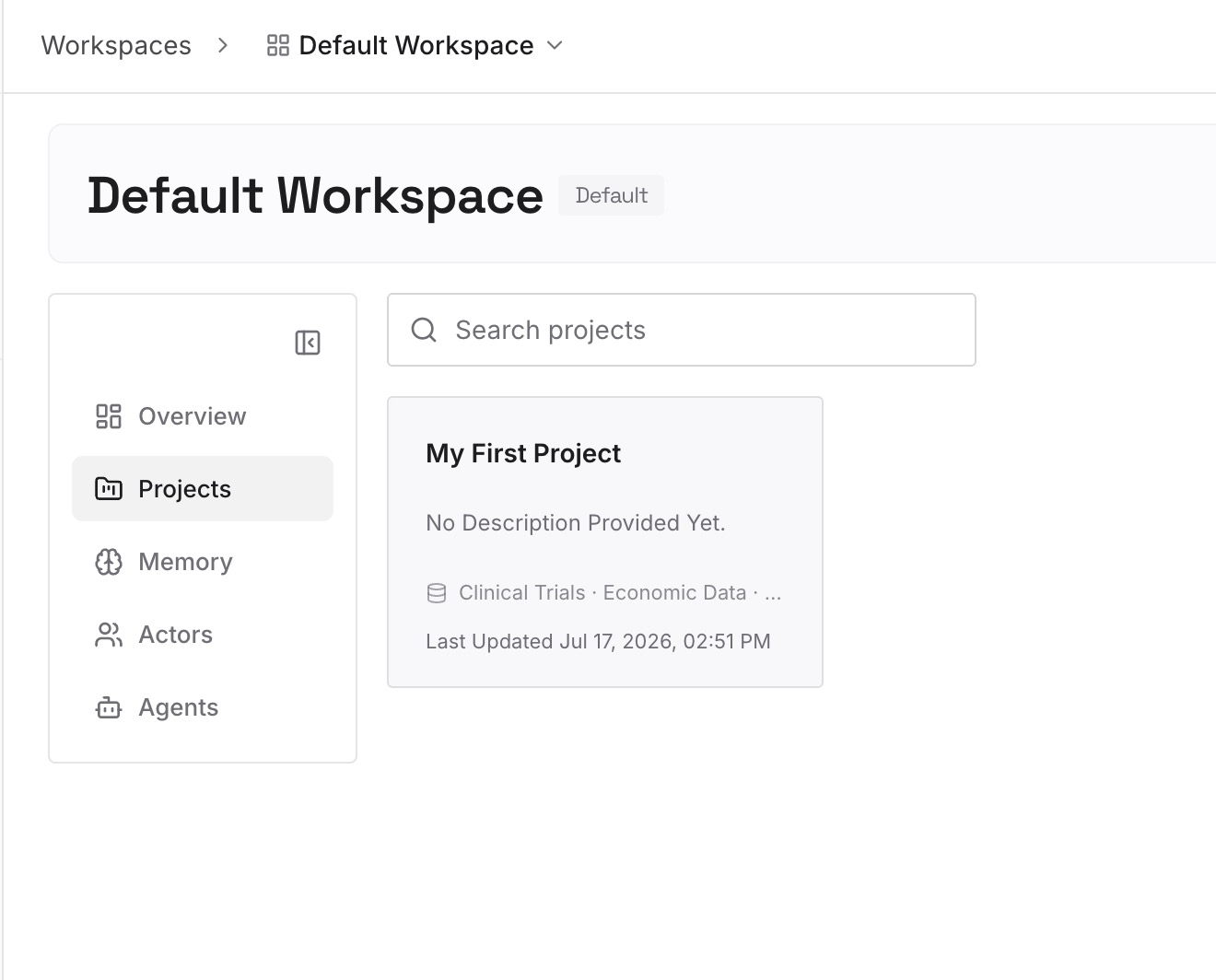
Start with the facts your skills keep needing: current priorities, client preferences, decisions that change how a task should be done. One fact or decision per entry, dated.
Step 3: Connect your AI & agents
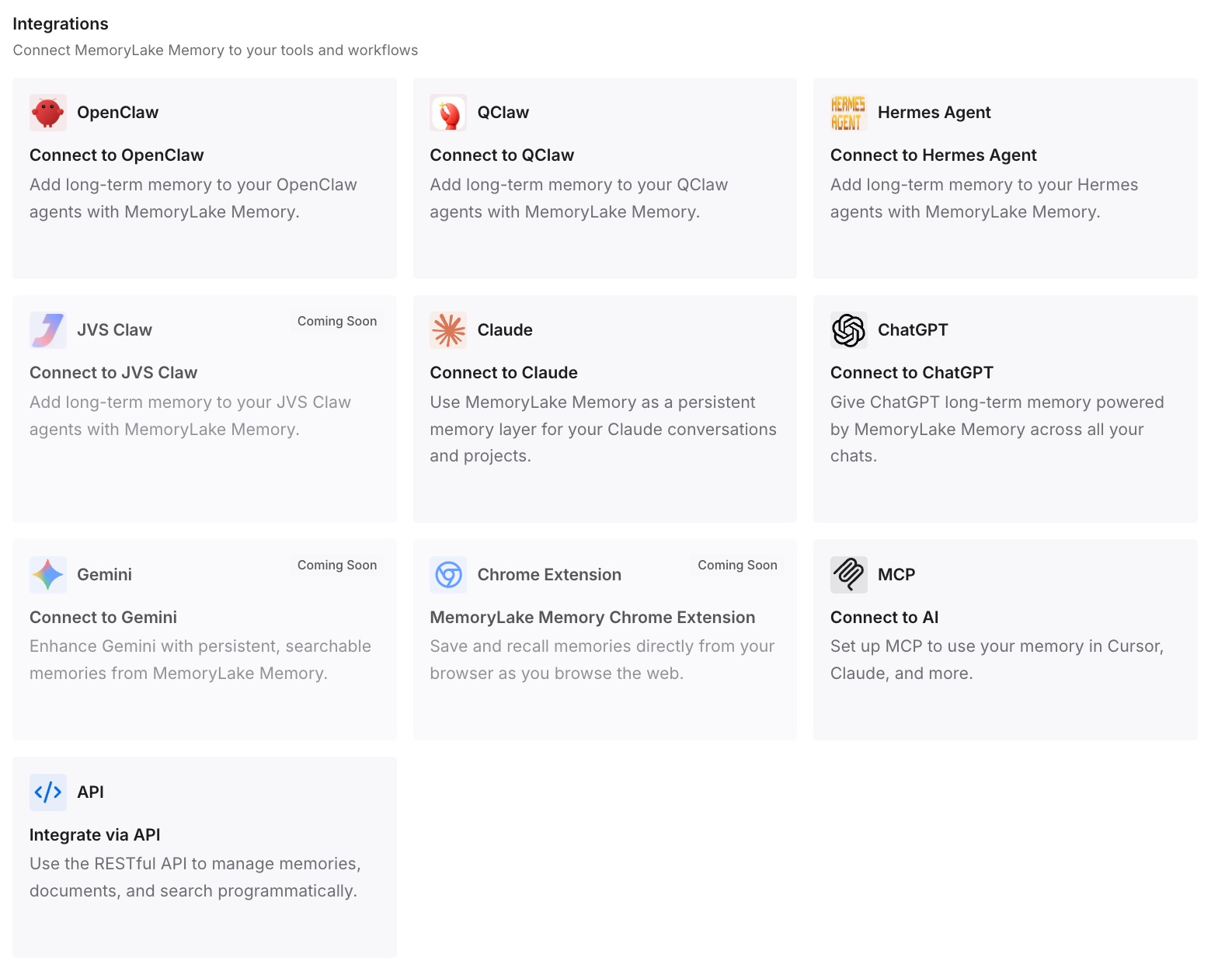
Connect ChatGPT and Claude Code, along with any other assistants you use. Your skills then carry the procedure, and the current context is available alongside them in each tool.
What this changes in practice
The first difference is a cleaner set of skills. Moving them forces a review, and skills that come out the other side use the portable fields, describe when they should trigger, and contain instructions rather than features tied to one tool.
The second is knowing where each skill will work. Desktop-only skills and plugin-packaged skills are a deliberate choice, not a surprise when a skill doesn't appear on your phone.
The third is fewer edits later. With changing context kept outside the skill, a new priority or a new client doesn't mean rewriting the procedure. Our guide to migrating Claude conversations to ChatGPT covers the conversation history where much of that context may sit today.
Best practices for moving Claude skills to ChatGPT
Migrate from files, not memory. Work from the skill folders, including the synced copies of claude.ai skills.
Use only the standard fields. name and description are required on both sides. The rest of Claude Code's fields are Claude's.
Put trigger words in the description. Implicit matching depends on it.
Decide desktop or plugin up front. Standalone skills don't appear on the web or mobile.
Test explicit and implicit invocation. Both should work before you rely on a skill.
Keep one copy per skill. Edit in one place and point each tool at it.
Keep changing context out of skills. Procedures last longer than priorities.
Conclusion
Claude and ChatGPT both build skills on the same open standard, so a SKILL.md file can move between them without being rewritten from scratch. What doesn't move on its own is everything Claude-specific: the extension fields, the body features, the places skills are stored, and the sharing around them.
Gather your skill folders from Claude Code, claude.ai, and the API. Trim each one to the standard fields, fold trigger phrases into the description, and translate invocation settings. Install them on the desktop app or package them as a plugin for the web and mobile, then test each one both ways. Keep the context your skills depend on somewhere you can update without touching the skills.