
Upgrade the organization, or start a new one?
There are two ways to end up on Enterprise, and only one of them keeps your history.
Upgrade the existing organization. Your Team organization becomes an Enterprise organization. Conversations, projects, and memberships stay where they are.
Create a new Enterprise organization. You start empty. Anthropic says you'll need to set up everything from scratch.
Anthropic recommends the first option. If you choose the second anyway, document what matters before you start.
For moving an individual's personal work into an organization, which is a different migration, see our guide to moving a personal Claude account to a Team or Enterprise organization.
What's retained when you upgrade in place
Anthropic's article lists what stays with a same-organization upgrade:
- All chat history and conversations
- Projects and shared content
- User memberships and roles
That covers the bulk of a team's working context: the conversations themselves, the projects, what's been shared, and who belongs to the organization in which role.
The phrase "some of the settings" is worth taking literally. Not every Team setting carries over as it was, and some capabilities change their default. That's covered below, and it's the main source of first-day surprises.
Two upgrade paths
The article describes two ways to upgrade, and the steps and timing differ.
Self-serve Enterprise
The self-serve path runs from claude.ai/upgrade. You select Get Enterprise plan, choose to upgrade an existing organization, and select your Team organization. From there:
- Seats. Add the seats you need. The article notes that "Enterprise organizations have a 20 seat minimum".
- Spend. Set a per-user spend limit and a starting usage balance for the team.
- Payment. "When you migrate from a Team to a self-serve Enterprise plan, we only support credit card payments." After the move, other payment methods become available.
- Confirm. Review the order summary and confirm.
Before you confirm, read the warning in the article carefully: "Migrating an organization from Team to Enterprise via this pathway is not reversible."
Sales-assisted Enterprise
If you're working with an Anthropic account executive on an invoiced or contracted agreement, the upgrade is scheduled rather than clicked. The article explains the timing: "Once your agreement is countersigned, your organization is provisioned on your contracted start date."
Two practical notes come with it:
- Plan for the next morning. "Activation may not complete until later that day, so plan your internal rollout for the next business morning to avoid disruption mid-workday."
- Expect a short outage. "Your users won't be able to access Claude while provisioning is in progress."
After the cutover, the article asks everyone to refresh: "After the migration is complete, all users, including admins and standard users, should log out and log back in to refresh their session and clear any cached legacy settings."
What turns off, and why nothing is deleted
This part of the migration can look like data loss when it isn't.
Anthropic explains: "Some features that are turned on by default on Team plans may be turned off by default on Enterprise plans, so it's worth checking that your configuration matches your preferences."
The article lists the capabilities that are off by default for Enterprise:
- Skills, and with them, skill creation and skill sharing
- Code execution and file creation
- Claude Design, Claude Slides, and Claude Docs, under the Artifacts settings
- Standalone Claude Design
- Claude in Chrome
The key sentence is this one: "Your underlying data is preserved even when a capability is turned off."
Anthropic uses skills as the example. If members created custom skills on the Team plan, "those skills are not deleted during the migration—they're retained in your organization." And when skills come back on: "When an admin re-enables skills on the Enterprise plan, any previously created custom skills will be available again."
The same rule covers the rest of the list: "turning the setting back on restores access to existing content rather than starting from scratch."
So if a teammate reports the morning after that their skills are gone, the first thing to check is the organization's capability settings, not a backup.
Other defaults that differ between Team and Enterprise
The migration article's list covers capabilities that existed when it was written. Newer features have their own Team and Enterprise defaults, documented in their own help articles:
- Claude Meetings. On by default for Team, off by default for Enterprise, where an owner turns it on.
- Claude Motion. On by default on Team plans and off by default on Enterprise plans, under the Artifacts settings.
There's also a dated change to watch. Anthropic's article on the new Plugins page says that starting November 30, if skills are disabled for an organization, plugins are also blocked in the Claude Desktop app, and that this rule applies to Team and Enterprise plans. Because skills are off by default after a move to Enterprise, an organization that upgrades and leaves skills off would also have plugins blocked in Desktop from that date.
Some features also change on their own schedule for Enterprise. Claude Data, for example, has its own Enterprise date, which we covered in our guide to what Claude Data is and what changes for Enterprise.
Seats, spend limits, and access
The article points to seats and spend as the access issues to check, not missing data.
Spend limits. Anthropic advises raising a Team spend limit before go-live: "If you previously set a spend limit on your Team plan, consider increasing it before your go-live date so users aren't locked out." The consequence of hitting it is immediate: "Once the org-level spend limit is reached, all users lose access immediately until the spend limit is raised or the new month begins." After the move, review per-user spend limits under Organization settings, then Usage.
Seat assignments. "During migration, some users may appear as No seat assigned rather than being automatically mapped to seat tiers." The article adds that "users without a seat won't have access until an admin corrects their seat assignment" and suggests paying attention to your highest-usage members first.
Roles and groups. After the move, an Owner or Primary Owner can set up custom roles, groups, and group spend limits. That's also how you control which groups get capabilities like skills or Claude Meetings.
Billing and credits
Two credit rules are worth knowing before you migrate:
- Usage credits roll over. "If you had purchased usage credits for your Team plan, any unused balance will roll over and become available on your new usage-based Enterprise plan."
- Monthly API credits stop. "Enterprise plans aren't eligible for monthly API credits. If your team has claimed them, new credits stop when you migrate. Credits you already have stay usable until they expire."
If developers on your team use monthly API credits for their own apps on the Claude Platform, tell them before the date.
Identity setup timing
If you turn on single sign-on and provisioning as part of the move, the article gives realistic timing:
- Domain verification. Allow 24 to 48 hours for DNS changes to propagate, though many take effect within minutes.
- Provisioning sync. Microsoft Entra ID pushes changes roughly every 40 minutes. Okta syncs more often.
- Sign-in. "Once you turn on SSO, existing users will be forced to log out and log back in."
None of this deletes conversations or projects. It changes how people get back in, which is worth announcing so nobody assumes their account was reset.
What to check before you start
A short inventory before the upgrade makes the first day easier:
- Which capabilities your team uses today: skills, code execution and file creation, artifacts like Claude Docs and Slides, Claude in Chrome, Claude Meetings
- Which members created custom skills that others depend on
- Your current spend limit and expected usage after the move
- Who your highest-usage members are, for seat checks
- Whether anyone uses monthly API credits
What people try first
Creating a new Enterprise organization. It starts from scratch. Upgrade the existing Team organization to keep conversations and projects.
Assuming skills were deleted. Skills are off by default on Enterprise, and custom skills are retained in the organization until an admin turns skills back on.
Starting mid-workday. Sales-assisted activation may finish later in the day. Plan the rollout for the next morning.
Skipping the seat check. Users without a seat assignment won't have access until an admin fixes it.
Leaving the old spend limit in place. When the org-level limit is reached, everyone loses access at once.
The manual migration
Step 1: Inventory what your team uses
List the capabilities turned on in your Team organization and the custom skills people depend on. Note your spend limit and your highest-usage members.
Step 2: Prepare spend and communication
Raise the spend limit if needed, tell members when the switch happens, and let them know they'll need to log out and back in.
Step 3: Upgrade the existing organization
Use the self-serve flow and choose to upgrade your existing Team organization, or agree on a go-live time with your account executive. Don't create a new organization if you want to keep your history.
Step 4: Turn back on what you use
In Organization settings, turn on skills, code execution and file creation, the artifact templates, and any other capabilities from your inventory. Set up roles and groups if only some people should have them.
Step 5: Verify seats, projects, and skills
Check that every member has a seat, open a few shared projects, and confirm custom skills appear again.
The Better Way: Keep your team's working context in a place you maintain
An in-place upgrade keeps your conversations and projects. But the context that makes them useful, such as the decisions behind a project's instructions, the conventions a custom skill encodes, and who owns which area, is also what your team needs in other tools and in the next reorganization.
MemoryLake is a memory layer for that kind of working context, such as decisions, conventions, and project details, kept in one place you maintain and available to the assistants you connect, such as ChatGPT, Claude Code, and Codex.
You write the entries yourself, in your own words. Nothing is read out of, written to, or deleted from your Claude organization, its conversations, its projects, its skills, its settings, or any vendor's store. The Team to Enterprise migration works the way Anthropic describes it.
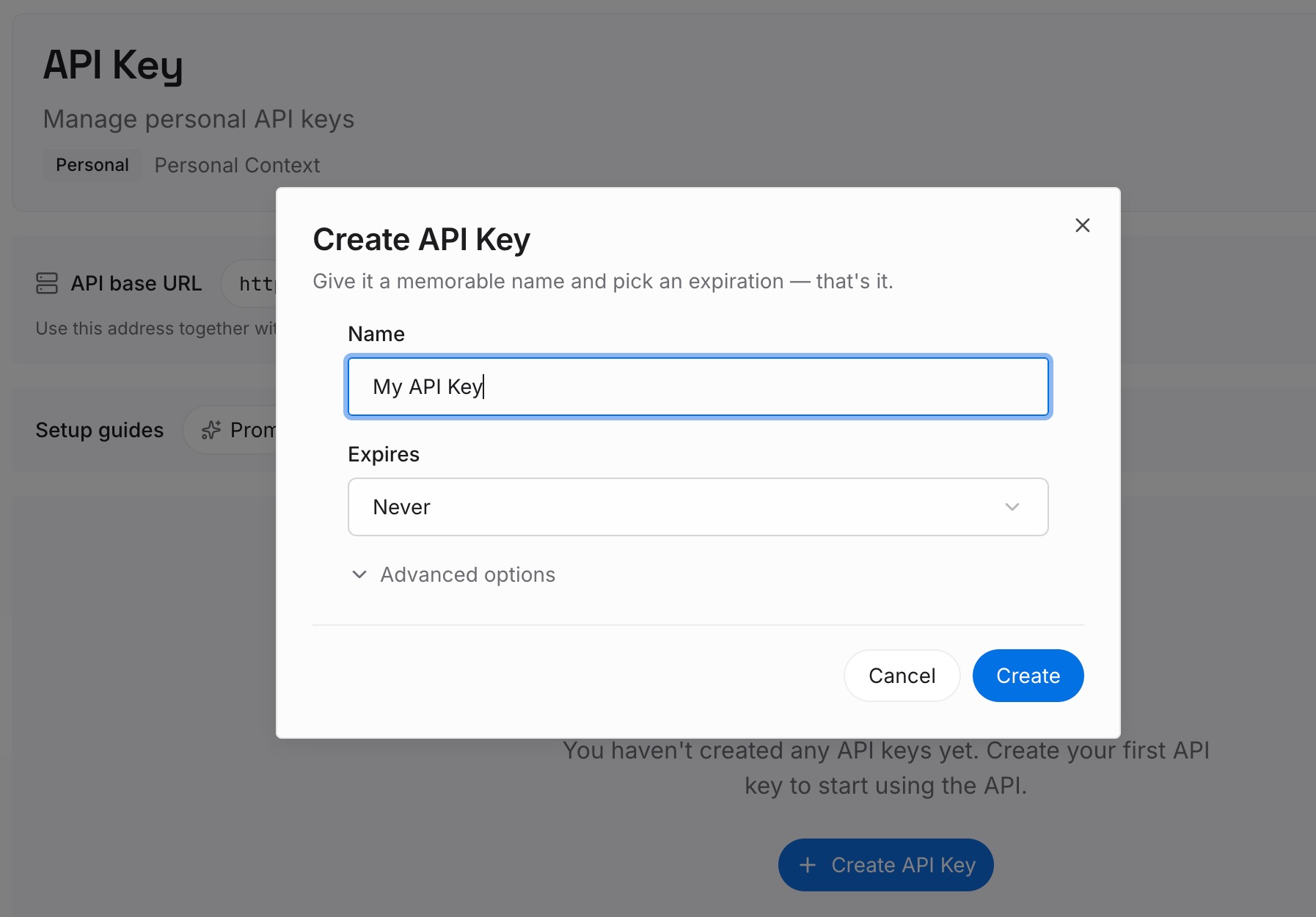
Step 1: Create an API key
Sign in and generate a key from the dashboard. The key belongs to your MemoryLake workspace and is separate from your Claude organization.
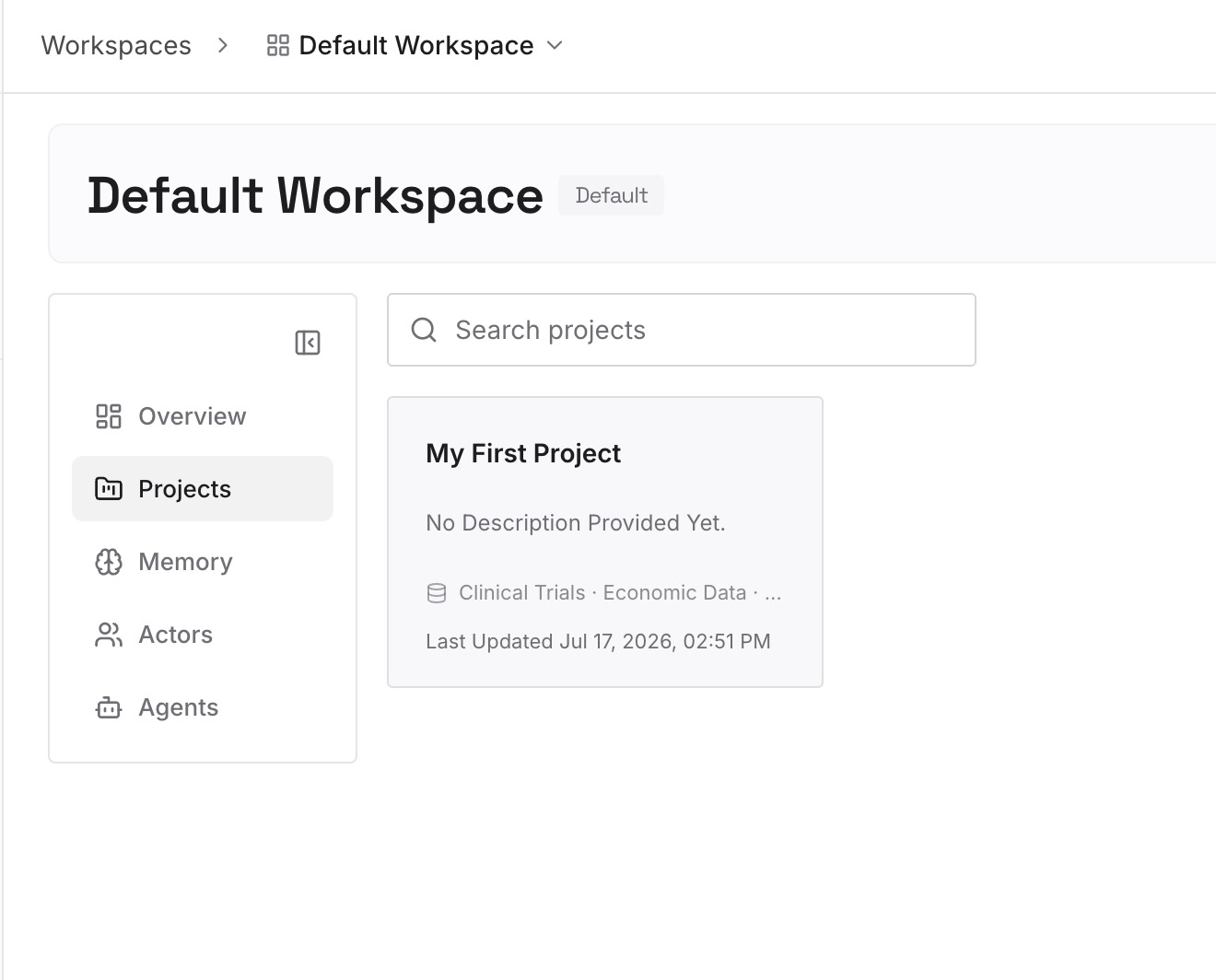
Step 2: Upload your first memories
Start with your inventory from Step 1 of the manual migration: the conventions behind your shared projects and skills, the decisions your team relies on, and who owns what. One item per entry.
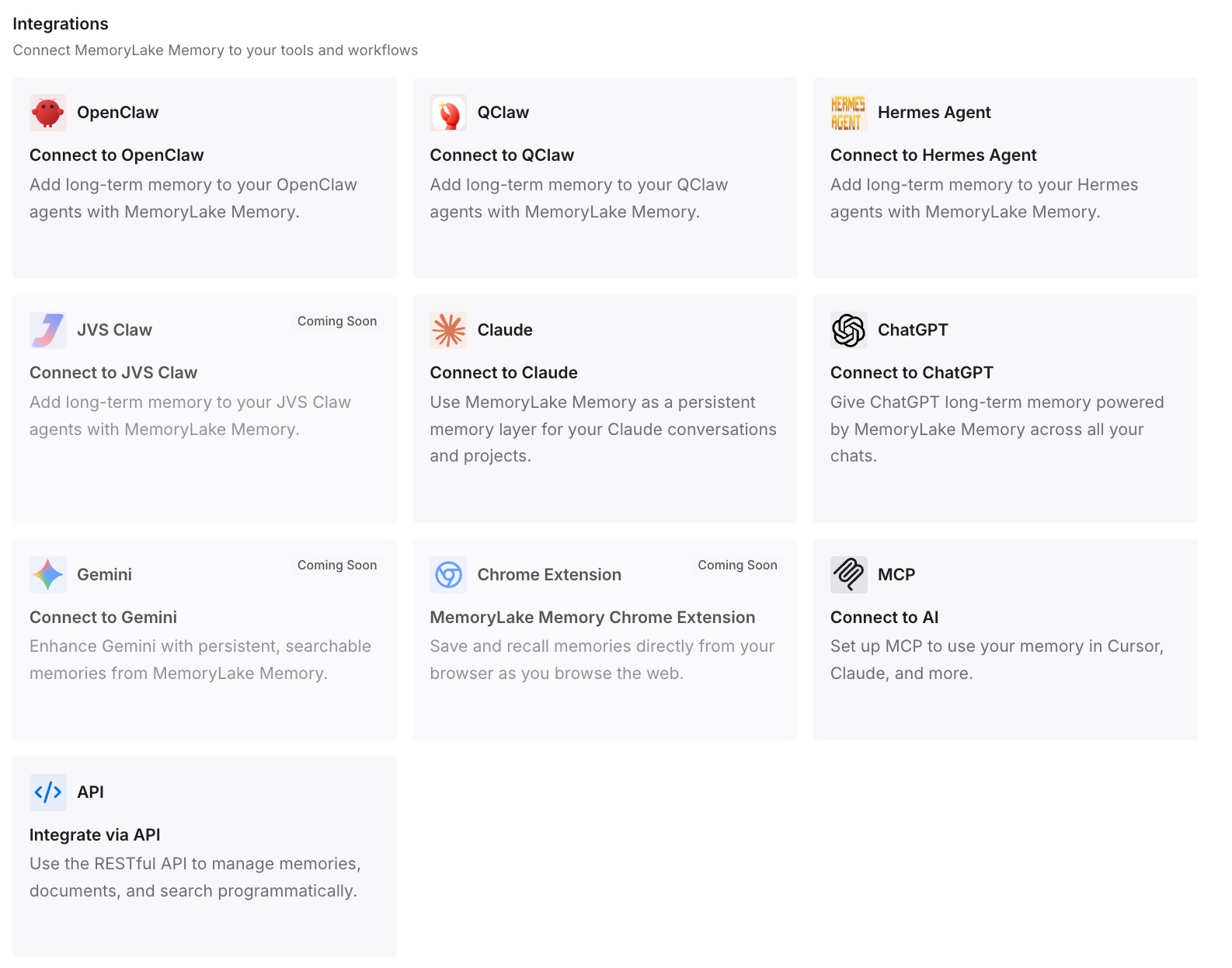
Step 3: Connect your AI & agents
Connect Claude Code, Codex, ChatGPT, or the other assistants your team uses. The same context is available while capabilities are being turned back on, and in tools outside Claude.
What this changes in practice
The first difference is a calmer first day. If a capability is still off after the switch, the knowledge it depended on is still written down.
The second is context that doesn't depend on settings. Skills and artifact templates can be turned off and on, and your written conventions stay the same.
The third is an easier next move. If the organization changes again, your team's context doesn't have to be rebuilt.
Best practices for moving from Team to Enterprise
Upgrade in place. It keeps conversations, projects, and memberships.
Remember it's one-way. The self-serve upgrade isn't reversible.
Inventory capabilities first. Several are off by default on Enterprise.
Turn skills back on deliberately. Custom skills come back when skills are re-enabled, and plugins in Desktop depend on skills from November 30.
Check seats for heavy users. Some members may show up without a seat.
Raise spend limits before go-live. Hitting the org-level limit locks everyone out.
Ask everyone to log out and back in. It clears cached legacy settings.
Conclusion
To move a Claude Team organization to Enterprise without losing context, upgrade the existing organization instead of creating a new one. Anthropic says the in-place upgrade keeps chat history and conversations, projects and shared content, and memberships and roles. A new organization starts from scratch.
Expect some capabilities to be off on the first day. Skills, code execution and file creation, Claude Design, Slides, and Docs, standalone Claude Design, and Claude in Chrome are off by default on Enterprise, and turning them back on restores access to existing content. Check seats, spend limits, and identity setup, and keep your team's conventions written down somewhere that doesn't change with the plan.