
Your personal and Team accounts are separate
Anthropic describes two kinds of account. The move article says: "Your personal account is the Claude account you signed up for yourself. Your organization account is the one you get in your organization's Team or Enterprise plan."
Both can use the same email address. You switch between them by clicking your initials or name in the lower left corner. Each keeps its own chats and projects.
Where you start from depends on your history:
- You have a personal account alongside your Team account. It's still there, with whatever you had in it before. Your Team chats are in the Team account.
- You moved your personal account into the organization. If you used the built-in move when joining, your personal account closed afterward, and Anthropic says you can't open it or export from it.
- You've only ever had a Team account. You'll create a personal account and start it from scratch.
If you're not sure which applies, click your initials in the lower left corner and check whether a personal account appears in the menu.
Can you export your own Team chats?
Sometimes. It depends on your organization.
Anthropic's export article says that on Team and Enterprise plans, "you can export your own data once an organization Owner or Primary Owner turns this on". The setting is called Allow members to export their own data. If it's on, you export the same way an individual user does: go to Settings > Privacy and select Export data.
If you don't see that button, the article's advice is to ask an owner whether the setting is on. There's no other self-service route for a member.
When the export works, keep its limits in mind:
- It covers your own chats. The article says: "The export includes your own chats. It doesn't include the contents of files you uploaded."
- It runs on the web or Claude Desktop. You can't start an export from the iOS or Android app.
- The link is short-lived. Anthropic says the download link expires 24 hours after it's created and may work only once, so download it right away.
Primary Owners work differently. They don't see the personal Export data button. They export the whole organization's data from Organization settings > Data and privacy.
Before exporting anything, check your organization's policy. Team chats can contain information that belongs to your employer, and the option to export is something your organization turns on deliberately.
What happens to your Team chats when you're removed
On a Team plan, removal is done from Organization settings > Members. Anthropic's members article says that when a member is removed, "They lose access to the organization immediately." Its article on removed users explains what happens to the data.
Your account and data aren't deleted by removal. The article says: "Removing a user from your organization doesn't delete their account or data." An Owner or Primary Owner can ask Support to permanently delete a removed user's account and data.
Other members lose access to your chats. The article says that when a user is removed, "remaining members will no longer be able to access their chats". That includes chat snapshots shared with the organization.
Private projects become unreachable to the team. If a project was set to private, other members can't access it after you're removed. Anthropic suggests that before leaving, you change a project's permissions so others can edit it, or invite specific people with edit access.
The organization can still export your data. Anthropic notes that a removed user's data is still included in organization data exports run by the Primary Owner.
One more detail: if you're an Owner or Primary Owner, you can't remove yourself. Another Owner or Primary Owner has to do it.
The practical point is timing. Anything you want to keep, whether an export or your own notes, has to happen while you still have access.
What an export can and can't do
If your organization lets you export, you'll get a file of your chats. It's worth being clear about what that file is for.
Anthropic's export article answers the obvious question directly: "Exported data can't be imported into another personal Claude account, and we don't support migrating data between personal accounts."
So the export is a record, not a migration. It won't recreate your Team chats in a personal account. What it gives you is a searchable archive of your own conversations, which you can read when you need an old answer.
What it doesn't include matters too. The contents of files you uploaded aren't in it. Neither are Word, Excel, PowerPoint, or PDF files Claude created, according to Anthropic's organization export article. If you rely on a document Claude produced, download it from the chat while it's available.
Deletion matters on the organization side, too. Anthropic's organization export article says messages, files, and projects deleted from the account, whether by a user or by retention settings, aren't included in exports run after the deletion. If you clean up your Team chats before leaving, export first.
Bringing your memory along
Your Team account's memory belongs to that account. A personal account starts with its own.
Anthropic gives you two tools that work across accounts, because they're text you copy yourself.
Export your memory as text. Anthropic's memory article says you can view your memory under Settings > Your Claude by selecting Manage next to Your memory, or by asking Claude in a chat. The suggested prompt is: "Write out your memories of me verbatim, exactly as they appear in your memory." You can save the result to a local file.
Import it on the personal side. In your personal account, go to Settings > Your Claude, select Start import, paste the text, and add it to memory. Anthropic says Claude "will extract key information and store it as individual memory entries".
Two cautions. First, read what you export before importing it. Memory from a work account can include details about your employer's projects, and those may not belong in your personal account. Second, Anthropic says memory imports are experimental, and that Claude's memory focuses on work-related topics, so some personal details may not be kept.
What your personal account already has
A personal Claude account isn't empty of tools. It's empty of your history. Anthropic's projects article says projects let you create "self-contained workspaces with their own chat histories and knowledge bases". Projects are available on every plan, including Free, which allows up to five.
Searching past chats is available on paid plans, including Pro, Max, and Ultra. On a new personal account, there's nothing to search yet, which is why the notes you bring matter more than they would later.
What people try first
Waiting until the last day. A removed member loses access to the organization immediately.
Expecting an export to import. Anthropic says exported data can't be imported into another personal Claude account.
Looking for a reverse of the personal-to-Team move. The built-in move goes one way: into the organization.
Assuming the export includes files. It doesn't include the contents of files you uploaded.
Copying work memory wholesale. Read it first. Not all of it is yours to take.
The manual migration
Step 1: Check what you're allowed to keep
Ask your organization's owner two questions: whether members can export their own data, and what the company's policy is on keeping work content. Do this before your last week.
Step 2: Write down your context while you still have access
Go through your Team chats and projects by topic. For each topic you're allowed to keep, write a short summary in your own words: what you were working on, what you decided, and how you like to work. Export your chats if the setting is on, and copy your memory as text. Download any files Claude created that you need.
Step 3: Set up the personal side and add the context back
Sign in to your personal account, or create one. Import the memory text you reviewed through Settings > Your Claude. Create a project for each ongoing topic and add your summaries to its knowledge. Keep the export file in your own storage as a reference.
The Better Way: Keep your working context in one place you own
The manual migration moves your context once. But the summaries you wrote in Step 2 are the part that matters, and now they live in one Claude account. If you change jobs again, or add another assistant, you'll write them out again. Our guide to keeping AI context when someone leaves shows the same problem from the team's side.
MemoryLake is a memory layer for keeping those summaries and decisions in one place you maintain, available to the assistants you connect, such as ChatGPT, Claude Code, and Codex.
You write the entries yourself, in your own words. Nothing is read out of, written to, or deleted from your Team account, your personal Claude account, your Claude memory, your projects, your data exports, or any vendor's store. Exports, memory imports, and account moves work the way Anthropic describes them.
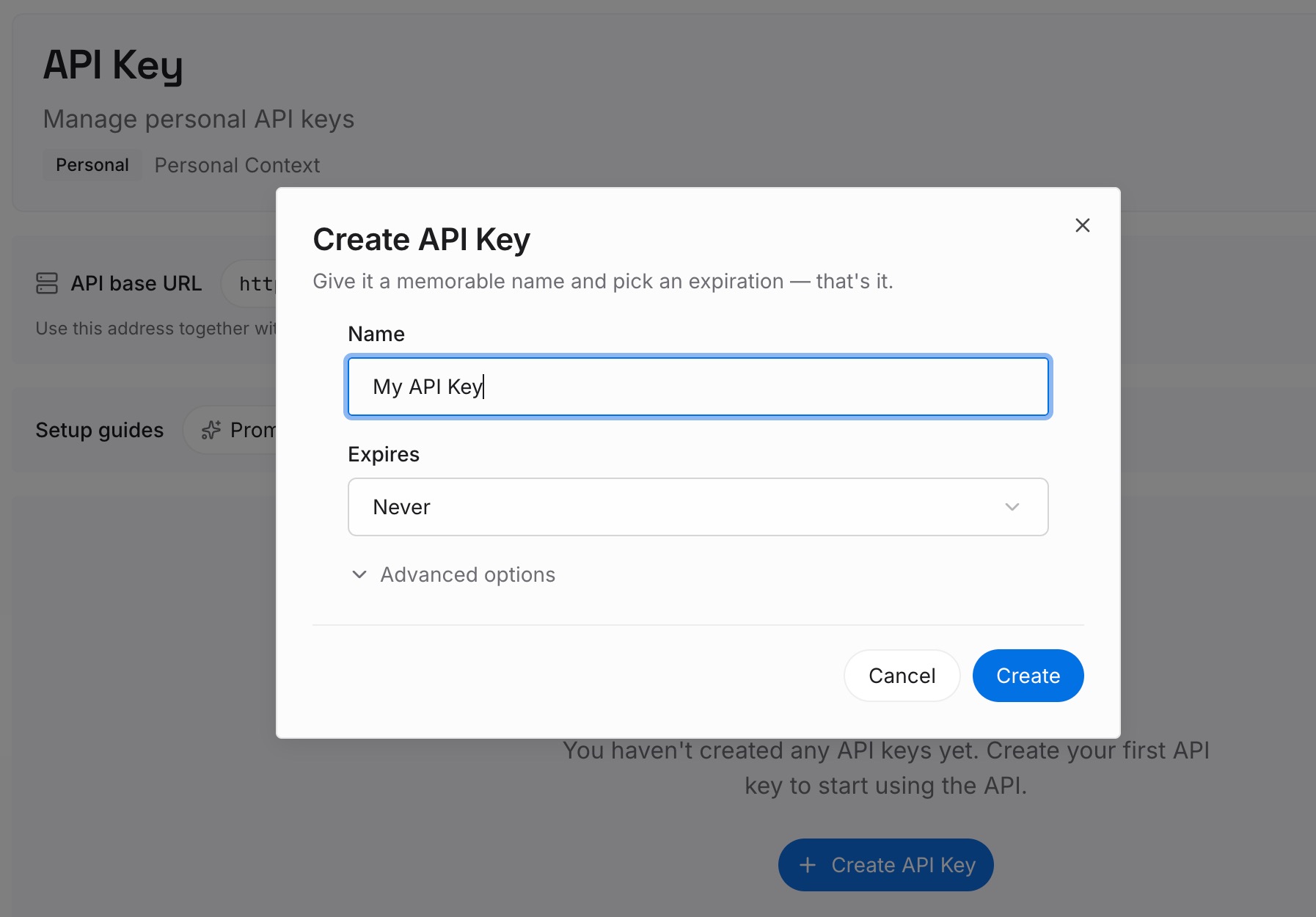
Step 1: Create an API key
Sign in and generate a key from the dashboard. The key belongs to your MemoryLake workspace and is separate from your Anthropic accounts, personal or Team.
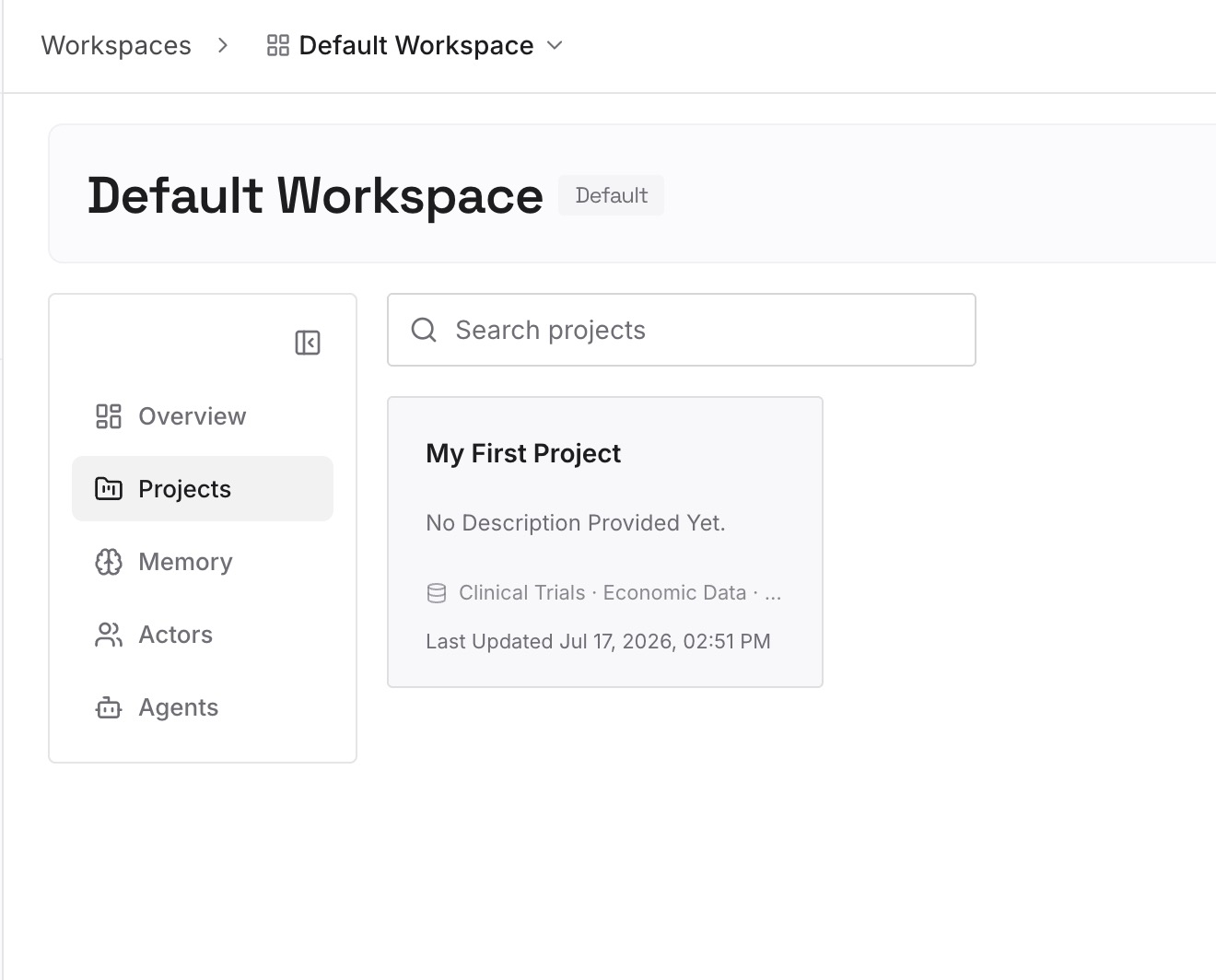
Step 2: Upload your first memories
Start with the summaries from Step 2 of the manual migration, limited to what you're allowed to keep. One decision or preference per entry, so you can update one without rewriting the rest.
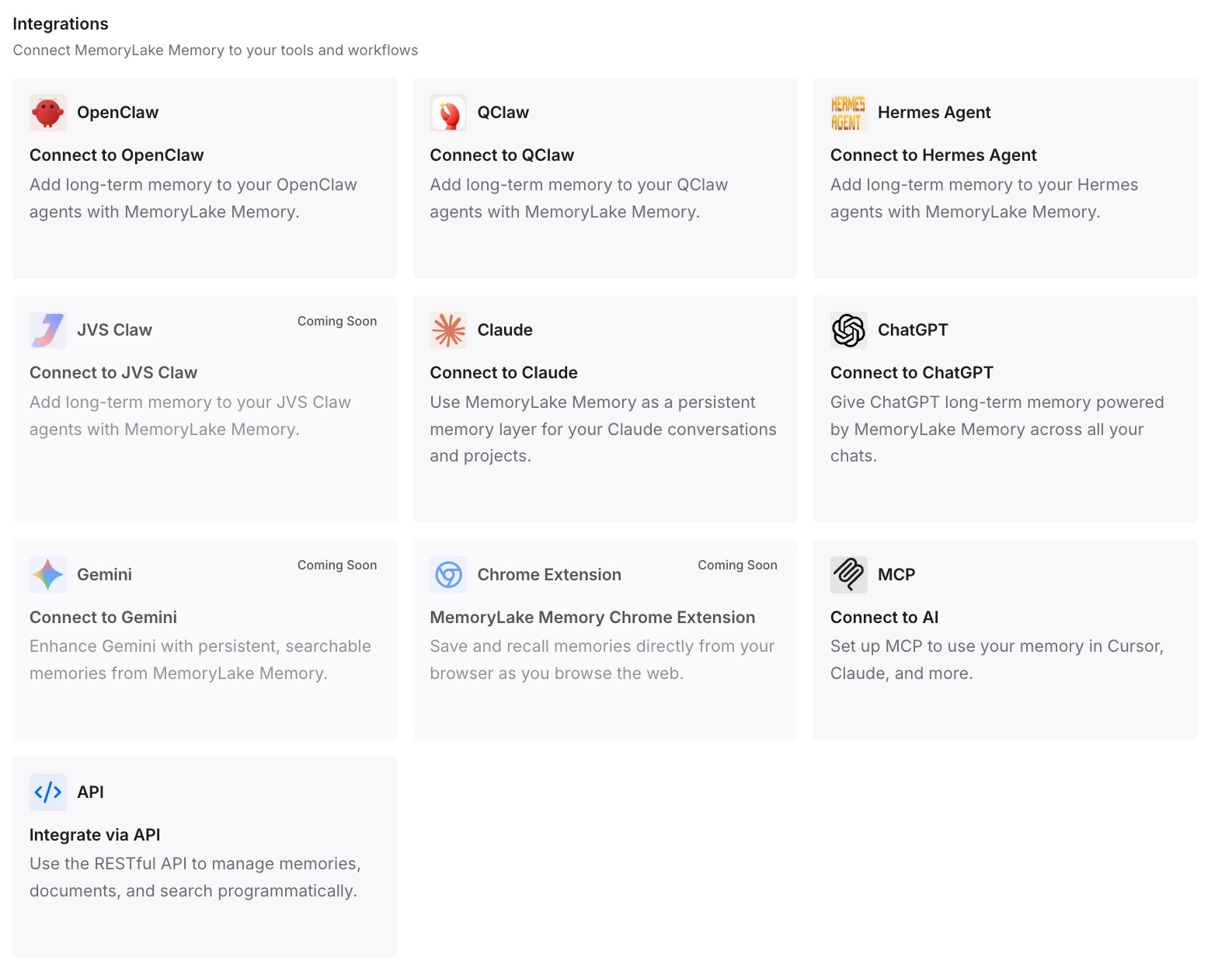
Step 3: Connect your AI & agents
Connect the assistants you use. The same entries are available wherever you work next, without another round of copying.
What this changes in practice
The first difference is an easier exit. Your own working context isn't tied to one account's lifetime.
The second is a faster start on the personal side. You begin from current notes rather than an archive.
The third is less repetition. Preferences and decisions written once are available the next time you change tools or accounts.
Best practices for leaving a Claude Team plan
Ask about the export setting early. Only an owner can turn it on.
Check your company's policy. Work content may not be yours to keep.
Export and download promptly. The link expires 24 hours after it's created.
Download files Claude created. They aren't in data exports.
Review memory before importing it. Keep personal context, leave work specifics behind.
Hand over shared projects. Change permissions before you're removed so teammates keep access.
Conclusion
There's no built-in move from a Claude Team account to a personal one. The account move Anthropic offers goes the other way and can't be reversed. You can export your own Team chats only if an owner has turned on the setting that lets members export their own data, and that export can't be imported into another personal Claude account.
What carries over is what you write down. Export your chats if you can, copy your memory as text and review it, summarize the topics you're allowed to keep, and set up projects in your personal account with those summaries. Do it before you're removed, because removal ends your access to the organization immediately.