
Where your Codex context lives
OpenAI's advanced configuration page puts it in one line: "Codex stores its local state under CODEX_HOME (defaults to ~/.codex)." It lists what you'll find there:
- "config.toml (your local configuration)"
- "auth.json (if you use file-based credential storage) or your OS keychain/keyring"
- "history.jsonl (if history persistence is enabled)"
- "Other per-user state such as logs and caches"
The troubleshooting page adds the chat records: session transcripts in $CODEX_HOME/sessions and archived sessions in $CODEX_HOME/archived_sessions, which default to ~/.codex/sessions and ~/.codex/archived_sessions.
That folder is the center of the move. Here's what's in it and what isn't.
Your local memories
Codex memories are stored per machine. OpenAI's memories page says "ChatGPT web uses ChatGPT memory, while local Codex clients use a separate local memory store and controls." In the desktop app, the Enable Codex memories setting turns the feature on or off "for the selected machine."
The files themselves are in your Codex home: "The main memory files live under ~/.codex/memories/ and include summaries, durable entries, recent inputs, and supporting evidence from prior chats." OpenAI also describes how to treat them: "Treat these files as generated state. You can inspect them when troubleshooting or before sharing your Codex home directory, but don't rely on editing them by hand as your primary control surface."
Two practical points follow. Memories are off on a new machine until you turn them on, because "Local Codex memories are off by default." And the documentation doesn't describe a way to move a memory store from one computer to another. What it does describe is reading the files. Our guide to turning on Codex local memories covers the settings.
Your personal instructions
Your own standing instructions are in a file in the same folder. OpenAI's personalization page says "In Codex, these personal instructions are stored in your global AGENTS.md file." The AGENTS.md documentation gives the location: "In your Codex home directory (defaults to ~/.codex, unless you set CODEX_HOME), Codex reads AGENTS.override.md if it exists. Otherwise, Codex reads AGENTS.md."
If you've been relying on a global AGENTS.md for things like test commands, commit style, or how you want plans written, the new machine starts without it until you copy it over.
Your configuration, rules, and hooks
Your config.toml holds your model, sandbox, and approval choices, your MCP servers, and your memory settings. Command rules you've approved are in the user layer too: "When you add a command to the allow list in the TUI, Codex writes to the user layer at ~/.codex/rules/default.rules so future runs can skip the prompt." User-level hooks can sit in ~/.codex/hooks.json.
None of these are context in the sense of facts about your work, but they shape how every session runs. A new machine without them asks for approvals you'd already given and runs without hooks you'd set up.
Your personal skills
Skills you keep for yourself live outside the Codex folder. The skills documentation lists the user location as $HOME/.agents/skills, described as "Any skills checked into the user's personal folder." Skills checked into a repository's .agents/skills folder travel with the repository.
Your local chats
Local chats are the session files under ~/.codex/sessions. codex resume lists the chats saved on the machine you're using, so on a new computer that list starts out empty.
OpenAI describes what a saved chat holds: "The chat keeps its transcript and recorded working directory, while Codex reads files from the current working tree." That recorded working directory matters if you move sessions, because paths on a new computer may be different. The command reference covers this case: codex resume has a tui.resume_cwd setting for the case "When the current and saved session directories differ".
The documentation doesn't describe copying session files between computers as a supported migration path. If you try it, treat it as an experiment and keep the originals.
What already travels with you
Some of your Codex context isn't on the old computer at all.
Your repositories. Project AGENTS.md files, project .codex/config.toml files, and repository skills come with every clone. OpenAI's advice for anything that has to persist is to put it here: "Keep durable project guidance in AGENTS.md or checked-in documentation so it is available to future chats."
Cloud tasks. Codex Cloud runs tasks in the cloud, and OpenAI says you can "Review changes and continue from the web, mobile, or desktop app."
Pinned chats. The August 17–21 update added unified pinned threads: "Keep your pinned chats in sync between desktop and iOS." The pins sync, but the local chats they point to are still on the computer where they ran. Our guide to missing ChatGPT pinned chats covers how pins behave across views and devices.
One thing to check on arrival: Codex loads project-scoped configuration only for trusted projects. OpenAI's config basics page says that if you mark a project as untrusted, "Codex skips project-scoped .codex/ layers, including project-local config, hooks, and rules." Confirm trust on the new machine for each repository you use.
Keeping the old computer reachable while you move
You don't have to move everything on day one. Remote connections let you reach work that's still on the old machine. OpenAI's page says "Remote access uses the connected host's projects, chats, files, credentials, permissions, plugins, Computer Use, browser setup, and local tools."
So if the old computer stays on and connected, you can open its chats from your phone or another device while you set up the new one. That's useful for finishing work in progress. It doesn't move anything, and it ends when the old machine is wiped or turned off.
What people try first
Copying the whole ~/.codex folder. It holds your credentials as well as your settings. OpenAI says "Treat ~/.codex/auth.json like a password: it contains access tokens." Signing in again on the new machine is the safer route, and the rest can be copied piece by piece.
Expecting memories to sync with the account. Codex memories are a local store tied to the selected machine. ChatGPT memory on the web is a separate system.
Assuming the instructions are in the repository. Project AGENTS.md files are, but your global one is in your Codex home on the old computer.
Editing the memory files to bring them over. OpenAI calls them generated state and advises against relying on hand edits as your main control.
Waiting until the old laptop is gone. Everything local is easiest to collect while you can still open the old machine.
The manual migration
Step 1: Collect what's on the old computer
Work through the Codex home folder and your personal skills folder before you wipe or return the old machine.
- Global instructions. Copy
~/.codex/AGENTS.md, andAGENTS.override.mdif you have one. - Configuration. Copy
config.toml. Review it for anything machine-specific, such as absolute paths or local model providers. - Rules and hooks. Copy
~/.codex/rules/and~/.codex/hooks.jsonif you use them. - Personal skills. Copy
~/.agents/skills. - Chats you still need. Export the conversations you'll want to read again. For any you'll keep working on, ask Codex for a short summary of where things stand. The desktop app can also share a read-only snapshot of a local Codex thread. OpenAI notes "The snapshot doesn't update when the original thread changes" and "Personal-account links can be opened by anyone with the link", so treat a snapshot link as shared, and review what's in it.
- What your memories learned. Open the memory files and read the summaries and durable entries. Write down the points you'd want any future session to know: conventions, preferences, decisions. These are what you'll put back by hand.
Leave auth.json where it is. You'll sign in fresh.
Step 2: Put each piece where the new computer reads it
On the new machine, install Codex and sign in. Then:
- Restore your global AGENTS.md to
~/.codex/, and add the durable points you wrote down from your memories. OpenAI's own advice is to keep rules that must always apply here rather than in memories: "Treat memories as a helpful recall layer, not as the only source for rules that must always apply." - Restore config.toml, rules, and hooks, fixing any paths that changed.
- Restore your personal skills to
~/.agents/skills. - Turn memories on if you want them, in Settings > Personalization or with the
memoriesfeature flag inconfig.toml. The new store starts empty and builds from your chats on this computer. - Trust your repositories so their project config, hooks, and rules load.
- Test it. Start a chat in a repository and ask Codex to summarize the instructions it's following. The AGENTS.md documentation suggests the same check: run Codex from a repository root and ask it to summarize the current instructions.
If you need an old conversation to keep going on the new machine, start a new chat and paste in the summary you saved. Our guide to forking a Codex chat covers copying a session within one computer.
The Better Way: Keep the context that matters in one list that doesn't live on one computer
The manual migration works, but it shows where the context was: in a folder on one laptop. Memories were tied to that machine, the global AGENTS.md was in its home directory, and the chats were in its session files. The next time you switch computers, or work across two, you do it again.
MemoryLake is a memory layer for keeping the conventions, preferences, and decisions you work by in one list you maintain, available to Codex and the other assistants you connect, such as ChatGPT and Claude Code.
You write the entries yourself, in your own words. Nothing is read out of, written to, or deleted from your Codex home folder, your Codex memories, your session files, your ChatGPT memory, or any vendor's store. For work repositories, follow your organization's policy on what you keep outside them.
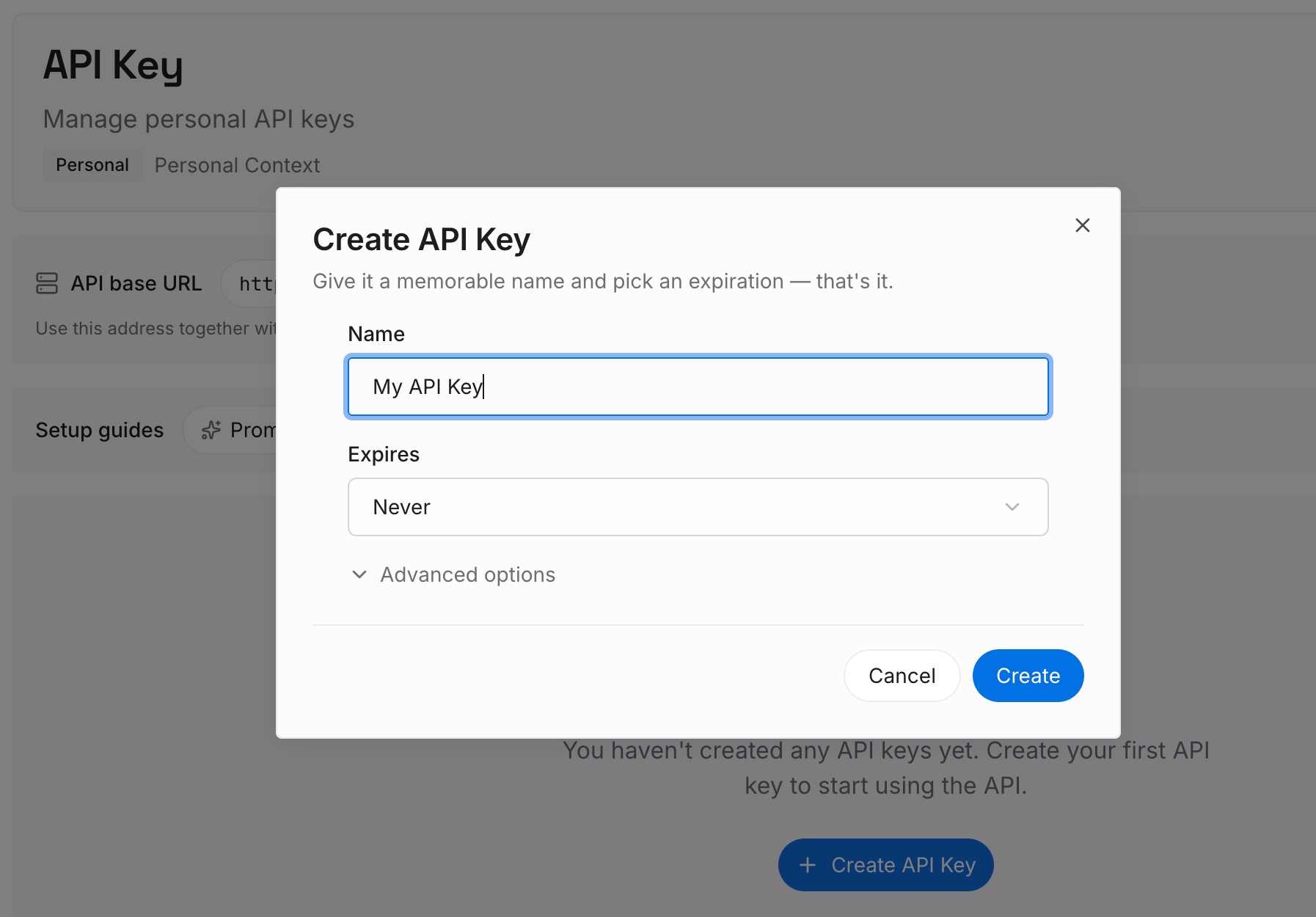
Step 1: Create an API key
Sign in and generate a key from the dashboard. The key belongs to your MemoryLake workspace and is separate from your ChatGPT account.
Step 2: Upload your first memories
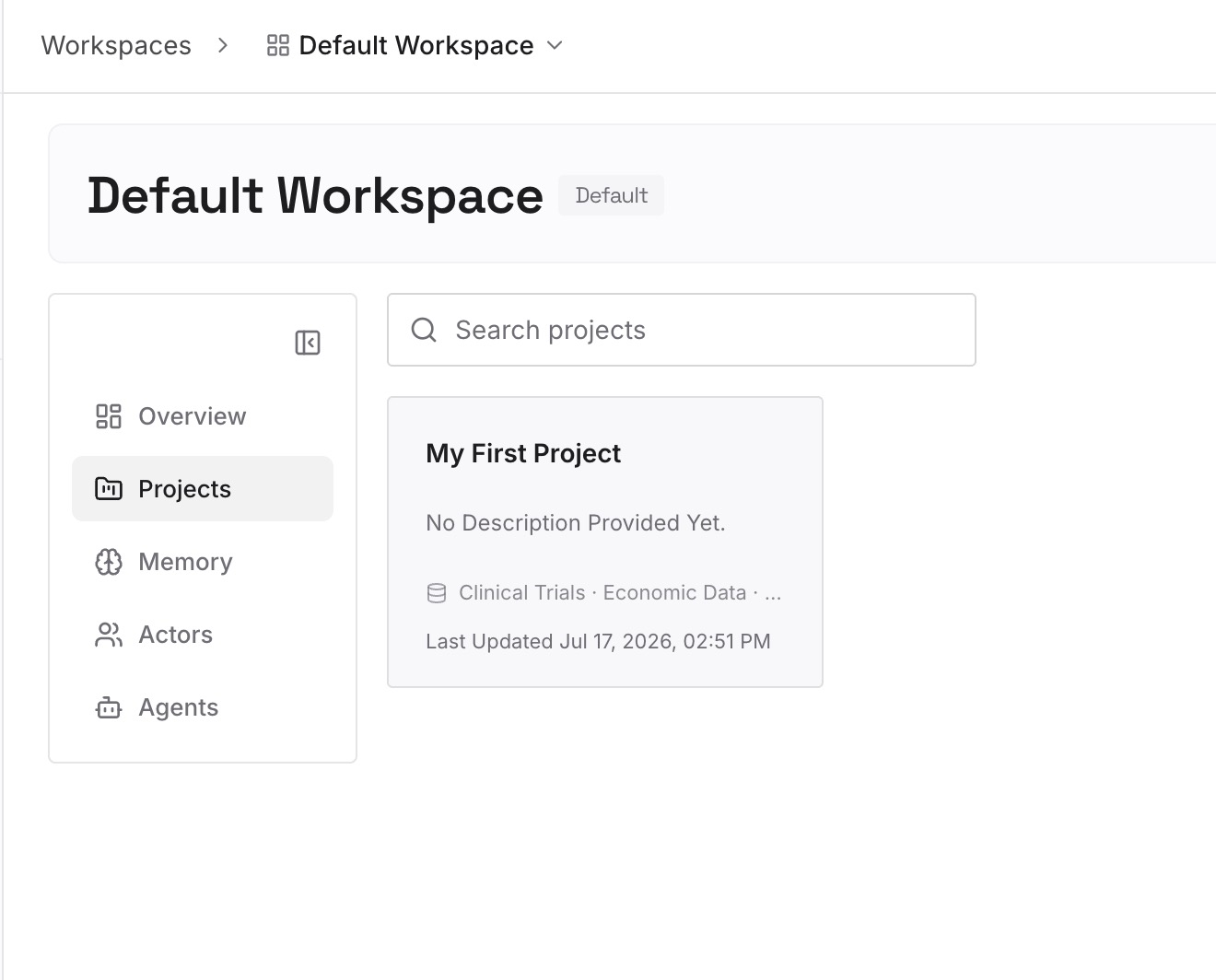
Start with the points you wrote down from your Codex memories in Step 1 of the manual migration: conventions, preferences, and decisions. One point per entry, dated, and labeled with the repository or project it applies to.
Step 3: Connect your AI & agents
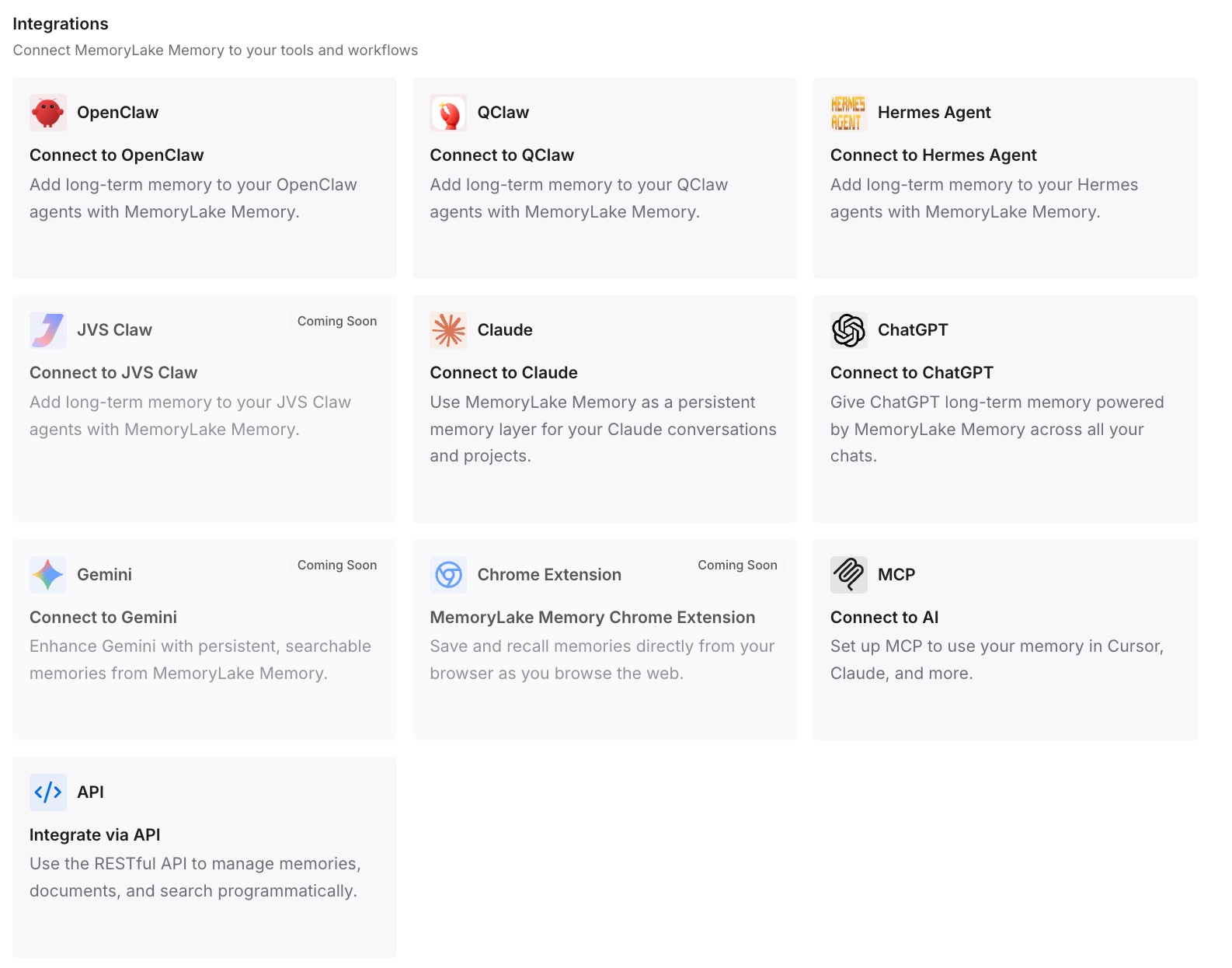
Connect Codex and the other assistants you use. The same context is available on the new computer, the old one, and any other machine you sign in from.
What this changes in practice
The first difference is that you know what was on the old machine. Configuration, rules, hooks, skills, global instructions, memories, and chats each have a known location, and you've moved or recorded each one.
The second is that the important parts don't depend on one folder. Rules that must always apply are in AGENTS.md, in the repository or your global file, and the context you'd otherwise rebuild is written down.
The third is that the next move is shorter. You copy a few files, sign in, and connect. If you also use Claude Code, our guide to exporting a Claude Code session to another machine covers the same move on that side.
Best practices for moving Codex between computers
Collect before you wipe. Local memories, sessions, and your global AGENTS.md are on the old machine.
Sign in again. Don't copy auth.json. OpenAI says to treat it like a password.
Read your memory files. Carry the durable points into AGENTS.md rather than copying generated state.
Turn memories back on. They're off by default on a new machine.
Trust your repositories. Untrusted projects skip their project config, hooks, and rules.
Keep the old machine connected for a while. Remote access lets you finish work that's still there.
Put lasting guidance in the repository. Checked-in AGENTS.md files and documentation come with every clone.
If you can't find a chat after the move, our guide to finding missing Codex chat history covers the other places it may be.
Conclusion
Moving Codex to a new computer means moving the contents of ~/.codex that matter: your global AGENTS.md, your configuration, rules, and hooks, plus your personal skills in ~/.agents/skills. Local memories belong to the machine that made them, so read them and carry the durable points into your instructions. Chats you need are best exported or summarized before the old machine goes.
Your repositories, cloud tasks, and pins already travel with you. Sign in fresh, trust your projects, turn memories on, and test that Codex is following the instructions you expect.