
What the retirement actually covers
OpenAI's two help articles describe the scope a little differently, and it's worth reading both. The retirement FAQ says: "The transition affects all ChatGPT plans. Migration and plugin access may differ by account or workspace." The article on creating GPTs puts the date against Enterprise first: "For affected Enterprise workspaces, retirement is planned for Dec 11, 2026." It then adds that "Other plans are expected to follow the same timeline - review notices, when available, for your account or workspace."
The two aren't necessarily in conflict. Read together, the safe plan is to treat December 11 as your date unless a notice in your account says otherwise. The FAQ also lists a later date for some Enterprise workspaces: "For affected Enterprise workspaces with an approved deferral, the retirement date is Feb 11, 2027."
Until then, nothing disappears. "Existing GPTs remain usable until the retirement date, subject to their existing access and workspace permissions." After it, "Custom GPTs and their GPT pages become inaccessible at the applicable retirement date."
Creating new GPTs is already limited. The creating article says "Personal ChatGPT accounts, including Free, Go, Plus, and Pro, cannot create or publish new GPTs", but that "users can continue editing GPTs they previously created if their plan and permissions allow it." That last part matters here: if your plan allows it, you can still open your GPT's editor on the web and copy what's inside. Don't leave it until December.
What a custom GPT is made of, and where each part goes in Claude
OpenAI's creating article lists a GPT's configuration fields. Each one has a different destination in Claude, and a few have none.
Instructions
"Instructions define how your GPT behaves: what it should do, how it should respond, and what it should avoid. These are applied to every conversation and guide the GPT's tone, structure, and decision-making."
The closest match in Claude is project instructions. Claude's help article on managing projects says "Claude will use these instructions for all the chats within the project." Like a GPT, a project applies its instructions to every chat inside it, so this is where most GPT instructions should go.
Knowledge files
A GPT's knowledge is reference material: "Unlike instructions, which define how your GPT should behave, files uploaded as knowledge give it source material to use during a conversation." OpenAI's limits are up to 20 files per GPT, each up to 512 MB.
In Claude, that's project knowledge. "Anything you upload to this space will be used across all of your chats within that project." On paid plans, large knowledge bases switch to retrieval: "When your project knowledge approaches the context window limit, Claude will automatically enable RAG mode" to expand capacity. On a free plan, there's a project cap to plan around: "Free users can create a maximum of five projects." Anthropic is also rolling out a new version of projects in beta, starting with Claude Code; the help articles quoted here describe the current version.
Name, description, and conversation starters
These are what other people see. OpenAI calls them "user-facing fields", and the conversation starters are "Example prompts shown when someone opens the GPT."
A Claude project also has a name and description, with one important difference: when you create a project, Claude's help article notes "Claude will not have access to these details". Anything that guides behavior has to go into the instructions, not the description. Claude's project articles don't describe a conversation-starter field, so keep your starters somewhere you can copy from, such as a short file in the project's knowledge or your own notes.
Capabilities and actions
A GPT can turn on built-in capabilities such as web search, image generation, Canvas, and Code Interpreter & Data Analysis, and it can call external APIs through actions. OpenAI notes that "A GPT can use either apps or actions, but not both at the same time."
Actions need the most planning. OpenAI's FAQ says "Allow extra time for GPTs that use custom actions." Even within ChatGPT, OpenAI says "GPT custom actions do not transfer through the migration workflow", and that "Rebuilding the connection may require a custom MCP server and technical setup." Claude connects to external services through connectors, including custom ones: "Connect Claude to existing remote MCP servers" or "Build your own remote MCP servers to connect with any tool." If your GPT's action called your own API, that's the route, and it's a rebuild, not a copy. For the built-in capabilities, test the tasks your GPT relied on in Claude rather than assuming one feature equals another.
The model
A GPT could set a recommended model. That setting stays with the GPT. Even OpenAI's own migration says "The GPT's selected model does not carry over." Pick the model in Claude when you test the rebuilt project.
Sharing
If other people use your GPT, plan for that separately. Claude's project sharing is listed under "Collaboration and sharing (Team and Enterprise plans only)", with two permission levels, Can view and Can edit. Claude's project articles describe sharing only on those plans, so if people used your GPT from personal accounts, plan another way to hand them the instructions and files.
Your conversations with the GPT
These stay in ChatGPT. OpenAI's FAQ says "Your existing conversations with custom GPTs will remain accessible after retirement." They don't move into Claude, and any decision or correction you reached in them exists only in that history. If some of those conversations matter, our guide to moving ChatGPT conversations to Claude covers the options.
Project or skill?
A Claude project is the natural home for a GPT you open on purpose for one kind of work. Claude's skills article offers a second option for some GPTs: "Skills are folders of instructions, scripts, and resources that Claude loads dynamically to improve performance on specialized tasks."
The same article draws the line. "Projects provide static background knowledge that's always loaded when you start chats within them. Skills provide specialized procedures that activate dynamically when needed and work everywhere across Claude." A GPT that was really a procedure, such as one that formats meeting notes a set way or drafts replies in your support style, may fit better as a skill, because it then works in any chat. A GPT built around a body of reference documents fits a project. Skills require code execution, and the skills article notes "This feature requires code execution to be enabled."
If you're not sure, start with a project. It's the closest match to how a GPT behaves. If your GPTs sat alongside ChatGPT projects, our guide to migrating ChatGPT projects to Claude projects covers moving those too.
The manual migration
Step 1: Copy everything out of each GPT before it retires
Start with the GPTs you rely on most. OpenAI's own advice for migrating to plugins applies here too: "Save a few familiar prompts so you can compare the replacement's results."
For each GPT, open Explore GPTs, select My GPTs, choose the GPT, and select Edit GPT. In the configuration view, copy:
- Instructions: the full text, into a plain document.
- Conversation starters: the text of each one.
- Capabilities: which ones were turned on.
- Actions: the API each one calls and how it authenticates. You'll need this to rebuild it as a connector.
For knowledge files, OpenAI's creating article describes uploading them to a GPT but not downloading them from one. Gather the original files from wherever they came from. If you don't have a file anymore, note which one it was so you can recreate or replace it.
Finally, save three or four prompts you use with the GPT, along with the answers you'd expect, and include at least one harder case.
Step 2: Rebuild it in Claude and test it against your saved prompts
Create a project with the GPT's name. Paste the instructions into Set project instructions and save. Upload the knowledge files to the project's knowledge base. If you collected conversation starters, add them as a short reference file or keep them in your notes.
Read through the instructions once in their new home. A GPT's instructions sometimes mention ChatGPT features by name, such as Canvas or a particular action. Rewrite those lines for what Claude has, or remove them.
Then run your saved prompts in a new chat inside the project and compare the answers with what the GPT gave you. Check that Claude follows the instructions, draws on the right files, and produces the format you need. Adjust the instructions until the hard case works.
If the GPT used actions, rebuild them as a custom connector separately, and test that on its own before relying on it. Each project also gets its own memory. Claude's help article says "Each project has its own memory." To keep a project's memory fully separate, the article says to turn off Use account memory under Memory on the project's page.
The Better Way: Keep the context your GPTs depend on somewhere that outlasts any one of them
A GPT bundled two kinds of content: how to do a task, and what's currently true for you, such as which clients are active, what your team decided last month, or which format a stakeholder now prefers. The first kind moves into project instructions once. The second keeps changing, and when it's written into instructions, every update means editing each GPT or project that carries it.
MemoryLake is a memory layer for keeping that kind of current context in one list you maintain, available to the assistants you connect, such as Claude Code, ChatGPT, and Codex, so your project instructions can stay focused on the task.
You write the entries yourself, in your own words. Nothing is read out of, written to, or deleted from your custom GPTs, your ChatGPT account, your Claude projects, or any vendor's store. Check your organization's policy before storing work details outside your company's systems.
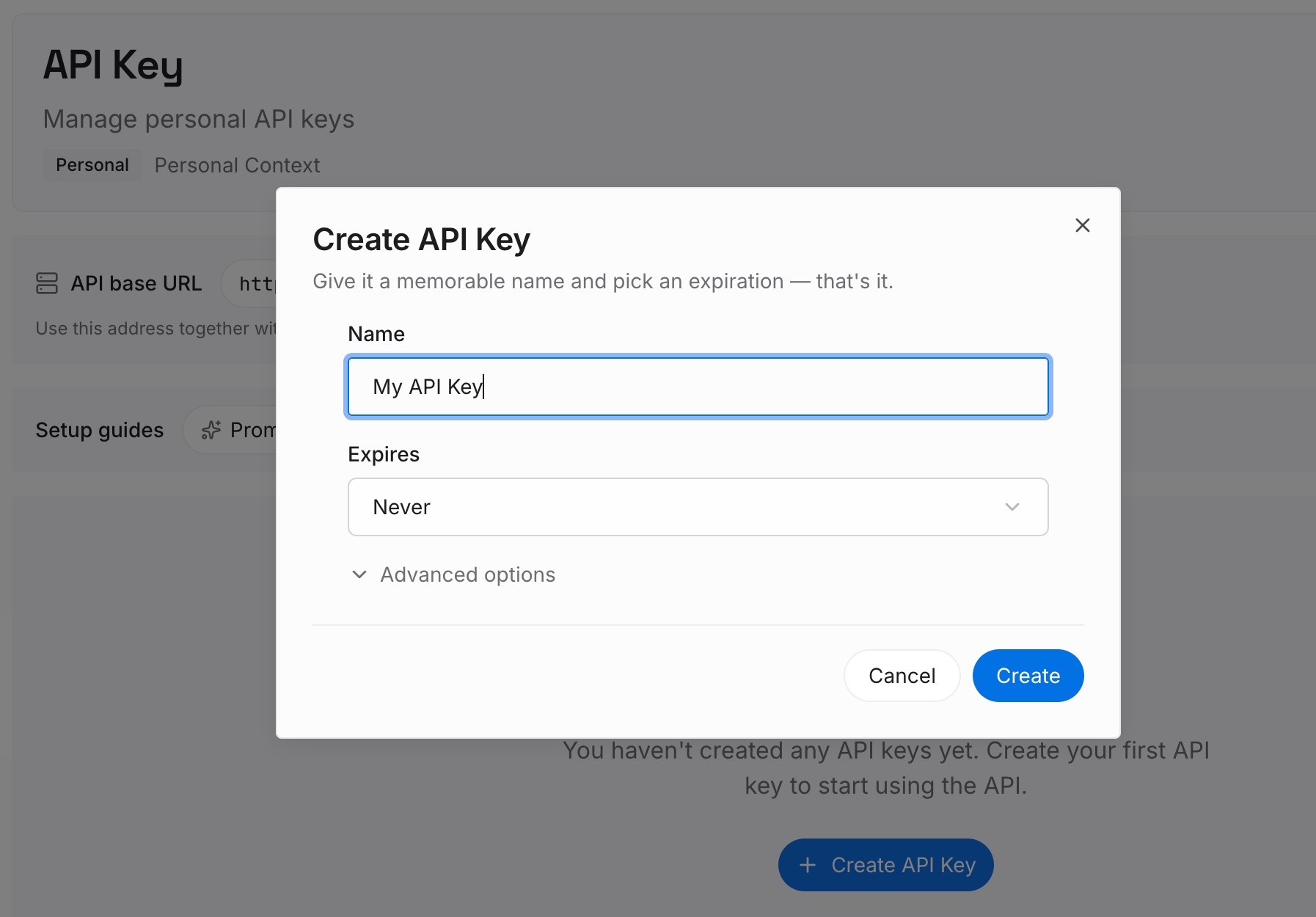
Step 1: Create an API key
Sign in and generate a key from the dashboard. The key belongs to your MemoryLake workspace and is separate from your OpenAI and Anthropic accounts.
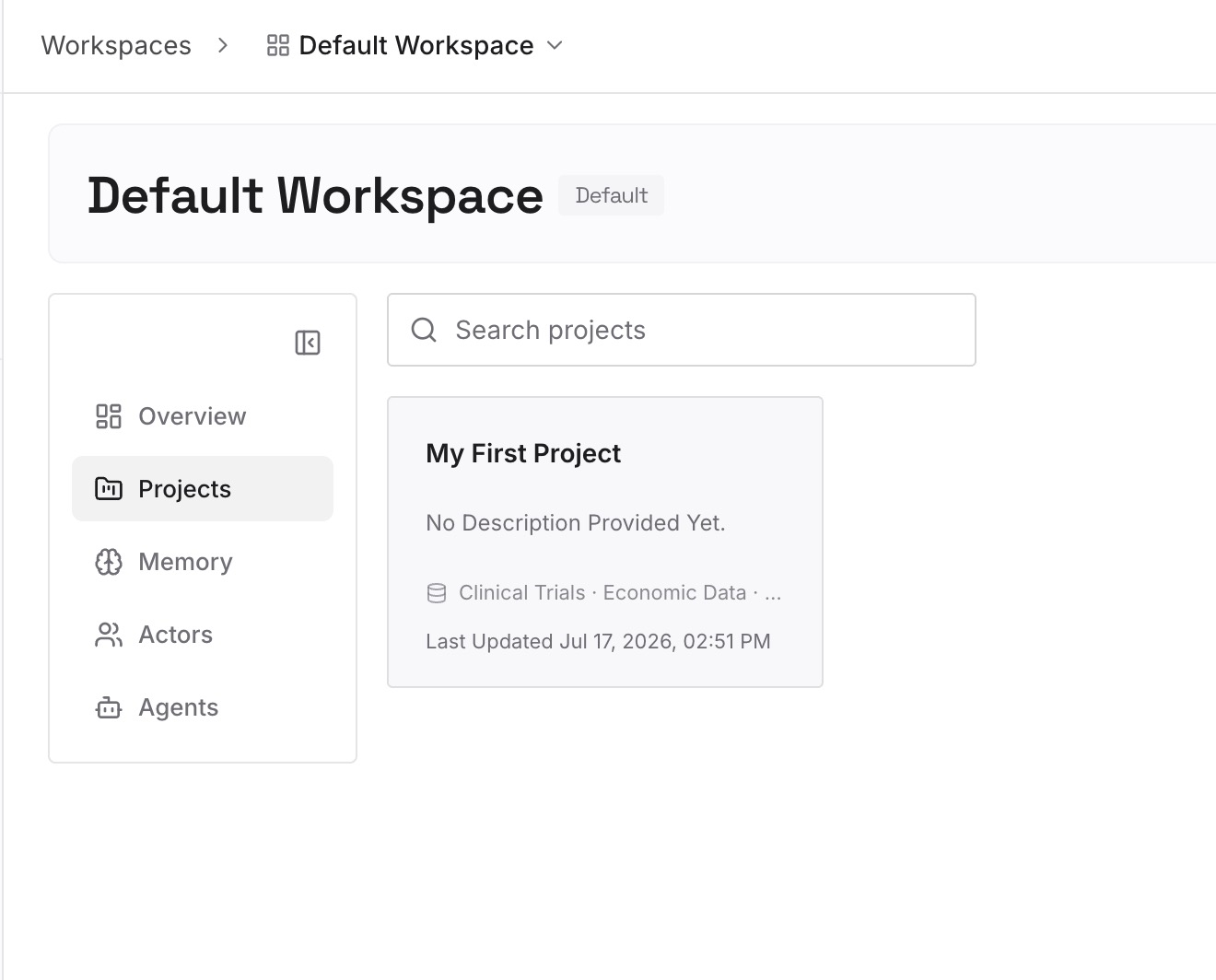
Step 2: Upload your first memories
Start with the facts your GPTs kept needing: current priorities, client preferences, team decisions that change how a task should be done. One fact per entry, dated.
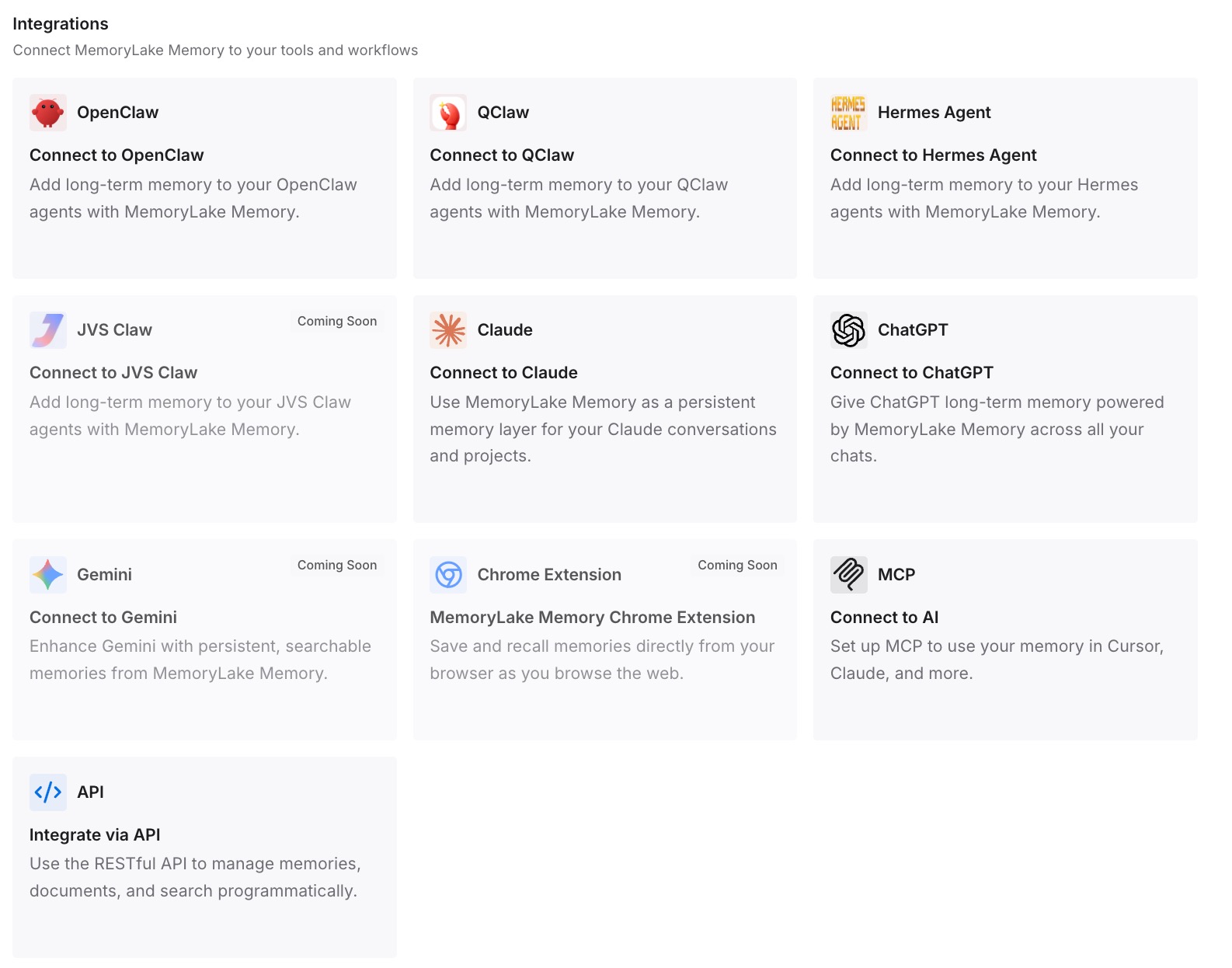
Step 3: Connect your AI & agents
Connect the assistants you use. Your instructions then carry the procedure, and the current context is available alongside them.
What this changes in practice
The first difference is that the retirement date stops being a deadline for your knowledge. Once the instructions and files are in Claude, the GPT's page going away on December 11 doesn't take your setup with it.
The second is a cleaner split between behavior and reference. OpenAI's own advice was to "Use knowledge for reference material, not rules or behavior." Moving to a Claude project is a good moment to apply it, with rules in project instructions and documents in project knowledge.
The third is fewer copies of the same facts. If several GPTs repeated the same background about you or your team, a migration is the point to keep that in one place instead of pasting it into each new project. If you're also carrying ChatGPT's memory across, our guide to moving ChatGPT memory into Claude projects covers that part.
Best practices for moving custom GPTs to Claude
Copy now, not in December. If your plan allows it, you can still open the editor of a GPT you created.
Put behavior in instructions, not the description. Claude doesn't see a project's name or description.
Gather knowledge files from their originals. OpenAI's help article doesn't describe downloading them from a GPT.
Use a project for reference-heavy GPTs and a skill for procedures. Projects stay loaded in their chats; skills activate when relevant, anywhere.
Treat actions as a rebuild. Plan a custom connector and test it on its own.
Test with saved prompts. Compare answers against what the GPT produced, including one hard case.
Write down what lived only in conversations. GPT chats stay in ChatGPT. If you've done the reverse move before, our guide to turning Claude projects into custom GPTs shows the same mapping from the other side.
Conclusion
Custom GPTs are scheduled to retire on December 11, 2026, and OpenAI's migration flow only leads to ChatGPT plugins. Moving to Claude is a manual rebuild: instructions become project instructions, knowledge files become project knowledge, actions become custom connectors, and procedure-style GPTs can become skills instead. The name, description, conversation starters, model choice, and your past conversations don't map across, and Claude doesn't see a project's name or description at all.
Copy each GPT's instructions and starters while you can still open its editor, gather the original knowledge files, rebuild it as a project, and test it against prompts you saved. Then write down whatever only lived in your GPT conversations. If your GPTs seemed to start from scratch each time, our explainer on whether custom GPTs have memory covers why.