
What your Fathom history holds
Each recorded call in Fathom can carry several layers:
- The recording. The video of the call.
- The transcript. The full text of what was said.
- The summary. Fathom's write-up of the call, with action items.
- Your highlights and clips. Moments you marked, and playlists built from them.
- Team organization. On team plans, folders, the team call library, and trackers.
The layers differ in how they come out. That shapes the whole migration, so it's worth knowing before you start. If you're still choosing where your meetings should live, our roundup of AI tools that remember your meetings compares the options.
Getting your meetings out of Fathom
Transcripts: copy, not download
Fathom's help center is direct about this: "While transcripts can't be downloaded directly, you can copy and paste them anywhere you need." In any recorded call view, a Copy Transcript button sits above the transcript. Click it, and the transcript goes to your clipboard, ready to paste into a document or a Claude chat.
That means moving many transcripts by hand is one call at a time. For a large archive, it's worth deciding first which calls are worth carrying, rather than copying everything.
Summaries
Summaries work the same way. Fathom's help center says that in any recorded call view, a Copy Summary button above the summary copies it and formats it for pasting. You can copy it with or without hyperlinks.
For most migrations, the summary is the more useful layer. It already holds the decisions and action items, in far fewer words than the transcript.
Recordings
Video comes out as a file. "Currently, you can download your recordings in MP4 format, but MP3 download options will be available soon." You download it from the meeting's menu, and the file is named after the meeting title. For a call someone shared with you, Fathom says you need standard or admin access from the call owner to download it.
The API, for larger archives
Fathom has a public API that gives developers access to meeting summaries, transcripts, and action items. Its developer documentation includes an endpoint for getting a transcript. Fathom's help center sets the scope: "API keys are created at the user level. Your key can access meetings recorded by you or shared to your Team."
If you have a developer on hand and hundreds of calls to move, the API is the documented way to pull them in bulk. Fathom also notes that "Admin API keys do not grant access to other users' unshared meetings."
Connecting Fathom to Claude instead
You don't have to move the archive at all. Fathom offers an official connector for Claude, built on its MCP server.
Adding it in Claude
Fathom's setup steps for Claude are short: go to the Fathom connector in Claude's connector directory, click Connect, and complete the authorization prompts. For work accounts, Fathom adds: "If you're using Claude in a team or organization, an owner must first enable the connector before it will appear for members."
Fathom's developer documentation also covers Claude Code, which can add the Fathom MCP server from the command line. Follow the command in Fathom's documentation rather than a copy from elsewhere.
What the connection can reach
Fathom's help article on MCP sets the boundary in two sentences: "The integration can only access meetings you already have permission to view in Fathom." And: "MCP doesn't provide access to new categories of data - it mainly makes it easier for Claude/ChatGPT to retrieve the meeting context you need."
The article lists what you can do with it: ask questions about your meetings, draft follow-ups and plans from meeting context, and combine Fathom meetings with other context you already use in Claude. A connector fetches what you ask for in that chat; our guide to why Claude connectors don't remember explains what it keeps afterward.
Two setup details that trip people up
Fathom's troubleshooting section names two. First, a connector can be connected but off in a given chat. Fathom says to open the tools panel in the conversation and confirm Fathom is toggled on. Second, a chat that was already open when you connected Fathom won't see it: "Conversations enumerate MCP tools once at session start and don't hot-reload." Start a new chat after connecting.
There's also a per-tool setting. Fathom notes that inside the connector settings, each of its seven tools has its own on and off switch, so a connector can be enabled while one of its tools is disabled.
When to use the connector, and when to use Ask Fathom
Fathom has its own assistant, Ask Fathom, and its MCP article draws the line: "Just need insight from meetings? Ask Fathom. Need to make something with meeting context, especially alongside other sources? MCP."
One difference matters for a migration. Fathom's help center notes that "Currently, Ask Fathom's history is not saved." Answers you get there don't build up anywhere. If an answer matters, copy it out.
Where meeting context belongs in Claude
Whichever route you take, decide where the results live. Claude has three places, and they behave differently.
Projects, for ongoing work
A Claude project is the closest match to a client, a deal, or a workstream. Anthropic says of project knowledge: "Anything you upload to this space will be used across all of your chats within that project." Paste the summaries that belong to one piece of work into that project's knowledge, and every chat in it can draw on them.
Anthropic also notes a limit on what chats share: "Context is not shared across chats within a project unless the information is added into the project knowledge base." So for a decision you want every chat in the project to have, put it in the knowledge base rather than relying on what one chat picked up. On paid plans, Claude switches large project knowledge to a retrieval mode as it approaches the context limit; our guide to Claude's project RAG mode explains what that changes.
Memory, for facts about you
Claude's memory is for facts about you and how you work, not for meeting archives. Anthropic describes project memory separately: "Each project has its own memory." Use memory for things like your role and preferences, and leave the meeting content in project knowledge or in Fathom.
A single chat, for one meeting
For a one-off question about one call, paste the summary into a chat, or ask through the connector. Claude's search across past chats has its own scope rules; our guide to searching past chats in projects covers them.
Before you cancel or delete
Fathom's deletion and retention rules are worth reading before you clean up.
Deleting a call removes its notes. Fathom's help center says "Deleting a call recording will also remove all associated notes." It adds: "Once deleted, a call cannot be recovered, as we do not store the data." Copy what you need first.
Retention policies delete on a schedule. Organizations on Fathom's Enterprise plan can set a retention period. "Once a retention rule is active, any recording older than the set period will be permanently deleted." If your company has one, older calls may already be gone, and newer ones have a clock.
The connector needs Fathom to stay. Connecting Claude to Fathom keeps the meetings in Fathom, and the connector reads from your Fathom account. If you plan to close that account, carry out what you'll need first.
What people try first
Looking for a transcript download button. Fathom's help center says transcripts can't be downloaded directly. Copy them, or use the API for many calls.
Pasting every transcript into one chat. Long transcripts use up a conversation's context quickly. Summaries carry the decisions in far less space.
Connecting Fathom in the middle of a chat. The open chat won't pick up the new tools. Start a new one.
Relying on Ask Fathom answers later. Its history isn't saved. Copy out anything you want to keep.
Deleting calls once they're copied. Deleting removes the notes too and can't be undone. Confirm the copy first.
The manual migration
Step 1: Pick the calls that matter
List the clients, deals, and projects that are still active. For each one, find the calls with decisions in them, such as kickoffs, scope changes, and planning sessions. Skip routine check-ins.
Step 2: Copy the summaries and write one note per piece of work
Copy each chosen call's summary. Then, for each client or project, write one short note: what was decided, when, by whom, and what's still open. Keep the transcript only where the exact wording matters.
Step 3: Rebuild in Claude projects
Create a project for each active piece of work. Add the note and the relevant summaries to its knowledge, and set instructions for how you want Claude to use them. Connect Fathom too if you're keeping it, so Claude can reach calls you didn't copy.
The Better Way: Keep the decisions from your meetings in one list you control
The manual migration shows where the value of a meeting archive sits: in a short list of decisions and commitments, spread across many calls. Each time you change tools, you dig them out again.
MemoryLake is a memory layer for keeping that list in one place you maintain, available to the assistants you connect, such as ChatGPT, Claude Code, and Codex.
You write the entries yourself, in your own words. Nothing is read out of, written to, or deleted from your Fathom account, your Fathom recordings, transcripts, or summaries, your Claude projects, your Claude memory, or any vendor's store. Fathom's connector and Claude's projects keep working the way their documentation describes.
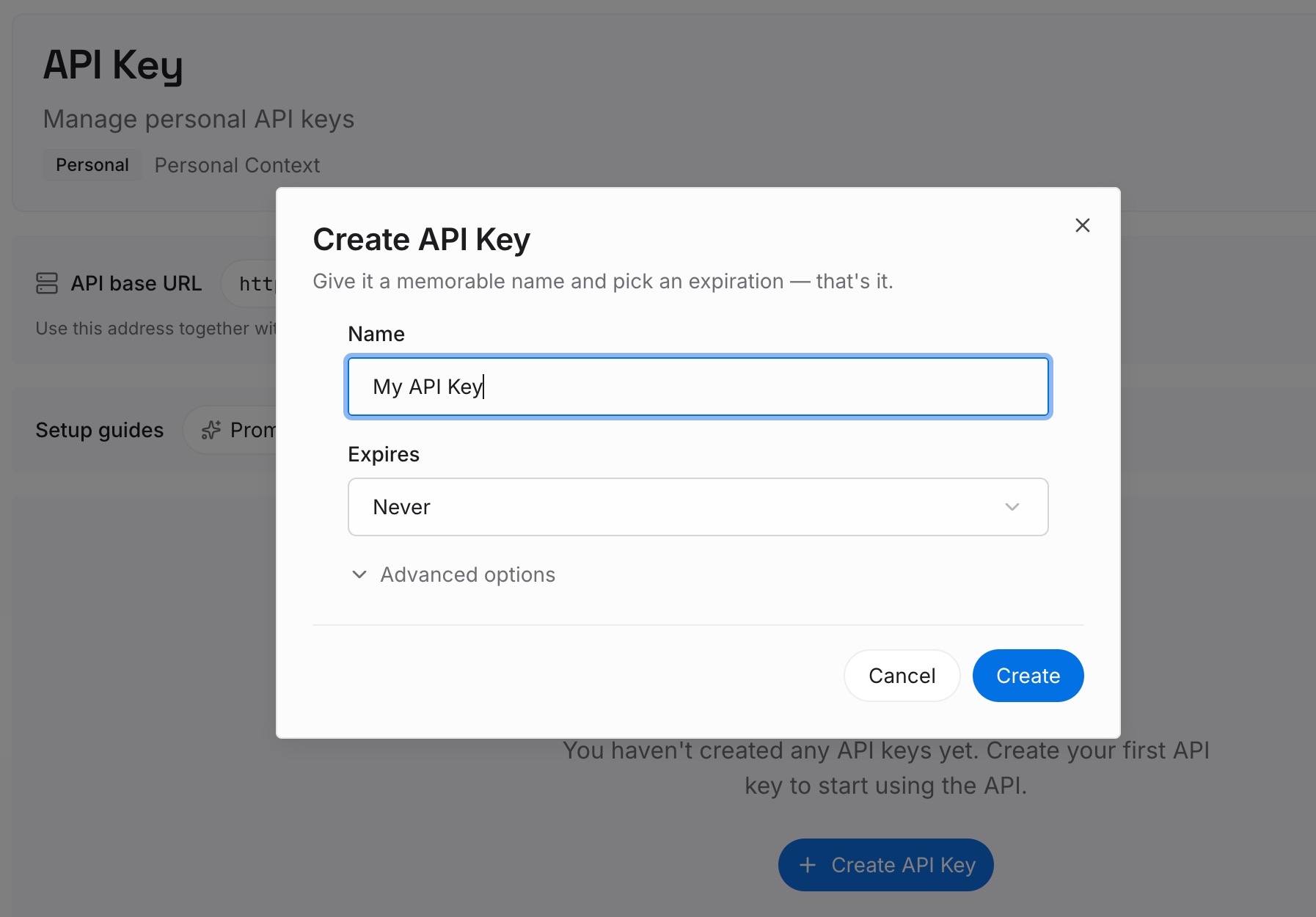
Step 1: Create an API key
Sign in and generate a key from the dashboard. The key belongs to your MemoryLake workspace and is separate from your Fathom and Claude accounts.
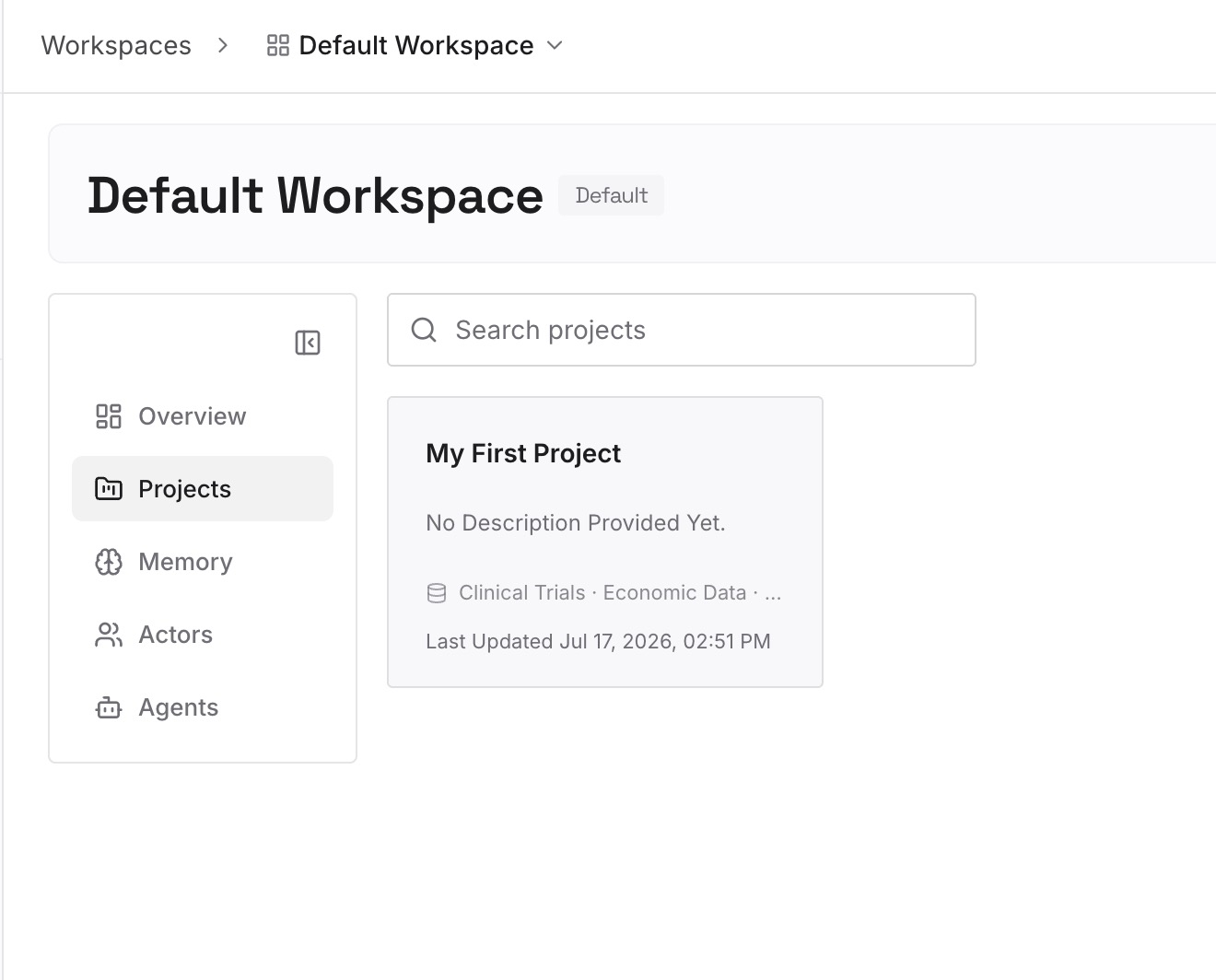
Step 2: Upload your first memories
Start with the notes from Step 2 of the manual migration: decisions with their dates, owners, and open questions. One point per entry, and check meeting content against your organization's policy first.
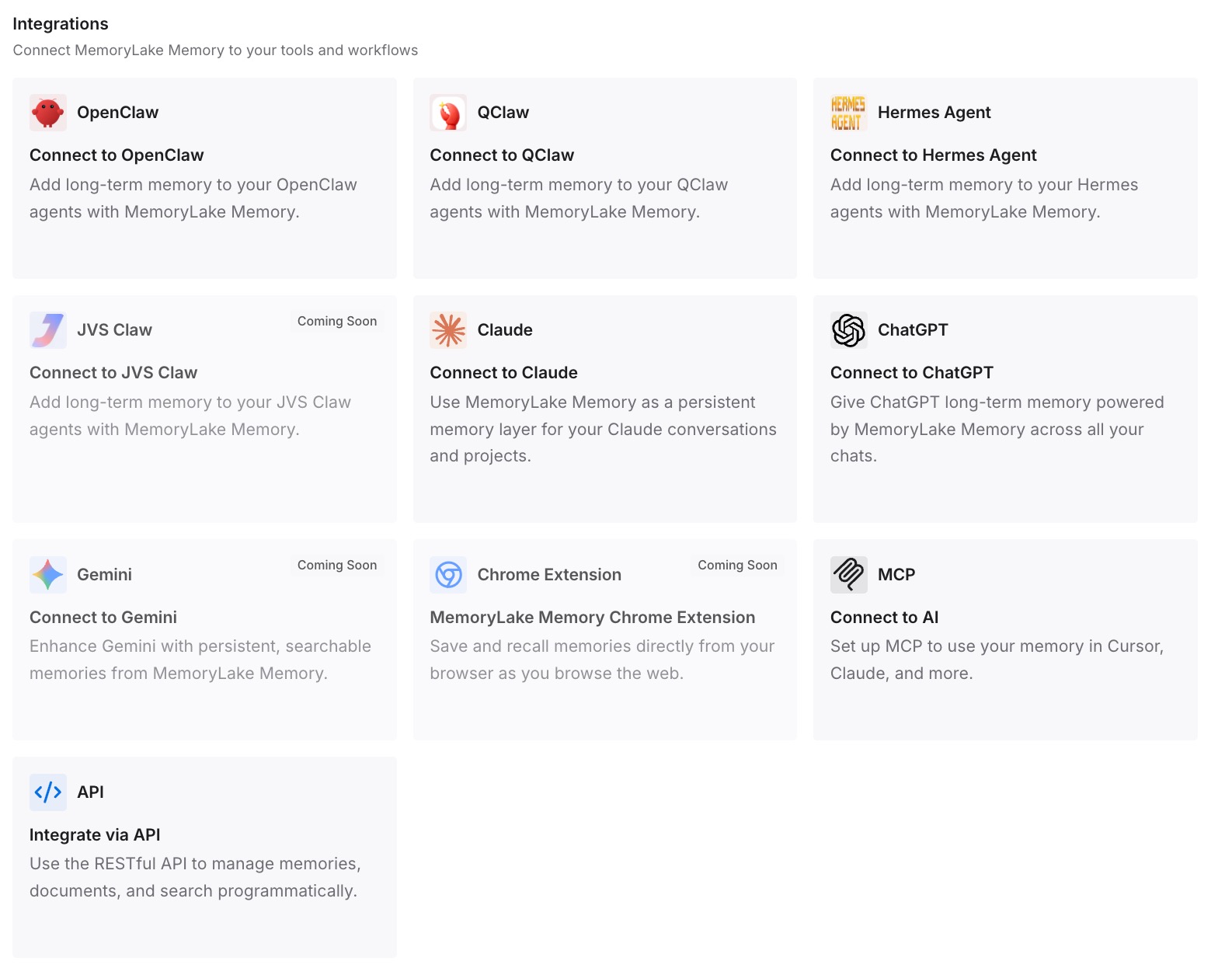
Step 3: Connect your AI & agents
Connect the assistants you use. The decisions from your meetings are available in each of them, whether or not Fathom stays in your setup.
What this changes in practice
The first difference is a smaller migration. You carry decisions and commitments, not every transcript, and the work fits in an afternoon.
The second is less dependence on one tool. If you later cancel Fathom or change assistants, the decisions are already written down.
The third is less re-explaining. A new chat doesn't need you to paste last month's call to know what the client agreed to.
Best practices for moving Fathom notes to Claude
Copy summaries before transcripts. They hold the decisions in less space.
Use the API for big archives. Copying hundreds of calls one at a time isn't practical.
Start a new chat after connecting. Open chats don't see new connector tools.
Check per-tool switches. A connector can be on while one tool is off.
Put meeting context in project knowledge. Keep memory for facts about you.
Check retention before you rely on old calls. An Enterprise retention rule may already have deleted them.
Confirm your copies before deleting. Deleted calls can't be recovered.
Conclusion
Fathom doesn't offer a transcript download, but it gives you a copy button for transcripts and summaries, MP4 downloads for recordings, a public API for bulk work, and an official connector for Claude. The connector reads only the meetings you can already see in Fathom, and a chat picks it up only when it starts.
The migration that holds up is the small one: pick the calls with decisions, write one note per piece of work, and rebuild them in Claude projects. Keep the decisions themselves somewhere you control, so the next change of tools costs less.