
What your Copilot history holds
Before exporting anything, it's worth knowing what kind of material you have. A Copilot history can mix four things:
- Things about you. Your role, your preferences, the way you want answers written.
- Ongoing work. A project, a plan, a document you kept coming back to.
- Finished results. A summary, a decision, a draft you used.
- One-off questions. Lookups you won't need again.
Only the first three are worth moving, and they belong in different places in Claude. Keep that split in mind as you go through the export.
What Microsoft lets you export
Your Copilot app activity history
Microsoft defines the thing you're exporting in its support article: "Activity history is a record of the things you type in Copilot and the AI-assisted responses you receive from Copilot." In other words, your prompts and Copilot's answers.
To export it, sign in to the privacy dashboard with your Microsoft account. Go to Privacy > Empower your productivity > Copilot > Your Copilot app activity history > Copilot apps, and choose Export all activity history. Microsoft says that "a comma-separated values (CSV) file is downloaded to your device."
The same page has a Delete all activity history option next to it. Don't confuse the two, and don't delete anything until you've checked your export.
Copilot in Microsoft 365 apps
If you also used Copilot inside Word, Excel, PowerPoint, Outlook, OneNote, or Teams, that history has its own section. Under Your Copilot app activity history, open Copilot in Microsoft 365 apps. Microsoft lists separate choices there: Export all Copilot in Microsoft 365 apps activity history and Export all Copilot Chat activity history. Each also downloads as a CSV.
Which accounts this covers
Microsoft's export article opens with a note: it "only applies to when you're signed in with your Microsoft account." If you use Copilot through a work or school account, Microsoft points to a different article, and your organization's process applies. The steps here are for personal accounts.
Which Copilot app you're using
Microsoft released an updated Copilot app for web, desktop, and mobile on August 18, 2026, and its help articles now split by version. For the updated app, Microsoft's activity history page sends you to the same privacy dashboard article to export or delete all your activity history. The menus for memory differ between the old and new app, which matters in the next section.
What the export article doesn't cover
Microsoft describes the export as a record of prompts and responses. What Copilot has learned about you is a separate thing, and Microsoft describes it separately.
In the updated app, Microsoft says Copilot "can offer you tailored experiences by remembering key details and preferences from your conversations." Those memories are managed in Settings > Personalization, where you select Manage next to the Saved memories toggle to see and delete them.
The export article describes activity history, not saved memories. So if you want to bring what Copilot knows about you, capture it on its own:
- In the updated app, open the Saved memories list through Manage and copy the entries that are still accurate.
- In the older app, Microsoft's privacy page suggests asking Copilot "What do you know about me?" to get a summary of its memory.
Either way, copy the result into a text file before you change or delete anything. If you plan to remove Copilot's memory afterward, Microsoft notes that "Turning off Copilot Memory doesn't automatically delete already saved memories." Our guide to fully deleting Microsoft 365 Copilot memory covers the work-account side of that.
What Claude can take in
Claude has three places for what you bring over, and each suits a different part of your history.
Memory, for what Claude should know about you
Claude has a built-in import flow for memory from other assistants. Anthropic's help article describes it: "You can bring your memory over from other AI providers using Claude's built-in import flow." Memory imports are available on Free, Pro, Max, Team, and Enterprise plans on the web and in Claude Desktop.
The flow is short. Go to Settings > Your Claude, or Settings > Memory in the older layout, and select Start import. Claude shows a prompt you can run in your old assistant, plus a text box for the result. Paste what you collected, select Add to memory, and Claude stores it as individual memory entries you can review.
Two cautions come from the same article. First, "Claude may not retain imported personal details unrelated to work." Second, "Memory imports are experimental and still in active development, and at this stage, Claude may not always successfully incorporate imported memories." Our guide to what arrives after a Claude memory import shows how to check the result.
Projects, for ongoing work
Ongoing work belongs in a Claude project. Each project has a knowledge base, and Anthropic says "Anything you upload to this space will be used across all of your chats within that project." Each project also takes instructions, which Claude uses for every chat in that project.
Projects have their own memory too. Anthropic's help article says "Each project has its own memory." While you work in a project, Claude uses that project's memory alongside your memory from chats outside projects. You can keep a project's memory fully separate by turning off Use account memory on the project's page.
Free plans can create up to five projects, so on Free, group related work before you start.
A single chat, for one-off questions
Some exports are worth one look and no more. Upload the file to a regular chat, ask Claude what you need from it, and move on.
Before you leave Copilot
A few things are easier to do while you still use Copilot every day:
- Export every surface you used. The Copilot apps export and the Microsoft 365 exports are separate files.
- Capture what Copilot knows about you. Microsoft's export article doesn't mention saved memories.
- Note the date range. Microsoft's older conversation history article says "Copilot retains the last 18 months of interactions in your conversation history." Export before anything you want ages out.
- Check shared links. Microsoft says a recipient sees "a copy of your conversation from the time the link was generated." A shared link isn't a live backup.
What people try first
Looking for a Claude import button for conversations. Anthropic says importing conversation history from another provider isn't possible at this time. Memory import is the closest thing.
Uploading the whole CSV into one chat. Claude can read it there, but Anthropic notes that context isn't shared across chats within a project unless it's added to the project knowledge base. Sort first, then put lasting material in a project.
Pasting the export into the memory import. The import is built for facts about you, and Claude may drop personal details unrelated to work. Conversations belong in projects.
Deleting Copilot history right after exporting. Open the CSV first and make sure it has what you need.
Forgetting Copilot in Microsoft 365 apps. Those exports are separate from the Copilot apps export.
The manual migration
Step 1: Export and capture
Sign in to the privacy dashboard and export your Copilot apps activity history. If you used Copilot in Microsoft 365 apps or Copilot Chat with the same account, export those too. Then open Saved memories in the updated app, or ask the older app what it knows about you, and copy the accurate entries into a text file.
Step 2: Sort what you'll bring over
Open the CSV in a spreadsheet and go through it by topic. Mark each conversation as about you, ongoing work, a finished result, or a one-off. For ongoing work, write a short summary per topic: what the goal is, what's been decided, and what's still open. For finished results, copy the final version, not the back-and-forth that produced it.
Step 3: Rebuild in Claude
- Import your memory. Open Start import, paste the entries you copied from Copilot, and add any preferences you want Claude to follow. Review the entries Claude created.
- Create one project per ongoing topic. Upload the summary and any finished results to its knowledge base.
- Write project instructions for each one: what the work is for, who it's for, and how you want answers formatted.
- Start a chat in each project and ask Claude to summarize what it knows. Correct anything it gets wrong before you build on it.
If you later move a standalone chat into a project, our guide to moving a Claude chat into a project explains what changes. The same three-place approach works for other sources too; our guide to moving Perplexity history to Claude applies it to a research history.
The Better Way: Keep the context you've built in one list that doesn't depend on the assistant
The manual migration works. It also shows where the value in an assistant history sits: in a short list of preferences, decisions, and summaries, spread across many conversations. Each time you change assistants, you dig them out again.
MemoryLake is a memory layer for keeping that list in one place you maintain, available to the assistants you connect, such as ChatGPT, Claude Code, and Codex.
You write the entries yourself, in your own words. Nothing is read out of, written to, or deleted from your Copilot history, your Copilot memory, your Claude projects, your Claude memory, or any vendor's store. Microsoft's export and Claude's import flow are still how you move the material itself.
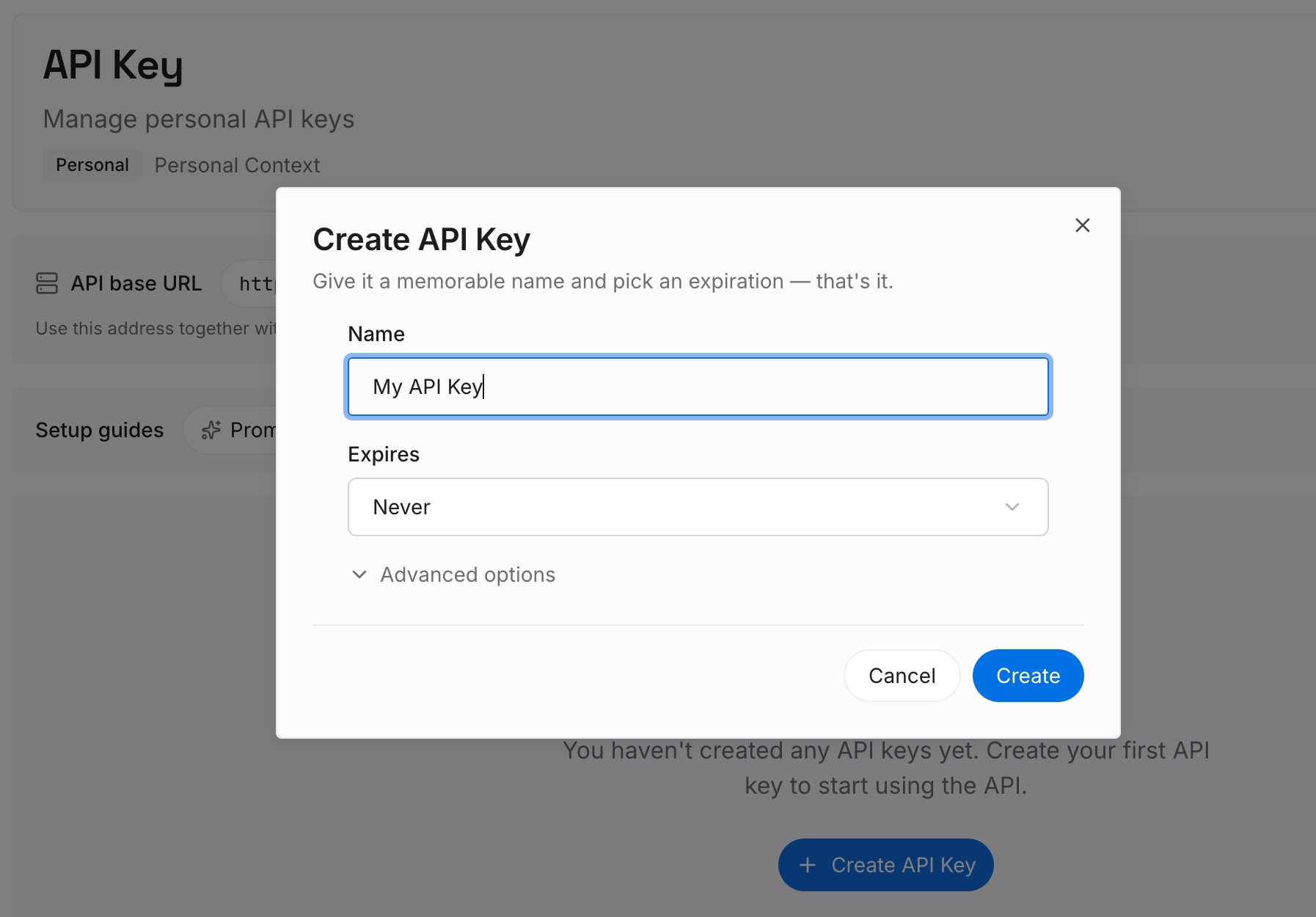
Step 1: Create an API key
Sign in and generate a key from the dashboard. The key belongs to your MemoryLake workspace and is separate from your Microsoft and Claude accounts.
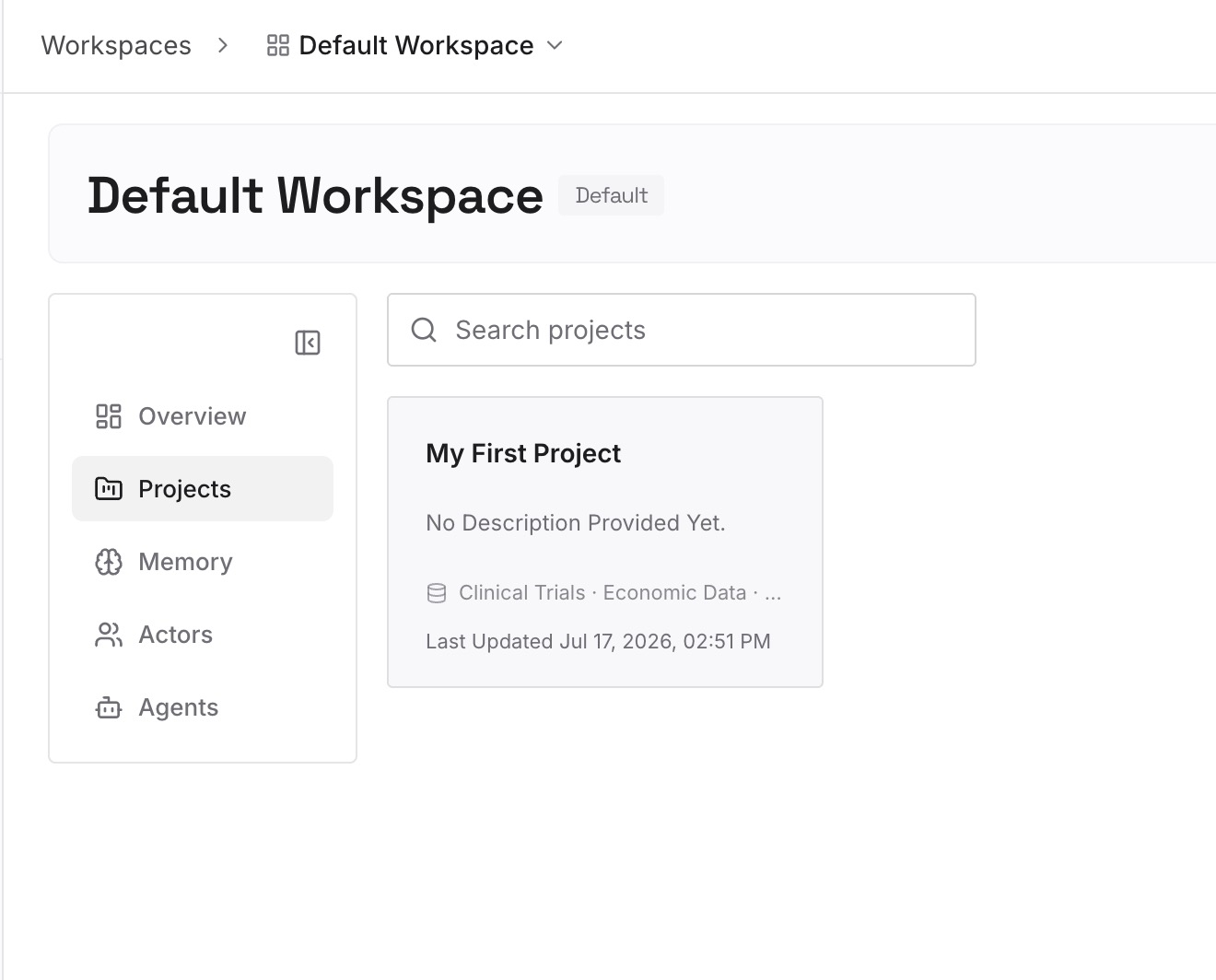
Step 2: Upload your first memories
Start with what you wrote in Step 2 of the manual migration: your preferences, the decisions behind ongoing work, and the summaries you'd otherwise rewrite. One point per entry, dated.
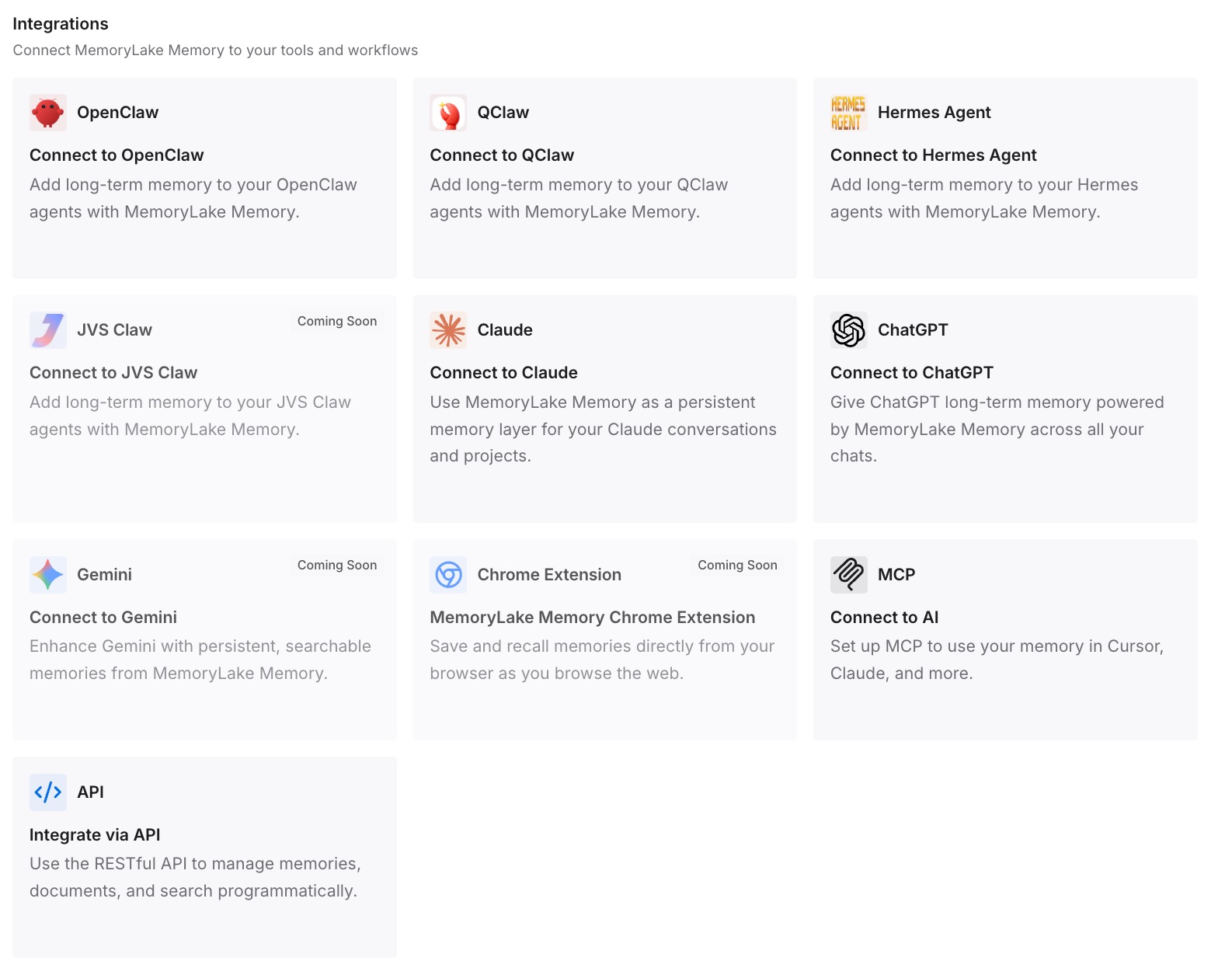
Step 3: Connect your AI & agents
Connect the assistants you use. The context you rely on is available wherever you continue the work, without another export.
What this changes in practice
The first difference is that your history becomes something you've read. A CSV is a record. A one-page summary per topic is context, and writing it shows you what was worth keeping.
The second is that each part lands in the right place in Claude. Facts about you go into memory, ongoing work goes into projects, and one-off questions stay behind.
The third is that the next move is smaller. If you change tools again, the important parts are already written down. If you want to clean up what Claude remembers later, our guide to making Claude forget something covers each place it keeps information.
Best practices for moving from Copilot to Claude
Export from the privacy dashboard first. It's your full record of prompts and responses.
Export every Copilot surface you used. Copilot apps and Microsoft 365 apps are separate.
Capture saved memories separately. Microsoft's export article doesn't mention them.
Sort before you upload. Summaries work better in Claude than raw transcripts.
Use memory import for facts about you. Keep it to preferences and work context.
Use one project per ongoing topic. Give each clear instructions.
Check what Claude learned. Ask it to summarize, and correct mistakes before you rely on it.
Conclusion
Moving from Microsoft Copilot to Claude is simple for the record and deliberate for the context. Microsoft's privacy dashboard exports your Copilot activity history as CSV for personal accounts, with Microsoft 365 app history in separate exports. Its export article doesn't mention saved memories, so capture those on your own. Claude doesn't import conversation history from other providers, but it does import memory, and projects hold the work you'll keep using.
Sort your export into what's about you, what's ongoing, and what was a one-off. Put the first into memory, the second into projects with a summary each, and leave the third behind. Then ask Claude what it knows and fix what it got wrong.