
What a Gemini Notebook notebook is made of
Sources: copies and auto-synced links
Google's definition of a source is the most important sentence for this migration: "A source is a copy or auto-synced version of the source document you import or upload to the app."
Google's sources article names Drive imports as the synced kind: "Sources imported from Google Drive are auto-updated and will sync every few minutes." That sync depends on your access to the original. Google's sources article says "If you lose access to a file in Google Drive or if the file is deleted, the source will be inaccessible, and you will no longer be able to view or interact with the source in your notebook."
Sources come in many types: PDFs, Word and PowerPoint files, Markdown, CSV, audio, images, web URLs, public YouTube videos, eligible Play Books ebooks, and Gemini chats. Limits are per source: "Each source can contain up to 500,000 words or up to 200MB for uploaded files. You can include up to 50 sources (for Free users)."
Notes
Notes are your own writing inside the notebook, including chat responses you saved. Google says "Created notes automatically appear in the Sources panel alongside your uploaded sources", and that they can be "used for Q&A, cited in Chat responses, and included in artifact generation." Older notes created in the Studio panel stay there until you convert them to note sources.
Notes are one of the few things with a documented export, to Google Docs. Google adds two caveats: "Any modifications made within the newly created Docs file will not synchronize with your original Gemini Notebook note", and "Sharing permissions will not carry over from Gemini Notebook to the new file."
Custom instructions
Each notebook can carry its own instructions for how chat responds. In Configure Chat you choose a conversational style, including a Custom style for a specific role or tone. If you also use notebooks from Gemini, Google says "Your notebook uses a single set of custom instructions across both Gemini Notebook and Gemini."
Chat history
"Chat history is retained and kept private to you." The chat article describes clearing it and saving individual responses with Save to note, but it doesn't describe exporting the history. Treat the chat as staying behind, and save the responses you need as notes first.
Gemini chats used as context
If you chat with a notebook from the Gemini app, those conversations can appear in the notebook's sources. Google says these Gemini chat threads "Are read-only in Gemini Notebook" and "Contribute to your notebook's knowledge base". They're managed in Gemini Apps, not in the notebook.
Studio outputs
Reports, data tables, mind maps, and flashcards have their own export routes. Reports go to Docs through Export to Docs in the three dots menu next to each report, and data tables go to Sheets. Mind maps can be downloaded, and flashcards can be downloaded "as a CSV file." There's one restriction to know about: "Depending on the publisher's content restrictions, you may not be able to download artifacts generated using a notebook that has a Play Books ebook as a source."
Where each part goes in Claude
Files you uploaded go into project knowledge
Claude's help article on projects says "Anything you upload to this space will be used across all of your chats within that project." Upload your original files rather than anything rebuilt from the notebook. On paid plans, a large knowledge base switches to retrieval: "When your project knowledge approaches the context window limit, Claude will automatically enable RAG mode" to expand capacity.
Drive sources can stay synced
This is where Claude matches Gemini Notebook most closely. With the Google Drive connector, you can add Drive files to a project, and Claude's help article says "Google Docs added to chats and projects sync directly from Google Drive, so you're always working with the latest version." There are two limits. Drive files can only be added to private projects: "This option will be disabled for shared projects." And "When Claude reads a Google Drive file, it extracts text content only. Images embedded in documents are not processed." If a Doc's diagrams matter, export them separately.
Notes become documents
Export each note to Google Docs, then add the Doc to your Claude project through Drive, or download it and upload the file. Saved chat responses travel the same way once they're notes.
Custom instructions become project instructions
Claude's project instructions do the same job: "Claude will use these instructions for all the chats within the project." Copy your notebook's custom style text across, then add anything the notebook did by default that you relied on. That brings up the biggest behavioral difference.
Grounding is something you ask for
Gemini Notebook answers only from your sources. Google's notebooks article says "Gemini Notebook - Responses are grounded exclusively in your notebook sources." A Claude project uses your project knowledge as context, and its help article doesn't describe a sources-only mode. If you depended on answers drawn only from your documents, with citations, write that into the project instructions: tell Claude to answer from the project files, say when the files don't cover a question, and name the file it used.
Web pages and videos need saving first
Web URLs and YouTube videos were sources you linked rather than files you own. Claude's project articles describe uploading documents, text, and code, and adding Drive files. Save the pages or transcripts you need as documents first, then upload them.
Chat history stays behind
Neither Google's chat article nor Claude's project articles describe moving a chat between them. Decisions you reached in the notebook's chat exist only there. Save the important answers as notes and export them, or write the conclusions down yourself.
The manual migration
Step 1: Export what lives inside the notebook, and gather the originals
Open the notebook and work through it in this order:
- Notes: convert any older Studio panel notes to sources, then export each note you want with Export to Docs.
- Chat: save the responses you still need with Save to note, then export those notes.
- Studio outputs: export reports to Docs and data tables to Sheets, and download mind maps or flashcards you use.
- Custom instructions: open Configure Chat and copy the text of a Custom style.
- Sources: list every source. For uploaded files, find your original copies. For Drive sources, confirm you still have access to the original. For web URLs and videos, save the content you need as a document.
Note which sources were active. Google says "Inactive sources will count towards source limits but will not be referenced throughout your notebook", so an inactive source may not be worth moving.
Step 2: Build the Claude project and check how it answers
Create a project named after the notebook. Paste the custom instructions into Set project instructions, along with the grounding instruction from above if you relied on source-only answers. Upload your original files and exported documents to project knowledge. Add Drive Docs through the Drive option if you want them to stay synced, keeping in mind that only works in a private project.
Then test it. Ask three or four questions you asked in the notebook and compare the answers, checking that Claude draws on the right document and says so when a question falls outside your files. Adjust the instructions until it does.
Claude's projects also have their own memory. The projects article says "Each project has its own memory", with an option on the project's page to keep it separate from your account memory.
The Better Way: Keep the conclusions somewhere that isn't tied to one notebook
A notebook's sources move. What you concluded from them is easier to leave behind: the finding you checked, the comparison you settled, the question you decided not to pursue. Those lived in chats and notes, which have to be exported or written down to come with you.
MemoryLake is a memory layer for keeping that kind of research context in one list you maintain, available to the assistants you connect, such as Claude Code, ChatGPT, and Codex, alongside the project where your documents live.
You write the entries yourself, in your own words. Nothing is read out of, written to, or deleted from your Gemini Notebook notebooks, your Google Drive, your Gemini Apps activity, your Claude projects, or any vendor's store. Leave out material you don't have the rights to share, and follow your organization's policy for work documents.
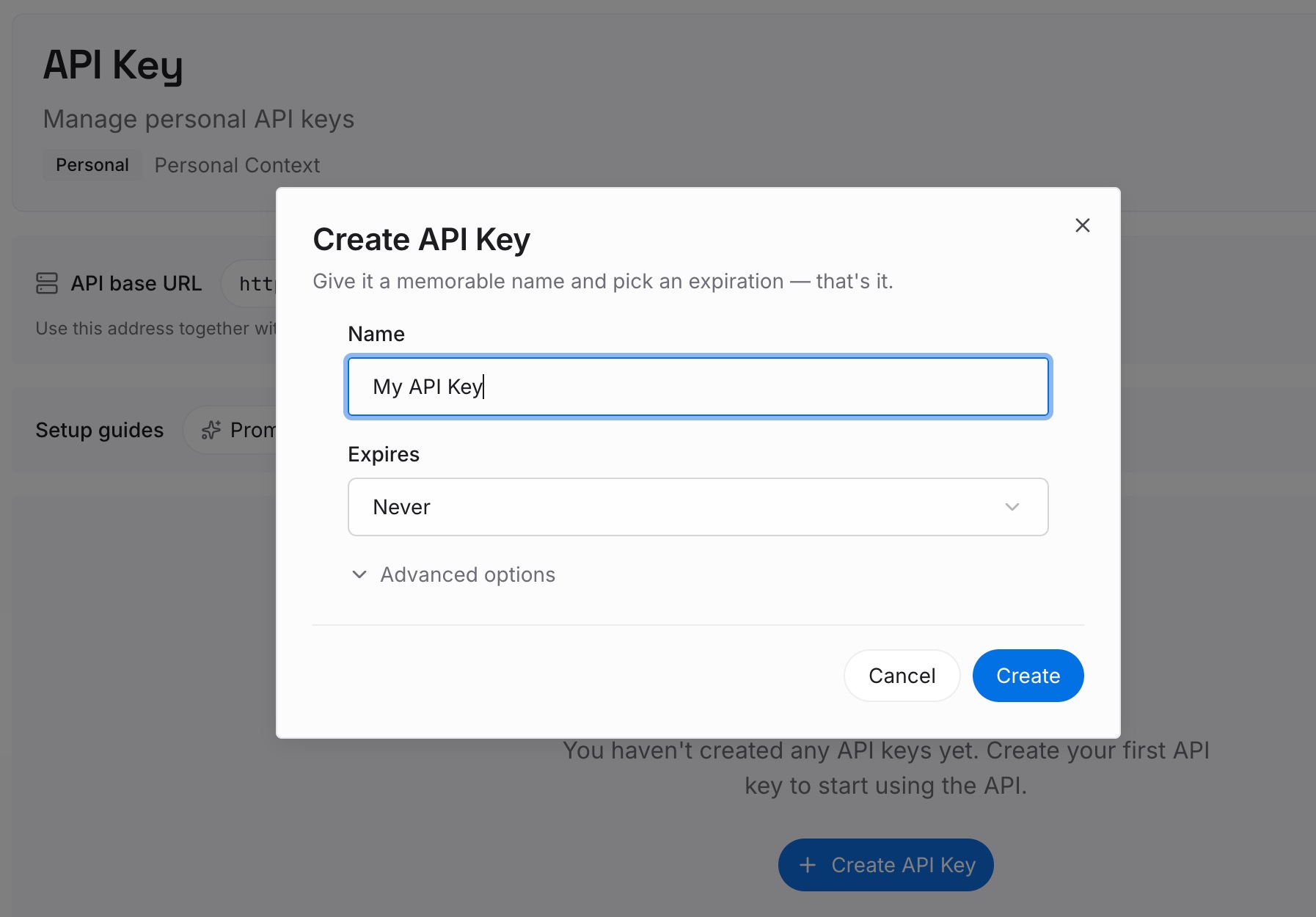
Step 1: Create an API key
Sign in and generate a key from the dashboard. The key belongs to your MemoryLake workspace and is separate from your Google and Anthropic accounts.
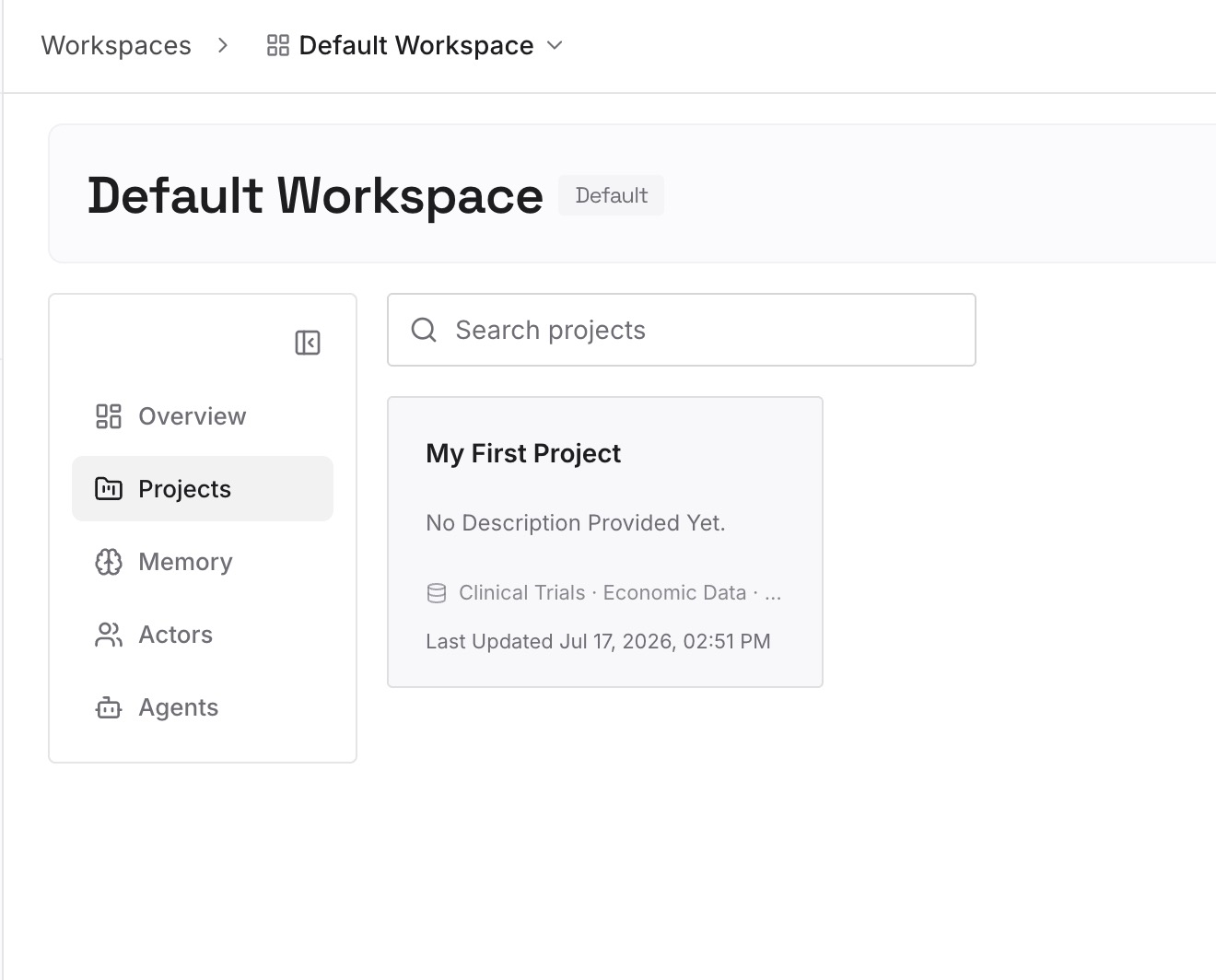
Step 2: Upload your first memories
Start with the conclusions you exported from the notebook's notes and chat: what you found, what you ruled out, which source settled which question. One finding per entry, dated, with the source it came from.
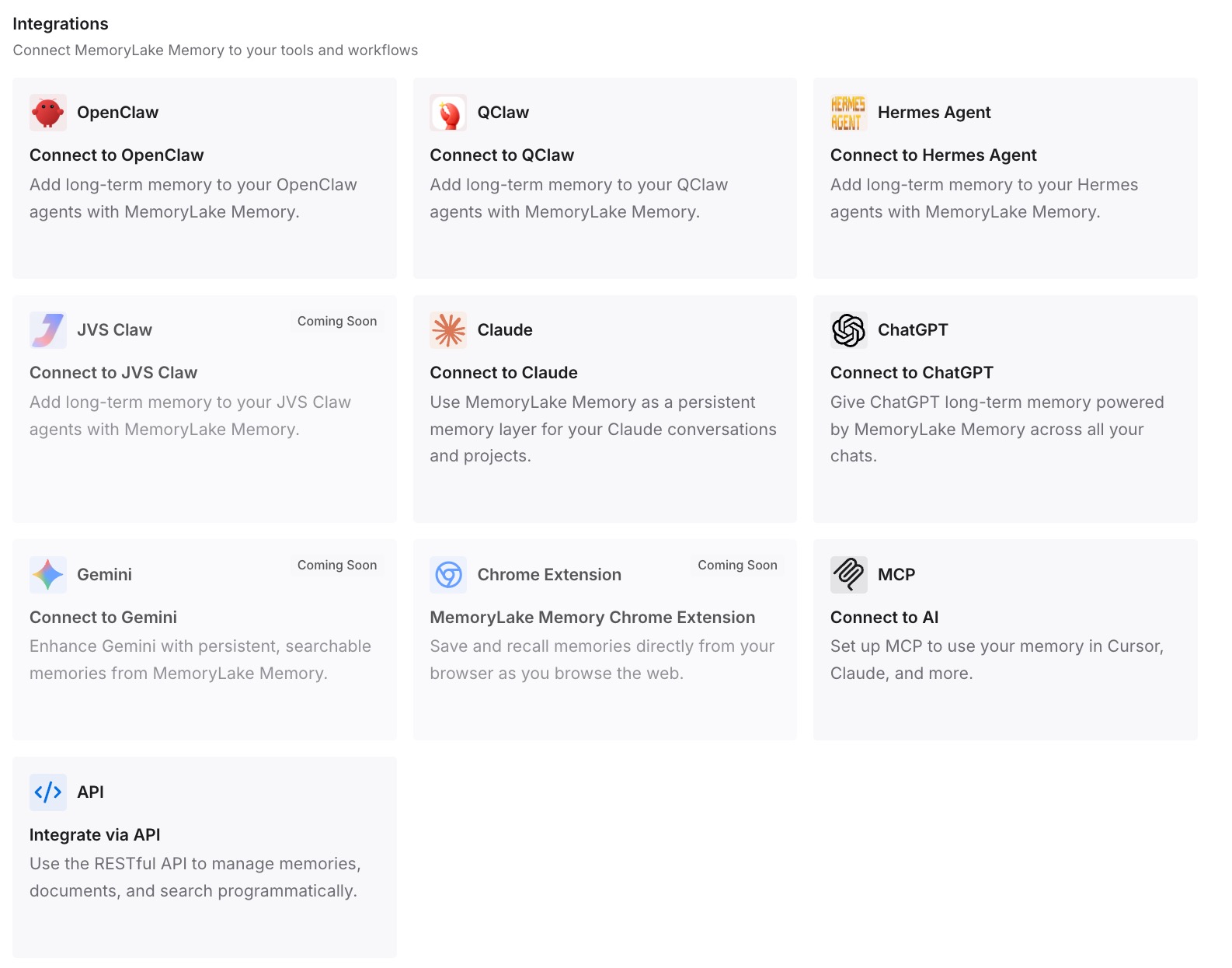
Step 3: Connect your AI & agents
Connect the assistants you use. Your documents stay in the project, and the conclusions you wrote are available wherever you pick the research up next.
What this changes in practice
The first difference is that synced documents stay current. Drive Docs added to a private Claude project also sync from Drive, as your Drive sources did in the notebook, so you don't have to re-upload them when they change.
The second is that notes become real files. Exported to Docs, your notes are documents you can edit, share, and keep, instead of entries that only exist inside one notebook.
The third is that answers stay anchored to your files when you ask for it. Writing the grounding rule into project instructions keeps the habit Gemini Notebook built in. If Claude still seems to lose track of uploads in long work, our guide to why Claude forgets uploaded files covers the causes, and our guide to stopping PDF re-uploads in Claude covers keeping reference documents in place.
Best practices for moving Gemini Notebook notebooks to Claude
Export notes before anything else. They're your own writing and have a documented export.
Save chat answers as notes first. The chat history itself stays behind.
Upload originals, not copies of copies. Find the files you first added as sources.
Keep Drive Docs synced in private projects. The Drive option is disabled for shared projects.
Write the grounding rule into instructions. Ask Claude to answer from the project files and say when they don't cover a question.
Save web pages and transcripts as files. Linked sources don't carry across.
Check Play Books sources. Artifacts from those notebooks may not be downloadable.
For other research tools that move into Claude projects the same way, our guide to migrating Perplexity Spaces to Claude and our guide to migrating Notion AI to Claude follow the same pattern.
Conclusion
A Gemini Notebook notebook maps well onto a Claude project. Uploaded files go into project knowledge, Drive Docs can stay synced in a private project, exported notes become documents, and custom instructions become project instructions. The parts that need care are the ones that only live inside the notebook: notes and reports, which have documented exports to Docs and Sheets, and the chat history, which doesn't.
Export your notes and Studio outputs, save the chat answers you need as notes first, gather your original files, and rebuild the notebook as a project with a grounding instruction. Then test it against questions you asked before. If you're also bringing over what Gemini remembers about you, our guide to migrating Gemini memory to Claude covers that part.