
What actually transfers
Start with Otter's side. "You can export conversations, including ones shared with you, in multiple formats (audio and text)." Text exports come as TXT, DOCX, PDF or SRT, with options to show speaker names, timestamps and highlights. Plan matters: "Basic plan users can export conversations only as TXT files."
Summaries export separately. "You can export the conversation Summary (Overview, Action Items, Insights, Outline, and Custom Prompt) at any time or easily copy each section individually." Which sections appear depends on your template: "The summary options available in the Export dialog are determined by the template applied to the conversation."
Two parts need copying by hand. Otter's FAQ says "The Outline can't be exported as a file, but you can copy the full summary and pull out the individual Outline items," and "Action Items can't be exported directly, but you can copy them manually."
For volume, there is bulk export, with a limit on who gets it: "The bulk export feature is only available on the Otter Business and Enterprise plans." Bulk exports arrive as a ZIP file by email. On the web, select-all only picks up the conversations loaded on the current page, so scroll to load everything before you select.
Older conversations are still reachable. If you are on the free plan, "On the Basic free plan, you can access your 25 most recent conversations," and older ones are archived, not deleted. Otter confirms: "You can export an archived conversation without unarchiving it or upgrading your plan." One catch involves shared calls: "Conversation archiving is based on the conversation owner's plan, not the plan of the person the conversation is shared with."
You can also take your time. Otter says changing or canceling a plan leaves your history in place: "Your conversations are only deleted if you choose to delete them, delete your account, or your account is deleted by a workspace admin." That means you can keep Otter as the reference copy until you have checked that everything you need arrived in ChatGPT.
Now ChatGPT's side. There are two destinations, and they do different jobs.
Meetings, for new calls. "Meetings is available in beta in the ChatGPT desktop app on macOS for all Pro plans and all Business plans." It records through your Mac's microphone and system audio, without a bot joining the call. Notes land on a page in Space, and "Meetings uses the transcript, your notes, and relevant context from connected apps you've authorized to add a personalized summary and suggested action items to the same page." Meetings is a separate feature from Record, the older desktop app's recorder, whose history is covered in managing what ChatGPT Record mode carries.
Projects and Space, for your history. Your Otter archive is files, so it belongs where ChatGPT keeps files and context. A project holds files, instructions and chats, with per-plan limits on files. Space, available on Pro, Business and Enterprise, holds pages and uploaded files, and "Space replaces Library for accounts with access to Space."
What doesn't transfer on its own is meaning. A transcript records what was said. It does not record which of the things said became decisions, which were dropped, or why. Otter's summaries help, but the decisions you rely on still need to be pulled out deliberately.
The manual migration
Step 1: Export your Otter history, and decide what is worth moving
Begin with consent and policy. Meeting transcripts contain other people's words. Before moving recordings of colleagues, clients or patients into another service, check your organization's policy and any agreements that covered the original recording. If in doubt, move summaries and your own notes rather than full transcripts.
Then choose scope. Most people do not need every call. Pick the meetings that still matter: active projects, recurring client calls, decisions you expect to revisit. A weekly stand-up from two years ago rarely earns its place; the kickoff call where a client explained their constraints usually does.
For each one, export two things. The transcript as DOCX or PDF, with speaker names and timestamps turned on. And the summary, with every section your template offers. Copy the Outline and Action Items by hand into the same document, since Otter does not export them as files.
If you have many calls and a Business or Enterprise plan, use bulk export. Otherwise, export the important ones individually, including archived conversations, which Otter lets you export without upgrading.
Finally, combine. Projects have file limits, so merge related transcripts into one document per project or per client, in date order, with each meeting's summary at the top of its section. This also makes the history easier for ChatGPT to search.
Before you finish, write a one-page decision log for each project: the decisions made in those meetings, who made them, when, and why. Otter's summaries are your raw material here. This page is the part that actually carries the context.
Step 2: Bring the history into a ChatGPT project, and take new notes with Meetings
Create a project for each body of work. Upload the decision log first, then the combined transcript files. Add project instructions describing what the project is, who the regular participants are, and how you want answers framed.
Choose the memory setting deliberately. OpenAI notes that "Projects can use either default memory or project-only memory." For client meetings or anything confidential, project-only memory keeps the context in one place: "When you switch a project to project-only memory, information from that project is removed from memory used outside the project." For your own recurring team meetings, default memory may be more useful, since what you learn there can inform other chats.
If you have Space, you can also keep the decision log as a page, which makes it easier to edit and share. Keep in mind how Space handles memory: "If Memory is enabled, ChatGPT may use personal context when helping you write or update a page." Review a page before sharing it.
Test the move. Ask the project a question your Otter history should answer, such as what was agreed with a client in a specific month and why. If the answer comes from your decision log, the context arrived. If it does not, the information is still in a transcript that needs summarizing.
Then switch new meetings to the Meetings plugin, if you are on a supported Mac and plan. Follow OpenAI's consent rule: "Tell everyone in the meeting that you'll be taking notes from the meeting and get everyone's consent before you start." OpenAI is clear that the in-app reminder is for you: "It does not notify other participants or obtain their consent for you."
Meetings also enriches its summaries beyond the transcript. OpenAI says it "uses ChatGPT Work and relevant context from your connected apps to enrich your meeting summaries and suggest follow-up action items." Review those suggestions before acting on them. OpenAI's own advice for the notes is to review important details before relying on them or sharing them, and the same caution applies to anything ChatGPT proposes to do next.
Know how Meetings stores things. "Pages created for your meeting notes are private by default." When you share one, "the people you share it with can access the notes, but not the transcript." Shared pages follow each reader's own settings, too: "If a collaborator has Memory enabled, their ChatGPT may remember information from the shared page even when your Memory is off." And the recording itself is short-lived: "Once your notes are ready, the audio is deleted from your Mac and OpenAI's servers and can't be replayed."
The Better Way: Keep the decisions from your meetings somewhere every tool can reach
The manual migration moves your history into ChatGPT. It also shows where the value is. The transcripts are bulky and rarely reread. The decision log is short, and it is what you actually need when a question comes up.
That log is also the part most at risk of being stranded again. A project is one container in one product. Shared projects keep to themselves by design: OpenAI states they "do not have access to an individual member's context, custom instructions, or memories outside the project." If your team also works in other assistants, or you switch tools next year, the decisions should not have to be rebuilt.
MemoryLake is a place to keep that layer, so it reaches ChatGPT and every other assistant you use.
You write the entries yourself, in your own words. Nothing is read out of, written to, or deleted from your Otter account, your ChatGPT projects or Space, or any vendor's store.
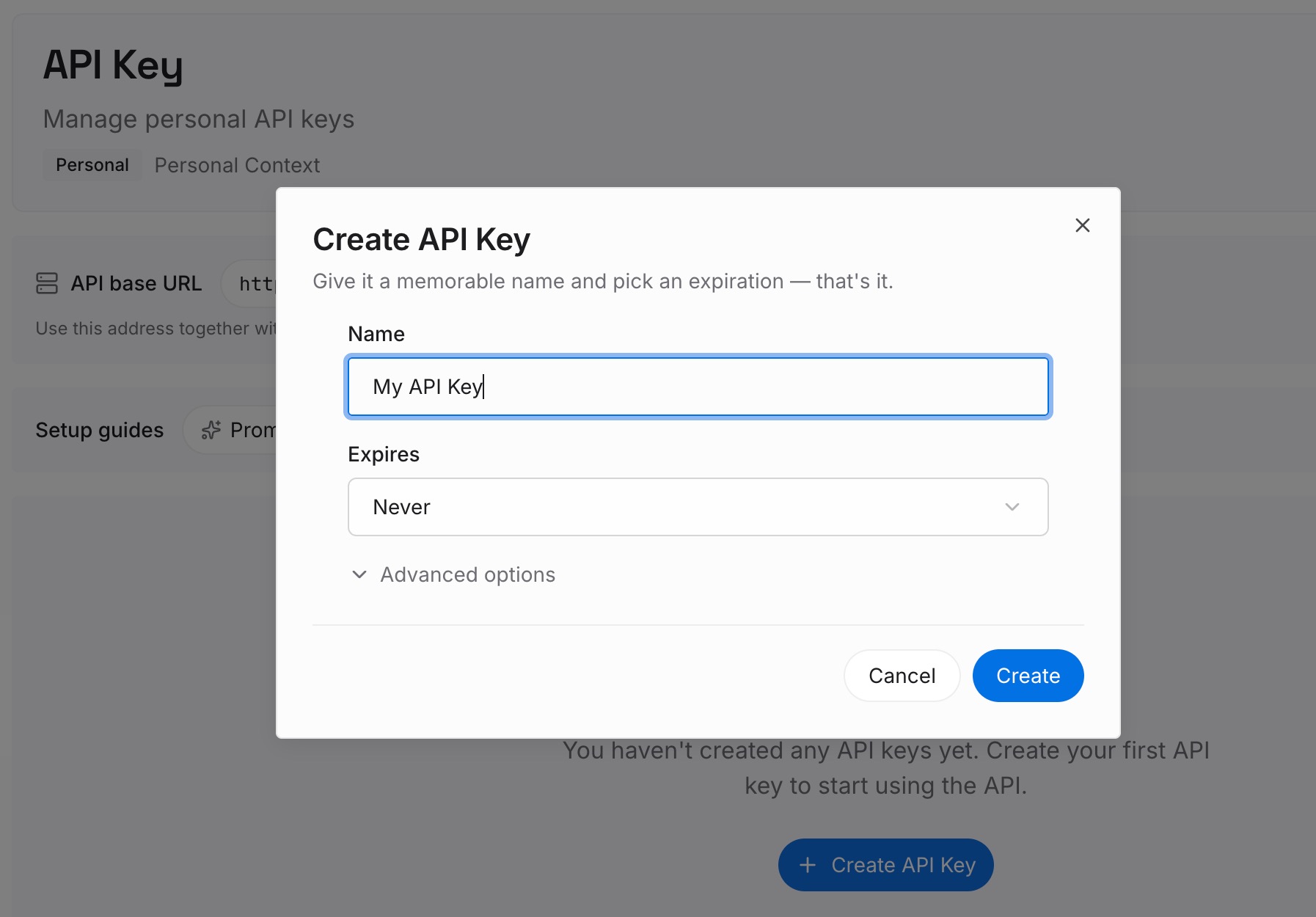
Step 1: Create an API key
Sign in and generate a key from the dashboard. The key belongs to your MemoryLake workspace, separate from any meeting tool or ChatGPT project.
Step 2: Upload your first memories
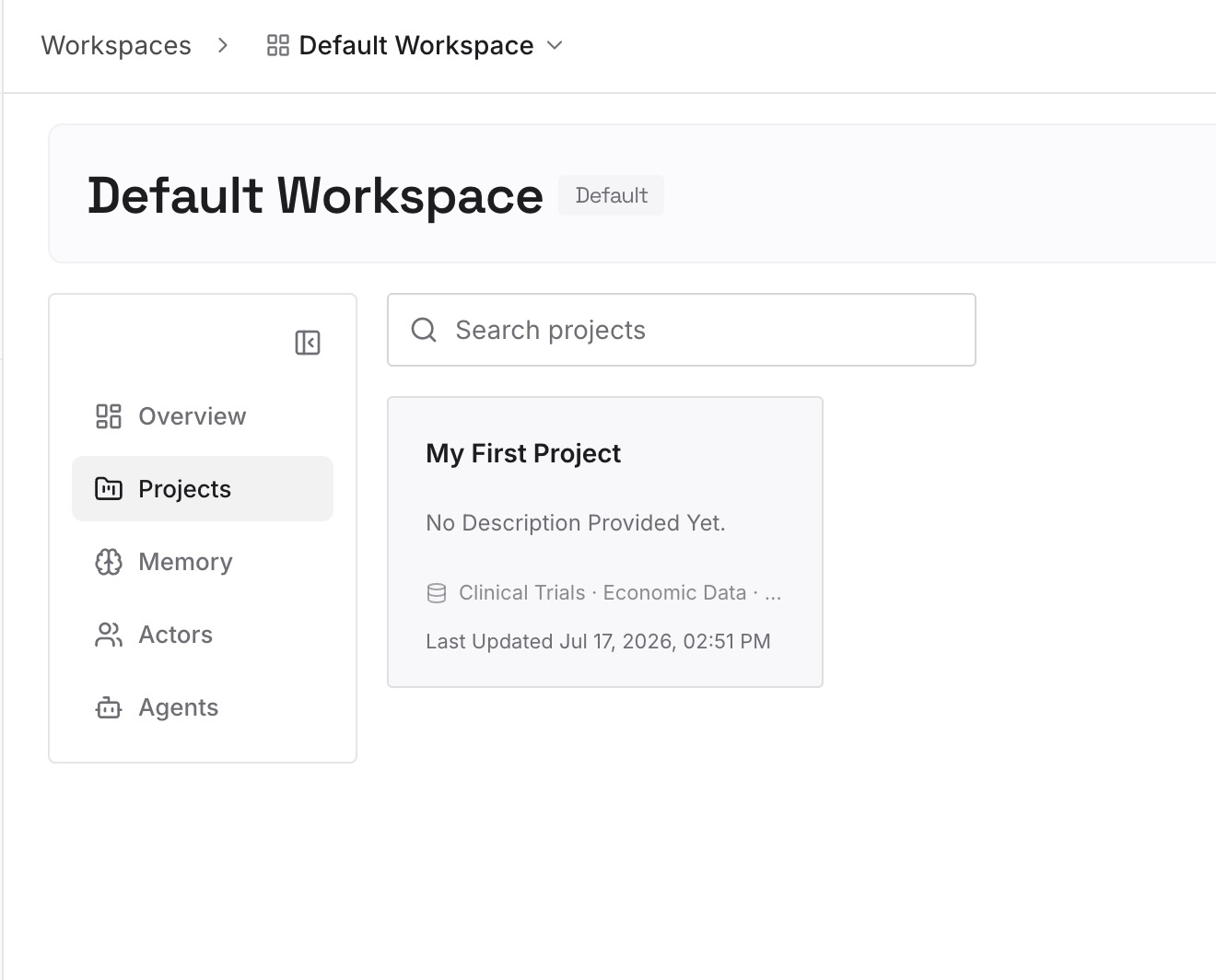
Start with the decision logs from the manual migration. One decision per entry, dated, with who made it and why.
Step 3: Connect your AI & agents
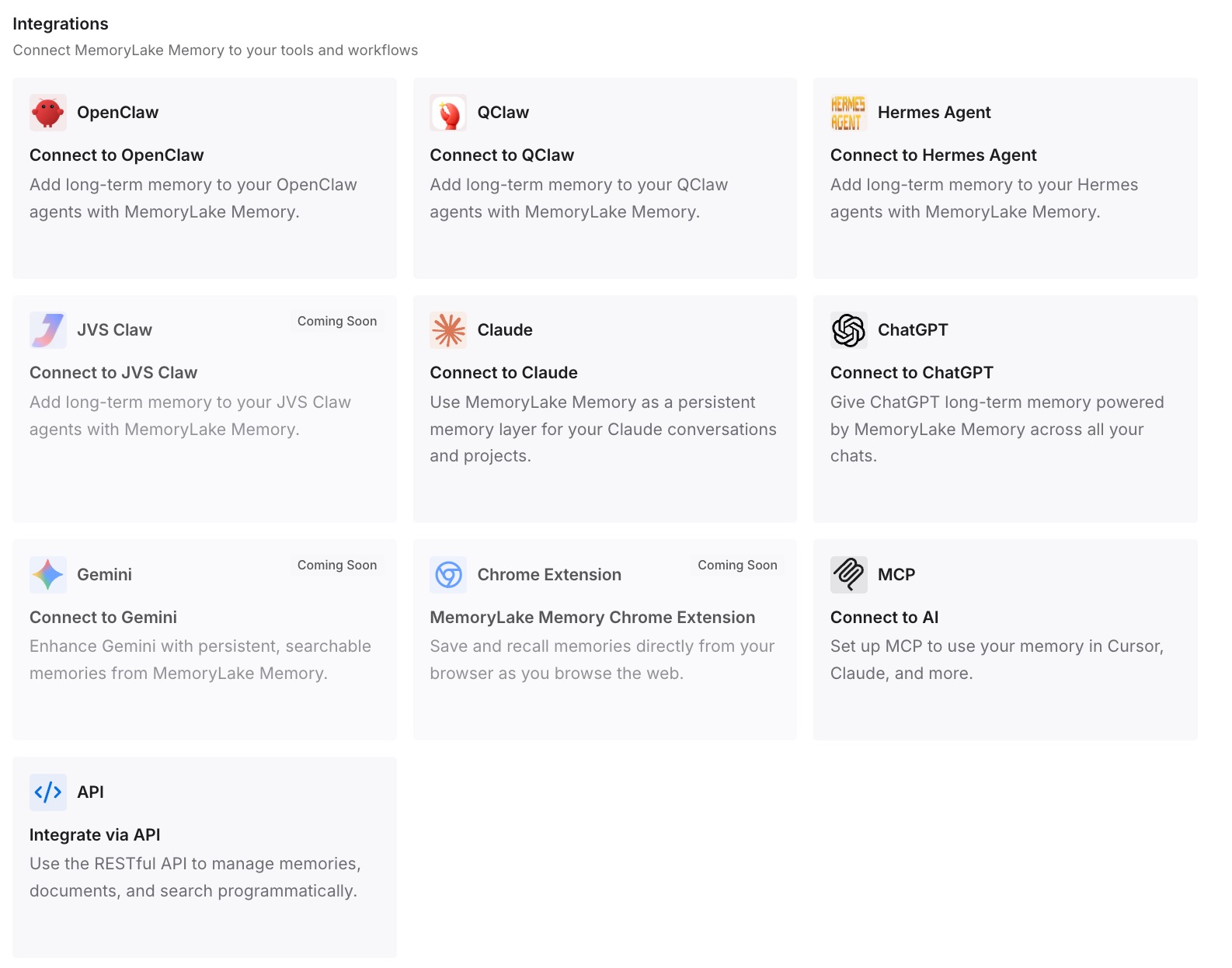
Connect ChatGPT and the other assistants you use. The decisions from your meetings are then available in each of them, alongside whatever notes tool you use next.
What this changes in practice
The first difference is that meeting history becomes answerable. Instead of searching a folder of transcripts, you ask a question and get the decision with its date and reason.
The second is that new notes and old notes meet. Meetings writes new summaries into Space, and your migrated history sits in a project next to them. For how files behave once they are in ChatGPT, see why ChatGPT forgets uploaded files.
The third is that sharing becomes deliberate. Meeting pages are private by default and shared pages exclude transcripts, which is a sensible default for notes that quote other people. Projects draw their own boundaries too, covered in whether ChatGPT projects share memory.
The fourth is that the decisions outlast the tools. Whether your next notes app is Otter, ChatGPT or something else, the decision log is already written and portable. The same idea applies to any document set, as turning project docs into AI memory explains.
Best practices for moving meeting notes into ChatGPT
Check consent and policy first. Transcripts contain other people's words.
Move what still matters. Active projects and recurring relationships, not every call.
Export summaries with transcripts. Copy Outline and Action Items by hand.
Combine files per project. Projects have file limits, and merged files are easier to search.
Write a decision log. It carries more context than any transcript.
Test with a real question. If the project cannot answer it, something is still missing.
Review pages before sharing. Memory can inform what ChatGPT writes onto a page. For a wider look at meeting tools and what they keep, see AI tools that remember your meetings, and if your meeting notes feed a team, moving a group's context into a shared project covers the sharing side.
Conclusion
Otter makes its data portable. You can export transcripts and summaries, bulk export on business plans, and reach archived conversations without upgrading. ChatGPT now has a place for both halves: projects and Space for your history, and the Meetings plugin for new calls.
What does not move on its own is the meaning: which things said became decisions, and why. Export what still matters, combine it per project, write a decision log, test it, and take new notes with Meetings, with everyone's consent.
Keep the decisions themselves somewhere every tool can reach, and the next move will be the easy kind.